
Best Home Office Setup Under $500 for Freelancers
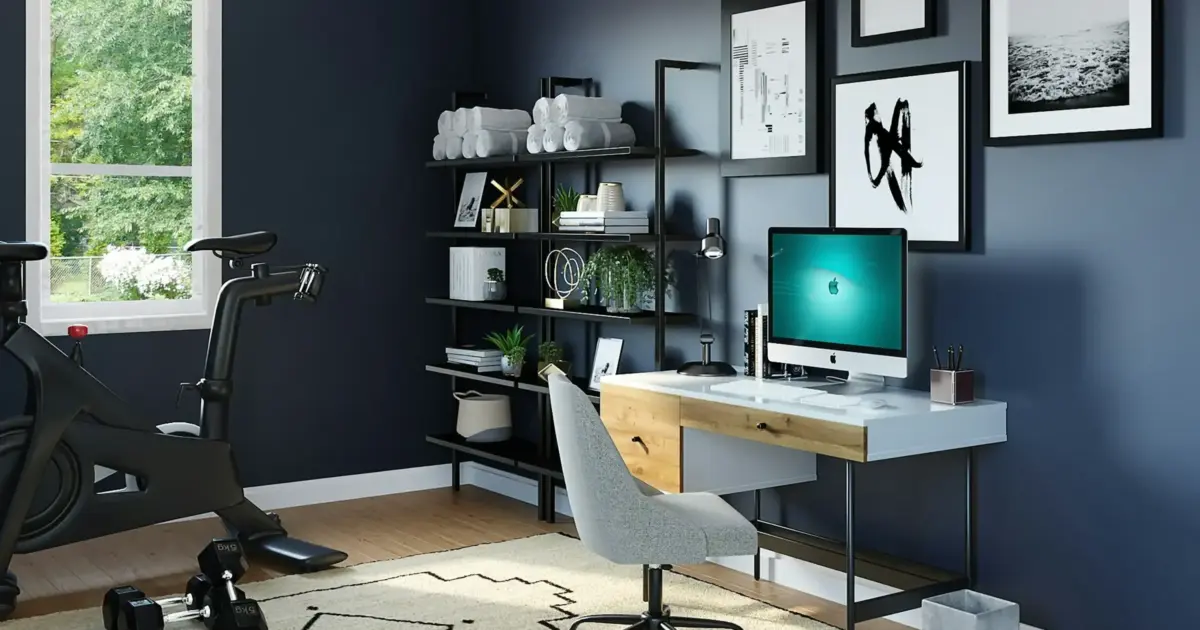
I’ve built home offices for under $200 and over $5,000. The expensive ones weren’t always better. After 16+ years of remote work and helping 800+ clients set up their workspaces, I can tell you this: $500 is the sweet spot where you get everything that actually matters without wasting money on things that don’t.
Most freelancers get the priority order wrong. They buy the flashy desk first, then a cheap chair, then wonder why their back hurts after three months. I made this exact mistake when I started. Sold the fancy desk, bought a proper chair, and the difference was night and day.
This guide breaks down exactly how I’d spend $500 on a home office in 2026. Every product here is something I’ve either used personally or recommended to clients who came back happy. No filler picks, no padding the list with 20 options when 2-3 per category is all you need.
The Priority Order
Before you start adding things to your cart, understand what actually moves the needle for your productivity. I’ve seen freelancers spend $300 on a desk and $40 on a chair. That’s backwards.
- Chair ($100-150): You sit in it 8+ hours a day. A bad chair causes back pain, fatigue, and long-term health problems. This is not optional.
- Monitor ($100-150): More screen real estate means less window juggling. Your laptop screen is limiting you more than you realize.
- Keyboard and mouse ($40-75): Decent input devices reduce wrist strain and improve typing accuracy. You’re touching these all day.
- Desk ($70-100): It holds your stuff. Any stable surface works. Don’t overspend here.
- Accessories ($20-50): Lighting, laptop stand, power strip. Nice to have, not essential.
Most people get this backwards. They buy the pretty desk first and cheap out on the chair. Don’t be most people. If you want more comprehensive guidance on building out a workspace, check out my full home office setup guide.
Budget Breakdown
Here’s how I’d allocate $500 across the five priorities. This leaves room to flex based on what you already own. If you have a decent monitor, put more into the chair. Already have a keyboard? Upgrade the desk.
| Category | Budget | Priority |
|---|---|---|
| Chair | $100-150 | Essential |
| Monitor | $100-150 | Essential |
| Keyboard | $40-75 | Important |
| Mouse | $20-40 | Important |
| Desk | $70-100 | Basic |
| Accessories | $20-50 | Optional |
Best Budget Ergonomic Chairs Under $150
The chair market below $150 is mostly garbage. I’ve tested chairs that looked great on Amazon and fell apart in six months. But a few options stand out, and these are the two I keep recommending to freelancers on a budget.
Mimoglad Home Office Chair

Mimoglad Office Chair, High Back Ergonomic Desk Chair with Adjustable Lumbar Support
- Ergonomic S-curve design maintains natural spine alignment and reduces back fatigue
- Breathable mesh back keeps you cool during long work sessions
- Adjustable lumbar support and flip-up armrests for narrow desks
- 350 lb weight capacity with sturdy base and smooth-rolling casters
This is my go-to recommendation for freelancers building their first home office. At around $100, you’re getting a mesh-back chair with actual adjustable lumbar support, not the decorative kind that does nothing. The flip-up armrests are a feature I didn’t know I needed until I tried working at a narrow desk. Just flip them up and slide right in.
I’ve recommended this chair to at least a dozen clients, and the feedback has been consistent: comfortable for 6-8 hour days, breathable enough that you don’t stick to it in summer, and sturdy enough to last a couple of years. The seat cushion does flatten after 12-18 months, which is the tradeoff at this price point. If you’re over 200 lbs, skip this and look at the SIHOO below. For everyone else, this is the best value chair under $150.
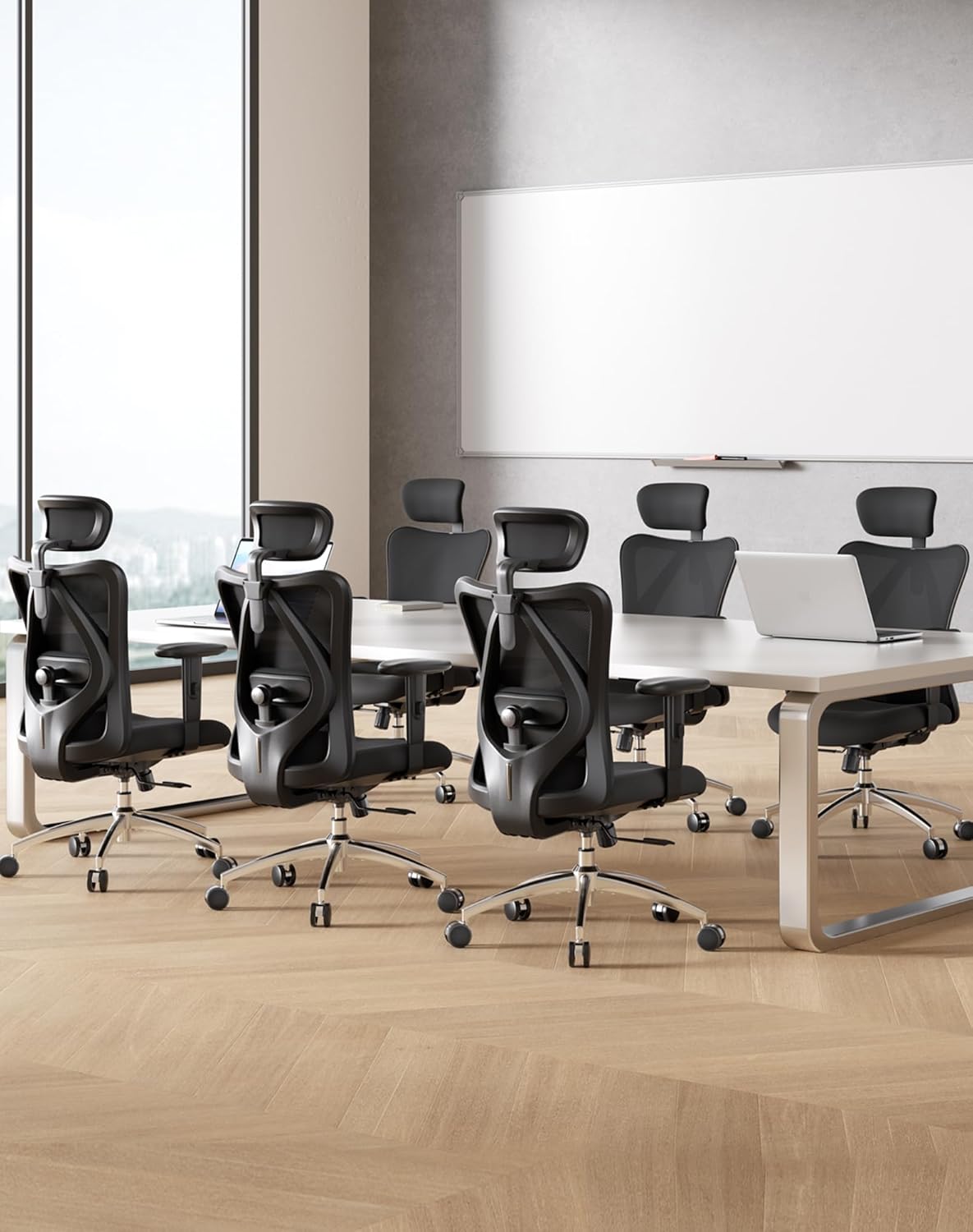
SIHOO M18 Ergonomic Office Chair
SIHOO M18 Ergonomic Office Chair with Adjustable Headrest and Lumbar Support
- 4-point ergonomic support: head, back, hips, and hands for full-body comfort
- Height-adjustable lumbar support and adjustable headrest for taller users
- 3D adjustable armrests (height, angle, depth) for customized positioning
- Larger seat accommodates bigger frames comfortably
If you’re taller than 5’10” or need headrest support, the SIHOO M18 is the better pick. It gives you 4-point ergonomic support (head, back, hips, hands) with 3D adjustable armrests that the Mimoglad doesn’t offer. The height-adjustable lumbar actually follows your spine’s curve, which matters when you’re doing 10-hour coding sessions or client calls back to back.
The tradeoff? Assembly takes 30+ minutes and some units come with squeaky wheels. The armrest adjustment mechanism also feels a bit cheap compared to chairs double the price. But for $150, you’re getting features that chairs at $300-400 offer. If you’re a bigger person or you need that headrest for leaning back during long thinking sessions, spend the extra $50 here. It’s worth it.
One thing to avoid at this price range: “gaming chairs.” They look aggressive and cool, but the racing-style bucket seats are designed for Twitch streams, not 8-hour freelance workdays. Skip anything without adjustable lumbar support. Your back has a curve, and your chair needs to match it.
Best Monitors Under $150
For freelance productivity, you want size and clarity. Gaming features like 144Hz refresh rates and 1ms response time are irrelevant when you’re working in spreadsheets, writing proposals, and managing client projects. Don’t pay for specs you won’t use. If you’re looking for programmer-specific recommendations, I have a separate guide on the best monitors for programmers.
Acer KB272 27-Inch FHD IPS
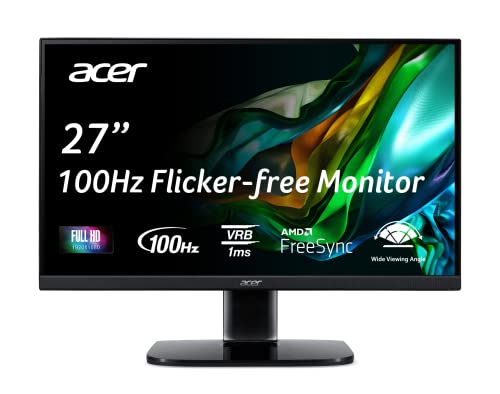
Acer KB272 EBI 27-Inch IPS Full HD 1920 x 1080 Zero-Frame Monitor
- 27-inch Full HD IPS panel with wide viewing angles for home, gaming, or office
- 75Hz refresh rate with AMD FreeSync for smooth, tear-free visuals
- Zero-frame design with slim bezels for a clean, modern look
- VESA mountable for easy monitor arm setup later
27 inches of screen real estate at under $100 when it’s on sale. That’s hard to beat. The IPS panel gives you decent colors and wide viewing angles, which matters if you’re doing any design work or reviewing client deliverables. The 75Hz refresh rate is slightly smoother than the standard 60Hz, and while you won’t notice it in spreadsheets, scrolling through long documents feels noticeably better.
The slim bezels keep the desk footprint manageable, and it’s VESA mountable if you decide to add a monitor arm down the road. The stand is basic with no height adjustment, so you might want to stack a book or two underneath it. Built-in speakers are useless, but that’s true for every monitor at this price. The only real limitation: 1080p at 27 inches isn’t razor sharp. If you sit close to the screen, you’ll notice individual pixels. For most freelancers working at arm’s length, it’s fine.
ASUS VA24DQ 24-Inch FHD IPS

ASUS VA24DQ 24-Inch 1080P Full HD 75Hz IPS Monitor with Adaptive-Sync and Eye Care
- 24-inch Full HD IPS display with 178-degree wide viewing angles
- 75Hz refresh rate with Adaptive-Sync/FreeSync for smooth visuals
- Built-in speakers and low blue light mode for comfortable evening work
- HDMI and DisplayPort inputs for flexible connectivity
If you have a smaller desk or sit closer to your screen, the ASUS VA24DQ at 24 inches is the smarter pick. Here’s why: 1080p looks noticeably sharper at 24 inches than at 27 inches. The pixel density is higher, text is crisper, and you won’t see that faint graininess that larger 1080p panels sometimes show.
This monitor also has built-in speakers that actually work for video calls, which saves you from buying a separate speaker setup. The low blue light mode is genuinely useful for evening work sessions when you’re pushing through a deadline. HDMI and DisplayPort inputs give you flexibility if you’re connecting multiple devices. At around $120, it’s slightly more expensive per inch than the Acer, but the sharper image makes it worth the tradeoff if screen clarity matters to you.
Don’t bother hunting for a 4K monitor under $150. The few that exist at that price have terrible panels, bad colors, and limited inputs. You’ll get a much better experience with a quality 1080p panel now and upgrading to 4K when your budget allows.
Best Budget Keyboards for Typing
Your keyboard matters more than you think. I type 5,000+ words daily between client work, blogging, and emails. A bad keyboard causes wrist strain and slows you down. You don’t need to spend $200 on a keyboard, but you shouldn’t settle for whatever came in the box either.
Logitech MK540 Wireless Combo

Logitech MK540 Advanced Wireless Keyboard and Mouse Combo
- Full-size layout with number pad and built-in palm rest for comfortable typing
- Quiet, low-profile membrane keys that won't disturb roommates or family
- Wireless keyboard and mouse share a single USB receiver
- 36-month keyboard battery life, 18-month mouse battery life
At around $40 for both a keyboard and a mouse, this is the best value combo for budget-conscious freelancers. The keyboard has a full-size layout with a number pad (essential if you do any invoicing or data work), quiet membrane keys, and a built-in palm rest that’s surprisingly comfortable for long typing sessions.
Both devices share a single USB receiver, so you’re only using one port. The keyboard battery lasts 36 months, and the mouse battery lasts 18 months. That’s “set it and forget it” territory. The downside is that it’s membrane, not mechanical, so you don’t get the tactile feedback that faster typists prefer. The included mouse is basic. But as a starting point for someone who needs everything right now, this combo handles the job.
Keychron V3 Mechanical Keyboard

Keychron V3 Wired Custom Mechanical Keyboard, TKL QMK/VIA Programmable with Hot-Swappable Switches
- TKL 80% layout with QMK/VIA programmable support for endless customization
- Hot-swappable switches let you change switches without soldering
- Solid aluminum build quality that feels premium at a budget price
- Available with red or brown switches, plus RGB backlighting
If you want the mechanical keyboard experience without spending $150, this is where to start. The Keychron V3 is a real mechanical keyboard at $45, which is remarkable. It has hot-swappable switches, meaning you can try different switch types later without buying a new keyboard or learning to solder. That alone makes it future-proof in a way most budget keyboards aren’t.
The TKL (tenkeyless) layout drops the number pad to save desk space while keeping the function row and arrow keys. The build quality feels solid, not hollow and rattly like most cheap mechanicals. I’d recommend brown switches if you’re new to mechanical keyboards. They give you tactile feedback without the loud clicking that drives roommates crazy. Red switches are smoother and quieter but offer no tactile bump. The only downsides: it’s wired only (no Bluetooth), and the ABS keycaps will get shiny over time. Replace them with PBT keycaps for $15-20 when that happens.
Royal Kludge RK61

RK ROYAL KLUDGE RK61 Wireless 60% Triple Mode Mechanical Keyboard, BT5.0/2.4G/USB-C
- Triple mode connectivity: Bluetooth 5.1, 2.4GHz wireless, and USB-C wired
- Compact 60% layout with 61 keys saves maximum desk space
- Hot-swappable switches and RGB backlighting for customization
- Multiple switch options available: red, brown, and blue
The RK61 is for freelancers who want a wireless mechanical keyboard without paying Keychron wireless prices. At around $55, you get Bluetooth 5.1, a 2.4GHz dongle, and USB-C wired mode. That’s triple connectivity at a price most brands charge for just Bluetooth.
The 60% layout means no function row and no number pad, which saves a ton of desk space. If you’re working on a small desk or you’re a laptop user who wants a minimal footprint, this makes sense. The learning curve is real though. F-keys require holding Fn, and some shortcuts take a week to become muscle memory. If you rely on the number pad for invoicing or data entry, this isn’t the right keyboard for you. But for writers, designers, and developers who live in their editor, 60% is all you need.
Best Budget Mice for Work
The mouse bundled with keyboard combos is usually terrible. If you can stretch the budget by even $20-30, a proper mouse makes a significant difference in comfort and efficiency. You’re clicking and scrolling all day. It’s worth spending a little more here.
Logitech M720 Triathlon

Logitech M720 Triathlon Multi-Device Wireless Mouse
- Multi-device Bluetooth with Easy-Switch button to cycle between three devices
- Comfortable full-palm grip shape for extended use
- Dual scroll wheel modes: ratchet for precision and free-spin for long documents
- Single AA battery lasts 2+ years of daily use
This is my default recommendation for freelancers who use multiple devices. The Easy-Switch button on top lets you cycle between three Bluetooth devices with a single press. I use this exact setup: laptop, tablet, and second computer. No re-pairing, no fiddling with settings. Just press the button and you’re on the other device.
The scroll wheel switches between ratchet mode (precise, click-by-click scrolling) and free-spin mode (flick it and it spins freely through long documents). Once you’ve used free-spin scrolling, you can’t go back. The comfortable full-palm grip shape means your hand doesn’t cramp after a full day, and a single AA battery lasts over two years. The only drawbacks: it’s right-handed only, and it’s not as precise as a gaming mouse. For office work and freelance tasks, it’s more than enough.
Logitech Pebble M350s

Logitech Pebble Mouse 2 M350s Slim Bluetooth Wireless Mouse
- Near-silent clicks, perfect for video calls and shared workspaces
- Slim, minimalist design with recycled plastic that fits in any laptop bag
- Bluetooth and USB receiver connectivity with multiple color options
If silence matters to you, the Pebble M350s is nearly inaudible when clicking. I use this during client video calls because there’s nothing more annoying than hearing someone’s mouse clicks on a Zoom call. It’s slim enough to toss in a laptop bag without noticing the extra weight, and the minimalist design looks clean on any desk.
At $25, it’s a solid secondary mouse or a primary mouse for people with smaller hands. The catch: it’s very small. If you have large hands, you’ll be claw-gripping it, which isn’t comfortable for 8 hours. The scroll wheel is basic, and there’s no multi-device switching. For travel and shared spaces where noise matters, it’s perfect. For a daily driver at your main desk, the M720 Triathlon above is the better choice.
Best Budget Desks Under $100
The desk just needs to be stable and large enough to hold your monitor, keyboard, and a notebook. Don’t overthink this. I’ve seen freelancers agonize over desk shopping for weeks when a $70 desk would’ve been fine from day one. For more ideas on designing your overall workspace, my guide on creating your perfect home office covers the full setup.
SHW Home Office 48-Inch Computer Desk

SHW 51 x 51 Inches L-Shaped Home Office Wood Corner Desk with Storage
- L-shaped 51 x 51 inch design maximizes corner space in any room
- Steel frame construction that won't wobble during heavy typing
- Integrated storage shelves and cable management for a clean setup
- Easy 20-minute assembly with minimal tools required
Simple, sturdy, affordable. That’s all a freelancer needs from a desk. The SHW has a steel frame that won’t wobble during aggressive typing, integrated storage shelves for books and supplies, and a cable management hole to keep cords organized. Assembly takes about 20 minutes, which is refreshingly fast compared to IKEA furniture.
At 48+ inches wide, it fits a monitor, keyboard, mouse, and a notebook with room to spare. The L-shaped design is particularly useful if you’re working in a corner of your bedroom or living room because it maximizes space that would otherwise go unused. The top is particle board, so it’s functional but not premium. You won’t impress anyone with the materials, but you also won’t worry about it breaking. For $70, that’s exactly the right tradeoff.
GreenForest Folding Computer Desk

GreenForest Folding Desk Small Rolling Desk with Storage Shelf, Foldable Computer Desk
- Folds flat for storage when not in use, perfect for small apartments
- 6 locking swivel casters for easy mobility between rooms
- Built-in storage shelf for books, supplies, or laptop
- No assembly required, sturdy when opened and locked in place
If you’re renting, living in a studio, or sharing space with a partner, the GreenForest folding desk solves a real problem: where does the office go when work is done? This desk folds flat and rolls away. No assembly required, and the locking wheels keep it stable when it’s set up for work.
The built-in storage shelf holds books and supplies without cluttering the desktop. It’s slightly wobbly compared to a fixed desk, and the smaller surface area means you can’t spread out as much. But for freelancers who need to reclaim their living room at 6 PM, this is a practical solution that a standard desk simply can’t offer. At around $70, it costs the same as the SHW fixed desk, so the choice comes down to whether you need portability or stability.
Worth mentioning: IKEA’s LAGKAPTEN table top ($30) plus four ADILS legs ($16) gives you a 47-inch desk for under $50. It’s stable enough for basic use, easy to replace parts, and available in multiple colors. Not available on Amazon, but if you live near an IKEA, it’s the cheapest functional desk option.
Essential Accessories
With the core setup handled, you’ll have $20-50 left for accessories that make your workspace more comfortable. These aren’t glamorous purchases, but they add up to a noticeably better experience. If you’re working from a budget laptop, these accessories make an especially big difference.
Desk Lamp with USB Charging

LED Desk Lamp with USB Charging Port, 14W 900LM Dimmable Eye-Caring Reading Lamp
- Stepless dimming with adjustable color temperature (2700K-6500K) for any time of day
- Multi-angle adjustable swing arm with rotatable lamp head
- Built-in USB charging port to charge phone without extra adapters
Good lighting reduces eye strain more than any monitor setting. This lamp gives you stepless dimming and adjustable color temperature from warm (2700K) to cool daylight (6500K). I set mine to warm in the evening and cool during the day, and the difference in eye fatigue after a full workday is real. The swing arm adjusts to point light exactly where you need it, and the USB charging port means one less adapter cluttering your desk. At $25, it’s one of those purchases you wonder why you didn’t make sooner.
Laptop Stand

BESIGN LS03 Aluminum Laptop Stand, Ergonomic Detachable Computer Stand
- Compatible with all laptops from 10 to 15.6 inches
- Raises laptop by 6 inches to eye level, reducing neck strain
- Detachable aluminum construction, sturdy and easy to clean
If you’re using your laptop screen as a secondary display next to your monitor, raising it to eye level prevents the neck-craning that causes stiffness after a few hours. The BESIGN LS03 elevates your laptop by 6 inches, fits any laptop from 10 to 15.6 inches, and the aluminum construction keeps things sturdy and cool. At $20, it’s a simple fix for a real ergonomic problem. I’d call this essential rather than optional for anyone who looks down at their laptop screen all day.
Power Strip with USB Ports

Surge Protector Power Strip, 8 Outlets with 4 USB + 2 USB-C Charging Ports
- 12-in-1 design: 8 AC outlets with 2.2-inch wide spacing for bulky adapters
- 4 USB-A ports plus 2 USB-C ports for direct device charging
- Built-in surge protection to safeguard your equipment
A home office generates a surprising number of cords: monitor, laptop charger, phone charger, lamp, and whatever else you add later. This surge protector has 8 AC outlets with wide spacing (so bulky adapters don’t block adjacent outlets), 4 USB-A ports, and 2 USB-C ports. You can charge your phone and tablet directly without needing separate adapters. The surge protection also saves your equipment if there’s a power spike. At $15, it’s the cheapest item on this list and arguably the most practical.
Sample Build: Complete Setup for $450
Here’s how it all comes together. This is the exact build I’d recommend to any freelancer starting from scratch with a $500 budget.
| Item | Product | Price |
|---|---|---|
| Chair | Mimoglad Ergonomic Chair | $100 |
| Monitor | Acer KB272 27-Inch | $100 |
| Keyboard | Keychron V3 Mechanical | $45 |
| Mouse | Logitech M720 Triathlon | $35 |
| Desk | SHW 48-Inch Computer Desk | $70 |
| Desk Lamp | LED Desk Lamp with USB | $25 |
| Laptop Stand | BESIGN LS03 Aluminum | $20 |
| Power Strip | Surge Protector with USB-C | $15 |
| Total | $410 |
That leaves $90 for headphones, a webcam, or savings toward future upgrades. If you already own some of these items, redistribute the budget. Already have a keyboard and mouse? Upgrade to the SIHOO chair. Already have a chair? Get a better monitor. The priority order above tells you where extra money makes the biggest difference.
What I’d Skip
Not everything that seems like a smart office purchase actually is. I’ve wasted money on all of these at some point, so let me save you the trouble.
Standing Desk Converters
Cheap standing desk converters in the $100-200 range are wobbly and eat up desk space. They look great in product photos and terrible in practice. Either commit to a proper standing desk ($300+) or stick with a sitting desk and take walking breaks. The converter is a compromise that satisfies neither goal.
Ultrawide Monitors
Tempting, but good ultrawides cost $300+. A quality 27-inch monitor now beats a cheap 34-inch ultrawide every time. The panels on budget ultrawides are consistently disappointing.
Ergonomic Keyboard Trays
Most add instability and actually reduce your usable desk space. A keyboard with a built-in palm rest (like the Logitech MK540) works better at this budget than any bolt-on tray.
Multiple Monitors
One good monitor beats two bad ones. Start with one quality display and add a second later when your budget allows for another decent panel. Two cheap monitors means double the bad viewing experience.
Upgrade Path
Once you’ve used this setup for 6-12 months, you’ll know exactly what needs improvement based on your specific workflow. Here’s what most freelancers upgrade first and what to budget for.
- Better chair: Herman Miller Aeron or Steelcase Leap ($800-1,200). The biggest quality-of-life upgrade you can make.
- 4K or ultrawide monitor: ($300-600). Once you’ve worked on a quality display, you can’t go back to 1080p.
- Standing desk frame: ($400-700). FlexiSpot and Uplift make the best motorized options.
- Mechanical keyboard upgrade: ($100-200). Better keycaps, wireless connectivity, or a premium board like the Keychron Q series.
The $500 setup buys you time to figure out what matters for your workflow. Don’t try to predict your needs. Use the basic setup, discover your pain points, then invest where it counts.
My Actual Home Office Story
When I started working remotely full-time, I made every classic mistake. Bought an expensive desk first. Cheap chair. Tiny monitor. Within three months, my back hurt and I was squinting at documents on a 13-inch laptop screen.
I sold the fancy desk. Bought a proper ergonomic chair. Added a 27-inch monitor. Night and day difference. The desk was just holding things. The chair was causing real problems every single day.
After 16 years of remote work and building over 800 client projects from my home office, I can tell you the pattern is always the same: start with what touches your body the most. Chair first. Monitor second. Everything else is decoration until those two are sorted.
The $500 setup I’ve outlined here is exactly what I’d buy if I were starting over today with a limited budget. It covers every essential without wasting money on things that don’t improve your actual output. Build this, work for six months, and then decide what’s worth upgrading. You’ll make better decisions with experience than with speculation.
FAQs
What is the most important part of a home office setup?
The chair is the most important part of any home office setup. You sit in it 8+ hours daily, and a bad chair causes back pain, fatigue, and long-term health issues. Prioritize chair quality over desk aesthetics. A $100-150 ergonomic chair with proper lumbar support will improve your work experience more than any other single purchase.
Is $500 enough for a complete home office?
Yes, $500 is more than enough for a functional home office. You can get a decent ergonomic chair ($100-150), a quality 27-inch monitor ($100-140), a mechanical keyboard ($45), a wireless mouse ($35), a stable desk ($70), and essential accessories like a desk lamp and laptop stand. You won’t get premium brands, but you’ll have everything needed for productive remote work.
Should I buy a standing desk on a $500 budget?
I wouldn’t recommend standing desks on a $500 budget. Quality standing desks cost $400+ and cheap standing desk converters are wobbly and unreliable. Instead, get a stable sitting desk for $70-100 and take regular walking breaks throughout your workday. Once your setup is established and you have more budget, upgrade to a proper motorized standing desk from FlexiSpot or Uplift.
What size monitor is best for a home office?
27 inches is ideal for most home office workers. It provides enough screen real estate for side-by-side documents and spreadsheets without overwhelming a standard desk. 24 inches works better for smaller desks or if you sit closer to the screen. Under $150, stick with 1080p IPS panels rather than cheap 4K monitors that sacrifice panel quality for resolution.
Is a mechanical keyboard worth it for freelance work?
Mechanical keyboards are worth it if you type frequently. They offer better tactile feedback, improved typing accuracy, and much greater durability than membrane keyboards. Entry-level mechanical keyboards like the Keychron V3 cost around $45 and last for years. Choose brown switches for a good balance of feedback and noise, or red switches if you need quieter operation in shared spaces.
How do I reduce eye strain in my home office?
Proper lighting makes the biggest difference for eye strain. Get a desk lamp with adjustable color temperature and use warm light in the evening and cool light during the day. Enable low blue light mode on your monitor after sunset. Position your screen at arm’s length and slightly below eye level. Also follow the 20-20-20 rule: every 20 minutes, look at something 20 feet away for 20 seconds.
Do I need a separate webcam for video calls?
Most built-in laptop webcams are 720p and produce grainy video, especially in low light. If you’re on client calls regularly, a basic external webcam ($30-50) is a worthwhile upgrade. However, on a strict $500 budget, prioritize chair, monitor, and input devices first. Your webcam can wait until the next upgrade cycle. Good lighting from a desk lamp improves your video quality more than a new camera anyway.
What’s the best desk material for a budget home office?
Particle board with laminate finish is the most common material in budget desks under $100, and it works fine for home office use. It’s not premium, but it’s stable, easy to clean, and holds standard equipment without issues. Don’t waste money on solid wood desks at this budget level. Put that money into your chair or monitor instead, and upgrade the desk later when budget allows.