
10 Best Video Quality Enhancer Tools in 2026
Your drone footage looks like it was shot through a dirty window. That old family video from 2008 is 480p and shaky. The interview you filmed last week has noticeable grain because the lighting wasn’t great.
I’ve tested dozens of video enhancement tools over the past two years, processing everything from old wedding tapes to 4K drone clips. The difference between the right tool and the wrong one? Hours of frustration and hundreds of dollars wasted.
Here are the 10 best video quality enhancer tools that actually deliver results, ranked by what they do best.
1. Topaz Video AI

Topaz Video AI
- AI upscaling from SD to 4K with temporal consistency
- Frame interpolation (24fps to 60fps)
- SDR-to-HDR conversion and motion deblur
- DaVinci Resolve and Premiere Pro plugins
- Multiple AI models (Proteus, Artemis, Gaia)
The gold standard for AI video upscaling, denoising, and frame interpolation. Subscription-only since late 2025.
Topaz Video AI is the dedicated video enhancement tool I reach for when nothing else works. It does one thing and does it better than anyone: AI-powered video upscaling, denoising, and frame interpolation.
I’ve upscaled 480p footage to clean 4K that looks native. The AI models are trained specifically for video, so they understand temporal consistency (no flickering between frames like you get with image-by-image upscalers). The frame interpolation can take 24fps footage and create smooth 60fps output that looks natural.
The big controversy? Topaz killed perpetual licenses in late 2025. It’s subscription-only now, starting at $299/year for Standard. That’s steep for casual users. But if you’re restoring old footage, upscaling content for clients, or working with archival material, nothing else comes close.
The new DaVinci Resolve and Premiere Pro plugins mean you can use Topaz’s AI models directly inside your editing timeline. That’s a workflow improvement worth paying for.
Best for: Video upscaling, restoration, and frame interpolation. The gold standard for dedicated enhancement.
Start with Topaz’s “Proteus” AI model for most enhancement work. It offers the most control over individual parameters (sharpness, denoising, deblocking). Switch to “Artemis” for heavily compressed web videos where you need aggressive artifact removal.
2. DaVinci Resolve

DaVinci Resolve
- DaVinci Neural Engine for AI noise reduction
- Magic Mask V2 for subject isolation
- World-class color grading (Dolby Vision, HDR10+)
- Free version includes most professional features
- Studio: $295 one-time purchase (no subscription)
Professional-grade video editing, color grading, VFX, and audio post-production. Free version with no watermarks or time limits.
DaVinci Resolve is the best value in video editing. Period. The free version includes professional-grade color grading, video editing, audio post-production, and visual effects. No watermarks, no time limits, no catch.
The DaVinci Neural Engine powers the AI features: noise reduction that preserves detail, Magic Mask V2 for subject isolation without manual rotoscoping, smart reframing for social media crops, and voice isolation that strips background noise from dialogue.
Version 20 added AI Set Extender (extend scenes with text prompts), AI IntelliScript (generate timelines from text), and AI Multicam SmartSwitch (auto-switch cameras based on speaker detection). These aren’t gimmicks. They save real production hours.
The Studio version ($295, one-time purchase, forever) adds GPU-accelerated processing, HDR grading tools, stereoscopic 3D, and temporal noise reduction. That’s less than one year of Topaz Video AI’s subscription.
Best for: Professional color grading, full-featured editing, and anyone who wants pro tools without subscriptions.
3. Adobe Premiere Pro
Adobe Premiere Pro
- Object Mask with on-device AI processing
- Generative Extend (AI-generated frames)
- Text-based editing for interviews and podcasts
- Lumetri Color for professional color correction
- Seamless After Effects and Photoshop integration
Industry-standard video editing with AI-powered features, Creative Cloud integration, and text-based editing.
Adobe Premiere Pro remains the industry standard for professional video editing. It’s not the cheapest ($22.99/month), but the integration with After Effects, Photoshop, and the broader Creative Cloud ecosystem is unmatched.
Premiere 26 brought significant AI improvements. Object Mask uses on-device AI to isolate subjects in your footage without sending data to the cloud. Shape mask tracking is 20x faster than before. Generative Extend uses Adobe Firefly to add AI-generated frames to extend clips when you’re a few seconds short.
Text-based editing lets you edit video by editing the transcript. Delete a sentence from the text, and the corresponding video clip is removed. For interview and podcast editing, this alone justifies the subscription.
The Lumetri Color panel is still the best color correction toolset for most editors. Not as deep as DaVinci Resolve’s grading tools, but faster for quick corrections and easier to learn.
Best for: Professional workflows, Creative Cloud users, and anyone doing interview/podcast editing with text-based editing.
4. CapCut

CapCut
- AI video enhancement and upscaling (free)
- Auto captions in 20+ languages
- Background removal and noise reduction
- Free 1080p export without watermarks
- Browser-based editing (no install needed)
Cross-platform AI video editor with a generous free tier. Desktop, mobile, and browser-based editing.
CapCut went from “that TikTok editor” to a legitimate cross-platform video editing suite. The free tier is genuinely impressive: AI video enhancement, auto captions, background removal, noise reduction, and 1080p export without watermarks.
The AI enhance feature upscales low-quality footage with one click. It’s not Topaz-level quality, but for social media content where you’re working with phone footage or screen recordings, it’s more than enough. The auto caption feature is accurate in 20+ languages and saves hours of subtitle work.
Pro ($9.99/month) unlocks 4K export, additional AI tools, and removes the subtle CapCut branding. For content creators making YouTube videos, TikToks, and Instagram Reels, CapCut Pro is arguably the best value in video editing right now.
The browser-based version means you can edit from any computer without installing software. I use it for quick social media edits when I don’t want to boot up Premiere.
Best for: Social media content creators, beginners, and anyone who wants capable AI tools without paying much.
5. Wondershare Filmora
Wondershare Filmora
- Text-to-video and image-to-video generation
- AI video extension (extend scenes forward/backward)
- One-click stabilization and noise removal
- Cross-platform (Windows, Mac, iOS, Android)
- AI credits system for advanced features
Beginner-friendly video editor with generative AI features including text-to-video and AI video extension.
Filmora used to be “the beginner editor.” Version 15 changed that completely. Wondershare added generative AI features that put Filmora in a different category: text-to-video generation, image-to-video conversion, AI video extension (extend scenes forward or backward), and AI music generation.
The traditional enhancement tools are solid too. One-click stabilization, noise removal, color correction, and auto-enhancement work well for quick fixes. The interface is still the most approachable of any desktop editor, which matters if you’re not a professional.
The catch: advanced AI features run on a credit system. You get a monthly allotment, and heavy usage burns through credits fast. At $69.99/year for the annual plan, it’s reasonable, but watch the credit usage if you rely on generative features daily.
Filmora also works on mobile (iOS and Android), with projects that sync across devices. Edit on your phone during a commute, finish on desktop at home.
Best for: Beginners who want AI-powered editing, content creators who need quick turnaround, and anyone who values ease of use.
6. CyberLink PowerDirector
CyberLink PowerDirector
- AI Voice Translation with lip-sync
- TrueVelocity fast rendering engine
- AI Object Mask and frame interpolation
- 360-degree and multicam editing
- One-time purchase option available ($99.99+)
Feature-complete video editor with AI voice translation, fast rendering, and both subscription and one-time pricing.
CyberLink PowerDirector has been quietly building one of the most feature-complete video editors available. The 2026 edition’s headline feature is AI Voice Translation with lip-sync. Record your video in English, and PowerDirector translates and lip-syncs it into other languages. The results aren’t perfect, but they’re impressive for automated translation.
AI Auto Editing analyzes your footage and creates a rough cut based on the best moments. AI Frame Interpolation smooths out choppy footage. AI Object Mask isolates subjects. AI Audio Denoise cleans up dialogue. It’s an AI features arms race, and PowerDirector is competing hard.
The TrueVelocity rendering engine makes PowerDirector one of the fastest editors for export. If you’re producing multiple videos per week and rendering time matters, this is worth considering.
Available as subscription ($69.99/year) or one-time purchase (Ultra $99.99, Ultimate $139.99). Both subscription and perpetual options, which I appreciate. You pick the model that works for your budget.
Best for: All-round video editing with strong AI features, fast rendering, and flexible pricing.

7. Apple iMovie

Apple iMovie
- Completely free on all Apple devices
- 4K/60fps editing and export
- Cinematic mode focus adjustment (iPhone 13+)
- Magic Movie auto-editing and Storyboards
- iCloud sync across Mac, iPhone, iPad
Free, pre-installed video editor for Mac, iPhone, and iPad. Handles 4K/60fps with Cinematic mode support.
iMovie is free, pre-installed on every Apple device, and handles 4K/60fps editing. For Mac and iPhone users who don’t need professional features, it’s genuinely all you need.
The Cinematic mode integration (iPhone 13 and newer) lets you adjust focus points after recording. Magic Movie auto-generates edited videos from your clips. Storyboards provide guided templates for common video types (tutorials, product demos, news reports).
Color correction, stabilization, noise reduction, and basic audio cleanup are all included. The interface is clean and fast. Projects sync across Mac, iPhone, and iPad through iCloud.
Where iMovie falls short: no multicam editing, limited export options, no third-party plugin support, and no advanced color grading. If you hit these walls, DaVinci Resolve Free is the natural upgrade path.
Best for: Apple users who want simple, capable video editing at zero cost.

8. Movavi Video Editor
Movavi Video Editor
- AI subtitle generation and audio denoiser
- 10,000+ effects, transitions, and titles
- Lifetime license available ($79.95 one-time)
- Drag-and-drop interface for beginners
- Available on Steam for auto-updates
Approachable video editor with 10,000+ effects, AI subtitle generation, and a lifetime license option.
Movavi occupies the sweet spot between iMovie’s simplicity and Premiere Pro’s complexity. The 2026 edition added AI subtitle generation, AI audio denoiser, and AI background removal. Not cutting-edge, but functional.
The effects library now includes 10,000+ elements (titles, transitions, stickers, backgrounds). For YouTube creators and social media managers who need variety without creating everything from scratch, this library is a genuine time-saver.
Pricing is straightforward: $54.95/year subscription or $79.95 one-time lifetime license. The lifetime option is unusual in a market moving toward subscriptions, and it’s a good deal if you plan to use the software long-term.
Movavi is also available on Steam, which means automatic updates and Steam community resources. A small detail, but convenient if Steam is already part of your workflow.
Best for: Intermediate editors who want more than iMovie but find Premiere Pro overwhelming.
9. Pinnacle Studio
Pinnacle Studio
- One-time purchase from $39.99 (no subscription)
- 360-degree video editing (Ultimate)
- AI object detection and tracking
- Unlimited multicam angles (Ultimate)
- AI-driven snippet generator for multi-platform content
Professional Windows video editor with one-time pricing starting at $39.99. 360-degree editing and AI tracking.
Pinnacle Studio is the dark horse for Windows users who want professional features without subscriptions. Starting at $39.99 (Standard) with a one-time purchase, it’s one of the most affordable pro-level editors available.
The Ultimate version ($89.99) includes 360-degree video editing, multicam editing with unlimited camera angles, keyframe animation, and AI object tracking. The new AI-driven snippet generator creates multiple versions of your content in different aspect ratios and languages, which is useful for repurposing content across platforms.
Color grading tools are surprisingly capable for the price point. Not DaVinci Resolve-level, but more advanced than Filmora or Movavi. The timeline supports unlimited tracks and picture-in-picture effects.
The limitation: Windows only. No Mac version, no mobile app, no browser-based option. If you’re in a mixed ecosystem, this is a dealbreaker.
Best for: Windows users who want professional editing at a one-time price.
10. Neural.love

Neural.love
- AI upscaling up to 4K resolution
- Frame rate improvement (24fps to 60fps)
- Facial detail restoration
- Cloud processing (no GPU needed)
- Pay-as-you-go from $0.17/credit
Browser-based AI video enhancer. Upload, enhance, download. No software to install.
Neural.love is different from everything else on this list. It’s a browser-based AI video enhancer. No software to install. Upload your video, pick your enhancement (upscale, frame rate boost, color enhancement), and download the result.
The AI upscaling can take 720p footage to 4K with surprisingly good results. Frame rate improvement converts 24fps to 60fps. Facial detail restoration sharpens faces in group shots or distant subjects. Color enhancement automatically balances and improves color.
Pricing is credit-based: 5 free credits to start, then $10/month for 100 credits or pay-as-you-go at $0.17/credit. Processing happens in the cloud, so your computer’s specs don’t matter.
The tradeoff: you’re uploading potentially sensitive footage to a third-party server. Processing times depend on server load. And the credit system means large projects get expensive fast. But for one-off enhancement jobs where you don’t want to install Topaz Video AI or learn DaVinci Resolve, Neural.love is the quickest path from bad footage to usable footage.
Best for: Quick, one-off video enhancement without installing software.
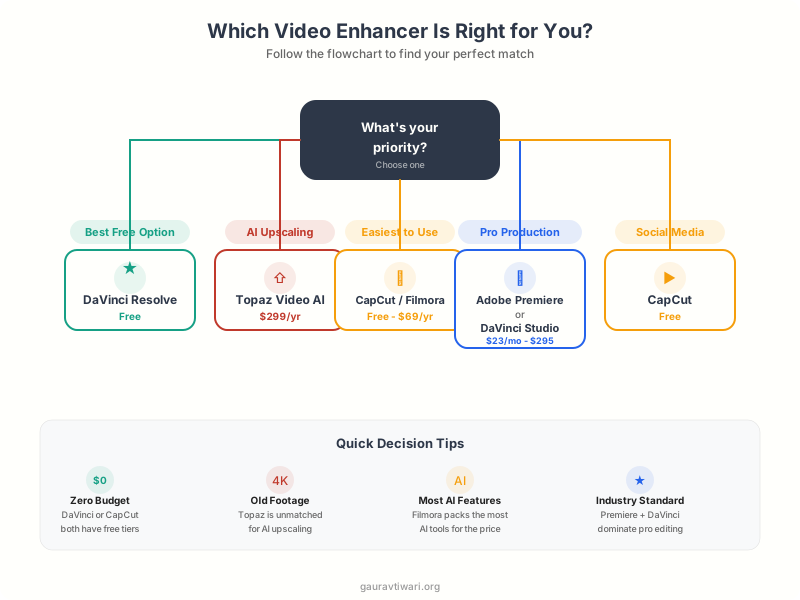
Which Video Quality Enhancer Should You Pick?
Here’s what I recommend based on your situation:
“I need the absolute best video upscaling”: Topaz Video AI. Nothing else touches its AI upscaling quality. The $299/year subscription hurts, but the results speak for themselves.
“I want professional tools for free”: DaVinci Resolve. The free version is embarrassingly good. Better than many paid editors. If you’re willing to invest time learning the interface, it’s unbeatable.
“I edit for social media”: CapCut. Free tier is excellent. Pro at $9.99/month is the best value for social content creators. The AI auto-captions alone save hours per week.
“I’m a beginner and want AI help”: Filmora. The most approachable interface with legitimate AI features. The credit system limits heavy AI usage, but for most beginners, the allotment is sufficient.
“I need the industry standard”: Adobe Premiere Pro. Text-based editing, Creative Cloud integration, and the deepest third-party plugin ecosystem. The $22.99/month adds up, but studios and agencies standardize on Premiere for a reason.
“I want a one-time purchase”: DaVinci Resolve Studio ($295) or Pinnacle Studio Ultimate ($89.99). No subscriptions, no recurring charges.
HitFilm Express was discontinued in January 2025 after Artlist acquired FXhome and shut down the product entirely. No updates, no bug fixes, no support. If you were a HitFilm user, DaVinci Resolve Free is the closest replacement with similar editing and VFX capabilities at zero cost.
Tips for Getting Better Results from Any Video Enhancer
Start with the best source material possible. AI enhancement can’t create detail that doesn’t exist. A slightly underexposed 1080p clip will enhance better than a heavily compressed 360p file every time.
Apply enhancements in the right order. Stabilize first, then denoise, then color correct, then sharpen last. Sharpening noisy footage amplifies the noise. Denoising sharpened footage blurs the detail you just added.
Don’t over-enhance. The temptation is to crank every slider to maximum. Resist it. Subtle enhancement looks professional. Over-processed footage looks artificial, with halos around edges and waxy skin tones.
Test on a short clip first. Before processing a 30-minute video through Topaz Video AI (which can take hours), test your settings on a 10-second representative clip. Adjust, then batch process.
Match your tool to your output format. Upscaling a TikTok to 4K is pointless since TikTok compresses everything anyway. Use the right resolution for your destination platform.
You might also want to check out the best video editing software for a broader comparison that includes timeline editing, effects, and audio tools beyond just enhancement. If you’re specifically working with AI-generated content, our guide on using CapCut AI video maker covers automated video creation workflows. And for comparing two popular online editors head-to-head, see our InVideo vs VEED comparison.
Frequently Asked Questions
What is the best free video quality enhancer?
DaVinci Resolve is the best free video quality enhancer. The free version includes professional-grade color grading, AI noise reduction via the Neural Engine, Magic Mask for subject isolation, and full video editing capabilities. There are no watermarks, no time limits, and no feature gating on core tools. For simpler needs, CapCut offers free AI video enhancement with 1080p export.
Can AI really improve video quality?
Yes. AI video enhancement tools like Topaz Video AI can genuinely upscale resolution (480p to 4K), reduce noise, stabilize footage, and interpolate frames. The results aren’t magic though. AI works best when there’s some detail to work with. Heavily compressed or extremely low-resolution footage will improve but won’t match natively shot high-resolution video.
Is Topaz Video AI worth the subscription price?
For professionals who regularly restore or upscale footage, yes. Topaz Video AI produces the best AI upscaling results available. At $299/year for Standard, it’s expensive for occasional use. If you only need to enhance a few videos, Neural.love’s pay-as-you-go model ($0.17/credit) or DaVinci Resolve’s built-in Neural Engine may be more cost-effective.
What happened to HitFilm Express?
HitFilm Express was discontinued in January 2025. Artlist acquired FXhome (the company behind HitFilm) and shut down both HitFilm and Imerge entirely. The website was taken offline and no replacement product was announced. DaVinci Resolve Free is the closest alternative, offering similar editing and visual effects capabilities at no cost.
Which video enhancer is best for YouTube content?
For YouTube creators, CapCut Pro ($9.99/month) offers the best combination of AI enhancement, auto captions, and social media optimization. Filmora ($69.99/year) is another strong choice with its AI-powered editing features and beginner-friendly interface. Both handle 4K export and include templates designed for YouTube content.
Can I enhance video quality on my phone?
Yes. CapCut (iOS and Android) offers free AI video enhancement on mobile. Filmora has mobile apps that sync with desktop projects. iMovie on iPhone includes Cinematic mode focus adjustment and 4K editing. For dedicated AI upscaling on mobile, CapCut’s enhance feature handles most quick fixes.
What’s the difference between video editing and video enhancement?
Video editing involves cutting, arranging, and combining clips with transitions, effects, text, and audio. Video enhancement specifically improves the technical quality of existing footage: upscaling resolution, reducing noise, stabilizing shaky footage, correcting color, and improving frame rates. Most modern editors include both capabilities, but tools like Topaz Video AI and Neural.love focus exclusively on enhancement.
The video enhancement landscape has shifted dramatically. AI upscaling is no longer experimental. Tools like Topaz Video AI and DaVinci Resolve’s Neural Engine produce results that were impossible just two years ago. Meanwhile, free options like CapCut and DaVinci Resolve Free give everyone access to capable enhancement tools.
My recommendation? Start with DaVinci Resolve Free or CapCut Free. If you hit their limits or need dedicated upscaling, move to Topaz Video AI. For professional production work, Adobe Premiere Pro or DaVinci Resolve Studio. Match the tool to the job, not the other way around.
Disclaimer: This site is reader-supported. If you buy through some links, I may earn a small commission at no extra cost to you. I only recommend tools I trust and would use myself. Your support helps keep gauravtiwari.org free and focused on real-world advice. Thanks. - Gaurav Tiwari