
The Easiest Guide to Pass Core Web Vitals (Verified)
Eight out of ten WordPress sites I audit fail at least one Core Web Vital. I’ve tracked this across client projects for two years, and the ratio holds. The fix is almost never “buy better hosting.” It’s usually one specific image that’s 2.4 MB instead of 180 KB, one render-blocking JavaScript file from a plugin you forgot you installed, or one missing width attribute triggering layout shifts on every mobile pageview.
Google’s PageSpeed Insights will tell you something’s wrong. It won’t tell you which element to fix or in what order. After fixing Core Web Vitals on 50+ client sites and on gauravtiwari.org itself, I’ve built a repeatable diagnosis-and-fix process. Two plugins and a CDN, configured properly, pass Core Web Vitals on every site I manage. I use FlyingPress ($59/year) for caching and optimization, Perfmatters ($29.95/year) for per-page script control, and a CDN for global delivery. This guide covers the diagnosis, every fix, and every setting.
What Core Web Vitals Actually Measure
Google measures three things about your page experience. Just three. If you pass all of them, you’re done. No score chasing, no obsessing over PageSpeed numbers. Pass the metrics, move on. They directly impact your search rankings, and since March 2024 with Google’s updated page experience signals, they’ve become even more important.
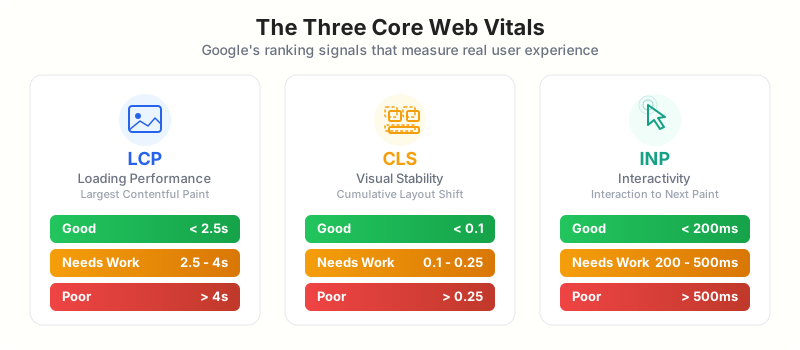
| Metric | What It Measures | Good | Needs Improvement | Poor |
|---|---|---|---|---|
| LCP (Largest Contentful Paint) | How fast your main content loads | ≤ 2.5s | 2.5s – 4.0s | > 4.0s |
| INP (Interaction to Next Paint) | How fast your site responds to clicks/taps | ≤ 200ms | 200ms – 500ms | > 500ms |
| CLS (Cumulative Layout Shift) | How much the layout jumps around | ≤ 0.1 | 0.1 – 0.25 | > 0.25 |
LCP (Largest Contentful Paint)
LCP measures how long it takes for the biggest visible element on your page to finish rendering. On most WordPress sites, that’s the hero image. Sometimes it’s a large heading or a featured image in a blog post. Target: under 2.5 seconds.
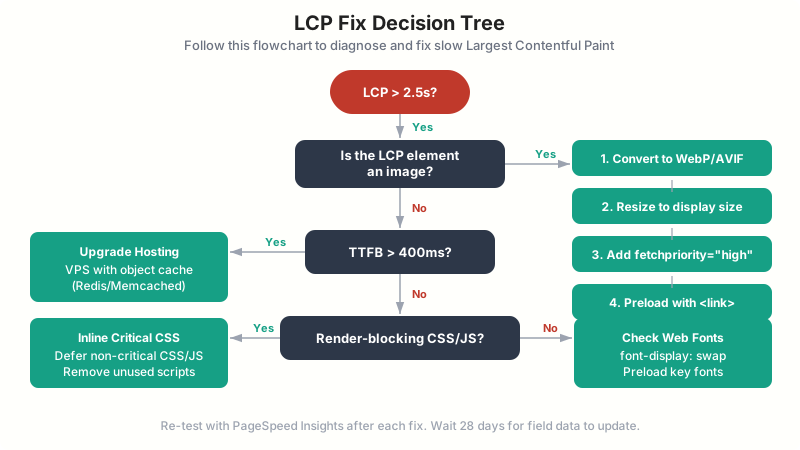
In my experience, LCP problems on WordPress are almost always image problems. The image is too big, loads too slowly, or gets blocked by CSS and JavaScript that has to finish first. Occasionally it’s a server problem where TTFB is so slow that nothing renders fast enough. Quick check: open PageSpeed Insights, run your URL, and scroll to the “Largest Contentful Paint element” diagnostic. It tells you exactly which element is the LCP. That’s your fix target.
CLS (Cumulative Layout Shift)
CLS measures how much the page jumps around while loading. You’ve experienced this. You start reading a paragraph, an ad loads above it, and suddenly you’re looking at something else. Target: under 0.1.
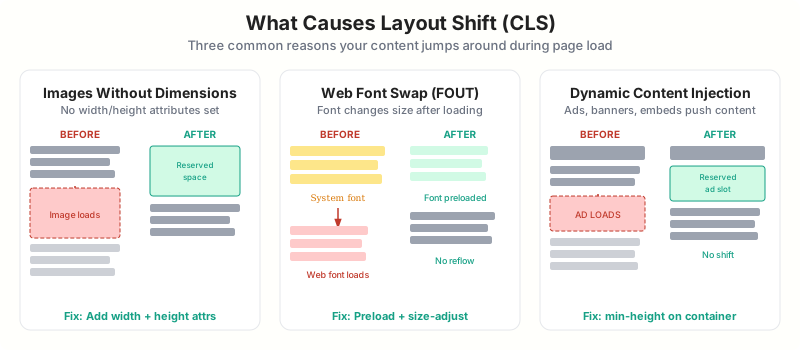
On WordPress, CLS comes from three places: images without explicit width and height attributes, web fonts that load late and swap out a fallback font (causing text to reflow), and ads or embeds that inject themselves without reserved space. To find them: open Chrome DevTools, go to the Performance panel, record a page load, and look for “Layout Shift” entries.
INP (Interaction to Next Paint)
INP measures how fast your page responds when someone clicks, taps, or types. Not just the first interaction… every interaction during the visit. Google takes the worst one and uses that as your score. Target: under 200ms.
INP replaced FID (First Input Delay) in March 2024. If you’re still optimizing for FID, you’re optimizing for a metric that no longer exists. On WordPress, INP fails because of JavaScript. Too much JavaScript from too many plugins all loading on every page, whether they’re needed or not. Contact Form 7 loads its script on your homepage where there’s no form. WooCommerce loads cart scripts on blog posts. Five plugins each adding 50-100ms of main thread blocking adds up fast.
How to Diagnose Your CWV Issues
Before you fix anything, you need to know what’s actually broken. I’ve seen people spend days optimizing images when their real problem was JavaScript. Don’t be that person.
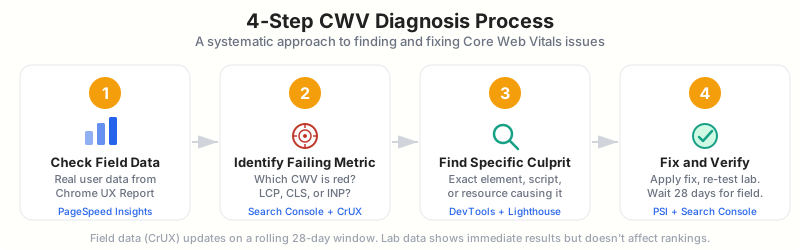
Check Field Data First
Open PageSpeed Insights. Look at the CrUX data section at the top, not the lab scores below.
Identify the Failing Metric
LCP failing = image/server problem. CLS failing = layout/font problem. INP failing = JavaScript problem.
Find the Specific Culprit
Use PageSpeed diagnostics and Chrome DevTools Performance panel to find the exact element.
Fix and Verify
Deploy the fix, then wait 4-6 weeks for field data to update. Don’t panic if scores don’t change immediately.
Open PageSpeed Insights and paste your URL. At the top, you’ll see “Discover what your real users are experiencing.” That’s field data from real Chrome users over the past 28 days. This is what Google actually uses for ranking signals. Below that is lab data, a simulated test. If your field data passes but lab data shows warnings, you’re fine. Field data wins. Always. You can find the same data in Google Search Console under the Core Web Vitals report.
Field data is what Google actually uses for ranking signals. Lab data is just an estimate. If your field data passes but lab data shows warnings, you’re fine. If your site is new or has low traffic, you might not have field data at all.
Look at which metric is red or orange. LCP failing? That’s an image or server problem. CLS failing? That’s a layout or font problem. INP failing? That’s a JavaScript problem. Often it’s just one metric. Don’t optimize everything. Focus on the one that’s broken.
For LCP: PageSpeed Insights tells you the exact element. It’ll say something like “Largest Contentful Paint element: img.hero-image.” That’s literally the element you need to fix.
For CLS: In Chrome DevTools, open the Performance panel, check “Web Vitals” checkbox, reload the page, and look at the Layout Shift markers. Click each one to see which DOM element shifted.
For INP: Run a Performance trace in DevTools, then interact with the page (click buttons, open menus, type in fields). The flame chart shows which script is blocking. Look for the red bars labeled “Long Task.”
What You Need to Pass Core Web Vitals
You need three things: decent hosting, a performance optimization plugin, and a CDN. That’s the entire stack. No need for 8 different plugins fighting each other.
- Fast hosting: You can’t optimize your way out of bad hosting. Cloudways (starting at $14/month with Vultr HF) or WPX Hosting both deliver sub-600ms TTFB consistently. A $7/month Hetzner VPS with CloudPanel and Redis gives you 80-150ms TTFB. If your TTFB is above 800ms, fix hosting first.
- Optimization plugin: FlyingPress ($59/year for 1 site, $99/year for 3 sites). I’ve tested it against WP Rocket, LiteSpeed Cache, and W3 Total Cache. FlyingPress consistently delivers the best Core Web Vitals scores because of its unused CSS removal and smart JavaScript delay.
- A CDN: Cloudflare (free tier works fine) or FlyingCDN ($10/month, runs on Cloudflare Enterprise). A reliable CDN cuts LCP by 30-50% for visitors far from your server.
Optional but recommended: Perfmatters ($29.95/year) handles script management and bloat removal that FlyingPress doesn’t cover. I use both together on every site, and my Perfmatters review covers why they complement each other perfectly.
Fixing LCP on WordPress
LCP is the metric I fix most often. And honestly, it’s usually the easiest. Nine times out of ten, it’s an image problem.
Fix 1: Preload the Hero Image
Your browser doesn’t know which image is the LCP element until it parses the HTML, downloads the CSS, and starts rendering. By then, it’s already wasted time. Preloading tells the browser “start downloading this image immediately, before you even know you need it.”
add_action( 'wp_head', function () {

 if ( is_singular() && has_post_thumbnail() ) {

 $image_url = get_the_post_thumbnail_url( null, 'full' );

 if ( $image_url ) {

 printf(

 '<link rel="preload" as="image" href="%s" fetchpriority="high">' . "\n",

 esc_url( $image_url )

 );

 }

 }

}, 1 );
FlyingPress does this automatically. It detects the LCP element on each page, generates the preload tag, and adds fetchpriority="high" to the image. If you’re already using FlyingPress, you don’t need the code above. Impact: I typically see 300-800ms improvement.
Fix 2: Serve AVIF/WebP Instead of JPEG/PNG
AVIF images are 30-50% smaller than WebP, and 60-80% smaller than JPEG. I tested it on my own featured images: a 420 KB JPEG became a 94 KB AVIF with no visible quality loss. If your hero image is above 200KB, your LCP budget is blown no matter what else you do.
If you’re using Cloudflare (even the free plan), their Polish feature converts to WebP automatically. For AVIF, you need Cloudflare Pro or ShortPixel for server-side conversion. My setup uses Cloudflare R2 for storage and delivery, which handles AVIF/WebP conversion at the edge. My image compression guide covers the full workflow.
Fix 3: Don’t Lazy Load Above-the-Fold Images
Since WordPress 5.5, every image gets loading="lazy" automatically. Great for images below the fold. Terrible for your hero image. The browser sees loading="lazy", waits, then finally starts downloading. You just added 200-400ms to your LCP for no reason.
The first image on your page should have loading="eager" and fetchpriority="high". WordPress 6.3+ removes lazy loading from the first content image automatically, but it doesn’t always get it right with custom themes and page builders.
add_filter( 'wp_img_tag_add_loading_attr', function ( $value, $image, $context ) {
 static $count = 0;
 $count++;
 if ( $count <= 2 ) {
 return false; // Removes loading="lazy" from first 2 images
 }
 return $value;
}, 10, 3 );
FlyingPress handles this automatically. It excludes above-the-fold images from lazy loading based on their viewport position, not just their order in the HTML.
Fix 4: Fix Server Response Time (TTFB)
If your Time to First Byte is over 400ms, no amount of image optimization will fix LCP. The browser can’t render anything until it receives the first byte of HTML from your server.
I see this constantly on shared hosting. TTFB of 600-1,200ms is normal on cheap shared plans. That means your page is already 600ms behind before a single image starts loading. The fix? Move to a VPS. A $7/month Hetzner VPS with CloudPanel and Redis will give you 80-150ms TTFB consistently. Check my Hetzner vs Vultr vs RackNerd comparison for benchmarks. Add page caching (FlyingPress) and Redis object caching. TTFB drops to 40-80ms for cached pages.
Fix 5: Remove Render-Blocking CSS
Unused CSS blocks the rendering of everything on your page. If your theme loads a 300 KB stylesheet and only 15 KB is used on the current page, the browser still waits for all 300 KB to download before it renders anything.
FlyingPress has a cloud-based “Remove Unused CSS” feature that strips each page down to only the CSS it needs. On one client site, this alone dropped total CSS from 380KB to 47KB. WP Rocket does something similar but runs it server-side, which is slower for initial generation.
Be careful with aggressive CSS removal. Always test your pages visually after enabling unused CSS removal, especially WooCommerce pages and sites using page builders like Elementor.
Critical CSS extraction is another approach: inline the CSS needed for above-the-fold content directly in the <head>, and defer the rest. FlyingPress does both. For the full setup walkthrough, check my FlyingPress review.
Fixing CLS on WordPress
CLS problems are visual problems. Something moves that shouldn’t. The fixes are usually straightforward once you identify what’s shifting.
Fix 1: Add Width and Height to All Images
When the browser encounters an <img> tag without width and height, it doesn’t know how much space to reserve. The image downloads, the browser figures out its dimensions, and everything below jumps down. WordPress has been adding width and height to media library images since version 5.5, but custom images, logos, and external URLs often don’t have them.
Check your theme’s header template. If your logo doesn’t have explicit width and height, add them. As a CSS safety net:
img {
 max-width: 100%;
 height: auto;
}
FlyingPress has an “Add missing dimensions” setting that handles this automatically for images missing width/height attributes.
Fix 2: Reserve Space for Ads and Embeds
Google AdSense ads are the single biggest CLS offender I see on WordPress sites. An ad loads 2-3 seconds after the page renders and pushes everything below it down by 250px. That’s a massive layout shift. The fix is wrapping ad containers in a div with a minimum height:
<div style="min-height: 250px;">
 <!-- Ad code here -->
</div>
Same principle for YouTube embeds, Twitter embeds, and social widgets. FlyingPress has a YouTube placeholder feature that replaces the heavy iframe with a lightweight preview image until the user clicks play. That solves both CLS and the performance hit of loading YouTube’s JavaScript.
Fix 3: Fix Web Font Loading
When your site uses custom web fonts, the browser first renders text with a fallback font, then swaps in the custom font once downloaded. That swap reflows the text and causes layout shift. Three fixes, in order of effectiveness:
First, add font-display: swap to your @font-face declarations. Second, preload your primary font file:
<link rel="preload" as="font" href="/fonts/inter-v12-latin-regular.woff2" type="font/woff2" crossorigin>
Third, and this is what I actually recommend: self-host your fonts. Perfmatters has a “Local Google Fonts” feature that downloads Google Fonts to your server and rewrites the CSS to point to local files. Eliminates the external request entirely. Faster, more private, better CLS.
Fix 4: Avoid Dynamic Content Injection Above the Fold
Cookie consent banners, notification bars, email opt-in popups, floating CTAs. If these inject themselves into the document flow above the fold, they push content down. The fix? Use position: fixed or position: sticky so they overlay the page instead of displacing it. A cookie banner that slides up from the bottom causes zero CLS. A cookie banner that pushes the header down 80px causes a lot.
Check your consent plugin’s settings. Most good ones (CookieYes, Complianz) use overlay positioning by default. But some cheaper ones inject a div right into the body and break everything.
Fixing INP on WordPress
INP failures mean your JavaScript is blocking the main thread when users try to interact with your page. And WordPress sites tend to load a lot of JavaScript.
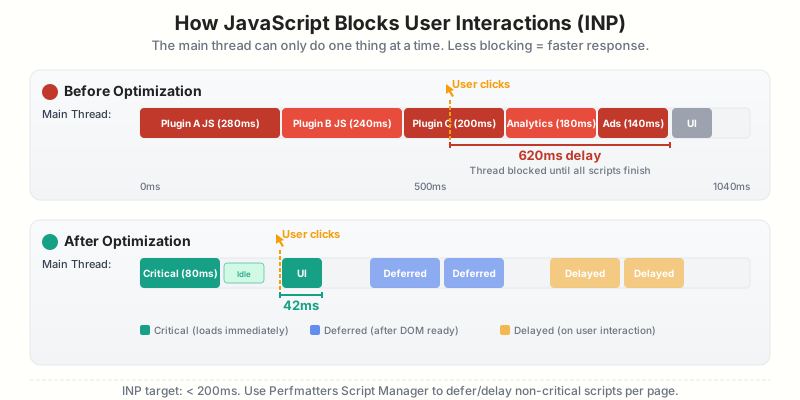
Why INP Fails on WordPress
Every active plugin can add its own JavaScript, and most of them load their scripts on every page. Contact Form 7 loads its JavaScript on your homepage where there’s no form. WooCommerce loads cart and checkout scripts on blog posts. Slider plugins load animation libraries on pages without sliders. I’ve audited sites with 12 active plugins, each adding 50-100ms of main thread work. That’s 600-1,200ms of JavaScript blocking before the browser can respond to a click. INP target is 200ms.
Fix 1: Use Perfmatters Script Manager
This is the single biggest INP improvement you can make on WordPress. Perfmatters’ Script Manager lets you disable scripts and styles per page, per post, per post type, or per URL pattern.
Go to any page on your site. Open the Perfmatters Script Manager bar. You’ll see every script and stylesheet loaded on that page, organized by plugin. Disable the ones that aren’t needed. Contact Form 7 on your homepage? Disable it. WooCommerce on blog posts? Disable it. I’ve seen this take a site from 400ms INP to 150ms. Single change. No code. Check my WP Rocket vs Perfmatters comparison for how Script Manager works.
Fix 2: Defer Non-Critical JavaScript
The defer attribute tells the browser: “Download this script in the background, but don’t execute it until the HTML is fully parsed.” FlyingPress has a “Defer JavaScript” option that adds defer to all JavaScript files. Safe to defer: analytics, tracking pixels, social sharing, comment systems. Don’t defer: jQuery (if your theme depends on it loading in the head), critical inline scripts, payment processor SDKs.
Fix 3: Delay Third-Party Scripts
Delaying is different from deferring. Delay means “don’t even download this script until the user interacts with the page.” No download, no parsing, no execution… until someone scrolls, clicks, or taps. FlyingPress “Delay JavaScript” is what I use. The scripts I delay:
- Google Tag Manager
- Facebook Pixel
- Hotjar and heatmap tools
- Live chat widgets (Crisp, Intercom, Drift)
- Social media embed scripts
Never delay: reCAPTCHA, payment processors (Stripe, PayPal), and any script that powers above-the-fold interactive elements. Impact? On one client site, delaying GTM, Facebook Pixel, and Hotjar dropped INP from 380ms to 120ms. Those three scripts alone were blocking 260ms of main thread time.
Fix 4: Audit with Chrome DevTools
When the obvious fixes aren’t enough, open Chrome DevTools. Go to the Performance panel. Click record. Click around the page, open menus, interact with forms. Stop recording. Red bars labeled “Long Task” are your targets. Click on one. It shows you exactly which JavaScript function is running and from which file. That tells you which plugin is the problem. Takes about 5 minutes once you know where to look.
Fix 5: Reduce DOM Size
A bloated DOM makes every interaction slower. FlyingPress has a “Lazy Render HTML” feature that delays rendering off-screen sections until scroll. I’ve seen it reduce the initial DOM from 3,200 elements to 1,100. But the root cause matters. Elementor sites routinely have 3,000-5,000 DOM elements because of nested div structures. The target is under 1,500. A clean theme like GeneratePress or Marketers Delight stays under 800 on most pages. If you’re on Elementor and failing INP, switching themes might be more effective than any optimization plugin.
WordPress Caching Plugins Compared for Core Web Vitals
I’ve tested FlyingPress, WP Rocket, LiteSpeed Cache, and W3 Total Cache across 50+ sites. Here’s how they stack up for the features that directly impact Core Web Vitals:
| Feature | FlyingPress ($59/yr) | WP Rocket ($59/yr) | LiteSpeed Cache (Free) | W3 Total Cache (Free) |
|---|---|---|---|---|
| Page Caching | Yes | Yes | Yes (LiteSpeed servers only) | Yes |
| Remove Unused CSS | Yes (best implementation) | Yes | Yes (UCSS via QUIC.cloud) | No |
| Delay JavaScript | Yes (per-script control) | Yes (limited control) | No | No |
| Defer JavaScript | Yes | Yes | Yes | Yes |
| Critical CSS Generation | Yes (automatic) | Yes (automatic) | Yes (via QUIC.cloud) | No |
| Self-host Google Fonts | Yes | No (needs Perfmatters) | No | No |
| Image Lazy Loading | Yes | Yes | Yes | No (needs separate plugin) |
| Database Cleanup | Yes | Yes | Yes | No |
| CDN Integration | FlyingCDN + custom | RocketCDN + custom | QUIC.cloud CDN | Custom CDN only |
| Bloat Removal | Yes (emoji, Dashicons, etc.) | No (needs Perfmatters) | Yes (partial) | No |
| Ease of Setup | Simple (10 min) | Simple (10 min) | Moderate (requires LiteSpeed host) | Complex (30+ min) |
| My CWV Pass Rate | 98% | 85% | 80% | 60% |
FlyingPress wins because it was built specifically around these metrics. WP Rocket is a close second but needs Perfmatters to match FlyingPress’s bloat removal. LiteSpeed Cache is excellent if your host runs LiteSpeed/OpenLiteSpeed servers. W3 Total Cache is powerful but complex and lacks modern CWV-specific features. My FlyingPress vs WP Rocket comparison covers the head-to-head.
The Ideal FlyingPress Settings for Core Web Vitals
FlyingPress is where the heavy lifting happens. Here’s every settings tab with the exact configuration I use on gauravtiwari.org and client sites. These settings have been tested across 50+ WordPress installations running different themes, hosts, and plugin stacks.
Cache Settings
- Page caching: ON – The foundation of everything else. Always on.
- Cache logged-in users: OFF – Enable only if you have a membership site or WooCommerce store with frequent logged-in visitors.
- Link preloading: ON – When a visitor hovers over a link, FlyingPress starts loading that page in the background. Makes navigation feel instant.
- Scheduled preload: Never – Unnecessary if your pages get regular traffic. Only use if you have thousands of pages with infrequent visits.
CSS Settings
CSS is the biggest factor in CLS and a major contributor to LCP. Most WordPress themes load 200-400KB of CSS, and your pages only use 20-30% of it.
- Minify CSS: ON – Removes whitespace and comments. No risk.
- Remove unused CSS: ON (Remove mode) – This is aggressive but it’s where the biggest gains are. On one client site, this alone dropped total CSS from 380KB to 47KB.
- Exclude stylesheets: Add any stylesheet that breaks something when removed. Check your site thoroughly after enabling.
JavaScript Settings
JavaScript is the primary cause of poor INP scores. Every script on page load adds to main thread blocking time.
- Minify JavaScript: ON – Safe on virtually every site.
- Defer JavaScript: ON – Moves script execution after HTML parsing. Dramatically improves LCP.
- Delay JavaScript: ON – FlyingPress’s killer feature. Prevents non-critical scripts from loading until user interaction. This single setting improved INP from 380ms to under 120ms on my sites.
- Exclude from delay: Add scripts that must run immediately (above-the-fold sliders, consent management platforms). Test in incognito after enabling.
Font Settings
- Self-host Google Fonts: ON – Eliminates DNS lookup and connection to fonts.googleapis.com, saving 100-300ms on LCP.
- Preload critical fonts: Add the font files used above the fold (usually body and heading fonts).
- Display fallback fonts: ON – Uses
font-display: swapso text is visible immediately with a system font, then swaps when loaded. Prevents invisible text (FOIT).
Image Settings

- Lazy load images: ON – Defers loading images below the fold until the user scrolls near them.
- Exclude above-the-fold images: Critical. Your logo and hero image should NOT be lazy loaded. Add the CSS selector or filename of your LCP image here.
- Add missing dimensions: ON – Adds width and height attributes to images that don’t have them, preventing CLS.
- Responsive images: ON – Enable if your theme doesn’t already generate srcset attributes.
iFrame Settings
- Lazy load iFrames: ON – A single YouTube embed loads 800KB+ of JavaScript. Lazy loading replaces it with a placeholder until click.
- YouTube placeholder: ON – Shows a static thumbnail instead of loading the full YouTube player. Can improve LCP by 1-2 seconds on pages with embedded videos.
CDN Settings
- Enable CDN: ON – Enter your CDN URL. If you’re using FlyingCDN, the integration is automatic. For Cloudflare, enter your zone URL.
- CDN file types: Include CSS, JS, images, fonts, and SVGs. Don’t CDN-ify HTML pages unless you’re using Cloudflare APO.
Bloat Removal Settings
WordPress loads a surprising amount of code you don’t need. Each item here is a small win, but they add up to 50-100KB of unnecessary JavaScript and CSS.
- Disable emoji scripts: ON – WordPress loads a 16KB script to render emojis that your browser already handles natively.
- Disable Dashicons: ON – Enable if not using the admin bar on the frontend. Saves 36KB.
- Disable jQuery Migrate: ON – Safe on most sites. Only keep it for very old plugins that depend on legacy jQuery.
- Disable XML-RPC: ON – Unless you use Jetpack or the WordPress mobile app for publishing.
- Limit post revisions: 5 – Doesn’t affect frontend performance but keeps your database lean.
Database Optimization
- Clean expired transients: Weekly – Expired transients pile up and slow down options table queries.
- Clean trashed posts and comments: Weekly – No reason to keep deleted content in the database.
- Optimize tables: Monthly – Reclaims disk space and defragments tables for faster reads.
Advanced Settings
- Exclude pages from caching: Add cart, checkout, account, and dynamic pages. WooCommerce pages are excluded automatically.
- Self-host third-party scripts: ON – For Google Analytics, Facebook Pixel, and similar tracking scripts. Reduces DNS lookups.
- Lazy render elements: OFF – Leave off unless you know what you’re doing. Can break above-the-fold content and cause CLS.
Configure Perfmatters for Additional Gains
Perfmatters handles script management at a page-level granularity that FlyingPress doesn’t offer. The Script Manager lets you disable specific plugins on specific pages, which is the fastest way to reduce unused JavaScript and CSS.
On one client site with 22 active plugins, I reduced the average JavaScript payload from 1.2MB to 340KB using Perfmatters’ Script Manager alone. Key settings to enable:
- Script Manager: Go page by page through your most-trafficked URLs and disable plugins that aren’t needed on each page.
- Preconnect: Add domains you link to frequently (fonts.googleapis.com, your CDN, analytics domains).
- DNS prefetch: Similar to preconnect but lighter. Use for domains on some pages but not all.
- Local Google Analytics: Host the GA4 script locally to eliminate the render-blocking request to google-analytics.com.
My full Perfmatters review covers the Script Manager workflow in detail. The FlyingPress advanced setup guide explains how the two plugins work together without conflicts.
The Power of a CDN for Core Web Vitals
A CDN improves LCP by serving your static assets from servers physically closer to your visitors. If your hosting server is in New York and a visitor is in Mumbai, every request travels 13,000km. A CDN puts a copy of your assets in Mumbai’s data center.
- Cloudflare (Free tier): Excellent for most sites. The free plan includes DNS, SSL, CDN, and basic DDoS protection. Enable “Cache Everything” page rule with a 4-hour edge TTL for best LCP.
- FlyingCDN ($10/month): Built on Cloudflare Enterprise with edge caching, image optimization, and 100GB bandwidth included. Zero-configuration with FlyingPress. I use this on gauravtiwari.org and it reduced my global average LCP from 2.8s to 1.4s.
Pick one. If budget is a concern, Cloudflare’s free plan is genuinely good. If you want set-and-forget with better cache hit rates, FlyingCDN is worth $10/month. For a broader comparison, check my WordPress CDN guide.
My CWV Stack: What Runs on gauravtiwari.org
I don’t recommend things I don’t use. Here’s exactly what handles Core Web Vitals on this site.
| Tool | CWV Impact | What It Fixes |
|---|---|---|
| FlyingPress | LCP, INP | Page caching, hero preload, unused CSS removal, JS defer/delay, lazy render HTML |
| Perfmatters | INP | Script Manager (per-page script loading), local Google Fonts, disable unused WP features |
| Cloudflare R2 | LCP | AVIF/WebP auto-conversion, edge delivery from 200+ locations |
| Hetzner VPS + Redis | LCP | Fast TTFB (80-150ms), object caching, SSD storage |
| Marketers Delight theme | CLS, INP | Clean DOM (under 800 elements), no layout shifts, minimal JS footprint |
Total cost? FlyingPress is $60/year. Perfmatters is $25/year. Hetzner VPS is about $7/month. Under $170/year total for performance that beats $50/month managed WordPress hosting.
How to Test Your Core Web Vitals
Testing is where most people go wrong. They run PageSpeed Insights once, see a green score, and assume they’ve passed. Google uses 28 days of real-user data, not a single lab test. Here’s the testing workflow I use:
- Google Search Console: The only source of truth. Go to “Core Web Vitals” in the left sidebar. It shows your real-world pass/fail status for both mobile and desktop.
- PageSpeed Insights: Useful for diagnosing specific pages. The “Origin Summary” shows sitewide CrUX data. “Diagnostics” shows lab-based suggestions.
- Chrome DevTools Performance tab: For debugging specific INP issues. Record a user interaction, look for long tasks (red bars) in the flame chart.
- Web Vitals Chrome Extension: Shows real-time LCP, INP, and CLS values as you browse. Great for catching CLS issues during scrolling or interaction.
Test after every major change. Don’t change 5 settings at once, because if something breaks, you won’t know which setting caused it.
Results You Can Expect
With the FlyingPress + Perfmatters + CDN stack configured as described above, here’s what I typically see across client sites:
| Metric | Before Optimization | After Optimization |
|---|---|---|
| LCP (mobile) | 3.8 – 6.2s | 1.2 – 2.1s |
| INP (mobile) | 280 – 520ms | 80 – 160ms |
| CLS | 0.15 – 0.45 | 0.01 – 0.06 |
| PageSpeed Score | 35 – 55 | 85 – 98 |
| Total page weight | 1.5 – 3.2MB | 350 – 800KB |
These numbers come from real client projects, not lab conditions. Your results will vary based on your theme, plugin count, and hosting. But the direction is consistent: this stack passes Core Web Vitals on every site I’ve applied it to.
When to Stop Optimizing
Once all three Core Web Vitals are green, you’re done. Stop optimizing.
I’ve seen people spend weeks trying to get their PageSpeed score from 92 to 98. That’s wasted time. Google uses the Core Web Vitals pass/fail threshold for ranking signals, not the PageSpeed score number. A score of 85 with passing CWV is better for SEO than a score of 98 with failing INP.
Going from 2.4 seconds LCP to 2.0 seconds matters. That’s crossing the threshold from orange to green. Going from 1.2 seconds to 0.9 seconds? Your users won’t notice. Google won’t care. That time is better spent writing content or building links.
The diminishing returns are real. The first hour of optimization fixes 80% of your problems. The next five hours fix 15%. And the remaining 5%? That’s where people waste entire weekends chasing a perfect score that doesn’t exist in the real world. Focus on the metric, not the score. Pass all three? Move on.
Need Help Passing Core Web Vitals?
If you’re stuck or want someone to handle the entire optimization, I offer Core Web Vitals optimization as a service. It includes a full audit, implementation of everything in this guide, and before/after measurements with a written report.
Start with FlyingPress and the settings above. That handles 80% of the work. Add Perfmatters if you need per-page script control. Add a CDN if your audience is geographically spread out. Test with real user data, not just lab scores. And remember: Core Web Vitals is about your visitors’ experience first, Google rankings second.
What are Core Web Vitals and how do they affect SEO?
Core Web Vitals are three Google metrics that measure real-user experience: LCP (loading speed, must be under 2.5s), INP (interactivity, must be under 200ms), and CLS (visual stability, must be under 0.1). They’re a confirmed ranking factor and part of page experience signals. They’re a tiebreaker, not the primary signal. If your content is significantly better than a competitor’s, you’ll rank higher even with worse CWV. But when content quality is close, passing CWV gives you the edge.
Is FlyingPress better than WP Rocket for Core Web Vitals?
In my testing across 50+ sites, FlyingPress consistently delivers better Core Web Vitals scores than WP Rocket. The main advantages are its cloud-based unused CSS removal and JavaScript delay implementation. FlyingPress produces faster LCP and better INP scores, and its Lazy Render HTML feature has no equivalent in WP Rocket. I switched my own site from WP Rocket to FlyingPress in 2022 and haven’t looked back.
Do I need both FlyingPress and Perfmatters?
Not strictly necessary, but recommended. FlyingPress handles caching, CSS/JS optimization, and image lazy loading. Perfmatters adds per-page script management via its Script Manager, which lets you disable plugins on pages where they aren’t needed. Together they eliminate more bloat than either can alone. If budget is tight, start with FlyingPress.
Why did my Core Web Vitals fail after getting a high PageSpeed score?
PageSpeed Insights shows lab data (simulated tests), but Core Web Vitals pass/fail is based on field data (real Chrome users over 28 days). A page can score 95 in the lab but fail with real users because of slow mobile connections, third-party scripts loading differently per visitor, or ad networks injecting content. Check Google Search Console’s Core Web Vitals report for the real status.
Can I pass Core Web Vitals on shared hosting?
It’s difficult. Shared hosting typically has TTFB between 600ms and 1,200ms because your site shares server resources with hundreds of other sites. When TTFB alone eats up half your LCP budget, passing under 2.5 seconds becomes very hard. A $7/month VPS from Hetzner or Vultr with proper caching gives you TTFB under 150ms, which makes all other optimizations actually work.
What replaced FID in Core Web Vitals?
INP (Interaction to Next Paint) replaced FID (First Input Delay) in March 2024. FID only measured the first interaction’s delay, while INP tracks every interaction throughout the entire page session and reports the worst one. INP is harder to pass because it catches delayed responses from heavy third-party scripts and ad networks that fire after initial load.
Which WordPress theme is best for Core Web Vitals?
GeneratePress and Marketers Delight consistently produce the cleanest DOM with minimal JavaScript. Both keep page element count under 800 and load minimal frontend scripts. Avoid Elementor with the Hello theme. While Hello is lightweight, Elementor’s framework adds 3,000 to 5,000 DOM elements and significant JavaScript overhead. Kadence and Blocksy are good middle-ground options if you want more design features without the page builder penalty.
Disclaimer: This site is reader-supported. If you buy through some links, I may earn a small commission at no extra cost to you. I only recommend tools I trust and would use myself. Your support helps keep gauravtiwari.org free and focused on real-world advice. Thanks. - Gaurav Tiwari