
10 Best Pen Tablets for Creatives, Artists & Graphic Designers
I’ve been using pen tablets since 2012, back when Wacom was basically the only name worth mentioning. That’s changed dramatically. Today, you can get a solid drawing tablet for under $50, or you can spend $2,000+ on a pro-grade display that feels like drawing on enchanted glass. The trick is knowing which one actually fits your workflow.
I’ve tested a bunch of these over the years for design work, photo retouching, and general creative projects. Here are the 10 best pen tablets for creatives in 2026, broken down by who they’re actually for and why they’re worth your money.
Why Pen Tablets Matter for Creatives
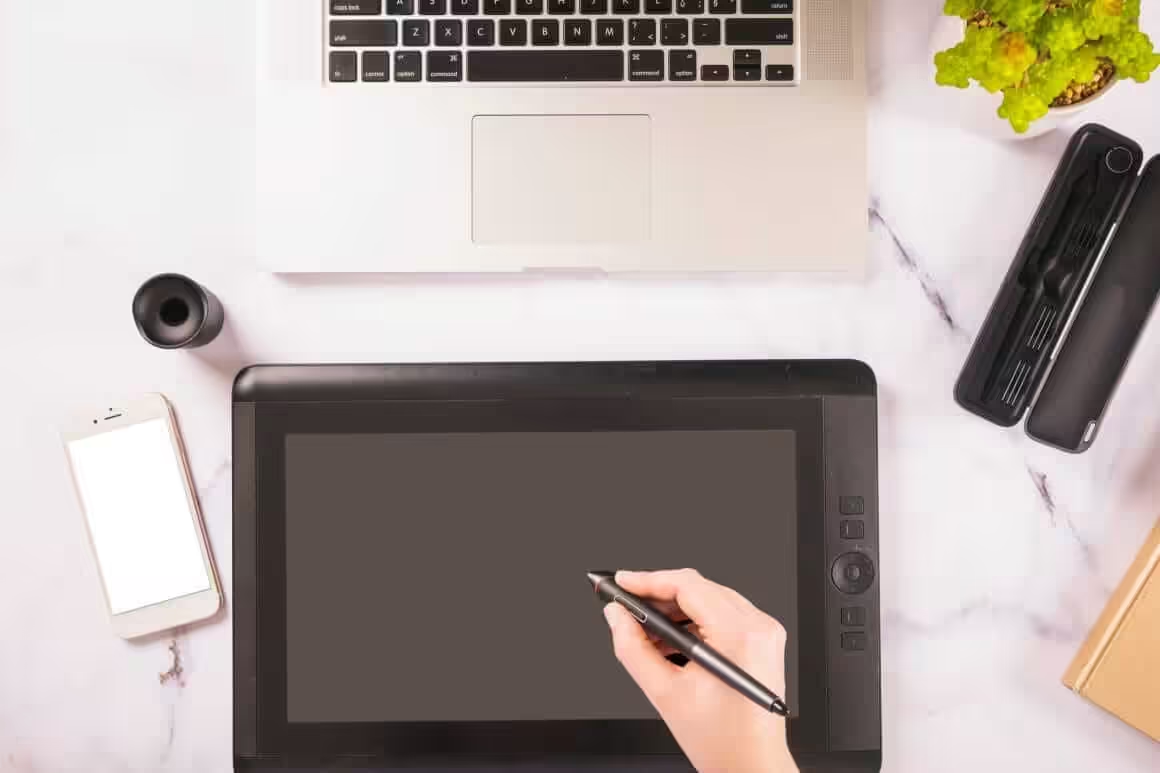
A mouse is fine for clicking buttons and pushing pixels around. But the moment you need to draw a curve, shade a portrait, or retouch a photo with any kind of finesse, a pen tablet changes everything. You get pressure sensitivity, tilt recognition, and a natural drawing motion that a mouse simply can’t replicate.
I’ve watched beginners go from frustrating, wobbly digital lines to confident strokes within a week of switching to a pen tablet. The undo button, layer controls, and infinite color palettes give you creative freedom that traditional paper can’t match. And the skills transfer both ways. Your paper drawing improves because you’re practicing fundamentals digitally without wasting materials.
The main things you want to evaluate: active drawing area size, pressure sensitivity levels (8,192 is the standard now), whether you need a built-in display or just a tablet surface, and how it connects to your computer. I’ve covered all of that in the picks below.
10 Best Pen Tablets for Creatives in 2026
I’ve organized these from premium professional picks down to budget-friendly options. Each one has a specific audience it serves best.
Also see: 10 Best Pen Tablets for Online Teaching
Wacom Cintiq Pro 24
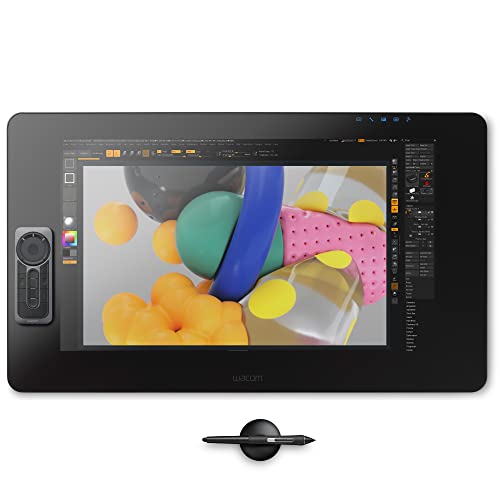
- Stunning 23.6" touchscreen display with 4K resolution so you can see every detail of your creation in pinpoint accuracy
- True-to-life color with 99% Adobe RGB & 97% sRGB color performance and 1.07 billion colors (10 bits color)
This is the professional’s dream tablet, and it comes with a professional’s price tag. The Cintiq Pro 24 gives you a 23.6-inch 4K touchscreen display with 99% Adobe RGB color accuracy and 1.07 billion colors. If color-critical work is your bread and butter, like print design, illustration for publishing, or high-end retouching, this is what you want on your desk.
The Wacom Pro Pen 2 is still one of the best styli I’ve used. It has 8,192 levels of pressure sensitivity with tilt recognition, and the optical bonding on the display virtually eliminates parallax. That means your cursor lands exactly where your pen tip touches. Multi-touch gestures let you pinch, zoom, and rotate your canvas with your fingers while drawing with the pen. It also ships with an ExpressKey Remote for one-touch shortcuts.
Best for: Professional illustrators, concept artists, and designers who need studio-grade color accuracy and don’t mind the investment.
XPPen Artist Pro 16TP
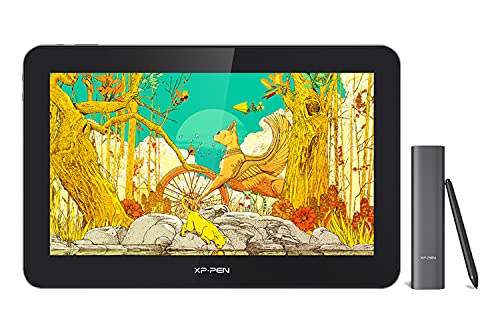
- 【4K Ultimate Visual】With 4K resolution (3840 x 2160), XPPen Artist Pro 16TP drawing tablet introduces you to a whole new world…
- 【Touch screen】 In Windows, XPPen Artist Pro 16TP features a perfect combination of multi-touch control and pen function. You…
XPPen has been quietly eating into Wacom’s market share, and the Artist Pro 16TP shows exactly why. You get a 15.6-inch 4K display (3840×2160) with 92% Adobe RGB coverage at a fraction of what Wacom charges. The full-lamination technology bonds the glass directly to the screen, so there’s minimal parallax between your pen tip and the actual cursor.
I really like the multi-touch support on this one. You can rotate the canvas, zoom in and out, and navigate with your fingers while drawing with the battery-free PH2 stylus. That stylus delivers 8,192 pressure sensitivity levels and handles tilt well. The anti-glare screen coating helps with long sessions too. If you want a pen display that punches way above its price, this is it.
Best for: Creatives who want a 4K pen display with touch support but aren’t willing to pay Wacom prices.
Huion Kamvas 13
Huion has become the go-to brand for creatives who want pen display quality without the premium markup. The Kamvas 13 delivers a full-laminated 13.3-inch screen with low parallax and a scratch-resistant anti-glare coating. It’s compact enough to take on the go but large enough for serious work sessions.
The PW517 stylus uses Huion’s PenTech 3.0 with a capacitive pressure sensor, and it genuinely feels close to pen on paper. You get eight programmable shortcut keys along the side and two customizable buttons on the pen itself. It supports Photoshop, Illustrator, Clip Studio, Krita, and most other popular creative apps. I appreciate that it runs off a single USB-C cable from your laptop (5V or above), so you don’t need a separate power adapter cluttering your desk.
Best for: Artists and students who want a portable pen display that connects to a laptop with a single cable.
Gaomon PD1161 11.6-inch
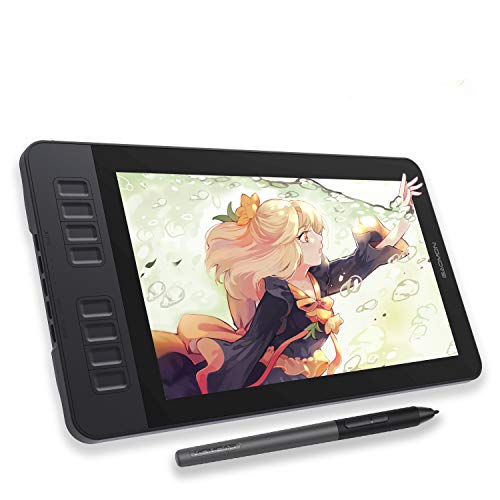
- [Create Right On Screen]: Sketch, draw and paint directly on the full HD 11.6" IPS screen of GAOMON PD1161 drawing tablet. And the…
- [Vivid Color Perfomance]: A combination of 72% NTSC (100% SRGB) color gamut and 16.7 million display colors enables to present…
The Gaomon PD1161 is one of those tablets that makes you wonder why anyone pays three times more for a similar experience. It’s an 11.6-inch Full HD (1920×1080) IPS display with 120% sRGB color gamut and 16.7 million colors. For hobbyists and students, that’s more than enough color accuracy.
You get ten programmable Express Keys that you can customize through the Gaomon driver. The battery-free stylus supports tilt, so your brush strokes respond naturally to pen angle. It works with Photoshop, Krita, GIMP, Clip Studio, and Illustrator without any compatibility headaches. I think this is the sweet spot for anyone who wants a pen display under $200 and doesn’t need 4K resolution.
Best for: Budget-conscious hobbyists and students who want a pen display for digital art, photo editing, or online classes.
Xencelabs Wireless Drawing Tablet

- Professional Graphic Tablet: Our Pen Tablet was co-designed with the input of industry leading creatives. The active area…
- Quick Keys: Working in unison with the pen tablet, the shortcut keys gives you 5 sets of 8 keys – a total of 40 programmable…
Xencelabs is the newer competitor that’s got a lot of professional artists talking. This wireless tablet was co-designed with industry creatives, and you can tell. The 10.3″ x 5.75″ active area has a true 16:9 aspect ratio that matches standard displays, so there’s no distortion in your strokes.
What sets this apart is the Quick Keys remote with an OLED display. You get five sets of eight shortcut keys, giving you 40 programmable functions per application. The OLED screen shows exactly what each key does, so you’re never guessing. It comes with two battery-free pens in different sizes, both fully customizable. If you’re a screenless-tablet person who wants something genuinely better than Wacom Intuos, this is your pick.
Best for: Professional creatives who prefer screenless tablets and want the best shortcut key system on the market.
Simbans PicassoTab X
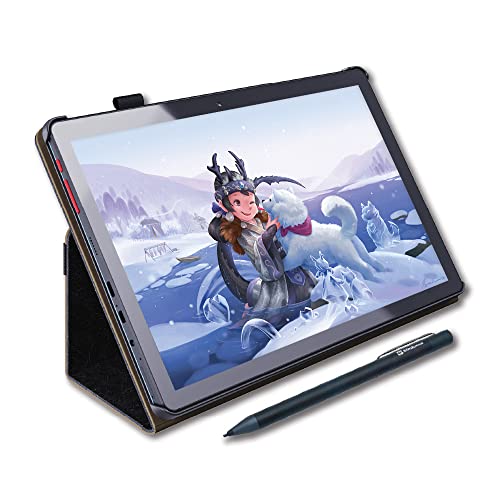
- DRAW or TAKE NOTES: The most affordable Art tablet that comes with a pen and a pre-installed Drawing and Animation apps for those…
- 4 FREE BONUS ITEMS inside the box: a high-quality tablet case, Drawing Glove, universal power adaptor and pre-installed screen…
Here’s something different. The PicassoTab X is a standalone Android drawing tablet. You don’t need a computer at all. Just pick it up, open the pre-installed drawing apps, and start creating. That makes it perfect for kids, beginners, or anyone who wants to sketch on the couch, at a coffee shop, or during a commute.
The Picasso Pen has 1,024 levels of pressure sensitivity, which is lower than dedicated graphics tablets, but it’s enough for casual drawing and note-taking. Palm rejection works well, so you can rest your hand on the screen naturally. The box includes a tablet case, drawing glove, universal power adapter, and a screen protector. At this price point, it’s genuinely the best gift you can get for someone curious about digital art who doesn’t already own a computer setup.
Best for: Beginners, kids, and casual artists who want a standalone drawing experience without connecting to a computer.
VEIKK A30 V2

- 【Unique Touch Pad Design】: The VEIKK A30 graphic tablet features a unique touch pad design with 4 touch keys and one gesture…
- 【8192 Levels Pressure Sensitivity】: With 8192 levels of professional pressure sensitivity, the VEIKK A30 delivers exquisite…
The VEIKK A30 V2 is a screenless tablet that punches well above its price. You get a generous 10×6 inch drawing area, a battery-free pen with 8,192 pressure levels, and a unique touchpad with four touch keys plus a gesture pad built right into the tablet surface. That gesture pad is genuinely useful for zooming, scrolling, and adjusting brush size on the fly.
It works with Photoshop, Illustrator, Clip Studio, SketchBook, ZBrush, and most other popular creative software. The USB-C connection plugs in either direction, which sounds small but saves you the daily annoyance of fumbling with cable orientation. Lines feel smooth and natural, and the pressure curve is responsive enough for detailed work. For the price, I think it’s one of the best value screenless tablets you can buy right now.
Best for: Budget-conscious creatives who want a large drawing area and solid pen performance without a built-in screen.
Frunsi T11 Pro Standalone

- DRAWING AND NOTETAKING:The most affordable standalone drawing tablet with screen no computer needed that comes with a pen and a…
- EXCELLENT HARDWARE: Drawing tablet no computer needed come with 1920*1200 FHD IPS 16:9 ratio Display to give your a large space…
Another standalone option, and this one’s got slightly better hardware than the PicassoTab. The Frunsi T11 Pro runs Android 11 on an Octa-Core CPU with 4GB RAM and 64GB storage (expandable to 128GB via TF card). The 10.1-inch Full HD IPS display (1920×1200) gives you plenty of screen real estate for drawing.
The 5,800mAh battery lasts roughly five hours, which is enough for a solid creative session. Drawing apps come pre-installed, and it plays well with SketchBook, ArtFlow, Clip Studio, and Ibis Paint X. The pressure-sensitive stylus feels decent for the price. I’d recommend this over the PicassoTab if you want better processing power and slightly more storage for your projects.
Best for: Beginners and students who want a standalone Android drawing tablet with solid hardware specs.
UGEE M708 V2

- Mac/Windows/Android Supported: The graphics drawing tablet supports connections with Android 6.0 or later Phones and Tablets. It…
- Compatible with PC Multiple Systems: This graphics tablet is compatible with Windows 7/8/10 Chrome and Mac OS 10.10 or above after…
UGEE makes solid budget tablets, and the M708 V2 is their best-selling model for good reason. The 10×6.25 inch drawing area is large enough for full arm movements, and the ultra-thin panel looks clean on any desk. The battery-free pen delivers 8,192 levels of pressure sensitivity and supports up to 60 degrees of tilt, which adds a natural feel to your brush strokes.
Cross-platform compatibility is a strength here. It connects to Android 6.0+, Windows, Mac, and Chrome OS. It works with Photoshop, SketchBook, Corel Painter, ZBrush, and most other creative apps. UGEE backs it with a one-year warranty and lifetime technical support, which is reassuring at this price point. If you’re just getting started with digital art and don’t want to spend more than $50, this is where I’d start.
Best for: Complete beginners and students who want a reliable, large-format screenless tablet at the lowest possible price.
XOPPOX Graphics Drawing Tablet
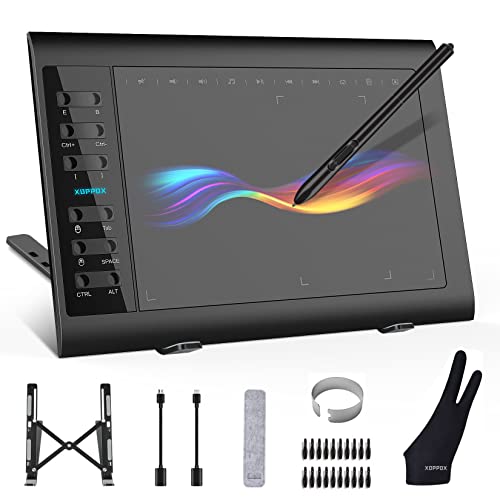
- 【Broad Compatibility】XOPPOX Upgraded Graphics Tablet is compatible with Windows XP, 7, 8, 10,11. Android 4.4 and above; Mac OS…
- 【No-battery Pen】The graphic drawing tablet come with 8192 levels of pressure sensitivity pen, which makes the line more…
The XOPPOX tablet is the dark horse on this list. It’s built with a metal surface and hollow metal design for heat dissipation, which you don’t typically see at this price range. The 10×6 inch active area gives you plenty of room, and the battery-free pen with 8,192 pressure levels performs surprisingly well for detailed work. You even get 20 replacement nibs in the box.
Where this tablet stands out is shortcut customization. You get 12 programmable shortcut keys and 10 multimedia keys (Windows only for the multimedia set). It’s compatible with Windows XP through 11, Android 4.4+, and Mac OS 10.7+. Works with Photoshop, Illustrator, SAI, FlipaClip, Medibang, and Lightroom. If you want maximum shortcut keys on a budget tablet, this is the one.
Best for: Budget buyers who want lots of programmable shortcut keys and a durable metal-body tablet.
How to Pick the Right Pen Tablet
After testing all of these, here’s my honest take. If you’re a working professional and color accuracy matters, the Wacom Cintiq Pro 24 or XPPen Artist Pro 16TP are your best options. If you prefer a screenless tablet with premium build quality, go with Xencelabs. For students and beginners on a budget, the VEIKK A30 V2 or UGEE M708 V2 will serve you well for years. And if you want a standalone device that doesn’t need a computer at all, the Frunsi T11 Pro is the smarter pick among the standalone options.
Don’t overthink it. Pick the one that matches your budget and workflow, and spend the rest of your time actually creating. The best pen tablet is the one you use every day.
Frequently Asked Questions
Do I need a pen display or is a screenless tablet good enough?
It depends on your drawing style. A pen display lets you draw directly on the screen, which feels more natural for illustrators and painters. A screenless tablet takes a few days to get used to (you draw on the tablet while looking at your monitor), but many professional artists prefer them because of the ergonomic benefits and larger screen real estate. If you’re just starting out, a screenless tablet at $40-$60 is the smarter first purchase.
How many pressure sensitivity levels do I actually need?
8,192 levels is the current standard, and it’s more than enough for any creative work. You’ll find this on most tablets in 2026, even budget ones. The difference between 4,096 and 8,192 levels is noticeable if you do detailed shading or calligraphy, but anything above 8,192 is marketing more than real-world improvement. Don’t let a higher number alone justify a higher price.
Can I use a pen tablet for photo and video editing?
Absolutely. Pen tablets work great with Photoshop, Lightroom, DaVinci Resolve, and other editing software. The pressure sensitivity gives you much finer control over masking, retouching, and color grading compared to a mouse. I use a pen tablet for all my photo retouching work, and the precision difference is night and day. Any of the tablets on this list will work well for editing.
Are Wacom tablets still worth it in 2026 with cheaper alternatives?
Wacom still makes the best professional pen displays on the market. Their driver software is the most stable, and the Pro Pen 2 is phenomenal. But for screenless tablets in the $30-$150 range, brands like XPPen, Huion, VEIKK, and Xencelabs now offer comparable performance at significantly lower prices. If you’re on a budget, you can safely go with a non-Wacom option and not feel like you’re compromising.
What size pen tablet should I buy?
For most people, a medium tablet (around 10×6 inches) is the sweet spot. It’s large enough for comfortable drawing strokes but small enough to fit on most desks. Small tablets (6×4 inches) work for quick sketches and note-taking but feel cramped for detailed illustration. Large tablets (16+ inches) are great if you have desk space and do full-arm drawing, but they can feel unwieldy for some. Match the tablet’s aspect ratio to your monitor for the most natural experience.
Do I need a standalone drawing tablet or one that connects to a computer?
If you already have a computer with creative software installed, get a tablet that connects to it. You’ll get better performance, access to professional apps like Photoshop and Clip Studio, and more storage for your files. Standalone tablets (like the PicassoTab or Frunsi) are best for beginners, kids, or situations where you don’t have access to a computer. They run Android apps, which are more limited than desktop software, but perfectly fine for learning and casual drawing.