
Content Pruning: When to Delete, Redirect, or Update
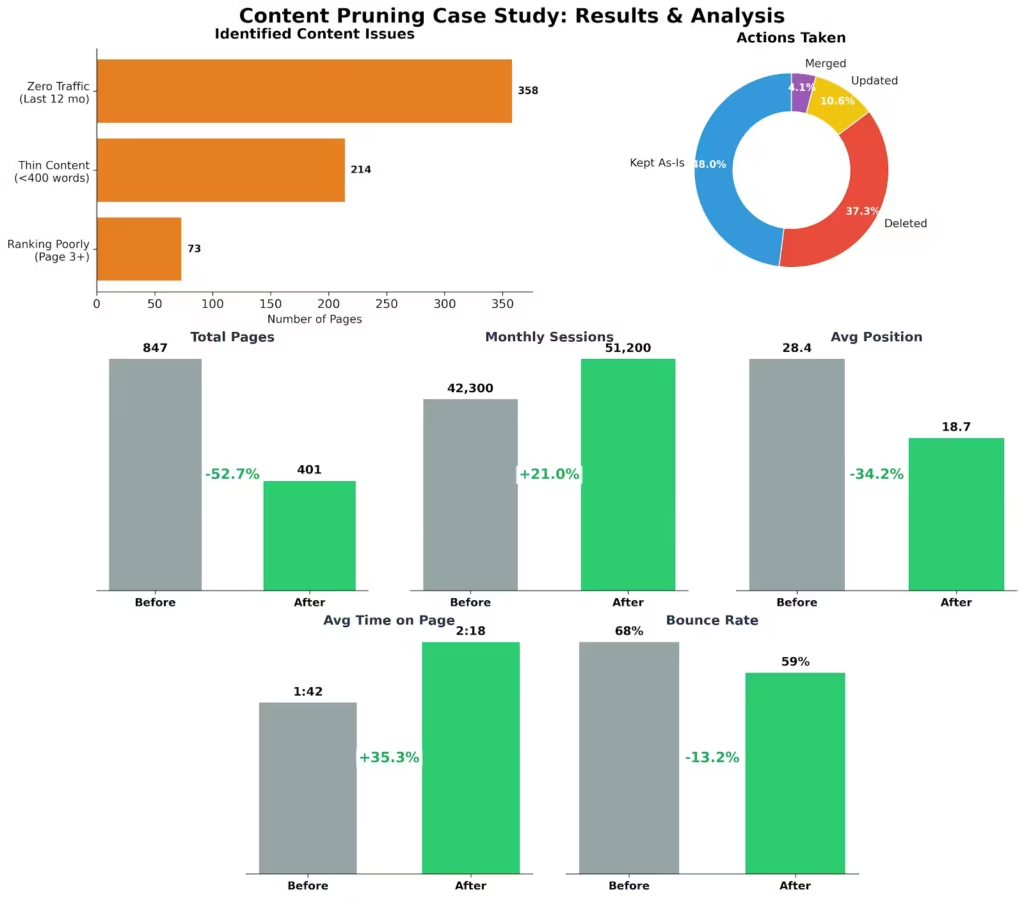
I deleted 114 pages from a client site last year. Traffic went up 47%.
Sounds backwards, right? More pages should mean more opportunities to rank, except when half those pages are garbage, dragging down your entire domain.
Content pruning is not-so-cool type of work of deciding what stays, what dies, and what needs CPR. Done right, your rankings improve across the board. Done wrong, you tank a site that was doing fine.
I’ve audited and pruned over 50 sites. Here’s what actually works. For related reading, see my guide on content decay.
Why Pruning Actually Works
Google ranks pages. But it evaluates your entire site when deciding how much to trust you.
A site with 1,000 pages where 600 are thin, outdated, or irrelevant? Google sees a content farm. The whole domain gets demoted.
That same site with 400 genuinely useful pages? Higher domain authority. Better rankings everywhere.
The Helpful Content Update (2022-2024) made this painfully clear. Sites bloated with low-value content got crushed. Sites that pruned aggressively often recovered within months.
I’ve watched this pattern play out dozens of times. Delete the weak stuff, and rankings for strong content improve. Every single time.
When to Run an Audit
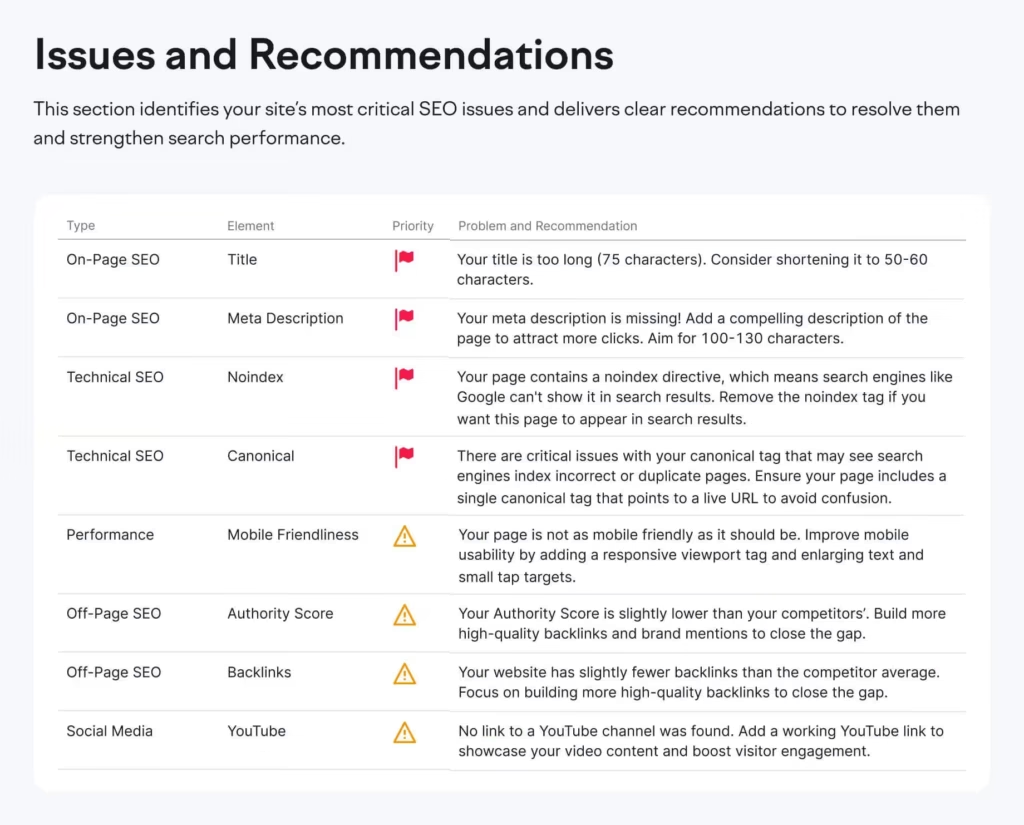
At minimum, audit annually. More often if you’re publishing frequently.
I audit quarterly for high-volume blogs pumping out 50+ posts per month. Yearly is fine for slower sites doing 4-10 posts monthly.
Drop everything and audit immediately if:
- You got slapped by an algorithm update
- Organic traffic tanked 20%+ over three months
- You just acquired a site and need to understand what you bought
- You’re prepping to sell and want to maximize valuation
Don’t audit randomly. Put it on your calendar. February works well because traffic is usually lower, and changes have time to settle before Q4.
The Audit Process
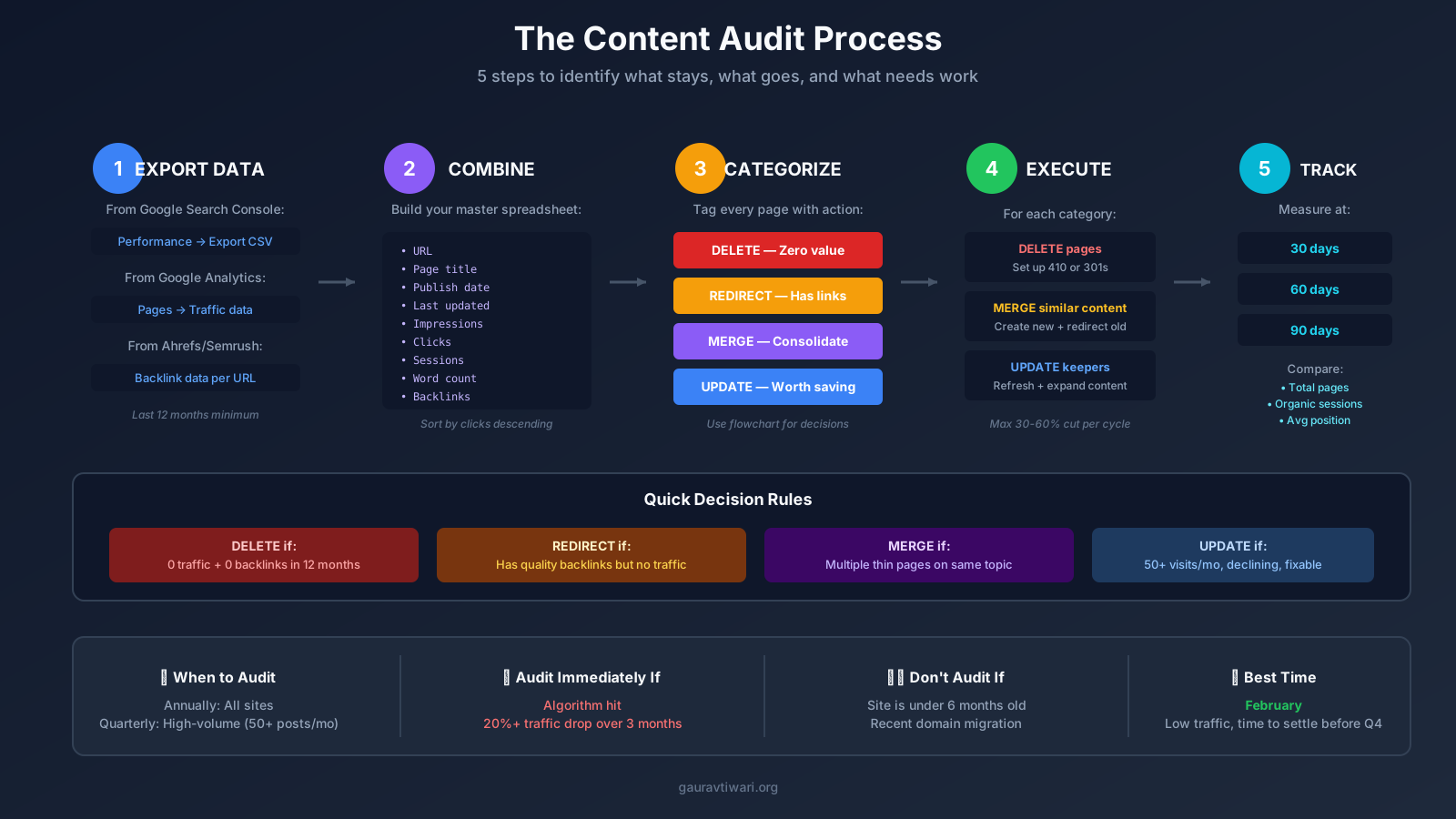
Start with Google Search Console. Go to Performance, add a Page filter, export to CSV. This gives you actual performance data: impressions, clicks, CTR, average position for every indexed page.
Pull traffic data from Google Analytics (or whatever analytics tool you’re using) for the same period. Sessions, bounce rate, time on page, conversions if you track them.
Combine everything in a spreadsheet. You need:
- URL
- Page title
- Publish date
- Last updated date
- Impressions (last 12 months)
- Clicks (last 12 months)
- Sessions (last 12 months)
- Average time on page
- Bounce rate
- Word count
- Backlinks (from Ahrefs, Semrush, or similar)
Sort by clicks descending. Your winners show up first. Now you can see what’s working and, more importantly, what isn’t.
The Delete, Update, Merge, or Keep Decision
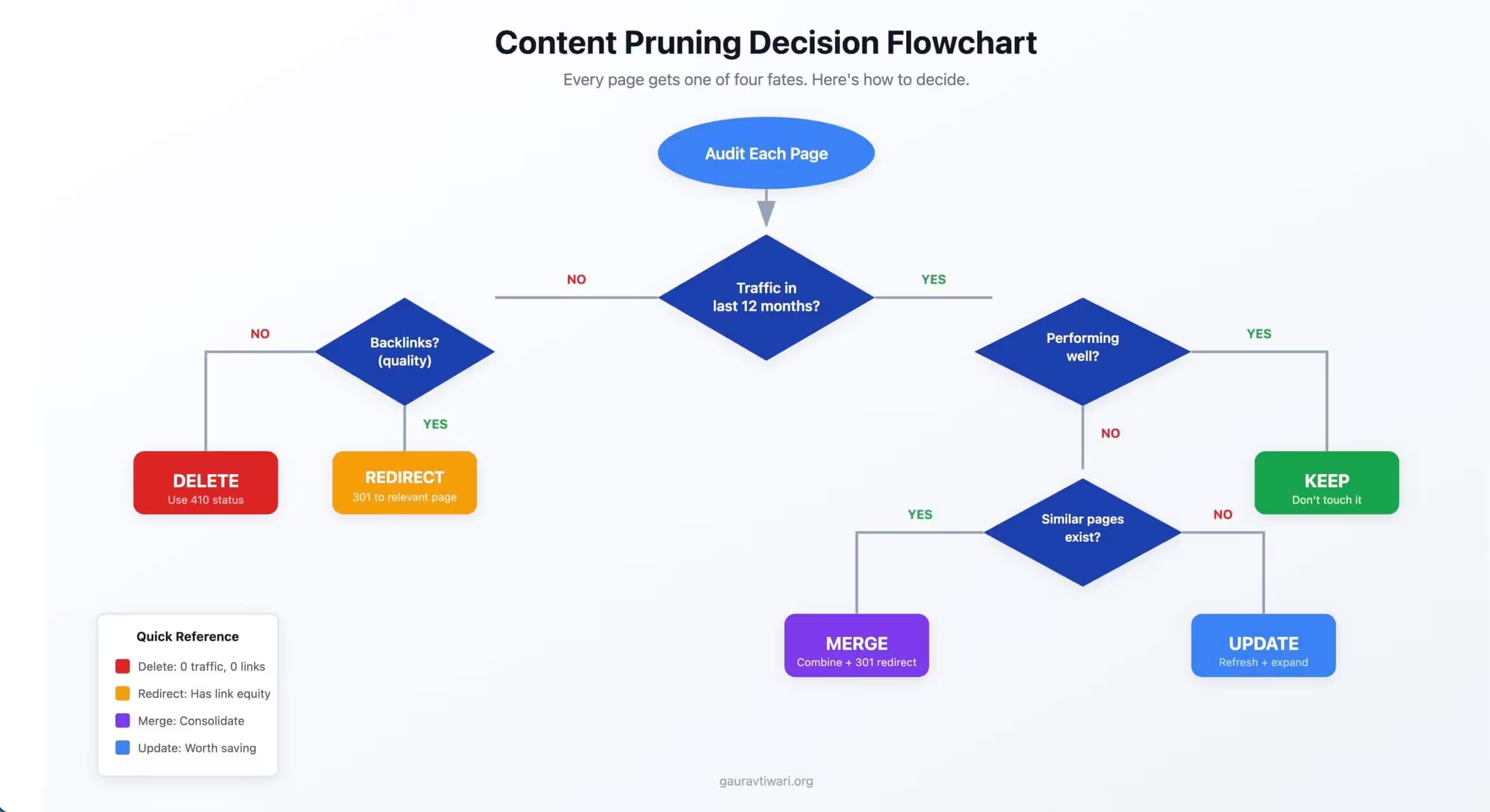
Every page gets one of four fates. Here’s how I decide.
Delete These Pages
- Zero traffic in 12 months and zero backlinks. Nobody cares about this content. Google doesn’t rank it. Other sites don’t link to it. Kill it without guilt.
- Thin content under 300 words with no unique value. Product pages with copied manufacturer specs. Category pages with two sentences. Auto-generated garbage.
- Outdated content that’s actively wrong. “Best WordPress Themes for 2019” is misleading in 2026. Tax advice from three years ago could get someone in trouble. Tutorials for deprecated software help nobody.
- Duplicate or near-duplicate content. Multiple pages targeting the same keyword with 80% identical copy? Delete the weaker ones. Keep the best.
- Content that doesn’t fit your current strategy. You pivoted from B2C to B2B? That consumer-focused content is confusing your positioning. Cut it.
- Cannibalized pages. Three different articles competing for the same keyword, none ranking well? Pick the strongest, delete the others.
I deleted 180 pages from an Amazon affiliate site last year. Most were product reviews from 2016-2018 for discontinued products. Zero traffic. Zero backlinks. Just dead weight.
Update These Pages
- Traffic declining but still pulling 50+ visits monthly. The bones are good. Just needs freshening up.
- Ranking positions 11-30 for target keywords. Close to page one but needs a push to break through. Worth the effort.
- High bounce rate (75%+) despite decent CTR from search. People click but immediately bail. The content doesn’t match what they expected.
- Outdated info on a still-relevant topic. Refresh the stats, swap old examples for current ones, update screenshots.
- Missing information users actually need. Check “People Also Ask” for your target keyword. If you’re not answering those questions, add sections that do.
Merge These Pages
- Multiple pages on nearly identical topics. Five separate articles about “email marketing tips” when one proper guide would crush them all? Merge.
- Related pages ranking poorly individually. Combine them into one authoritative piece that can actually compete.
- Thin pages that would make one solid article together. “What is SEO?” (200 words), “Why SEO Matters” (250 words), “How SEO Works” (180 words) becomes one “Complete SEO Basics Guide” at 1,500+ words.
Set up 301 redirects from old URLs to the new merged page. Traffic consolidates, rankings improve.
Keep These Pages
- Top performers. Getting traffic, ranking well, converting. Don’t fix what isn’t broken.
- Evergreen content still delivering. Steady traffic month over month, stable or improving rankings.
- Link magnets. Traffic might be low, but if it has 50+ backlinks from quality domains, that link equity benefits your entire site.
- Brand and essential pages. About, Contact, Services, Privacy Policy. These stay regardless of traffic.
- Funnel-supporting content. Maybe it’s not driving organic traffic, but it converts visitors arriving through other channels.
How to Delete Content Properly

Don’t just hit delete and walk away. That creates 404 errors everywhere and wastes whatever link equity existed.
Option 1: Delete with 410 Status
Use this for pages with zero value and zero backlinks. A 410 status code tells Google “this content is permanently gone, stop looking for it.”
Google removes 410 pages from the index faster than 404s. Use this for spam, thin content, anything you never want crawled again.
Option 2: Delete with 301 Redirect
For pages with some traffic or backlinks, redirect to the most relevant existing page.
Deleting “Best WordPress Caching Plugins 2019? Point it at your current “Best WordPress Caching Plugins” guide.
Killing a review for a discontinued product? Redirect to the category page or the replacement product’s review.
Don’t redirect everything to your homepage. That’s lazy. It wastes link equity. Find the most relevant alternative.
Option 3: Redirect to Parent Category
No direct alternative exists? Redirect to the parent category or topic cluster.
Deleting a specific case study? Send it to the case studies index page.
How to Update Content That’s Worth Saving
Don’t just change the date and republish. That’s fake updating. Google notices. So do your readers.
Meaningful updates look like this:
- Refresh outdated information. Stats from 2020? Find 2025 data. Old screenshots? Take new ones. Discontinued tools? Replace with current alternatives.
- Add missing sections. Check what’s ranking for your target keyword now. What do competitors cover that you don’t? Add it.
- Expand thin content. A 500-word article stuck on page two? Push it to 1,500+ words with more depth, better examples, actual actionable advice.
- Fix the formatting. Add subheadings, break up walls of text, include tables where they help. Add FAQ schema sections.
- Update internal links. Link to newer content you’ve published since the original article went live.
- Rework titles and meta descriptions. Check search results. Does your title stand out? Does it match current search intent?
I update articles on this blog constantly. Some posts have been refreshed four or five times. The traffic keeps growing because the content keeps improving.
Getting Redirects Right
Use 301 permanent redirects. Not 302 temporary. 301s pass link equity. 302s don’t.
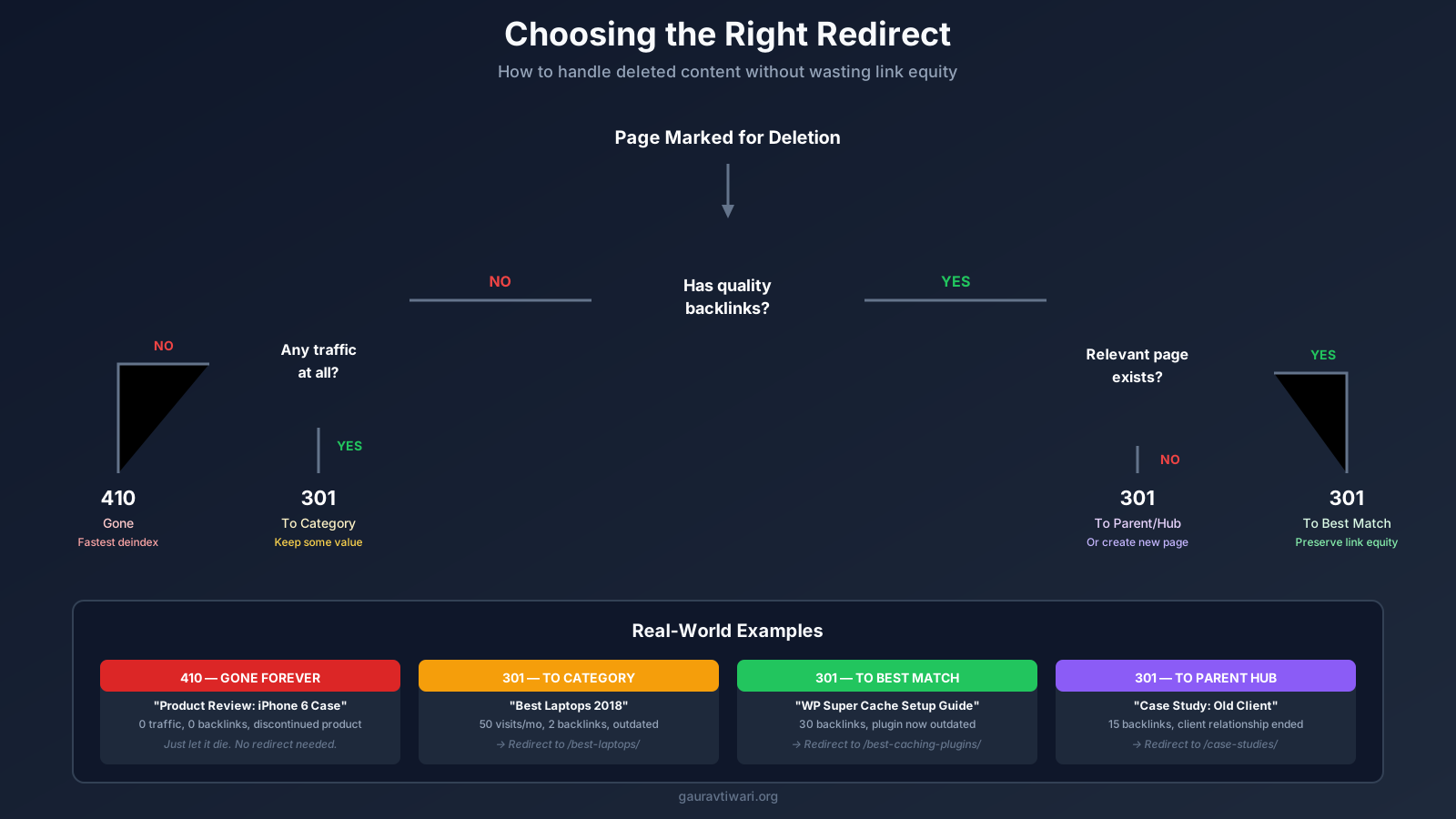
Here is how you can redirect pages:
WordPress Plugins
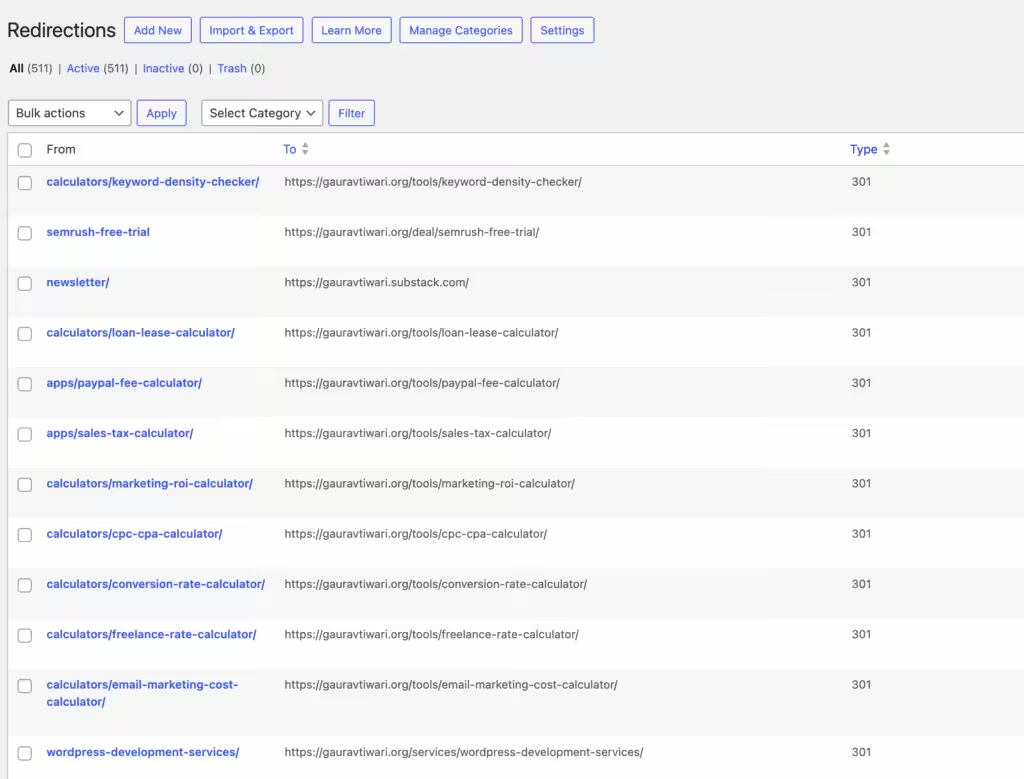
A redirect plugin like Redirection works fine. Rank Math and SEOPress both have built-in redirect managers if you’re already using them.
.htaccess
If you’re comfortable editing server files, .htaccess gives you the most control over redirects. It’s faster than plugin-based redirects because the server handles everything before WordPress even loads.
Fair warning: one typo in .htaccess can take your entire site down. Always keep a backup of the original file before making changes. I’ve learned this the hard way more than once.
Where to Find Your .htaccess File
The .htaccess file lives in your WordPress root directory (same folder as wp-config.php). Connect via FTP or your hosting file manager. The file is hidden by default, so enable “show hidden files” in your FTP client.
If you don’t see it, your hosting might not have created one yet. WordPress generates it automatically when you save permalinks. Go to Settings → Permalinks and click Save. That usually creates it.
Basic 301 Redirect Syntax
The simplest redirect looks like this:
Redirect 301 /old-page/ https://yourdomain.com/new-page/That’s it. When someone visits /old-page/, they land on /new-page/ instead. The 301 tells browsers and search engines this is permanent.
A few things to note:
- The old URL is relative (starts with /). The new URL is absolute (full domain).
- Trailing slashes matter. If your site uses trailing slashes, include them. If not, don’t.
- Place redirects above the WordPress rewrite rules (before the
# BEGIN WordPressline).
Common Redirect Patterns
Single page redirect:
Redirect 301 /best-themes-2019/ https://yourdomain.com/best-themes/Redirect an entire category:
RedirectMatch 301 ^/old-category/(.*)$ https://yourdomain.com/new-category/$1This catches anything under /old-category/ and moves it to /new-category/ while preserving the rest of the URL. So /old-category/some-post/ becomes /new-category/some-post/.
Redirect old domain to new domain:
RewriteEngine On
RewriteCond %{HTTP_HOST} ^olddomain.com$ [OR]
RewriteCond %{HTTP_HOST} ^www.olddomain.com$
RewriteRule (.*)$ https://newdomain.com/$1 [R=301,L]
Force HTTPS (while you’re in there):
RewriteEngine On
RewriteCond %{HTTPS} off
RewriteRule ^(.*)$ https://%{HTTP_HOST}%{REQUEST_URI} [L,R=301]
Redirect with query strings:
RewriteEngine On
RewriteCond %{QUERY_STRING} ^id=123$
RewriteRule ^product.php$ https://yourdomain.com/new-product-page/? [R=301,L]
The ? at the end strips the old query string. Without it, the query string carries over.
Bulk Redirects for Large Pruning Projects
When you’re deleting 200+ pages, adding redirects one by one is painful. Here’s the faster approach:
Create your redirect list in a spreadsheet with two columns: old URL path and new full URL. Export as CSV, then convert to .htaccess format using a formula or find-replace.
Your .htaccess entries should look like this:
# Content Pruning Redirects - January 2026
Redirect 301 /old-post-1/ https://yourdomain.com/new-destination-1/
Redirect 301 /old-post-2/ https://yourdomain.com/new-destination-2/
Redirect 301 /old-post-3/ https://yourdomain.com/category-page/
Redirect 301 /old-post-4/ https://yourdomain.com/new-destination-3/
Add a comment with the date. Future you will thank present you when troubleshooting six months later.
Setting Up 410 Gone Status
For pages you want completely removed from Google’s index (spam, thin content, stuff that should never have existed), use 410 instead of 301:
RewriteEngine On
RewriteRule ^spam-page-to-delete/$ - [G,L]
The [G] flag returns a 410 Gone status. Google removes these from the index faster than regular 404s.
For multiple 410s:
RewriteEngine On
RewriteRule ^delete-this-page/$ - [G,L]
RewriteRule ^also-delete-this/$ - [G,L]
RewriteRule ^and-this-one/$ - [G,L]
Testing Your Redirects
After adding redirects, test every single one. Seriously. I use httpstatus.io for quick checks. Paste the old URL, verify it returns 301 and lands on the correct destination.
For bulk testing, tools like Screaming Frog can crawl a list of URLs and report status codes. Worth the time on big projects.
Common issues to watch for:
- Redirect chains: A redirects to B, B redirects to C. Fix these. Redirect A directly to C.
- Redirect loops: A redirects to B, B redirects to A. Your browser will give up after a few attempts. Check for typos.
- Wrong status code: Make sure you’re getting 301, not 302. Some hosting setups default to 302.
- Trailing slash mismatches: If
/old-pagedoesn’t redirect but/old-page/does, you’ve got a trailing slash issue.
If you’re on Nginx (not Apache), .htaccess won’t work. You’ll need to add redirects to your Nginx config file instead. The syntax is completely different.
If you’re managing 500+ redirects, .htaccess can slow down your server. At that scale, consider Cloudflare Bulk Redirects or a redirect plugin with database storage. The performance hit from a massive .htaccess file isn’t worth it.
And if you’re not comfortable in server files, just use Rank Math or Redirection plugin. No shame in that. A working redirect from a plugin beats a broken redirect from a typo in .htaccess.
Cloudflare Bulk Redirects
Cloudflare bulk redirects are perfect for large pruning projects. No .htaccess editing, no plugin overhead.
Go to your Cloudflare dashboard → Rules → Redirect Rules → Bulk Redirects. Create a new list, then add your redirects manually or upload a CSV with source and target URLs.
I use CSV upload for anything over 20 redirects. Format is simple: source URL in column A, destination in column B. Cloudflare handles the rest.
The free plan includes 20 redirect rules. Pro gets you more. For most content pruning projects, the free tier is enough if you’re using Bulk Redirects (which count as one rule regardless of how many URLs you add).
Note that Cloudflare only works if your DNS runs through them. If you’re using external DNS, this won’t help. Stick with .htaccess or a plugin instead.
Test every redirect before finalizing. Use a redirect checker. Make sure the old URL returns a 301 status and lands on the correct destination.
Avoid redirect chains. If page A redirects to B which redirects to C, fix it. Redirect A directly to C.
What to Expect After Pruning
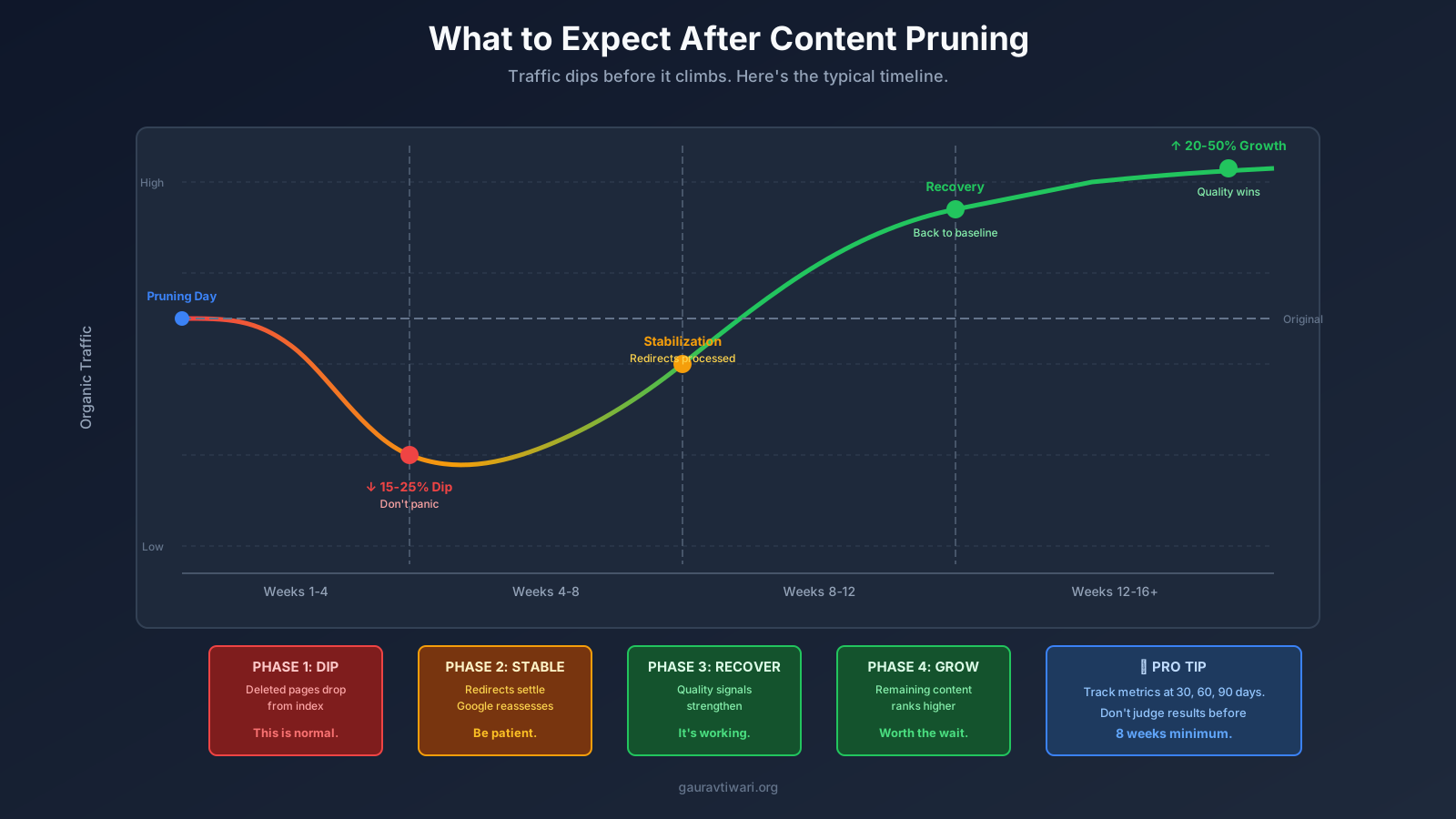
Don’t expect instant miracles. Google needs time to recrawl, reindex, and reassess your site.
Here’s the typical timeline I see:
- Weeks 1-4: Initial dip. Deleted pages drop out of the index. Temporary traffic drop as redirects settle in.
- Weeks 4-8: Stabilization. Redirects fully processed. Merged pages start ranking.
- Weeks 8-16: Growth. Remaining content ranks better because your site quality signals have improved.
Track these metrics:
- Indexed pages: Check Search Console. Should drop to match your new page count.
- Organic traffic: Expect stabilization after the initial dip, then growth 2-4 months out.
- Average position: Should improve for remaining content as domain signals strengthen.
- Crawl stats: Coverage report in Search Console. Crawl errors should drop significantly.
I track with a simple spreadsheet: pre-pruning metrics, then the same metrics at 30, 60, and 90 days. Total pages, organic sessions, average position. That’s enough to see the pattern.
Mistakes That’ll Wreck Your Pruning Project
- Deleting based on gut feeling instead of data. You think a page is useless, but it has 200 backlinks from quality sites. Check backlinks before deleting anything. Always.
- Skipping redirects. Just deleting without redirects creates 404 errors everywhere and throws away link equity you spent years building.
- Redirecting everything to the homepage. This is lazy and Google knows it. Find relevant alternative pages.
- Being too conservative. Deleting 5% of your content won’t move the needle. If you have dead weight, be aggressive about cutting it.
- Being too aggressive. Nuking 80% of your site overnight can shock Google. I aim for 30-60% maximum in a single pruning cycle. If you need to cut more, do it in phases.
- Not updating publication dates after real updates. If you meaningfully improved content, change the date. Google notices genuine updates and rewards them.
- Forgetting to check conversions. A low-traffic page might convert exceptionally well. Check conversion data before you kill it.
When NOT to Prune
Hold off on pruning if:
- Your site is under 6 months old. You need time to see what actually performs before cutting anything.
- Content is under 3 months old. Google needs time to assess new pages. Give them a chance.
- You’re in a seasonal business during off-season. Wait until you have full-year data before making decisions.
- You recently migrated domains or made major technical changes. Let that settle first.
- Your traffic is growing steadily despite some low-quality content. Don’t mess with what’s working. Fix problems, but don’t prune during growth phases.
Ongoing Maintenance
Pruning isn’t a one-time event. It’s ongoing maintenance, like changing the oil in your car.
- Quarterly: Review pages published in the last 90 days. Are they performing? Are they worth keeping?
- Annually: Full site audit. Delete, update, merge as needed.
- Continuously: Set up alerts for pages losing 50%+ traffic month-over-month. Investigate immediately. Fix or delete.
- Prevention: Document content standards so you stop publishing stuff that’ll need pruning later. Minimum word counts, required sections, quality checklists before hitting publish.
I keep a “maybe delete” list running year-round. Pages that seem questionable go on the list. During annual audit, I review everything with full data and make final calls.
The Bottom Line
Before you prune, make sure you have the full picture. Content decay analysis helps identify which posts are losing traffic vs. which just need updates. Use Rank Math to track which pruned posts recover and which ones were better off redirected. If you want help with a full content audit, my content marketing services include pruning strategy.
How do I know which pages to delete vs update?
Delete pages with zero traffic and zero backlinks over the past 12 months. Delete thin content under 300 words that offers nothing unique. Delete outdated content that’s actively misleading readers. Update pages still pulling 50+ visits monthly but showing declining traffic, or pages ranking on page 2-3 that could break through with improvements. Always check both traffic data and backlink data before making the call.
Will deleting pages hurt my SEO?
Deleting low-quality pages usually improves SEO because it raises your site’s overall quality signals. You’ll see a temporary traffic dip as deleted pages drop from the index, but proper 301 redirects preserve link equity. Most sites see net-positive results 8-12 weeks after pruning. I’ve personally seen traffic increases of 20-50% after aggressive content pruning on client sites.
Should I use 301 or 410 status codes when deleting content?
Use 301 redirects for pages with any traffic or backlinks. Point them at the most relevant alternative page to preserve link equity. Use 410 status codes for spam, worthless thin content, and pages you never want indexed again. Google removes 410 pages from the index faster than 404s. Don’t just delete pages and leave broken links everywhere.
How often should I audit and prune content?
Full content audit annually at minimum. Quarterly if you’re publishing 50+ posts monthly. Audit immediately after an algorithm hit or a 20%+ traffic decline. Put it on your calendar so it actually happens. I run annual audits in February when traffic is typically slower and changes have time to settle before peak seasons.
What’s the difference between updating and merging content?
Updating means refreshing an existing page with current information, fresh data, new screenshots, and additional sections while keeping it standalone. Merging means combining multiple weak or similar pages into one authoritative guide, then setting up 301 redirects from old URLs to the new page. Merge when you have several thin pages that together would make one strong piece.
Can I prune too much content at once?
Yes. Deleting 80%+ of your site overnight can shock Google and trigger larger traffic drops than expected. Keep pruning to 30-60% maximum per cycle. If you need to cut more, do it in phases over 6-12 months. This gives Google time to adjust and reduces the risk of algorithmic confusion about your site’s identity.
Should I check backlinks before deleting pages?
Absolutely. A page might have zero traffic but 50 backlinks from quality domains. That link equity benefits your entire site. Use Ahrefs, Semrush, or similar to check backlinks before deleting anything. If a page has quality backlinks, either update it to make it valuable again or redirect it to preserve that link equity.
How long until I see results after content pruning?
Expect an initial traffic dip in weeks 1-4 as deleted pages drop from the index. Stabilization happens around weeks 4-8 as redirects process fully. Real growth typically starts 8-16 weeks post-pruning as remaining content ranks better. I track metrics at 30, 60, and 90 days to measure the full impact.
More content isn’t better when that content is bad. Quality over quantity sounds like a cliche until you watch a site’s rankings climb 30% after deleting half its pages.
Audit honestly. Delete aggressively. Update strategically. Redirect properly.
Your traffic might dip at first. That’s normal. Give it 8-12 weeks. Most sites see net-positive results.
I’ve never regretted pruning low-quality content. I’ve often regretted waiting too long to do it.
Disclaimer: This site is reader-supported. If you buy through some links, I may earn a small commission at no extra cost to you. I only recommend tools I trust and would use myself. Your support helps keep gauravtiwari.org free and focused on real-world advice. Thanks. - Gaurav Tiwari