
Best Whiteboard Tools for Remote Teams
The remote brainstorm felt hollow. Everyone on mute, one person screensharing a Google Doc, ideas typed as bullet points that lost all energy the moment they hit the screen. I’ve sat through dozens of these meetings. They’re painful.
Then we tried a virtual whiteboard. Suddenly, people were sketching, arranging sticky notes, and connecting ideas spatially. The meeting came alive. People who never spoke up started contributing because dropping a sticky note feels less intimidating than unmuting yourself.
I’ve tested every major whiteboard tool across client projects, team workshops, and my own planning sessions over the past three years. Some enable genuine collaboration. Others create more confusion than clarity. Here’s what actually works.
Why Virtual Whiteboards Matter for Remote Teams
Remote work strips away the physicality of collaboration. You lose the ability to walk up to a whiteboard, sketch something out, and point at it while explaining. That physical interaction matters more than most people realize.
Virtual whiteboards bring back what’s missing. Ideas have relationships, and whiteboards show this through proximity, grouping, and visual connections. You can see how concepts fit together in ways that bullet points in a document never capture. When multiple people contribute simultaneously, you get an energy that typical video calls lack completely.
I’ve run retrospectives, product planning sessions, and brainstorming workshops on these tools. The difference in engagement compared to screen-shared documents is dramatic. People who stay silent during normal calls become active participants when they can move sticky notes around. For teams doing collaborative work remotely, visual thinking tools aren’t optional anymore.
What to Look For in Whiteboard Tools
Whiteboard tools are one piece of the remote work puzzle. For project management beyond whiteboards, check the digital strategy services I offer for teams that need the full toolkit set up. If your remote team also needs a collaboration-ready website, my web development services include project portals and client dashboards.
Before you pick a tool, understand what actually matters versus what sounds good in marketing copy.
Infinite Canvas That Performs
Every whiteboard tool claims infinite canvas. The question is whether it stays responsive when you’ve got 50 sticky notes, 30 shapes, and 12 people editing simultaneously. Some tools crawl when boards get complex. Others handle it fine. This matters more than feature lists.
Real-Time Collaboration That Works
You need to see teammates’ cursors and contributions instantly. No refresh required, no weird sync delays. When someone moves a sticky note, everyone should see it happen in real time. Sounds basic, but some tools struggle with this at scale.
Templates That Save Time
Starting from a blank canvas every time wastes meeting time. Good tools include templates for retrospectives, planning sessions, mapping exercises, and common frameworks. Great tools let you create and share custom templates across your team.
Integration With Your Stack
A whiteboard that lives in isolation creates friction. You want connections to Slack, Microsoft Teams, Jira, or whatever project management tools your team already uses. The ability to embed content from other tools and link out to documents matters too.
Best Whiteboard Tools
Miro
- Infinite collaborative canvas
- Workshop and meeting templates
- Integrations with Jira, Slack, and more
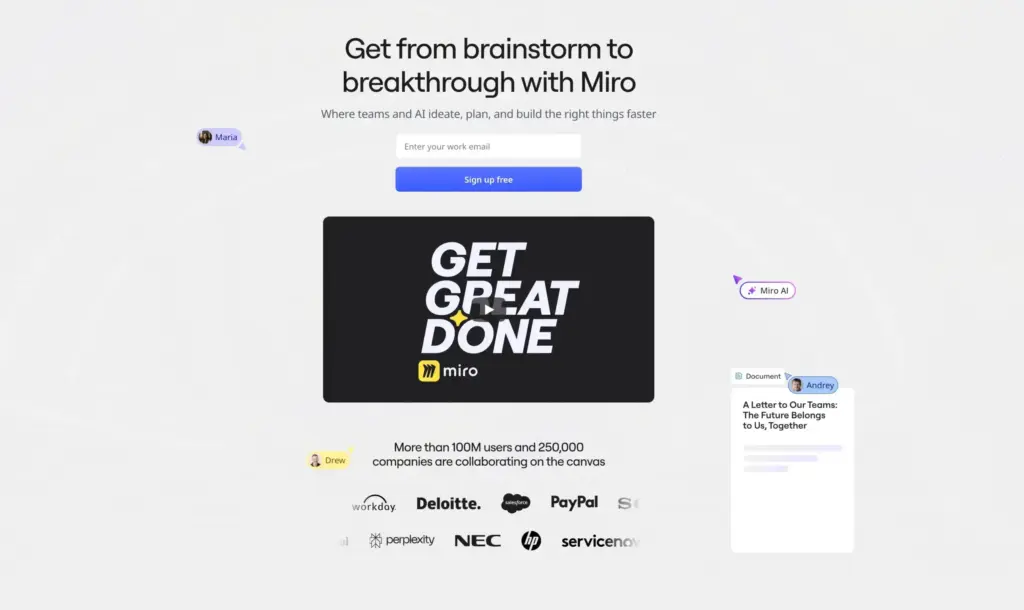
Miro is the enterprise whiteboard standard, and for good reason. I’ve used it on projects with 3 people and workshops with 50. It handles both without breaking a sweat.
The canvas is genuinely infinite and stays responsive even with complex boards. Real-time collaboration is smooth. The template library covers everything from sprint planning to user journey mapping to design thinking workshops. You’ll probably find a template for whatever you’re trying to do.
What I appreciate most is the integration depth. Miro connects to Jira, Asana, Slack, Microsoft Teams, Google Workspace, and dozens more. When you’re working on a feature planning board, you can pull in Jira tickets directly. When decisions are made, you can push them to your task management tool without copy-pasting.
The AI features have gotten genuinely useful too. Miro Assist can generate board structures from prompts, cluster sticky notes into themes, and summarize session outputs. It’s not magic, but it saves time on routine tasks.
The free tier gives you 3 boards with unlimited collaborators. That’s enough to test whether Miro fits your workflow. Team plans start at $8 per user monthly for unlimited boards, and that’s where most teams land.
- What works: Feature-rich without being overwhelming. Reliable performance. Great templates. Deep integrations.
- What doesn’t: Can feel complex for simple needs. Pricing adds up for large teams. Some features are buried in menus.
- Pricing: Free for 3 boards. Team plan $8/user/month. Business plan $16/user/month.
- Best for: Enterprise teams. Workshops with many participants. Teams needing integrations.
FigJam
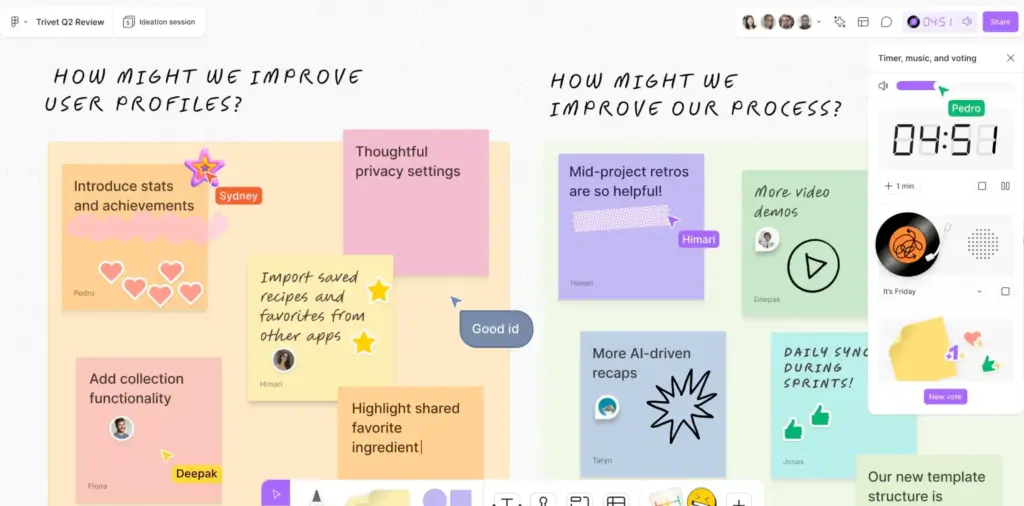
FigJam comes from Figma, and it shows. The interface is lighter than Miro, faster to start, and less overwhelming for people who just want to brainstorm without learning a new platform.
The playful elements work surprisingly well. Stamps, emojis, and animated cursors add personality to collaboration without being distracting. There’s something about high-fiving a teammate’s sticky note that makes remote work feel less isolated.
FigJam’s AI features are surprisingly capable. You can generate entire whiteboard templates from a simple prompt, sort sticky notes into themes with one click, and summarize session outputs automatically. For teams already using Figma for design work, the integration is seamless. You can copy elements between FigJam and Figma files, and the same file browser works for both.
The free tier includes 3 FigJam files with unlimited collaborators. Professional plans start at $5 per user monthly. Some team plans bundle FigJam with Figma at $3-5 per seat depending on your arrangement.
- What works: Simple interface. Quick to start. Playful features that encourage participation. Strong AI. Deep Figma integration.
- What doesn’t: Less feature-rich than Miro. Not ideal for complex diagramming. Some features require Figma ecosystem.
- Pricing: Free for 3 files. Professional $5/user/month.
- Best for: Design teams. Simple collaboration needs. Teams wanting minimal learning curve.
Excalidraw
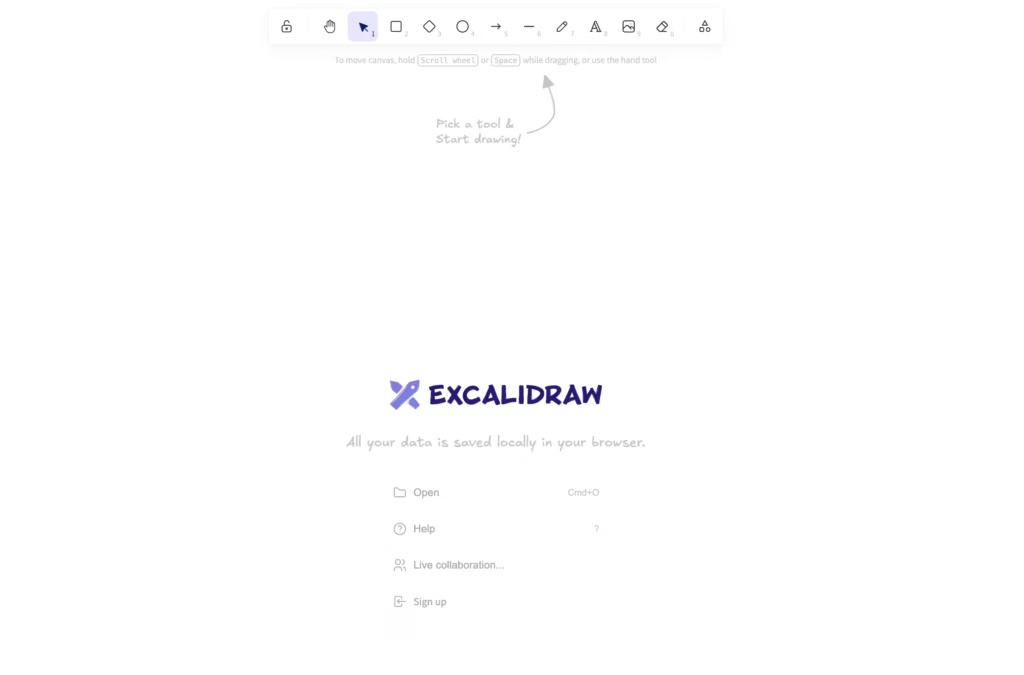
Excalidraw does one thing extremely well: it’s a completely free, no-account-required whiteboard with hand-drawn aesthetics that somehow make everything look better.
No signup. Share a link. Start collaborating. That’s it. The hand-drawn style isn’t just aesthetic preference. It makes rough sketches look intentional instead of sloppy, which encourages people to draw rather than just type.
Real-time collaboration works well. The tool is open source, so there’s no vendor lock-in. You can export to PNG, SVG, or save files locally. If you’re privacy-conscious or just hate creating accounts for every tool, Excalidraw respects that.
Excalidraw+ adds extra features for $7/month if you want them, but the free version is genuinely complete for most use cases. I use the free version for quick diagrams and technical sketches regularly.
- What works: Completely free. No account required. Hand-drawn style. Open source. Great for quick sketches.
- What doesn’t: Fewer templates than paid tools. No advanced features. Less suited for complex workshops.
- Pricing: Free. Excalidraw+ $7/month for extras.
- Best for: Budget-conscious teams. Quick diagrams. Technical sketches. Privacy-focused users.
Microsoft Whiteboard
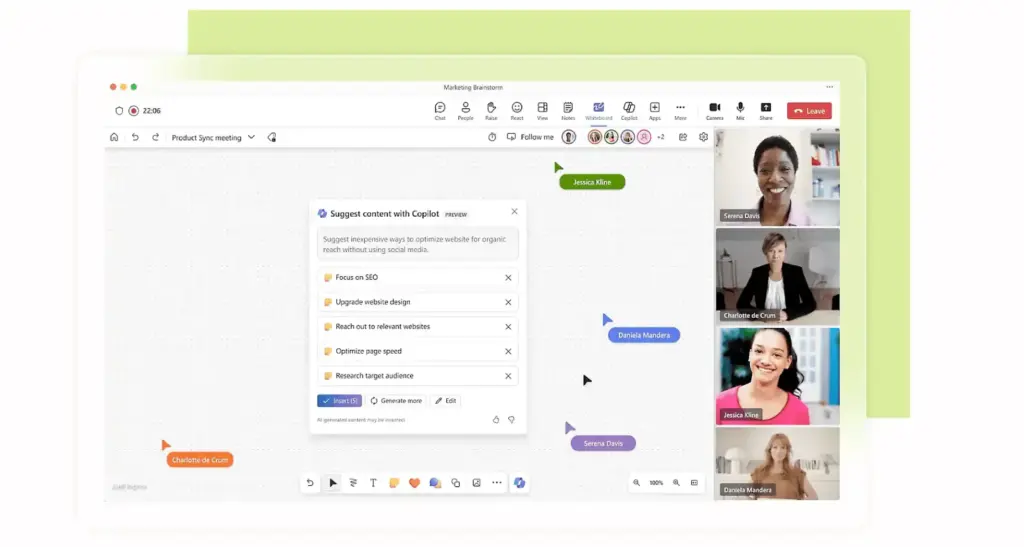
If your company lives in Microsoft 365, Microsoft Whiteboard is the obvious choice. It’s included with your subscription, integrates directly into Teams meetings, and requires no additional setup.
You can start a whiteboard during any Teams meeting and everyone sees it immediately. No links to share, no apps to install. For organizations that struggle to get approval for new software, this matters. The whiteboard is already there.
Surface Hub support makes it useful for hybrid meeting rooms too. The collaboration works well within the Microsoft ecosystem, syncing across devices and integrating with other Microsoft tools.
The features are basic compared to dedicated tools like Miro or FigJam. You won’t find extensive template libraries or advanced facilitation features. But for organizations that prioritize simplicity and Microsoft integration over advanced capabilities, that’s a reasonable tradeoff.
- What works: Included with Microsoft 365. Native Teams integration. Works in meetings instantly. Surface Hub support.
- What doesn’t: Basic feature set. Limited templates. Less capable than dedicated tools.
- Pricing: Included with Microsoft 365 subscription.
- Best for: Microsoft 365 organizations. Teams meeting collaboration. Companies with strict software policies.
Lucidspark
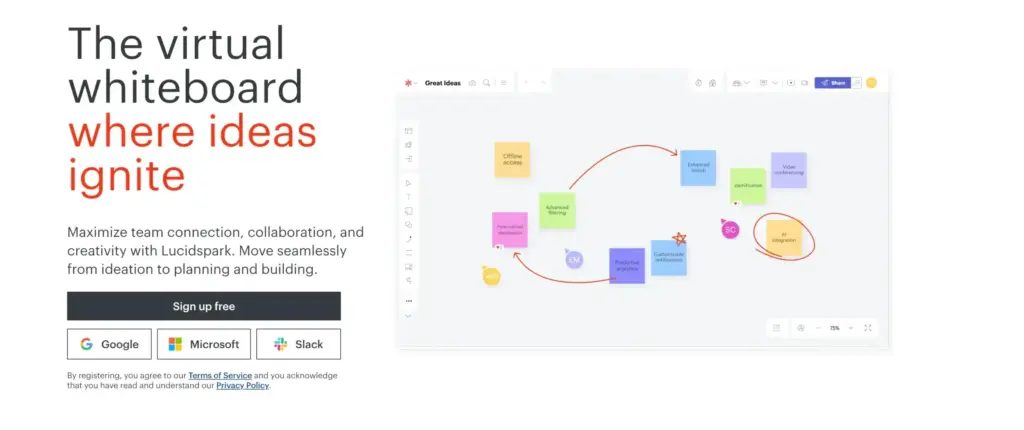
Lucidspark combines whiteboarding with the diagramming power of Lucidchart. If your team needs to brainstorm freely AND create structured diagrams from those brainstorms, this combination is powerful.
The whiteboard features cover brainstorming basics well. Sticky notes, shapes, drawing tools, templates for common activities. But the real value is the integration with Lucidchart. You can take freeform whiteboard concepts and turn them into proper flowcharts, system architectures, or process diagrams without starting over.
Facilitation features are solid. Built-in voting, timers, and session controls help run structured workshops. The AI can identify themes from brainstorming sessions and summarize outputs.
Pricing starts at $7.95 per user monthly. There’s a free tier with limited features to test whether it fits your workflow.
- What works: Lucidchart integration. Strong diagramming capabilities. Good facilitation features. Collaborative AI.
- What doesn’t: Less freeform than pure whiteboards. Higher pricing. Steeper learning curve.
- Pricing: Free tier available. Paid plans from $7.95/user/month.
- Best for: Technical teams. Process design. Teams needing both brainstorming and formal diagrams.
Mural
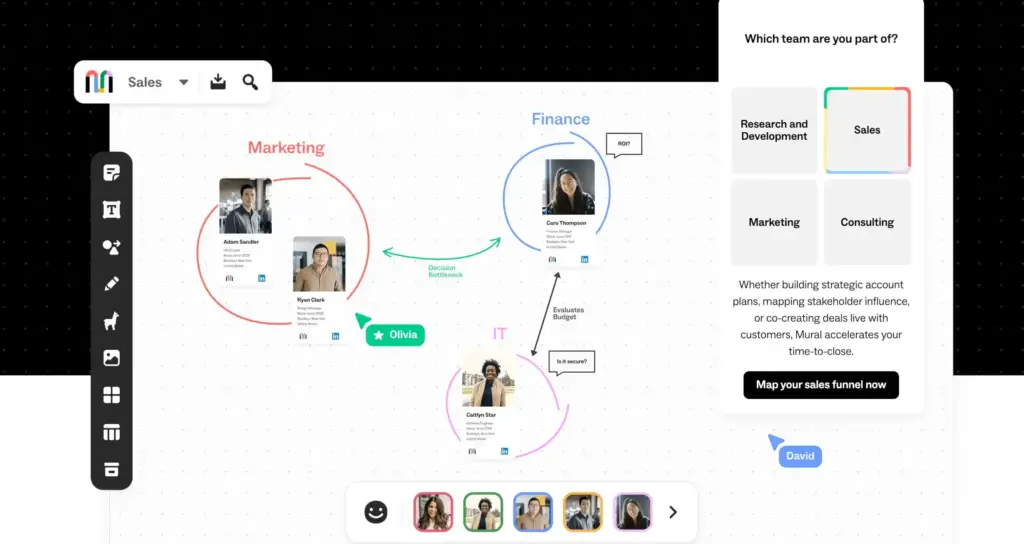
Mural positions itself for facilitated workshops and structured collaboration. The features reflect this focus. Timer controls, voting mechanisms, private mode, and the ability to summon participants to specific board locations make running workshop sessions smoother.
95% of Fortune 100 companies use Mural according to their marketing, and enterprise security features explain why. SOC 2 Type 2, ISO 27001, GDPR compliance, and Microsoft 365 certification address corporate security requirements that smaller tools often can’t match.
Mural has an exclusive partnership with Microsoft for deep Copilot integration. If you’re already using Microsoft’s AI features across your organization, Mural integrates with that ecosystem.
Templates are extensive and professionally designed. For design thinking workshops, retrospectives, and structured ideation sessions, you’ll find templates that actually help rather than just providing a starting point.
The free tier includes 5 boards. Team plans start at $12 per user monthly, which is higher than Miro or FigJam.
- What works: Excellent facilitation features. Enterprise security. Great templates. Microsoft partnership.
- What doesn’t: Higher pricing. Similar to Miro in many ways. Overkill for simple needs.
- Pricing: Free for 5 boards. Team+ $12/user/month.
- Best for: Workshop facilitators. Enterprise organizations. Design thinking sessions.
tldraw

tldraw strips whiteboarding down to essentials. Drawing, shapes, real-time collaboration. That’s about it. No templates to browse, no features to learn, no menus to navigate.
For developers who want to embed whiteboard functionality in their own products, tldraw is open source and designed for integration. The drawing tools are good, collaboration works, and the simplicity is the feature.
I use tldraw when I need to quickly sketch something during a call without launching a full whiteboard application. It’s the digital equivalent of grabbing the nearest napkin to draw on.
- What works: Extremely simple. Free. Open source. No learning curve.
- What doesn’t: Very basic. No templates. No advanced features.
- Pricing: Free.
- Best for: Quick sketches. Developers needing embedded whiteboard. People who hate feature bloat.
Comparison Table
| Tool | Free Tier | Best For | Price From | AI Features |
|---|---|---|---|---|
| Miro | 3 boards | Enterprise, workshops | $8/user | Yes |
| FigJam | 3 files | Design teams, simple collab | $5/user | Yes |
| Excalidraw | Unlimited | Budget, quick sketches | Free | No |
| MS Whiteboard | Included | Microsoft 365 shops | $0 w/M365 | Via Copilot |
| Lucidspark | Limited | Diagramming, technical | $7.95/user | Yes |
| Mural | 5 boards | Workshops, enterprise | $12/user | Yes |
| tldraw | Unlimited | Simple sketching | Free | No |
Making Whiteboards Actually Work
The tool matters less than how you use it. I’ve seen expensive Miro setups produce garbage and free Excalidraw sessions generate breakthrough ideas. Here’s what separates effective whiteboard sessions from time-wasting ones.
Prepare the Space Before the Meeting
Setting up boards during meetings wastes everyone’s time. Create the structure beforehand. Add templates, prompts, and designated areas for different activities. When participants join, they should see a clear workspace, not a blank canvas.
For retrospectives, I set up columns for “What worked,” “What didn’t,” and “What to try” before anyone joins. For brainstorming, I create a central prompt area and surrounding space for contributions. Prep takes 10 minutes and saves 15 minutes of fumbling during the actual session.
Orient Participants Quickly
Don’t assume everyone knows how to use the tool. Spend 60 seconds at the start showing where to contribute, what tools to use, and how to navigate. This is especially important when you have participants who don’t use whiteboards regularly.
“Click here to add a sticky note. Double-click to type. You can drag it anywhere. Questions? Good, let’s start.” That’s the entire orientation for most sessions.
Facilitate Actively
Someone needs to guide the session. Move between activities. Keep energy up. Summarize and connect contributions. Point out interesting patterns. Virtual whiteboards enable collaboration but don’t facilitate it automatically.
For larger sessions, consider having one facilitator and one note-taker so the facilitator can focus on participants rather than documentation.
Balance Synchronous and Async Work
Real-time sessions work well for generation and discussion. Async works well for individual contribution and review. Combine both for better results.
I often send boards to participants before synchronous sessions so they can add initial thoughts. During the session, we discuss and build on those contributions. After the session, I leave boards open for additional input before finalizing conclusions.
Common Whiteboard Session Types
Different activities benefit from different approaches. Here’s what works for the most common session types.
Brainstorming Sessions
The goal is quantity over quality initially. Everyone adds ideas simultaneously without judgment. Set a timer (5-10 minutes works well), then shift to grouping and discussion.
Silent brainstorming on whiteboards often produces more ideas than verbal brainstorming because introverts participate equally and nobody can dominate the conversation.
Retrospectives
Sprint retros are one of the most common whiteboard uses for development teams. The classic “What went well / What didn’t / What to try” format works on any whiteboard tool.
Anonymous contributions help people share uncomfortable truths. Most tools support this through private mode or anonymous sticky notes.
User Journey Mapping
Visual mapping shows relationships that documents miss. Walk through user experiences step by step, adding touchpoints, emotions, pain points, and opportunities.
This benefits from pre-made templates. Most tools include journey map templates that provide structure without restricting customization.
Planning and Roadmapping
Visual roadmaps help teams align on priorities and timelines. Drag items around to explore different sequencing. Add dependencies with connecting lines.
For teams using project management tools, integration between your whiteboard and task management system keeps plans connected to execution.
Async Whiteboard Collaboration
Remote teams span time zones. Async whiteboard work helps people contribute without requiring everyone online simultaneously.
Pre-Meeting Contributions
Send boards to participants 24-48 hours before synchronous sessions. Ask for initial thoughts on specific prompts. This gives quieter participants time to think and ensures the synchronous session starts with material to discuss rather than blank space.
Voting Periods
After brainstorming, leave boards open for voting rather than forcing immediate decisions. People can review all contributions thoughtfully and vote over several hours or days.
Most whiteboard tools include built-in voting features. Set a deadline and let participants vote on their schedule.
Async Feedback
Comment on boards without scheduling meetings. Tag teammates to draw attention to specific areas. Use the board as a living document rather than a meeting artifact.
Time Zone Handoffs
For globally distributed teams, boards can serve as handoff points between shifts. Morning team in Asia documents their work, afternoon team in Europe continues, evening team in Americas wraps up.
Design boards with async participation in mind. Clear sections, labeled areas, and instructions help people contribute without real-time guidance.
My Recommendation
Here’s what I actually use and recommend based on team situation.
- For most teams: Start with FigJam. It’s simple, affordable, and covers 80% of whiteboard needs. The AI features are genuinely helpful. If you outgrow it, upgrade to Miro.
- For Microsoft shops: Use Microsoft Whiteboard for casual collaboration. Add Mural if you need serious workshop facilitation.
- For budget-conscious teams: Excalidraw is legitimately good and completely free. Don’t overthink it.
- For design teams already on Figma: FigJam is the obvious choice. The integration is seamless.
- For enterprise with complex needs: Miro or Mural. Both work well at scale with proper facilitation.
Pick one tool for your team and stick with it. Running Miro AND Mural AND FigJam creates confusion about where to find things. Consistency beats features.
Frequently Asked Questions
While not a whiteboard per se, Gamma complements these tools by turning whiteboard brainstorms into polished presentations automatically. Paste your Miro or FigJam export and Gamma creates a branded deck from it. Great for taking workshop outputs to client-ready deliverables.
What’s the best free whiteboard tool?
Excalidraw is completely free with no account required. tldraw is similarly free and minimal. For teams already on Microsoft 365, Microsoft Whiteboard is included at no extra cost. Miro and FigJam offer free tiers with 3 boards that work well for small teams testing the tools.
Miro vs Mural: which one should I choose?
They’re genuinely similar. Miro has broader features and more integrations. Mural has stronger facilitation tools and Microsoft Copilot integration. Both work well for enterprise teams. Try both free tiers with your actual team and see which feels better. Most importantly, pick one and stick with it rather than running both.
Do I need a whiteboard tool or can I use shared documents?
Whiteboards enable spatial and visual thinking that documents can’t replicate. For brainstorming, mapping, retrospectives, and visual collaboration, whiteboards are significantly better. For linear content like meeting notes or documentation, documents are better. Use the right tool for the work type.
How do I get team adoption for whiteboard tools?
Run one successful session. Show the value before training on tools. Prepare boards in advance so participants don’t face blank canvas anxiety. Start with simple activities where everyone adds sticky notes rather than complex diagrams. Success in one session breeds adoption for future sessions.
Should I use the whiteboard built into Zoom or Teams instead?
Built-in whiteboards work for quick sketching during calls. For serious collaboration, preparation, or persistent boards that outlive meetings, dedicated tools are far better. Use built-in whiteboards for simple spontaneous sketches and dedicated tools like Miro or FigJam for real work.
Can virtual whiteboards replace in-person workshops?
Virtual whiteboards achieve similar outcomes with good facilitation. They lose some physical energy but gain accessibility and documentation. For distributed teams, they’re essential and often produce better results than trying to force everyone into the same room. Hybrid approaches with some participants in-person and some remote work too.
Which whiteboard tool has the best AI features?
FigJam’s AI is surprisingly capable for generating templates and organizing content. Miro Assist handles board creation and summarization well. Mural integrates with Microsoft Copilot for organizations already using that ecosystem. The AI features are useful but not transformative yet. Pick your tool based on core whiteboard needs, not AI marketing.
Remote collaboration doesn’t have to feel flat. The right whiteboard tool brings teams together around ideas in ways that documents and chat simply can’t match.
Start simple. Pick FigJam or Excalidraw for your next brainstorming session. Prepare the board beforehand. Run a short session focused on participation rather than features. See how your team responds.
If you want to run better Zoom meetings or explore other tools for remote work, those guides dig deeper into specific aspects of distributed team collaboration.
What whiteboard tool does your team use? I’m always testing new options and curious what’s working for different team setups.
Disclaimer: This site is reader-supported. If you buy through some links, I may earn a small commission at no extra cost to you. I only recommend tools I trust and would use myself. Your support helps keep gauravtiwari.org free and focused on real-world advice. Thanks. - Gaurav Tiwari