
Which is the Best Webcam for Video Calls? (Top 5 Webcams Compared)
I’ve tested over a dozen webcams since remote work became the default in 2020. Most of them looked great in product photos and delivered grainy, washed-out video on actual Zoom calls. Your laptop’s built-in camera is almost certainly terrible, and the wrong external webcam won’t fix the problem.
After hundreds of video calls, client presentations, and recorded tutorials, I’ve narrowed this list to 5 webcams that actually deliver. Whether you’re on daily standups, pitching clients, or recording content, these are the ones worth your money in 2026. I’ll tell you exactly who each one is for, what I like, and where it falls short.
Quick take: if you want the best value, grab the Logitech C920. If you want the best image quality for professional calls, the Logitech Brio 4K is hard to beat. The rest fill specific gaps I’ll cover below.
Logitech C920 HD Pro Webcam
The C920 has been the default recommendation for video calls for years, and it still earns that spot. At under $65, you’re getting full 1080p video, dual stereo microphones, and Logitech’s mature autofocus system. I’ve used this camera on everything from Google Meet standups to recorded screencasts, and the image quality punches well above its price.
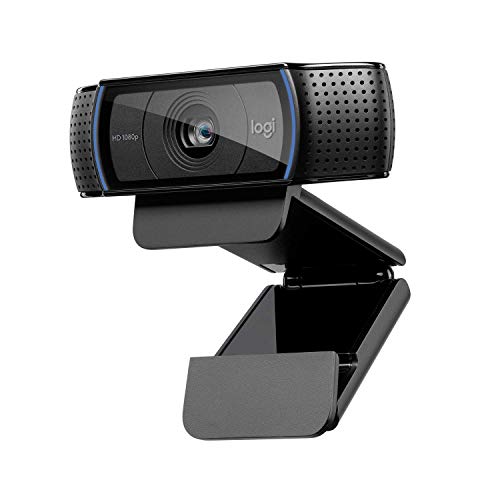
Logitech C920 HD Pro Webcam – 1080p Widescreen Video Calling and Recording
- Full HD 1080p video calling (up to 1920 x 1080 pixels) with 5-foot cable
- Dual stereo microphones with automatic noise reduction
- HD autofocus and light correction for sharp, natural video
What makes the C920 special isn’t any single feature. It’s that everything works reliably, every time. Plug it in, open Zoom or Teams, and you’ve got a clear, well-lit image without touching a single setting. The dual microphones are surprisingly decent for a webcam at this price. I wouldn’t use them for podcast recording, but for daily calls they’re more than adequate.
The autofocus keeps up with head movements without the annoying hunting you see on cheaper webcams. Low-light performance is solid, though not exceptional. If your home office has even basic lighting (a desk lamp or window), the C920 handles it well. The 78-degree field of view frames your face and shoulders without showing too much of your messy background.
One thing I don’t love: Logitech’s software (Logi Tune) is clunky. You don’t need it for basic calls, but if you want to adjust white balance or exposure manually, prepare to fight with the interface. That said, at $64.91, this is the webcam I recommend to anyone who asks “which webcam should I get?” It’s the safe, smart pick.
- 1080p with solid autofocus and dual microphones at under $65
- Works with every major video calling app out of the box
- 78-degree FOV keeps the frame tight on your face
- Logitech’s software is the weakest link, but you can skip it for basic use
Razer Kiyo Pro
The Razer Kiyo Pro is the webcam I’d pick if you work in a room with inconsistent lighting. Its adaptive light sensor adjusts automatically as your room gets brighter or darker throughout the day. I’ve tested this during afternoon calls where sunlight shifts across my desk, and the Kiyo Pro handled the transitions without the sudden brightness jumps you get from cheaper cameras.
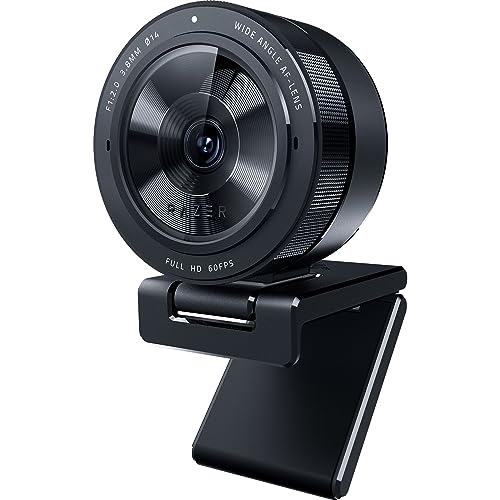
Razer Kiyo Pro – 1080p 60FPS Webcam with Adaptive Light Sensor and HDR
- Uncompressed Full HD 1080p at 60FPS for smooth, professional-quality video
- Adaptive light sensor with HDR for consistent video in any lighting
- Wide-angle lens with adjustable FOV, works with Zoom, Teams, OBS, and more
At 1080p and 60 frames per second, the Kiyo Pro delivers noticeably smoother video than 30fps webcams. You won’t notice the difference when you’re sitting still, but the moment you lean forward, gesture with your hands, or turn your head, the 60fps makes your movements look natural instead of choppy. This matters if you’re presenting or teaching.
The HDR support is a genuine upgrade. When you’ve got a bright window behind you and a darker room in front, most webcams either blow out the window or underexpose your face. The Kiyo Pro balances both. The adjustable field of view lets you switch between 65, 79, and 103 degrees, so you can go tight on your face or pull wide for a whiteboard setup.
At $94.99 (down from $199.99, that’s a 53% discount), this is a steal. The original Kiyo had a ring light built in, which was gimmicky. The Pro dropped the ring light and focused on the sensor quality instead, which was the right call. If you do a lot of video calls in rooms without dedicated studio lighting, this is the one to get.
- 60FPS makes hand gestures and movement look natural on video calls
- HDR handles backlit rooms better than any webcam at this price
- Adjustable FOV (65/79/103 degrees) fits different room setups
- 53% off makes this a genuine bargain right now
Logitech Brio 4K Webcam
If you want the sharpest possible image for professional video calls, the Brio is Logitech’s premium answer. It shoots in true 4K resolution, which means even when Zoom compresses your feed down to 1080p or 720p, the source image is so detailed that you still look cleaner than someone on a native 1080p camera. I use this for client presentations and recorded content where first impressions matter.
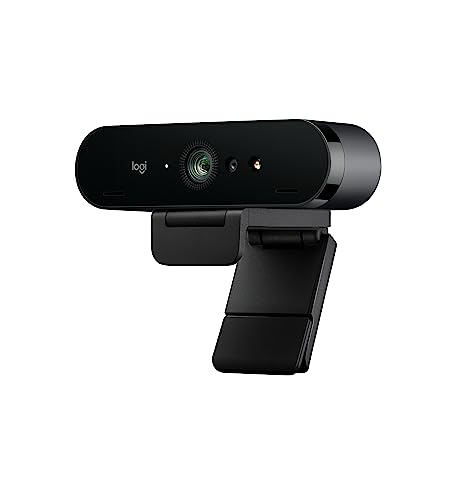
Logitech Brio 4K Ultra HD Webcam with RightLight 3 and HDR
- Ultra 4K HD resolution for professional-grade video quality
- RightLight 3 with HDR automatically adjusts to lighting conditions
- Supports Windows Hello facial recognition for secure login
The RightLight 3 technology with HDR is the Brio’s real strength. It adjusts exposure and contrast in real time, which means your face looks properly lit even if your room isn’t. I’ve taken calls in hotel rooms with harsh overhead fluorescents and the Brio still made me look presentable. The infrared sensor also supports Windows Hello, so you can log into your PC just by sitting down. It’s a small thing, but once you have it, you won’t go back.
The 5x zoom is useful for framing yourself precisely without physically moving the camera. And you get three field-of-view options (65, 78, and 90 degrees), which covers everything from tight headshots to wider collaborative setups. At $138 (31% off), you’re getting 4K quality for what many 1080p webcams cost.
The downside? The Brio demands decent USB bandwidth. If you’re running it through a cheap USB hub along with other peripherals, you might see frame drops. Plug it directly into your machine’s USB 3.0 port and it’s flawless. For anyone doing client-facing calls, recorded content, or streaming, the Brio is my top pick in 2026.
- 4K resolution gives a visibly sharper image, even when compressed by video apps
- RightLight 3 + HDR handles difficult lighting better than any webcam I’ve tested
- Windows Hello support for instant facial recognition login
- Needs a direct USB 3.0 connection for best performance
Microsoft LifeCam Studio 1080p HD Webcam
Microsoft’s LifeCam Studio is a straightforward, no-nonsense 1080p webcam that works exactly as advertised. It doesn’t have flashy features or gamer branding. It’s built for professional video calls and it does that job well. The TrueColor technology adjusts exposure automatically so your video looks vibrant without being oversaturated.
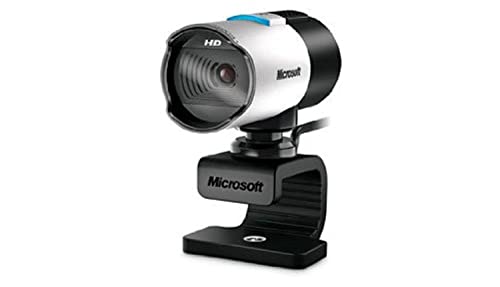
Microsoft LifeCam Studio 1080p HD Webcam
- High-fidelity microphone for more natural, detailed audio
- ClearFrame Technology for smooth, detailed video
The high-fidelity microphone is a standout here. It captures your voice with more detail than most webcam mics, and the noise reduction is effective at filtering out keyboard clatter and ambient room noise. Microsoft’s ClearFrame Technology keeps the video smooth even when bandwidth fluctuates, which is something I’ve noticed on spotty Wi-Fi connections.
The 360-degree rotation base is a thoughtful design choice. You can swivel the camera to any angle without repositioning the entire mount. It clips onto monitors or sits on a desk, and the build quality feels more premium than the price suggests. The aluminum body is a nice touch compared to the all-plastic construction on most webcams.
I’ll be honest: at $94.95, the LifeCam Studio sits in an awkward price range. The Logitech C920 gives you similar 1080p quality for $30 less, and the Razer Kiyo Pro gives you 60fps and HDR for the same money. The LifeCam Studio makes the most sense if you’re in a Microsoft-heavy environment (Teams, Windows Hello) and want seamless integration. Otherwise, the C920 or Kiyo Pro offer better value.
- High-fidelity microphone with effective background noise reduction
- ClearFrame Technology maintains smooth video on unstable connections
- 360-degree rotation base with aluminum build quality
- Slightly overpriced compared to the C920 and Kiyo Pro alternatives
NexiGo N940P 2K Zoomable Webcam
The NexiGo N940P is the wildcard on this list, and it’s the one that surprised me the most. At $99.99, you’re getting a 2K QHD resolution webcam with a Sony Starvis sensor, 1080p at 60fps, and a physical remote control. That last feature is something I haven’t seen on any competitor in this price range. You can pan, tilt, and zoom during a call without touching the camera or opening software.
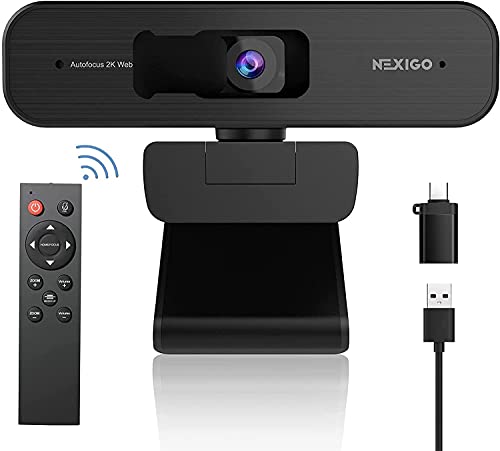
NexiGo N940P 2K Zoomable Webcam with Remote Control and Sony Starvis Sensor
- 2K QHD (2560×1440) with Sony Starvis 5MP sensor for sharp, detailed video
- Physical remote control with 3x digital zoom for hands-free camera adjustment
- Dual stereo microphones with noise cancellation, Zoom certified
The Sony Starvis sensor is the same type used in security cameras and dashcams designed for low-light conditions. It captures more light per pixel than standard webcam sensors, which translates to cleaner, less grainy video when your room isn’t well lit. The 3x digital zoom is genuinely useful. You can frame a tight headshot from across the desk or zoom out for a wider view during presentations.
NexiGo also includes their own software for adjusting brightness, contrast, saturation, and white balance. It’s more intuitive than Logitech’s offering. The dual stereo microphones with noise cancellation are effective, and the Zoom certification means you know it’s been tested specifically for the video calling workflows most of us use daily.
The privacy cover is a nice addition. When you’re not on a call, slide it shut and you don’t have to worry about whether your camera is actually off. The build quality is good, not premium, but far from cheap. If you want the highest resolution for the money and love the idea of a physical remote, the N940P delivers more features per dollar than anything else on this list.
- 2K resolution with Sony Starvis sensor outperforms most webcams in low light
- Physical remote control for zoom, pan, and tilt is a unique advantage
- Privacy cover and Zoom certification add practical value
- NexiGo’s brand recognition is lower, but the hardware speaks for itself
How to Choose the Right Webcam for Video Calls
After testing all five of these webcams across hundreds of calls, here’s what actually matters when you’re picking one. I’ve seen people obsess over specs that don’t make a real difference, so I want to cut through the noise.
Resolution: 1080p Is the Sweet Spot
Don’t chase 4K unless you have a specific reason. Zoom, Teams, and Google Meet compress your video regardless. A sharp 1080p feed looks nearly identical to 4K on the receiving end. The Logitech Brio’s 4K advantage shows up in recorded content and high-bandwidth connections, but for daily calls, 1080p is plenty. The C920 at $65 proves this.
Frame Rate: 30fps vs 60fps
If you sit relatively still on calls, 30fps is fine. If you gesture a lot, present slides, or move around, 60fps makes a visible difference. The Razer Kiyo Pro and NexiGo N940P both offer 60fps at 1080p. You’ll notice smoother hand movements and more natural-looking video.
Low-Light Performance Matters More Than You Think
Most home offices don’t have studio lighting. Your webcam needs to handle whatever light you’ve got. The Razer Kiyo Pro’s adaptive sensor and the Logitech Brio’s RightLight 3 are the best performers here. If you’re on a budget, the C920 is acceptable in moderate light but struggles in dim rooms.
Microphone: Built-In vs External
Every webcam on this list has a built-in microphone, and they’re all adequate for video calls. But “adequate” is the key word. If you’re doing any kind of content creation, recording, or podcasting, invest in a separate USB microphone. For standard Zoom calls, the dual mics on the C920 and N940P handle the job well enough that most people won’t need anything extra.
My Recommendation
For most people, the Logitech C920 at $64.91 is the right call. It does everything well and costs less than lunch for two. If you want the best image quality for professional or client-facing calls, step up to the Logitech Brio 4K at $138. And if lighting is your biggest challenge, the Razer Kiyo Pro at $94.99 is a fantastic deal right now.
Don’t overthink this. A good webcam instantly makes you look more professional on every video call. It’s one of the highest-ROI upgrades you can make to your home office setup. Pair it with a decent monitor and you’ve got a workspace that makes remote work feel polished instead of improvised.
Quick Comparison: Best Webcams for Video Calls in 2026
Here’s a side-by-side look at all five webcams so you can compare the specs that matter most.
| Webcam | Resolution | Frame Rate | Best For | Price |
|---|---|---|---|---|
| Logitech C920 | 1080p | 30fps | Best value overall | $64.91 |
| Razer Kiyo Pro | 1080p | 60fps | Low-light and HDR | $94.99 |
| Microsoft LifeCam Studio | 1080p | 30fps | Microsoft ecosystem | $94.95 |
| NexiGo N940P | 2K QHD | 60fps | Remote control and zoom | $99.99 |
| Logitech Brio | 4K UHD | 30fps (4K) / 60fps (1080p) | Best image quality | $138.00 |
What I Look for in a Webcam After 5 Years of Remote Work
I’ve been working remotely since before it was trendy, and I’ve learned that the webcam matters more than most people realize. When you’re on a video call with a client or your team, the quality of your video is a signal. A blurry, grainy feed says you didn’t bother. A crisp, well-lit image says you’re a professional who takes this seriously.
Here’s what I prioritize, in order:
- Autofocus speed. Slow autofocus creates a distracting blur every time you lean forward. The Logitech cameras are the best at this.
- Light correction. I don’t have ring lights or softboxes. I need a webcam that handles natural room lighting without making me look like a ghost or a shadow.
- Color accuracy. Some webcams make skin tones look orange or washed out. The Brio and Kiyo Pro get this right.
- Plug and play. I don’t want to install drivers or fight with software. Every webcam on this list works out of the box on Windows, Mac, and most Linux distros.
- Privacy controls. The NexiGo N940P’s physical privacy cover is something every webcam should have. I hate relying on software to tell me whether my camera is actually off.
One more thing: don’t forget your background. The best webcam in the world won’t save you if there’s a pile of laundry behind you. Most video apps now offer virtual backgrounds, but they look better when the webcam has a clean, sharp image to work with. A good webcam makes background blur features work properly instead of cutting off pieces of your head.
5 Quick Setup Tips to Get the Best Video Quality
You don’t need expensive gear to look good on camera. These five tips cost nothing and make a bigger difference than upgrading from a $65 webcam to a $200 one.
- Position the camera at eye level. Nobody looks good from below. Stack some books under your webcam if it sits too low. This single change transforms how you appear on calls.
- Put your light source in front of you, not behind you. Face a window or desk lamp. Backlighting is the number one reason people look terrible on video calls.
- Close unnecessary browser tabs and apps. Video encoding uses CPU power. If your machine is struggling, your webcam will drop frames and look choppy regardless of its specs.
- Use a wired ethernet connection when possible. Wi-Fi introduces latency and packet loss that degrades video quality. A $15 USB ethernet adapter makes a noticeable difference.
- Test before important calls. Zoom, Teams, and Meet all have preview options. Take 30 seconds to check your framing and lighting before you join a client call.
If you want to go deeper into building a productive workspace, I wrote a detailed guide on the best home office setup that covers everything from monitors to lighting to ergonomics. And if you’re also looking to stream or create content, check out my picks for the best webcams for streaming, which focuses on higher-end features like 4K recording and green screen compatibility.
Improve Your Video Call Audio
Video gets the attention, but audio makes or breaks professional calls. I’ve been on countless client calls where the other person’s webcam was great but their audio was echoing off the walls. A decent headset with a built-in mic costs less than a good webcam and has more impact.
The AirPods Pro work flawlessly for video calls on Mac, and the transparency mode lets you hear someone knock on your office door. For longer calls, the Bose QuietComfort blocks background noise that your colleagues will thank you for. See my home office setup guide for the full picture.
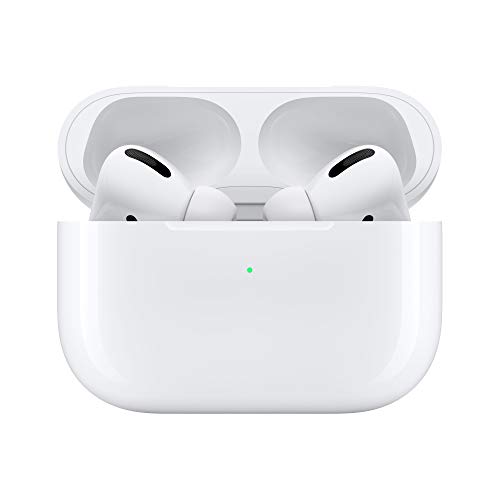
- Active noise cancellation for immersive sound
- Transparency mode for hearing and connecting with the world around you
- Three sizes of soft, tapered silicone tips for a customizable fit
- Sweat and water resistant
- Adaptive EQ automatically tunes music to the shape of your ear
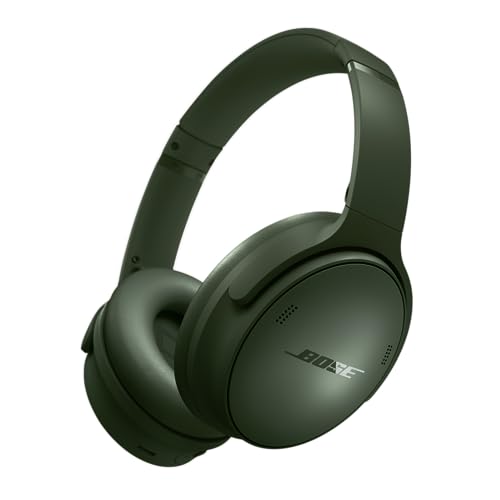
- NOISE CANCELLING HEADPHONES: Effortlessly combines noise cancellation technology with passive features so you can shut off the outside world, quiet distractions, and take music beyond the beat
- COMFORTABLE HEADPHONES: Plush earcup cushions softly hug your ears, while a secure and comfortable padded band gently keeps your over ear headphones in place for those extra-long listening sessions
- 2 LISTENING MODES: These wireless Bluetooth headphones feature Quiet and Aware Modes that let you toggle between full noise cancelling or full awareness of your surroundings for seamless sound control
- HIGH-FIDELITY AUDIO/EQ CONTROL: Supercharge your favorite tracks with high-fidelity audio and Adjustable EQ that puts you in control of the bass, mid-range, and treble for unmatched bold sound
- ALL DAY BATTERY LIFE: Bose QuietComfort wireless headphones provide up to 24 hours of battery on a single charge, plus a 15-minute charge gives you up to 2.5 hours of additional play time
Frequently Asked Questions
Do I really need an external webcam if my laptop has a built-in camera?
Yes, in most cases. Laptop webcams are typically 720p with tiny sensors that produce grainy, poorly lit video. An external 1080p webcam like the Logitech C920 ($64.91) delivers a dramatically better image. If you’re on video calls regularly for work, it’s one of the cheapest upgrades that makes an immediate, visible difference.
Is a 4K webcam worth it for Zoom and Teams calls?
For most people, no. Zoom and Teams compress video to 1080p or lower regardless of your camera’s resolution. A 4K webcam like the Logitech Brio gives you a sharper source image that looks slightly better after compression, but the difference is subtle on standard calls. 4K is worth it if you record video content, tutorials, or presentations that need to look polished at full resolution.
What’s the difference between 30fps and 60fps on a webcam?
30fps captures 30 frames per second and is fine for standard video calls where you’re mostly sitting still. 60fps captures twice as many frames, making movement look smoother and more natural. You’ll notice the difference when you gesture, turn your head, or hold up objects. The Razer Kiyo Pro and NexiGo N940P both support 1080p at 60fps.
Which webcam has the best low-light performance?
The Razer Kiyo Pro has the best low-light performance in this price range thanks to its adaptive light sensor and HDR support. The Logitech Brio’s RightLight 3 technology is a close second. The NexiGo N940P’s Sony Starvis sensor also performs well in dim conditions. If your room doesn’t have great lighting and you don’t want to buy a ring light, prioritize one of these three.
Can I use these webcams with a Mac?
Yes, all five webcams on this list are plug-and-play compatible with macOS. You don’t need to install drivers. Just plug them into a USB port and your video calling app will detect the camera automatically. Some companion software features (like Logitech Tune or NexiGo’s settings app) may have limited functionality on Mac compared to Windows, but the core camera functionality works perfectly.
Do I need a separate microphone or are webcam mics good enough?
For standard video calls, the built-in microphones on these webcams are perfectly fine. The Logitech C920’s dual stereo mics and the NexiGo N940P’s noise-cancelling mics handle voice clearly in most environments. However, if you record podcasts, YouTube videos, or other audio content, you should invest in a dedicated USB microphone for significantly better sound quality.
How important is the field of view (FOV) on a webcam?
It depends on your setup. A narrow FOV (65-78 degrees) frames just your face and shoulders, which looks clean and professional. A wide FOV (90-103 degrees) shows more of your room and works better for group calls or whiteboard presentations. The Razer Kiyo Pro and Logitech Brio both offer adjustable FOV, so you can switch between tight and wide shots depending on the situation.
What’s the best webcam under $100 for remote work in 2026?
The Razer Kiyo Pro at $94.99 (currently 53% off) is the best webcam under $100 right now. You get 1080p at 60fps, HDR, an adaptive light sensor, and adjustable FOV. If you want to spend even less, the Logitech C920 at $64.91 is the best budget pick with reliable 1080p performance that’s hard to beat at that price point.