
Best Monitors for Programmers in 2026
Most developers spend $2,000+ on a laptop, then plug it into a $200 monitor that turns every semicolon into a guessing game. Blurry fonts. Washed-out syntax highlighting. A stand that won’t adjust past one awkward angle. The hardware you stare at for 8 to 10 hours a day deserves more thought than a quick Amazon scroll.
Eye strain from poor displays is a real productivity killer. According to the American Optometric Association, over 60% of computer users experience symptoms of digital eye strain, including headaches, blurred vision, and neck pain. Bad text clarity doesn’t just hurt your eyes. It slows you down, hides bugs, and makes long sessions miserable.
Resolution, panel type, size, and ergonomics matter far more than the refresh rate and gaming features that dominate most reviews. The 7 monitors below are the best options for programming in 2026, sorted by size and budget.
Best Monitors for Programmers in 2026: Quick Summary
- Dell UltraSharp U2723QE — Best overall 27-inch 4K. IPS Black panel + USB-C hub with Ethernet + 90W charging in one cable.
- LG 27UP850-W — Best value 27-inch 4K. 96W USB-C charges even large laptops, DCI-P3 95%, full ergonomic stand at $200 less than the Dell.
- BenQ PD2725U — Best for developer-designers. Factory-calibrated color (DeltaE ≤ 3), Thunderbolt 3 daisy chaining, dedicated Coding Mode.
- Samsung ViewFinity S80UD — Best 32-inch overall. Built-in KVM switch + Ethernet + 90W USB-C under $480, rare at this price.
- LG 32UP83A-W — Best budget 32-inch. DCI-P3 95%, full pivot stand, borderless design at $399.
- LG 34WN80C-B — Best ultrawide for coding. 34-inch curved 3440×1440, 99% sRGB, 4.5 stars from 3,800+ verified buyers.
- Dell S2722QC — Best budget 27-inch 4K. Same 163 PPI as the UltraSharp at nearly half the price, full ergonomic stand included.
What Actually Matters for Coding
Most monitor reviews focus on gaming specs. Programmers need different things entirely. Here’s what separates a great coding monitor from an expensive distraction.
Resolution and Pixel Density: The Most Important Spec
Text sharpness is everything when you’re reading code. Blurry characters cause eye strain and make small syntax differences harder to spot. Is that a semicolon or a colon? A period or a comma? On a low-resolution display, you’re guessing.
Pixel density is measured in PPI (pixels per inch). Here’s how common configurations compare:
- 4K at 27 inches: 163 PPI. Excellent. Retina-like sharpness where individual pixels disappear.
- 4K at 32 inches: 137 PPI. Very sharp. Still great for coding.
- 1440p at 27 inches: 109 PPI. Good enough. Noticeable step down from 4K but workable.
- 1080p at 27 inches: 82 PPI. Avoid. Text looks fuzzy, especially at smaller font sizes.
The jump from 1440p to 4K at 27 inches is immediately noticeable when reading code. Characters have crisp edges. Syntax highlighting colors are clean. Your eyes don’t work as hard to parse what’s on screen. No 1080p monitor above 24 inches makes sense for programming. Life’s too short for blurry text.
Panel Type: IPS Wins for Coding
Three main panel technologies exist: IPS, VA, and TN.
- IPS (In-Plane Switching): Wide viewing angles, accurate colors, consistent brightness across the screen. This is what you want for programming. When you glance at different parts of a large monitor, colors and brightness stay consistent.
- VA (Vertical Alignment): Better contrast ratios with deeper blacks. But viewing angles are narrower. Colors shift when you look at screen edges. For dark-mode coders, VA’s contrast is tempting, but the viewing angle issues make it worse overall.
- TN (Twisted Nematic): Fast response times for gaming. Terrible viewing angles and color accuracy. No place in a programming setup. None.
Get an IPS panel. The premium is worth it.
Size: 27 Inches is the Sweet Spot
27-inch monitors hit the ideal balance for most desk setups. Large enough to see plenty of code without squinting. Small enough to fit comfortably at arm’s length. You don’t have to turn your head to see the edges.
32-inch works if you have deeper desk space (30+ inches from your eyes) and prefer sitting farther back. The extra real estate is nice, but you’ll be moving your head more. With 4K at 27 inches, you’ll likely use 125-150% scaling in your OS. At 32 inches, 100-125% scaling works. Don’t run 4K at 100% scaling on a 27-inch display unless you have superhuman vision. The text will be tiny.
Eye Care Features: They Actually Help
Blue light filters and flicker-free backlighting aren’t just marketing. A BenQ study found that 90% of programmers gave positive feedback on Night Hours Protection, and 60% specifically praised the Coding Mode’s Light theme for reducing strain during late-night sessions. Most modern monitors include flicker-free and low blue light certifications — check the specs before buying.
Best 27-Inch 4K Monitors for Programmers
This is where most programmers should start. 27 inches, 4K resolution, IPS panel. The fundamentals. Three standout options at different price points, each serving a different type of developer.
Dell UltraSharp U2723QE (Top Pick)
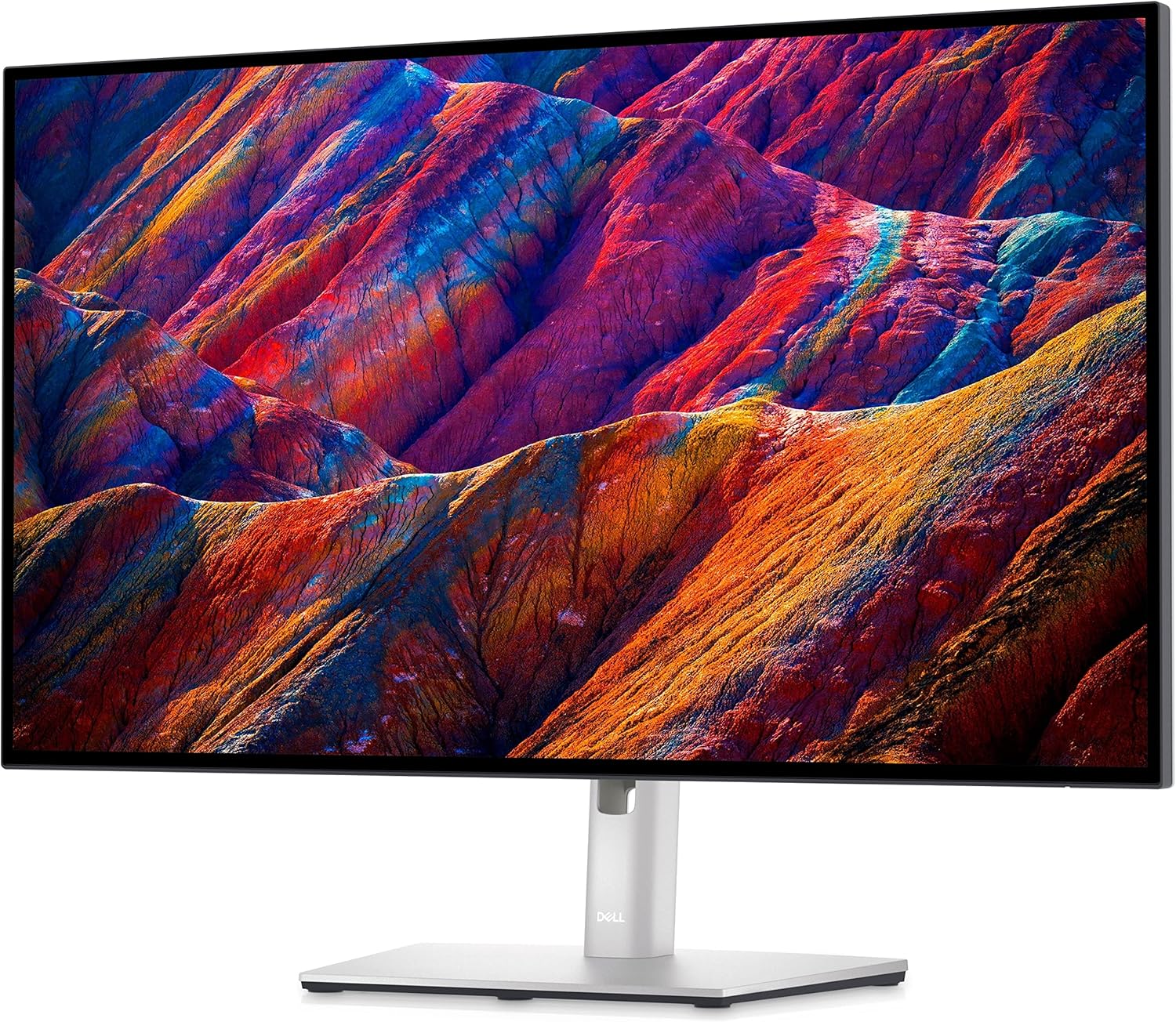
Best for: Full-time developers who want one-cable simplicity, sharp text, and a built-in USB-C hub with Ethernet.
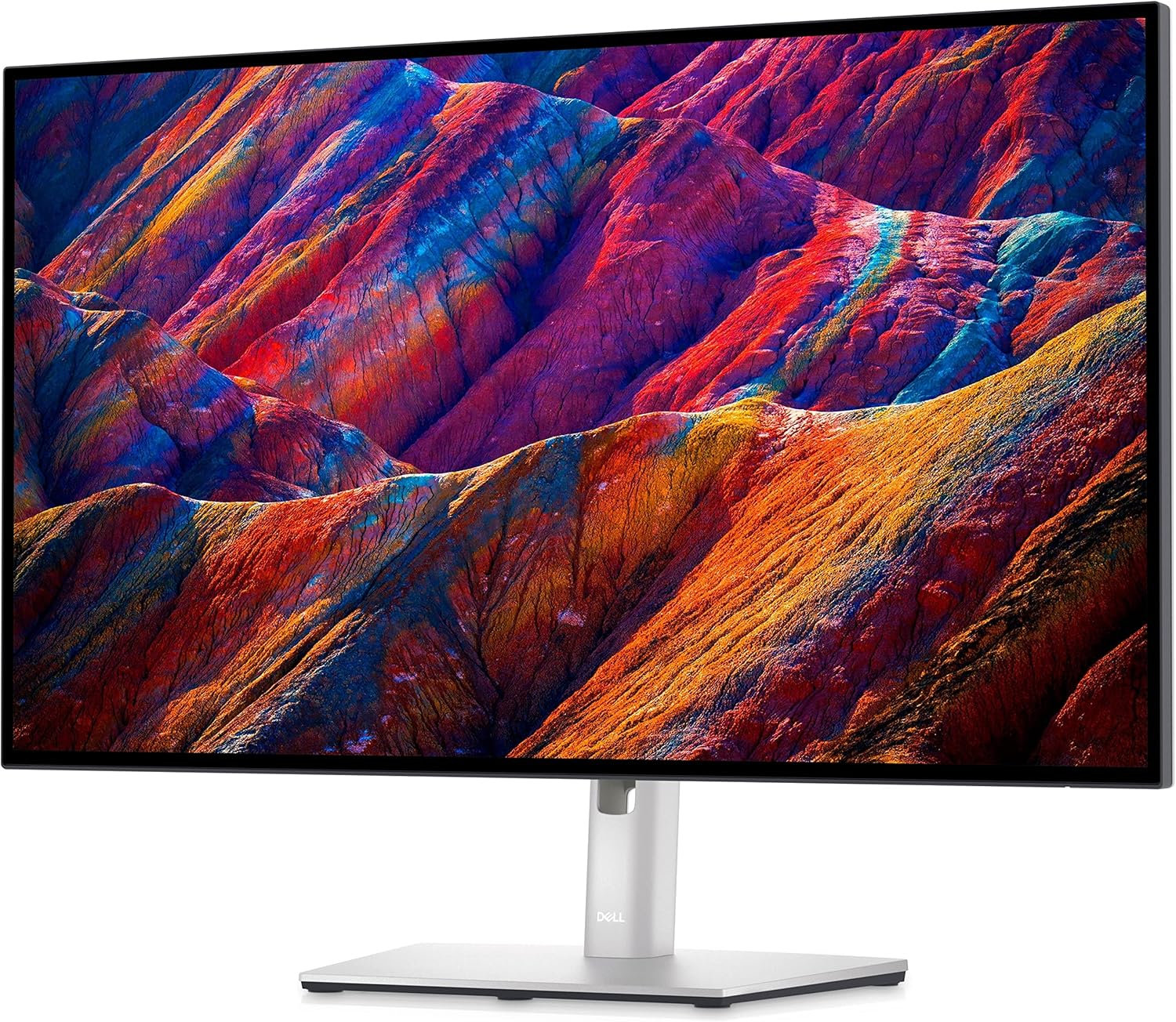
Dell UltraSharp U2723QE 27-Inch 4K UHD Monitor
- 27-inch 4K IPS Black display with 400 nits brightness and 2000:1 contrast ratio
- USB-C hub with 90W power delivery, RJ45 Ethernet, and 4x USB 3.2 downstream ports
- Height, tilt, swivel, and pivot stand adjustment with 163 PPI pixel density
The U2723QE is the programmer’s monitor. Dell built it for professional work, and every decision reflects that. The IPS Black panel delivers a 2000:1 contrast ratio — double the typical IPS — while keeping the wide viewing angles IPS is known for. The result is deeper blacks without the color-shift problem that affects VA panels.
Text rendering at 163 PPI is the clearest you’ll see on a 27-inch display. The built-in USB-C hub eliminates cable clutter entirely. One cable to your laptop carries video, data, network, and 90W of charging. The RJ45 Ethernet port sounds minor until you’re on a video call and your WiFi drops. A hardwired connection through your monitor solves that permanently.
The downsides are real. Price hovers around $600-750 depending on sales, which is $200-300 more than comparable 4K IPS monitors. The stand is large and eats up desk space. If gaming matters at all, the 60Hz refresh rate won’t satisfy. This is a pure work monitor. For code, documentation, terminals, and long daily sessions, nothing at this size competes on overall package.
LG 27UP850-W (Best Value)
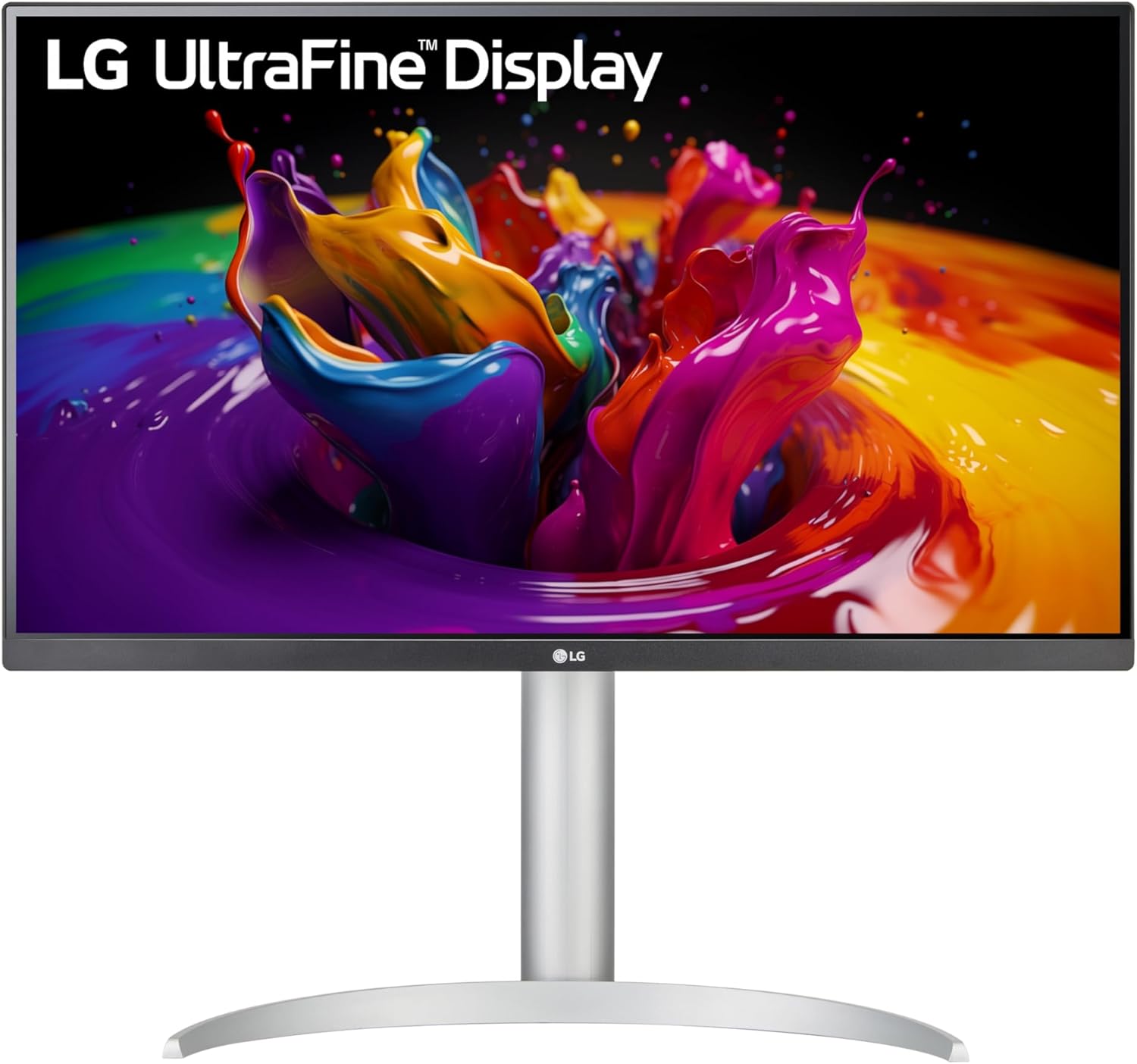
Best for: Developers who want 4K sharpness and USB-C charging without paying $600+. Great second monitor too.
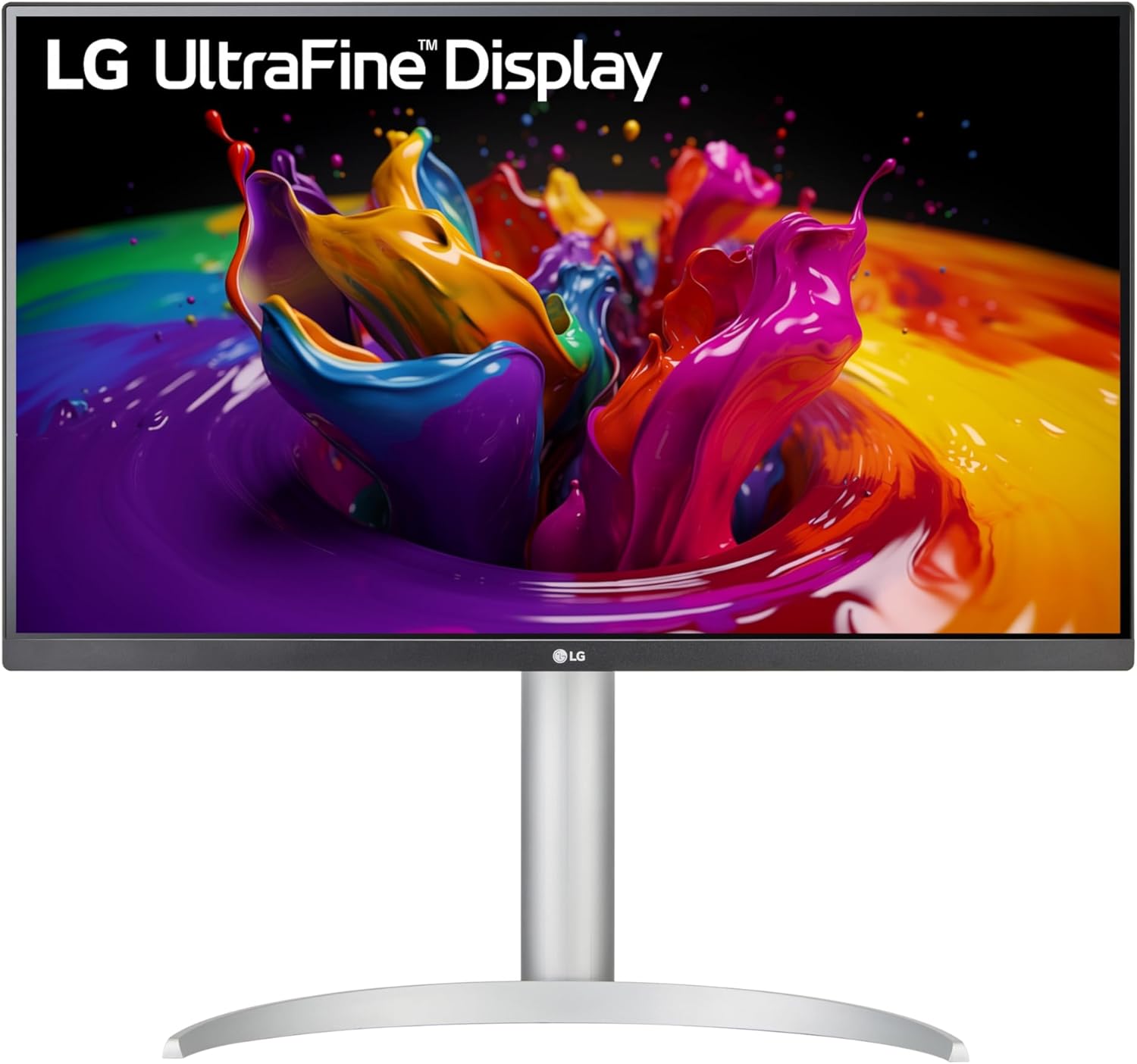
LG 27UP850-W 27-Inch 4K UHD IPS Monitor
- 27-inch UHD (3840 x 2160) IPS display with DisplayHDR 400
- USB-C with 96W power delivery charges even larger laptops
- DCI-P3 95% color gamut with height/pivot/tilt adjustment
The LG 27UP850-W delivers identical 4K sharpness at roughly $200 less than the Dell. Same 163 PPI. Same IPS panel technology. The difference is what you give up, not what you gain on the display itself.
96W USB-C power delivery charges even 16-inch MacBook Pros while displaying — that’s better than the Dell’s 90W. Pivot support lets you rotate the monitor vertically for reading long files or API documentation, which is useful during code review or digging through deep stack traces. The DCI-P3 95% color coverage helps when you occasionally work with design files alongside your code.
What it lacks: no built-in USB hub, no Ethernet port. HDR400 is entry-level and barely makes a visual difference. Built-in speakers are useless. For pure display quality at this price — sharp, clean text for 8-hour coding sessions — it’s the value pick.
BenQ PD2725U (For Designer-Developers)
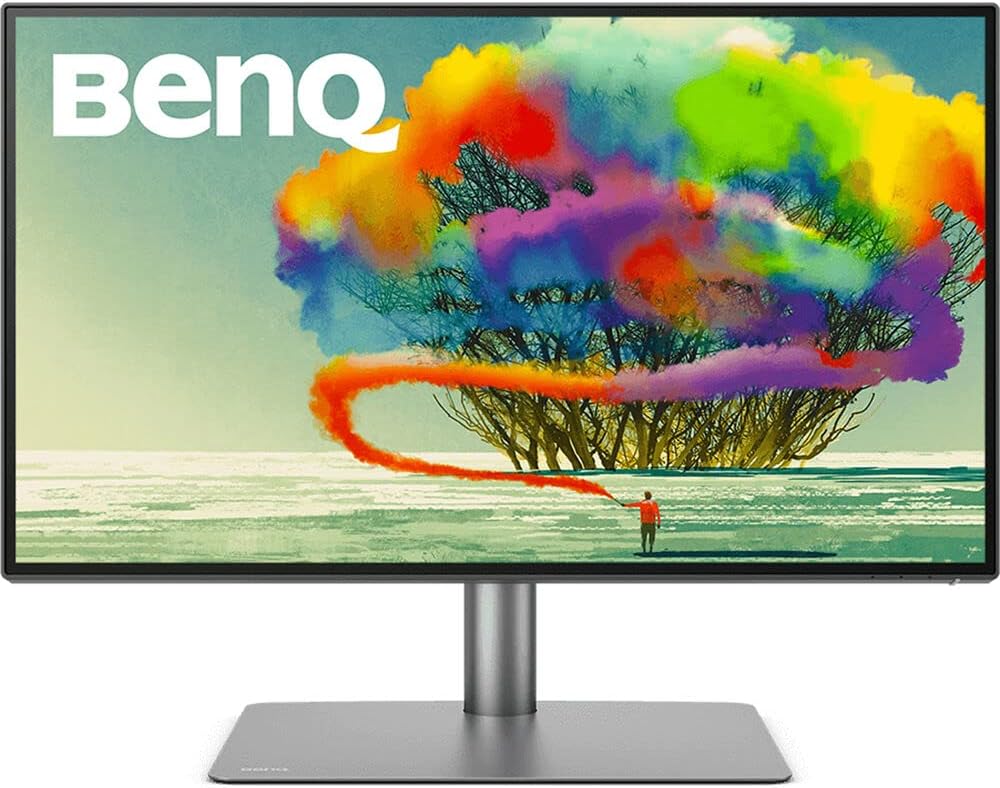
Best for: Developers who also do UI/UX design, CSS work, or image editing and need factory-calibrated color accuracy.
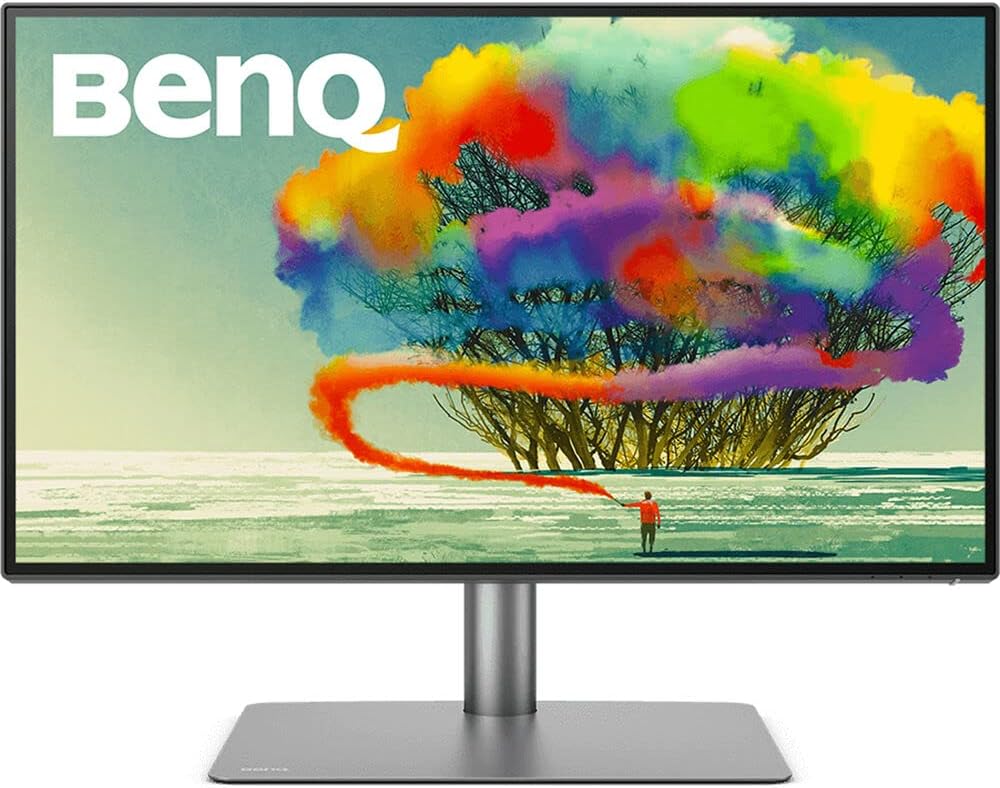
BenQ PD2725U 27-Inch 4K Thunderbolt 3 Monitor
- Thunderbolt 3 with 65W power delivery and daisy chaining to a second monitor
- 100% sRGB, 95% P3, DeltaE ≤ 3 factory-calibrated accuracy
- Dedicated Coding Mode, KVM switch, and Hotkey Puck G2 for profile switching
BenQ built the PD2725U specifically for creative professionals, and the feature list shows it. Factory calibration to DeltaE ≤ 3 means the colors you see on screen match the actual values — critical when building CSS color systems or reviewing design assets. Out of the box, without any manual calibration, the display hits 100% sRGB and 95% P3 coverage.
The dedicated Coding Mode adjusts the tone curve to optimize text contrast for extended sessions. It’s subtle but noticeable after a few hours of terminal work. Thunderbolt 3 daisy chaining means you can connect two monitors from a single cable to your MacBook — a rare feature at this size. The Hotkey Puck G2 sits on your desk and lets you switch between Coding, Design, sRGB, and other display profiles with a single button press. No menus, no OSD navigation.
The caveats are significant. At $700-900, it’s the most expensive 27-inch option here. The 65W USB-C power delivery is lower than the Dell or LG. Thunderbolt 3 is older than Thunderbolt 4 and limits bandwidth on the latest MacBook Pros. And the entire feature set is wasted if you don’t do any design, color grading, or visual work. For pure backend coding, the Dell UltraSharp offers better value. For full-stack developers who live in both VS Code and Figma, the BenQ justifies the premium.
Best 32-Inch 4K Monitors for Programming
More screen real estate for those with deeper desks and the eye-to-screen distance to match. These only make sense if you sit at least 30 inches from the display. Since the PPI is lower than 27-inch monitors (137 vs 163), text can look slightly less crisp up close. But the extra space for code, terminal, and docs side by side is hard to beat.
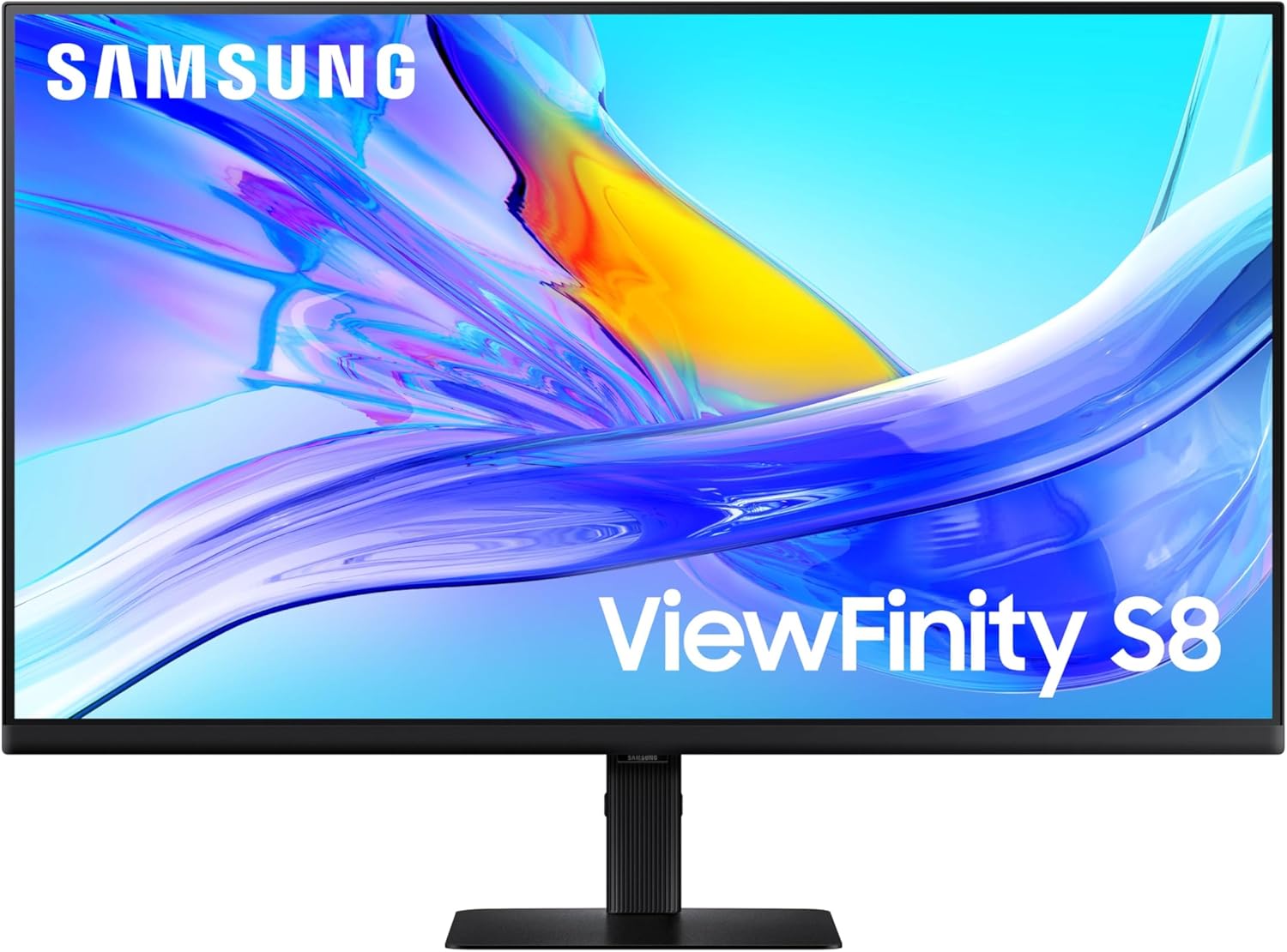
Samsung ViewFinity S80UD (Best 32-Inch Overall)
Best for: Programmers with deep desks who want more screen space without going ultrawide. KVM switch is a bonus for multi-computer setups.
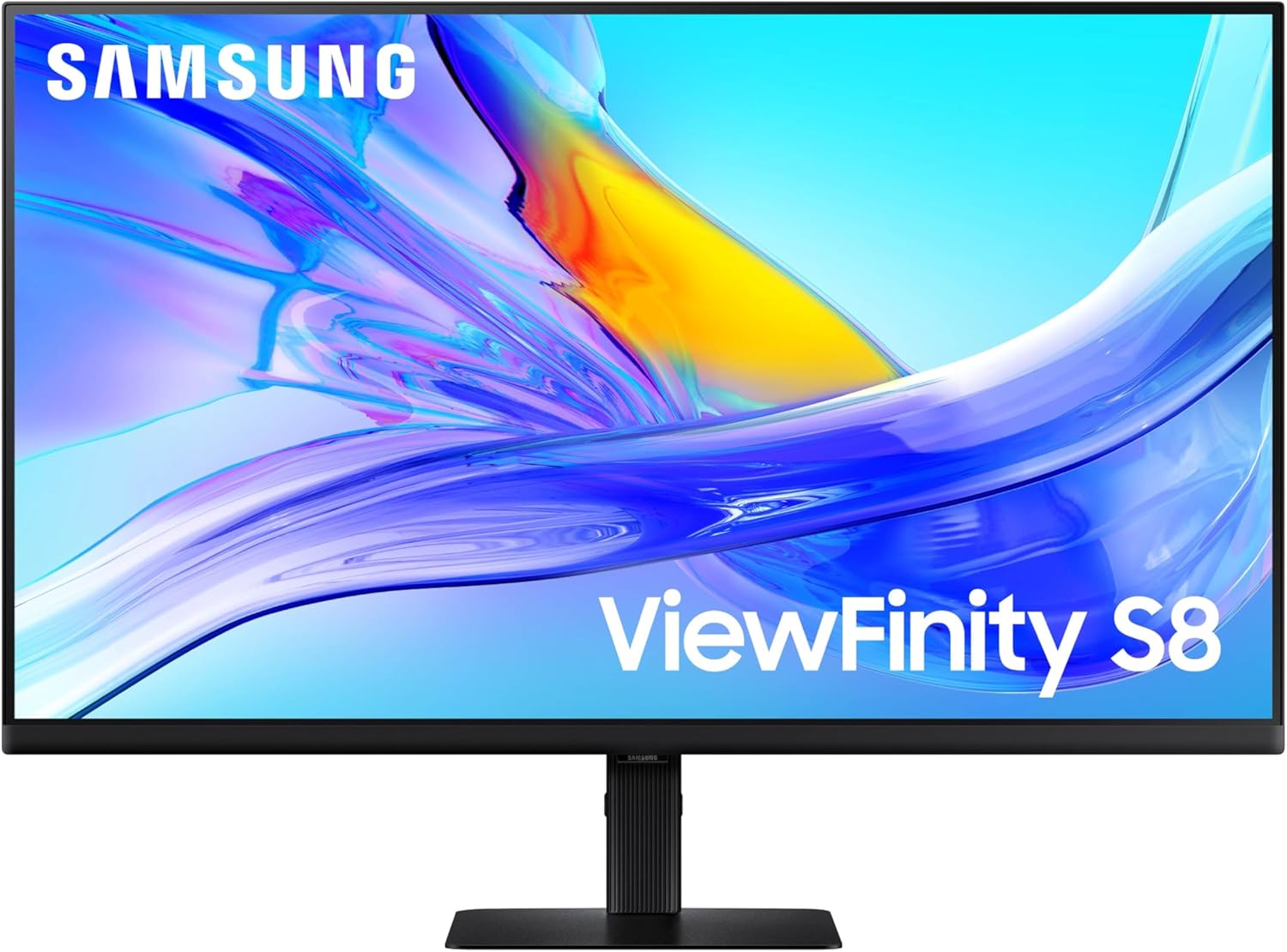
Samsung ViewFinity S80UD 32-Inch 4K UHD Monitor
- 32-inch 4K UHD (3840×2160) IPS display with HDR10 and 350 nits
- USB-C with 90W power delivery, built-in KVM switch, and LAN port
- TÜV-certified intelligent eye care with height/pivot/tilt/swivel stand
The ViewFinity S80UD packs a feature set that typically costs twice as much. At under $480, it includes 90W USB-C, a built-in KVM switch, and a dedicated LAN (Ethernet) port — the same connectivity trifecta that makes the Dell UltraSharp U2723QE worth $600. Samsung simply put it in a 32-inch chassis at a lower price.
The KVM switch is the headline feature for multi-machine setups. It lets you control two computers from one keyboard and mouse with a button press. No USB switcher dongles, no cable swapping. Useful if you run a work laptop and a personal desktop. Samsung’s matte coating handles overhead fluorescent lighting better than glossy alternatives — an underrated spec in shared office environments.
The downside: the stand isn’t as finely adjustable as Dell or BenQ options, and it lacks the premium build feel of those brands. The 32-inch footprint also demands more desk depth. Sit too close and the lower PPI (137 vs 163) becomes noticeable on small text. Run at 100-125% scaling and position the screen at 28-30 inches, and sharpness is perfectly acceptable for all-day coding.
LG 32UP83A-W (Budget 32-Inch)
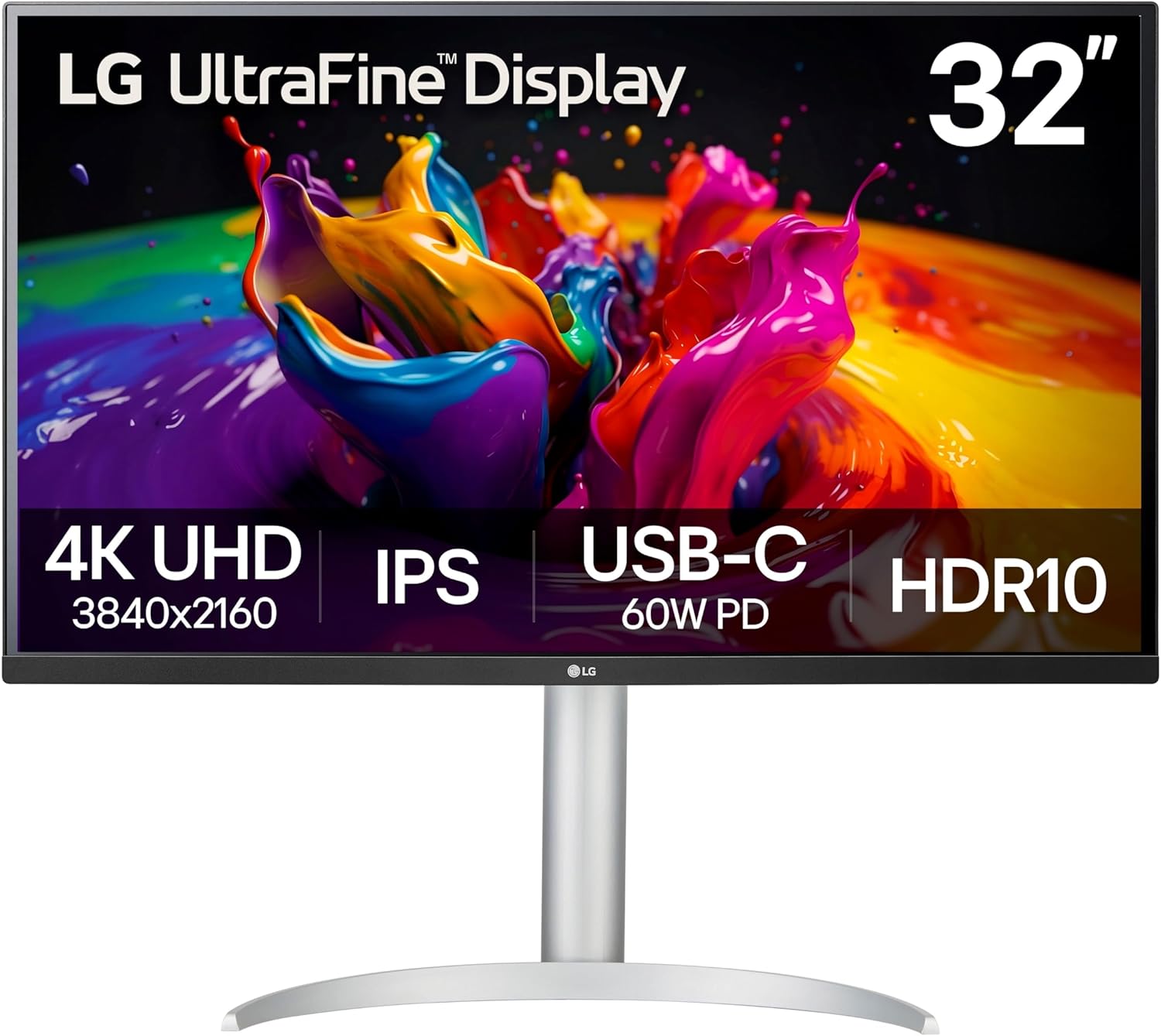
Best for: Budget-conscious developers who want 32 inches of 4K IPS with USB-C and don’t need a KVM switch.
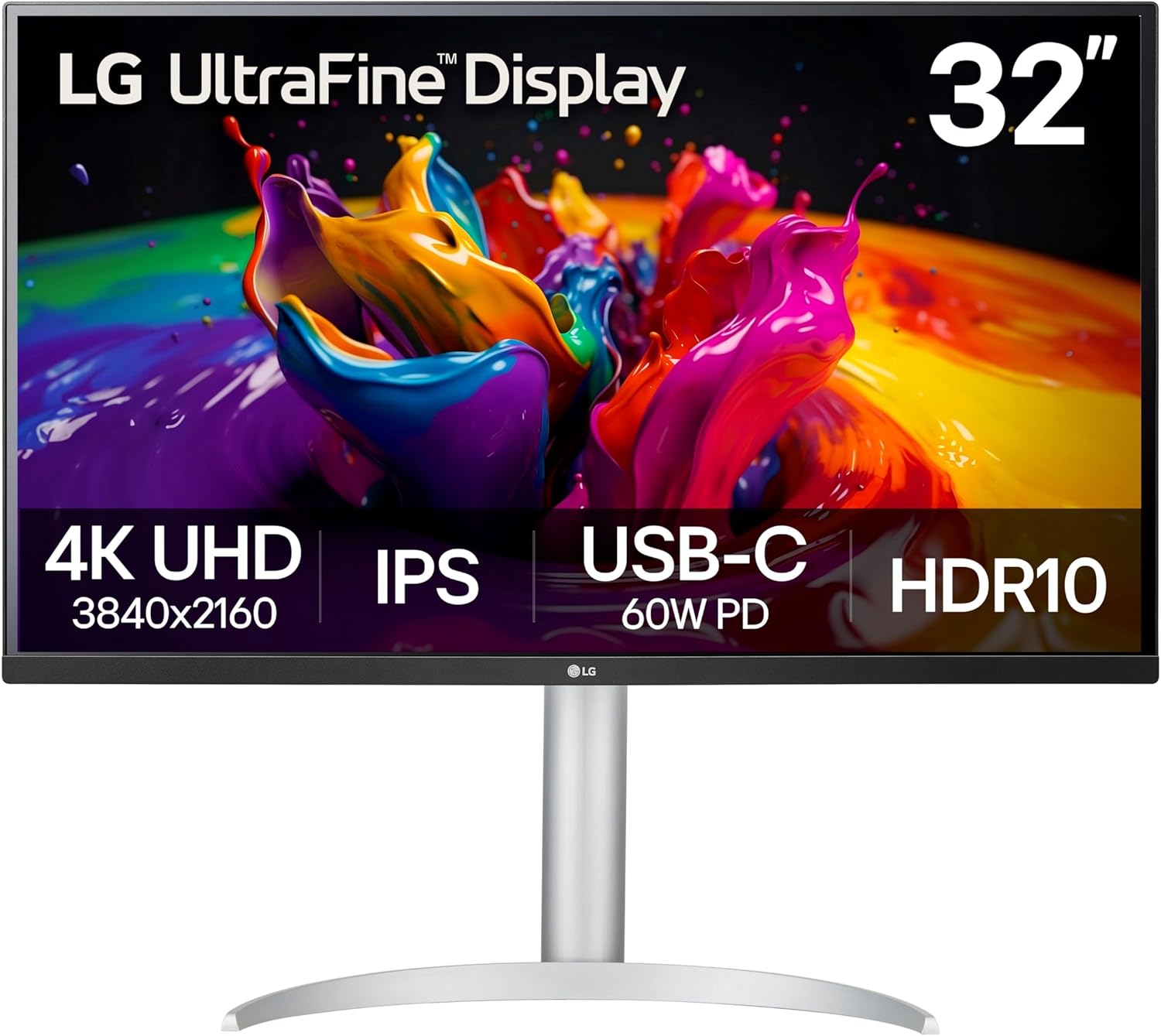
LG 32UP83A-W 32-Inch 4K UHD IPS Monitor
- 31.5-inch 4K UHD (3840 x 2160) IPS display with HDR10
- USB Type-C with 60W power delivery
- Height/pivot/tilt adjustable stand with 3-side borderless design
The LG 32UP83A-W sits at $399 with 4K IPS, DCI-P3 95% color coverage, and a full ergonomic stand including pivot. That’s a strong spec sheet for the price. The borderless three-side design looks clean in a home office setup, and AMD FreeSync support helps if you occasionally game on the same machine.
The pivot support is genuinely practical. Rotate the display vertically and a single 32-inch panel becomes an excellent reading surface for long log files, API documentation, or pull request reviews. The 4.4/5 rating from 497 verified Amazon buyers reflects a monitor that punches above its price for everyday productivity.
The weak spots: USB-C delivers only 60W, which won’t fully charge a 15 or 16-inch MacBook Pro at speed. There’s no built-in USB hub, no KVM switch, and no Ethernet port. For those features at this size, the Samsung S80UD at similar pricing is the better choice. But if clean aesthetics, 4K IPS, and full pivot stand matter more than connectivity extras, this LG is excellent value.
Best Ultrawide for Programming
Ultrawide monitors are divisive among developers. Some swear by them. Others think they’re overhyped. The key advantage is simple: code editor, terminal, and browser visible at the same time without overlapping windows. The key disadvantage is that ultrawide resolution (3440×1440) isn’t as sharp as 4K at 27 inches.
LG 34WN80C-B
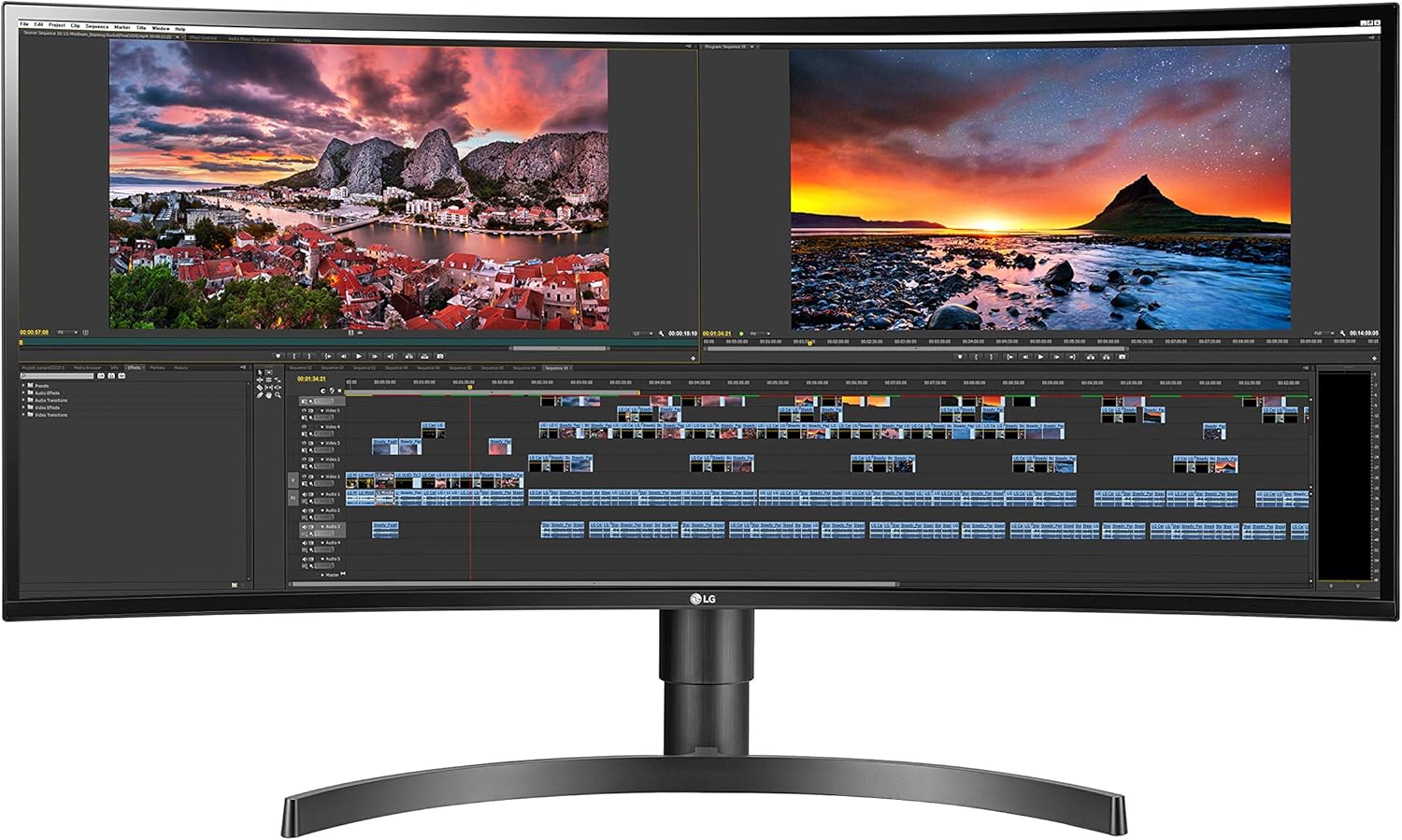
Best for: Developers who want code, terminal, and browser visible side by side on a single screen without bezels.
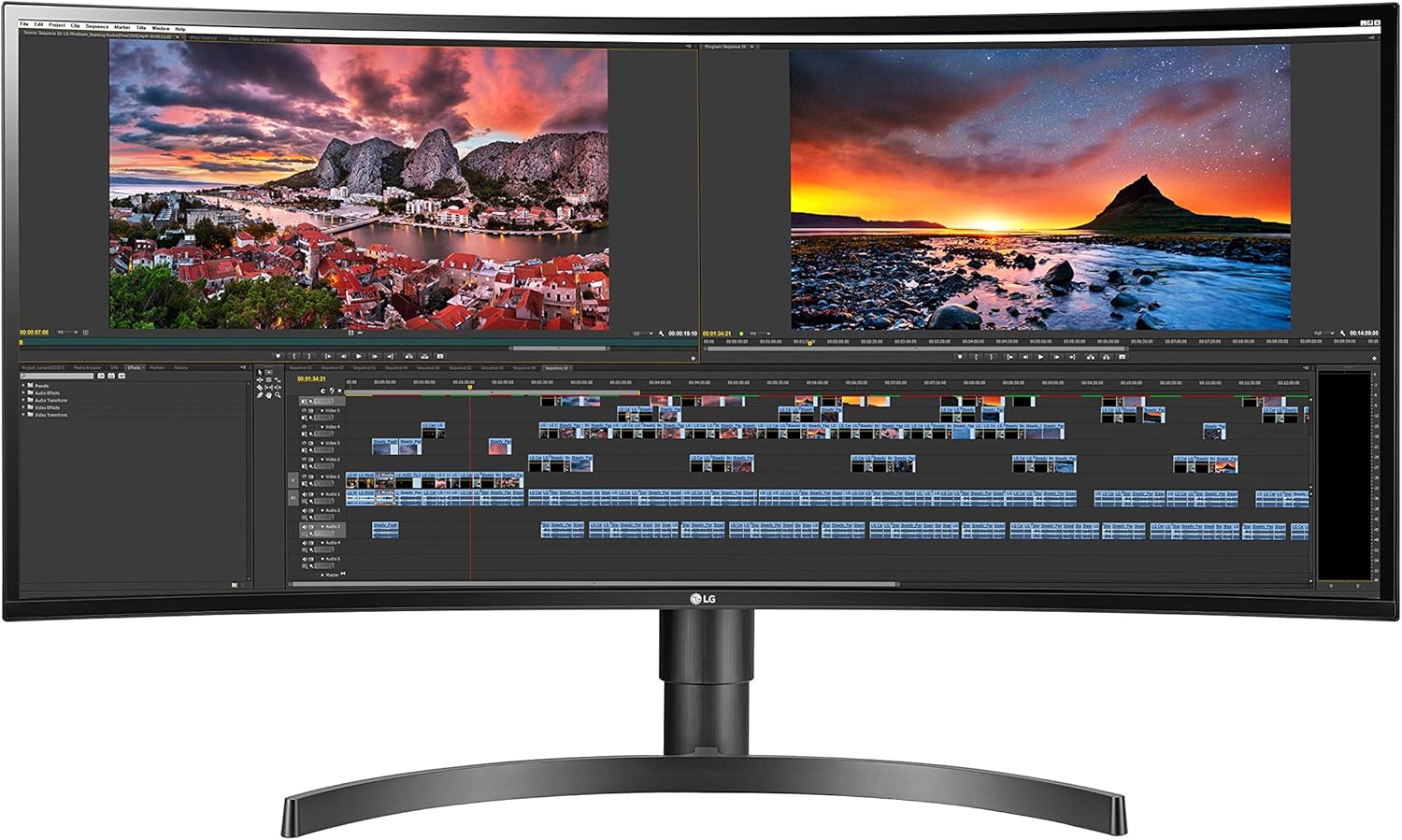
LG 34WN80C-B 34-Inch Curved UltraWide WQHD Monitor
- 34-inch 21:9 curved WQHD (3440 x 1440) IPS display with 4500R curve radius
- USB Type-C with 60W power delivery and sRGB 99%
- Tilt and height adjustable with 3-side borderless design
The 34WN80C-B runs 3440×1440 across 34 curved inches in a 21:9 aspect ratio. That’s enough horizontal width for VS Code on the left, a terminal in the center, and documentation on the right — all visible simultaneously without a keyboard shortcut. The 4500R curve radius keeps edges at a consistent viewing distance from the center, reducing the head movement that causes fatigue on flat ultrawide panels.
With 3,825+ Amazon reviews at 4.5 stars, this is one of the most field-tested ultrawide monitors available. The 99% sRGB coverage means syntax highlighting colors render accurately — a detail that matters more than it sounds when you rely on color differentiation to parse code quickly. USB-C with 60W handles most 13-15 inch laptops.
The tradeoffs are worth knowing upfront. This is 3440×1440, not 4K — the pixel density is 109 PPI versus 163 PPI on a 27-inch 4K monitor. Text is noticeably less crisp if you’re coming from 4K. Video calls show letterboxing since webcams assume 16:9 output. Some legacy apps don’t support ultrawide resolutions well. And there’s no USB hub or Ethernet. If text sharpness is the priority, stick with 27-inch 4K. If screen real estate and window management wins, ultrawide is the better choice.
Best Budget Monitor for Programming
You don’t need to spend $700 to get a good coding monitor. For developers just starting out or setting up a home office on a tight budget, sharp text at the right resolution is achievable well under $400.
Dell S2722QC
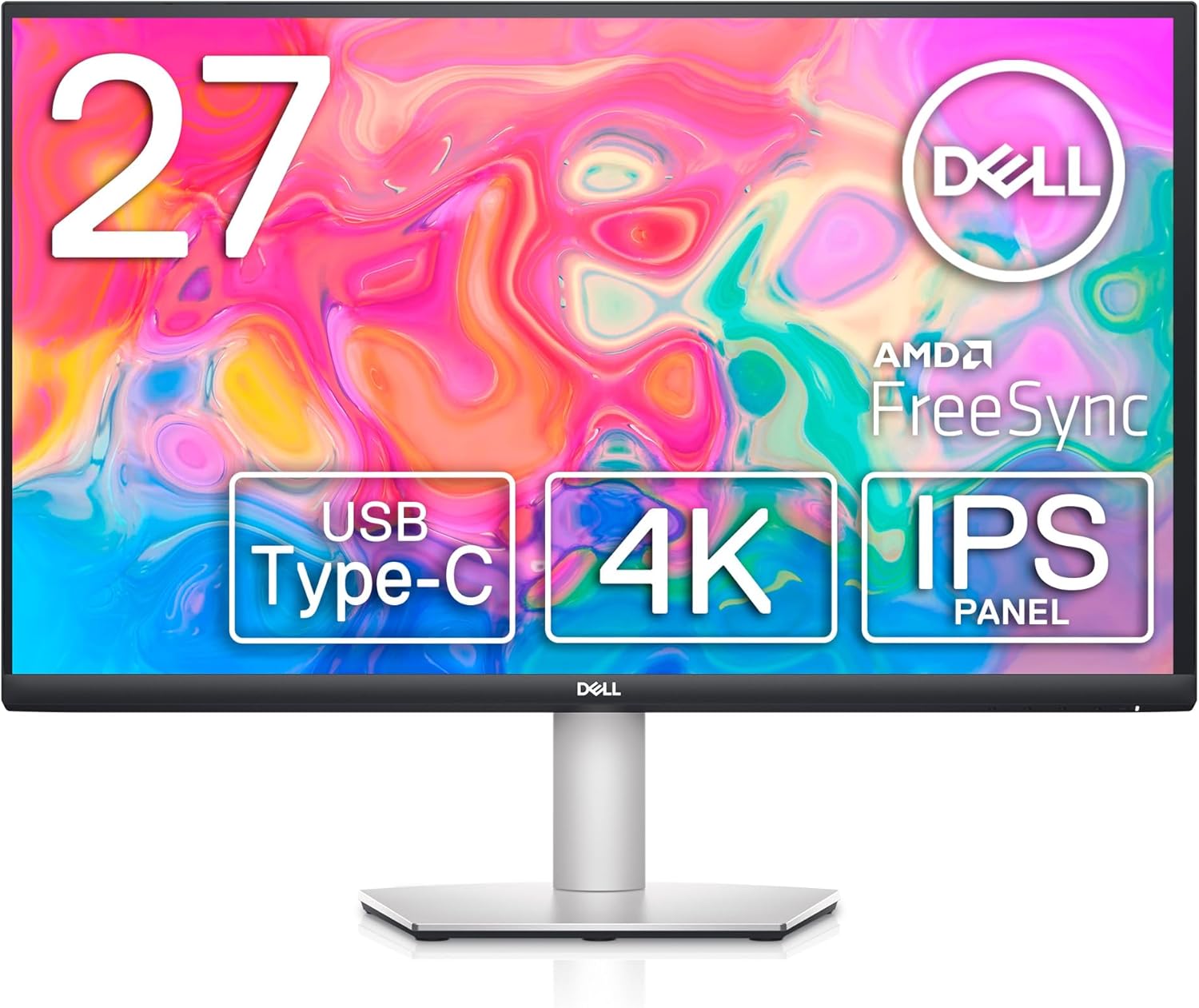
Best for: Junior developers or anyone on a tight budget who still wants 4K text clarity at 27 inches.
Dell S2722QC 27-Inch 4K USB-C Monitor
- 27-inch 4K UHD (3840 x 2160) IPS display with 99% sRGB
- Height adjustable stand with tilt, swivel, and pivot
- USB-C 65W PD with AMD FreeSync and built-in dual 3W speakers
The Dell S2722QC costs around $315 and hits the same 163 PPI as the $600 Dell UltraSharp U2723QE. That’s the headline. The display itself — the actual pixels you’re reading code on — is nearly identical in sharpness. What you give up is everything around the panel: no USB hub, no Ethernet, 65W USB-C (won’t fast-charge larger MacBook Pros), and a slower 8ms response time versus 5ms on the UltraSharp.
The ergonomic stand is a genuine strength at this price. Height adjustment, tilt, swivel, and pivot — the full range — included at under $370. Most budget monitors ship with fixed or tilt-only stands that force uncomfortable viewing angles. Dell includes the good stand even on their entry-level models. USB-C connectivity works with most laptops. AMD FreeSync keeps the option open for occasional gaming.
One honest caveat: the newer Dell S2725QC has replaced this model at similar pricing with better specs in several areas. Worth checking current availability before ordering the S2722QC. If you’re running a data analysis laptop and need an external display without breaking the bank, either Dell S-series model delivers 4K text quality that punches well above budget pricing.
Dual Monitors vs Ultrawide vs Large Single Monitor
This question comes up constantly. Each setup has real trade-offs, and there’s no universally correct answer. Here’s a breakdown of what actually changes with each configuration.
Dual 27-Inch Monitors
Pros: Maximum flexibility in window arrangement. You can angle monitors toward you for better viewing. Easy to share one screen during calls while working on the other. One monitor can go vertical for documentation.
Cons: Bezels in the center split your view. More cables and stands cluttering your desk. Two monitors to calibrate and keep consistent.
34-Inch Ultrawide
Pros: No bezel interruption. Simpler cable management with one power and one video cable. Curved models reduce edge distortion.
Cons: Less flexibility than dual monitors. Some software handles ultrawide poorly. Can’t easily share “half” during screen sharing without extra tools.
Single 32-Inch 4K
Pros: Simplest setup. No bezel issues. Works best with tiling window managers like i3 or Rectangle on macOS. Least desk clutter.
Cons: May feel cramped compared to dual or ultrawide. Limited multitasking space for complex workflows.
Dual 27-inch 4K monitors offer the most flexibility for most programming workflows. Code on the left monitor, browser and terminal on the right. When focus matters, maximize on one and ignore the other. Many developers swear by ultrawide instead. Neither choice is wrong. Try both configurations if possible before committing to the desk real estate.
Monitor Settings for Programming
Default settings are almost never optimal for coding. Here’s what to adjust on any monitor:
- Brightness: Lower than you think. Most monitors ship at 100% brightness, which causes eye strain in typical indoor lighting. 30-40% is where most developers land. Eyes will thank you within a week.
- Color temperature: Slightly warm. 6500K is neutral white, but 5500-6000K reduces blue light without making the screen orange. Many monitors have “reading” or “low blue light” presets that work well.
- Sharpness: Default or slightly below. Over-sharpening creates halos around text that actually increase eye strain. Monitor manufacturers set this too high by default.
- Scaling: Find the balance between screen real estate and comfortable text size. Don’t suffer with tiny 9pt text just to fit more code on screen. Eyes and neck pay for it over time.
Developers who brag about running tiny font sizes on huge monitors aren’t more productive. They’re working toward eye strain and missed bugs. Find a size where code is readable for hours without leaning forward.
Accessories That Make a Difference
A good monitor is only part of the equation. These three accessories improve a home office setup significantly for coding sessions.
Monitor Arms
Ditch the built-in stand. A monitor arm frees desk space and provides better positioning options. Push the monitor back, pull it forward, raise it, lower it, whatever posture demands.
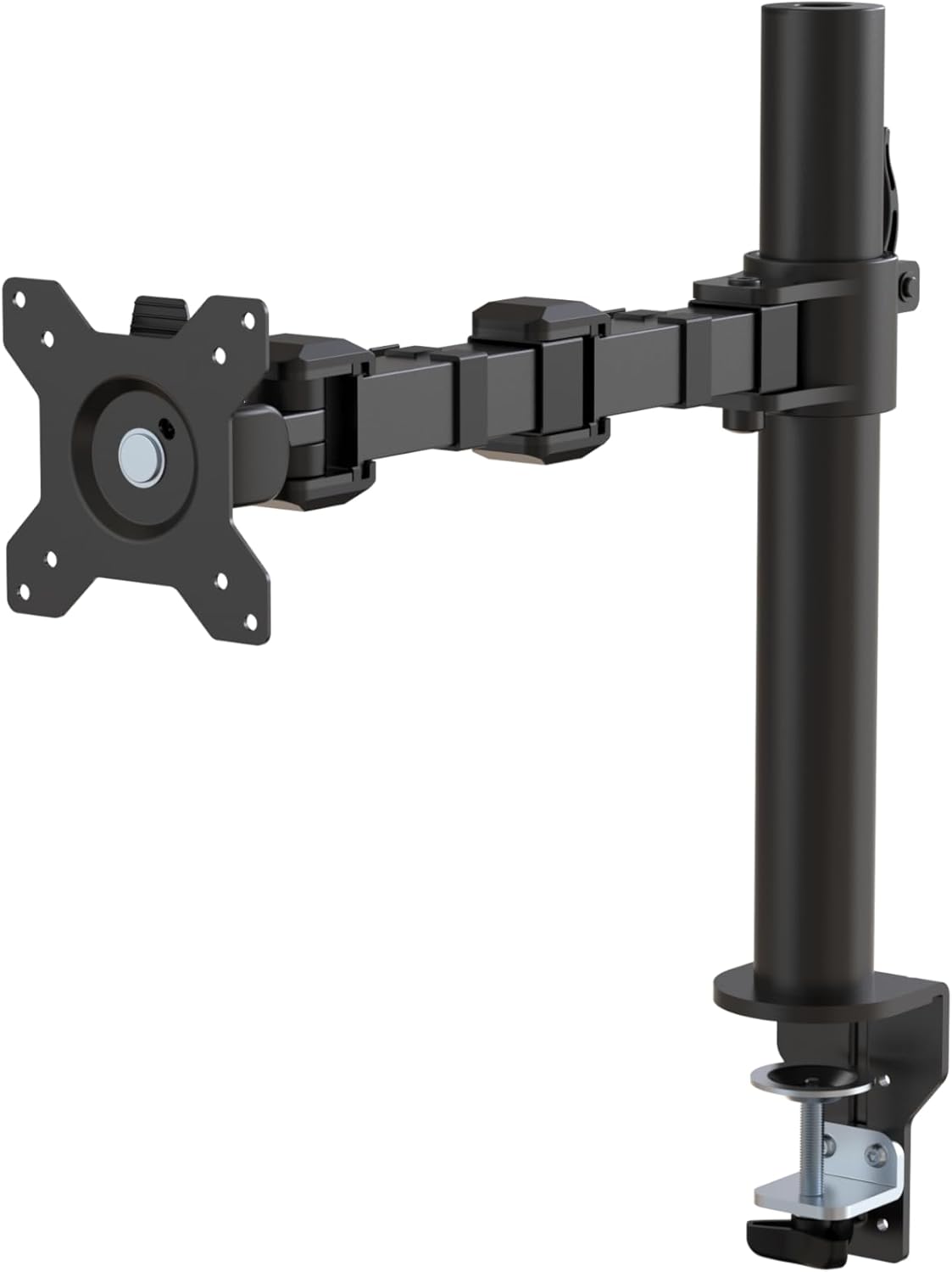
Amazon Basics Single Monitor Arm Stand
- Fits most screens 13 to 30 inches and up to 22 pounds
- 360-degree rotation for landscape or portrait mode
- Height-adjustable arm mount from 7.9 to 14.2 inches
The Amazon Basics monitor arm works fine for most single monitors under 27 inches. For heavier 32-inch displays or dual setups, Ergotron LX arms are the gold standard — rated for 25 lbs and smooth enough to reposition with one finger. At $26, the Amazon Basics version is one of the better no-brainer desk purchases around.
Monitor Light Bars
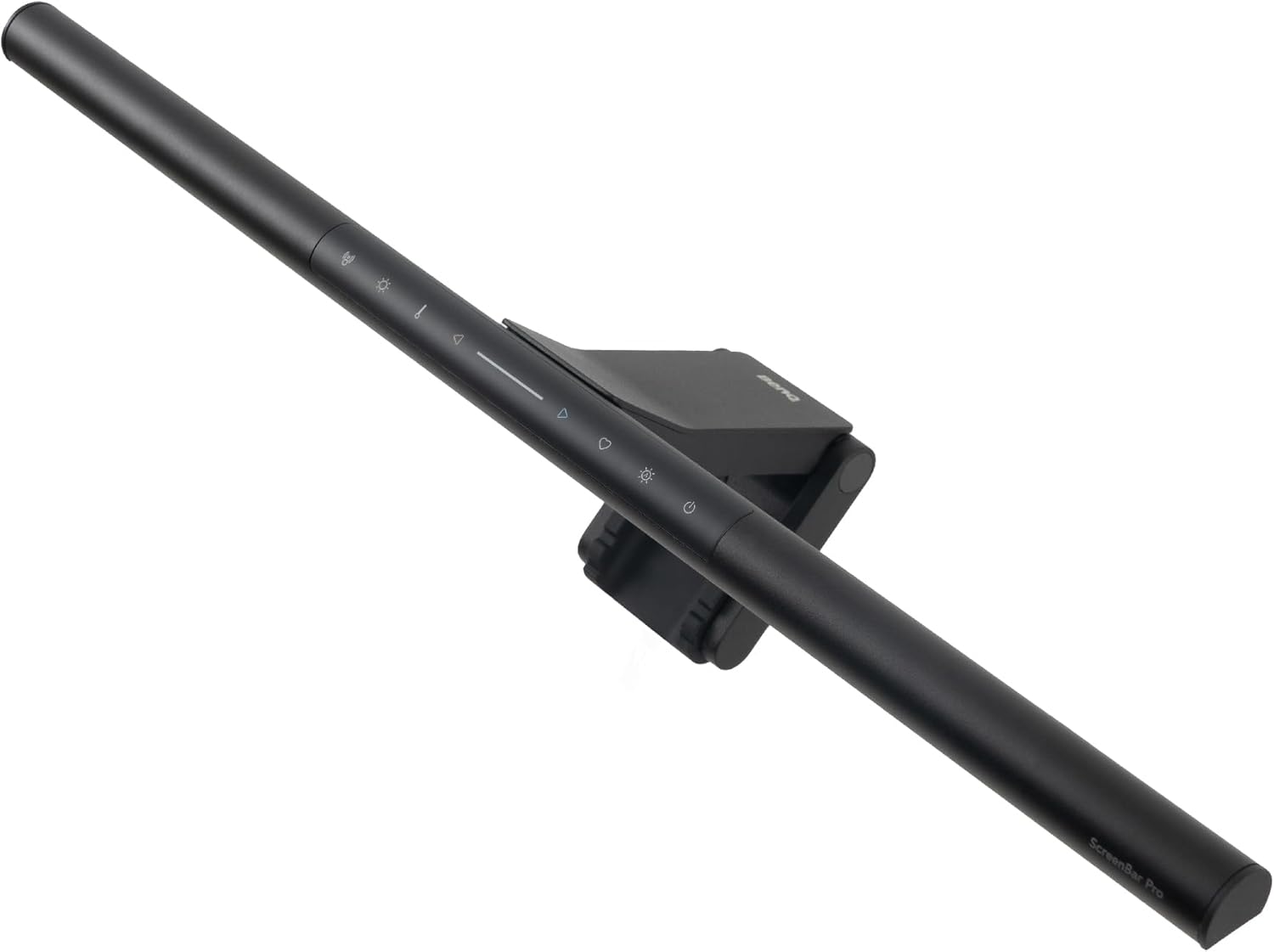
BenQ ScreenBar Pro LED Monitor Light Bar
- Over 1000lx central brightness with 500lx range within 33×20 inches
- Fits monitors 0.17 to 2.56 inches thick with patented clamp design
- Motion sensor with adjustable brightness and color temperature
BenQ ScreenBar and similar LED light bars sit on top of your monitor and illuminate your desk without creating screen glare. The motion sensor is a nice touch — walk up to your desk and the light turns on, walk away and it turns off. Particularly useful in darker rooms where overhead lighting creates glare on the panel itself.
USB-C Docks
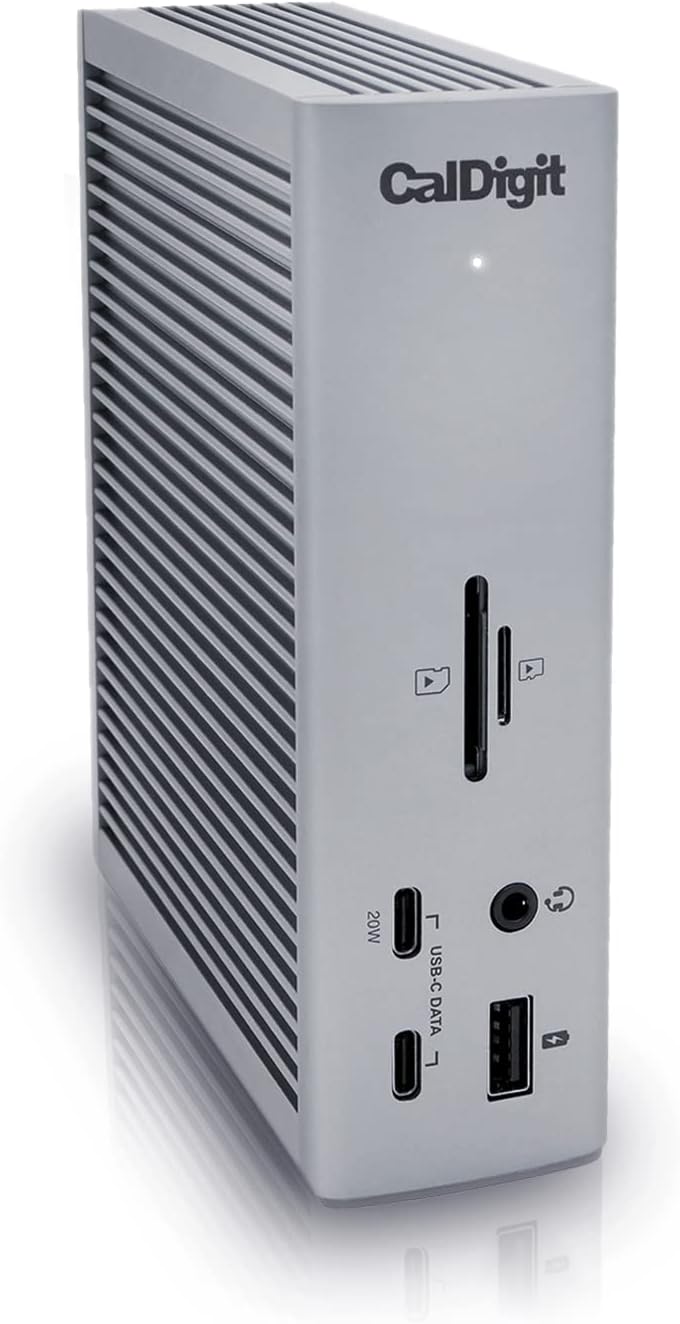
CalDigit TS4 Thunderbolt 4 Dock
- 18 ports with 40Gb/s Thunderbolt 4 connectivity
- 98W power delivery for laptops via USB-C/Thunderbolt
- Supports 8K/6K displays with Mac/PC/Chrome compatibility
If a monitor lacks built-in hub functionality, a dock adds the ports needed. The CalDigit TS4 offers 18 ports, 98W charging, and Thunderbolt 4 speeds — the most reliable option for MacBook users who’ve been burned by cheaper docks dying within a year. Anker makes solid budget alternatives in the $80-150 range if $300 is too steep for a dock.
Recommended Setup
The dual 27-inch 4K setup is the most popular configuration among professional developers: one Dell UltraSharp U2723QE paired with one LG 27UP850-W, both on Ergotron LX arms. One cable to each monitor carries power, video, and USB hub connectivity. Total investment runs around $1,500 for both monitors plus arms and accessories.
That’s not cheap. But developers who switch from 1080p to 4K IPS consistently report fewer end-of-day headaches within the first week. A survey of ergonomics studies on occupational display use found that eye strain symptoms decrease significantly when pixel density exceeds 140 PPI for text-heavy tasks. The hardware cost pays back in reduced fatigue across long coding sessions.
If budget is the constraint, the Dell S2722QC at $315 delivers the same 163 PPI as the $600 UltraSharp. Start there. The display quality difference is minimal. The connectivity difference is real but workable with a budget USB hub. Upgrade to the full setup when budget allows.
For the rest of the workspace, check out the complete home office setup guide. And if video calls are part of the daily routine, webcam quality matters as much as the monitor.
Quick Recommendations
Short on time? Pick based on budget:
- Under $400: Dell S2722QC or LG 27UP850-W. Both deliver 4K quality without premium pricing. The LG has better USB-C power delivery (96W vs 65W).
- $400-600: Samsung ViewFinity S80UD if you want 32 inches with KVM. LG 34WN80C-B if ultrawide appeals. Both solid mid-range choices.
- $600-800: Dell UltraSharp U2723QE. The best all-around programming monitor. IPS Black, 90W USB-C, built-in Ethernet hub.
- $800+: BenQ PD2725U. For developer-designers who need factory-accurate color (DeltaE ≤ 3) alongside sharp text.
- Best accessory under $30: Amazon Basics monitor arm. Frees desk space instantly.
- Best accessory under $150: BenQ ScreenBar Pro. Reduces eye strain more than most expect.
Which Monitor Should You Buy?
One spec to remember: 4K at 27 inches, IPS panel. That combo gives you 163 PPI, which is sharp enough that individual pixels disappear and code stays crisp after 8+ hours.
For most developers, the Dell UltraSharp U2723QE is the monitor worth the investment. One USB-C cable handles video, charging, Ethernet, and USB hub. If $600 feels steep, the Dell S2722QC delivers the same pixel density for $315. Same sharpness, fewer extras. Both are worth the upgrade from whatever 1080p panel is currently in use.
The switch from 1080p to 4K makes the biggest immediate difference for developers who work in dark-theme editors with small font sizes. Characters sharpen up, syntax color distinctions become cleaner, and the squinting that causes afternoon headaches largely disappears. If you’re also building out your programming toolkit, check out these must-read books for programmers to go with the hardware.
Complete Your Programming Workstation
A great monitor deserves a great desk setup. For keyboards, the Logitech K380 handles multi-device switching (laptop + desktop with one key press), and the Logitech G502 SE offers 11 programmable buttons for workflow shortcuts.
For headphones during coding sessions, noise cancellation is essential in shared or home offices. The Bose QuietComfort blocks enough ambient noise to reach flow state, and the 24-hour battery handles full workdays without recharging. For the full workspace, the home office setup guide covers everything else.
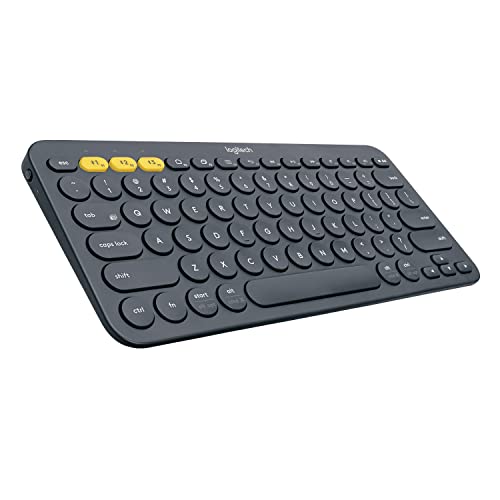
- Multi-device Bluetooth keyboard: The Logitech K380 Pebble keyboard is a universal keyboard for typing on all your computing devices: Windows, Mac, Chrome OS, Android, iPad, iPhone, Apple TV 2nd or 3rd generation
- Easy-switch: Connect up to 3 devices simultaneously and switch between them at the touch of button. Wireless range 10 meter
- Logitech flow cross-computer typing: Use as a regular keyboard or combine with a compatible Logitech flow mouse (sold separately) to type, copy, paste and move files seamlessly between computers
- Compact mobile keyboard: Easy to carry around your home for familiar typing in any room and Logitech options for Windows (Windows 7, Windows 8, Windows 10 or later), Logitech options for Mac (OS X 10.8 or later)
- OS adaptive: Automatically recognizes each device and maps keys to give you a familiar layout, including shortcuts. Battery life (not rechargeable) – 24 months. Connection type: Bluetooth classic (3.0)
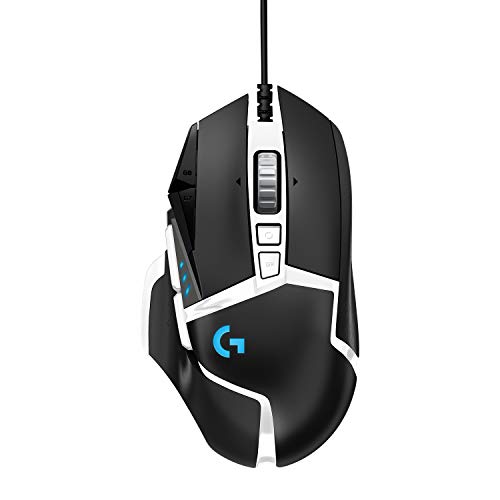
Logitech G502 SE Hero High Performance RGB Gaming Mouse with 11 Programmable Buttons
- High performance hero 16k sensor: Logitech most accurate sensor yet with upto 16,000 dpi for the ultimate in gaming speed, accuracy and responsiveness across entire dpi range
- 11 customizable buttons and onboard memory: Assign custom commands to the buttons and save Upto five ready to play profiles directly to the mouse
- Adjustable weight system: Arrange upto five removable 3.6 gram weights inside the mouse for personalized weight and balance tuning. Requirements – Windows 7 or later. macOS 10.11 or later. Chrome OS. USB port
- Programmable RGB lighting and lightsync technology: Customize lighting from nearly 16.8 million colors to match your team's colors, sport your own or sync colors with other Logitech G Gear
- Mechanical switch button tensioning: Metal spring tensioning system and pivot hinges are built into left and right gaming mouse buttons for a crisp, clean click feel with rapid click feedback
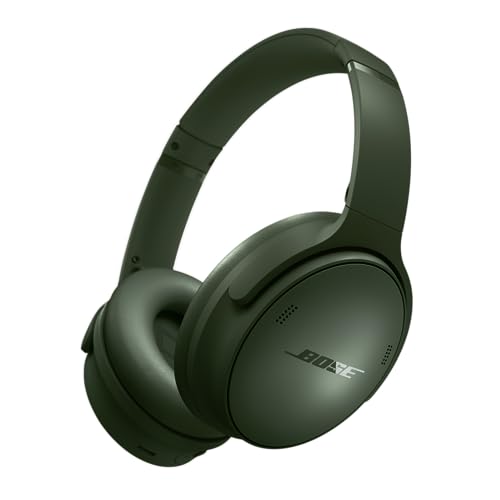
- NOISE CANCELLING HEADPHONES: Effortlessly combines noise cancellation technology with passive features so you can shut off the outside world, quiet distractions, and take music beyond the beat
- COMFORTABLE HEADPHONES: Plush earcup cushions softly hug your ears, while a secure and comfortable padded band gently keeps your over ear headphones in place for those extra-long listening sessions
- 2 LISTENING MODES: These wireless Bluetooth headphones feature Quiet and Aware Modes that let you toggle between full noise cancelling or full awareness of your surroundings for seamless sound control
- HIGH-FIDELITY AUDIO/EQ CONTROL: Supercharge your favorite tracks with high-fidelity audio and Adjustable EQ that puts you in control of the bass, mid-range, and treble for unmatched bold sound
- ALL DAY BATTERY LIFE: Bose QuietComfort wireless headphones provide up to 24 hours of battery on a single charge, plus a 15-minute charge gives you up to 2.5 hours of additional play time