
17 Best Video Editing Software for Mac, Windows and Online in 2026
 by
by
Pick the wrong video editor and you’ll fight the software instead of making videos. Pick the right one and it gets out of your way. The catch is that “the right one” depends on what you’re editing, how much you know, and whether you’re on Mac, Windows, or just a browser tab.
I’ve tested every major video editor over the past decade while producing tutorials, product demos, and client work. Some are free and match what tools cost $300/year. Others are beginner-friendly and stay that way forever. A few use AI so well that a 40-minute interview edits itself in ten minutes. This guide covers the 17 video editing tools worth using in 2026, from one-click timeline editors to Hollywood-grade color grading suites.
Free and open-source options make up a third of the list. So do commercial tools that pay for themselves fast. I’ve grouped them by use case at the bottom so you can skip straight to the pick for your situation.
Best Video Editing Software at a Glance
DaVinci Resolve wins the “best free editor” title by a landslide. Final Cut Pro remains the top pick for Mac professionals. Premiere Pro stays the industry standard. For everything else, there’s a specialized tool that does one thing better than the generalists.
- DaVinci Resolve: Best free video editor overall (Hollywood-grade color grading, VFX, audio in one app)
- Adobe Premiere Pro: Best industry-standard editor for teams and agencies ($22.99/mo)
- Final Cut Pro: Best video editor for Mac with Apple Silicon performance ($299 one-time)
- Filmora: Best video editor for intermediate YouTubers with AI features ($49.99/yr)
- Camtasia: Best video editor for course creators and software tutorials ($179.88/yr)
- Kdenlive: Best FOSS video editor on Linux, Windows, and Mac (free, 4.8K+ GitHub stars)
- Shotcut: Best lightweight free video editor that runs on older hardware (free, 13K+ stars)
- CapCut: Best video editing app for short-form content (TikTok, Reels, Shorts)
- Descript: Best AI video editor with transcript-based editing for podcasters and interviews
- InVideo AI: Best AI script-to-video tool for faceless YouTube and marketing content
- OpenShot: Best FOSS video editor for absolute beginners (free, cross-platform)
- Canva Video Editor: Best online video maker for marketers and non-designers
- Screen Studio: Best Mac video editor for SaaS product demos with auto-zoom
- VEED.io: Best online video editor with auto-subtitles in 100+ languages
- Clipchamp: Best free built-in video editor on Windows 11
- Opus Clip: Best AI tool for turning long videos into viral short clips
- iMovie: Best free video editor built into every Mac, iPhone, and iPad
Video Editing Software Comparison
Here’s how these video editors stack up on the features that matter: platform support, pricing, learning curve, and standout features. Pick by use case, not by brand name.
| Editor | Platform | Price | Skill Level | Best For | Open Source |
|---|---|---|---|---|---|
| DaVinci Resolve | Win, Mac, Linux | Free / $295 | Intermediate to Pro | Color grading, serious work | No (free tier) |
| Adobe Premiere Pro | Win, Mac | $22.99/mo | Intermediate to Pro | Industry-standard teams | No |
| Final Cut Pro | Mac, iPad | $299 one-time | Intermediate | Mac creators, YouTubers | No |
| Filmora | Win, Mac | $49.99/yr | Beginner to Intermediate | YouTubers, content creators | No |
| Camtasia | Win, Mac | $179.88/yr | Beginner | Tutorials, courses, SCORM | No |
| Kdenlive | Linux, Win, Mac | Free | Intermediate | Linux users, FOSS fans | Yes (GPL-3.0) |
| Shotcut | Win, Mac, Linux | Free | Beginner to Intermediate | Lightweight use, old PCs | Yes (GPL-3.0) |
| CapCut | All platforms | Free / $9.99/mo | Beginner | TikTok, Reels, Shorts | No |
| Descript | Win, Mac, Web | Free / $19/mo | Beginner | Podcasts, interviews | No |
| InVideo AI | Web | Free / $35/mo | Beginner | AI-generated videos | No |
| OpenShot | Win, Mac, Linux | Free | Beginner | Simple cuts, education | Yes (GPL-3.0) |
| Canva Video | Web, mobile, desktop | Free / $14.99/mo | Beginner | Social, marketing | No |
| Screen Studio | Mac (Win beta) | $229 one-time | Beginner | SaaS demos, tutorials | No |
| VEED.io | Web | Free / $18/mo | Beginner | Subtitles, social | No |
| Clipchamp | Win 11, Web | Free / $11.99/mo | Beginner | Windows 11 users | No |
| Opus Clip | Web | Free / $19/mo | Beginner | Long-to-short repurposing | No |
| iMovie | Mac, iOS | Free | Beginner | Family videos, basic edits | No |
1. DaVinci Resolve
Best for: Serious video editors, colorists, and YouTubers who want Hollywood-grade tools without paying a monthly subscription.
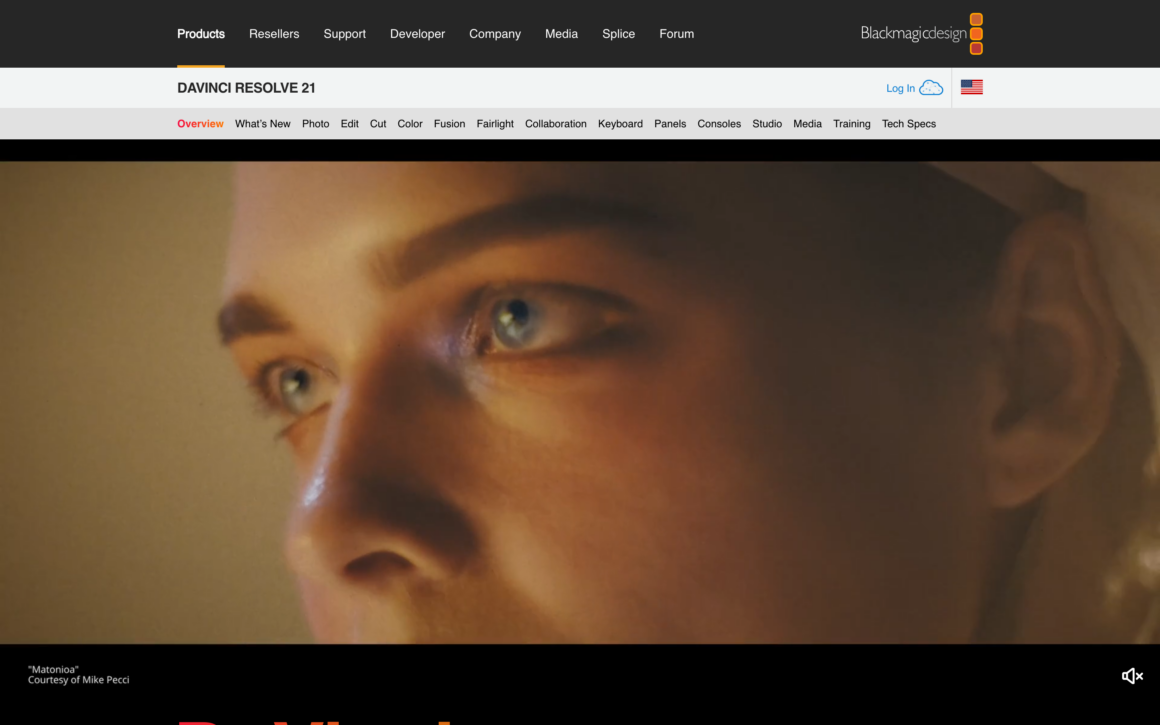
DaVinci Resolve is the only free video editing software used on actual Hollywood features. Dune, The Batman, Avatar. Edited and graded in Resolve. The free version isn’t a crippled demo. It’s a complete professional editor with color grading, Fairlight audio, Fusion VFX, and multi-user collaboration built in.
The color grading page is what makes Resolve famous. Primary corrections, curves, qualifiers, power windows, nodes. The same tools colorists charge $200/hour to use. Version 20 shipped with IntelliScript for AI-driven scripted editing, AI Audio Assistant, and AI Animated Subtitles. None of these cost extra in the free tier.
The learning curve is real. Resolve has seven workspaces (Media, Cut, Edit, Fusion, Color, Fairlight, Deliver), and each behaves like its own app. But every tutorial on YouTube covers Resolve now. The payoff is that once you learn it, you’ll never outgrow it. Studio version ($295 one-time) adds noise reduction, object removal, and higher-end AI tools, but the free version is enough for 95% of creators.
Runs on Windows, Mac, and Linux. This is the default pick for anyone starting out in 2026.
2. Adobe Premiere Pro
Best for: Teams, agencies, and anyone working in the Adobe Creative Cloud ecosystem.
Adobe Premiere Pro is the industry standard. More editing jobs ask for Premiere experience than anything else. If you work with Photoshop, After Effects, or Audition, the Dynamic Link between Adobe apps saves hours on round-trips. Edit audio in Audition, pull the edit back into Premiere automatically. Composite in After Effects, see updates in Premiere without exporting.
The 2025 release added Text-Based Editing that transcribes interviews and lets you edit the video by editing the transcript. Delete a sentence, the video cut updates. Generative Extend (powered by Firefly AI) fills in up to 2 seconds of new footage when your clip is slightly too short. Enhance Speech cleans up noisy dialogue without an audio engineer.
Premiere costs $22.99/month for the single app or $59.99/month for all Creative Cloud apps. Not cheap. But if you’re working with clients who ship project files, need the ecosystem, or just want the most-hired video editing software on your resume, this is the one.
3. Final Cut Pro
Best for: Mac users who want the fastest editor on Apple Silicon with a one-time purchase instead of a monthly subscription.
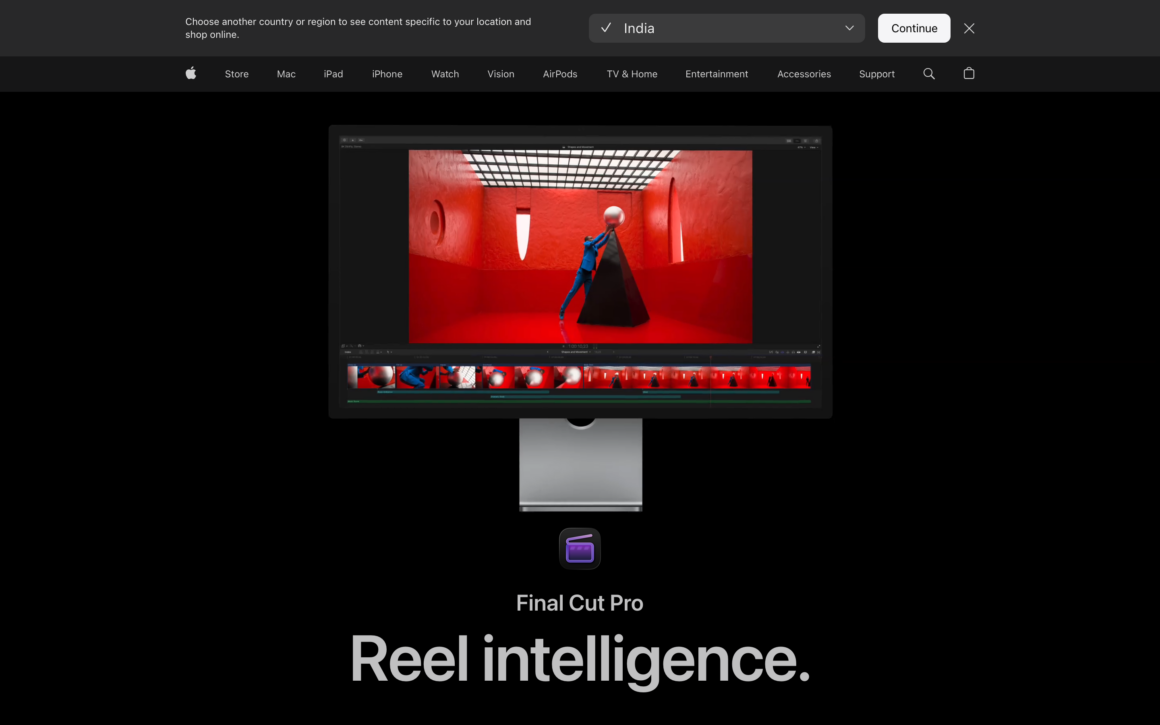
Final Cut Pro runs faster on an M-series Mac than any other editor. Background rendering, ProRes export, 4K timelines that don’t stutter. The Magnetic Timeline takes an hour to get used to and then you won’t want to edit any other way. Clips push and pull around each other automatically instead of leaving gaps.
FCP 11 added Magnetic Mask (AI-driven subject isolation), Spatial Video editing for Apple Vision Pro, and automatic captions. The Enhance Light and Color feature fixes underexposed or off-white-balance clips in one click. Voice Isolation removes background noise from dialogue without muffling the speaker.
$299.99 one-time purchase. That’s it. No subscription, no upgrade fees for minor versions. The 90-day free trial gives you enough time to finish most projects and decide if it fits. If you’re on Mac and plan to edit video for more than a year, FCP pays for itself versus Premiere’s subscription.
4. Filmora
Best for: YouTubers and intermediate creators who outgrew iMovie but find Premiere Pro overwhelming.
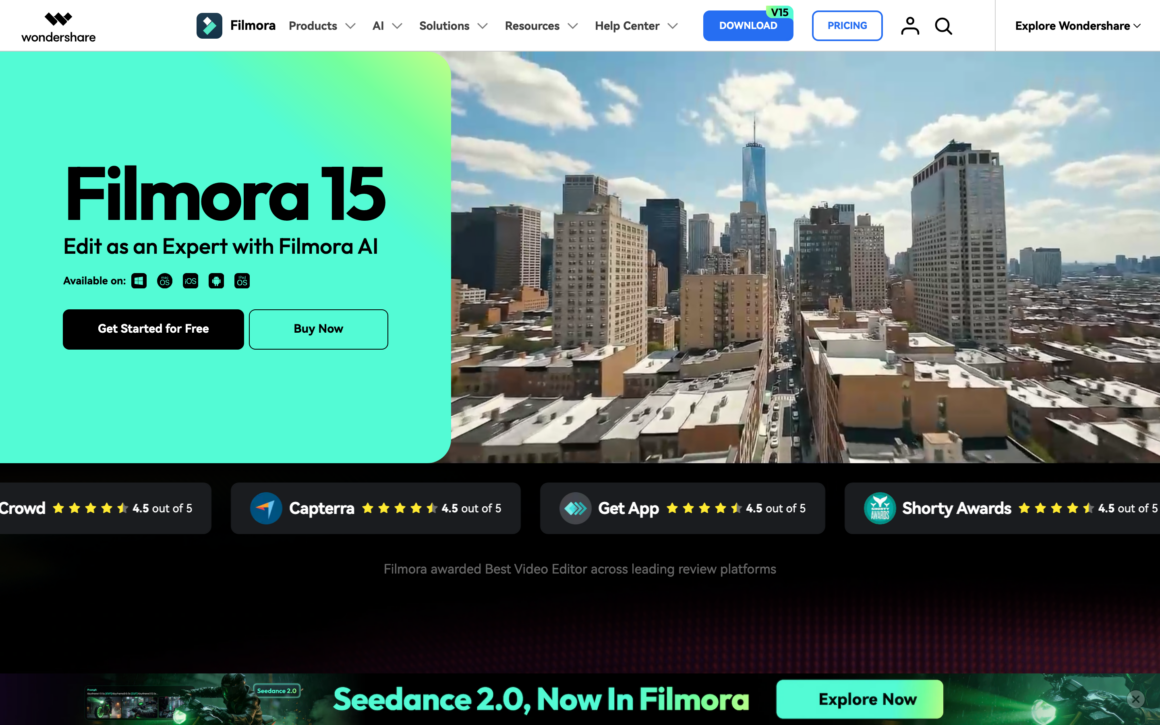
Filmora sits in the sweet spot between “too basic” and “too complex.” The timeline feels like Premiere. The effects library is organized like iMovie. The price is a fraction of either. Wondershare Filmora 14 added AI Copilot (chat-based editing assistant), AI Smart Cutout (auto-remove backgrounds), and AI Translation with lip-sync for dubbing content to other languages.
The template library and royalty-free asset store speed up social video production. One-click auto-reframe adapts your 16:9 video to 9:16 for Shorts and 1:1 for Instagram. The Instant Mode imports your footage and produces a finished video using AI in under a minute. Not cinema-grade, but great for faceless YouTube channels and social content.
Filmora runs $49.99/year or $79.99 one-time (perpetual license for that version only). The free tier is fully featured but adds a watermark. If you’re making YouTube tutorials, product reviews, or social content and don’t need Hollywood tools, Filmora is the fastest path to polished videos.
5. Camtasia
Best for: Course creators, internal trainers, and anyone producing software tutorials or educational video.
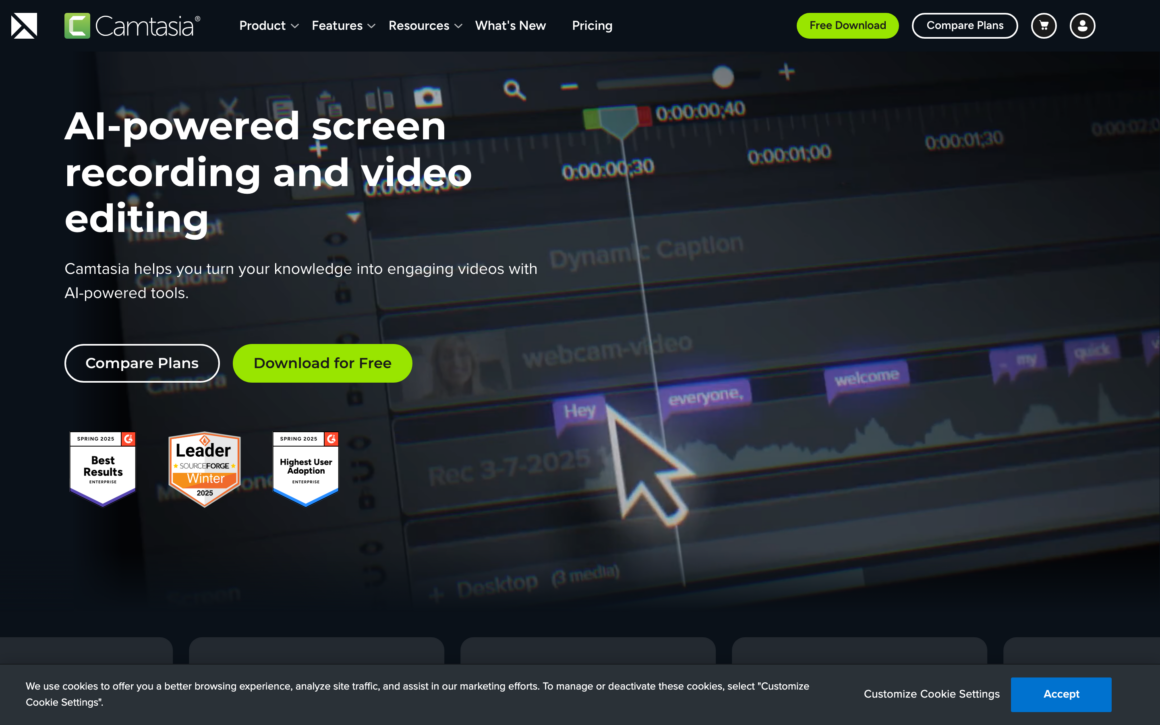
Camtasia is purpose-built for tutorial and training content. It records your screen while capturing the cursor as a separate track, lets you add callouts and arrows that follow the action, and exports to SCORM or xAPI for learning management systems. That last feature is the one no other editor matches.
The interactive quiz feature lets you embed questions directly in the video. Viewers answer and their scores sync back to the LMS. For corporate training, onboarding videos, or online courses, this changes the math. One tool handles recording, editing, quiz creation, and LMS delivery.
Camtasia 2025 added AI voice cloning, auto-chapters, and background noise removal. Pricing moved to subscription at $179.88/year (or perpetual ~$299). Not the cheapest option for casual use. But if you make tutorials for a living, Camtasia’s workflow saves hours per video compared to general-purpose editors.
For screen recording specifically (not editing), pair any of these editors with a dedicated screen capture tool. See my guide to the best screen capture and screen recording software for options that record cleaner than most editors.
6. Kdenlive
Best for: Linux users and anyone wanting a true FOSS video editor without proprietary strings attached.
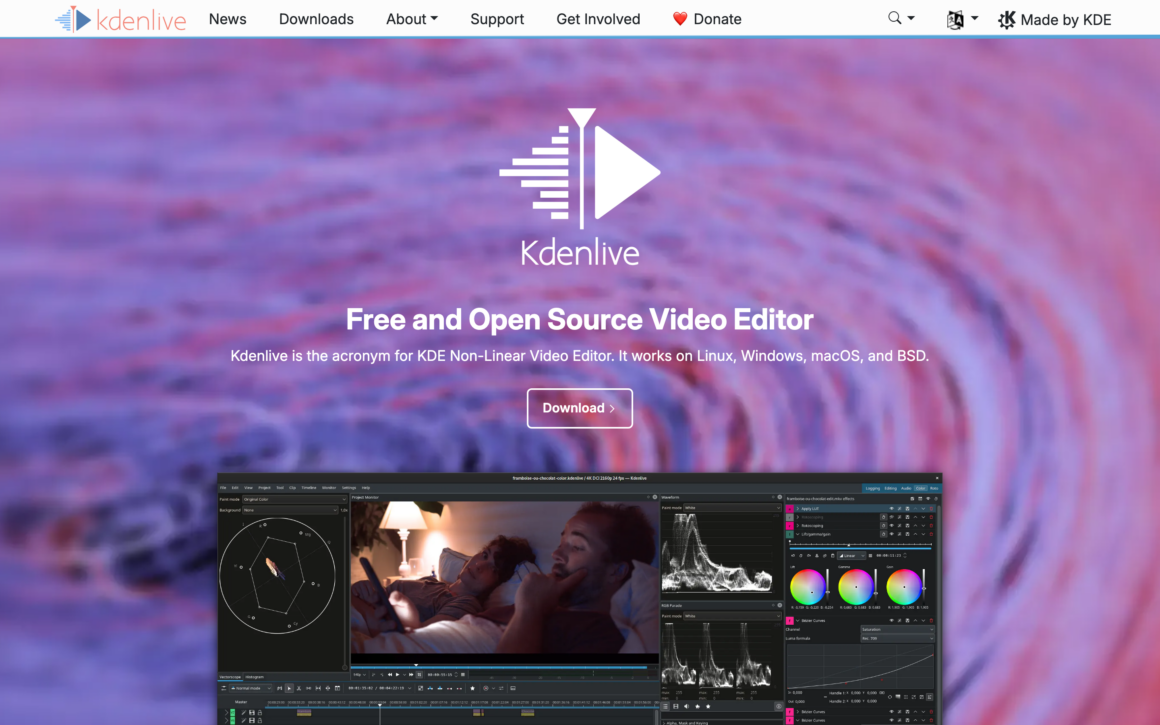
Kdenlive is the most mature free and open-source video editor on GitHub. KDE-backed, GPL-3.0 licensed, daily commits. It runs natively on Linux (best performance), with solid Windows and Mac builds. The multi-track timeline, proxy editing, keyframe effects, and motion tracking are on par with paid editors.
Version 25.x added AI-powered subtitle generation via Whisper and improved Windows performance dramatically. The color scopes and nested timelines mean you can work on complex projects without hitting walls. Render via MLT framework with FFmpeg, which means Kdenlive handles every codec you throw at it.
4,800+ GitHub stars and active daily development. For Linux users, this is the default pick. For Windows and Mac users who want a FOSS alternative to DaVinci Resolve (which is free but proprietary), Kdenlive is the answer.
7. Shotcut
Best for: Weekend editors on older hardware who want a lightweight FOSS editor that just works.
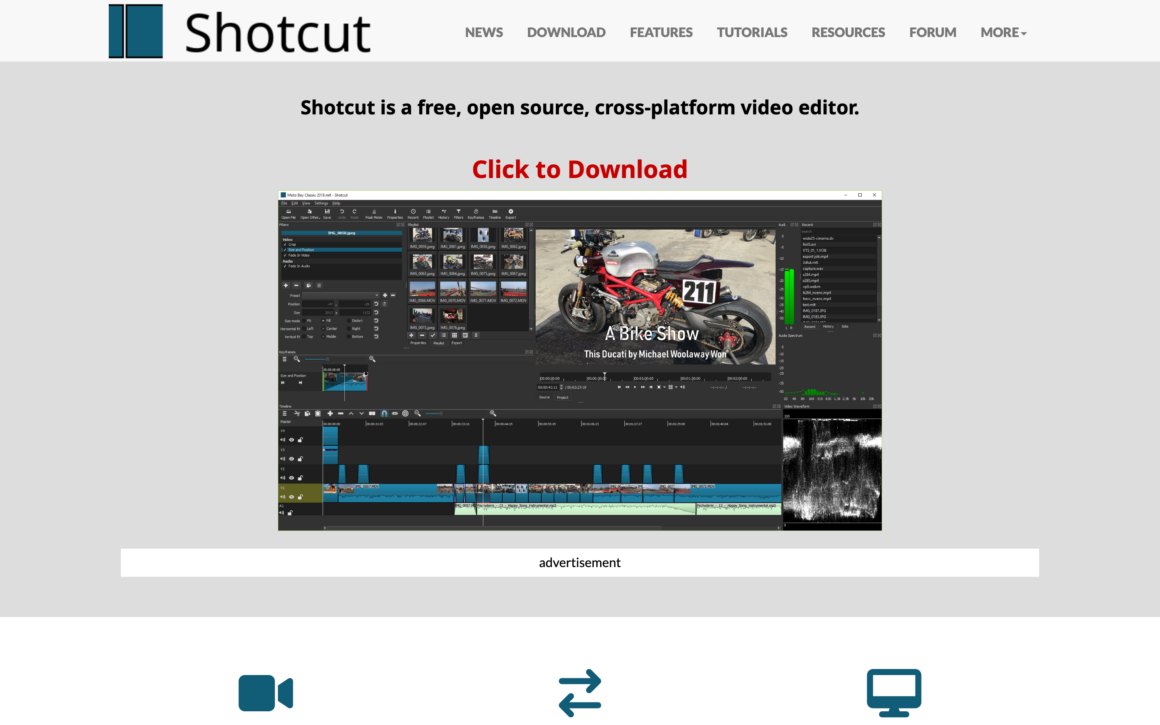
Shotcut is built by the author of the MLT framework that also powers Kdenlive. Same backend, different front-end philosophy. Shotcut’s UI is cleaner and simpler. Dockable panels, portable install (run from USB), 4K support, wide format compatibility via FFmpeg.
It handles multi-track timelines, hardware encoding, and audio filters. Not as feature-rich as Kdenlive for complex compositing, but faster to learn and lighter on system resources. Shotcut runs smoothly on 10-year-old laptops where DaVinci Resolve won’t even launch.
13,700+ GitHub stars, GPL-3.0 license, active development. Free forever. For beginners who want to learn video editing on older hardware, or anyone making simple cuts without the complexity of a pro editor, Shotcut is the pick.
8. CapCut
Best for: TikTok creators, Reels producers, and anyone making vertical short-form video.

CapCut is owned by ByteDance (TikTok’s parent). That shows up in everything. Templates are TikTok-native. Export presets match every social platform’s specs. The mobile app syncs to desktop and web instantly. For short-form video, no other editor matches the workflow speed.
Auto-captions are accurate in 50+ languages. Auto-reframe adapts horizontal video to vertical without cropping the subject. Remove-background works on any clip with a visible person. Text-to-speech generates voiceovers in multiple voices. The template library has viral formats you can drop your footage into and ship in minutes.
Free tier is generous. CapCut Pro ($9.99/month) removes watermarks for commercial use, adds premium assets, and unlocks cloud storage. CapCut added paid watermarks for commercial content in 2024, which triggered backlash, but for personal and creator use the free tier still works for most people. The largest video editor in the world by active users.
9. Descript
Best for: Podcasters, interview editors, and anyone cutting long-form talking-head content.
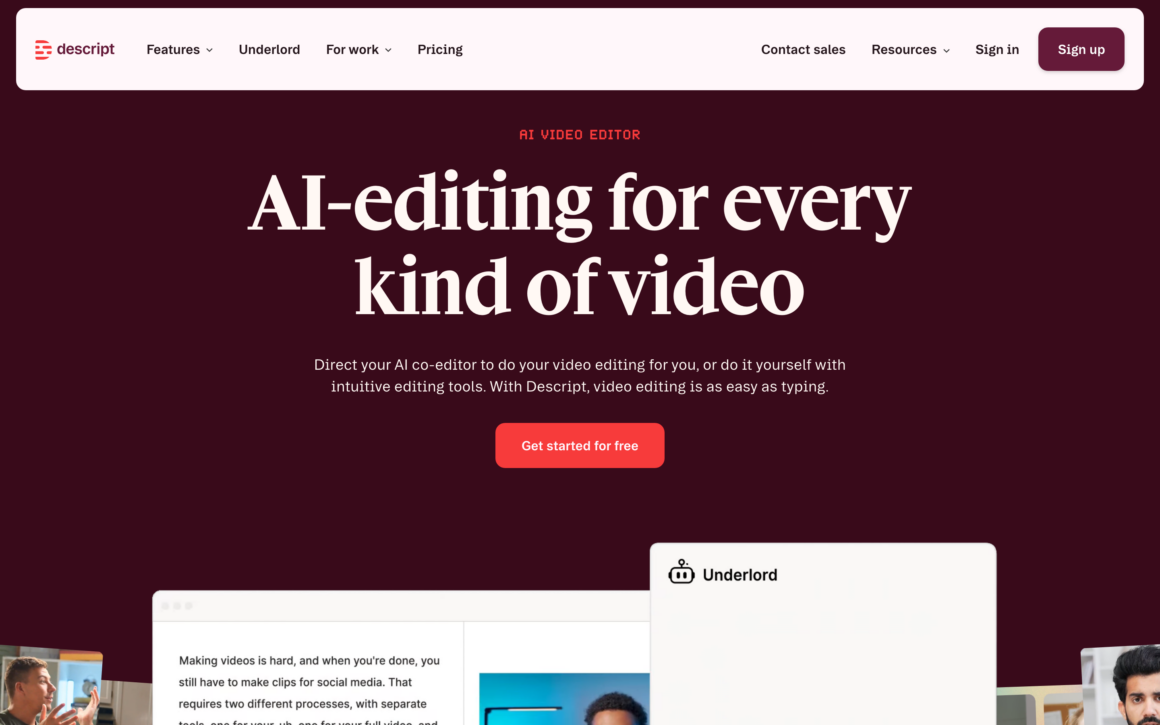
Descript edits video by editing a transcript. Import your footage, it transcribes automatically, and the text becomes your timeline. Delete a word in the transcript and Descript removes that word from the video. Remove filler words (“um,” “uh,” “like”) with one click. Rearrange sentences by rearranging paragraphs.
For interview content, this workflow is 5-10x faster than a traditional timeline editor. I can cut a 60-minute interview down to a 20-minute episode in under an hour using Descript. That’s not possible in Premiere without hours of scrubbing.
Descript also includes Overdub (AI voice cloning to fix mistakes by typing), Studio Sound (one-click audio cleanup), Eye Contact AI (fixes off-camera gazes in interviews), and AI Green Screen. Free tier gives you 1 hour of transcription per month. Creator plan ($35/month) unlocks everything meaningful. If you make podcasts or interview content, Descript will pay for itself in a week.
10. InVideo AI
Best for: Faceless YouTube channels, marketing teams, and creators scaling video production with AI.
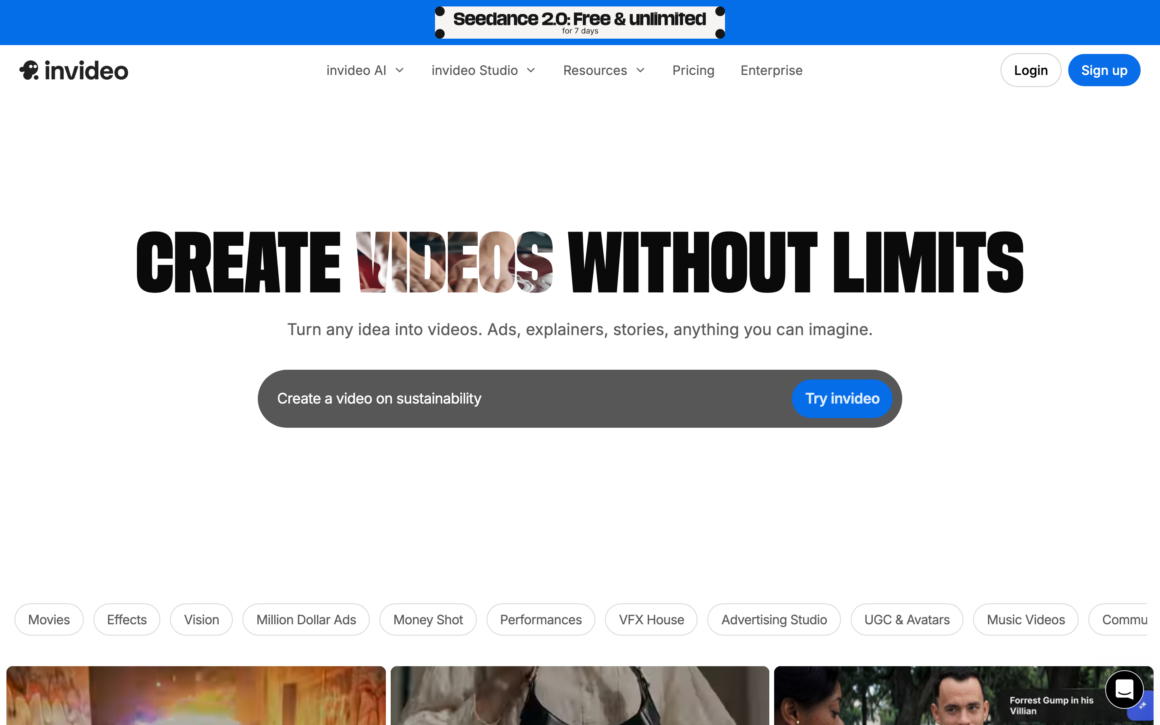
InVideo AI turns a text prompt into a complete video. Script, voiceover, b-roll, music, transitions. Type “make a 5-minute video about the best productivity apps for remote workers” and it generates a finished video you can refine by editing the script. This is what “AI video editing” actually means in 2026.
The generation quality has improved dramatically. Early AI video tools produced slideshow-style output with robotic voiceovers. InVideo AI 2.0 generates human-sounding narration, matches b-roll to script context (not just keywords), and handles scene transitions that look intentional. Not cinema-grade, but good enough for faceless explainer channels, marketing videos, and social content at scale.
Free tier lets you generate 4 videos per week with watermarks. Plus plan ($35/month) unlocks commercial use and higher output quality. Standard InVideo (non-AI) has 5,000+ templates and a full editor for manual work. If you’re producing 10+ videos per month and can accept “good enough” quality for speed, InVideo AI changes the math.
11. OpenShot
Best for: Absolute beginners learning video editing for the first time, and educational use.
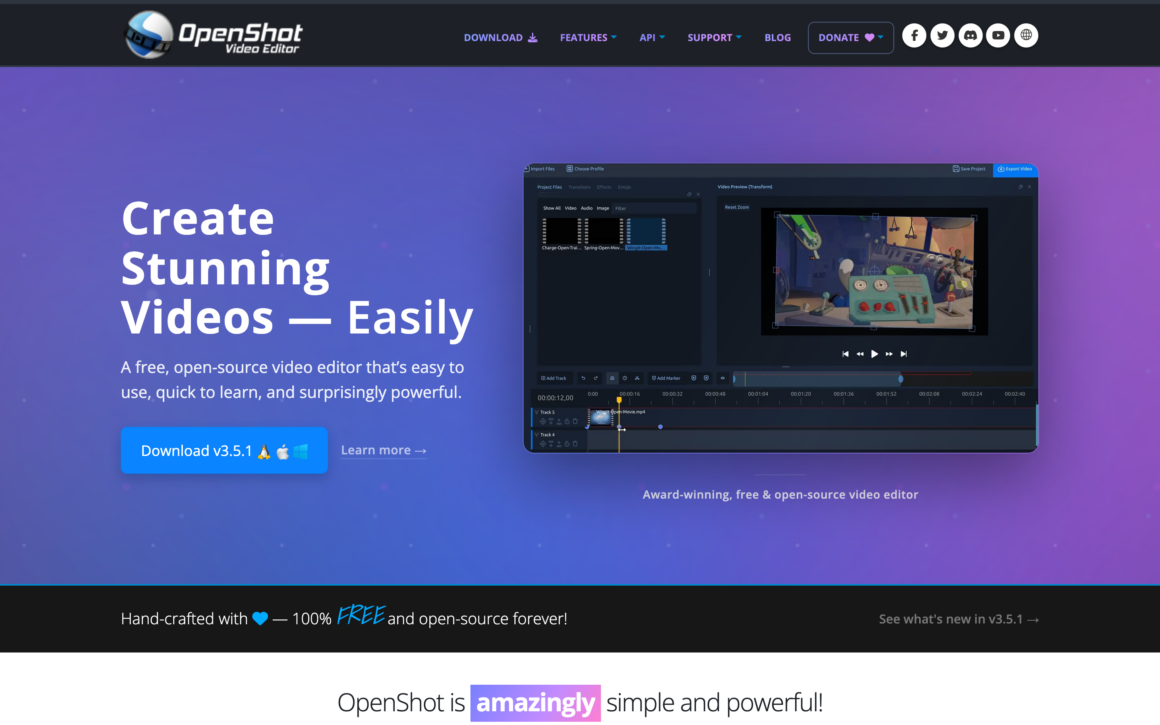
OpenShot has the simplest UI of any full-featured video editor. Unlimited tracks, drag-and-drop clips, built-in title editor, 3D animated titles via Blender integration. If you’ve never edited video before, OpenShot won’t intimidate you.
The trade-off is fewer advanced features than Kdenlive or Shotcut. Color grading is basic. Keyframe animation works but isn’t as precise. For simple cuts, transitions, and titles, OpenShot handles it. For professional color work or complex effects, you’ll want to move up to DaVinci Resolve or Kdenlive.
GPL-3.0 licensed, 5,600+ GitHub stars, cross-platform (Windows, Mac, Linux, ChromeOS). Used in schools and training programs because the learning curve is forgiving. For your first video edit, OpenShot works.
12. Canva Video Editor
Best for: Marketers, non-designers, and social media managers making branded video content.
Canva evolved from a design tool into a full video maker. The same drag-and-drop editor that made Canva famous now handles video: timeline editing, text animations, stock footage library, royalty-free music, brand kit integration. If your team uses Canva for social graphics, the video editor lives in the same tab.
Magic Edit, Magic Switch (one-click reformat across aspect ratios), and Beat Sync (automatic music-synced cuts) are the features that save hours. Beat Sync alone is worth the subscription for anyone making TikTok content. Drop in your clips, pick a song, and Canva cuts the video on every beat automatically.
Free tier handles most social video creation. Canva Pro ($14.99/month) adds brand kit, background remover, and unlimited stock assets. Not a replacement for Premiere or Final Cut, but for marketers who need polished social videos shipped fast, nothing beats the Canva workflow.
13. Screen Studio
Best for: Mac users creating SaaS product demos, developer tutorials, and sales enablement videos.
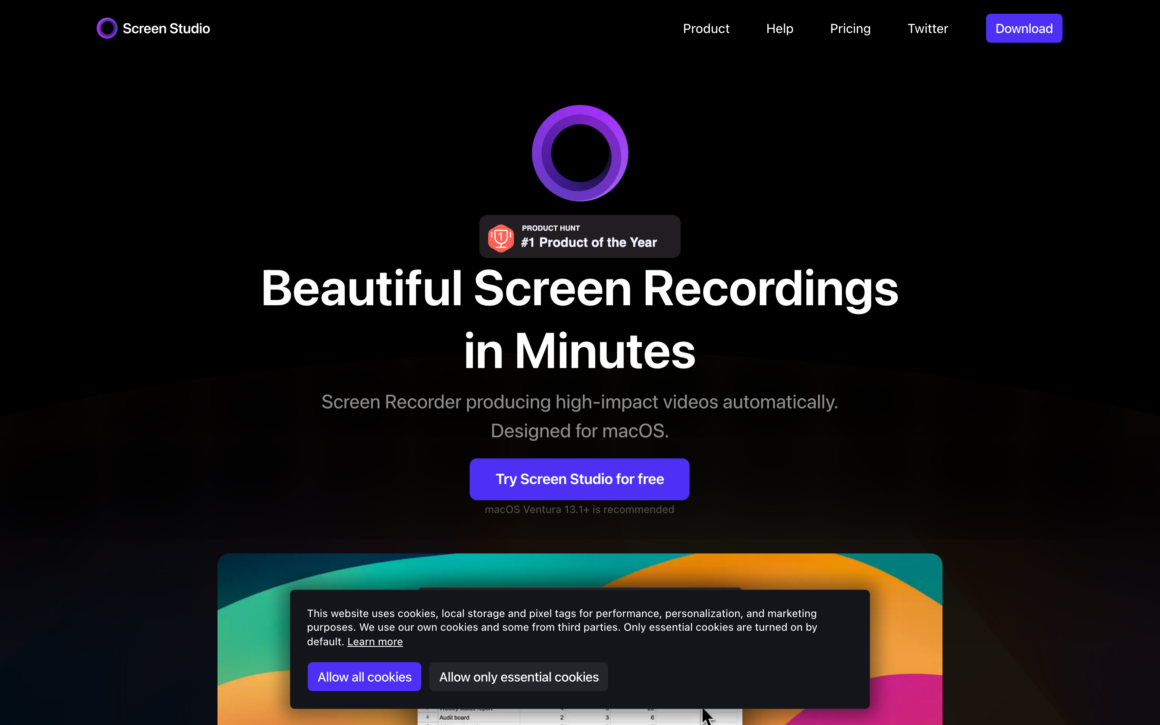
Screen Studio records your screen and auto-generates the kind of polished product demo you see on indie SaaS landing pages. Cursor smoothing. Automatic zoom-ins on clicked elements. Custom backgrounds. Click highlights. All happening with zero manual editing.
This is the tool behind most of the “wow, that demo looks expensive” videos on Product Hunt and X. Screen Studio turns a raw screen recording into a cinematic demo in minutes. The auto-zoom is the feature that matters most. It follows your cursor and zooms into the element you’re clicking, then zooms out when you’re navigating. Looks manual, happens automatically.
$229 one-time for the Standard license, $349 for Pro. Mac only as of 2026, with a Windows beta in progress. If you’re a founder, indie developer, or PM who needs to demo products frequently, Screen Studio pays for itself fast. The time savings per demo are in hours, not minutes.
14. VEED.io
Best for: Online video editing with accurate auto-subtitles in 100+ languages.
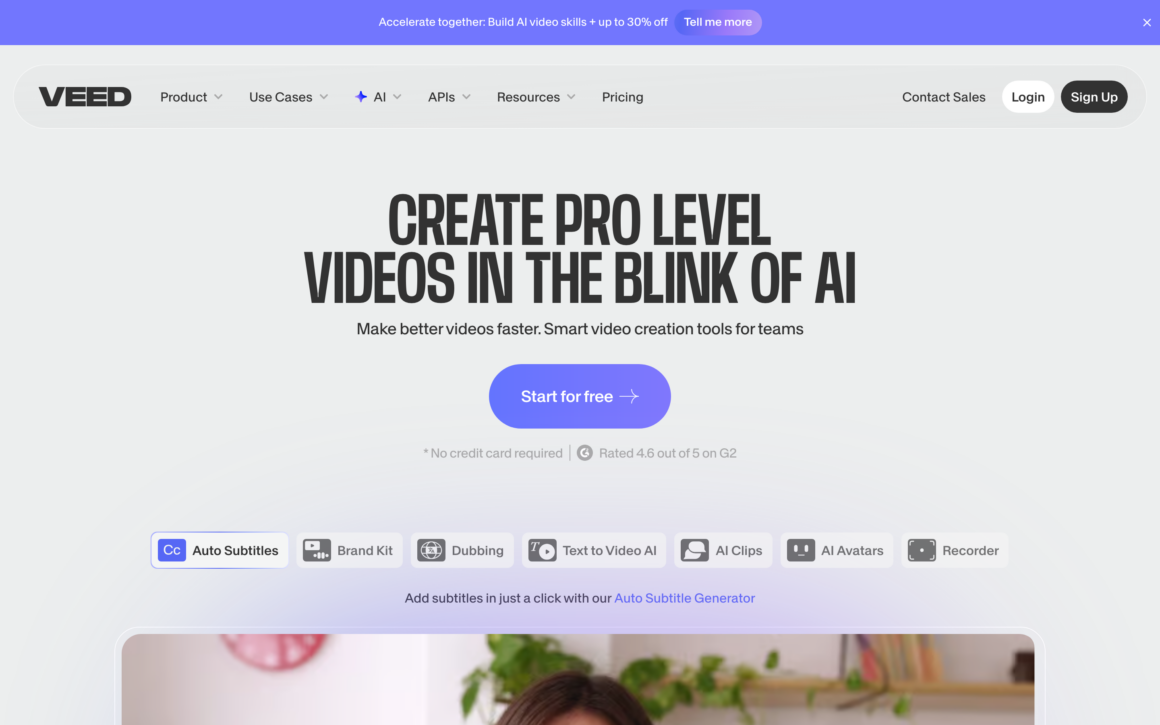
VEED runs entirely in the browser. Upload your video, edit on a timeline, add text, trim, resize, add subtitles. What sets VEED apart is subtitle accuracy. The auto-caption feature is the most accurate I’ve tested in any browser-based editor, and it supports 100+ languages.
The AI features keep expanding: translate video (with lip-sync), AI avatars (Synthesia-style), eye-contact correction, magic cut (auto-removes silence), green screen. For marketers making multilingual content or creators adding captions before posting to social, VEED saves significant time.
Free tier has watermarks and a 10-minute cap. Lite ($18/month) handles most individual creators. Pro ($30/month) unlocks AI avatars and team features. $35M Series A in 2024 means they’re investing heavily in AI features. The best browser-based video editor in 2026 for anything that needs subtitles.
15. Clipchamp
Best for: Windows 11 users who want a free, pre-installed video editor similar to iMovie on Mac.
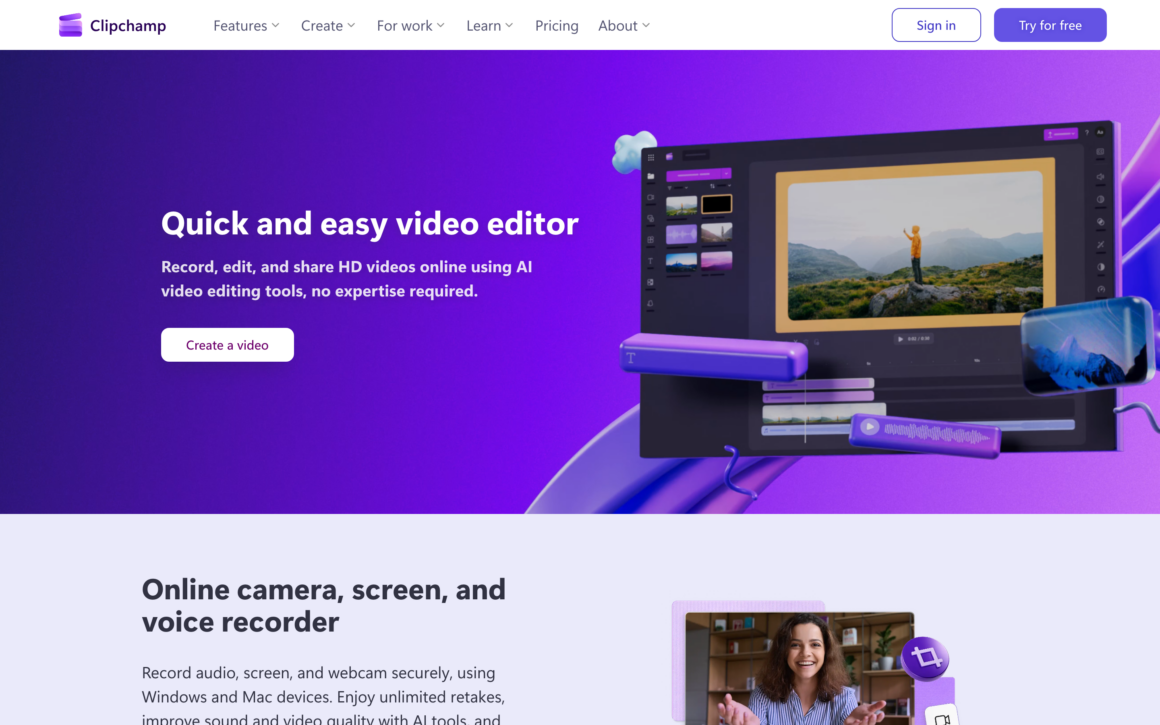
Clipchamp is Microsoft’s answer to iMovie. It comes pre-installed on Windows 11 and runs in any browser. Timeline editing, trim, transitions, text, stock library, screen recording built in. Nothing fancy. Just a solid beginner-friendly editor that’s already on your machine.
The AI voiceover feature generates natural-sounding narration in multiple languages. Auto-captions are accurate. The template library has enough variety for social posts, YouTube intros, and family videos. Copilot integration (added in 2025) generates scripts from prompts and adds b-roll automatically.
Free tier is generous (1080p export, no watermark on basic features). Premium ($11.99/month) adds brand kit and higher-quality stock. If you’re on Windows 11 and need to edit a quick video without installing anything, Clipchamp is already there.
16. Opus Clip
Best for: Repurposing long-form podcasts and videos into viral short clips for TikTok, Reels, and Shorts.
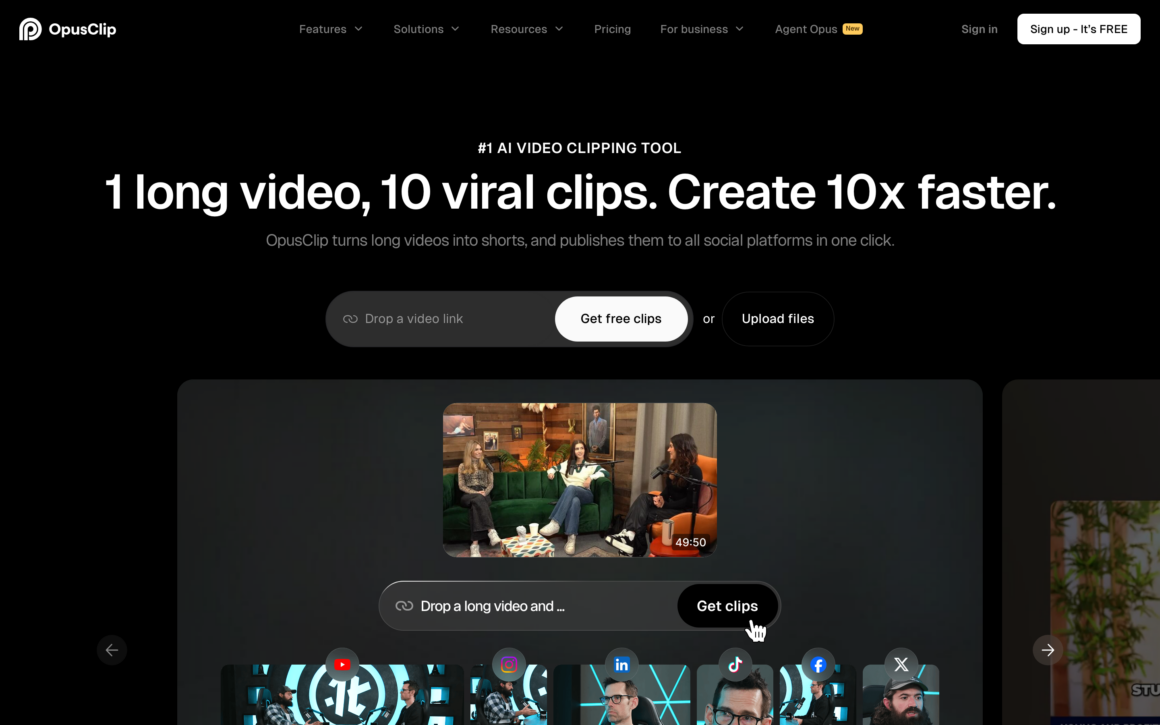
Opus Clip analyzes a long video, identifies the most viral moments, auto-reframes them for vertical (9:16), adds captions, and exports a batch of short clips ready to post. The AI has been trained on what actually gets shared on social media. The “virality score” on each clip tells you which ones to prioritize.
I’ve tested Opus Clip on 90-minute podcasts. It finds 15-20 clips per episode. The ones it ranks highest consistently outperform clips I’d have picked manually. ClipAnything lets you prompt for specific topics (“find all moments where they talk about pricing”) and it pulls those out.
Free tier gives you 90 minutes of upload per month. Starter ($19/month) unlocks commercial use. For podcasters, interviewers, or creators with long-form content looking to grow on short-form platforms, Opus Clip is the specialist that beats general-purpose editors.
17. iMovie
Best for: Mac, iPhone, and iPad users making family videos, quick edits, or learning the basics for free.
iMovie ships free with every Mac, iPhone, and iPad. The Magic Movie feature creates a polished edit from your clips automatically. Storyboards walk you through shot-by-shot video creation. 4K export, green screen, picture-in-picture, AirDrop handoff between devices. For $0 pre-installed, iMovie does more than most free editors on Windows.
The limits show up on complex projects. No multicam editing. Only two video tracks. Basic color correction. No keyframing outside of a few presets. If you’re making simple cuts or family videos, those limits don’t matter. When they start to matter, iMovie projects open directly in Final Cut Pro, so the upgrade path is frictionless.
The biggest mistake beginners make: picking the most powerful editor instead of the right one. Premiere Pro overwhelms a first-time editor. CapCut is too limited for color grading. Match the tool to the project, not to the brand name. You can always upgrade later.
How to Choose the Right Video Editor
Match the Editor to Your Content Type
Short-form vertical video: CapCut. Long-form YouTube: DaVinci Resolve or Filmora. Tutorials with screen recording: Camtasia or Screen Studio. Interview podcasts: Descript. Faceless explainers: InVideo AI. Social marketing: Canva Video. Mac pro work: Final Cut Pro. Agency team work: Adobe Premiere Pro.
Match the Editor to Your Hardware
M-series Mac: Final Cut Pro (fastest). Intel Mac or Windows with decent GPU: DaVinci Resolve or Premiere Pro. Older laptop or Chromebook: Shotcut, OpenShot, or browser-based (VEED, Clipchamp). No computer available, only phone: CapCut or Canva mobile apps.
Match the Editor to Your Budget
$0: DaVinci Resolve (free tier), Kdenlive, Shotcut, OpenShot, iMovie, Clipchamp. One-time purchase: Final Cut Pro ($299), Screen Studio ($229). Subscription: Premiere Pro ($22.99/mo), Camtasia ($179.88/yr), Filmora ($49.99/yr). Pay-per-use: CapCut Pro, VEED, Canva.
Which Video Editor Should You Pick?
If I had to pick one video editor for most creators in 2026, it’s DaVinci Resolve. Free, cross-platform, professional-grade, with a learning curve that pays off forever. The color grading alone is worth the time investment.
For Mac users who don’t want to learn Resolve, Final Cut Pro. One-time purchase, fastest performance on Apple Silicon, Magnetic Timeline workflow is unique.
For YouTubers and intermediate creators who want something easier, Filmora. Lower price than Premiere, more features than iMovie, strong AI tools.
For podcasts and interviews, Descript. The transcript-based editing is 5-10x faster than traditional timelines.
For short-form social, CapCut. Nothing else matches the speed for TikTok and Reels.
For AI-generated video at scale, InVideo AI. Type a prompt, get a finished video.
Start with DaVinci Resolve if you’re serious about video. Start with CapCut or Clipchamp if you just want to get something shipped this week. Both paths are valid.
Specialized Video Editing Tools and Resources
The 17 editors above cover most general video work. But some projects need specialized tools for color correction, motion graphics, audio mixing, or asset sourcing. Here’s what to reach for when the main editors hit their limits.
Motion Graphics Software
For animated titles, explainer graphics, and visual effects, the standard is Adobe After Effects ($22.99/month). Dynamic Link with Premiere Pro means you edit animations in After Effects and see updates in Premiere without exporting. For a free alternative, Fusion (built into DaVinci Resolve) uses node-based compositing that’s more powerful than After Effects for complex work. Blender (free, FOSS) handles 3D motion graphics and is increasingly used for 2D animation too. For template-based motion graphics, Canva, Filmora, and VEED all include animated title libraries.
Video Color Correction and Grading Tools
DaVinci Resolve is the industry standard for color correction. The Color page has primary wheels, curves, qualifiers, power windows, and node-based grading that no other editor matches. The free tier includes everything most creators need. The Studio version ($295) adds HDR grading, film grain, and noise reduction. Premiere Pro has Lumetri Color for basic-to-intermediate grading. Final Cut Pro 11’s Enhance Light and Color fixes exposure issues in one click. For LUTs and color-matched presets, Artlist and Motion Array sell preset packs for any editor.
Audio Mixing Software for Video
Fairlight (built into DaVinci Resolve, free) is a professional DAW with multi-track mixing, EQ, compression, and surround sound support. Adobe Audition ($22.99/month) integrates tightly with Premiere Pro for dialogue cleanup and podcast mixing. Audacity (free, FOSS) handles basic audio editing for dialogue cleanup and music trimming. For AI-powered audio cleanup, Descript’s Studio Sound and Adobe Enhance Speech remove background noise in one click without muffling speech.
Video Compression and Encoding Software
HandBrake (free, FOSS, GPL-2.0) is the standard video compression tool. It uses H.264, H.265, and AV1 codecs to shrink file sizes for web and mobile delivery without visible quality loss. For batch processing, HandBrake queues multiple files. FFmpeg (free, FOSS) is the command-line standard that powers most video tools. It handles every codec and format. For a GUI wrapper, Shutter Encoder (free) simplifies FFmpeg commands. Cloud-based rendering services like GarageFarm and Rebusfarm handle heavy renders when local hardware is the bottleneck.
Video Noise Reduction and Stabilization
For noisy footage shot in low light, DaVinci Resolve Studio has spatial and temporal noise reduction that rivals dedicated plugins. Neat Video ($129.90 plugin) is the gold standard for extreme noise cleanup and works with Premiere, Final Cut, Resolve, and Vegas. For video stabilization, most modern editors include built-in stabilizers: Premiere’s Warp Stabilizer, Final Cut’s Stabilization, and Resolve’s Gyroscopic Stabilizer. For handheld footage that looks unusable, these features can save the shot.
Multicam Video Editing Tools
For multi-camera productions (interviews, concerts, live events), Premiere Pro, Final Cut Pro, and DaVinci Resolve all support multicam editing. Sync multiple camera angles automatically using audio waveforms, then switch between them during playback. Avid Media Composer remains the standard for broadcast multicam. Filmora added multicam support in version 14. For podcast video recording with multiple camera angles, Riverside and Descript handle the recording and multicam editing in one workflow.
4K Video Editing
All modern editors handle 4K, but performance varies. Final Cut Pro on M-series Macs edits 4K timelines without rendering thanks to Apple Silicon optimization. DaVinci Resolve handles 4K on any decent GPU using its proxy workflow. Premiere Pro requires a dedicated GPU for smooth 4K playback. For 4K editing on modest hardware, use proxy files (lower-resolution copies for editing, replaced with originals on export). All the editors in this guide except Clipchamp free tier and iMovie on older Macs handle 4K without issues.
Subtitle and Captioning Software
For automatic captions, VEED.io has the most accurate browser-based transcription in 100+ languages. Descript transcribes and lets you edit video through the transcript. CapCut’s auto-captions work in 50+ languages. For manual subtitle creation, Aegisub (free, FOSS) is the standard subtitle editor used for fansubs and professional translation. Subtitle Edit (free, FOSS) handles 200+ subtitle formats. For translating subtitles between languages with lip-sync, HeyGen Video Translate and Filmora’s AI Translation dub video to other languages in minutes.
Motion Tracking Software
For object tracking (attaching text or graphics to moving subjects), After Effects has the standard tracker plus Mocha AE (bundled) for planar tracking. Fusion (in DaVinci Resolve) includes the Tracker node for 3D camera tracking and object tracking. Blender has built-in motion tracking that rivals paid tools. Mocha Pro ($695 standalone) is the professional planar tracking tool used in Hollywood VFX. For simple tracking in editors, Premiere Pro, Final Cut Pro, and Resolve all include basic motion tracking for text and graphics.
Timelapse Video Software
LRTimelapse ($199) is the professional timelapse editor that handles exposure ramping, keyframing, and flicker removal. Adobe Lightroom paired with Premiere Pro handles timelapse workflows. For in-camera timelapse from phones, most iPhone and Android cameras capture timelapse natively and dump MP4 files you can edit in any editor. For hyperlapse (moving timelapse), Instagram Hyperlapse (free) and Microsoft Hyperlapse Pro stabilize moving timelapse footage.
Green Screen Editing (Chroma Key)
Every editor in this guide has chroma key for green screen removal. The quality varies. DaVinci Resolve’s Delta Keyer is Hollywood-grade. Final Cut Pro’s Keyer handles most jobs with one click. For AI-powered background removal without a green screen, Runway’s Green Screen AI, Premiere’s Scene Edit Detection, and Descript’s Green Screen AI isolate subjects from any background. CapCut and Filmora have one-click background removal built in.
Video Transition Plugins and Effects
For Premiere Pro, the Motion Array subscription ($29.99/month) includes thousands of transitions, titles, and effects. FilmImpact ($69 per pack) sells cinematic transition packs for Premiere. For Final Cut Pro, Ripple Training and FxFactory sell professional plugins. Sam Kolder Transitions Pack ($149) is the standard for travel and lifestyle YouTubers. Resolve and most FOSS editors support OFX plugins, including BorisFX Continuum and Red Giant effects suites.
Stock Footage and Royalty-Free Music Libraries
For royalty-free music, Artlist ($16.60/month) and Epidemic Sound ($9/month) are the top creator picks with unlimited downloads and cleared commercial use. YouTube Audio Library is free but limited. Pixabay Music and Free Music Archive are completely free with attribution.
For stock footage, Pexels Videos and Pixabay Videos are free without attribution. Artgrid ($199/year) is the premium pick with cinematic 4K and 8K footage. Storyblocks ($30/month) includes unlimited stock video, audio, and images. Envato Elements ($16.50/month) bundles stock footage with video templates for After Effects, Premiere, and Final Cut.
Video Template Marketplaces
Envato Elements and Motion Array are the biggest video template marketplaces with ready-made After Effects projects, Premiere title templates, and Final Cut motion templates. MotionElements and VideoHive sell templates à la carte starting at $10. For FCP specifically, MotionVFX has the cleanest templates. For beginners who don’t want to buy individual templates, Filmora’s built-in effect store and Canva’s video template library cover most common needs without an extra subscription.
Online Video Collaboration Tools
Frame.io (bundled with Creative Cloud) is the standard for client review and approval workflows. Share a link, clients leave timestamped comments, you see them inside Premiere Pro. Kapwing offers real-time collaborative editing in the browser (Figma-style). WeVideo targets education with classroom collaboration. Wipster and Vimeo Review handle review workflows for post-production houses. For asset sharing with freelance editors, Dropbox Replay provides frame-accurate comments on video files.
Virtual Reality and 360 Video Editing
For 360-degree and VR video, Premiere Pro, Final Cut Pro, and DaVinci Resolve all support 360 editing natively. Final Cut Pro 11 added Spatial Video editing for Apple Vision Pro, making it the easiest way to edit immersive video. Adobe After Effects handles VR compositing with the Immersive Video plugin. For dedicated 360 workflows, Insta360 Studio (free with Insta360 cameras) handles stitching and basic editing. GoPro Player provides similar functionality for GoPro 360 cameras.
Don’t add specialized tools to your workflow until you hit a specific limit. Most creators think they need motion graphics software or noise reduction plugins before they need better footage. Shoot better source material first, then add tools to fix what you can’t solve on set.
Frequently Asked Questions
What is the best video editing software?
DaVinci Resolve is the best video editing software for most creators in 2026. It’s free, runs on Windows, Mac, and Linux, and includes Hollywood-grade color grading, Fairlight audio, and Fusion VFX. The paid Studio version ($295 one-time) adds advanced AI features. For professional teams, Adobe Premiere Pro remains the industry standard. For Mac users, Final Cut Pro is the fastest option with a one-time purchase price.
What is the best free video editing software?
DaVinci Resolve has the strongest free tier of any professional video editor. It’s used on actual Hollywood features including Dune, The Batman, and Avatar. Open-source alternatives include Kdenlive (cross-platform, GPL-3.0, 4,800+ GitHub stars), Shotcut (13,700+ stars), and OpenShot (5,600+ stars). For Windows users, Clipchamp comes pre-installed on Windows 11. For Mac users, iMovie ships free on every Apple device.
What is the best video editor for YouTube?
For serious YouTubers, DaVinci Resolve (free) or Final Cut Pro ($299 one-time on Mac) are the top picks. Both handle 4K timelines, color grading, and audio cleanup without needing separate tools. For intermediate creators who want something more approachable, Filmora ($49.99/year) offers similar quality with an easier learning curve. Adobe Premiere Pro ($22.99/month) is the industry standard used by most agencies and professional YouTubers.
What is the best video editing app for beginners?
iMovie (Mac) and Clipchamp (Windows 11) are the easiest starting points because they’re pre-installed and free. CapCut is the best beginner editor for short-form social video with templates and AI features. OpenShot has the simplest UI of any FOSS desktop editor. Filmora strikes a balance between beginner-friendly and feature-rich, making it a good upgrade path from iMovie or Clipchamp.
What is the best video editing software for Mac?
Final Cut Pro is the best video editing software for Mac. It’s optimized for Apple Silicon, uses the Magnetic Timeline workflow, and costs $299 as a one-time purchase with a 90-day free trial. DaVinci Resolve (free) runs great on Mac too and matches or exceeds Final Cut for color grading. For quick edits, iMovie is built-in and free. For SaaS product demos, Screen Studio ($229 one-time) creates polished output with auto-zoom.
What is the best online video editor?
VEED.io is the best online video editor for subtitles and multilingual content. Canva Video Editor is the best for marketers making branded social content. CapCut Online matches the mobile app features for short-form video. Clipchamp runs in any browser and ties into Microsoft 365. Kapwing offers the best real-time collaboration for remote teams. All have free tiers, though some add watermarks to the free versions.
What is the best AI video editing software?
Descript is the best AI video editor for podcasts and interviews with its transcript-based editing workflow. InVideo AI generates complete videos from text prompts with voiceover, b-roll, and music. Opus Clip is the best AI tool for repurposing long-form videos into short clips for TikTok, Reels, and Shorts. Runway ML leads in generative video (text-to-video, video-to-video). Most mainstream editors now include AI features too, including Premiere Pro, Final Cut Pro, and Filmora.
Is DaVinci Resolve really free?
Yes. DaVinci Resolve’s free version is fully functional with no watermark and no time limit. It includes 4K editing, color grading, Fairlight audio, and Fusion VFX. The paid Studio version ($295 one-time) adds noise reduction, HDR grading, advanced AI tools, and 8K support. For 95% of creators, the free version is enough. Blackmagic Design makes money on camera hardware, not Resolve licenses.
How do I edit YouTube videos as a beginner?
Start with DaVinci Resolve’s Cut page (the free tier). It’s simpler than the full Edit page and covers 90% of what YouTube videos need: trimming clips, adding transitions, titles, and basic color correction. If Resolve feels overwhelming, Filmora or CapCut have easier learning curves. On Mac, iMovie works for basic edits and transitions to Final Cut Pro seamlessly when you outgrow it.
What video editor do professionals use?
Adobe Premiere Pro is the industry-standard video editor for agencies and post-production houses. DaVinci Resolve is preferred for color grading and is used on Hollywood features. Final Cut Pro is popular among documentary editors and Mac-based YouTubers. Avid Media Composer remains the standard for feature films and broadcast TV. Most professional editors know multiple tools and pick based on the project and team.
Tell Google you want more of this.
Add Gaurav Tiwari as a preferred sourceOne tap, and this site shows up more often in your own Top Stories, AI Overviews and AI Mode. Remove it any time.
Disclaimer: This site is reader-supported. If you buy through some links, I may earn a small commission at no extra cost to you. I only recommend tools I trust and would use myself. Your support helps keep gauravtiwari.org free and focused on real-world advice. Thanks. - Gaurav Tiwari