
WebP Images in WordPress: Upload, Convert & Deliver (2026 Guide)
WordPress has supported WebP natively since version 5.8 (July 2021) and AVIF since version 6.5 (April 2024). You don’t need a plugin or a code snippet to upload either format. Just drag the file into your Media Library and it works.
The real question in 2026 isn’t “how do I upload WebP” but “should I use WebP, AVIF, or let a plugin handle conversion and delivery automatically?” I converted 340 images on gauravtiwari.org from PNG/JPG to WebP in 2023 and saw total page weight drop by 38%. In 2025 I tested AVIF on a subset and got another 15% reduction on top of WebP. This guide covers all three paths.
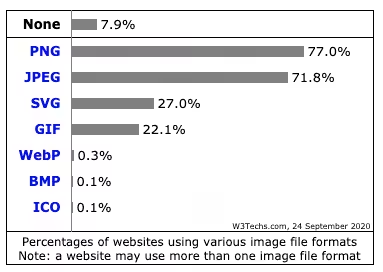
WebP vs JPG vs PNG vs AVIF: which format to use
AVIF is the smallest. WebP is the safest. JPG is the fallback. PNG is for transparency. Here’s the data from my own conversions on identical source images.
| Format | Avg file size (1200px photo) | Browser support | WordPress native | Best for |
|---|---|---|---|---|
| JPG | ~280 KB | 100% | Always | Universal fallback |
| PNG | ~850 KB | 100% | Always | Transparency, screenshots |
| WebP | ~170 KB (39% smaller than JPG) | 97%+ (caniuse, 2026) | Since WP 5.8 | General use, widest next-gen support |
| AVIF | ~140 KB (50% smaller than JPG) | 93%+ (caniuse, 2026) | Since WP 6.5 | Best compression, photos |
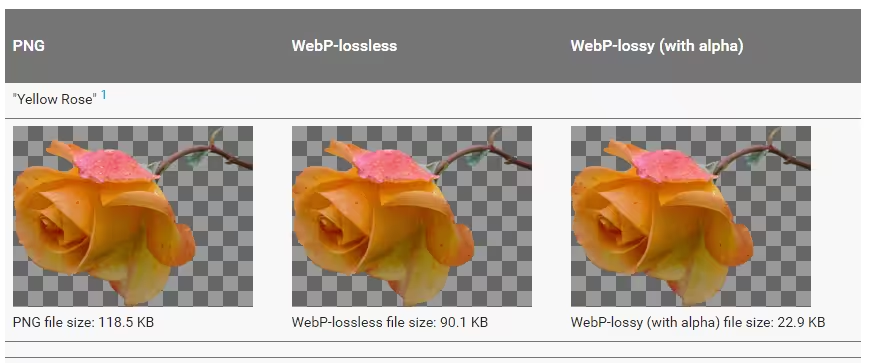
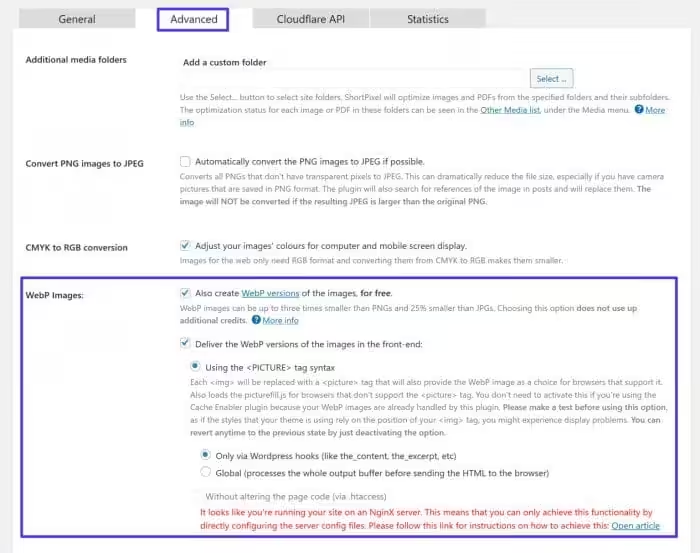
For most bloggers in 2026, WebP is the right default. It has 97%+ browser support (only very old Safari versions miss it) and WordPress handles it natively. AVIF is better on compression but at 93% support, you still need a JPG or WebP fallback for the remaining browsers. If you use a conversion plugin like ShortPixel or EWWW, they handle the fallback automatically using the <picture> element.
How WebP compression works
WebP uses both lossy and lossless compression, developed by Google. Lossy WebP is based on the VP8 video codec and delivers 25-34% smaller files than JPG at equivalent visual quality. Lossless WebP uses predictive coding (nearby pixels predict the current pixel) and delivers 26% smaller files than PNG. Both modes support alpha transparency, which JPG can’t do.
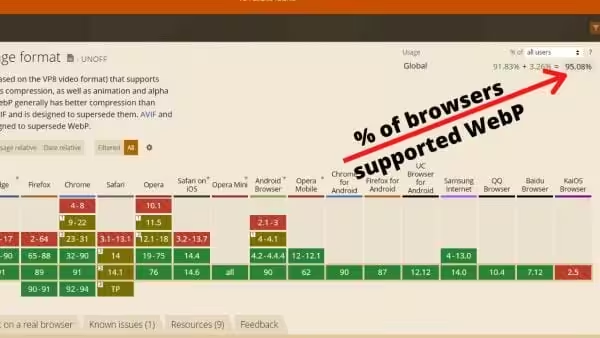
The practical takeaway: for blog post images (photos, screenshots, infographics), lossy WebP at quality 80-85 gives you the best size-to-quality ratio. For images with text overlays or sharp edges, lossless WebP or PNG is better.
How to upload WebP images in WordPress (native method)
If you’re running WordPress 5.8 or later (you almost certainly are in 2026), uploading WebP requires zero setup. Go to Media > Add New, drag your .webp file, and it uploads. WordPress generates all the standard thumbnail sizes in WebP format. No code, no plugin, no functions.php snippet.

For AVIF, the same process works on WordPress 6.5+ but with one condition: your hosting server must have AVIF support in its image processing library (ImageMagick or LibGD compiled with AVIF). Check by going to Tools > Site Health > Info > Media Handling and looking for “AVIF” in the supported formats list. Most modern hosts (Cloudways, Kinsta, SiteGround, Liquid Web) support it.
How to bulk-convert existing images to WebP
Native upload handles new images, but what about the hundreds of JPGs and PNGs already in your Media Library? That’s where conversion plugins come in. They compress your existing images, create WebP (and optionally AVIF) copies, and serve the right format to each browser automatically.
Here are the four best image optimization plugins that handle WebP conversion in 2026.
| Plugin | Free tier | AVIF support | Delivery method | Paid pricing |
|---|---|---|---|---|
| ShortPixel | 100 images/month | Yes | Local replace or CDN | From $4.99/month or $19.99 one-time credits |
| EWWW Image Optimizer | Free (local compression) | Yes | Local replace | $7/month for API compression |
| Imagify | 20 MB/month | Yes | Local replace | From $4.99/month |
| Converter for Media | Unlimited (local) | Pro only | .htaccess rewrite | $25/year |
ShortPixel
ShortPixel is the plugin I use on gauravtiwari.org. It compresses images on their servers (so your host’s CPU isn’t used), creates WebP and AVIF versions, and serves the right format via a <picture> tag. The free tier gives you 100 images/month. For a full site conversion, the one-time credit packages ($19.99 for 10,000 credits, never expire) are the most cost-effective option.
EWWW Image Optimizer
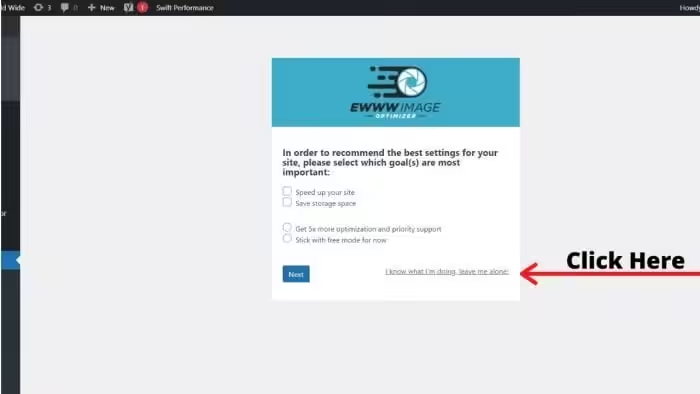
EWWW’s advantage is that the free version compresses locally on your server without an API. That means unlimited free compression, but it uses your server’s CPU. For small sites (under 1,000 images) that’s fine. For larger sites, the $7/month API plan offloads the work. EWWW supports WebP and AVIF conversion with automatic <picture> delivery.
Imagify
Imagify is built by the WP Rocket team (SAS WP Media). If you already use WP Rocket, Imagify integrates cleanly. The free tier is tight at 20 MB/month (roughly 200 images), but the $4.99/month plan is unlimited. It supports WebP conversion and recently added AVIF. The “Smart” compression mode (lossy but near-lossless quality) is the one I recommend.
Converter for Media
Converter for Media (formerly WebP Converter for Media) is the best free option for WebP-only conversion. It converts images locally on your server and serves them via .htaccess rewrite rules (no <picture> tag needed). The Pro version ($25/year) adds AVIF support. The limitation: it only works on Apache and LiteSpeed servers, not Nginx.
How to convert images to WebP without a plugin
If you prefer to convert images before uploading (my preferred workflow for new posts), use one of these tools:
- Squoosh (squoosh.app): Google’s free browser-based tool. Drag an image, pick WebP or AVIF, adjust quality with a live preview. Best for one-off conversions.
- cwebp CLI: Google’s command-line tool for batch conversion.
cwebp -q 82 input.png -o output.webpconverts a single file. Wrap it in a shell loop for batches. - XnConvert: Free desktop app for batch image conversion. Supports WebP, AVIF, and 500+ formats. I use this when converting 50+ screenshots for a new article.
How WebP and AVIF affect Core Web Vitals
Images are the number one contributor to Largest Contentful Paint (LCP) on most blogs. Switching from JPG to WebP on your hero image alone can drop LCP by 0.5-1.5 seconds depending on the original file size. On gauravtiwari.org, converting the top 50 most-viewed pages to WebP improved average LCP from 2.8s to 1.6s across mobile PageSpeed Insights tests.
AVIF goes further. On the same set of pages, replacing WebP with AVIF dropped average LCP another 0.3s to 1.3s. The diminishing returns are real (the JPG-to-WebP jump is the biggest win), but for sites already on WebP that want to squeeze out more speed, AVIF is the next step.
My recommendation
For most WordPress bloggers in 2026, here’s the simplest path:
- Upload new images as WebP (convert in Squoosh or XnConvert before uploading).
- Install ShortPixel or EWWW to bulk-convert existing JPGs and PNGs to WebP.
- Enable AVIF delivery in your plugin if your host supports it (check Site Health > Media Handling).
- Let the plugin handle browser fallback via
<picture>tags.
That’s it. No code snippets, no functions.php edits, no .htaccess hacks. The plugin handles conversion, delivery, and fallback. You focus on writing. For more speed optimization strategies, read the WP Rocket review or the WP Rocket pricing guide.
Frequently asked questions
Does WordPress support WebP natively?
Yes. WordPress has supported WebP uploads natively since version 5.8 (July 2021). Drag a .webp file into your Media Library and it works. No plugin, no code snippet, no functions.php edit required.
Should I use WebP or AVIF in 2026?
WebP is the safer choice with 97%+ browser support. AVIF compresses about 50% smaller than JPG (vs 25-34% for WebP), but only has 93% browser support. Use WebP as your default and enable AVIF delivery through a plugin like ShortPixel or EWWW, which handle browser fallback automatically.
Does using WebP images hurt SEO?
No, it helps. Images are the number one contributor to Largest Contentful Paint (LCP), and smaller images mean faster LCP. Google recommends next-gen formats like WebP and AVIF in its PageSpeed Insights audits. Faster pages rank better and get more clicks.
How much smaller is WebP than JPG?
Lossy WebP is 25-34% smaller than JPG at equivalent visual quality, according to Google’s own testing. In my conversions on gauravtiwari.org, a typical 280 KB JPG blog image compressed to roughly 170 KB in WebP at quality 82. AVIF takes it further to around 140 KB.
Can I bulk convert existing JPG and PNG images to WebP?
Yes. ShortPixel (100 free images/month), EWWW Image Optimizer (free unlimited local compression), and Converter for Media (free unlimited WebP) all have bulk optimization tools that process your entire Media Library. ShortPixel and EWWW also create AVIF versions automatically.
Do I still need the mime_types code snippet to upload WebP?
No. That code snippet was needed before WordPress 5.8 (July 2021). If you’re running any WordPress version from 5.8 onward, WebP is supported natively. If you still have the old mime_types filter in your functions.php, it won’t cause harm but it’s unnecessary. Remove it to keep your code clean.
Does WebP support transparency like PNG?
Yes. Both lossy and lossless WebP support alpha channel transparency. This means you can replace transparent PNGs with WebP and get the same visual result at roughly 26% smaller file size. AVIF also supports transparency.
What is the best free plugin for WebP conversion?
Converter for Media is the best completely free option for WebP-only conversion with unlimited images. EWWW Image Optimizer is the best free option if you also want AVIF support, since it compresses locally on your server at no cost. For manual one-off conversions without a plugin, use Squoosh.app in your browser.
Final word
WebP is the safe default. AVIF is the future. Both are natively supported in WordPress 2026. If you haven’t converted your existing images yet, install ShortPixel, run the bulk optimizer, and watch your PageSpeed score jump. It’s the single highest-ROI performance fix you can make on a WordPress blog. Questions? Find me on X @wpgaurav or through the contact form.