
How to Update Old Blocks Without Breaking Posts
Old posts collect old blocks. A block renamed in a past release or markup damaged by a copy-paste shows up in the editor as “This block contains unexpected or invalid content”, with an Attempt Recovery button. Clicking that button on hundreds of posts, one at a time, isn’t a plan.
The Block Migrator in GT ACF Blocks finds those posts for you. It scans every post, lists what would change, migrates them in batches of 30 and keeps a restore point for each post, so a whole batch can be reverted.
GT ACF Blocks is my collection of content blocks built on Advanced Custom Fields. The migrator ships with it and runs from its settings page or from WP-CLI.
Before You Start
Take these precautions first:
- GT ACF Blocks 2.13.1 or newer.
- A full database backup. The migrator keeps its own restore points, but a backup covers everything else.
- An InnoDB posts table. Most hosts use InnoDB. The migrator refuses to write to posts on other storage engines.
- A quiet time to run it, away from editors working on the same posts.
What the Migrator Fixes
It updates these old blocks to their current versions:
| Old block | Becomes | Carried over |
|---|---|---|
acf/table-of-contents, acf/table-of-content | acf/toc | The title |
acf/productbox | acf/product-box | Title, image, link, description and features |
acf/accordion-item | acf/accordion | Consecutive items merge into one accordion |
acf/accordion-group | acf/accordion | The group and its items |
acf/acf-accordion | acf/accordion | Questions and answers |
acf/accordion with old field names | acf/accordion | Titles and content, under the current field names |
It also repairs broken markup that causes “Attempt Recovery” errors: stray closing comments, unclosed block openers, a --> inside block data and HTML left behind outside its block.
The old acf/poll block is listed but left alone, because it has no current equivalent.
Scan First
- Go to Settings → ACF Blocks License and scroll to Block Migrator & Repair.
- Click Scan for issues.
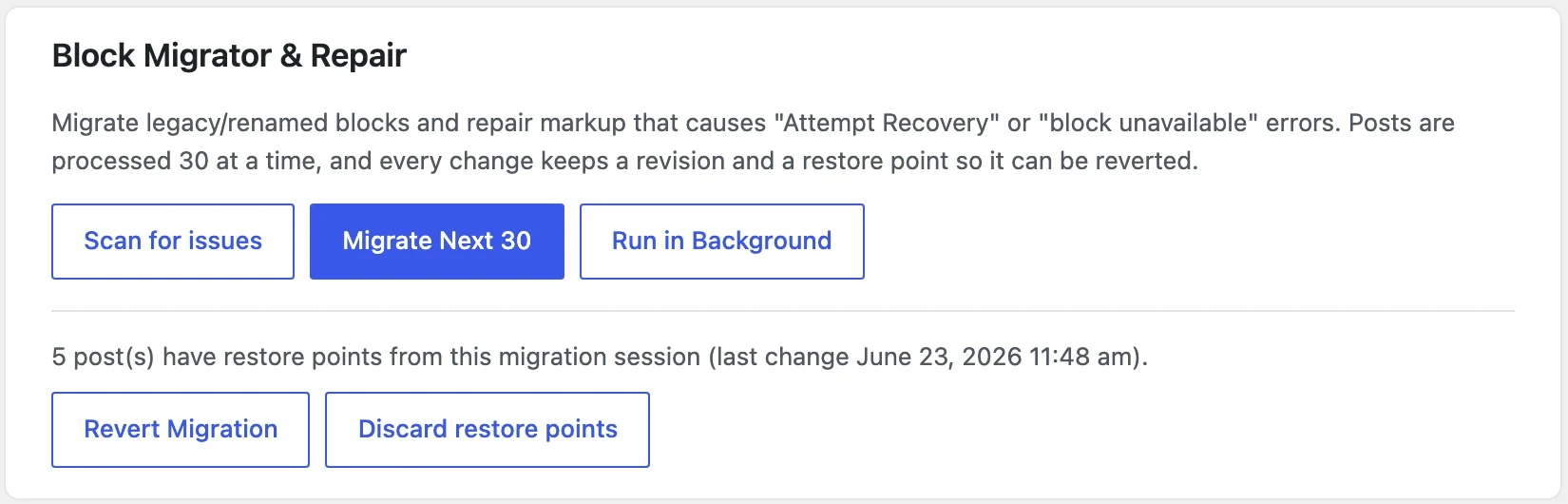
The scan changes nothing. It reports how many posts need work, such as “12 post(s) need migration (out of 340 with ACF blocks).” Each post in the list gets badges for what was found, such as “Product Box”, “Accordion Item → Accordion” or “Repaired markup”.
When the scan reports “All clear” with no posts to migrate, you’re done.
Migrate in Batches
- Click Migrate Next 30 and confirm the prompt: “Migrate up to 30 affected posts now? A revision and restore point are saved for each.”
- Read the result, such as “Migrated 12 post(s) this batch.”
- Click the Continue button that appears, and repeat until every affected post is done.
For a large site, Run in Background works through the batches on WP-Cron while you do other things. Stop Background Migration pauses it.
Before writing to each post, the migrator saves a WordPress revision and a restore point with the post’s original content. The restore point is kept from the first migration, so running the migrator again never overwrites it.
Check the Results
Open 3 or 4 migrated posts:
- In the editor, the blocks should load without “Attempt Recovery”.
- On the front end, the product boxes, tables of contents and accordions should look and read the same as before.
Migrated product boxes keep only the title, image, link, description and features. Ratings, buttons and prices from the old block need to be added again on the new Product Box.
Revert If Something Looks Wrong
Revert Migration puts every post from the migration session back to its original content, then reports how many posts it restored.
A revert replaces the whole post, so any edit made after the migration is lost from the live post. It stays in the post’s revisions.
When you’re happy with the result, click Discard restore points. The migrated content stays as it is, and the stored copies are removed.
Run It with WP-CLI
The same tools run from the command line, which suits large sites and staging copies:
wp acf-blocks migrate --dry-run
wp acf-blocks migrate --limit=100
wp acf-blocks migrate --revert
wp acf-blocks migrate --discard
--dry-run prints “N of M post(s) would be migrated.” Without --limit, the command migrates every affected post in one run.
For markup repair alone, without block renames, use:
wp acf-blocks repair-content --dry-run
wp acf-blocks repair-content --post=123
repair-content saves a normal revision but no restore point, so take a backup before running it across a site.
When a Batch Stops
| Message | What it means | Fix |
|---|---|---|
| “Another migration operation is running. Please retry.” | A batch or a background run is already working | Wait for it to finish, then click again |
| “Could not verify the migration restore point; post skipped.” | The restore point couldn’t be saved, so the post was left alone | Check database space, then run the batch again |
| “no backup found” | A revert found no restore point for that post | Restore that post from its revisions |
| “Safe background content updates require an InnoDB posts table.” | The posts table uses another storage engine | Ask your host to convert wp_posts to InnoDB |
What It Won’t Do
The migrator fixes what it knows about:
- It doesn’t migrate polls.
acf/pollposts need manual work. - It doesn’t carry every old Product Box field. Only title, image, link, description and features move over.
- It doesn’t rewrite ACF 6.7 field formats. Those are read correctly when the block renders, so stored data never needs changing.
- It doesn’t fix other plugins’ blocks.
The editor also repairs broken inner block markup in memory whenever a post opens, and saving the post makes the fix permanent. The migrator does the same across the whole site at once. The Block Migrator and Repair reference lists every badge and option.