
How to Add Product Boxes to Review Posts
A review post earns its keep at the moment a reader decides to buy. If the product name, the price and the buy button are buried in paragraph 9, readers scroll past them. A plain text link next to a product name doesn’t look like something you can act on either.
A product box puts the decision in one card: the image, the rating, the key features, the price and the buttons. Readers can scan it in a few seconds.
GT ACF Blocks has 2 blocks for this. Product Box is the buying card, and Product Review adds a scored review with pros, cons and structured data.
GT ACF Blocks is my collection of content blocks built on Advanced Custom Fields, made for review, comparison and affiliate content. Its blocks sit in the block inserter under “ACF Blocks” and “ACF Marketing”.
Before You Start
You need these in place:
- GT ACF Blocks 2.13.1 or newer. Its license unlocks automatic updates. The blocks work without one.
- ACF Pro or Secure Custom Fields. The free ACF plugin isn’t enough, because the blocks need ACF’s block registration.
- The product’s image, price and buying links, and for affiliate links, your program’s rules on labels and prices.
Add a Product Box
- In the block editor, click +, search for “Product Box” and insert it.
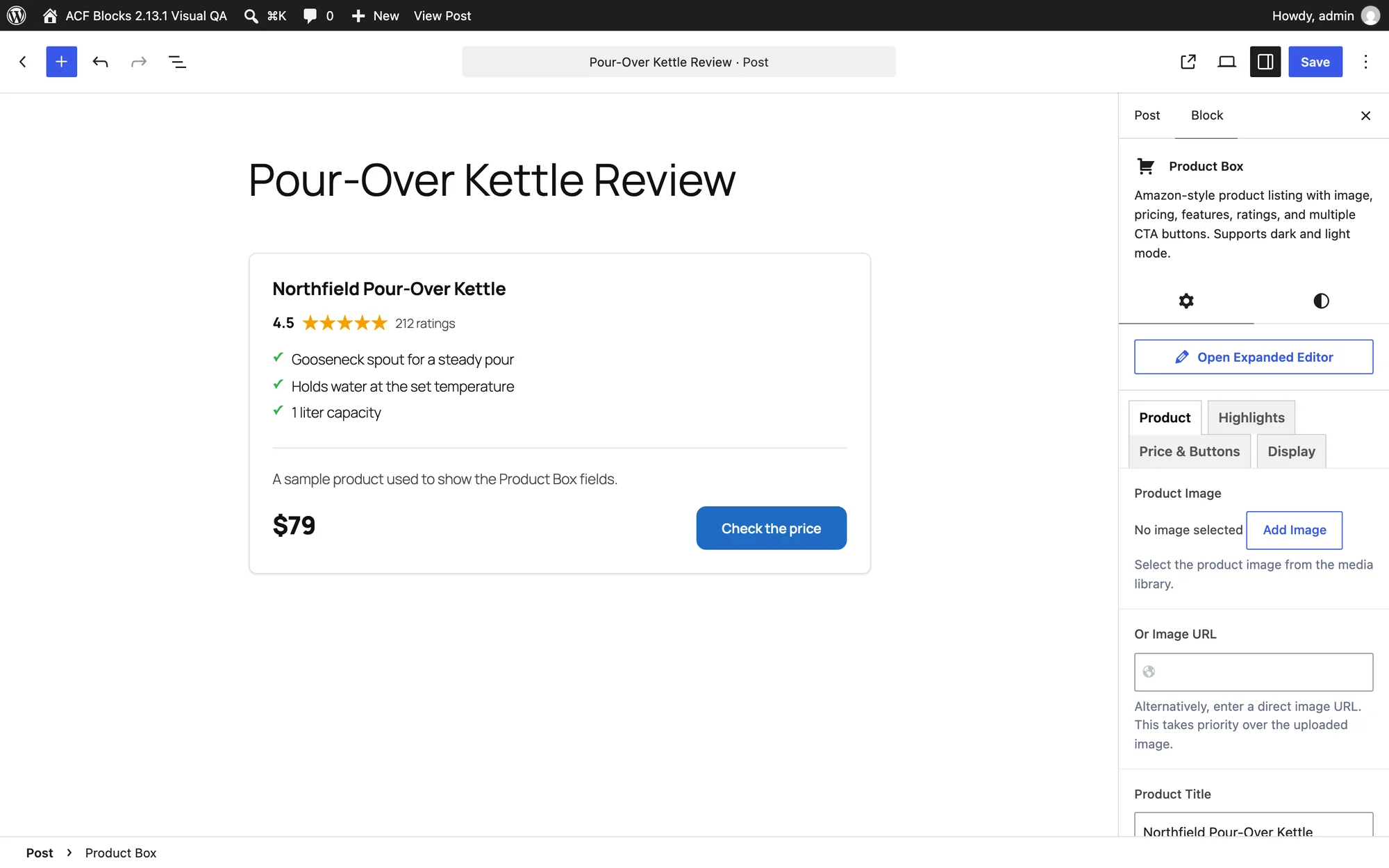
- Fill the fields in the block sidebar, or click Open Expanded Editor for a larger form. The fields sit on 4 tabs: Product, Highlights, Price & Buttons and Display.
- Save the post.
Fill the Product Tab
The Product tab holds what readers see first:
- Product Image, from the media library. Or Image URL takes a direct image address instead, and it wins over the uploaded image.
- Product Title and Title Link URL, so the name links to the product.
- Title & Image Link Rel sets the
relvalue for the title and image links. Typenofollow sponsoredwhen the title URL is an affiliate link. - Rating from 0 to 5 in half steps, with an optional Rating Count. 0 hides the stars.
- Product Features, up to 10 short lines with check marks.
- Spec Chips, up to 8 small labels such as “16 GB RAM”.
- Description, a short paragraph under the features.
Title Heading Level is p by default. Change it to h3 when the product name should be a heading in the post’s outline, such as one box per section in a roundup.
Add Highlights for Roundups
The Highlights tab helps when a post compares several products:
- Highlight Label, such as “Best Overall”, shown on the card.
- Rank, from 1 to 99.
- Review Score with Score Out Of set to 10, 5 or 100, and a Score Label that defaults to “Our score”.
- Verdict, one line under Verdict Label, which defaults to “Why it wins”.
- Sale Badge Text and Badge Background Color for a deal badge.
Set the Price and Buttons
On Price & Buttons:
- Fill Current Price, and Original Price with Discount Percentage for a sale.
- Tick Show ‘You Save’ Amount to print the difference. It shows only when both prices use the same currency and the saving is above zero.
- Set Price Checked On. The field’s help text says it plainly: “Amazon’s Associates rules expect displayed prices to carry a date.” The box prints “Price checked” with that date.
- Under Call to Action Buttons, add up to 4 buttons. Each needs Button Text and Button URL, or it isn’t shown.
- For each affiliate button, type
nofollow sponsoredin Rel Attribute.
Button Style offers “Primary (Filled)”, “Secondary (Outline)”, “Amazon Style”, “Amazon Yellow” and a custom class. Emphasize First Button, Arrow on First Button and Shine on First Button draw the eye to the main action. Open Links in New Tab adds target="_blank" and noopener.
The block never adds sponsored or nofollow on its own, so each affiliate link needs the value typed in. Use Disclosure for a short line such as “We earn a commission if you buy through these links.”
Pick a Layout
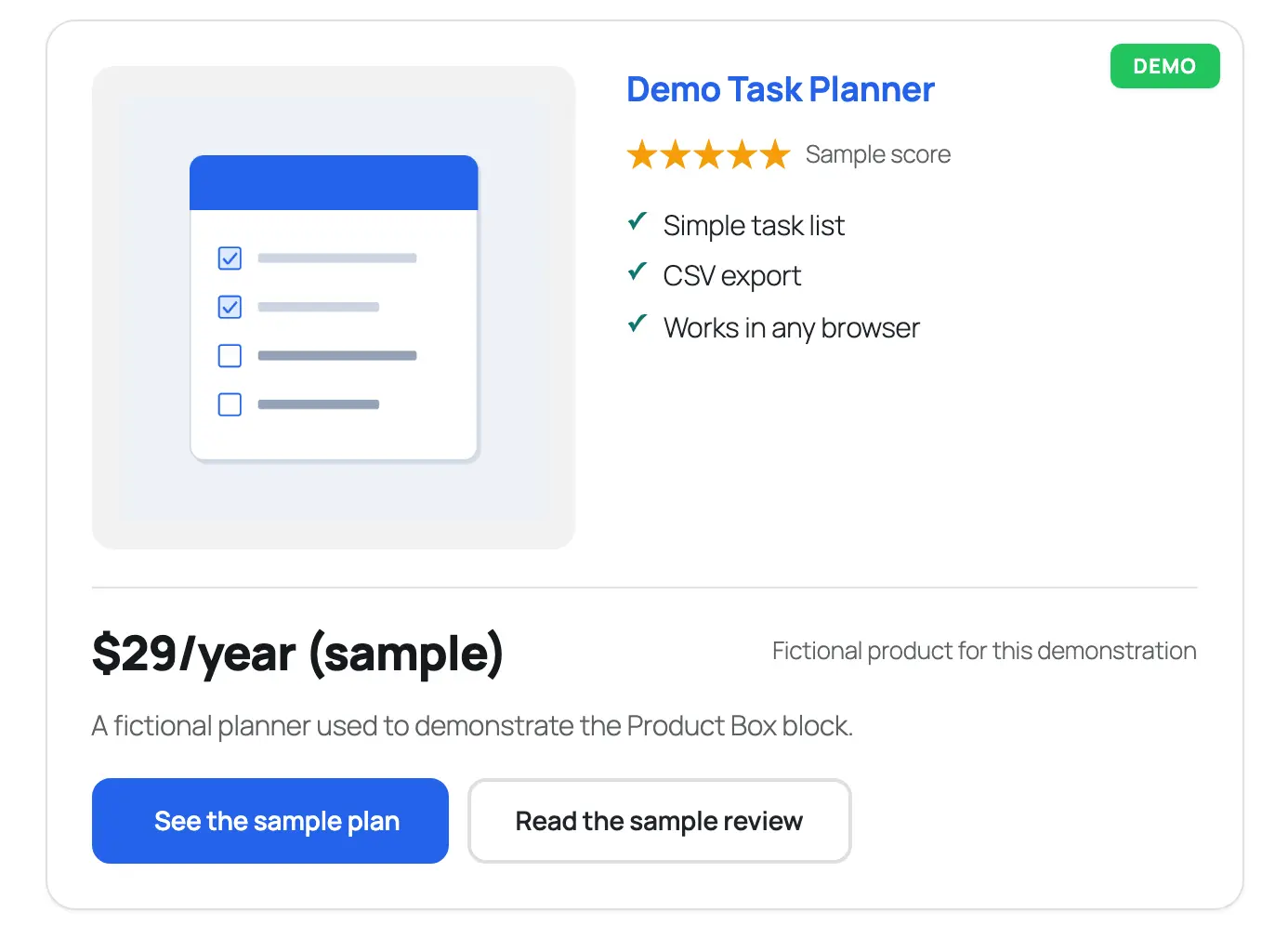
The block’s Styles panel has 3 layouts:
- Default, with the image on the left.
- Top Image, with the image across the top. Top Image Frame on the Display tab sets its shape: Auto, 16:9, 4:3 or 1:1.
- No Image, for products without a picture. A box with no image switches to it on its own.
On the Display tab, Box Style switches between Standard and Spotlight, Accent Color sets the brand color and Image Fit chooses between showing the full image and filling the frame.
Add Review Schema with Product Review
The Product Box prints no structured data. For a single-product review, add a Product Review block as well:
- Product Info: Product Name, image, Overall Rating from 1 to 5 and a Summary.
- Feature Ratings: scored features, such as “Ease of use: 4.5”.
- Pros & Cons: one line per pro and con.
- Offer/Pricing: Offer URL, button text, Link Rel Attribute (
nofollow sponsoredby default), currency and price. - Schema & SEO: Enable Schema Markup is on by default. Product Type chooses “Product (physical or generic)” or “Software / SaaS / App”.
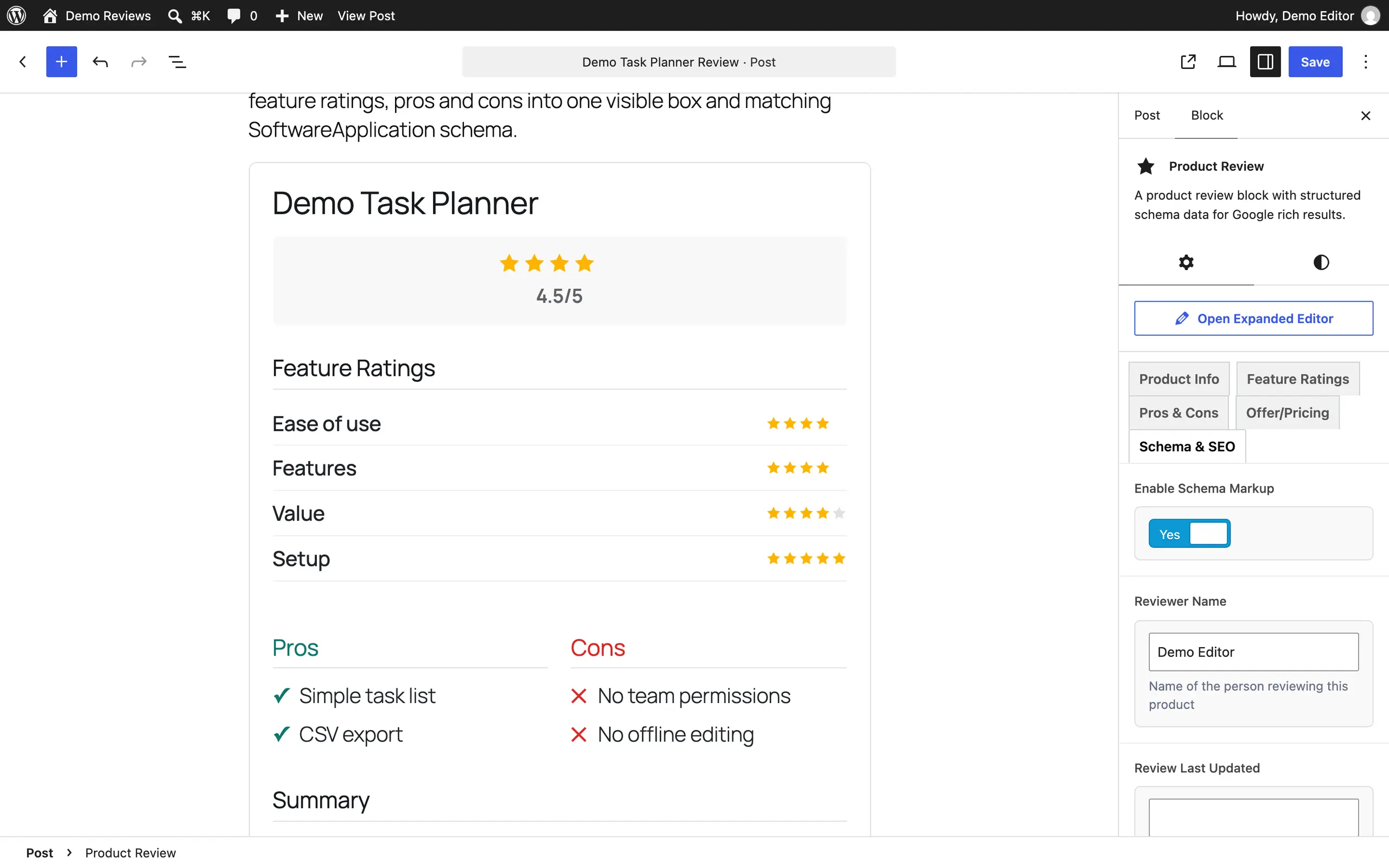
The block prints Product or SoftwareApplication JSON-LD with a nested review, its rating and the pros and cons, whenever Product Name is filled. Use one Product Review block per post. Each block prints its own schema, and 2 reviews of different products on one page confuse search engines about what the page reviews.
If your SEO plugin also adds Product or Review schema to the post, turn one of them off.
Check It Works
Preview the post on desktop and phone width. Then check the links:
- Right-click each button, inspect it and confirm
rel="nofollow sponsored"on affiliate links. - Paste the post’s URL into Google’s Rich Results Test to see the Product Review schema, if you used that block.
When the Box Looks Wrong
| Symptom | Likely cause | Fix |
|---|---|---|
| The block isn’t in the inserter | Free ACF is active instead of ACF Pro or Secure Custom Fields | Install ACF Pro or Secure Custom Fields |
| A button doesn’t show | It has text but no URL, or a URL but no text | Fill both |
| No “You save” line | The prices can’t be compared, or the saving is 0 | Use the same currency format in both prices |
| Button icons missing | Button Icon depends on theme icon styles | Pick “None”, or use a theme that ships those icons |
| An image URL turned into a media library image | The Image Localizer copied the remote image after saving | That’s expected. Check your affiliate program’s rules on storing product images |
The Image Localizer copies remote images used in GT ACF Blocks into your media library in the background after you save. That keeps pages fast and safe from broken hotlinks. Amazon’s terms restrict storing product images, so for Amazon products, use images you’re allowed to host.
What It Won’t Do
The blocks present products. They don’t fetch them:
- No live prices. Prices and ratings are what you type. Price Checked On keeps readers informed about the date.
- No AAWP or Amazon API import. The block doesn’t convert other product box plugins’ blocks.
- No schema from the Product Box. Only Product Review prints review schema.
- No automatic affiliate attributes. Every
relvalue is typed by you.
The blocks reference lists every block, and the structured data reference covers the schema output in detail.