
How to Load Block CSS Only on Pages That Use It
A block library is only fast if its CSS stays out of pages that don’t use it. If every page loads the stylesheets for every block, a plain About page pays for 20 blocks it never shows. That unused CSS then shows up in every page speed report.
GT ACF Blocks is built to avoid that. Each block declares its own stylesheet, and WordPress prints it only on pages where the block appears, as long as the site loads block assets on demand. The Block Manager then switches off blocks you never use, so they don’t load at all.
GT ACF Blocks is my collection of content blocks built on Advanced Custom Fields. Its CSS is split per block, which is what makes on-demand loading possible.
Before You Start
You need 3 things:
- GT ACF Blocks 2.13.1 or newer.
- An administrator account, for the Block Manager on Settings → ACF Blocks License.
- 2 test URLs: a page that uses a GT ACF block, such as a review with a Product Box, and a page that uses none.
How the Loading Works
The answer depends on how your theme loads block styles:
- Block themes load block CSS on demand by default. Nothing to change.
- Classic themes load every registered block stylesheet on every page, unless the site opts in to separate block assets.
A classic theme opts in with one WordPress filter. It also changes core blocks such as paragraphs and images to per-block CSS, so test a few pages after turning it on.
Turn On Per-Block Loading in a Classic Theme
Pick one of 2 ways.
With Functionalities: if you run my free Functionalities plugin, open its Performance & Cleanup module, tick Enable Performance & Cleanup and Load core block styles separately (per-block CSS), then save.
With code: add this line to a small plugin or a code snippet:
add_filter( 'should_load_separate_core_block_assets', '__return_true' );Many classic themes already include it. If the test below passes before you change anything, your theme does.
Check Which Pages Load the CSS
Open the page without GT ACF blocks, view its source and search for acf-blocks-plugin. You should find no block stylesheets.
Then open the page with a Product Box and search again. You should find:
product-box.min.css, the block’s own stylesheet.- 2 small shared sheets that travel with any GT ACF block:
acf-blocks-tokensfor the color and spacing tokens andacf-blocks-layoutfor shared layout rules.
From a terminal, one command counts them:
curl -s https://example.com/your-review/ | grep -o "acf-blocks-plugin/blocks/[a-z-]*" | sort -uEach line is a block whose CSS loaded on that page. A page without GT ACF blocks should print nothing.
Switch Off Blocks You Don’t Use
On-demand loading keeps unused CSS off the front end. The Block Manager goes further and takes unused blocks out of WordPress entirely:
- Go to Settings → ACF Blocks License and scroll to Performance & Block Manager.
- Click Refresh Usage Inventory to scan your posts. It runs in the background, 100 posts at a time, and reports “Scanned N posts.”
- In the block grid, tick each block you want to disable. A ticked box means off.
- Click Save Block Settings.
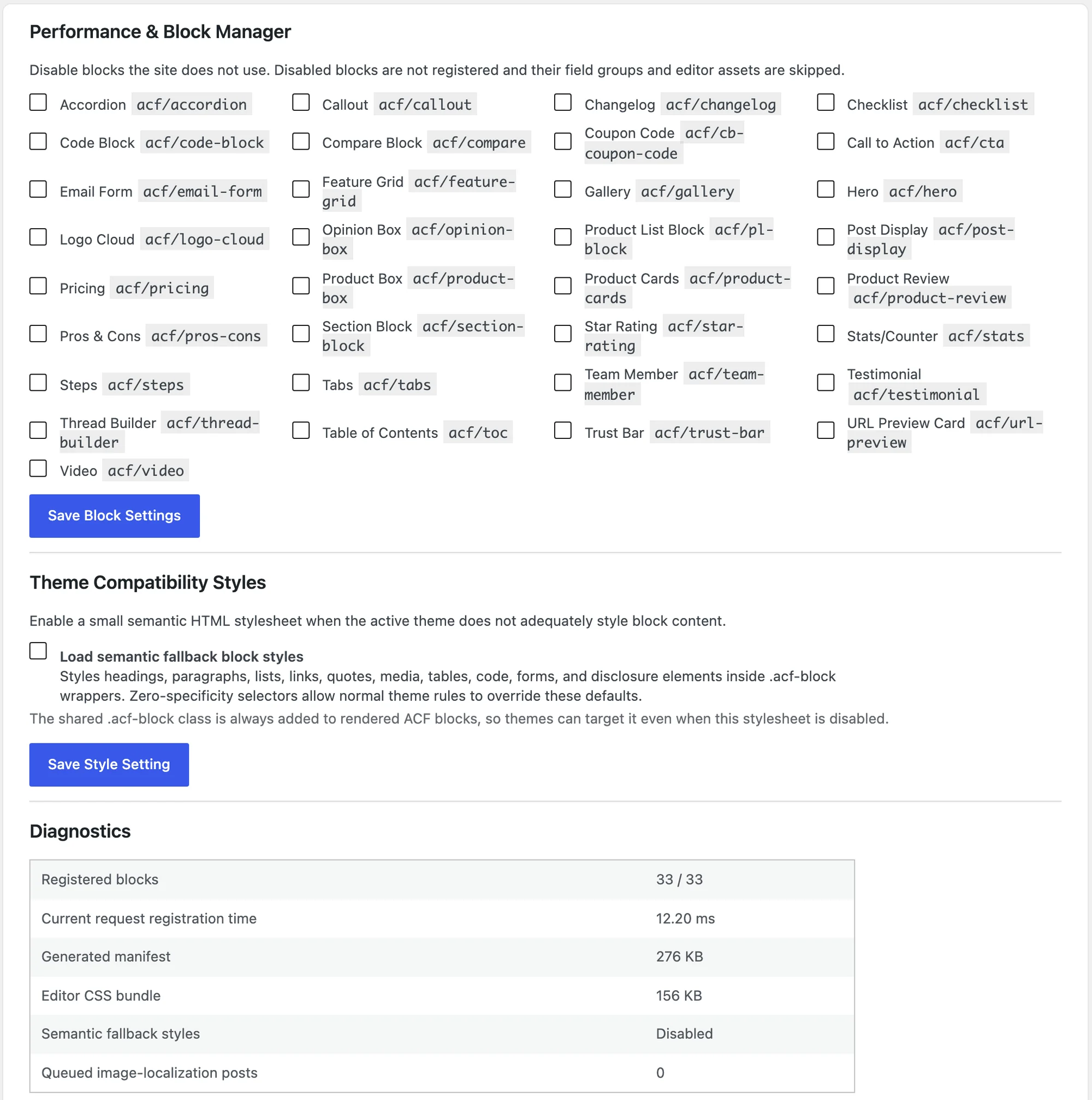
Disabled blocks aren’t registered at all. Their field groups and editor assets are skipped, so the block inserter and the editor load faster too.
Disable only blocks the usage inventory says you never use. A disabled block that’s still in a post stops rendering on the front end. Untick it and save to bring it back, with its content intact.
Leave Fallback Styles Off Unless You Need Them
Theme Compatibility Styles has one checkbox, Load semantic fallback block styles. It’s off by default. Turn it on only if your theme doesn’t style the plain HTML inside the blocks, such as headings and lists, and they look unstyled.
Read the Diagnostics
The Diagnostics table on the same card shows:
- Registered blocks, the count after your disabled blocks are removed.
- Current request registration time, how long the plugin took to register its blocks on that page load.
- Generated manifest, the cached list of blocks the plugin loads from.
- Queued image-localization posts, posts waiting for their remote images to be copied to the media library.
When CSS Still Loads Everywhere
| Symptom | Likely cause | Fix |
|---|---|---|
| Every page loads every block’s CSS | A classic theme without separate block assets | Turn on per-block loading with Functionalities or the filter |
| A block looks unstyled | Your CSS optimizer removed or delayed its stylesheet | Exclude acf-blocks-plugin files from unused-CSS removal |
| A block vanished from a post | It’s ticked in the Block Manager | Untick it and click Save Block Settings |
| Old styles after an update | A cache kept old CSS files | Purge your page cache and CDN |
Saving the Block Manager shows no confirmation message. The page reloads at the card, and the ticked boxes are your saved state.
What It Won’t Do
The plugin keeps its own CSS lean. It doesn’t manage everyone else’s:
- It doesn’t decide on-demand loading. WordPress does, based on your theme and that filter.
- It doesn’t inline or combine CSS for you. A few blocks with several stylesheets can be inlined by WordPress; the rest load as small files.
- It doesn’t remove other plugins’ block CSS. That depends on each plugin.
- It doesn’t warn you before disabling a block that’s still in use, so run the usage inventory first.
The Block Manager and performance reference covers the editor CSS bundle and the developer filters.