
How to Create a Website with Squarespace in 2026 (Step-by-Step Guide)
Squarespace makes it ridiculously easy to build a professional website without writing a single line of code. I’ve set up Squarespace sites for clients who needed something polished and functional within a weekend, and it delivered every time.
This guide walks you through the entire process: from picking the right plan to connecting your domain and going live. Whether you’re building a portfolio, launching a blog, starting an online store, or creating a business website, the steps are the same.
I’ll also cover Squarespace’s 2026 pricing, its new AI features, and how it compares to alternatives like WordPress and Wix. If you’ve been putting off building your website because it seems complicated, you’ll see how straightforward it actually is.
- 185+ designer-quality templates
- Built-in SEO and analytics tools
- E-commerce on Core plan and above
- Free custom domain for first year (annual plans)
- 14-day free trial, no credit card needed
All-in-one website builder with award-winning design templates, built-in SEO tools, e-commerce, email marketing, and custom domain management. No coding required. 14-day free trial with no credit card.
Table of Contents
Why Choose Squarespace?
Squarespace sits in a sweet spot between simplicity and design quality. While WordPress gives you unlimited flexibility and Wix gives you drag-and-drop ease, Squarespace consistently produces the best-looking websites out of the box.
Here’s what makes Squarespace worth considering:
- Design quality: Squarespace templates are designed by actual designers. They look polished, modern, and professional without any customization. Most WordPress themes need significant tweaking to look this good
- All-in-one platform: Hosting, domain, SSL certificate, CDN, email marketing, analytics, and SEO tools are all included. No plugins to install, no hosting to manage, no security patches to worry about
- Fluid Engine editor: The drag-and-drop editor (introduced in Squarespace 7.1) gives you precise control over layout without code. You can place elements anywhere on the grid, not just in pre-defined content blocks
- E-commerce built in: Sell physical products, digital downloads, services, memberships, and subscriptions without third-party plugins
- Reliable uptime: Squarespace handles hosting, security, and updates. You don’t need to worry about choosing a hosting provider or managing server configurations
The trade-off? Squarespace is less flexible than WordPress. You can’t install custom plugins, you’re limited to Squarespace’s feature set, and moving your site to another platform later requires rebuilding from scratch. For most small businesses, freelancers, and creatives, that trade-off is worth it.
Squarespace Pricing Plans in 2026
Squarespace offers four plans. All include unlimited bandwidth, SSL security, and SEO tools. Annual billing saves 25-30% compared to monthly. Here’s the breakdown:
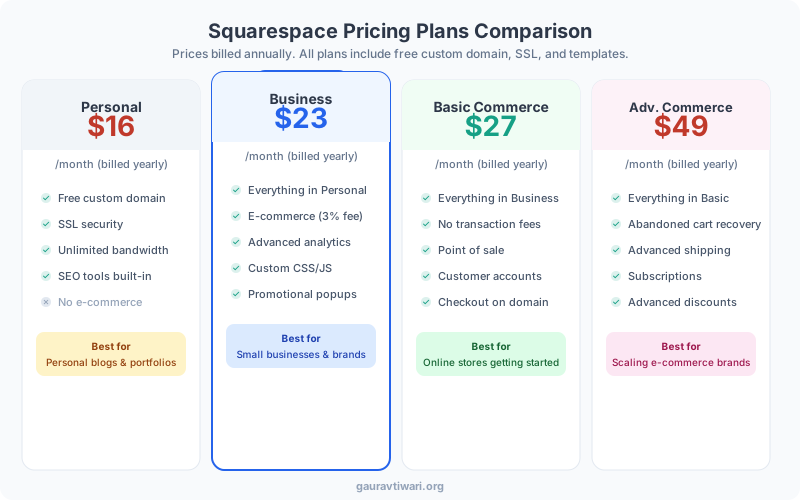
| Plan | Monthly (billed annually) | Monthly (billed monthly) | Best For |
|---|---|---|---|
| Basic | $16/mo | $25/mo | Portfolios, simple sites |
| Core | $23/mo | $33/mo | Small businesses (most popular) |
| Plus | $39/mo | $56/mo | Online stores + advanced commerce |
| Advanced | $99/mo | $139/mo | Scaling e-commerce businesses |
My recommendation: Start with the Core plan ($23/month billed annually). It includes everything most people need: custom CSS/JavaScript injection, premium integrations, pop-ups, and basic e-commerce. The Basic plan lacks e-commerce and advanced integrations, which you’ll probably want eventually.
Squarespace offers a 14-day free trial with no credit card required. Build your entire site during the trial, then choose a plan when you’re ready to publish. Annual plans include a free custom domain for the first year.
How to Create a Website with Squarespace (Step by Step)
The entire process takes 2-4 hours for a basic site. Here’s exactly what to do:
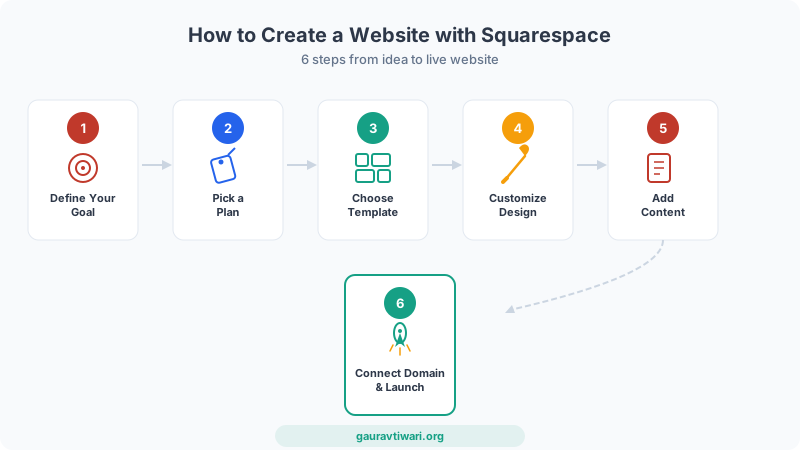
Step 1: Define Your Website’s Purpose
Before you touch Squarespace, answer one question: what’s this website for? A portfolio to showcase your work? A blog to build an audience? An online store to sell products? A business website to generate leads?
This matters because it determines which template you’ll choose and which plan you’ll need. An artist’s portfolio needs different layouts than an e-commerce store. Write down 3-5 pages you’ll need (Home, About, Services, Contact, Blog, Shop) before you start.
Step 2: Start Your Free Trial
Go to squarespace.com and click “Get Started.” You can sign up with email, Google, or Apple. No credit card needed for the 14-day trial.
Squarespace will ask a few questions about what you’re building. Answer honestly, as it uses your responses to recommend relevant templates. You can change everything later, so don’t overthink this step.
Step 3: Choose a Template
This is the fun part. Squarespace offers 185+ professionally designed templates organized by category: portfolio, blog, business, store, restaurants, events, and more.
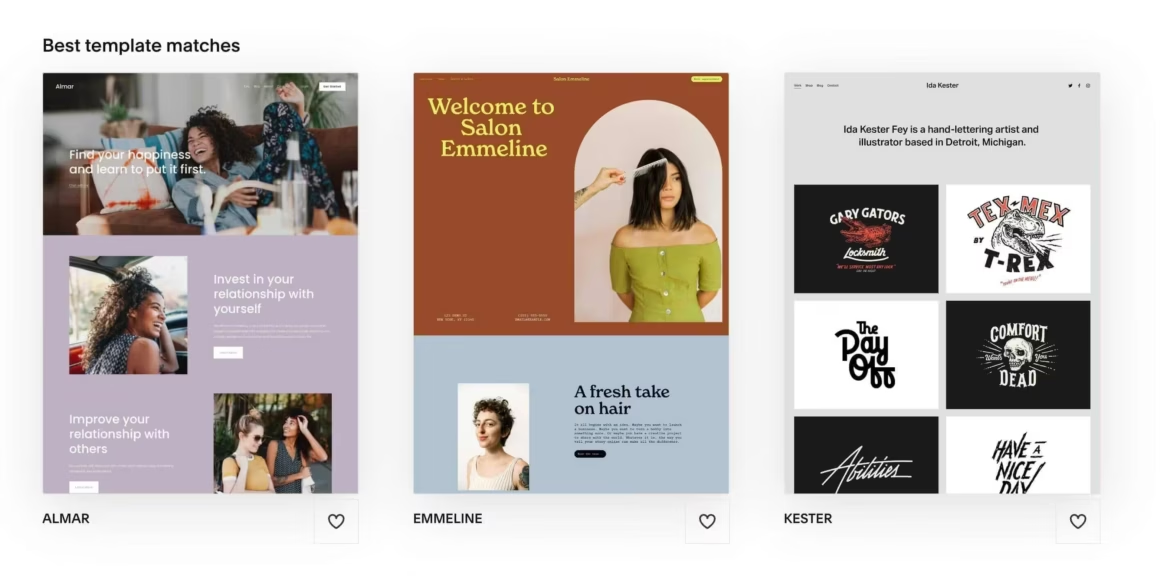
A few things to keep in mind when picking a template:
- Preview before committing. Click any template to see a full demo site. Navigate through the pages to see how it handles different content types
- Focus on layout, not content. The photos and text in the demo will be replaced with yours. Look at the structure: header style, navigation, page layouts, footer
- You can switch later. Squarespace 7.1 uses the Fluid Engine across all templates, so switching templates doesn’t rebuild your site from scratch. Your content transfers
- Popular choices: Brine (flexible, works for anything), Bedford (great for portfolios), Skye (photography), Avenue (blogs), Supply (e-commerce)
Step 4: Customize Your Design
Once you’ve selected a template, you’ll land in the Squarespace editor. This is where you make it yours.
Key customization areas:
- Site styles: Set your global fonts, colors, button styles, and spacing. Changes here apply across your entire site
- Header and navigation: Choose between centered, left-aligned, or hamburger menu. Add your logo, set navigation links, configure mobile behavior
- Pages: Add, remove, and reorganize pages in the sidebar. Create page sections using the Fluid Engine drag-and-drop editor
- Footer: Add social links, copyright text, newsletter signup, or additional navigation
- Custom CSS (Core plan and above): Write your own CSS for fine-grained control. Access via Design > Custom CSS
Spend most of your time on Site Styles. Getting your fonts, colors, and button styles right at the global level means every new page you create will automatically look consistent.
Step 5: Add Your Content
Content is what makes your site worth visiting. Here’s what to focus on for each page type:
- Home page: Clear headline, brief description of what you do/offer, and a prominent call-to-action. Don’t make visitors hunt for information
- About page: Your story, your team, your credentials. People buy from people they trust. Include a real photo
- Services/Products: Clear pricing (or a way to request a quote), benefits over features, and social proof (testimonials, client logos)
- Blog: Start with 3-5 posts before launching. An empty blog looks worse than no blog at all
- Contact: Use Squarespace’s built-in form blocks. Include your email, phone, and location if relevant
For images, use high-quality photos. Squarespace sites live and die on visual quality. If you don’t have professional photos, use free stock from Unsplash or Pexels. Squarespace also includes a built-in image editor for basic crops and adjustments.
Step 6: Configure SEO, Connect Domain, and Launch
Before you hit publish, handle these essentials:
SEO setup:
- Set your site title and meta description in Settings > SEO
- Add page-level SEO titles and descriptions for every page
- Configure your site’s URL format (Settings > URL Mappings)
- Submit your sitemap to Google Search Console (yoursite.com/sitemap.xml)
- Connect Google Analytics 4 for traffic tracking (or use Squarespace’s built-in analytics)
Domain connection:
- Annual Squarespace plans include a free custom domain for the first year
- You can also transfer an existing domain from your current domain registrar
- Go to Settings > Domains > Get a Domain (or Connect Existing Domain)
- Squarespace handles DNS, SSL, and HTTPS automatically
Once everything looks good, go to Settings > Site Availability and switch from Private to Public. Your site is live. Run through these essential tests for new websites to make sure everything works properly.
Squarespace AI Features
Squarespace has added several AI-powered features in 2026 that speed up the website creation process:
- Squarespace AI (text generation): Generate page copy, blog posts, product descriptions, and meta descriptions directly in the editor. It uses your site context to keep the tone consistent
- Blueprint AI: Answer a few questions about your brand, and Squarespace generates a complete website with industry-specific layouts, color palettes, and placeholder content in under 10 minutes
- Beacon AI assistant: A 24/7 AI business assistant that helps with tasks, gives advice, and optimizes workflows directly from your Squarespace dashboard
- AIO Scanner + SEO Scanner: Track your brand mentions across AI search engines (ChatGPT, Perplexity) and get AI-powered SEO audit suggestions for titles, descriptions, and content based on current SEO best practices
These tools are useful for getting started quickly, but I’d recommend rewriting any AI-generated copy in your own voice before publishing. Generic AI text doesn’t convert as well as authentic, specific copy.
Squarespace vs WordPress vs Wix
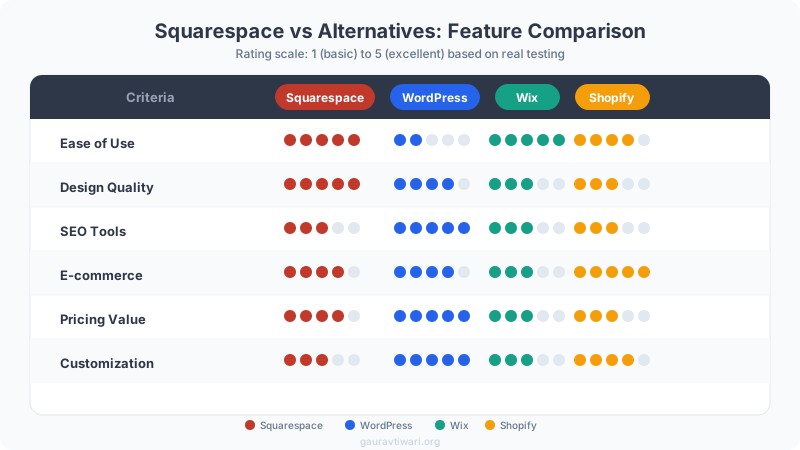
Every website builder has trade-offs. Here’s how Squarespace stacks up against the two most popular alternatives:
| Squarespace | WordPress | Wix | |
|---|---|---|---|
| Ease of use | Very easy (drag-and-drop) | Moderate (learning curve) | Very easy (drag-and-drop) |
| Design quality | Excellent (best templates) | Varies (theme-dependent) | Good (improving) |
| Customization | Limited to Squarespace features | Unlimited (plugins + code) | Limited to Wix features |
| SEO tools | Good (built-in basics) | Excellent (Rank Math, Yoast) | Good (built-in + Wix SEO) |
| E-commerce | Good (built-in, $23+/mo) | Excellent (WooCommerce, free) | Decent (Wix Stores) |
| Monthly cost | $16-$99/mo | $5-$30/mo (hosting only) | $17-$159/mo |
| Best for | Creatives, small businesses | Blogs, complex sites, developers | Small businesses, beginners |
Choose Squarespace if you want the best-looking website with minimal effort and don’t need custom plugins or advanced functionality.
Choose WordPress if you want maximum flexibility, plan to scale significantly, or need specific functionality that only plugins can provide. You’ll need to handle your own hosting and maintenance.
Choose Wix if you want drag-and-drop simplicity similar to Squarespace but prefer a slightly larger app marketplace. Wix has more third-party integrations than Squarespace.
Website builders compared
| Feature/Platform | Framer | Webflow | HubSpot Website Builder | Google Sites | Site123 | Weebly | Strikingly | Wix | Jimdo | OLITT | Webnode | Mozello | IM Creator | Webstarts |
|---|---|---|---|---|---|---|---|---|---|---|---|---|---|---|
| Ease of Use | Intermediate to Advanced | Intermediate to Advanced | Beginner to Intermediate | Beginner | Beginner | Beginner | Beginner | Beginner to Intermediate | Beginner | Beginner | Beginner | Beginner | Beginner | Beginner |
| Design Flexibility | High | High | Medium | Low | Medium | Medium | Medium | High | Medium | Low | Medium | Medium | Medium | Medium |
| Customization Options | Extensive | Extensive | Medium | Limited | Medium | Medium | Medium | Extensive | Medium | Limited | Medium | Medium | Medium | Medium |
| Templates Available | Limited, Custom-built | Limited, Custom-built | Limited | Limited | Numerous | Numerous | Numerous | Hundreds | Limited | Limited | Numerous | Limited | Limited | Limited |
| E-commerce Support | Basic (with third-party tools) | Advanced | Basic (with integrations) | Not Available | Basic (with paid plan) | Intermediate (via Square) | Basic | Advanced | Basic | Basic | Intermediate | Basic | Intermediate | Intermediate |
| SEO Tools | Advanced | Advanced | Advanced | Basic | Intermediate | Intermediate | Basic | Advanced | Intermediate | Intermediate | Intermediate | Basic | Basic | Intermediate |
| Hosting Included | Yes | Yes | Yes | Yes | Yes | Yes | Yes | Yes | Yes | Yes | Yes | Yes | Yes | Yes |
| Pricing (Basic Plan) | Paid | Paid | Free (limited) | Free | Free | Free | Free | Free | Free | Free | Free | Free | Free | Free |
| Best For | Designers, Developers Pro Choice | Designers, Developers Pro Choice | Businesses, Marketing Teams | Simple Websites, Internal Sites | Quick Setup, Simple Sites | Small Businesses, Portfolios | Simple Landing Pages, Portfolios | Versatile Sites, All Purposes Best Value | Simple Personal Sites | Simple Sites, Micro-Projects | Multi-Language Sites | Multi-Language Sites | Portfolios, Simple Sites | Simple Business and Personal Sites |
| Learning Curve | Steep | Steep | Moderate | Minimal | Minimal | Minimal | Minimal | Moderate | Minimal | Minimal | Minimal | Minimal | Minimal | Minimal |
Website builders comparison
| Feature | WordPress | Shopify | Wix | Squarespace | Webflow | Framer |
|---|---|---|---|---|---|---|
| Type | Self-hosted CMS | Hosted e-commerce | Hosted builder | Hosted builder | Hosted builder | Hosted builder |
| Starting Price | Free (hosting extra) | $39/mo | $17/mo | $16/mo | $14/mo | $5/mo |
| E-commerce | Yes (WooCommerce) | Yes (native, best) | Yes | Yes | Yes | No |
| Flexibility Key Factor | Unlimited | E-commerce focused | Moderate | Design-focused | High (visual CSS) | High (design) |
| SEO Capability | Excellent (plugins) | Good | Good | Good | Very Good | Good |
| Custom Code | Full access | Liquid templates | Limited | Code injection | Full visual + code | Limited |
| Plugin/App Ecosystem | 60,000+ plugins | 8,000+ apps | 300+ apps | 30+ extensions | 200+ integrations | Growing |
| Blogging | Excellent (native) | Basic | Good | Excellent | Good | Basic |
| Performance | Depends on setup | Good | Average | Good | Very Good | Excellent |
| Best For | Full control, blogs | Online stores | Beginners, small biz | Beautiful portfolios | Designers, agencies | Marketing sites |
| Get WordPress | Visit Shopify | Visit Wix | Visit Squarespace | Visit Webflow | Visit Framer |
Tips for Getting the Most Out of Squarespace
- Use the Fluid Engine. Don’t stick to the old Classic Editor. The Fluid Engine (available on all new sites) gives you true drag-and-drop control with overlapping elements, custom spacing, and responsive breakpoints
- Optimize images before uploading. Squarespace compresses images, but starting with web-optimized files (under 500KB, 2500px max width) ensures faster load times
- Set up Google Search Console immediately. Squarespace auto-generates a sitemap. Submit it to Google on day one so indexing starts before you’re even done building
- Use scheduling for blog posts. Squarespace’s blog scheduling is solid. Write 5-10 posts before launch and schedule them weekly so your site always has fresh content
- Enable the cookie banner. If you serve EU visitors, GDPR compliance matters. Squarespace has a built-in cookie consent banner under Settings > Cookies & Visitor Data
- Connect email marketing. Squarespace Email Campaigns lets you send newsletters directly from your dashboard. It’s basic compared to Mailchimp but convenient for getting started
Squarespace doesn’t offer a way to export your site in a format that other platforms can easily import. If you think you might switch to WordPress or another CMS later, consider that migration will require rebuilding. Squarespace does export blog posts in WordPress XML format, but pages, products, and design must be recreated manually.
Frequently Asked Questions
Is Squarespace free to use?
Squarespace offers a 14-day free trial with no credit card required. After the trial, you’ll need to choose a paid plan starting at $16/month (billed annually for the Basic plan) to keep your site live. There is no permanent free tier.
Do I need coding knowledge to use Squarespace?
No. Squarespace’s drag-and-drop Fluid Engine editor lets you build a complete website without writing any code. The Core plan and above do support custom CSS and JavaScript injection if you want more control, but it’s entirely optional.
Can I use my own domain with Squarespace?
Yes. You can register a new domain through Squarespace (free for the first year on annual plans) or connect an existing domain from any registrar. Squarespace handles SSL certificates and DNS configuration automatically.
Is Squarespace good for SEO?
Squarespace covers the SEO basics well: clean URLs, auto-generated sitemaps, meta title/description fields, alt text for images, and mobile responsiveness. For advanced SEO (schema markup, detailed redirects, granular control), WordPress with a plugin like Rank Math offers more flexibility.
Can I sell products on Squarespace?
Yes. The Core plan ($23/month) supports basic e-commerce. The Plus plan ($39/month) removes transaction fees and adds abandoned cart recovery, subscriptions, and advanced merchandising. The Advanced plan ($99/month) adds lower processing rates and advanced commerce analytics.
Can I move my Squarespace site to WordPress later?
Partially. Squarespace can export blog posts in WordPress XML format. However, pages, products, design, and custom content must be recreated manually on WordPress. There’s no one-click migration tool. Plan for 10-20 hours of rebuilding depending on site complexity.
How does Squarespace compare to Shopify for e-commerce?
Shopify is the better choice for serious e-commerce businesses. It offers more payment gateways, better inventory management, and a massive app ecosystem. Squarespace is better for businesses where the website matters as much as the store, like restaurants, creatives, and service businesses that also sell products.
Final Thoughts
Squarespace isn’t the cheapest option, and it’s not the most flexible. But it’s the fastest way to go from zero to a website that actually looks professional.
If you’re a freelancer, creative, small business owner, or anyone who needs a polished online presence without a steep learning curve, Squarespace delivers. The 14-day free trial gives you enough time to build your entire site before committing.
For more complex projects that need custom functionality, explore free website builders or consider WordPress with a solid hosting provider.
Disclaimer: This site is reader-supported. If you buy through some links, I may earn a small commission at no extra cost to you. I only recommend tools I trust and would use myself. Your support helps keep gauravtiwari.org free and focused on real-world advice. Thanks. - Gaurav Tiwari