
10 Best Photo Editors for Mac in 2026 (Tested and Compared)
You need a photo editor for your Mac. You open the App Store, search “photo editor,” and get 200+ results ranging from $0 to $54.99/month. Some are full Photoshop competitors. Some are glorified Instagram filters. The descriptions all sound the same. How do you pick without wasting hours on free trials?
It gets worse. Half the “best photo editors for Mac” lists are written by people who clearly tested each app for 10 minutes. They’ll recommend Photoshop and GIMP in the same sentence like they’re interchangeable. They’re not. One costs $276/year and has generative AI features. The other is free and looks like it was designed in 2004. You deserve better advice than that.
I’ve used all 10 of these editors on real projects over the past three years. Product shoots, blog graphics, client photography, personal stuff. I know which ones crash on large RAW files, which ones drain your MacBook battery in an hour, and which ones actually justify their price tag. Here are the 10 best photo editors for Mac in 2026, ranked by who they’re actually built for.
All these are tested on:
- M5 Pro MacBook Pro 2026 – 24GB RAM
- Mac Mini M5 2026 – 24GB RAM
- MacBook Air M5 2026 – 16GB RAM
- M5 Pro MacBook Pro 2026 – 24GB RAM
1. Luminar Neo: Best AI-Powered Photo Editor
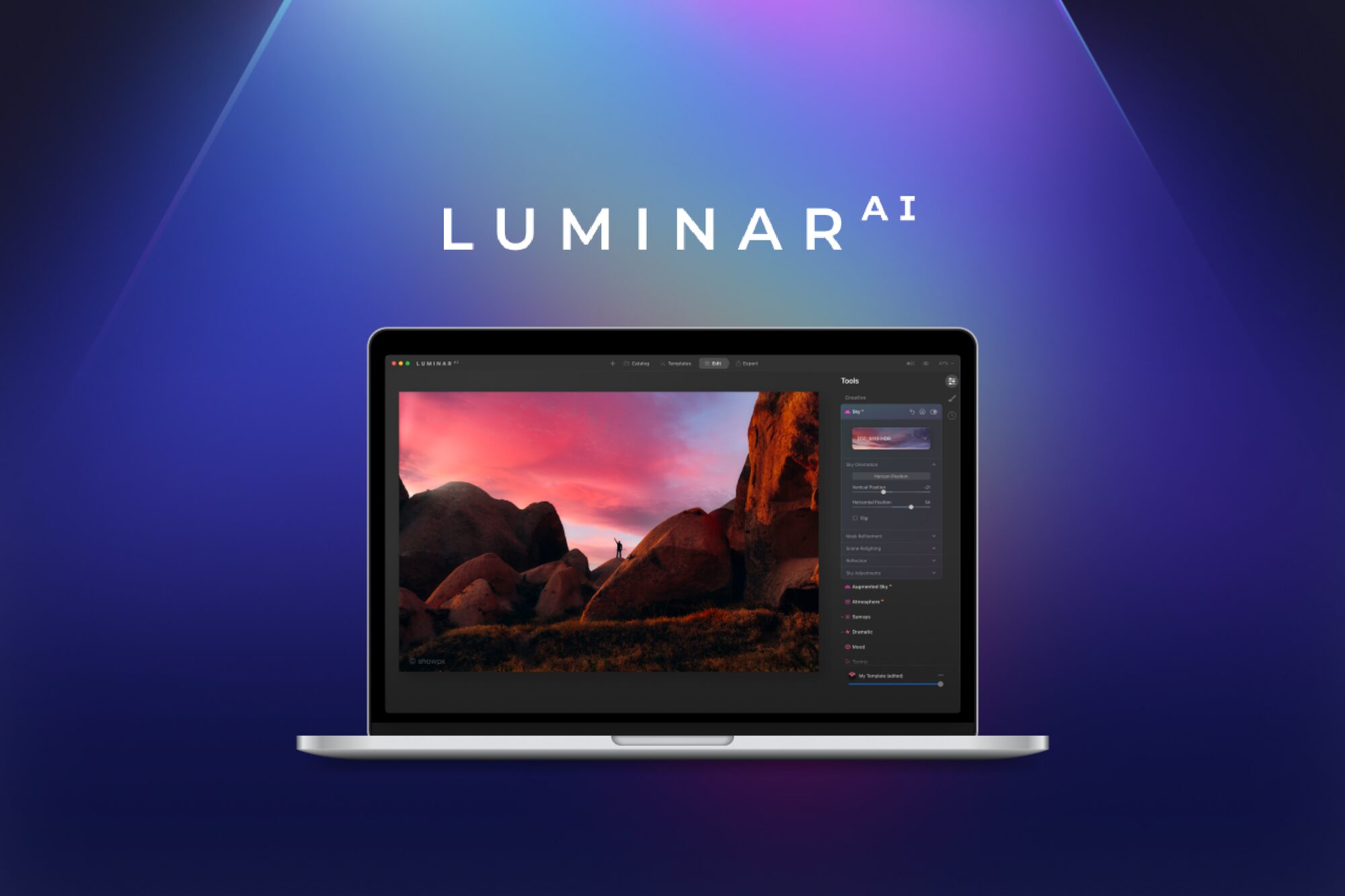
Luminar Neo is the photo editor I recommend to anyone who wants professional results without spending months learning manual techniques. It’s built around AI tools that genuinely work, not the gimmicky “auto-enhance” buttons you’ve seen in other apps.
The AI-powered tools are what set it apart. Sky replacement, portrait enhancement, dust removal, power line removal, background swaps. These aren’t subtle tweaks. The sky replacement tool analyzes lighting direction and adjusts reflections on water and buildings automatically. I’ve used it on over 200 photos and the results look natural about 90% of the time.
Performance on Apple Silicon is solid. On my M5 Pro MacBook Pro, most AI operations complete in 2-4 seconds. Exporting a batch of 50 edited RAW files takes around 3 minutes. It’s not as fast as Lightroom for catalog-heavy workflows, but for individual edits it’s snappy. The recent updates made AI tools like SkyAI run about 20% faster, and the new Light Depth tool adds another layer of creative control.
The layer-based editing gives you Photoshop-level control when you need it, without Photoshop-level complexity. You can blend multiple exposures, add textures, and create composites. But the interface keeps things manageable. I wrote a detailed Luminar Neo review if you want the full breakdown.
Pricing: Starts at $9.95/month or a one-time perpetual license from $99. Extensions like HDR Merge and Upscale AI cost extra.
Best for: Photographers and content creators who want AI-assisted editing without a subscription.
2. Adobe Photoshop: Best for Professional Editing
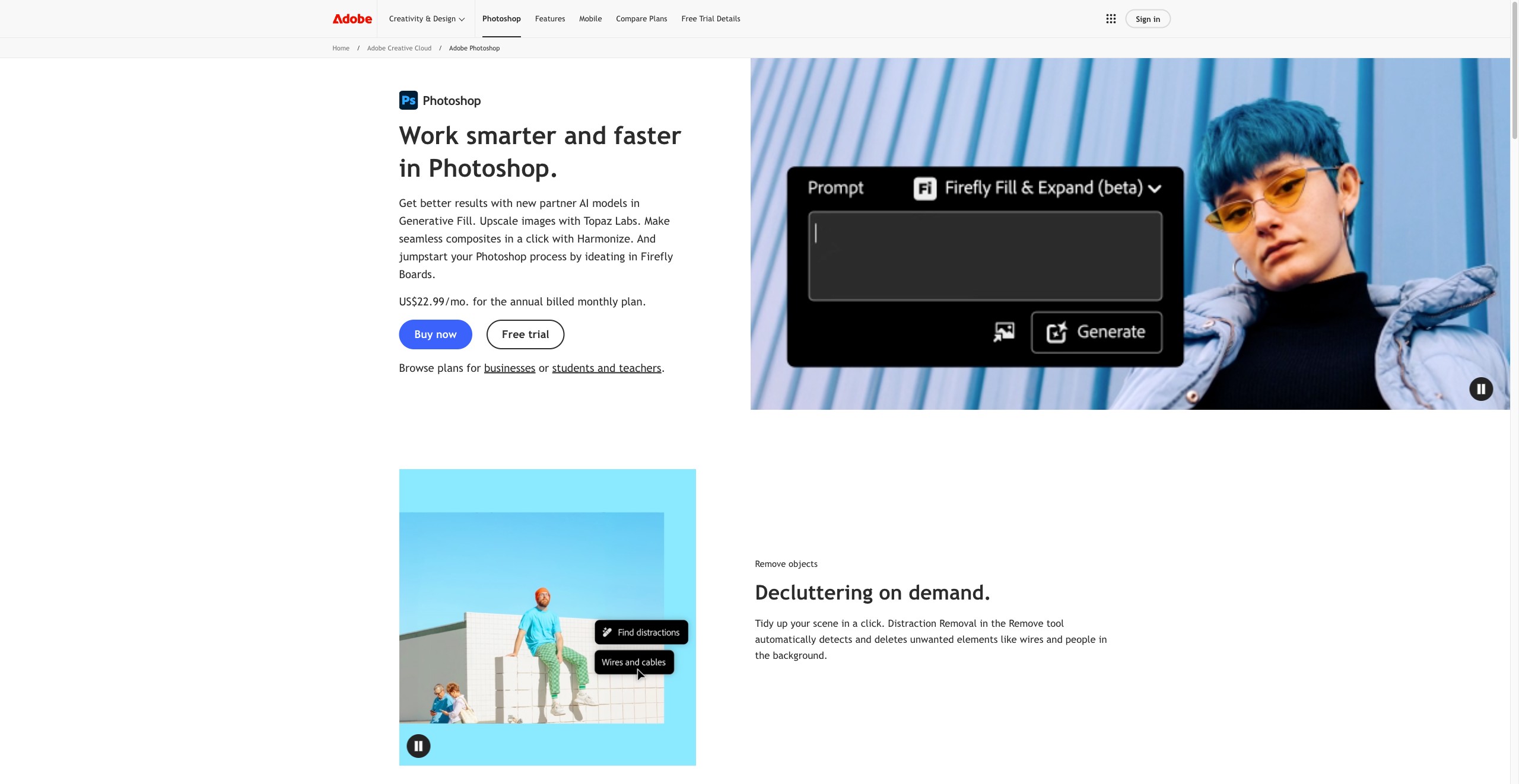
Adobe Photoshop is still the most powerful image editor on any platform. If you need pixel-level control, advanced compositing, or professional retouching tools, nothing else comes close. That’s not nostalgia talking. It’s just true.
The generative AI features keep getting better. Generative Fill lets you select an area and describe what you want. “Add a coffee cup on the table” or “extend this background 200 pixels.” Photoshop 2026 added Harmonize, which automatically matches color, lighting, and shadows between composite layers. There are also new partner models like Nano Banana (Gemini 2.5) for hyper-realistic generative fills, plus improved upscaling models including Firefly Upscale.
Where Photoshop still dominates is precision work. Pen tool selections, channel-based masking, frequency separation for skin retouching, advanced color grading with curves. If you’re doing commercial product photography, fashion retouching, or composite artwork, you need these tools.
The downside is obvious: it’s overkill for 80% of photo editing tasks. And the subscription model stings. You’re paying $22.99/month for the Photography Plan (which includes Lightroom) or $34.49/month for Photoshop alone. That adds up to $276-414 per year.
Pricing: $22.99/month (Photography Plan with Lightroom) or $34.49/month (Photoshop only).
Best for: Professional designers, retouchers, and composite artists who need maximum control.
3. Adobe Lightroom: Best for Photographers
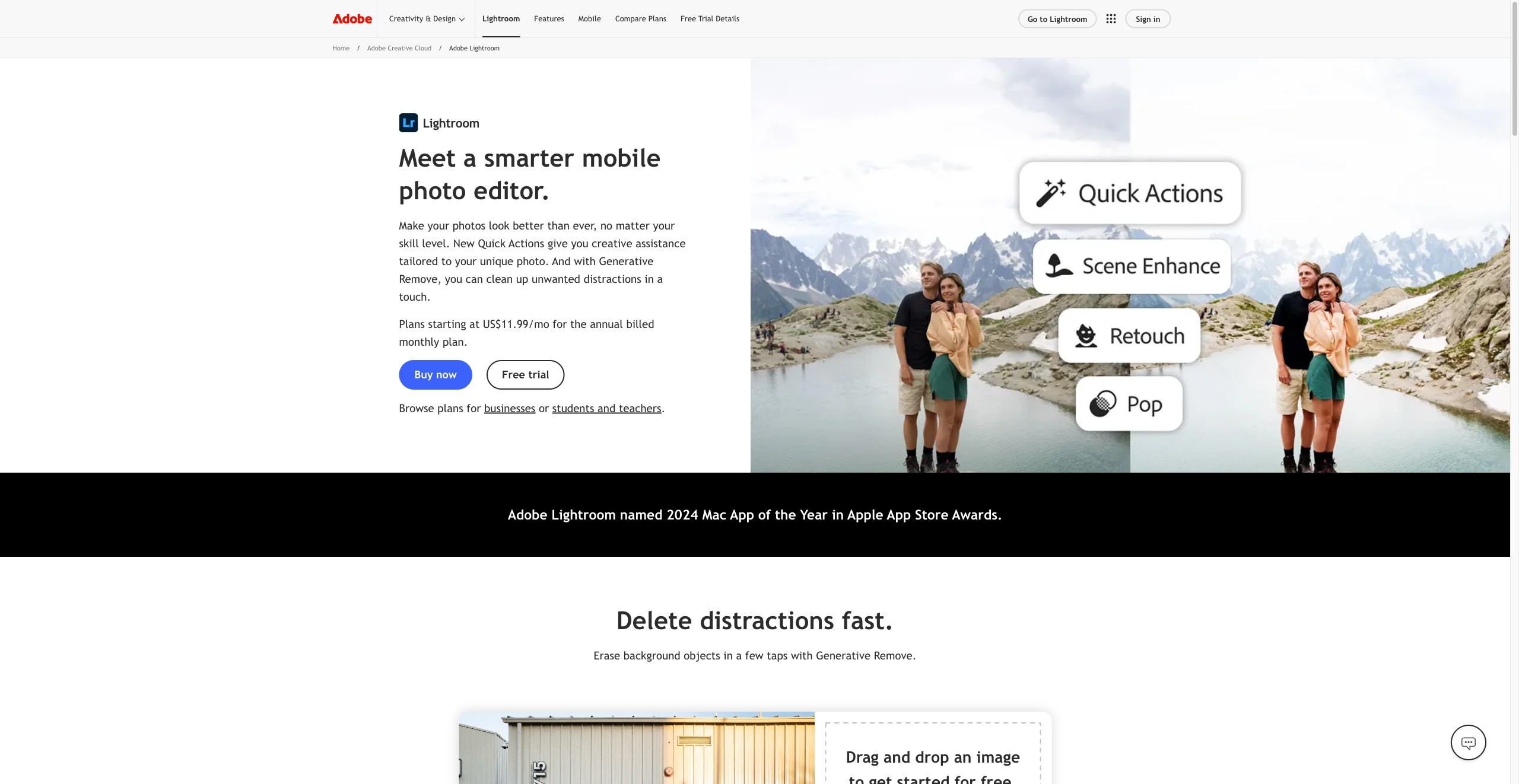
Adobe Lightroom is the industry standard for photo management and non-destructive editing. If you shoot 500+ photos per session and need to cull, organize, and batch-edit efficiently, Lightroom is built for exactly that workflow.
The catalog system is what makes it irreplaceable for working photographers. Smart collections, keyword tagging, face detection, map view for geotagged photos. I’ve managed libraries of 50,000+ images in Lightroom without it slowing down (on Apple Silicon, at least. Intel Macs struggle with large catalogs).
The editing tools cover 95% of what most photographers need. Exposure, white balance, tone curves, HSL sliders, split toning, lens corrections, spot removal. The masking tools got a massive upgrade recently. AI-powered subject detection, sky selection, and luminance range masking make targeted adjustments fast.
One thing I love: Lightroom’s presets ecosystem. You can buy professional preset packs, apply them to hundreds of photos in one click, then fine-tune. It’s a legitimate time-saver for wedding photographers, event shooters, and anyone processing high volumes.
The cloud-based Lightroom (no “Classic” in the name) syncs across Mac, iPad, iPhone, and web. Lightroom Classic is the desktop powerhouse with local storage. Most serious photographers use Classic.
Pricing: $9.99/month (Lightroom only) or $22.99/month (Photography Plan with Photoshop).
Best for: Photographers who shoot in RAW and need catalog management plus batch editing.
4. Affinity by Canva: Best Free Photoshop Alternative
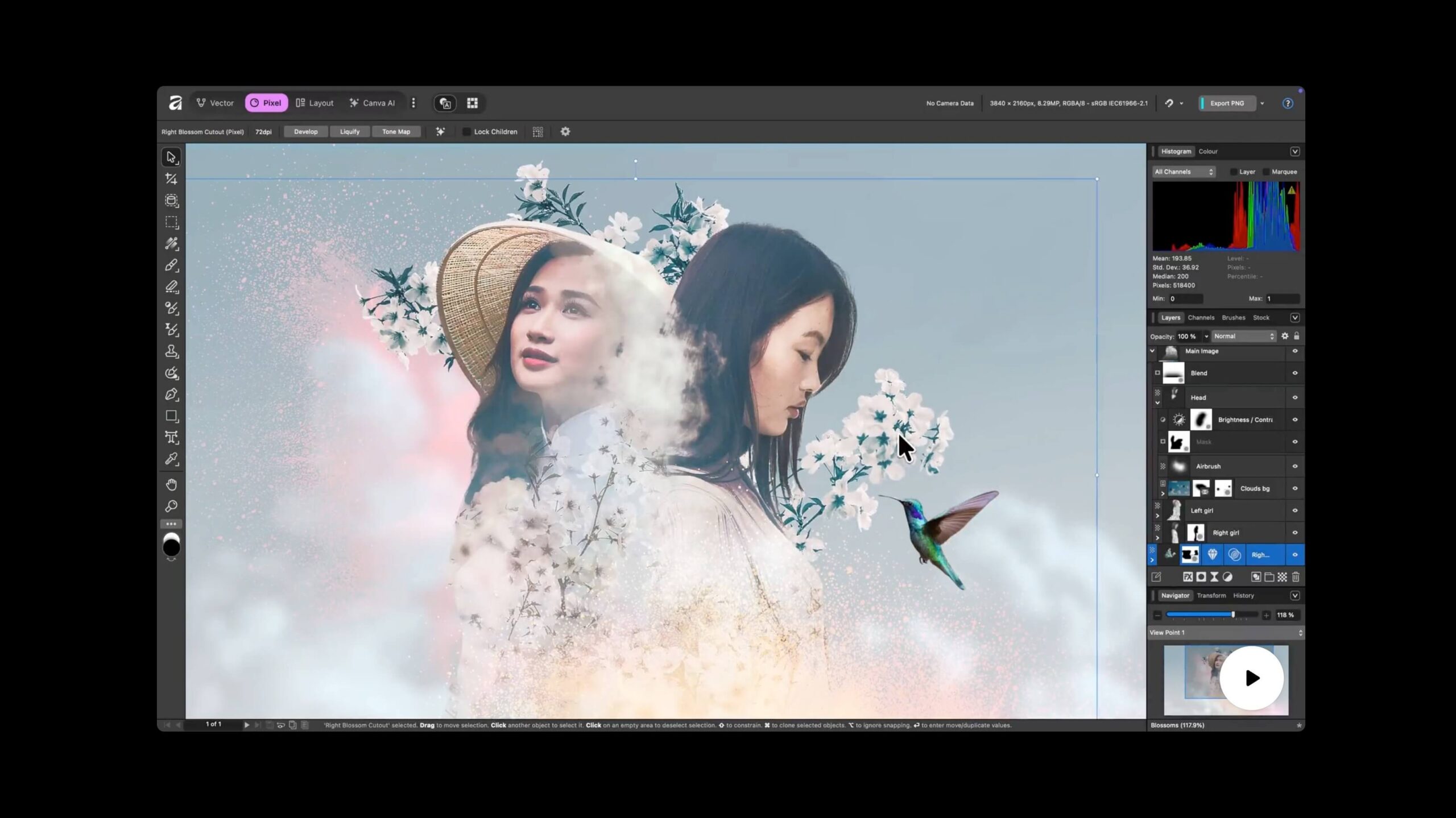
Affinity used to be the app I’d point people to when they said “I need Photoshop but I don’t want a subscription.” It cost $69.99 one-time. Now it’s even simpler: Affinity is completely free.
In October 2025, Canva merged Affinity Photo 2, Affinity Designer 2, and Affinity Publisher 2 into a single unified app called Affinity. All three tools live under one roof now, and every feature that used to cost $69.99 per app is free. Photo editing, vector design, and page layout in one download. No trial period, no feature gates on the core tools.
The photo editing capabilities haven’t changed. Layer-based editing, advanced masking, RAW development, HDR merge, panorama stitching, focus stacking, frequency separation, batch processing. It’s all still there. The performance on Apple Silicon remains excellent. Large PSD files open faster in Affinity than in Photoshop on my machine.
The interface takes some adjustment if you’re coming from Photoshop. Tools are in different places, keyboard shortcuts don’t match by default (though you can remap them), and some advanced features work differently. The pen tool, for instance, behaves slightly different. You’ll spend a weekend getting used to it.
Everything that was in Affinity Photo 2, Designer 2, and Publisher 2 is now free. The only paid tier is an optional Canva Premium subscription that adds Canva AI features like generative AI, background removal AI, and portrait blurring. The professional editing tools you actually need? All free. Affinity also opens and saves PSD, AI, PDF, SVG, TIFF, and IDML files natively.
Where Affinity falls short compared to Photoshop: no generative AI features in the free tier, no content-aware fill as good as Photoshop’s, and the plugin ecosystem is much smaller. If you rely on specific Photoshop plugins for your workflow, check compatibility before switching.
But for free versus $276/year for Adobe? This is the easiest recommendation on the entire list. If you don’t need Photoshop’s generative AI or specific plugins, Affinity is the no-brainer pick.
Pricing: Completely free. Optional Canva Premium subscription for AI features.
Best for: Anyone who wants professional-grade photo editing without paying anything.
5. Pixelmator Pro: Best Mac-Native Editor
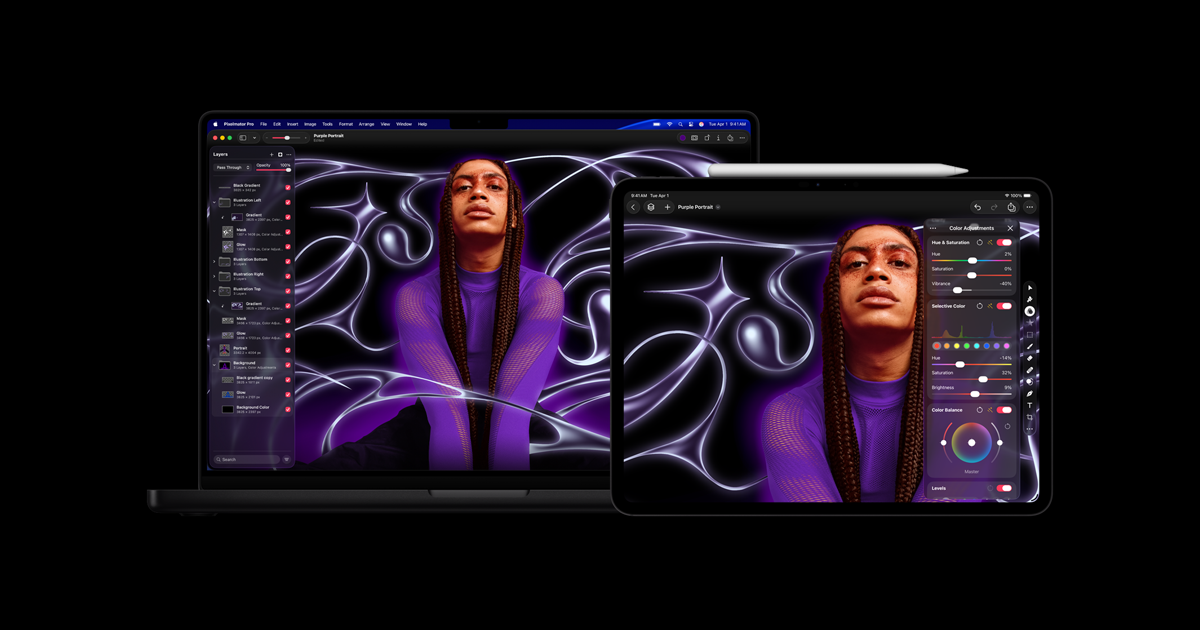
Pixelmator Pro is what happens when developers build exclusively for macOS and don’t compromise. It won an Apple Design Award, integrates with every Apple technology (Metal, Core ML, iCloud, Shortcuts, Handoff), and feels like it was made by the same team that designed macOS itself. Since Apple acquired the Pixelmator team, the integration has only gotten deeper.
The ML-powered editing tools are impressive for a $49.99 app. Auto-enhance actually produces good results. The background removal is nearly as accurate as Photoshop’s. And the super resolution feature (upscaling images using machine learning) works surprisingly well for web content. The latest version adds Apple Intelligence support with Image Playground integration and Writing Tools built in.
Mac-native apps use Apple’s Metal graphics framework and Core ML for machine learning. This means Pixelmator Pro runs AI operations on your Mac’s Neural Engine instead of sending data to external servers. Faster processing, lower battery drain, and your photos never leave your device.
Color adjustments, curves, levels, gradients, vector tools, typography, batch editing, RAW support. It’s a full-featured editor. The interface is clean and doesn’t overwhelm you with options. Every tool is where you’d expect it to be.
One limitation: Pixelmator Pro isn’t built for heavy compositing workflows. If you’re creating complex multi-layer compositions with dozens of adjustment layers and masks, Photoshop or Affinity will serve you better. But for photo editing, color correction, and graphic design? Pixelmator Pro punches way above its price.
Pricing: $49.99 one-time from the Mac App Store. Also available through Apple Creator Studio subscription.
Best for: Mac users who want a polished, native editing experience at a fair price.
6. Canva: Best for Non-Designers
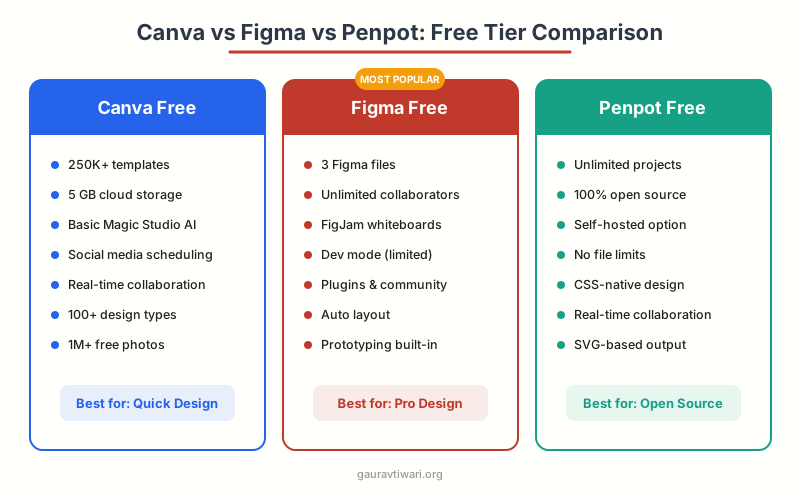
Canva isn’t a traditional photo editor, and that’s exactly why it belongs on this list. If you’re editing photos for social media, blog posts, presentations, or marketing materials, Canva handles the entire workflow from editing to designing the final asset.
The photo editing tools are surprisingly capable. Background removal (one click), magic eraser for removing objects, auto-enhance, filters, crop and resize for every social platform, text overlays, and brand kit integration. You won’t do frequency separation here, but you’ll get a polished Instagram post in 3 minutes.
The template library is Canva’s real superpower. Thousands of professionally designed templates for every platform. Pick one, drop in your photo, adjust colors to match your brand, export. Done. I’ve seen people spend 2 hours in Photoshop creating what Canva does in 10 minutes. If you’re interested in Canva alternatives, I’ve compared the options separately.
The free plan is generous. The Pro plan ($12.99/month) unlocks background remover, brand kit, premium templates, and 1TB of storage. For teams and businesses, it’s one of the best values in creative software.
Pricing: Free plan available. Pro at $12.99/month or $119.99/year.
Best for: Bloggers, social media managers, and small business owners who need quick, polished visuals.
7. Darkroom: Best for Apple Ecosystem Users
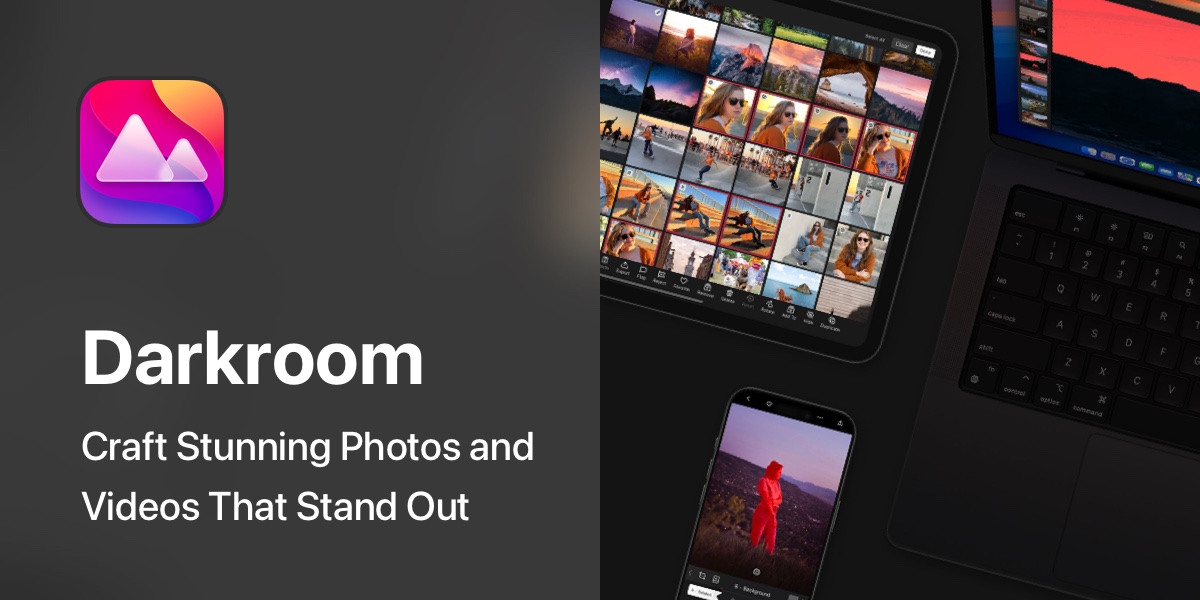
Darkroom is built for people who live in the Apple ecosystem. It runs on Mac, iPhone, and iPad with iCloud sync, reads your Apple Photos library directly (no importing), and supports Apple ProRAW. If you shoot on iPhone and edit on Mac, this is the smoothest workflow available.
The batch editing is where Darkroom shines. Edit one photo, copy adjustments, paste to 50 others. The AI masking tools are fast and accurate. Color grading with the curves tool and HSL panel gives you fine control without overwhelming complexity. The newer AI Smart Presets feature generates custom presets based on your image content and subject type, which is a genuine time-saver.
What I particularly like is the non-destructive editing that works across devices. Start an edit on your iPhone during a shoot, refine it on your Mac later. Everything syncs through iCloud. No exporting, no file management, no “where did I save that edit.”
The free version lets you test the core editing tools. The premium subscription ($39.99/year or $99.99 lifetime) unlocks everything including RAW support, batch editing, and premium presets.
Pricing: Free with limits. Premium at $39.99/year or $99.99 lifetime.
Best for: iPhone photographers who want a seamless Mac-iPhone editing workflow.
8. GIMP: Best Free Open-Source Editor
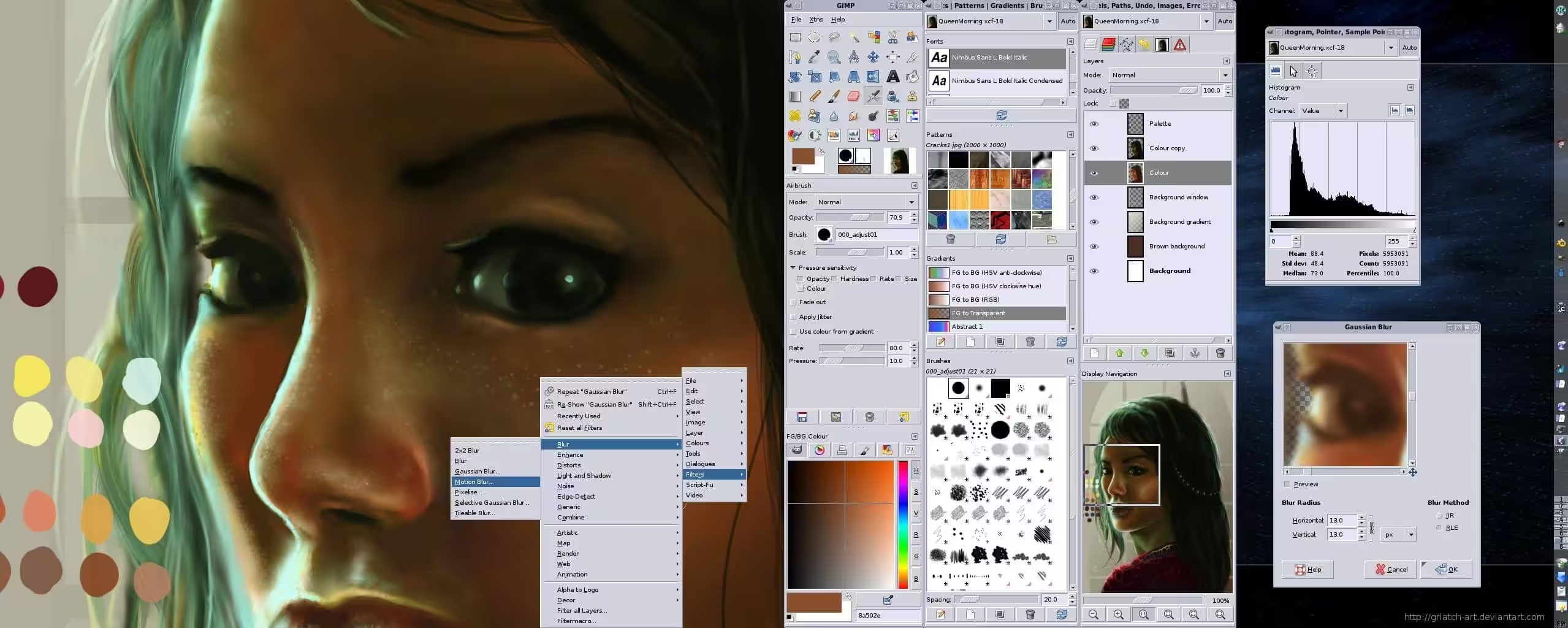
GIMP (GNU Image Manipulation Program) is the most capable free open-source photo editor available. It runs on Mac (including Apple Silicon natively since 2.10.36), and includes tools that compete with paid software. With Affinity now free, GIMP is no longer the only professional-grade free option, but it remains the best choice if you want open-source software you fully control.
Layers, masks, curves, levels, color balance, clone tool, heal tool, perspective transform, custom brushes, plugin support, batch processing through Script-Fu. The feature list is extensive. For removing image backgrounds and other common edits, GIMP handles them well.
The catch? The interface. GIMP’s UI was designed by engineers, not designers. It doesn’t follow macOS conventions, the tool options are scattered, and learning where everything is takes genuine effort. There’s a reason tutorials for GIMP start with “how to make the interface usable.”
If you can get past the learning curve (or install a Photoshop-like theme), GIMP is remarkably powerful. I’ve seen professional illustrators use GIMP for commercial work. It’s not about the tool. It’s about knowing the tool.
Pricing: Free and open-source. Forever.
Best for: Users who want open-source editing software with no strings attached.
9. Photomator: Best for Quick Batch Edits
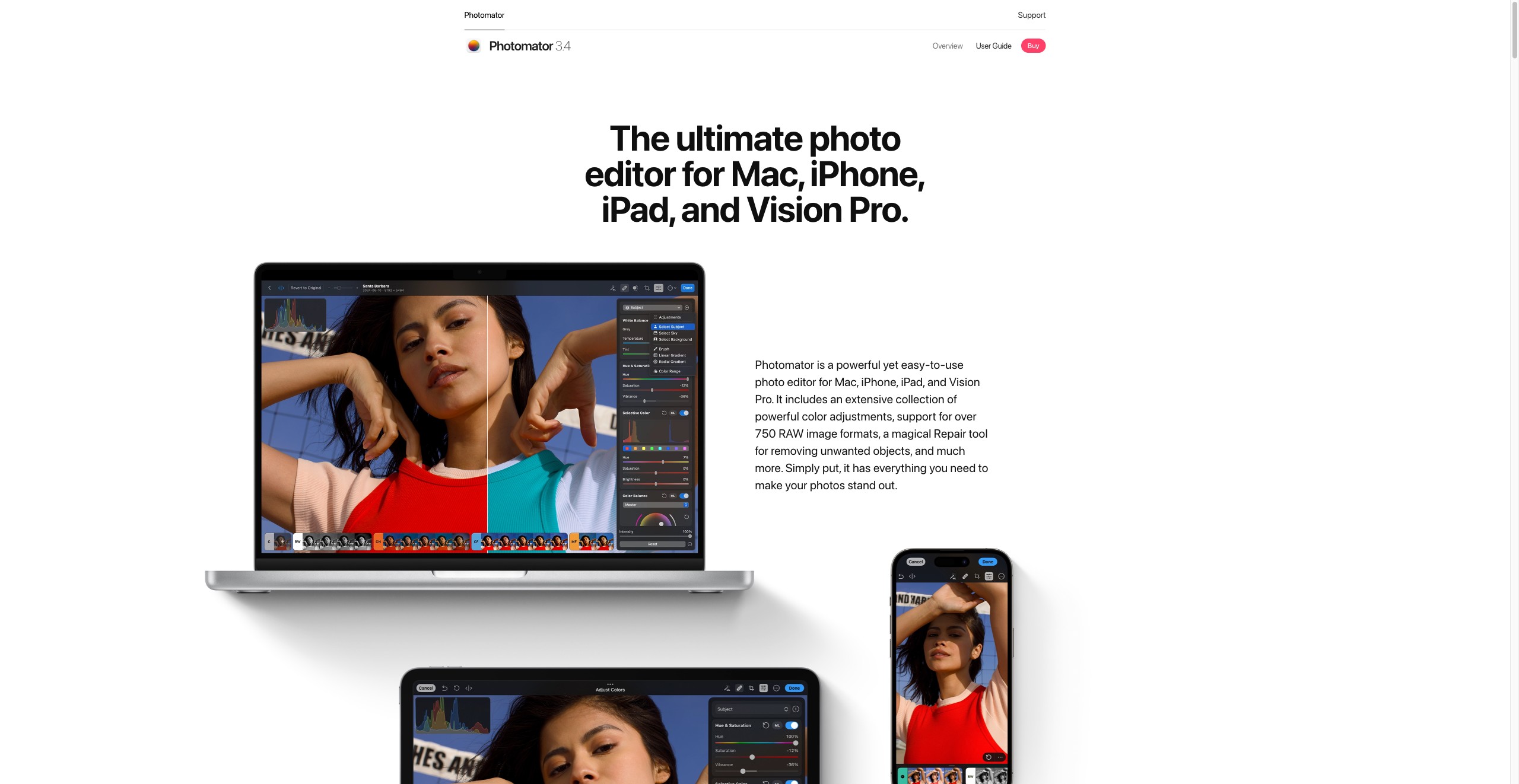
Photomator (formerly Pixelmator Photo) is from the same team behind Pixelmator Pro, but focused specifically on photo enhancement rather than graphic design. Think of it as the quick-edit specialist.
The ML Super Resolution feature is the standout. It upscales photos using machine learning trained on millions of images, and the results are noticeably better than basic interpolation. Useful when you need to crop aggressively or enhance images for web use.
Pixelmator Pro is the full editor (layers, graphic design, typography, vector tools). Photomator is the streamlined photo enhancer (color adjustments, ML tools, batch processing). If you only edit photos and never do design work, Photomator is the better fit at a lower price.
Auto-enhance with ML Enhance is genuinely good. It analyzes each photo individually and applies adjustments that make sense for that specific image. Not a one-size-fits-all filter. Color corrections, white balance, noise reduction, and sharpening all calibrated per photo.
Batch processing with ML tools across hundreds of photos takes minutes. For bloggers and content creators who need to process product photos or event shots quickly, Photomator saves real time.
Pricing: $29.99 one-time from the Mac App Store, or $4.99/month subscription.
Best for: Content creators and bloggers who need fast, AI-assisted batch photo enhancement.
10. Capture One: Best for Studio Photographers
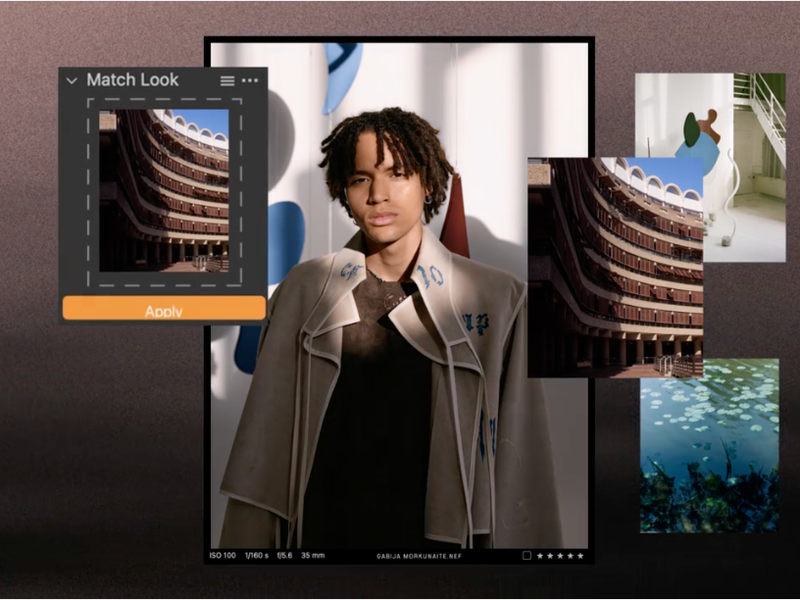
Capture One is what professional studio photographers use when Lightroom’s color science isn’t enough. The color grading tools are the most precise available in any photo editor. Period.
The color editor lets you target specific hues with surgical precision. Skin tone adjustments, product color accuracy, selective color grading. If you’re shooting for e-commerce (where the blue of a product needs to match exactly) or fashion (where skin tones must look natural under mixed lighting), Capture One’s color tools are unmatched.
Tethered shooting support is another reason studios choose it. Connect your camera directly to your Mac, shoot, and see full-resolution images appear on screen in real-time. Lightroom supports tethering too, but Capture One’s implementation is faster and more reliable with more camera brands.
The learning curve is steep and the price reflects the professional audience: $24.99/month or $349 for a perpetual license. This isn’t casual software. But if color accuracy is your business, it’s worth every dollar.
Pricing: $24.99/month or $349 perpetual license. Free 30-day trial available.
Best for: Professional studio and commercial photographers who need best-in-class color grading.
How I Chose These Photo Editors
I didn’t just read feature lists. I used each editor on the same set of 20 test photos: 5 RAW portraits, 5 landscape shots, 5 product photos, and 5 smartphone JPEGs. I evaluated them on editing quality, performance on Apple Silicon, ease of use, export speed, and value for money.
Some apps that didn’t make the cut: Preview (too basic for real editing), Apple Photos (decent but limited), Fotor (too many paywalls), and PhotoScape X (feels like a Windows port). These tools work for simple crops and filters, but if you’re reading a “best photo editors” article, you’ve already outgrown them.
I also checked how well each app handles common tasks that trip people up. Compressing images for web without losing quality, removing backgrounds cleanly, batch-resizing for different social platforms. The 10 editors above handle all of these well.
Which Photo Editor Should You Pick?
Here’s my honest recommendation based on who you are:
You’re a professional photographer: Start with Lightroom Classic for catalog management and RAW processing. Add Photoshop when you need retouching or compositing. If Adobe’s subscription bothers you, Capture One plus Affinity covers the same ground for less (Affinity is free, Capture One has a perpetual license option).
You’re a content creator or blogger: Luminar Neo. The AI tools save hours, the learning curve is gentle, and the results look professional. Pair it with Canva for final social media layouts.
You’re on a budget: Affinity by Canva is the obvious first pick now. It’s free, professional-grade, and handles 85% of what Photoshop does. Add Canva free for quick graphics and Photomator for fast batch enhancement.
You’re all-in on Apple: Pixelmator Pro for full editing, Darkroom for iPhone-to-Mac workflows.
The best photo editor is the one you’ll actually use consistently. A free app like Affinity that you master will produce better results than a $660/year Creative Cloud subscription you open twice a month.
Compare Video Editing Software
| Feature | Adobe Premiere Pro | Filmora | Camtasia | InVideo AI | VEED | DaVinci Resolve |
|---|---|---|---|---|---|---|
| Price | $22.99/mo | $49.99/yr | $179.88/yr | $25/mo | $18/mo | Free (Resolve 19) |
| Skill Level Fit | Professional | Beginner-Intermediate | Beginner (screen recording) | Beginner (AI-powered) | Beginner (browser-based) | Professional |
| Platform | Desktop (Win/Mac) | Desktop (Win/Mac) | Desktop (Win/Mac) | Browser | Browser | Desktop (Win/Mac/Linux) |
| AI Features | Generative fill, speech-to-text | AI tools, auto-beat sync | No | Full AI video creation | AI subtitles, eye contact | AI tools (Studio version) |
| Screen Recording For Tutorials | No | Yes | Yes (best for this) | No | Yes | No |
| Auto Subtitles | Yes | Yes | Yes | Yes | Yes | No (free version) |
| Stock Media | Adobe Stock (paid) | Built-in library | Some assets | Built-in (iStock) | Built-in library | No |
| 4K Export | Yes | Yes | Yes | Yes (Business plan) | Yes (paid) | Yes |
| Color Grading | Advanced (Lumetri) | Basic | Basic | No | Basic | Industry-best |
| Best For | Pro editors, agencies | YouTubers, social media | Course creators, tutorials | Quick AI video creation | Browser-based quick edits | Pro editing (free) |
| Visit Premiere Pro | Visit Filmora | Visit Camtasia | Visit InVideo AI | Visit VEED | Visit DaVinci |
Frequently Asked Questions
What is the best free photo editor for Mac?
Affinity by Canva is now the best free photo editor for Mac. It includes the full professional toolset from Affinity Photo 2, including layers, masks, RAW processing, HDR merge, and frequency separation. All completely free. GIMP remains the best free open-source option if you prefer software with no corporate ownership. For simpler edits, Apple Photos (built into macOS) handles basic cropping, filters, and adjustments.
Is Photoshop worth paying for on Mac?
Photoshop is worth the subscription if you do professional retouching, compositing, or commercial design work. The Photography Plan at $22.99/month includes Lightroom and covers most photographer needs. For casual photo editing, Luminar Neo or Affinity (now free) offer similar capabilities. Affinity covers about 85% of Photoshop’s features at zero cost.
Can I use Lightroom without a subscription?
No. Adobe Lightroom requires a Creative Cloud subscription ($9.99/month minimum). If you want a non-subscription alternative with similar RAW processing and catalog features, try Capture One (perpetual license available for $349) or Darktable (free, open-source). Luminar Neo also offers a one-time purchase option starting at $99.
What photo editor do professional photographers use on Mac?
Most professional photographers use Adobe Lightroom Classic for organizing and editing photos, with Photoshop for retouching and compositing. Studio photographers who need precise color grading often prefer Capture One. Wedding and event photographers typically use Lightroom for its batch processing speed and preset ecosystem.
Is Pixelmator Pro as good as Photoshop?
Pixelmator Pro covers about 70-75% of Photoshop’s photo editing features at a fraction of the cost ($49.99 one-time vs $22.99+/month). It handles RAW editing, layers, masks, color adjustments, and basic compositing well. Where Photoshop still wins: advanced compositing, generative AI features, 3D text, extensive plugin ecosystem, and professional retouching tools like frequency separation.
What’s the difference between Pixelmator Pro and Photomator?
Pixelmator Pro is the full image editor with layers, vector tools, graphic design features, and typography. Photomator is a streamlined photo enhancer focused on color adjustments, ML-powered enhancements, and batch processing. If you only edit photos (no design work), Photomator is simpler and cheaper at $29.99.
Do I need a powerful Mac to run photo editing software?
Any Apple Silicon Mac (M5 or later) handles all photo editors on this list comfortably. Intel Macs work but are noticeably slower with AI features and large RAW files. For Photoshop and Lightroom with large catalogs, 16GB RAM is recommended. Pixelmator Pro, Darkroom, and Photomator are optimized for Apple Silicon and run well even on the base MacBook Air.
Stop overthinking this. If you’re editing photos for a blog or social media, grab Luminar Neo and start editing today. If you need full creative control, the Adobe Photography Plan gives you Photoshop and Lightroom together. And if you want professional tools for free, Affinity by Canva is the biggest no-brainer in photo editing right now.
The worst photo editor is the one sitting in your Applications folder unopened. Pick one, learn it, and start creating.
Disclaimer: This site is reader-supported. If you buy through some links, I may earn a small commission at no extra cost to you. I only recommend tools I trust and would use myself. Your support helps keep gauravtiwari.org free and focused on real-world advice. Thanks. - Gaurav Tiwari