
WordPress Manager for Raycast: Manage Your Site Without Opening a Browser
I open wp-admin probably 30 times a day. That’s not an exaggeration. Check comments. Publish a draft. Look at plugin updates. Glance at site health. Copy a post URL. Each task takes maybe 90 seconds. But it requires opening a browser, navigating to the right screen, waiting for the admin to load, doing the thing, and closing the tab.
I got tired of the context switching. So I built WordPress Manager for Raycast.
It’s a free extension that puts your entire WordPress admin inside Raycast’s command palette. Hit your Raycast hotkey, type “posts,” and you’re looking at your content. No browser. No login screen. No waiting for wp-admin’s JavaScript to finish loading. Just your WordPress data, instantly accessible from anywhere on your Mac.
The extension is live in the Raycast Store right now. Eight installs and counting (yes, I know that’s humble, but it just launched).
Why Raycast?
If you’re not familiar with Raycast, it’s a productivity launcher for macOS. Think Spotlight on steroids. You hit a keyboard shortcut, type what you want, and things happen. It replaces the slow loop of “open app, find feature, click through menus” with “type and go.”
I’ve been using Raycast for about two years now. It’s replaced Spotlight, Alfred, and half the utility apps on my Mac. The extension ecosystem is what makes it special. Developers can build custom commands that plug directly into the launcher. That means you can control Jira, GitHub, Notion, Linear, and now WordPress without leaving whatever you’re working on.
For someone who manages WordPress sites daily, the appeal is obvious. I don’t want to open a browser every time I need to approve a comment or check if a plugin needs updating. I want to hit a shortcut, type two words, and see the answer.
The WordPress admin is powerful. Nobody’s arguing that. But it’s also slow for quick tasks. Every action requires a full page load. Sometimes multiple page loads. And if you’re deep in a writing session or coding in your editor, the context switch to a browser tab and back is a productivity killer. Raycast eliminates that entirely because it floats above whatever you’re doing and disappears when you’re done.
What the Extension Does
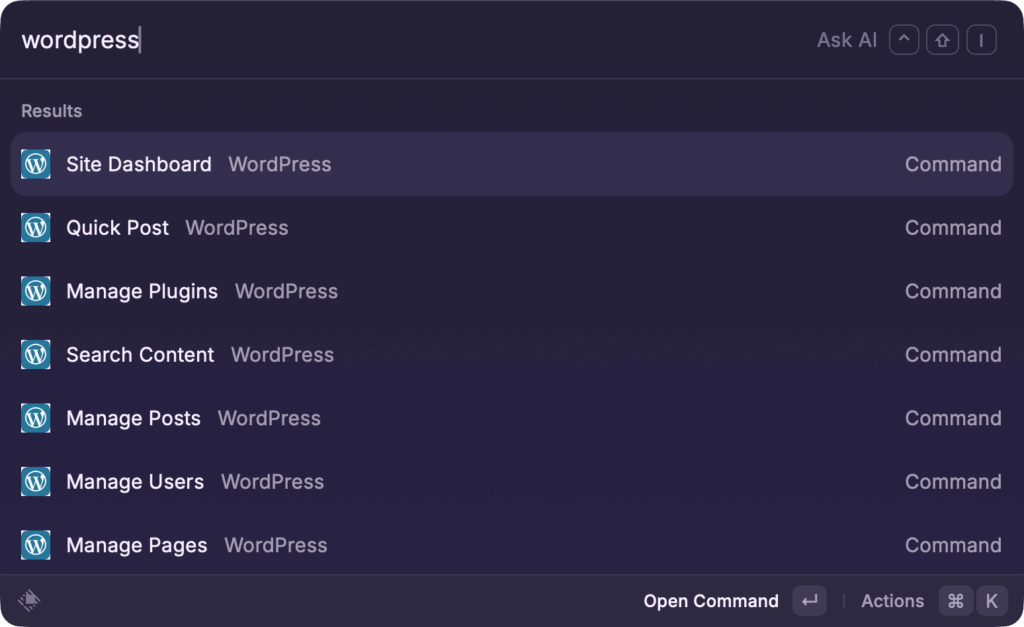
WordPress Manager covers nine core commands that handle the tasks I do most often. Each one connects to your WordPress site through the REST API using Application Passwords. Same authentication method as WP-MCP, same security model, different interface.
Content Management
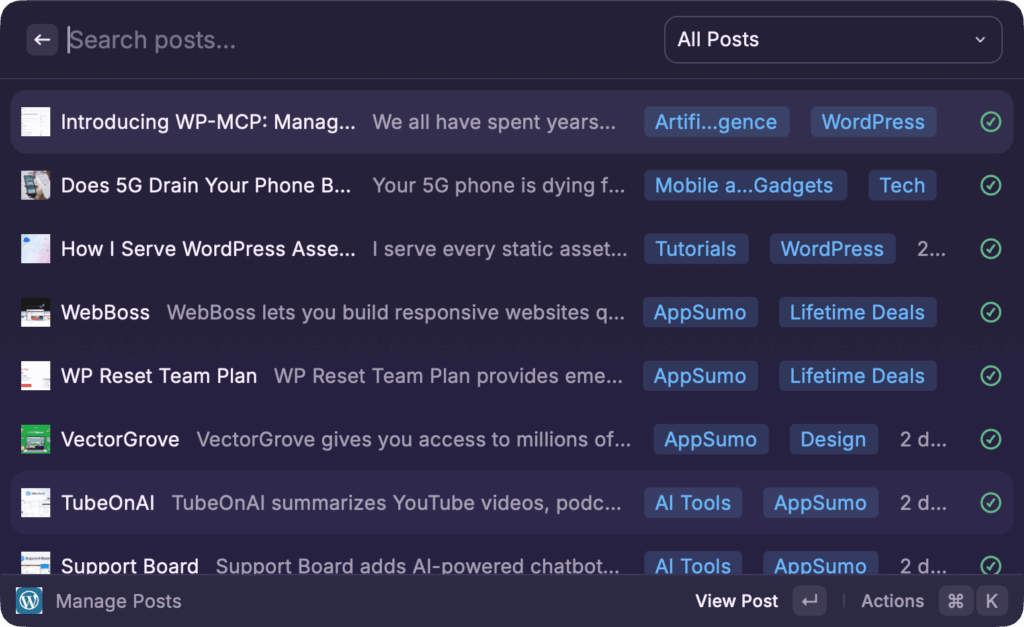
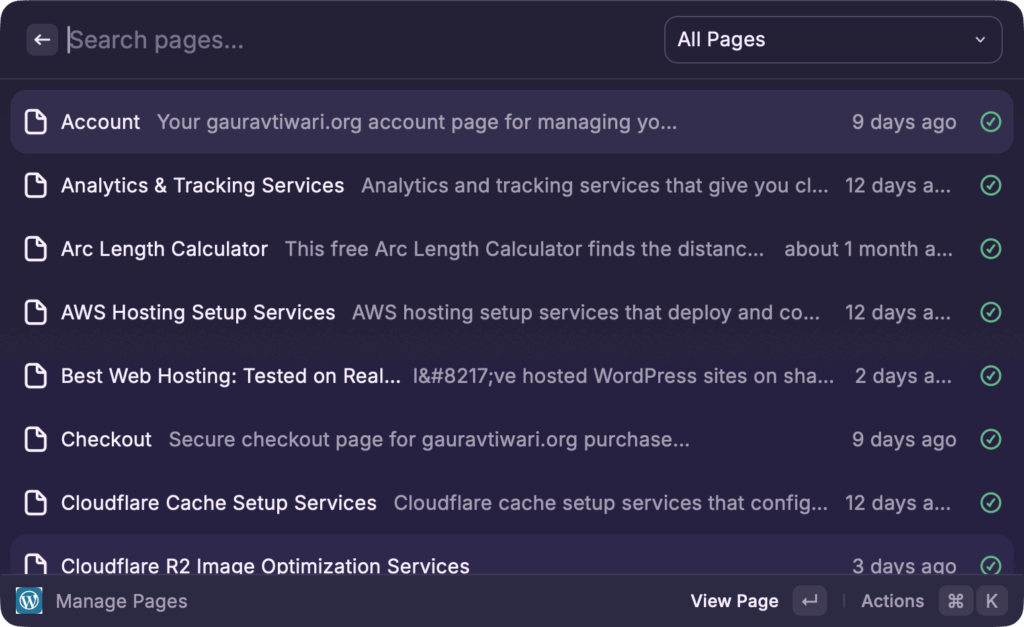
The Manage Posts command shows all your posts (and CPT) with their status, date, and categories/taxonomies. You can create new posts, edit existing ones, publish drafts, or delete content. Full category and tag support is built in. The Manage Pages command does the same thing for pages, including hierarchical parent/child relationships.
Quick Post is the command I use most. It strips away everything except the essentials: title, content, category, and status.
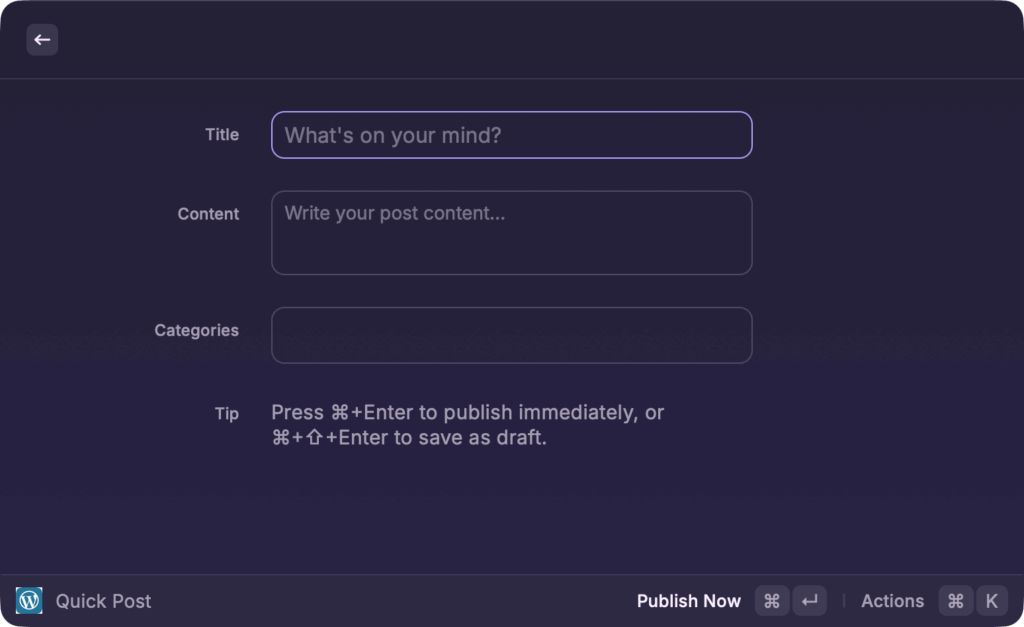
When I have a quick thought for a blog post or need to create a placeholder draft, I hit the shortcut, type the title, add a few lines of content, and it’s in WordPress. No editor loading, no Gutenberg blocks, no sidebar options. Just the content.
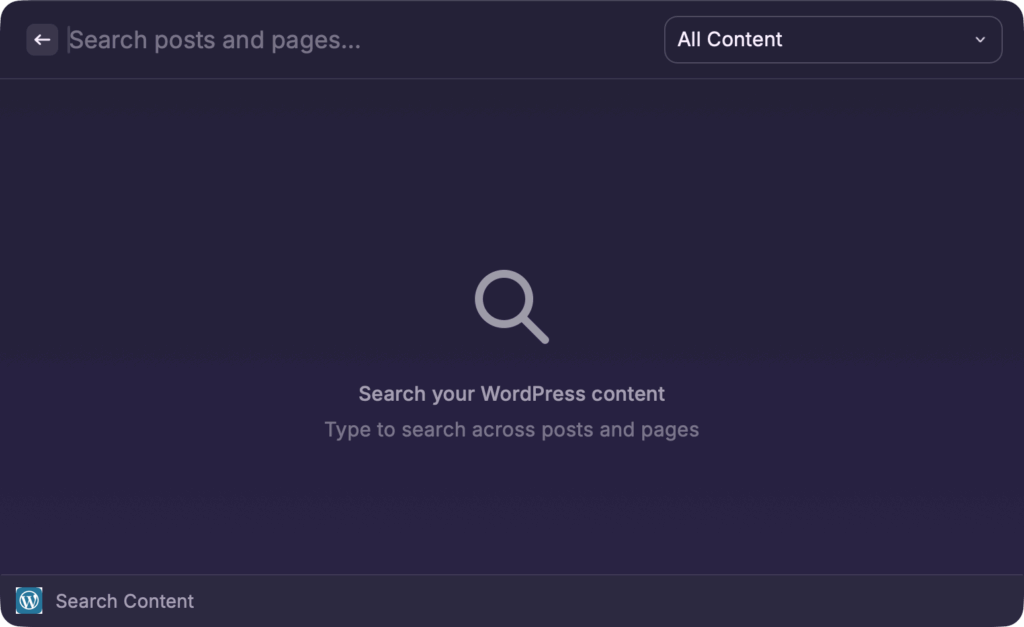
Search Content works across posts and pages simultaneously. Type a keyword and it pulls matching content from your entire site. Faster than WordPress’s own search because there’s no page load between you and the results.
Comment Moderation
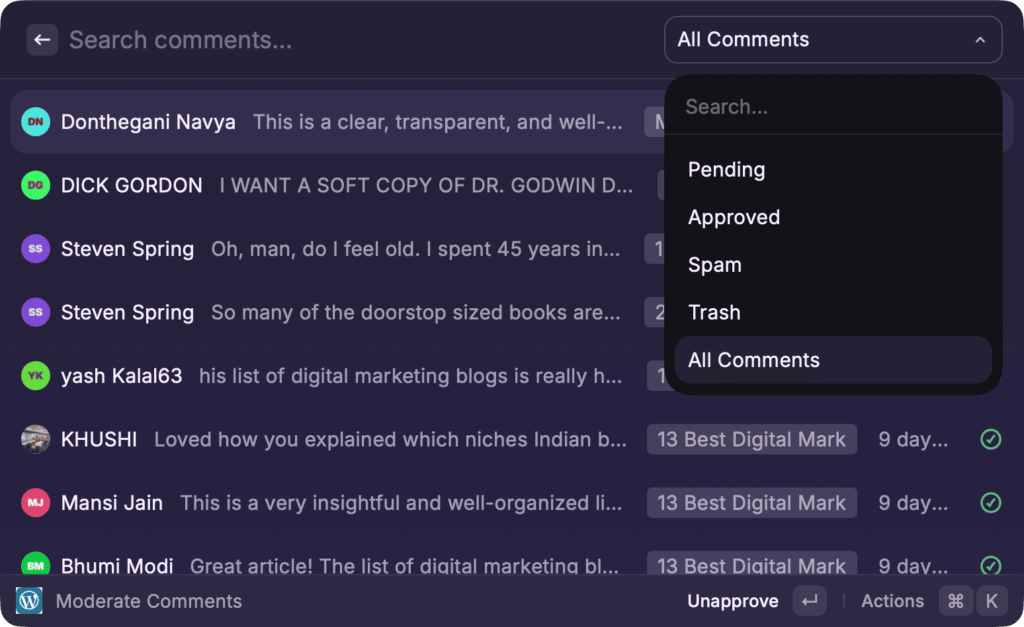
This is where the time savings are most obvious. The Moderate Comments command shows pending comments with the commenter’s name, email, and the comment text. One keyboard shortcut to approve. Another to mark as spam. Another to trash. I can process 20 pending comments in under a minute without ever opening a browser.
For sites with active comment sections, this changes the moderation workflow completely. I used to batch-moderate once or twice a day because opening wp-admin just for comments felt wasteful. Now I check comments between tasks. Quick glance, approve the legitimate ones, trash the rest. Done in seconds.
Site Administration
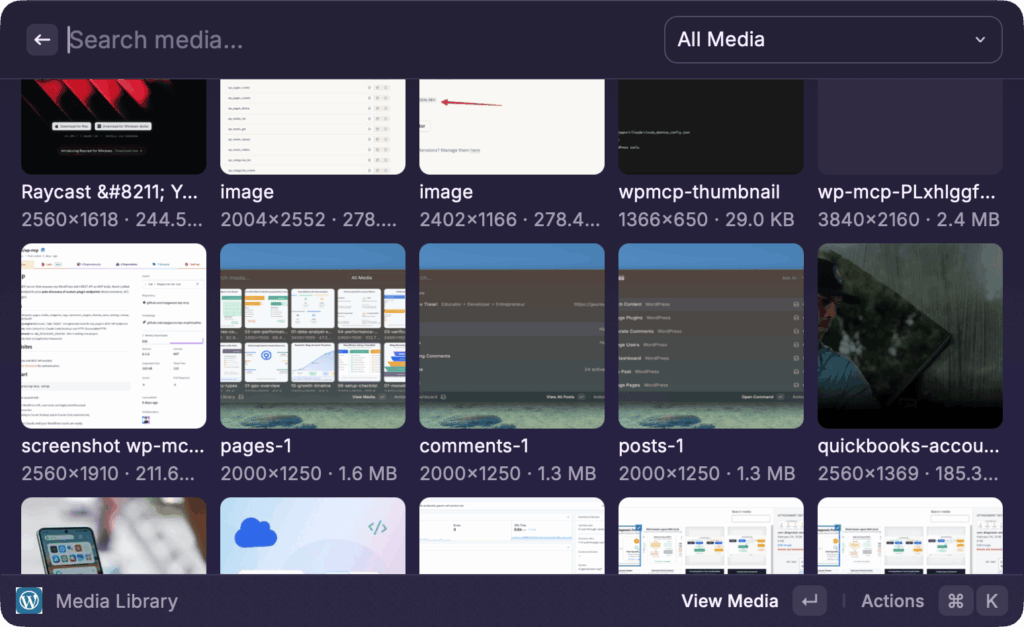
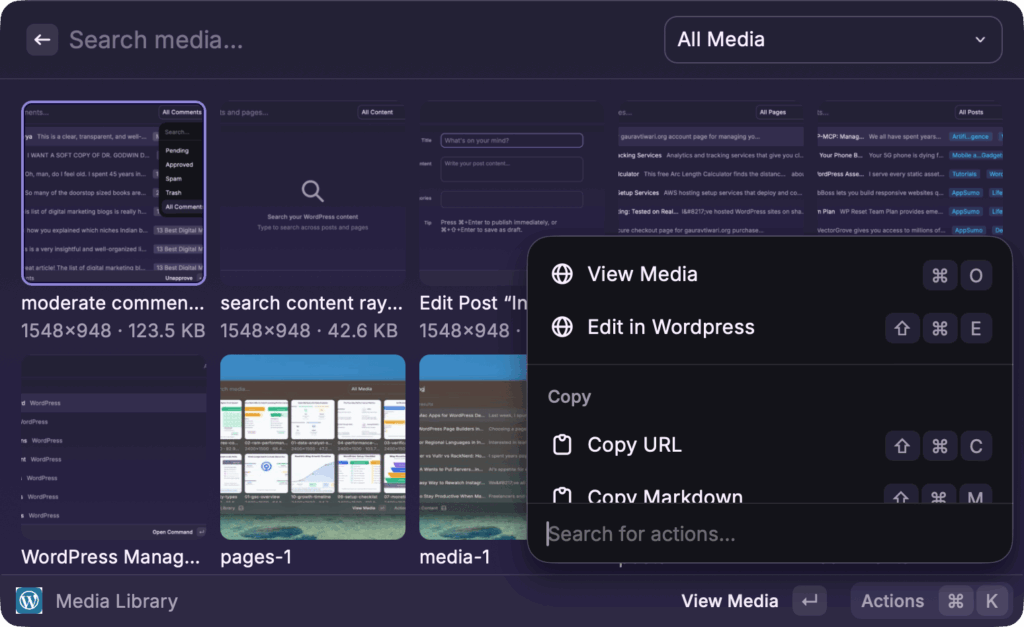
Media Library lets you browse uploaded files, copy their URLs, and manage media without the slow grid view that WordPress’s media library forces on you. If you just need a file URL to paste somewhere, this is dramatically faster than navigating to Media > Library > clicking the file > copying the URL from the attachment details panel.
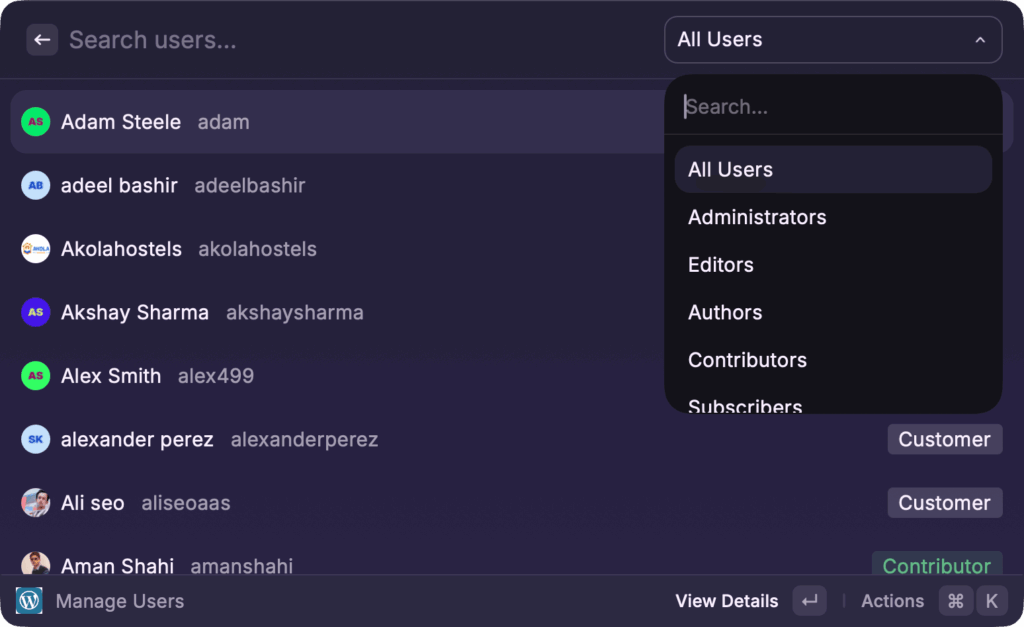
Manage Users shows user profiles and roles. Useful for a quick check on who has access to your site without digging through the Users screen.
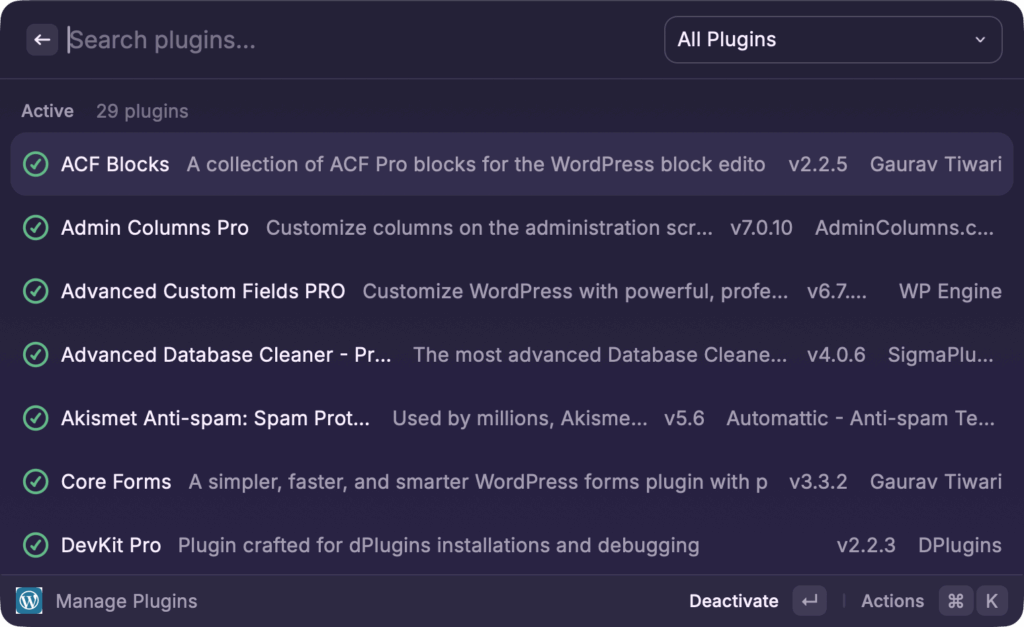
Manage Plugins lets you activate and deactivate plugins from Raycast. I use this mostly for troubleshooting. When a client reports an issue, I can quickly deactivate suspect plugins without navigating to the plugins screen, finding the right one in a list of 30, and clicking deactivate.
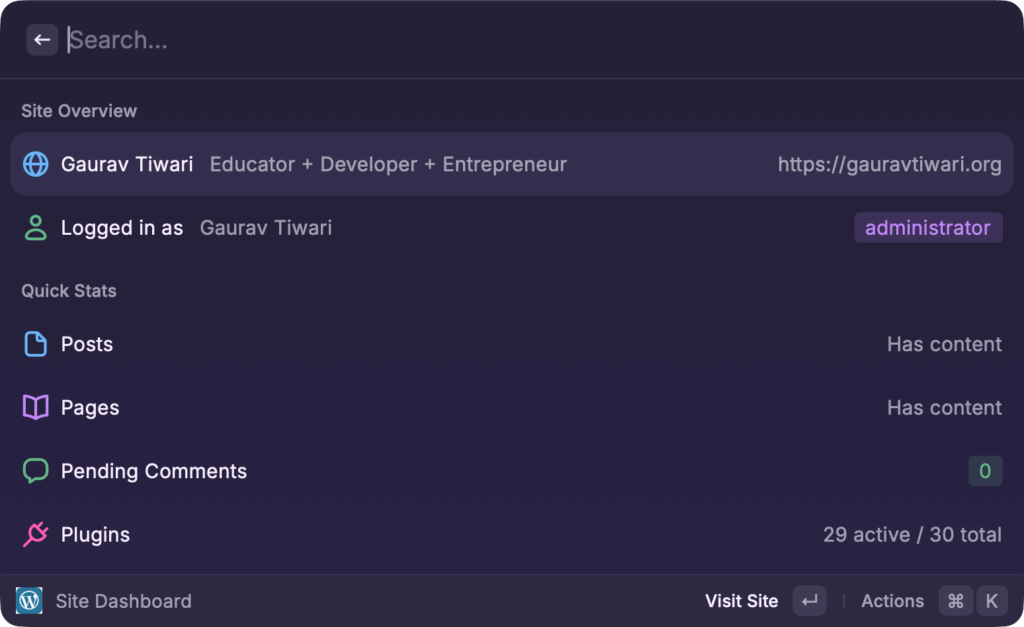
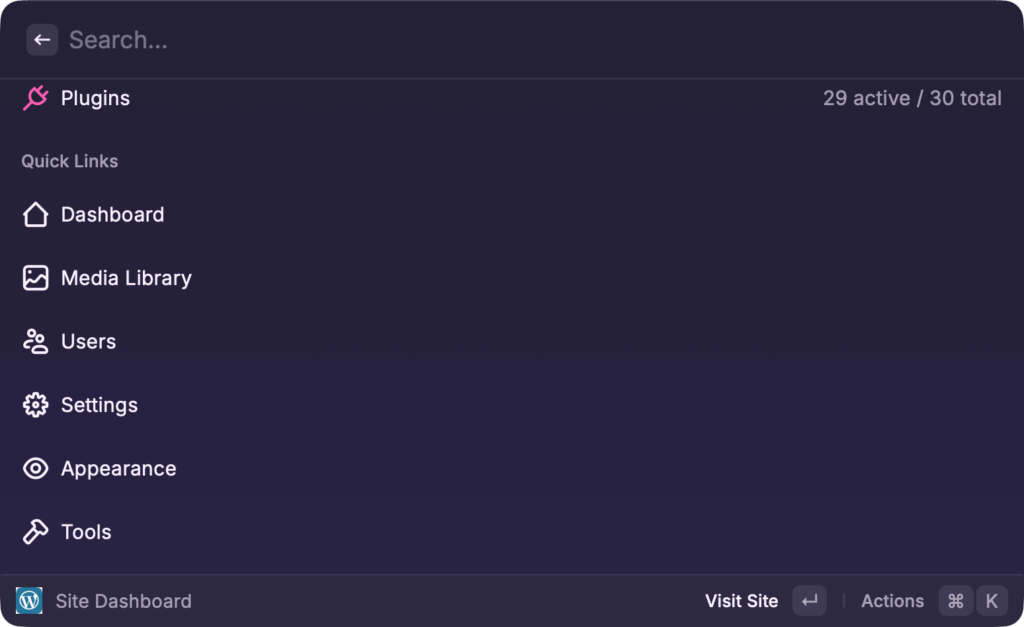
Site Dashboard gives you a quick overview of your site with links to common WordPress admin pages. Think of it as a bookmark manager specifically for your WordPress backend.
Setting It Up
Setup takes about 3 minutes. You need three things: your WordPress site URL, your username, and an Application Password.
Step 1: Generate an Application Password
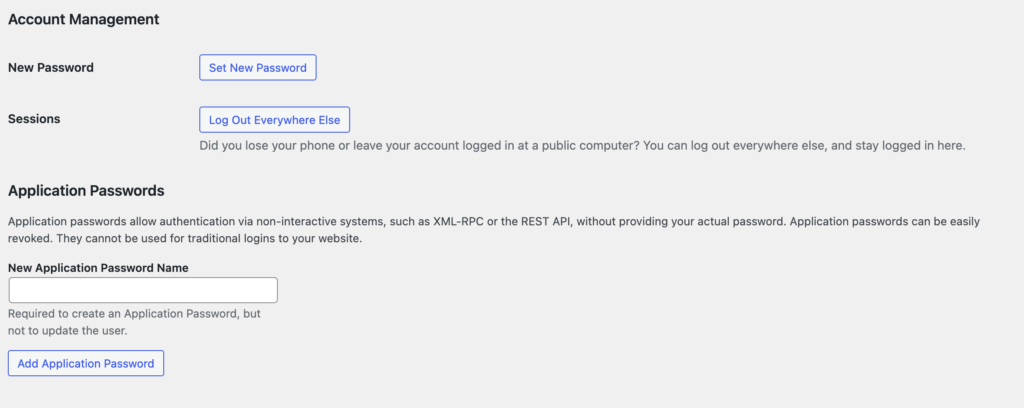
Log into WordPress. Go to Users > Profile. Scroll down to the Application Passwords section. Type “Raycast” or something as the name and click Add New Application Password. Copy the generated password immediately. WordPress only shows it once.
Step 2: Install the Extension
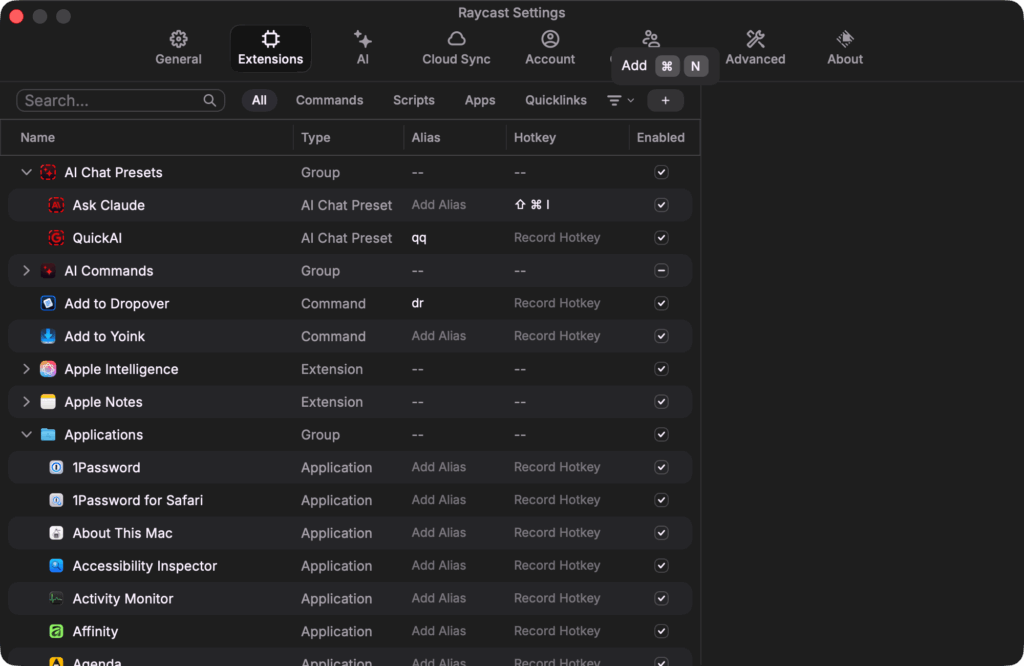
Open Raycast and type Extensions and on Extension page, click on the Plus Icon or just press ⌘ + N or Control + N on Windows, choose Install from Store and then search for “WordPress Manager” in the Store.
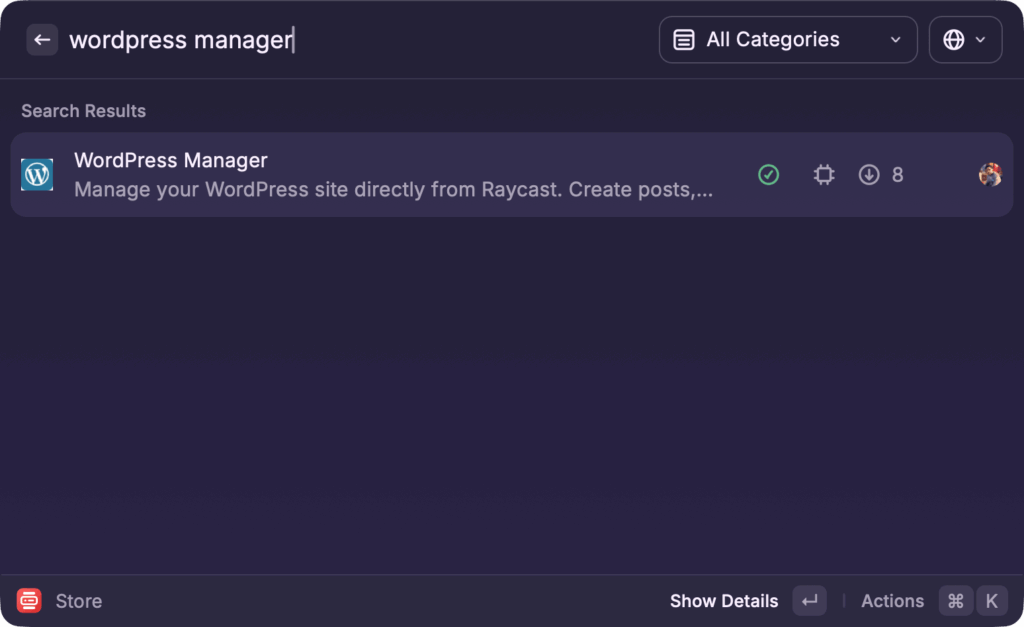
Click Install.
Or visit the Raycast Store page and click Install Extension.
Step 3: Configure
The first time you run any WordPress Manager command, Raycast will ask for your credentials:
- Site URL: Your WordPress site address (include https://)
- Username: Your WordPress login username
- Application Password: The password you just generated
Raycast stores these credentials in its encrypted preferences. They never leave your machine.
Step 4: Test
Hit your Raycast shortcut and type “Manage Posts.” If you see your posts listed, everything’s working. If you get a 401 error, double-check your username and application password. If you get a 403, your user role might not have the right permissions.
Keyboard Shortcuts That Actually Matter
I designed the shortcuts to match common macOS patterns so you don’t need to memorize a new set.
Cmd + O opens any item in your browser. Works everywhere in the extension. Cmd + E opens the Raycast editor for inline editing. Cmd + Shift + E takes you to the WordPress admin editor. Cmd + Shift + C copies the URL to your clipboard.
For posts and pages, Cmd + Shift + P publishes a draft. For comments, Cmd + A approves and Cmd + S marks as spam. These are the shortcuts I use dozens of times a day.
Cmd + R refreshes the current view if you’ve made changes in WordPress that aren’t reflected yet. And Cmd + N creates a new item in whatever context you’re in.
Current Limitations
I want to be upfront about what doesn’t work yet.
- Media upload isn’t supported. The WordPress REST API makes direct file uploads tricky from a launcher context. You can browse and manage existing media, but you can’t upload new files. For now, that still requires wp-admin or a dedicated upload tool.
- Theme management isn’t available because the WordPress REST API doesn’t expose theme endpoints in a way that’s useful for a launcher interface. Plugin management works fine because activate/deactivate is a simple toggle. Theme switching involves previews and customizer settings that don’t translate well to a command palette.
- The extension currently supports a single WordPress site. If you manage multiple sites, you’ll need to update the credentials in Raycast preferences when switching between them. Multi-site support with a site switcher is something I’m considering for a future update.
- And it’s macOS only. Raycast recently launched on Windows, but I haven’t tested the extension there yet. If you’re on Windows and want to try it, let me know how it goes.
What’s Planned
The immediate priorities are based on my own daily usage:
- Quick actions for bulk comment moderation (approve all, trash all spam)
- Post status filters in the list view (show only drafts, only published, only scheduled)
- Inline content preview without opening the browser
- Support for custom post types (right now it handles posts and pages)
- A site switcher for people managing multiple WordPress sites
The extension is open source as part of the Raycast extensions repository. If you have feature requests or find bugs, the GitHub issue tracker is the best place to report them.
Frequently Asked Questions
Is WordPress Manager for Raycast free?
Yes, completely free. The extension is open source and available in the Raycast Store. You do need Raycast installed on your Mac, which has a free tier that includes extension support. No Raycast Pro subscription is required to use WordPress Manager.
Does this work with WordPress.com sites?
It depends on your plan. You need REST API access and Application Passwords, which are available on WordPress.com Business and eCommerce plans. Free and Personal plans don’t support Application Passwords. Self-hosted WordPress (WordPress.org) sites version 5.6 or newer work without any issues.
Can someone access my WordPress site through my Raycast?
Your credentials are stored in Raycast’s encrypted preferences on your local machine. API requests go directly from your computer to your WordPress site. No data passes through Raycast’s servers or any third party. The security model is the same as using the WordPress REST API from any other local application.
Do I need to install a WordPress plugin for this to work?
No. WordPress Manager uses the built-in REST API and Application Passwords that ship with WordPress 5.6 and newer. No additional plugins are needed on your WordPress site. If a security plugin on your site is blocking REST API access, you may need to whitelist your IP or adjust the plugin’s settings.
What’s the difference between this and wp-mcp?
WordPress Manager for Raycast is a visual command palette for quick admin tasks like approving comments, publishing drafts, and checking plugins. wp-mcp is an MCP server that lets AI assistants like Claude manage your WordPress site through natural language. Use Raycast for fast, repetitive tasks. Use wp-mcp for complex, AI-assisted operations. They work well together.
Can I manage multiple WordPress sites with this extension?
Not yet with a built-in switcher. Currently, you configure one site at a time in Raycast preferences. To switch sites, you’d need to update the credentials. Multi-site support with a site switcher is planned for a future update. If you manage many sites, wp-mcp or a dedicated management tool like MainWP might be better suited for now.
If you use Raycast and manage WordPress sites, try the extension. It takes 3 minutes to set up and you’ll feel the difference the first time you approve a comment without opening a browser.
Install it from the Raycast Store or search “WordPress Manager” inside Raycast. The source code is on GitHub if you want to peek under the hood or contribute.
And if you’re already using wp-mcp for AI-powered WordPress management, pair it with this extension. AI for the complex stuff, Raycast for the quick stuff. That’s my workflow now, and it’s the most efficient WordPress management setup I’ve had in 16 years.