
 by
byI’ve been using PDF apps daily since my college days, and I’ve watched the category go from basic readers to full editing suites. After testing dozens of options across Mac, Windows, iPad, and Android, these are the ones that actually work for students who need to read, annotate, and edit PDFs without paying Adobe prices.
Most students need three things from a PDF app: fast rendering for 200+ page textbooks, reliable annotation tools for highlighting and note-taking, and cross-device sync so your marked-up files follow you from laptop to tablet. Every app on this list delivers on at least two of those. If you’re also looking for apps beyond PDFs, check my guide to downloading research papers for free.
Best PDF Apps for Students
Best PDF Apps for Students
PDF Expert
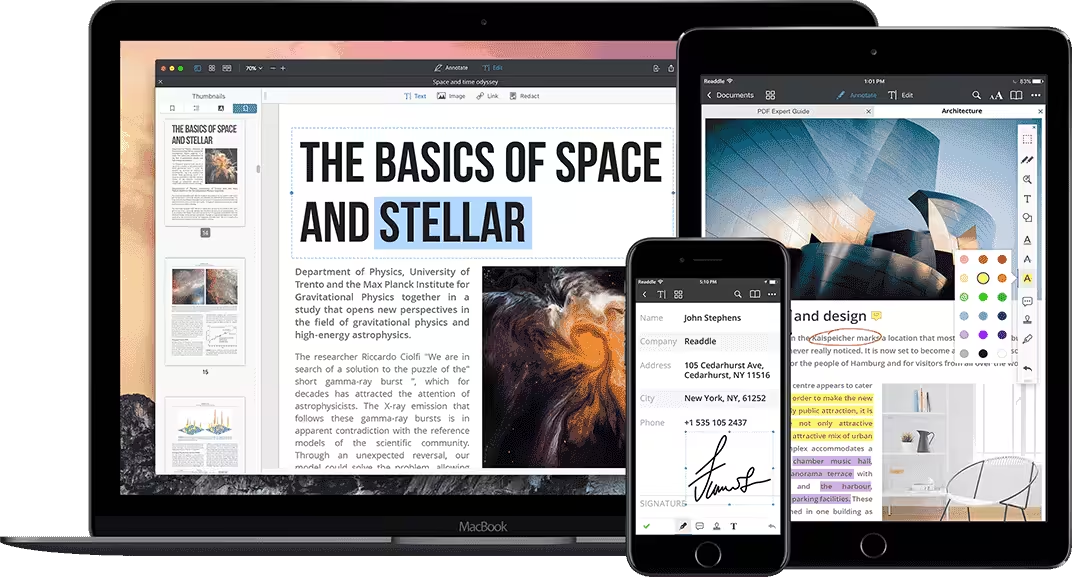
I am a fan and a long-time user of PDF Expert. This all-in-one PDF solution is a must-have for serious students, teachers and scholars. With it, you can read, annotate and edit your PDF files very easily. You can also arrange, rotate, delete and add pages to a PDF document, or you can create a whole new PDF document from scratch.
The only downside of this app is that it is not available for Android and Windows operating systems. You can, however, take advantage of its incredible features on iPhones, iPads and Macbooks.
UPDF
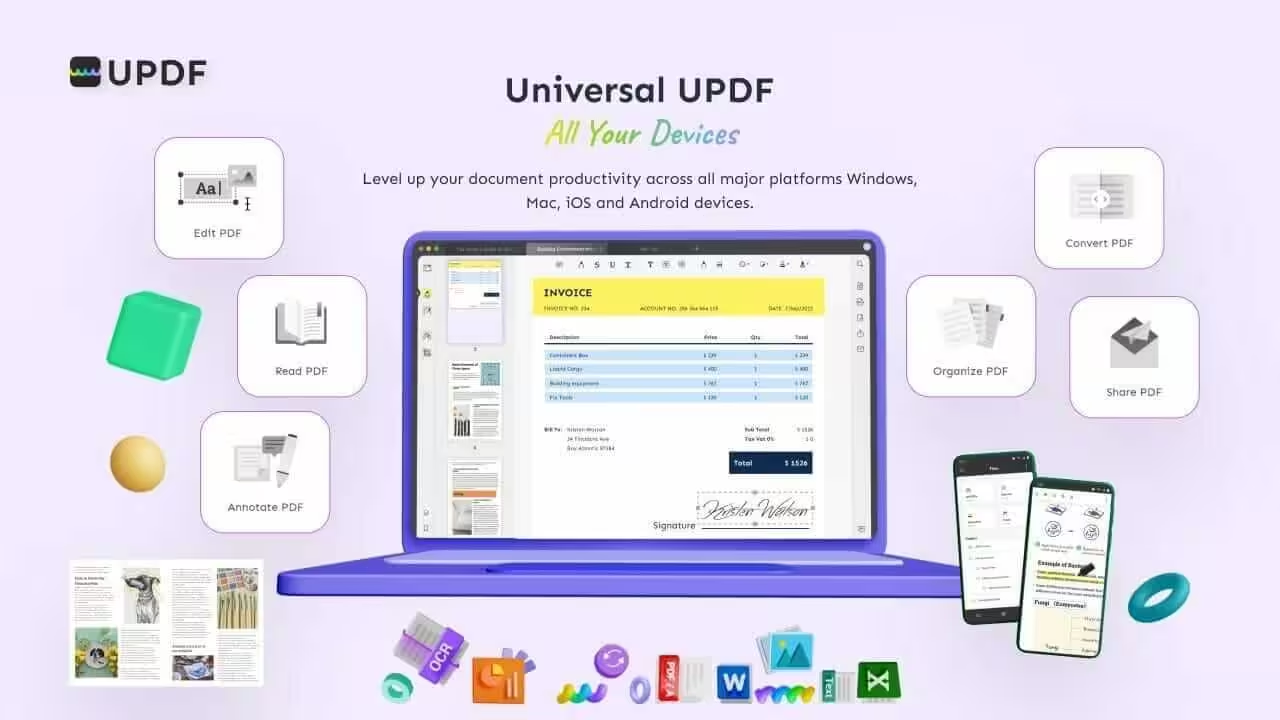
UPDF is a cross-platform and all-in-one PDF reader, editor and enhancer for all types of users, including students. It is available for Windows, macOS, Android, iOS and iPadOS making it a universal choice for students as well.
With an improved stylus and Apple Pencil support, UPDF can become a great study companion.
It is free to use as a reader, and the editing & enhanced features can be unlocked at $79.99 as a one-time lifetime license, against a $99.99 list price.
PDF Viewer
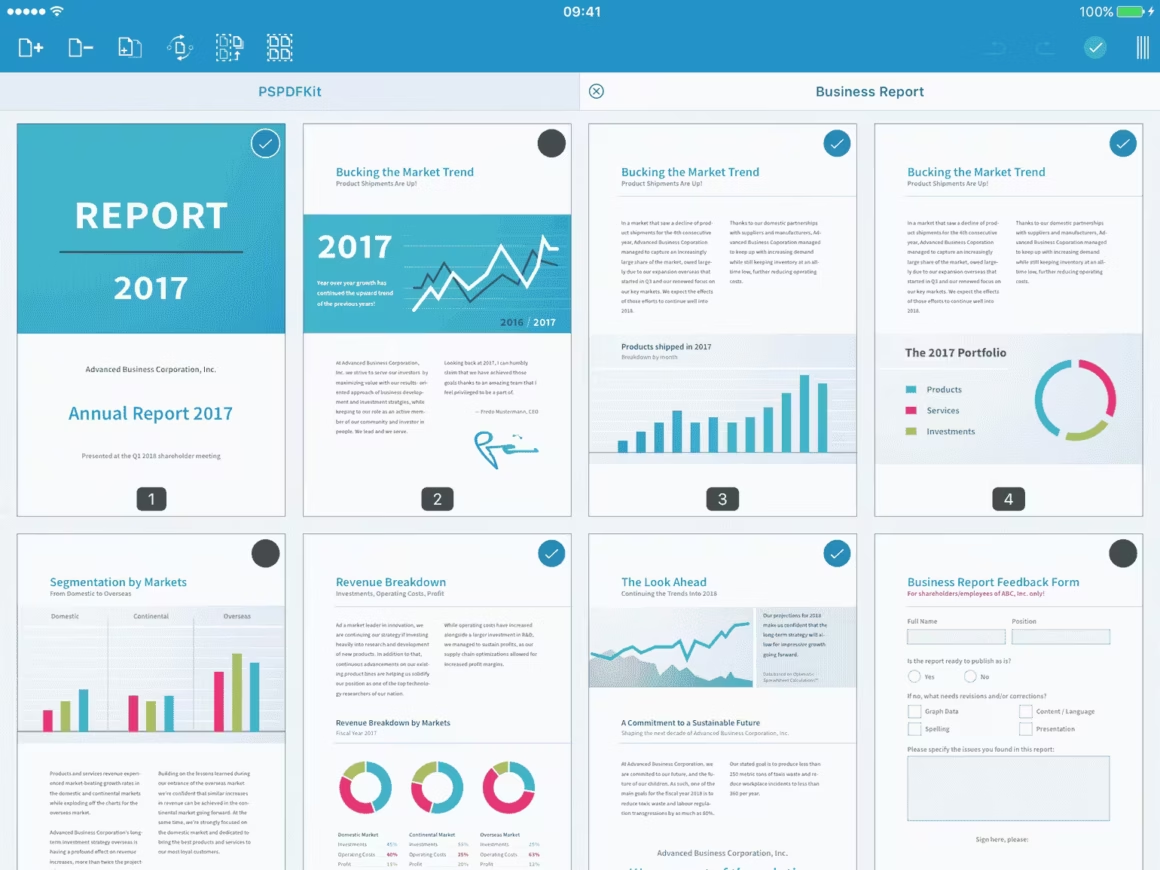
Don’t get fooled by the name. PDF Viewer is more than just a document reader. With it, you can do the same things as you could with the PDF Expert app.
One advantage that PDF viewer has over PDF Expert is that it is available as an Android app, in addition to Mac, iPhone and iPads.
Wondershare PDFelement
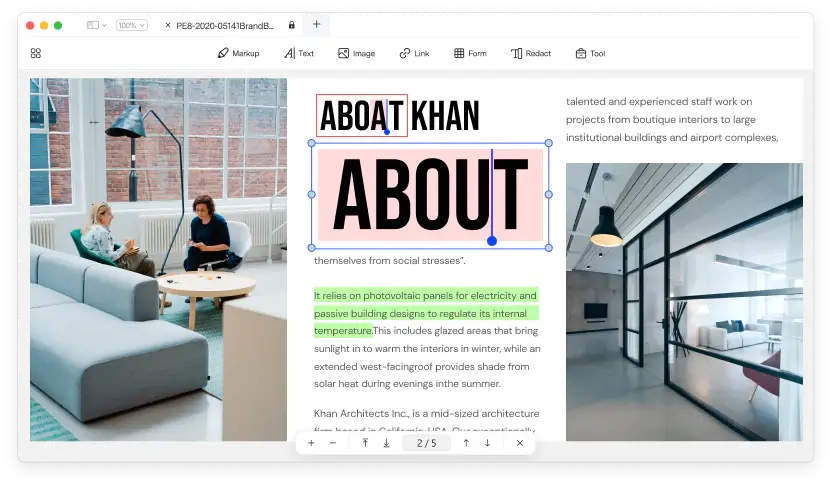
Both #1 and #2 in the list are the apps that are not available for Windows computers. But Wondershare’s PDFelement is truly cross-platform. Powered with an intuitive design, PDFelement runs with PDF Viewer’s technology at the core and PDF Expert’s design on the front. So you get the best of both worlds.
While the free version is more than sufficient for students, be sure to try the premium version, which offers loads of PDF editing features.
Note that there is also a Wondershare PDF Reader. This app focuses on reading features only. You can try this if you just need a PDF reading app.
Sumatra PDF
Sumatra PDF is a free & lightweight PDF and comic book reader which is available exclusively for Windows laptops. It is one of the fastest PDF readers out there for Windows. But its functionalities are severally limited to just reading.
Adobe Acrobat DC
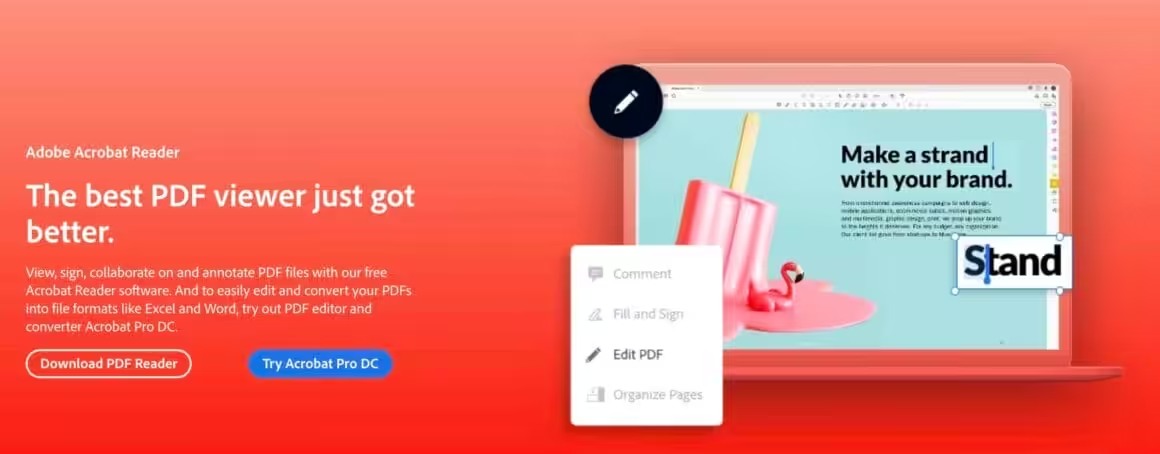
Adobe is the inventor of PDF format and Acrobat is the stock PDF app that the world first used. It now comes in two versions:
- Adobe Acrobat Reader DC (or Adobe Reader, in short) is a free PDF reading app that is sufficient enough for more needs.
- Adobe Acrobat Pro DC is a PDF editing suite that can be bought under the Adobe Document Cloud subscription.
Acrobat DC is available for all mobile, tablet and desktop operating systems. The only problem with this app is its speed. It takes too many resources and often lags on low-end computers.
Xodo PDF
Xodo PDF is a cross-platform offline and online PDF reader and editor focused on usability and performance. This is an all-in-one PDF reading, annotation and editing app.
As I said, Xodo is available across platforms. Be sure to check if it is available for your device. It’s mostly free, and even if there is a paid upgrade – that is very cheap.
PDFSam Basic
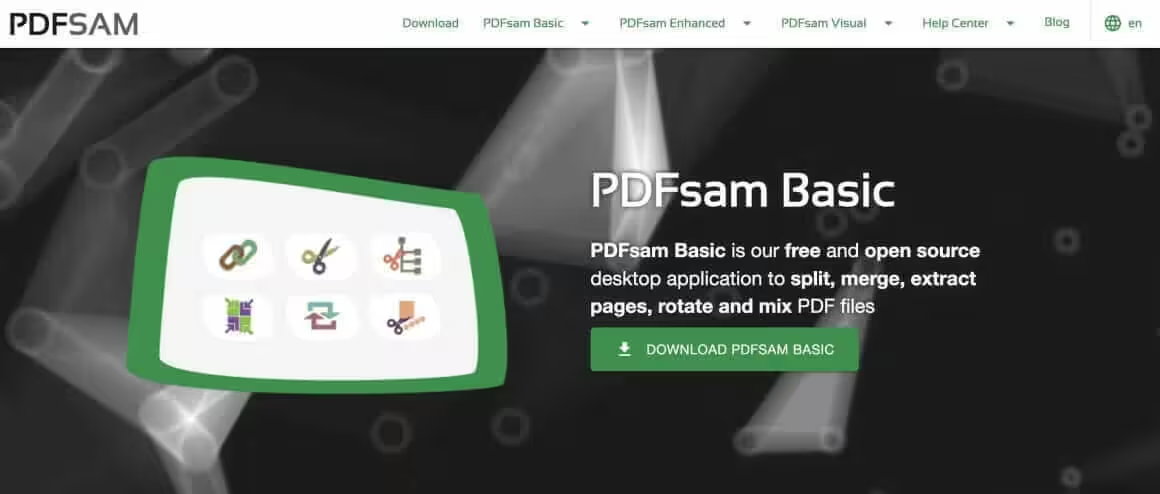
When you are working with scanned paper documents, your requirements tend to be rather limited. For example, you might just need to separate the pages of a PDF document into multiple documents or vice versa. Or maybe you want to just alter the orientation of a document’s pages. In this case, PDFSam Basic is an excellent lightweight desktop app that will serve you very well.
PDF Reader Pro
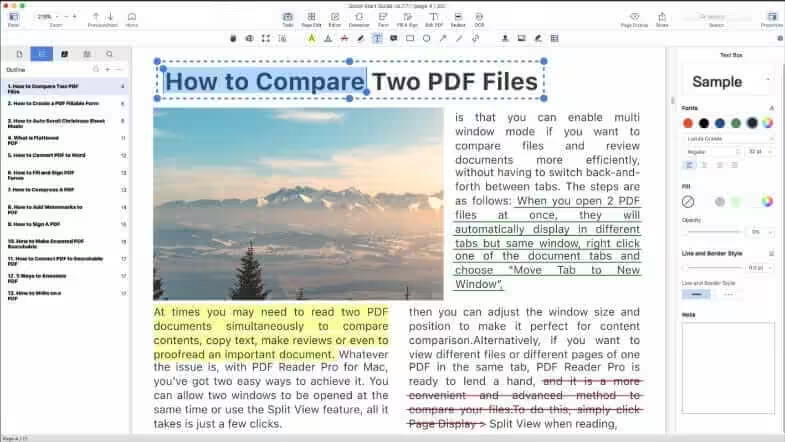
PDF Reader Pro is a lightweight PDF editor and reader perfect for students. Its simple and straightforward interface together make it one of the simplest PDF apps on the list.
PDF Reader Pro offers rich annotations tools to mark up the important content in your textbook. You can write comments, notes and annotate via a stylus or Apple Pencil to get the most of it.
But beyond everything it is a PDF editor as well. With its PDF editing tools, you can manage pages, remove clutter and fix mistakes as if you were typing on a Word document. PDF Reader Pro also has the OCR function that recognizes text in images and convert them into editable texts.
PDF Reader Pro offers all students and teachers a 50% off discount. You can download it to get a 7-free-day trial version.
Other Apps
In addition to these nine PDF apps, there are eight more apps that I can wholeheartedly recommend to students.
- GoodNotes (iPad, iPhone, Mac, Windows and Android)
- Flexcil (iPad, Android and iPhone)
- Notability (iPad, Mac and iPhone)
- Noteful (iPad)
- Noteshelf (iPad, iPhone, Android)
- Drawboard PDF(iPad, Mac, Windows)
- Nebo (iPad, Mac, Windows, Android, iPhone)
- Skim (Mac only)
Best Devices for Reading PDFs
PDF apps need a device that can handle them. Reading academic PDFs on a phone screen is possible but painful. These give you enough screen real estate to read and annotate without squinting. If you prefer browser-based tools, see my best online PDF editors list.
The Fire HD 10 handles PDFs well for under $150. The Kindle Paperwhite is better for text-heavy documents (easier on your eyes), but handles graphs and tables less well. For more device options, see my tablets for students guide and iPad comparison.
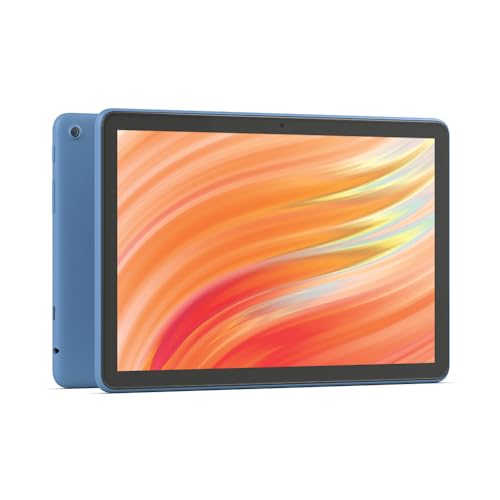
- 10.1-inch Full HD display with 25% faster octa-core processor and 3 GB RAM
- 13-hour battery life with 32/64 GB storage, expandable to 1 TB via micro-SD
- Aluminosilicate glass, 2.7x more durable than Samsung Galaxy Tab A8
- 5 MP front camera for Zoom, Google Meet, and video calls
- Optional stylus with 4,096 pressure levels for handwriting and sketching
- Split-screen multitasking for reading PDFs while taking notes
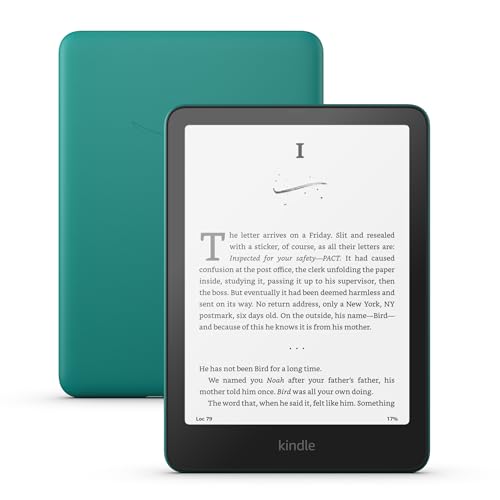
- 7-inch glare-free display with higher contrast and 25% faster page turns
- Ultra-thin, lightweight design perfect for backpacks and travel
- No social media or notification distractions, just your books
- USB-C charging with up to 12 weeks of battery life
- Adjustable white-to-amber display for day and night reading
- IPX8 waterproof for poolside or outdoor reading
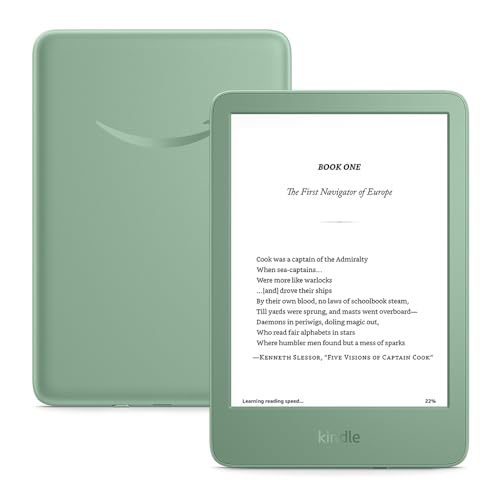
- Lightest Kindle ever at just 158g with faster page turns
- 6-inch glare-free display with 25% brighter front light and dark mode
- Distraction-free reading with no social media or notifications
- Up to 6 weeks of battery life on a single USB-C charge
- 16 GB storage holds thousands of ebooks and documents
- Compact enough to fit in any jacket pocket or small bag
Which PDF App Should You Pick?
If you’re on Apple devices, PDF Expert is the best option. It’s fast, the annotation tools are excellent, and it syncs across iPhone, iPad, and Mac. For cross-platform students who switch between Windows and mobile, UPDF gives you the most features for a one-time payment. The Pro lifetime license lists at $99.99 and currently sells for $79.99, while the yearly plan is $49.99. UPDF discounts almost continuously, so check the figure on the day. If you just need a free reader and don’t care about editing, Adobe Reader or Sumatra PDF will do the job.
Frequently Asked Questions
What is the best PDF app for students?
PDF Expert is the best for Apple users. UPDF is the best cross-platform option with a one-time payment. Adobe Reader is the best free option if you only need to read PDFs without editing.
Is there a free PDF app for students?
Yes. Adobe Acrobat Reader, Sumatra PDF, Xodo PDF, PDF Viewer, and Skim are all free. They cover reading and basic annotation. For advanced editing like OCR or form filling, you’ll need a paid upgrade.
Can I annotate PDFs on an iPad with Apple Pencil?
Yes. PDF Expert, UPDF, GoodNotes, and Notability all support Apple Pencil for handwritten notes, highlighting, and drawing directly on PDFs. PDF Expert and UPDF are the best dedicated PDF apps with Pencil support.
What is the best PDF app for Windows students?
UPDF or Wondershare PDFelement for full editing. Sumatra PDF if you just need a fast, lightweight reader. Adobe Reader works but is slow on older hardware. Avoid the browser-based readers for large textbooks.
Can I convert PDFs to Word or other formats?
PDF Expert, UPDF, Wondershare PDFelement, and Adobe Acrobat Pro all support converting PDFs to Word, Excel, PowerPoint, and other formats. The free versions of most apps don’t include conversion features.
Do students get discounts on PDF software?
Some do. PDF Reader Pro offers 50% off for students and teachers. Adobe has a student plan for Creative Cloud that includes Acrobat. UPDF’s one-time lifetime license is already cheaper over a couple of years than most subscriptions, so no student discount is needed.
Tell Google you want more of this.
Add Gaurav Tiwari as a preferred sourceOne tap, and this site shows up more often in your own Top Stories, AI Overviews and AI Mode. Remove it any time.
Disclaimer: This site is reader-supported. If you buy through some links, I may earn a small commission at no extra cost to you. I only recommend tools I trust and would use myself. Your support helps keep gauravtiwari.org free and focused on real-world advice. Thanks. - Gaurav Tiwari