by
by
The best 4K monitors for programming make code noticeably sharper, but the panel alone doesn’t decide whether you’ll enjoy working on one. Pick the wrong scale and you either squint at tiny text or end up with a desktop no bigger than a cheap 1080p screen. Pick the wrong port and your laptop still needs its own charger, a dock and a tangle of cables beside the monitor.
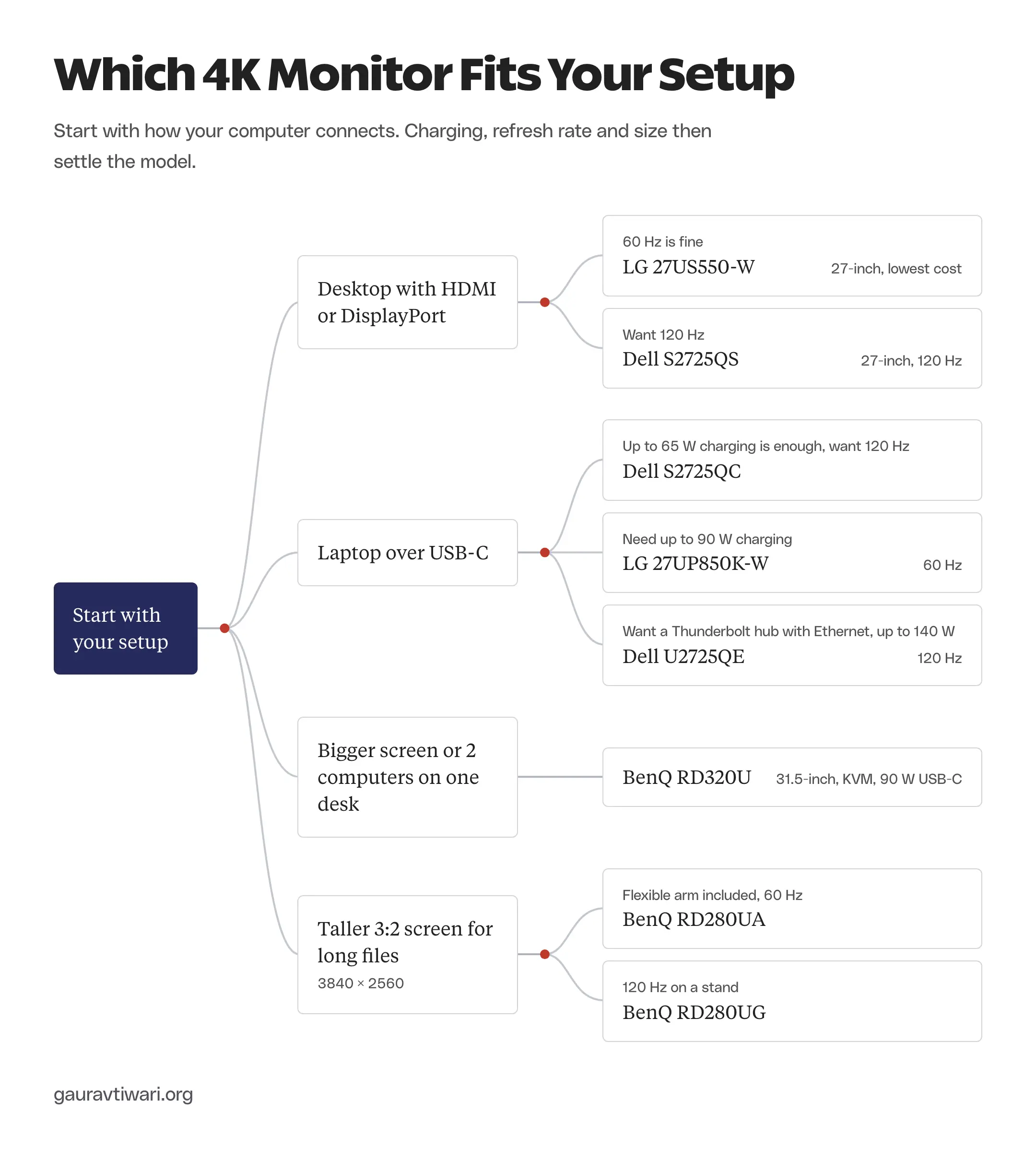
So I’d choose the connection first and the screen second. For a laptop, the Dell S2725QC and LG 27UP850K-W are where I’d start. The Dell gives you 120 Hz and up to 65 W of charging over one USB-C cable, while the LG drops to 60 Hz and raises charging to 90 W. For a desktop, the Dell S2725QS gets you 120 Hz without paying for a hub you won’t use.
The external display on my own desk is the LG 27UP850N-W, the older sibling of the 27UP850K-W in this list. The other picks are compared on their manufacturers’ specifications and current Amazon listings, not on my own measurements. The 8 monitors below cover these jobs:
- Lowest-cost desktop 4K: LG 27US550-W
- 120 Hz on a desktop: Dell S2725QS
- One-cable laptop setup with 120 Hz: Dell S2725QC
- More USB-C charging for bigger laptops: LG 27UP850K-W
- Bigger screen and 2 computers on one desk: BenQ RD320U
- Thunderbolt hub that replaces a dock: Dell U2725QE
- Taller 3:2 screen for long files: BenQ RD280UA and BenQ RD280UG
Quick Comparison
The charging column narrows this down fastest. If your laptop charges over USB-C, a monitor with enough power delivery replaces the charger on your desk. If you’re on a desktop, that column doesn’t matter and you shouldn’t pay for it.
| Monitor | Screen | Refresh | USB-C Charging | Best For |
|---|---|---|---|---|
| LG 27US550-W | 27-inch 4K IPS | 60 Hz | None | Lowest-cost desktop setup |
| Dell S2725QS | 27-inch 4K IPS | 120 Hz | None | Smoother scrolling on a desktop |
| Dell S2725QC | 27-inch 4K IPS | 120 Hz | Up to 65 W | One-cable laptop setup |
| LG 27UP850K-W | 27-inch 4K IPS | 60 Hz | Up to 90 W | Laptops that need more power |
| BenQ RD320U | 31.5-inch 4K IPS | 60 Hz | Up to 90 W | Bigger text and 2 computers |
| Dell U2725QE | 27-inch 4K IPS Black | 120 Hz | Up to 140 W | Thunderbolt hub with Ethernet |
| BenQ RD280UA | 28.2-inch 3840 × 2560, 3:2 | 60 Hz | Up to 90 W | Taller screen on a flexible arm |
| BenQ RD280UG | 28.2-inch 3840 × 2560, 3:2 | 120 Hz | Up to 90 W | Taller screen at 120 Hz |
Prices move every week on both Amazon.in and Amazon.com, so I’ve kept them out of the table. On Amazon.com, the LG 27UP850K-W currently costs slightly less than the LG 27US550-W, even though it adds USB-C charging. The basic model isn’t automatically the budget pick in every country, so compare both for purchases in October 2026.
Best 4K Monitors for Programming
I’ve ordered these from the simplest desktop setup to the most capable hub, with the 2 taller BenQ screens at the end because they aren’t standard 4K. Each one solves a different problem, so the right pick is the one whose extra you’ll actually use.
LG 27US550-W
The LG 27US550-W is the lowest-cost way into a 27-inch 4K screen here. It’s the one I’d buy for a desktop that already has a DisplayPort or HDMI output and no need for 120 Hz.
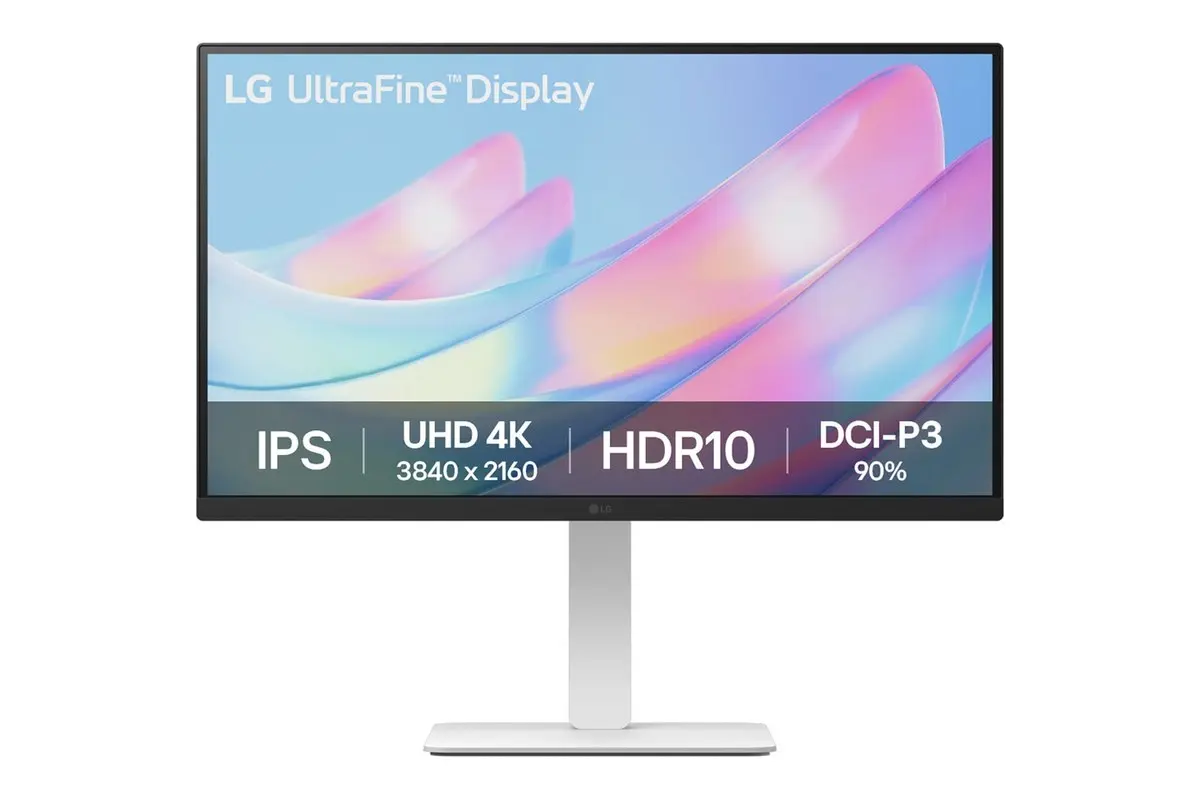
- 27-inch IPS panel at 3840 × 2160 and 60 Hz.
- Stand adjusts for height, tilt, swivel and portrait pivot.
- HDMI and DisplayPort inputs, with no USB-C, so a laptop still needs its own charger.
At 27 inches, 4K works out to about 163 pixels per inch, against about 109 on a 27-inch QHD screen. That density is what keeps small code fonts crisp, and you get it here without paying for anything else. The catch is 60 Hz and no USB-C. If smooth scrolling matters, the Dell S2725QS is the step up, and if your main computer is a laptop, the S2725QC or LG 27UP850K-W will serve you better.
Dell S2725QS
The Dell S2725QS is my pick for a desktop if you want 120 Hz without paying for a USB-C hub you won’t use.
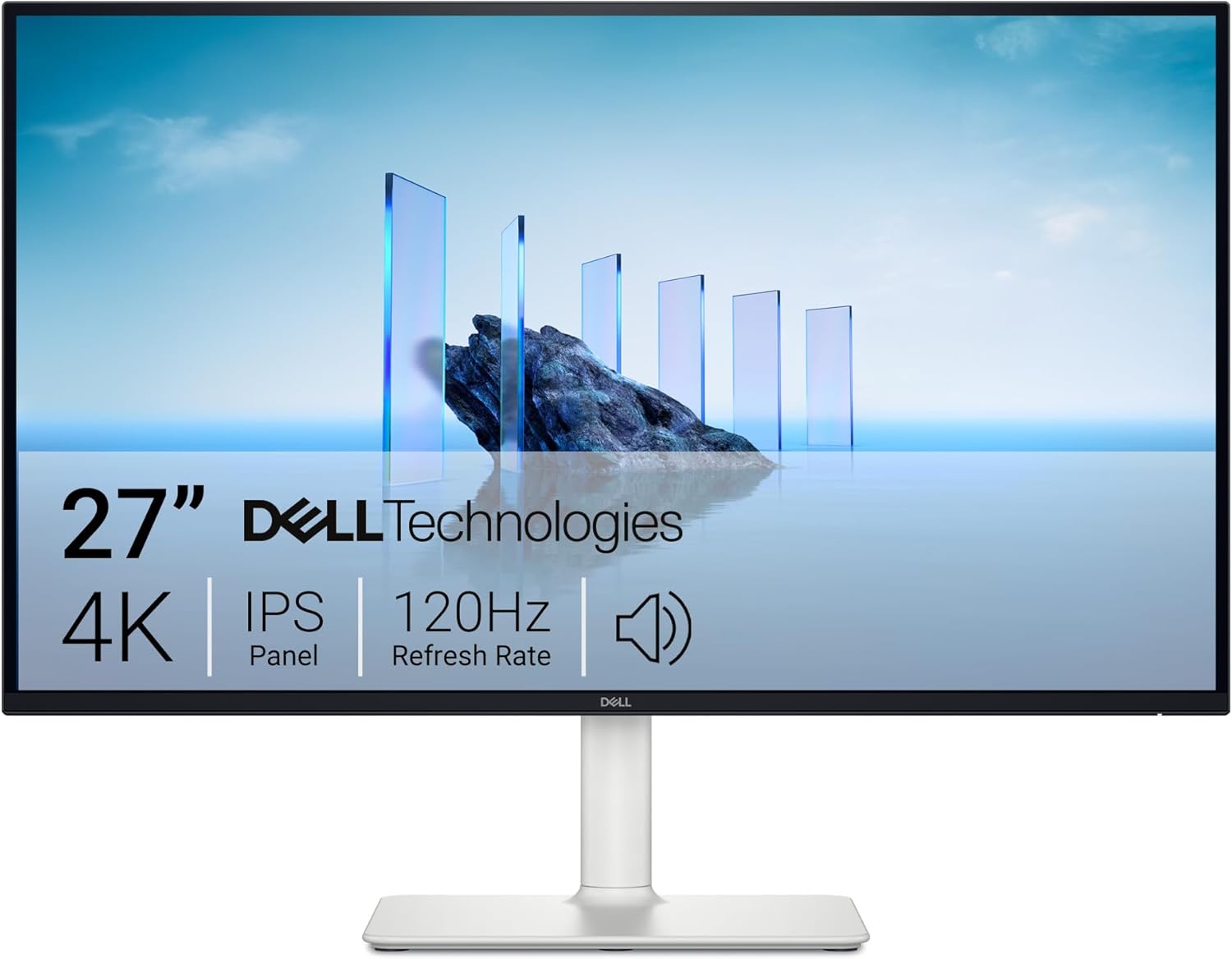
- 27-inch IPS panel at 3840 × 2160 and up to 120 Hz.
- 1,500:1 native contrast and 99% sRGB coverage, per Dell.
- Height, tilt, swivel and pivot adjustment.
- HDMI and DisplayPort inputs, with no laptop charging.
At 120 Hz the screen redraws twice as often as at 60 Hz, so scrolling through a long file or a log stays easier to follow. It won’t make you code faster, and whether that smoothness is worth the step up from the LG is a preference rather than a productivity gain. Your graphics card, cable and input also have to support 4K at 120 Hz together, so check that before counting on it.
If a laptop is your main computer, the S2725QC has the same size, resolution and refresh rate with USB-C added, and that’s a better buy than this plus a separate dock.
Dell S2725QC
The Dell S2725QC is where I’d start for a laptop. It’s the most affordable monitor in this list that gives you 120 Hz and one-cable USB-C charging together.
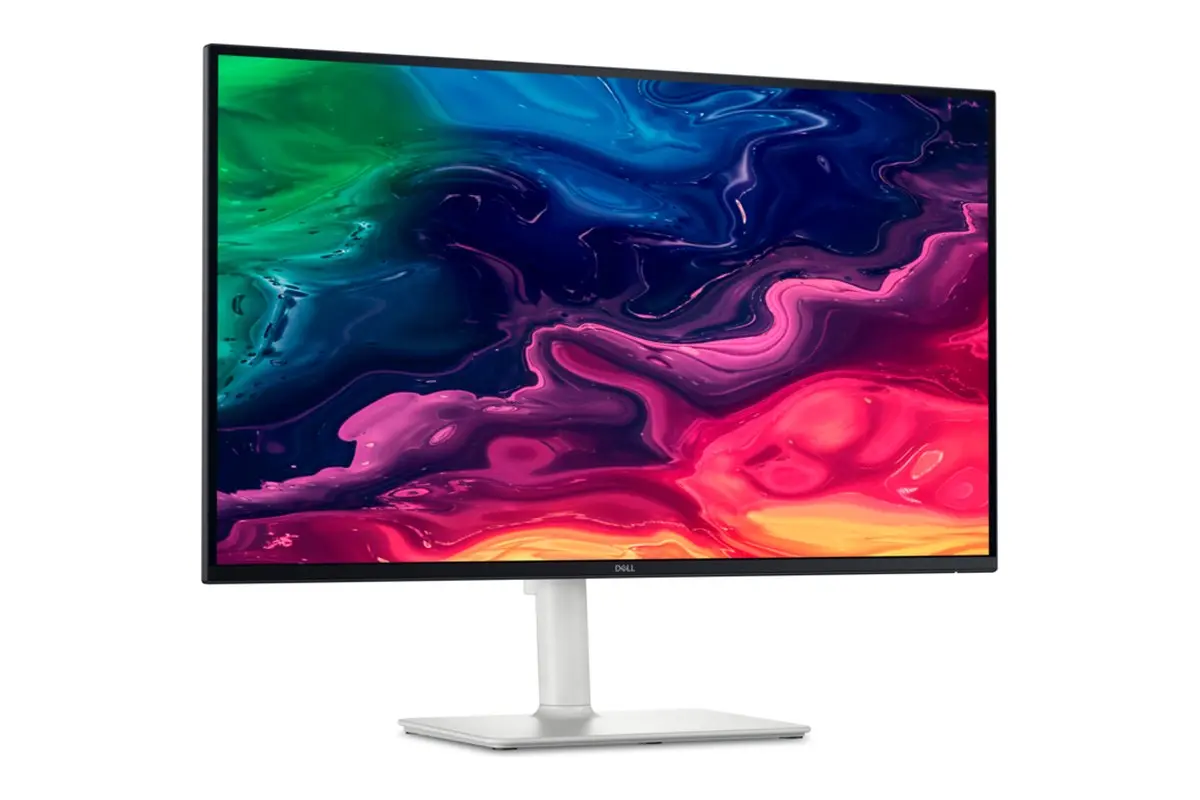
- 27-inch IPS panel at 3840 × 2160 and up to 120 Hz.
- USB-C carries video, USB data and up to 65 W of charging.
- 1,500:1 contrast and 99% sRGB coverage, per Dell.
- Height, tilt, swivel and pivot adjustment.
65 W is the number to check. It’s enough for most thin-and-light laptops during ordinary editing and browsing. A laptop that ships with a 96 W or bigger charger can draw more than 65 W during a long build, and then the battery drains slowly even while it’s plugged in.
The QC also carries its DisplayPort signal over USB-C rather than a full-size DisplayPort socket, so a desktop with only a DisplayPort output is better served by the QS.
LG 27UP850K-W
The LG 27UP850K-W is the one I’d pick over the Dell when your laptop needs more than 65 W and you can live with 60 Hz.
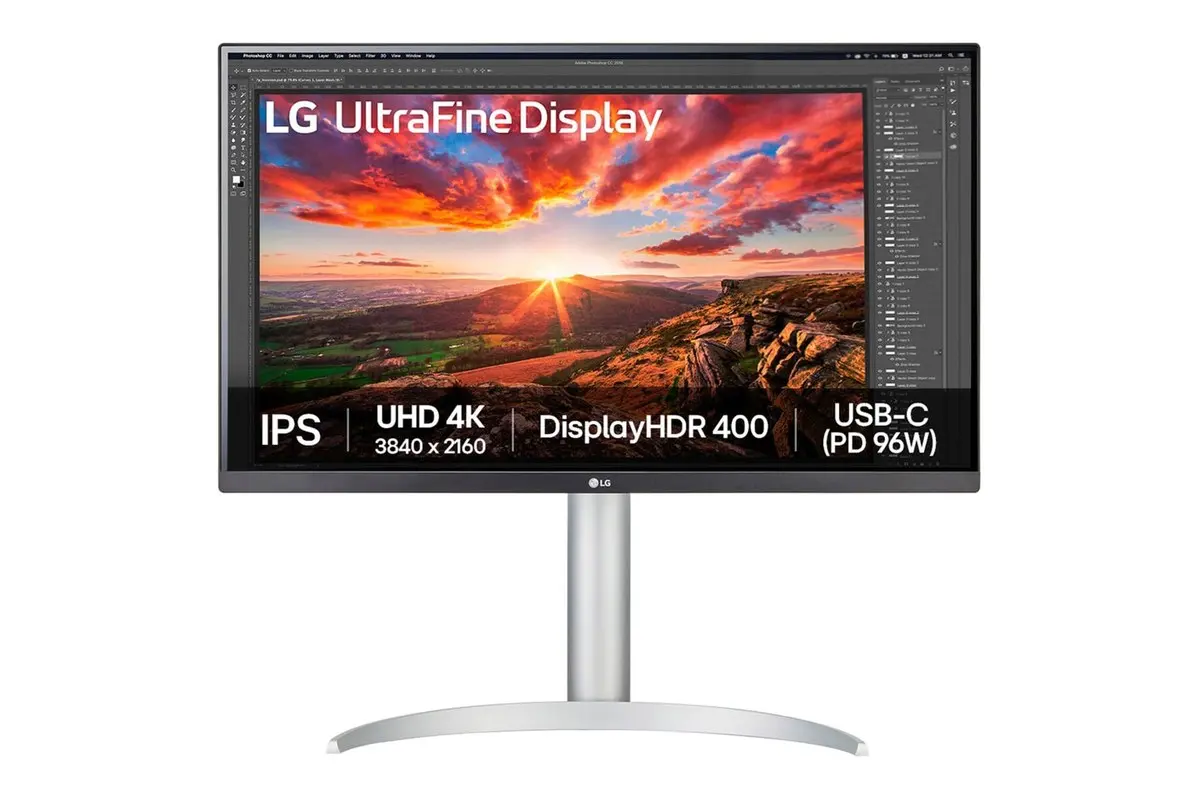
- 27-inch IPS panel at 3840 × 2160 and 60 Hz.
- USB-C with data and up to 90 W of charging.
- DCI-P3 95% (typical) color gamut and DisplayHDR 400.
- Height, tilt and portrait pivot adjustment.
LG’s India product page says “up to 96W” in its feature section and 90 W in its specification table. I’d plan around 90 W, which still covers more laptops than the Dell’s 65 W.
This is the newer K version of the LG 27UP850N-W that sits on my desk. The N model’s charging figure also differs between LG’s regional pages, which is why I’d always match the model number on the listing to LG’s spec sheet. The wider color gamut helps if you also edit photos or do design work, but it does nothing for code readability, so I wouldn’t pay extra for it on its own.
BenQ RD320U
The BenQ RD320U is my pick if 27 inches feels small or you run 2 computers on one desk.
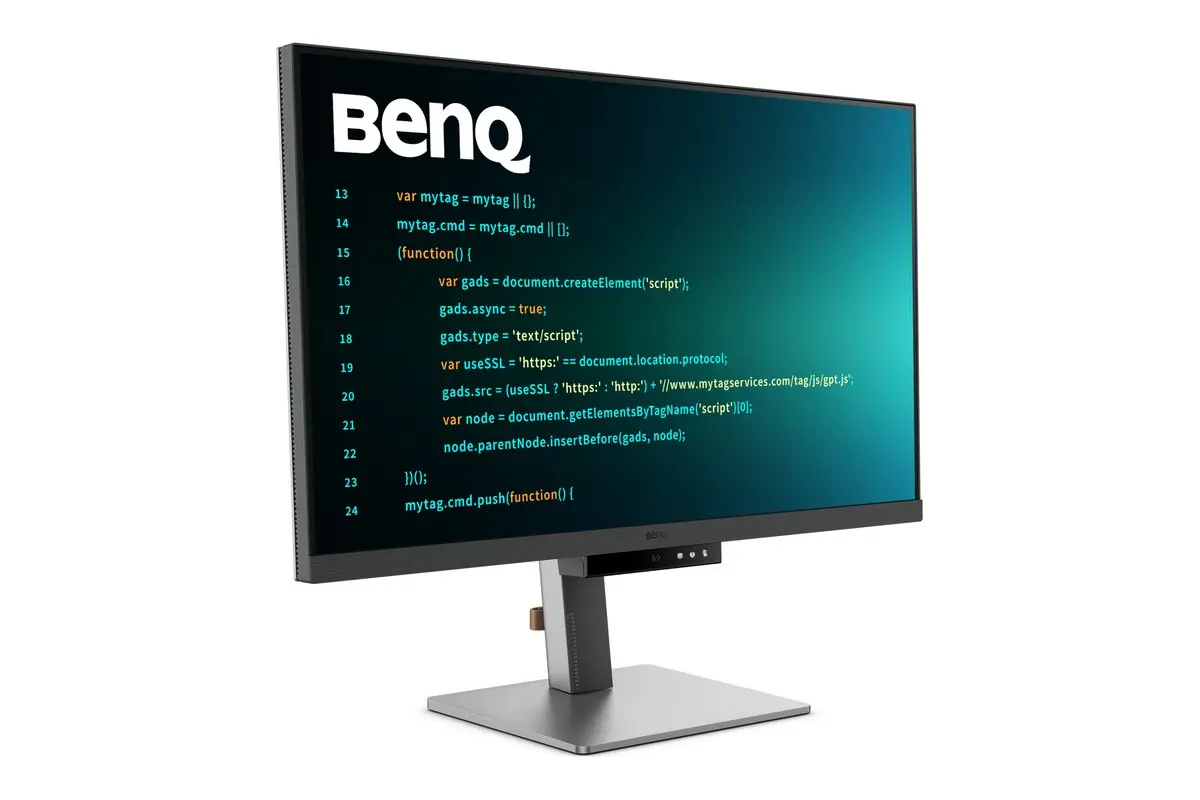
- 31.5-inch IPS panel at 3840 × 2160 and 60 Hz.
- 2,000:1 native contrast and a Nano Matte anti-glare coating.
- USB-C with up to 90 W of charging.
- Built-in KVM switch, plus height, tilt, swivel and pivot adjustment.
A KVM lets 2 connected computers share the keyboard and mouse plugged into the monitor, so a work laptop and a personal desktop can share one desk without a second set of peripherals. That’s the real reason to pay BenQ’s premium, more than the coding modes printed on the box.
The bigger panel doesn’t give you more desktop by itself. At the same scale, a 31.5-inch 4K screen shows exactly what a 27-inch one shows, only larger, at about 140 pixels per inch instead of 163. What it does is let many people drop from 150% to 125% scaling and still read comfortably, and that’s where the extra room comes from.
This is the standard stand version. The RD320UA is a separate model with an arm, so check the model name on the listing.
Dell U2725QE
The Dell U2725QE is the premium pick, and it earns that price only if its hub replaces a Thunderbolt dock you’d otherwise buy.
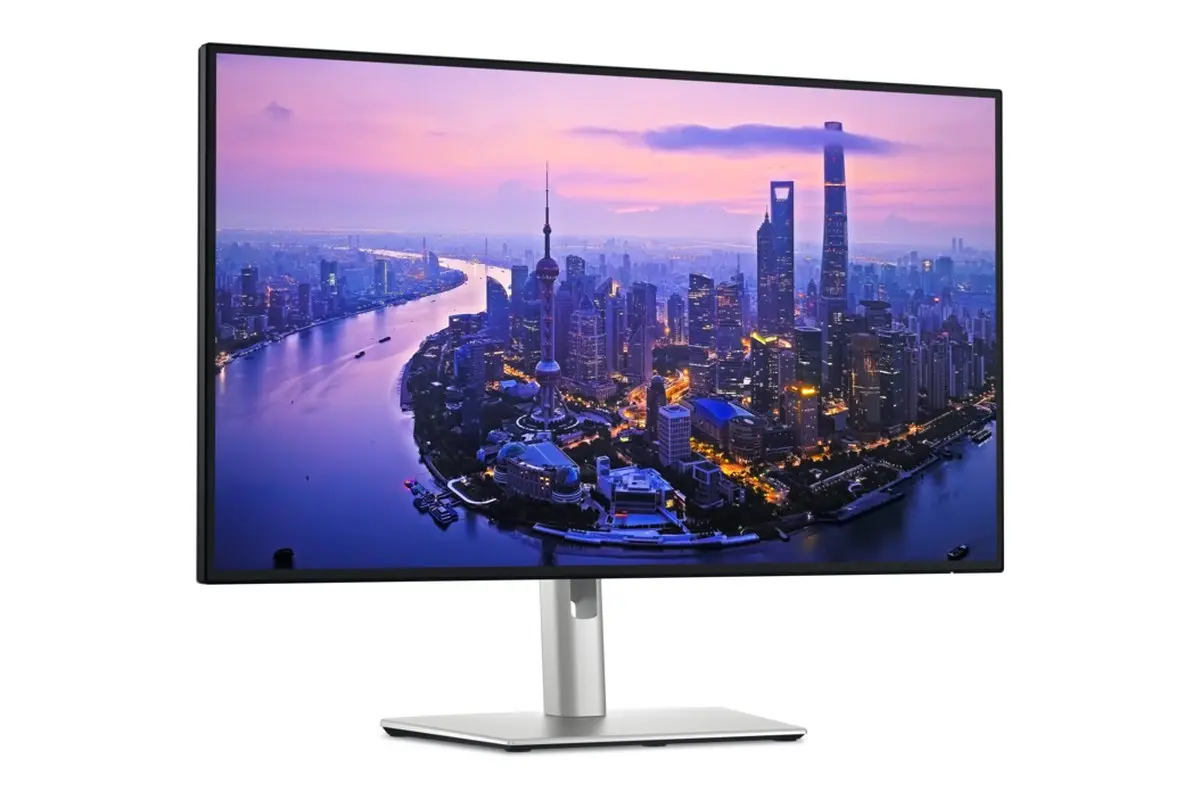
- 27-inch IPS Black panel at 3840 × 2160 and up to 120 Hz.
- 3,000:1 native contrast, per Dell, double the S2725 models’ rating.
- Thunderbolt 4 upstream with up to 140 W of charging.
- Ethernet and extra USB ports for peripherals.
Higher contrast makes dark editor themes look deeper, but the bigger reason to buy it is the desk. One Thunderbolt cable can carry the display, charging, Ethernet and your peripherals, so if you’d otherwise spend on a good dock, the gap with the S2725QC shrinks a lot. On a Mac, the chip still decides how many external displays you can run, so check Apple’s spec for your exact model before planning a second screen.
Taller 3:2 Monitors
These 2 BenQ screens use 3840 × 2560 pixels in a 3:2 shape. They keep 4K’s width and add 400 rows on top, and at 28.2 inches that works out to about 164 pixels per inch, the same sharpness as a 27-inch 4K screen with more height for long files. They’re great for code and documents, less so for 16:9 video, which plays with black bars.
BenQ RD280UA
The BenQ RD280UA is the taller screen I’d pick if you want it on a flexible arm instead of a regular stand.
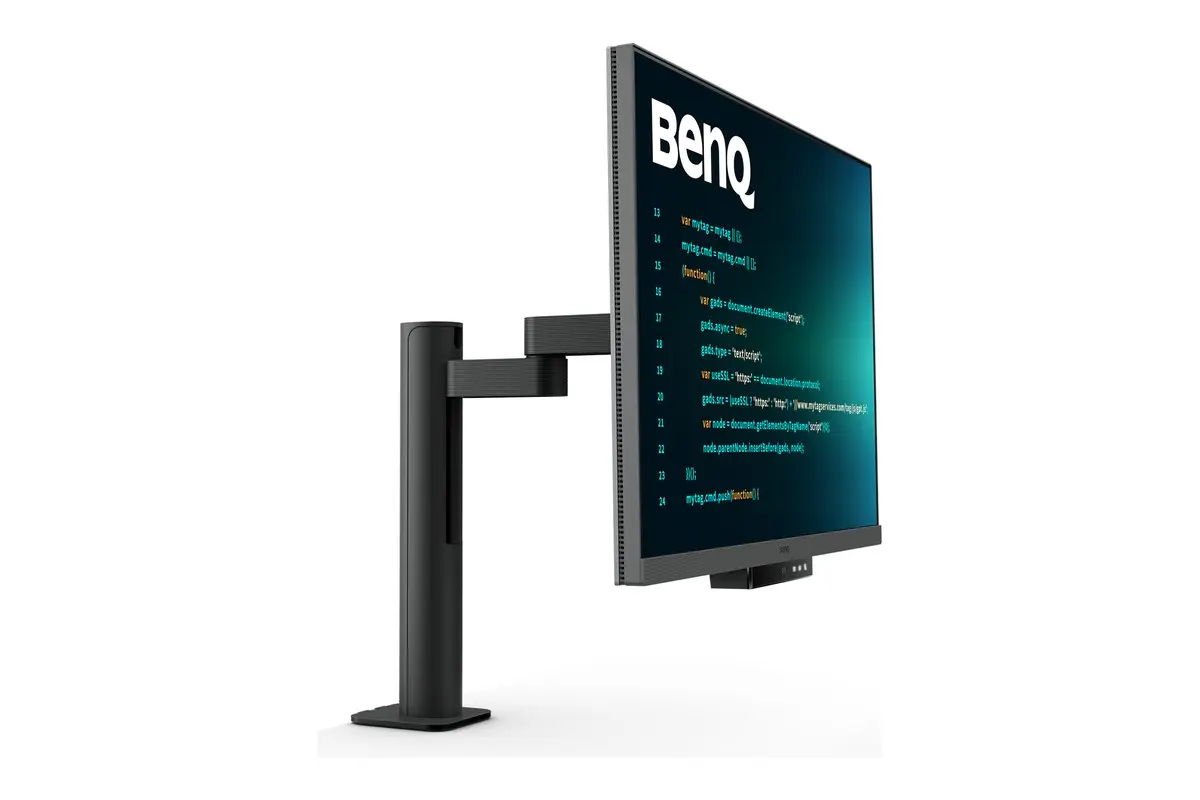
- 28.2-inch IPS panel at 3840 × 2560 in a 3:2 shape.
- 60 Hz over DisplayPort or USB-C.
- 1,200:1 native contrast.
- USB-C with up to 90 W of charging, plus a KVM switch.
The arm only helps if your desk can take a clamp or grommet mount and you want the screen closer or higher than a stand allows. If you don’t need it, the RD280UG adds 120 Hz on a regular stand.
BenQ RD280UG
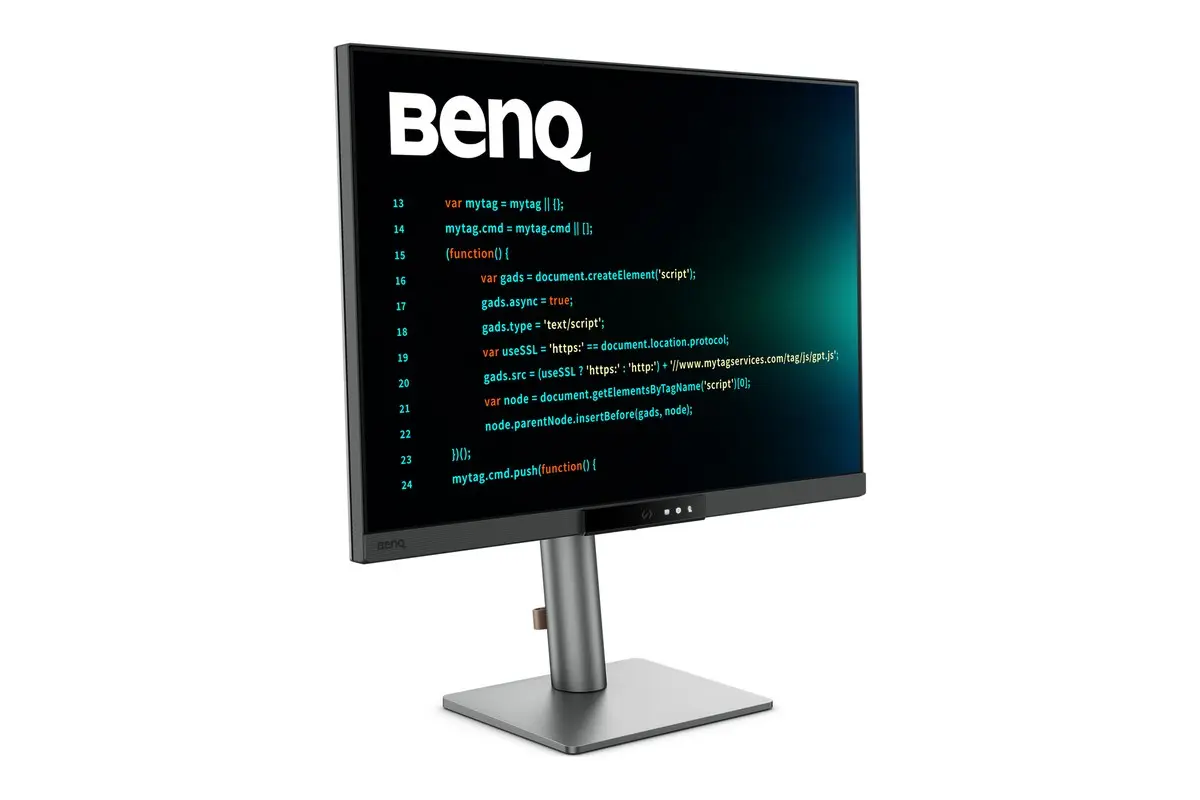
The BenQ RD280UG is the newer of the 2 and the taller screen I’d choose if 120 Hz matters to you.
- 28.2-inch IPS panel at 3840 × 2560 and up to 120 Hz.
- 2,000:1 native contrast and a Nano Matte coating.
- USB-C with up to 90 W of charging, plus KVM.
- Height, tilt, swivel and pivot adjustment.
BenQ sells several RD280 versions that look identical in listings, so check that the title actually says RD280UG. An RD280U or RD280UA won’t have the 120 Hz panel.
If you’re weighing these against an even sharper display for a Mac, my 5K monitor guide covers that class.
Older Models Worth Comparing
These were earlier picks and they still work well. I wouldn’t replace one you already own, but I’d buy one new only when its price is clearly lower than the newer models above.
- LG 27UP850N-W is the one on my desk: USB-C 4K at 60 Hz. LG India lists 90 W of charging and LG UAE lists 96 W, so match the exact unit to its manual.
- Dell U2723QE has an IPS Black panel, 2,000:1 contrast and a USB-C hub at 60 Hz. The U2725QE adds 120 Hz, higher contrast and Thunderbolt.
- LG 27UN850-W offers up to 60 W of USB-C charging and 99% sRGB. It needs a real discount to beat the newer USB-C models.
- Samsung S80UA is a USB-C 4K option with 1,000:1 contrast, the lowest in this list, so it isn’t the one I’d choose for dark themes.
Choosing a 4K Monitor
Readable text and a connection that works matter more than any extra feature. These are the checks I’d make before buying, in this order.
Screen Size and Scaling
A 4K panel has 3840 × 2160 physical pixels. Your operating system scales text and controls up so they’re readable, and the more it scales, the less fits on screen.
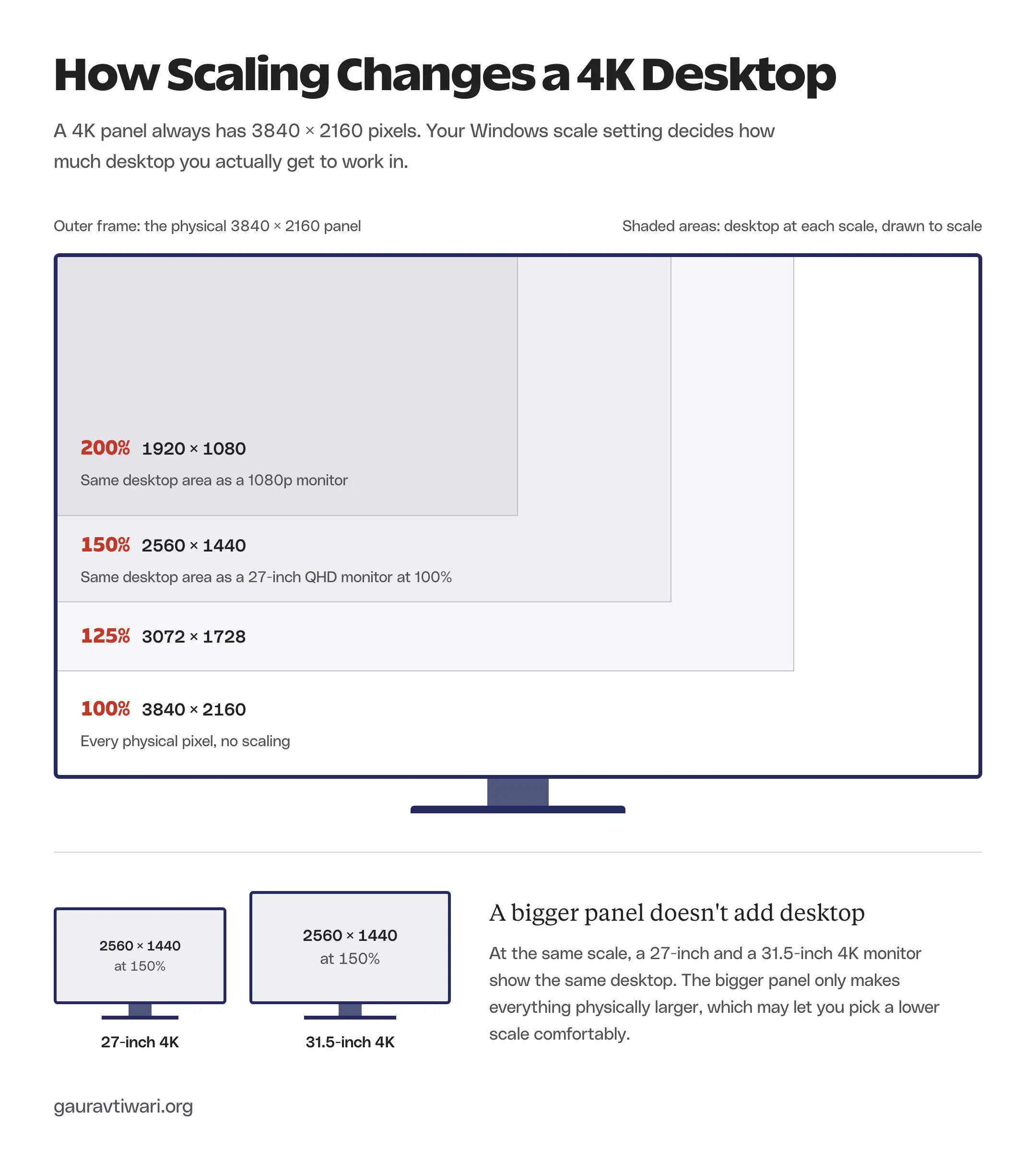
| Windows Scale | Logical Workspace |
|---|---|
| 100% | 3840 × 2160 |
| 125% | 3072 × 1728 |
| 150% | 2560 × 1440 |
| 200% | 1920 × 1080 |
On a 27-inch 4K screen, 150% is the usual starting point on Windows. It gives you the same workspace as a 27-inch QHD monitor, with every character drawn using 2.25 times as many pixels.
macOS handles it differently. In Displays settings you pick a “looks like” size instead of a percentage. “Looks like 1920 × 1080” is drawn at exactly 2x and looks the sharpest, while “looks like 2560 × 1440” is drawn at 5120 × 2880 and scaled down to the panel. That second setting is very usable but a touch softer, and it’s the reason some Mac users pay for a 5K screen.
On Linux, the result depends on the desktop environment and the app. Fractional scaling and older apps running through XWayland can still look blurry, so it is wise to check your IDE specifically.
4K or QHD for Coding
For coding, 4K’s advantage over QHD is sharper text. A 27-inch QHD monitor at 100% and a 27-inch 4K monitor at 150% show the same amount of code, but the 4K screen draws each character with more pixels, so small fonts stay crisp.
If QHD text already looks fine to you and you’d rather save money, QHD is still a sensible choice, and my monitor guide for programmers covers those and ultrawide screens. If you read code for hours every day, I think 4K is worth paying for.
Connections and Power
One USB-C cable can carry video, USB data and charging, but only when every part of the chain supports it. That one-cable desk is the main reason to pay for a USB-C monitor.
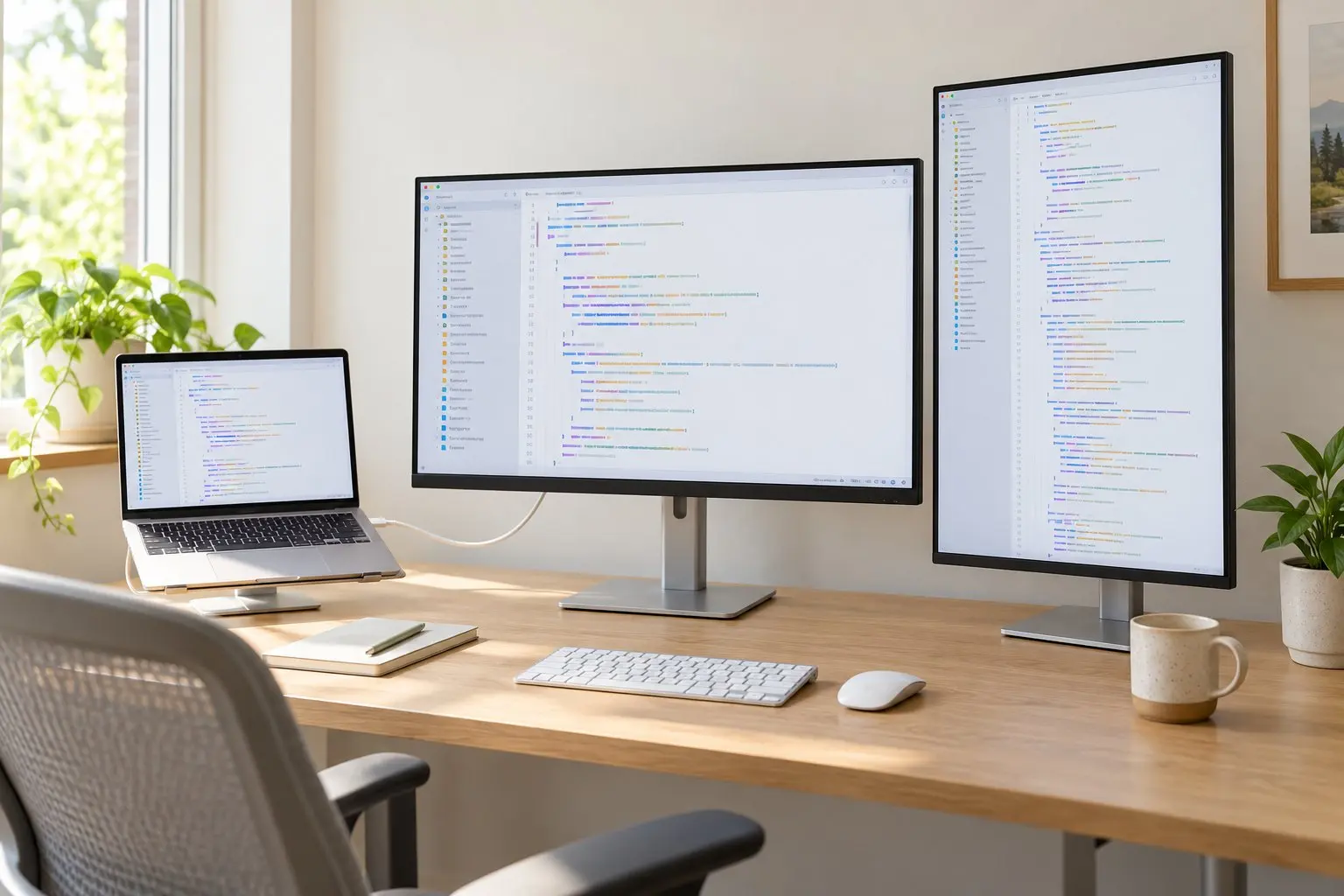
Before assuming a monitor replaces your dock, check that:
- your laptop’s USB-C or Thunderbolt port supports video output
- the cable is rated for video, not just charging
- the monitor’s charging limit covers your laptop’s workload
- the input supports 4K at the refresh rate you want
- you have the USB and Ethernet ports you need
- your computer supports the number of external displays you plan to use
Daisy-chaining 2 monitors needs extra care on a Mac. Dell’s daisy-chain guide explains that DisplayPort MST, which Windows uses to extend a desktop across chained screens, only mirrors displays on macOS. A Mac needs each screen connected directly or through Thunderbolt, within its chip’s display limit.
Text, Refresh and Desk Fit
IPS is a sensible default for coding because text and colors hold up when you look at the screen from an angle. Beyond that, a few details decide whether a monitor suits your desk:
- 120 Hz makes scrolling smoother, and whether that’s worth the extra money is a personal call.
- Color coverage helps photo and design work, while a wider P3 gamut doesn’t make code easier to read.
- OLED needs a model-specific check of text fringing on its subpixel layout and of the burn-in warranty, because static code windows and taskbars sit on screen for hours.
- Most picks here already adjust for height and pivot, so an arm should solve a real desk or position problem. Check its VESA and weight limits first.
- Eye-care modes don’t guarantee comfort. Readable text size, sensible brightness, low glare and regular breaks matter more.
For position, OSHA’s monitor guidance puts the top line of the screen at or slightly below eye level, and the American Academy of Ophthalmology recommends regular breaks from close screen work.
FAQs on 4K Monitors for Programming
What Is the Best 4K Monitor for Programming?
For most laptop users, the Dell S2725QC, because it combines a 27-inch 4K panel, 120 Hz and up to 65 W of USB-C charging on one cable. If your laptop needs more power, the LG 27UP850K-W offers up to 90 W at 60 Hz. For a desktop, the Dell S2725QS gives you 120 Hz without paying for USB-C.
Is 27 Inches or 32 Inches Better for a 4K Coding Monitor?
A 27-inch 4K screen has about 163 pixels per inch and usually needs 150% scaling. A 31.5- or 32-inch 4K screen has about 140 pixels per inch, so text is slightly less crisp but physically larger, and many people can use 125% scaling for more workspace. Your viewing distance and desk depth should decide it.
Is a 4K Monitor Necessary for Testing Retina Websites?
No. A 4K monitor doesn’t reproduce a phone’s or laptop’s CSS viewport, device pixel ratio or browser behavior. Browser developer tools can emulate viewport size and pixel ratio, and real-device checks are still needed. A sharper screen helps you see your work, but it doesn’t replace responsive testing.
Can a 65 W Monitor Charge a MacBook Pro?
It depends on the exact MacBook and the workload. A 65 W monitor can keep the battery charged during light work and fall behind during a long build or export, especially on a model that ships with a larger charger. Check the laptop’s charger rating and test your actual setup, because the monitor’s rating alone doesn’t settle it.
Why Can Text Look Blurry on a 4K Monitor?
The usual causes are a non-native output resolution, fractional OS scaling, an app that doesn’t support high-DPI scaling or a connection sending reduced color data. Some OLED subpixel layouts also cause color fringing on text. Check native resolution and scaling first, because a higher-resolution panel doesn’t fix every cause of blur.
Before You Buy
Before ordering, match the exact model number on the listing to the manufacturer’s spec page. Dell’s QS and QC, LG’s UP850N and UP850K and BenQ’s RD280U, UA and UG look alike in listings but differ in ports, charging and refresh rate. Then check the seller, warranty and delivery date, because 2 listings with the same monitor name aren’t always the same deal.