
 by
byThe best HDMI splitters for dual monitors solve a problem that trips up almost everyone who buys one: the difference between mirroring and extending. A true HDMI splitter takes one source and shows the same picture on two screens, perfect for a presentation or a digital-signage wall. If you want two monitors showing different things, you actually need a dock or an HDMI switch, not a splitter. Get that distinction right and you’ll buy the correct device the first time.
I’ve wired up a lot of multi-screen setups, and the gear splits into three jobs: splitters (one in, two or more out, mirrored), switches (several sources into one screen), and USB-C docks (one laptop driving multiple independent displays). The right pick depends entirely on which of those you’re doing, plus the resolution and refresh rate you need.
So below I’ve sorted the best HDMI splitters, switches, and docks worth buying, each labeled with the job it does. If you’re also choosing the screens themselves, pair this with my best 4K monitors guide and the broader monitors for programmers roundup.
1. avedio links 1×2 HDMI Splitter: best for mirroring
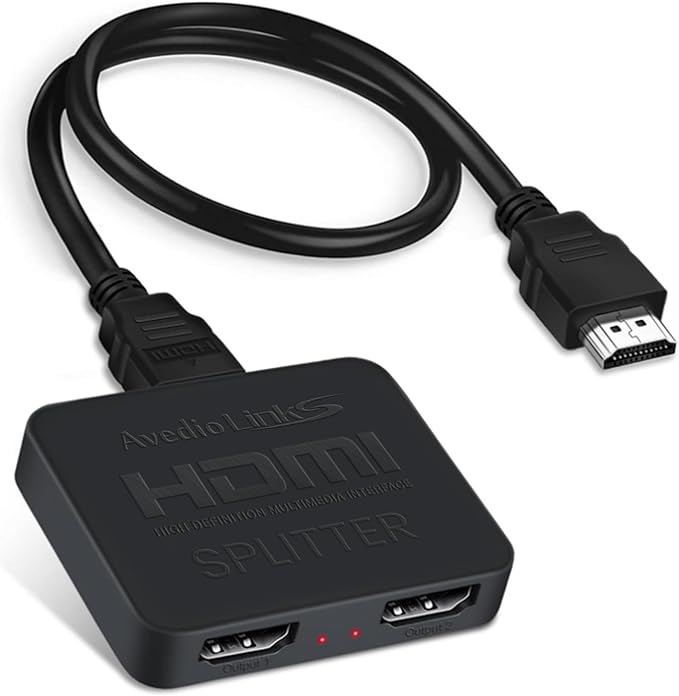
avedio links 1×2 HDMI Splitter (4K@60Hz)
- 1 in, 2 out (mirrors)
- 4K at 60Hz
- HDMI cable included
- Plug-and-play
If you genuinely want the same image on two screens, the avedio links 1-in, 2-out splitter is the straightforward pick. It pushes 4K at 60Hz to both outputs, comes with an HDMI cable, and just works for mirroring a laptop to a second display or a TV. Remember: both screens show identical content, so this is for presentations, signage, or a duplicate display, not an extended desktop.
🔌 Buy if you need one source mirrored to two screens at 4K. Skip if you want the monitors to show different things, get the dock below.
2. OREI 1×4 HDMI Splitter: best for many screens
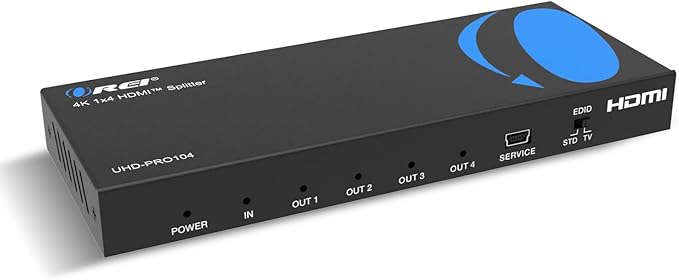
OREI 1×4 HDMI Splitter (4K@60Hz)
- 1 in, 4 out (mirrors)
- 4K at 60Hz to all outputs
- EDID management
- Built for signage and classrooms
Need to mirror one source across three or four displays? The OREI 1×4 splitter is a reliable, well-built unit that sends 4K at 60Hz to four outputs at once with EDID management to keep handshakes stable. It’s a favorite for retail displays, classrooms, and trade-show walls. OREI’s AV gear is a step above the no-name boxes, and the EDID switch saves you from the blank-screen headaches cheap splitters cause.
🔌 Buy if you’re mirroring to three or four screens reliably. Skip if you only have two screens, a 1×2 splitter is cheaper.
3. KELIIYO 1×2 HDMI Splitter: best budget
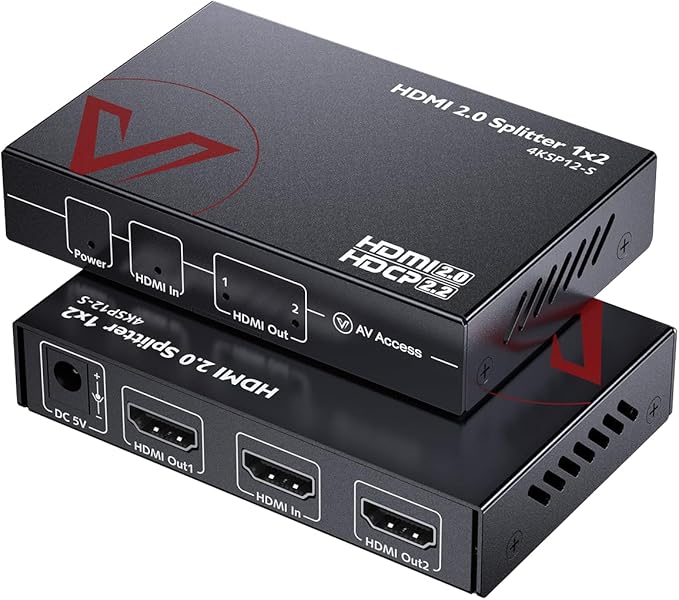
KELIIYO 1×2 HDMI Splitter (4K)
- 1 in, 2 out (mirrors)
- 4K@60Hz / 1080p@120Hz
- Budget price
- Simple plug-and-play
For basic mirroring on a budget, the KELIIYO 1-in, 2-out splitter handles 4K at 60Hz (and 1080p at 120Hz) without fuss. It’s the inexpensive, plug-and-play option for duplicating a screen at home or in a small office. Build quality is simpler than the OREI, but for occasional mirroring at a low price, it does exactly what it promises.
🔌 Buy if you want cheap, simple 4K mirroring to two screens. Skip if you need rock-solid reliability for permanent installs.
4. Targus USB-C Quad 4K Dock: best for extending to dual monitors
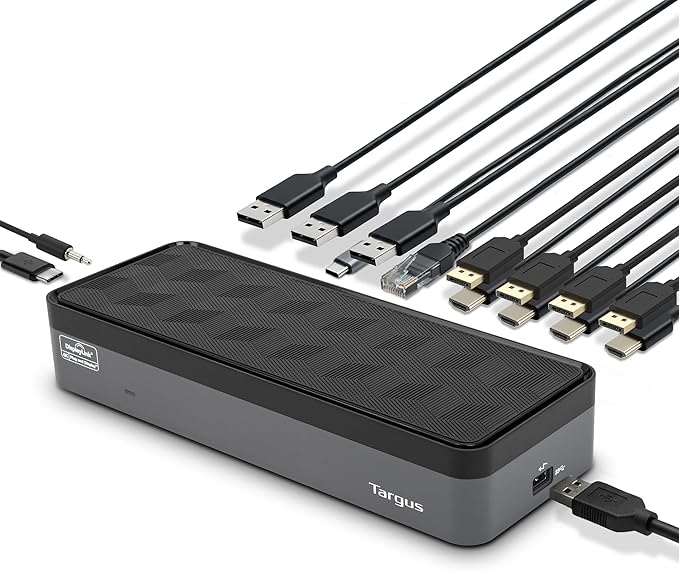
Targus USB-C Quad 4K Docking Station
- Multiple independent 4K displays
- One USB-C cable to laptop
- USB, ethernet, power passthrough
- Extends, not mirrors
This is what most people searching for a “dual monitor splitter” actually need. The Targus USB-C dock connects to your laptop with one cable and drives multiple independent 4K displays, so each monitor shows different content, true extended desktop, not mirroring. It also adds USB ports, ethernet, and power passthrough, turning a laptop into a full workstation. If you want two (or more) separate screens from a laptop, buy this, not a splitter.
🔌 Buy if you want a laptop to drive multiple independent monitors plus peripherals. Skip if you only need to mirror one image, a splitter is far cheaper.
5. UGREEN 8K Bidirectional Switch: best 2-in-1 switch
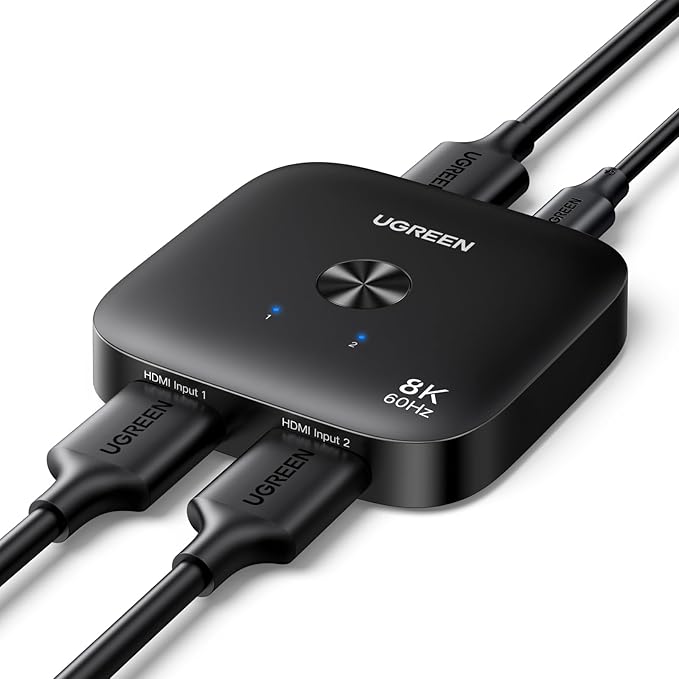
UGREEN 8K Bidirectional HDMI Switch
- Bidirectional 2-in-1 / 1-in-2
- Up to 8K support
- No power required
- Tidy one-button design
The UGREEN bidirectional switch is the versatile little box: use it as a 2-in, 1-out switch (two sources, one screen) or flip it to 1-in, 2-out to send one source to either of two screens. It supports up to 8K and needs no power, drawing from the HDMI signal. For swapping between a console and a PC on one monitor, it’s the tidy, reliable answer at a fair price.
🔌 Buy if you switch two sources into one screen and want 8K headroom. Skip if you need three or more inputs, size up to a 3-port switch.
6. NEWCARE 3-in-1 HDMI Switch: best for multiple sources
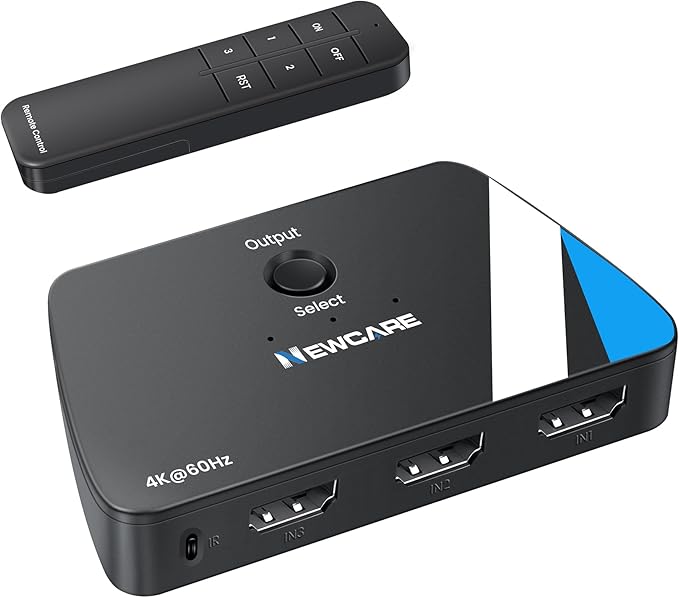
NEWCARE 3-in-1 HDMI Switch (4K@60Hz)
- 3 in, 1 out
- 4K at 60Hz
- Button + remote control
- Powered for stable signal
If your TV or monitor never has enough inputs, the NEWCARE 3-in, 1-out switch fixes it: plug in a console, a streaming stick, and a PC, then switch between them with a button or the included remote. It handles 4K at 60Hz and is powered for stable performance. A simple, cheap upgrade that ends the endless cable-swapping behind your TV.
🔌 Buy if you have more HDMI sources than ports on your screen. Skip if you only have two sources, the bidirectional switch is smaller.
7. Koopman 8K HDMI Switch: best for 8K and high refresh
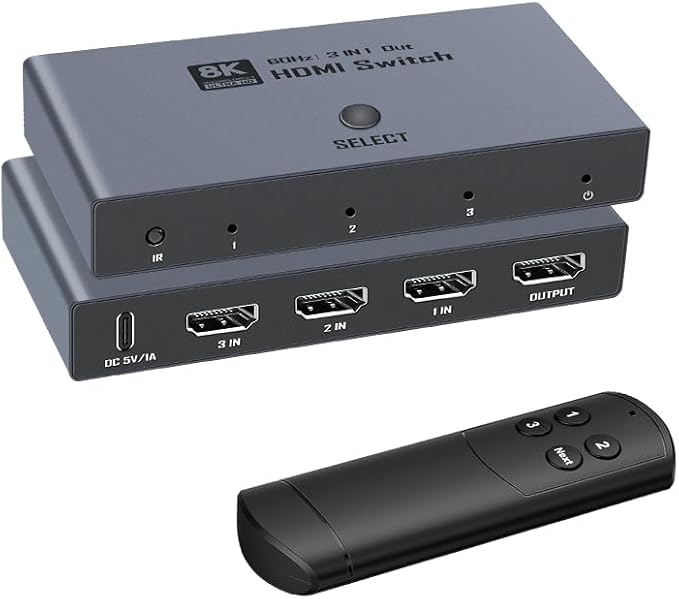
Koopman 8K HDMI Switch (4K@240Hz)
- 8K at 60Hz, 4K at 240Hz
- 3 in, 1 out
- Aluminum build
- For high-refresh gaming
For next-gen gear, the Koopman switch supports 8K at 60Hz and 4K at 240Hz, the bandwidth you need for a high-refresh gaming monitor or the latest consoles. It’s a 3-in, 1-out aluminum switch that won’t bottleneck a fast display. If you’ve invested in a 4K/240Hz monitor or an 8K TV, pair it with a switch that can actually carry the signal.
🔌 Buy if you run 8K or high-refresh 4K and need the bandwidth. Skip if your gear tops out at 4K/60Hz, you don’t need to pay for 8K.
8. AAXY 10K/8K Bidirectional Switch: best high-bandwidth pick
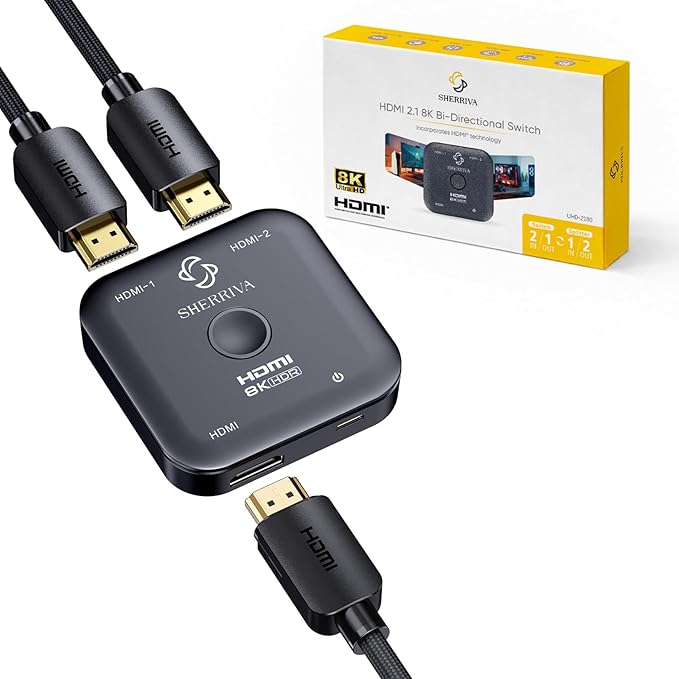
AAXY 10K/8K Bidirectional HDMI Switch
- HDMI 2.1, 48Gbps
- Rated for 10K/8K
- Bidirectional flexibility
- Compact aluminum body
The AAXY pairs huge bandwidth (rated for 10K/8K with 48Gbps HDMI 2.1) with bidirectional flexibility in a compact aluminum shell. It’s the future-proof choice if you mix high-end sources and screens and want one small switch that won’t be the weak link. Bidirectional means it doubles as either a 2-to-1 switch or a 1-to-2 selector as your setup changes.
🔌 Buy if you want maximum HDMI 2.1 bandwidth and bidirectional flexibility. Skip if your devices are older HDMI 2.0, the extra headroom is wasted.
9. StarTech 4-Port HDMI KVM Switch: best for one keyboard and mouse
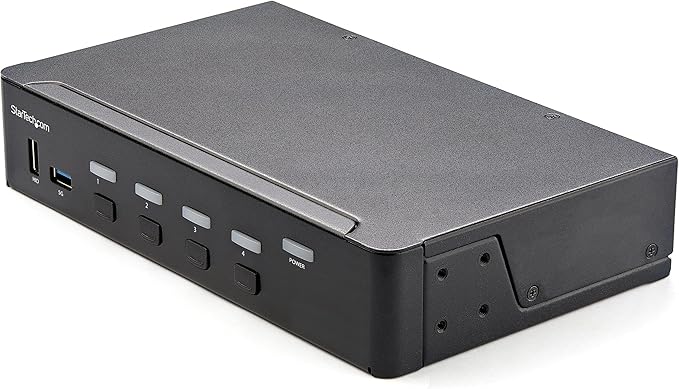
StarTech 4-Port HDMI KVM Switch
- Controls 4 computers
- Switches video + USB peripherals
- One keyboard, mouse, monitor
- Built for IT and dual-PC desks
A KVM switch is the pro move when you run several computers but want one monitor, keyboard, and mouse. The StarTech 4-port HDMI KVM switches the display and your USB peripherals together with a button press, so you control four machines from one set of gear. It’s built for IT desks, dual-PC streamers, and anyone juggling a work and personal computer at one station.
🔌 Buy if you control multiple computers from one keyboard, mouse, and screen. Skip if you only switch video, a plain HDMI switch costs less.
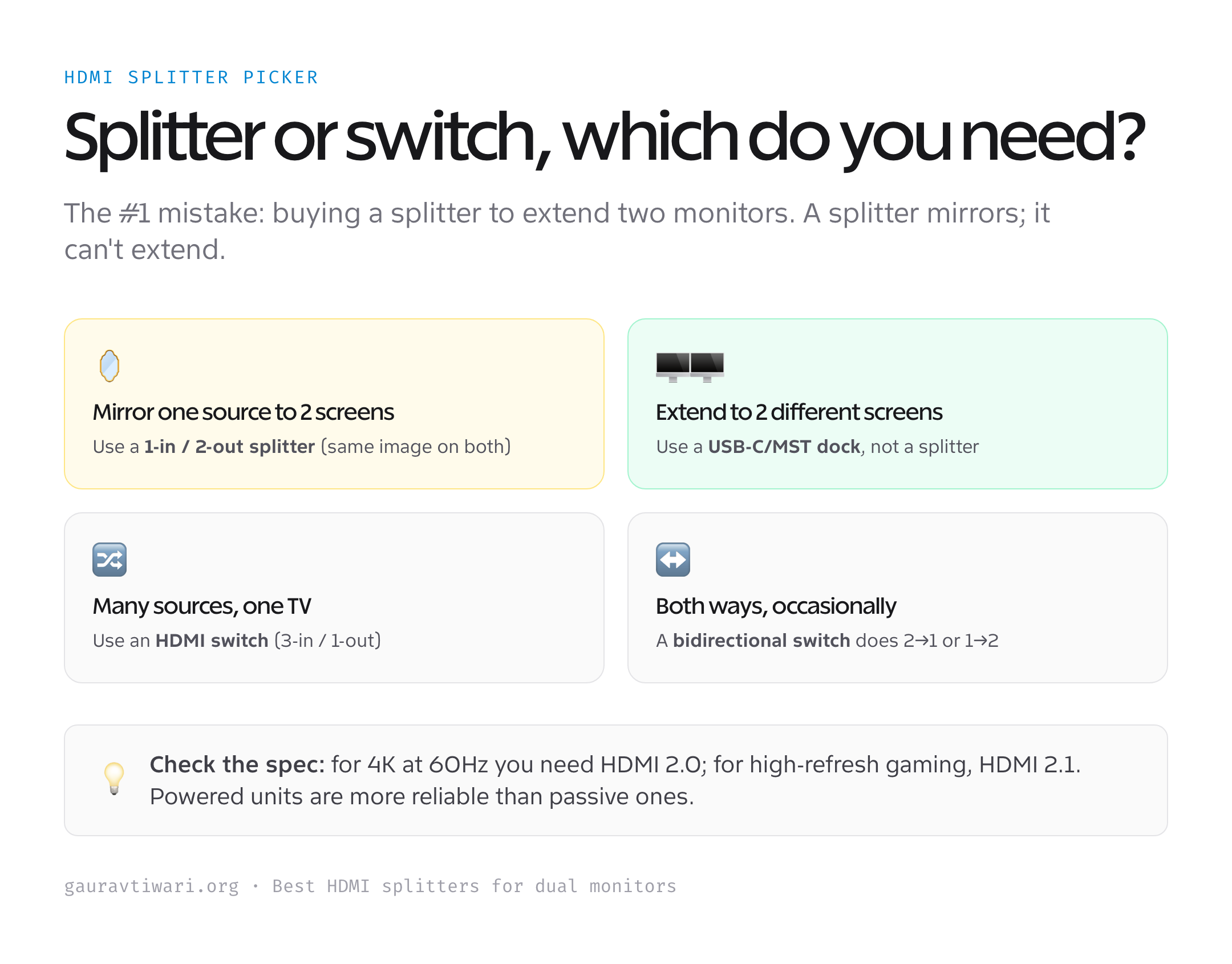
Splitter, switch, or dock: how to choose
Pick the wrong category and nothing works the way you expected. Here’s the simple decision.
- Splitter (1 in → 2+ out). Shows the same image on every screen. Use it to mirror a source for presentations or signage. It cannot extend your desktop.
- USB-C dock (1 laptop → many displays). Drives independent, extended displays from a laptop, each screen different. This is what “dual monitors from a laptop” usually means.
- HDMI switch (many in → 1 out). Feeds several sources into one screen, switchable. Use it when your TV or monitor runs out of inputs.
- Match the resolution. 4K/60Hz needs HDMI 2.0; 4K/120Hz+ or 8K needs HDMI 2.1 (48Gbps). Buy for the highest spec your gear supports.
- Prefer powered units. For permanent installs and multiple outputs, a powered splitter or switch is far more reliable than a passive one.
Decide the job first, then the resolution, and the right device is obvious. If you’re building the whole workspace, my home office setup guide covers the rest of the desk.
Which one should you buy?
If you want two monitors showing different things from a laptop, buy the Targus USB-C dock, not a splitter. To mirror one source to two screens, the avedio links 1×2 splitter is the pick, or the OREI 1×4 for more screens. To feed several sources into one display, the NEWCARE 3-in-1 switch (or the Koopman for 8K) does it, and the StarTech KVM adds keyboard-and-mouse switching for multi-PC setups. Match the device to the job and the resolution, and you’ll get it right the first time.
Frequently asked questions
Can an HDMI splitter extend my desktop to two monitors?
No. An HDMI splitter only mirrors, it shows the exact same image on every connected screen. To extend your desktop so each monitor displays different content, you need a USB-C dock, an MST hub, or a graphics card with multiple outputs. This is the single most common mistake people make when buying a splitter for dual monitors.
What is the difference between an HDMI splitter and an HDMI switch?
A splitter takes one input and sends it to multiple outputs (one source, many screens, mirrored). A switch takes multiple inputs and sends one to a single output (many sources, one screen, selectable). Use a splitter to show one thing on several displays; use a switch when your TV or monitor doesn’t have enough HDMI ports for all your devices.
Do I need a powered HDMI splitter?
For two outputs over short cables, a passive splitter often works. For three or more outputs, long cable runs, or 4K signals, a powered splitter with its own adapter is far more reliable and prevents flickering or blank screens. Permanent installations like digital signage should always use a powered, EDID-managed unit.
Will an HDMI splitter reduce my resolution or refresh rate?
A good splitter rated for your resolution will not. Just match the spec: for 4K at 60Hz you need an HDMI 2.0 splitter, and for 4K at 120Hz or 8K you need HDMI 2.1 (48Gbps). A cheap, under-rated splitter can drop you to 4K at 30Hz or lower, so always check the supported resolution and refresh rate before buying.
How do I connect two different monitors to a laptop?
Use a USB-C docking station or an MST hub, not a splitter. A dock like the Targus connects to your laptop’s USB-C or Thunderbolt port and provides multiple video outputs that act as independent, extended displays. Confirm your laptop’s USB-C port supports DisplayPort Alt Mode and check how many external displays it can drive before buying.
What is an HDMI KVM switch?
A KVM (keyboard, video, mouse) switch lets you control multiple computers with a single monitor, keyboard, and mouse, switching all three together at the press of a button. It’s ideal if you have a work laptop and a personal PC at one desk, or run several machines as an IT professional or streamer. A regular HDMI switch only changes the video source.
The bottom line
The right device comes down to one question: mirror, extend, or switch? Mirror one source to several screens with a splitter like the avedio links or OREI; extend a laptop to independent monitors with the Targus dock; feed many sources into one screen with a switch like the NEWCARE or Koopman. Match the HDMI version to your resolution, choose powered units for permanent setups, and your multi-screen setup will just work.