
What are the Advantages of a PC for Gaming?
You spent $1,200 on a laptop that chokes on Premiere Pro timelines and stutters through any game released after 2022. Or maybe you’re rendering a 10-minute YouTube video on a MacBook Air while the fans sound like a leaf blower, and you can’t even play Baldur’s Gate 3 on the same machine. I’ve been there. The frustration of having two separate workflows, one for content creation and one for gaming, when 80% of the hardware requirements overlap is a real waste of money.
I’ve built and tested PCs across every budget tier over the past decade, for both content production and gaming. The overlap between a capable gaming rig and a content creation workstation is bigger than most people realize. A GPU that pushes 100+ FPS in games also tears through DaVinci Resolve renders. A fast NVMe drive that loads game worlds in seconds also scrubs 4K timelines without lag. I’m going to walk you through the exact hardware you need at three budget levels, the specific components that serve double duty, and the tradeoffs you’ll face between gaming performance and creative work.
Why Gaming Hardware and Content Creation Hardware Are the Same Thing
The GPU you need for smooth 1440p gaming is the same GPU that accelerates video encoding in Premiere Pro and DaVinci Resolve. The CUDA cores on an NVIDIA RTX 4070 that render game frames also process video effects, 3D models in Blender, and AI-powered features in Photoshop. I’m not exaggerating when I say the hardware overlap between these two use cases is around 80%.
The same 32 GB of DDR5 RAM that keeps Chrome, Premiere, and Photoshop running simultaneously also prevents stuttering in open-world games with heavy asset streaming. The NVMe Gen4 SSD that loads Cyberpunk 2077 in 8 seconds also lets you scrub through 4K footage without proxy files.
The only real differences come down to priority. Gamers lean toward single-core CPU speed and high refresh rate monitors. Content creators lean toward multi-core performance and color-accurate displays. But a well-configured PC handles both without breaking a sweat.
Three Budget Tiers for a Gaming and Content Creation PC
I’ve priced out three builds that balance gaming performance with content creation capability. These prices reflect 2026 street pricing in the US. The mid-range build is where most people should land.
$800 Starter Build: 1080p Gaming + Basic Editing
This build handles 1080p gaming at 60+ FPS in most titles and basic video editing in 1080p. It’s enough for YouTube thumbnails, social media graphics, and casual gaming after work. You won’t be editing 4K timelines smoothly, and AAA games at ultra settings will push it. But for the price, it punches above its weight.
| Component | Pick | Price |
|---|---|---|
| GPU | NVIDIA RTX 4060 8GB | ~$300 |
| CPU | AMD Ryzen 5 7600 | ~$160 |
| RAM | 16 GB DDR5-5600 | ~$45 |
| Storage | 500 GB NVMe Gen4 | ~$45 |
| Motherboard | B650 Micro-ATX | ~$110 |
| PSU | 550W 80+ Bronze | ~$55 |
| Case | Mid-tower (airflow mesh) | ~$60 |
$1,500 Mid-Range Build: 1440p Gaming + 4K Editing
This is the sweet spot. The RTX 4070 Super with 12 GB VRAM handles 1440p gaming at 100+ FPS and scrubs 4K timelines in Premiere and DaVinci Resolve without proxy files. The AMD 7800X3D has the best single-core gaming performance on the market thanks to 3D V-Cache, and its multi-core performance is strong enough for most creative workloads. I’d recommend this tier for anyone who creates YouTube content, does freelance video editing, or streams while gaming.
| Component | Pick | Price |
|---|---|---|
| GPU | NVIDIA RTX 4070 Super 12GB | ~$550 |
| CPU | AMD Ryzen 7 7800X3D | ~$340 |
| RAM | 32 GB DDR5-6000 | ~$90 |
| Storage | 1 TB NVMe Gen4 | ~$80 |
| Motherboard | B650 ATX (WiFi 6E) | ~$170 |
| PSU | 750W 80+ Gold | ~$90 |
| Case | Mid-tower (mesh front) | ~$80 |
| Cooler | 240mm AIO liquid | ~$80 |
$2,500+ Pro Build: 4K Gaming + Professional Production
This is for people who earn money from content creation and want 4K gaming without compromises. The RTX 4080 Super’s 16 GB VRAM handles After Effects compositions, Blender renders, and 4K gaming at 100+ FPS simultaneously. The Ryzen 9 7950X’s 16 cores chew through multi-threaded rendering jobs. At this tier, you’re not making trade-offs between gaming and work, the machine does both at the highest level.
| Component | Pick | Price |
|---|---|---|
| GPU | NVIDIA RTX 4080 Super 16GB | ~$950 |
| CPU | AMD Ryzen 9 7950X | ~$450 |
| RAM | 64 GB DDR5-6000 | ~$180 |
| Storage | 2 TB NVMe Gen4 + 4 TB HDD | ~$220 |
| Motherboard | X670E ATX (Thunderbolt 4) | ~$280 |
| PSU | 850W 80+ Gold | ~$120 |
| Case | Full tower | ~$120 |
| Cooler | 360mm AIO liquid | ~$150 |
What do you primarily use your PC for?
Key Components That Matter Most
Not every component deserves equal attention. Some make a massive difference in both gaming and content creation. Others barely matter. I’m going to rank them by impact.
GPU: The Single Most Important Component
Your GPU does the heaviest lifting in both workflows. For gaming, it renders frames. For content creation, it accelerates video encoding (NVENC), applies GPU-powered effects in Premiere and DaVinci Resolve, and processes 3D scenes in Blender using CUDA or OptiX.
NVIDIA’s RTX cards dominate here because of CUDA support. Premiere Pro, DaVinci Resolve, Blender, and OBS all lean heavily on CUDA cores. AMD’s RX 7800 XT is competitive for pure gaming, but it loses out in creative software compatibility. If you’re doing both, go NVIDIA.
The RTX 4060 is your minimum. The RTX 4070 Super is the sweet spot. The RTX 4080 Super is for professionals who need 16 GB VRAM for large After Effects compositions or Blender scenes with heavy textures.
CPU: Gaming vs Content Creation Priorities
Gaming cares about single-core speed. Content creation cares about core count. The AMD 7800X3D is the best gaming CPU available thanks to its 3D V-Cache, and its 8 cores handle most creative workloads fine. If you’re doing heavy multi-threaded work, like rendering Blender scenes or encoding long 4K videos, the AMD 7950X with 16 cores is worth the premium. Intel’s 14700K sits in between, with strong single-core and decent multi-core, but it runs hotter and draws more power.
RAM: 32 GB Is the New Minimum
16 GB used to be enough. It’s not anymore. Chrome alone can eat 4-6 GB. Premiere Pro with a 4K project open takes another 8-12 GB. A modern game running in the background uses 6-10 GB. If you do any multitasking between gaming and creative work, 32 GB DDR5 is your floor. I’d go 64 GB only if you’re running After Effects (which is a RAM-hungry monster) or working with 8K footage.
Storage: Speed and Capacity Both Matter
You need a fast NVMe SSD for your OS, applications, and active projects. A 1 TB Gen4 NVMe drive is the minimum. Game installs are massive (Call of Duty alone is 150+ GB), and video project files eat space fast. I recommend a 1 TB NVMe as your primary drive plus a 2-4 TB HDD for game archives and completed project files. If your budget allows, a second 1 TB NVMe as a dedicated scratch disk for video editing noticeably speeds up render times.
The difference between editing on an NVMe and a SATA SSD is night and day. Scrubbing 4K footage went from choppy to instant when I moved my project files to a Gen4 drive.
Monitor Selection: Gaming vs Content Creation vs Both
This is where the two use cases actually diverge. Gamers want high refresh rates (144Hz+), low response times (1ms), and adaptive sync (G-Sync or FreeSync). Content creators want color accuracy (Delta E under 2), wide color gamut (100% sRGB, ideally 95%+ DCI-P3), and high resolution (4K).
The good news: several monitors in 2026 hit both targets. A 27-inch 1440p 165Hz IPS monitor with 100% sRGB coverage and Delta E under 2 runs about $300-400. It won’t match a $1,000 Eizo for color work, but it’s good enough for web-based content, YouTube videos, and most design work. If you’re doing print design or professional color grading, you’ll need a dedicated color-accurate 4K panel as a secondary display. Check out my guide on the best monitors for programmers, which covers many of the same panel specs relevant to content creators.
For most people reading this, a single 27-inch 1440p 165Hz IPS panel is the right call. Spend $300-400 on one good monitor instead of $200 on a bad one you’ll replace in a year.
Laptop vs Desktop for Content Creators Who Game
I’ll be direct: a desktop gives you 30-40% more performance per dollar than a laptop. A $1,500 desktop build outperforms a $2,000 gaming laptop in every benchmark. Desktops run cooler, quieter, and you can upgrade individual components over time. A laptop’s GPU can’t be swapped out when it gets old.
But laptops win on portability. If you travel for shoots, work from coffee shops, or need your editing rig on location, a desktop isn’t practical. A gaming laptop with an RTX 4070 laptop GPU, 32 GB RAM, and a 165Hz display runs about $1,400-1,800 and handles both workflows well enough. Just expect louder fans, shorter battery life, and thermal throttling during extended rendering. If you’re looking for specific models, I’ve covered portable workstations in my best laptops for data analysts guide, which shares a lot of the same CPU and RAM considerations.
My recommendation: if you’re based in one location 80%+ of the time, go desktop. Use the money you save on better components and a great monitor. If you need portability, accept the trade-offs and budget 20-30% more for equivalent performance.
Mac vs PC for Gaming and Content Creation
Apple’s M-series chips changed the conversation. The M3 Pro and M4 Max are phenomenal for video editing in Final Cut Pro, photo editing in Lightroom, and even some Blender work. The unified memory architecture means a MacBook Pro with 36 GB of RAM handles 4K editing as smoothly as many desktop PCs with dedicated GPUs. And the battery life is in a different league.
But Macs have a fatal flaw for this audience: gaming support is limited. Most AAA titles don’t have native macOS versions. The game library is a fraction of what’s available on Windows. You can run Windows games through Parallels or game porting toolkits, but performance takes a 20-40% hit and compatibility is inconsistent.
If content creation is your primary work and gaming is a secondary hobby, a Mac is a legitimate option, especially if you’re in the Apple ecosystem already. I use a Mac for WordPress development and writing (here’s my list of best Mac apps for WordPress developers). But if gaming is a serious part of your life, the PC platform gives you unrestricted access to every title, better GPU options, and lower cost per frame.
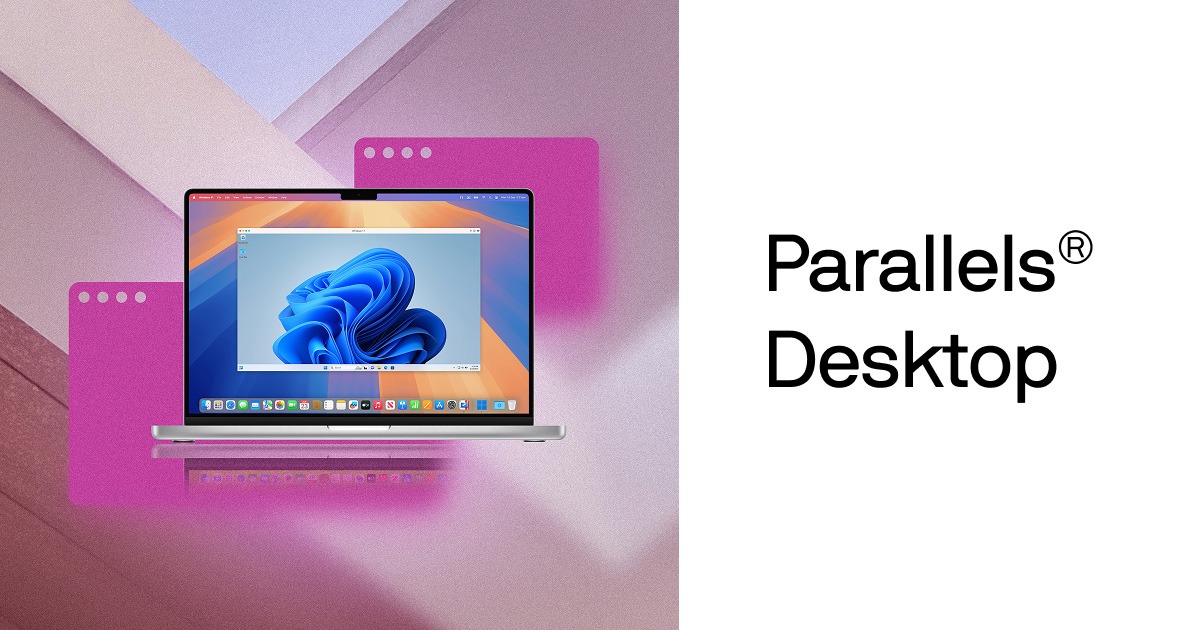
- Run Windows 11 natively on M-series Macs
- DirectX 11 support for gaming
- Shared clipboard and file system between OS
- Coherence mode runs Windows apps like Mac apps
I’ve tested Parallels on an M3 MacBook Pro. It runs Civilization VI and Stardew Valley flawlessly. Heavier titles like Cyberpunk? You’ll want a dedicated Windows PC.
Software That Benefits from Gaming Hardware
A fast GPU, plenty of RAM, and a capable CPU don’t just help games. They accelerate creative software in measurable ways. Here’s what improves with better hardware.
DaVinci Resolve uses your GPU for color grading, noise reduction, and Fusion effects. An RTX 4070 Super renders a 10-minute 4K video with color correction in about 6 minutes. The same project on an RTX 4060 takes roughly 11 minutes. That’s almost double the wait for a $250 price difference.
Adobe Premiere Pro leans on CUDA cores for GPU-accelerated effects, Mercury Playback Engine, and hardware encoding via NVENC. Exporting with hardware encoding is 3-5x faster than software encoding on the same machine.
Blender uses CUDA and OptiX for rendering. OptiX ray tracing on RTX cards is significantly faster than CPU rendering. A scene that takes 45 minutes to render on a Ryzen 7 CPU finishes in 8 minutes on an RTX 4070 Super using OptiX.
OBS Studio uses NVENC for hardware-encoded streaming. This offloads the encoding work from your CPU, so you can stream at 1080p60 while gaming without frame drops. If you’re streaming and gaming on the same machine, NVIDIA’s encoder is non-negotiable.
Canva and Figma are browser-based, but they still benefit from GPU acceleration for complex designs with lots of elements. A discrete GPU keeps the interface responsive when you’re working with 50+ layers.

- GPU-accelerated canvas rendering
- AI-powered background removal and magic eraser
- Brand kit for consistent content styling
- Video editor with timeline and transitions
Peripherals and Accessories for a Dual-Purpose Setup
The right peripherals make a bigger difference than most people expect, especially when you’re switching between gaming and creative work multiple times a day. Here’s what I recommend based on years of using a dual-purpose setup.
Mechanical keyboard. Get one with hot-swappable switches so you can swap between linear switches for gaming (smooth, no bump) and tactile switches for typing (feedback on each press). A good mechanical keyboard with PBT keycaps runs $70-120 and lasts years. I’ve covered full home office setup recommendations that apply here too.
Mouse. A lightweight gaming mouse (under 70g) with a high-quality sensor works well for both gaming precision and design work. The Logitech G Pro X Superlight or Razer DeathAdder V3 are solid picks. For photo editing or design-heavy work, consider adding a pen tablet like the Wacom Intuos.
Second monitor. If your budget allows, a second display is one of the biggest productivity upgrades. Use your primary gaming monitor for the main task and a secondary panel for reference material, chat, or monitoring tools. Even a cheap 1080p IPS as a secondary is worth it.
Audio. If you’re streaming, get a dedicated USB condenser microphone like the Audio-Technica AT2020USB+ or the Rode NT-USB Mini. Built-in laptop microphones and headset microphones sound noticeably worse. For gaming with friends, a quality headset with a boom mic is more practical, something like the HyperX Cloud II or SteelSeries Arctis Nova 7.
Streaming Setup: What You Need to Go Live
If you’re creating content and gaming, streaming is probably on your radar. The good news: a gaming PC with an RTX card already has the hardest piece covered. NVIDIA’s NVENC encoder handles 1080p60 streaming with minimal performance impact while you game. Here’s what else you need.
OBS Studio is free and handles 95% of streaming needs. Set it to use NVENC encoding, and your CPU stays free for gaming. I’ve streamed 1080p60 on an RTX 4070 with less than a 5% FPS impact in most games.
Camera. A Logitech C920 or C922 ($50-70) is good enough to start. If you want better quality, a Sony ZV-1 or Canon M50 connected via an Elgato Cam Link gives you a noticeable step up in image quality. Don’t spend $500 on a camera before you have an audience.
Lighting. One key light at 45 degrees is enough. An Elgato Key Light or even a $30 ring light makes you look dramatically better on camera than overhead room lighting. This is the single biggest quality improvement for your stream that costs the least.
Microphone. I covered this above, but it bears repeating: audio quality matters more than video quality for streaming. A $70 condenser mic sounds better than the mic on a $200 headset.
What to Invest in Now vs Upgrade Later
PC hardware pricing moves fast. Some components are worth buying the best you can afford right now. Others are cheap to upgrade later. Here’s how I’d split the budget for maximum longevity.
Invest now: motherboard and PSU. These are the foundation. A quality B650 or X670E motherboard with good VRM cooling lasts through multiple CPU upgrades. A 750W+ 80+ Gold PSU gives you headroom for GPU upgrades without replacing the power supply. Both are painful to swap later because you’re basically rebuilding the whole system.
Invest now: case and cooling. A good airflow case and AIO cooler last 5-7 years easily. Don’t cheap out on a $40 case with bad airflow and then wonder why your components thermal throttle.
Upgrade later: RAM and storage. Adding another 32 GB stick of DDR5 takes two minutes and costs $45-90. Adding a second NVMe drive is just as easy. Start with 32 GB and 1 TB, then expand when you need it.
Upgrade later: GPU. GPUs have the most dramatic performance jumps between generations. The RTX 4070 Super you buy today will be outperformed by a mid-range card in 2-3 years. Buy what you need now, sell it when the next generation drops, and upgrade. The motherboard, CPU, and RAM won’t need to change.
Planning and Tracking Your Build
Building a PC involves tracking dozens of parts, compatibility checks, and price drops. I use Notion to manage my build lists, track prices over time, and compare specs side by side. It’s free for personal use and the database feature is ideal for this kind of structured comparison. You can create a simple table with columns for component type, specific model, price, purchase date, and benchmark scores.
PCPartPicker is another tool you should bookmark. It checks component compatibility automatically (will this cooler fit this case? does this RAM work with this motherboard?) and tracks price history across retailers. Between Notion for your personal tracking and PCPartPicker for compatibility, you won’t make expensive mistakes.
For photo editing workflows, check out my guide on the best photo editors for Mac, which also covers cross-platform options that run well on both PC and Mac.

- Free for personal use
- Database views for comparing components
- Web clipper saves product pages instantly
- Share build lists with friends for feedback
My Recommendation
If you create content and game on the same machine, the $1,500 mid-range build is the right starting point for most people. An RTX 4070 Super, AMD 7800X3D, 32 GB DDR5, and a 1 TB NVMe give you 1440p gaming at 100+ FPS and smooth 4K video editing. Pair it with a 27-inch 1440p 165Hz IPS monitor and a quality mechanical keyboard.
Don’t overbuild for features you’ll use “someday.” Buy the $1,500 build now, invest the savings in a good monitor and peripherals, and upgrade the GPU in 2-3 years when the next generation drops. The platform (motherboard, CPU, RAM, PSU) will last 4-5 years without needing changes.
If you’re on a Mac and need gaming access, Parallels is the best bridge. If you’re starting fresh and gaming matters to you, go PC. The math on performance per dollar isn’t even close.
Frequently Asked Questions
Is 16 GB of RAM enough for gaming and content creation in 2026?
16 GB works for gaming alone, but it’s tight once you add creative software. Premiere Pro with a 4K project uses 8-12 GB by itself. Add a browser and a game in the background and you’re swapping to disk. I’d go 32 GB minimum for a dual-purpose machine. DDR5-6000 kits cost around $90 in 2026, so the upgrade is cheap.
Should I go AMD or Intel for a gaming and content creation PC?
AMD’s Ryzen 7 7800X3D is the best pure gaming CPU thanks to 3D V-Cache. For mixed workloads, the Ryzen 9 7950X gives you 16 cores for heavy rendering while still gaming well. Intel’s 14700K is a solid middle ground but runs hotter and draws more power. For most people, the 7800X3D is the right pick.
Can I use a gaming PC for professional video editing?
Yes. A gaming PC with an RTX 4070 Super, 32 GB RAM, and a fast NVMe SSD handles 4K editing in Premiere Pro and DaVinci Resolve without issues. The same GPU that renders game frames accelerates video effects through CUDA cores. The only extra you might need is a color-accurate monitor if you’re doing professional color grading.
Do I need a separate streaming PC?
Not anymore. NVIDIA’s NVENC encoder on RTX 40-series cards handles 1080p60 streaming with minimal impact on gaming performance, usually under 5% FPS loss. A single PC with an RTX 4070 or better can game, stream, and run OBS simultaneously. A dual-PC setup only makes sense if you’re streaming at 4K or running a very complex production with multiple camera sources.
Is it better to buy a prebuilt or build a PC myself?
Building saves $200-400 at the same spec level, and you choose exactly which components go in. Prebuilts are convenient but often cut corners on the PSU, motherboard, or cooling to hit a price point. If you’ve never built a PC, watch a couple of build guides on YouTube. The process takes about 2 hours and the main skill is reading manuals and being patient with cable management.
How important is the power supply for a gaming PC?
More important than most people think. A cheap PSU can deliver unstable power that causes crashes, or worse, fail and damage other components. Go with an 80+ Gold rated PSU from Corsair, Seasonic, or EVGA with at least 750W for a mid-range build. The extra $30-40 over a budget PSU is insurance for your $1,500 build.
Can I game on a Mac?
Somewhat. Apple’s M-series chips run some games natively through the Mac App Store and Steam, but the library is limited compared to Windows. You can run Windows games through Parallels or Apple’s Game Porting Toolkit, but expect a 20-40% performance penalty. For casual and indie gaming, a Mac works. For AAA titles and competitive gaming, a Windows PC is the better choice.
What’s the best monitor for both gaming and content creation?
A 27-inch 1440p IPS panel with 165Hz refresh rate and 100% sRGB coverage is the sweet spot. It’s fast enough for competitive gaming, sharp enough for design work, and color-accurate enough for web and video content. Expect to spend $300-400 for a good one. For professional color work, add a secondary 4K IPS panel with Delta E under 2.
Disclaimer: This site is reader-supported. If you buy through some links, I may earn a small commission at no extra cost to you. I only recommend tools I trust and would use myself. Your support helps keep gauravtiwari.org free and focused on real-world advice. Thanks. - Gaurav Tiwari