
How to Get the Most Out of Rank Math AI Link Genius
592 orphan posts. That’s how many articles on my site had zero internal links pointing to them. Google couldn’t find them. Readers couldn’t discover them. They were just sitting there, invisible.
I tried fixing this manually. Spent 6 weekends adding internal links to 50 posts. Then I looked at the remaining 629 (because I published another 87 articles in the meantime) and realized I’d be doing this for months.
I was a customer of (and still am, but not using it due to its very CPU-heavy behavior) Link Whisper ($77/year), and it helped with suggestions, but it couldn’t audit my existing links, detect broken URLs, or auto-link new posts. On an ever-updating blog like mine, it was a never-ending .
LinkBoss ($19.99/month) offered link rules but no link health monitoring, plus it was too costly for just one-two features. Internal Link Juicer was free but bare-bones. I didn’t even bother to try these much, as every tool solved one piece of the puzzle while ignoring the rest.
Then Rank Math released AI Link Genius as part of their PRO plan. Not a separate plugin. Not an extra subscription. Just a new module inside the SEO tool I was already paying $6.99/month for. I got into early beta, and was surprised how good it was.
AI Link Genius combines a full link auditor, keyword-based auto-linking, orphan post detection, bulk operations with rollback, and AI-powered suggestions into one dashboard. No other internal linking tool does all of this.

I’ve been testing it for a month on this site, which has a massive 23,299 links-set across 2,253 posts. I’ve set up keyword maps, run audits, tested the AI variation generator, used its REST API endpoints using LLMs, and dug into the source code. Here’s a complete, honest walkthrough of every feature, what works, what doesn’t, and exactly how to set it up for maximum results.
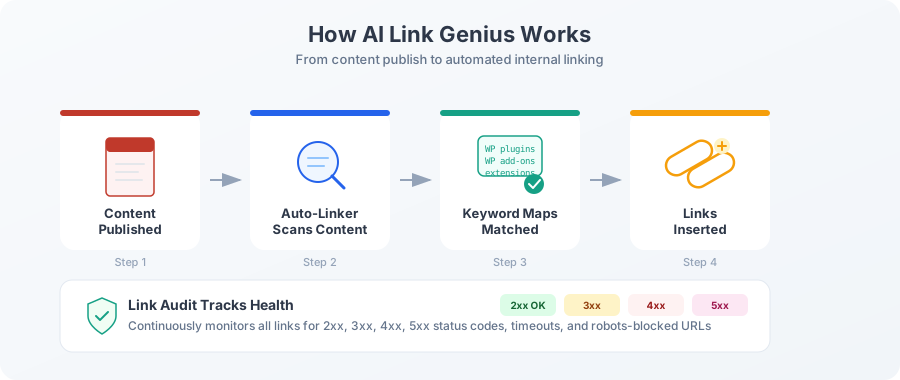
What AI Link Genius Actually Is
AI Link Genius is a module inside Rank Math PRO. And it replaces the old Link Counter module – and adds various new features upon it. The foundation of the Link Counter module was strong and the Link Genius took it steps further.
Also, if you’re already paying for Rank Math PRO ($6.99/month), you already have it. Reiterating this, as most users don’t realize this.
It does three things:
- Link Audit. Crawls every link on your site, checks HTTP status codes, finds broken links, redirects, and bot-blocked URLs.
- Keyword Maps. Lets you define target URLs with keyword variations, then automatically links matching text across your entire site.
- AI Suggestions. Uses TF-IDF similarity scoring plus Content AI to suggest related posts and link opportunities in the editor.
The important distinction: not everything here requires AI credits. The audit, link counter, orphan detection, bulk operations, keyword maps with manual variations, and rollback features all work without spending a single Content AI credit. The AI part is optional. Layered on top.
You already have AI Link Genius. Go to Rank Math > Links in your WordPress dashboard to access it. No extra installation needed.
A Full Tour of the Dashboard
The AI Link Genius dashboard has 4 main tabs: Overview, Links, Suggestions, and Settings. Let me walk you through each one. I’m showing you what it looks like on a site with 2,000+ posts, not a demo with 20 articles.
The Overview Tab
This is your command center. It shows link health at a glance: how many links are working, broken, redirecting, or blocked by robots.txt.
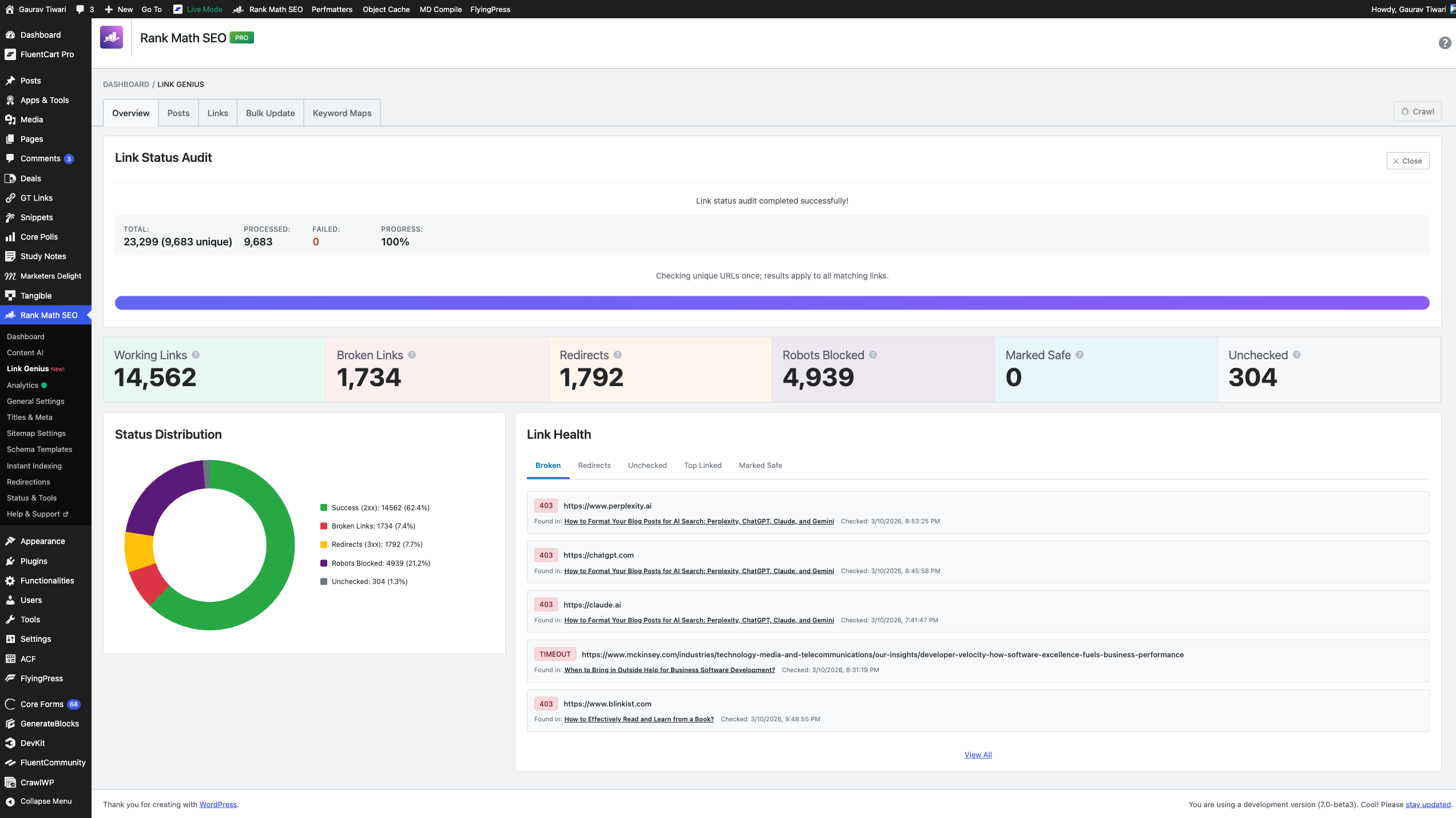
Here’s what my dashboard shows right now:
| Metric | Count |
|---|---|
| Total links tracked | 23,299 (9,683 unique) |
| Working links (2xx) | 14,562 |
| Broken links (4xx,5xx) | 1,734 |
| Redirects (3xx) | 1,792 |
| Robots blocked | 4,939 |
| Unchecked | 304 |
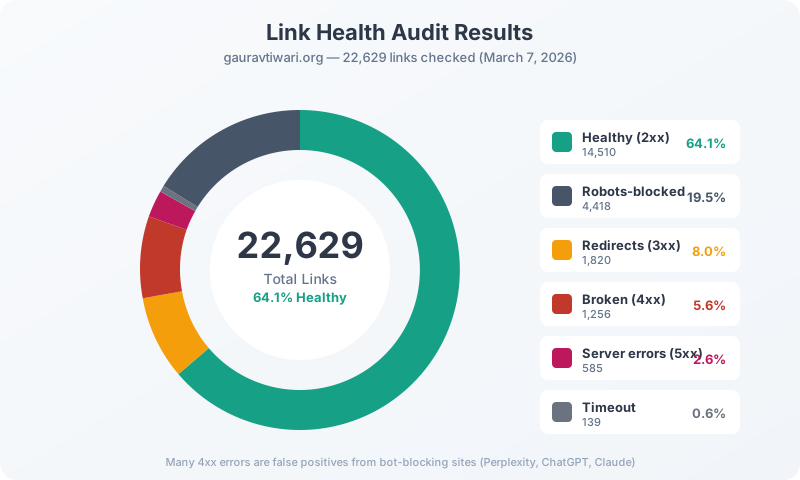
The Status Distribution pie chart breaks this down visually. 62.4% of my links are healthy (green), 7.4% are broken (red), and 21.2% are robots-blocked (purple). That robots-blocked number is high because many external sites block crawlers.
Below that, the Link Health section shows the actual broken links with their HTTP status codes. You can see that Perplexity, ChatGPT, and Claude all return 403 errors, which aren’t actually broken. They just block bots. I’ll show you how to handle these in the tips section.
Hit the Crawl button in the top-right to run a fresh audit. It processes unique URLs and applies results to all matching links, so 23,299 total links only required checking 9,683 unique URLs.
The Posts Tab
This tab is where you see every post on your site with its link profile: internal links out, external links out, incoming internal links, and SEO score.
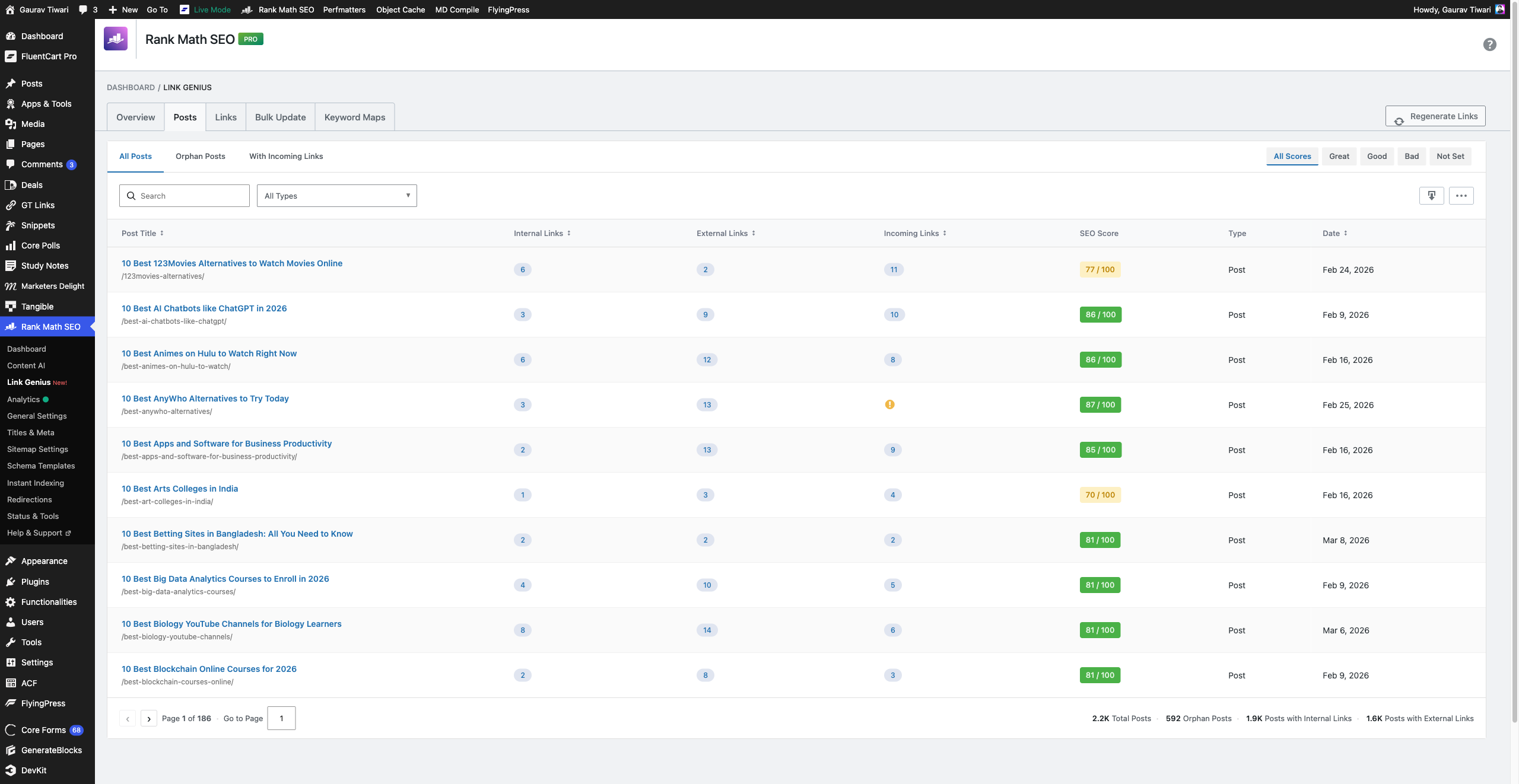
The filters at the top are what make this useful:
- All Posts shows everything with sortable columns.
- Orphan Posts filters to posts with zero incoming internal links. This is the killer feature.
- With Incoming Links shows posts that already have internal links pointing to them.
- SEO Score filters (Great, Good, Bad, Not Set) let you cross-reference link data with SEO health.
You can also filter by Post Type (posts, pages, deals, study notes, tools) and search by title.
The footer shows summary stats: 2.2K total posts, 592 orphan posts, 1.9K posts with internal links, 1.6K posts with external links.
Finding Orphan Posts
Click “Orphan Posts” and you’ll see every post on your site that has zero incoming internal links. These are invisible to search engines because no other page links to them.
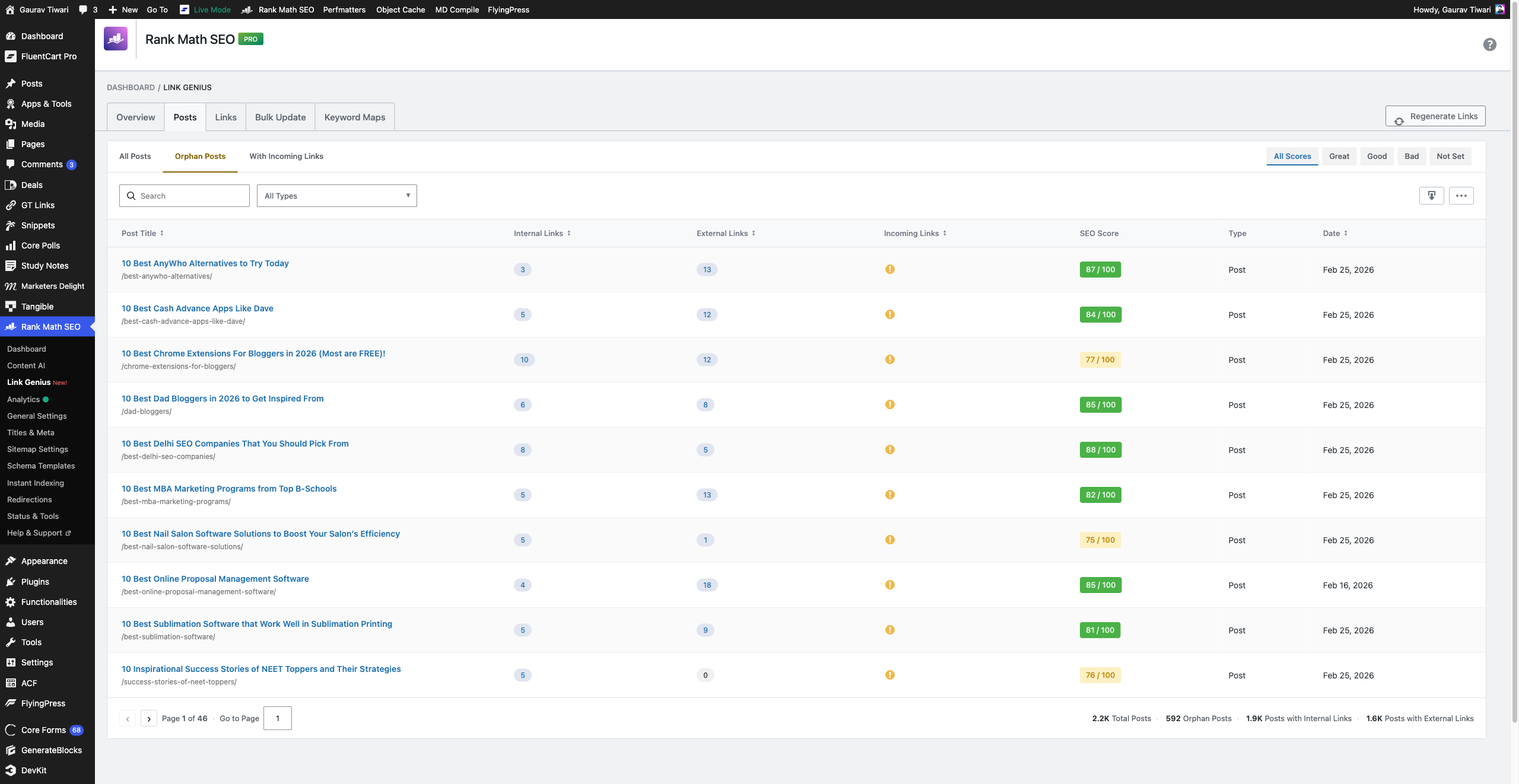
On my site, that’s 592 posts across 46 pages of results. Each one shows a yellow warning icon in the Incoming Links column with the message “This post has no internal links. We recommend that you add links to this URL in other posts of your website.”
This number was 679 a month ago. I ran a separate internal linking automation project and brought it down. AI Link Genius didn’t fix all of them, but it identified them instantly. On a site this size, finding orphan posts manually? Impossible.
The Links Tab
This tab shows every individual link on your site. Source post, destination URL, anchor text, link type (internal/external), nofollow status, and audit status.
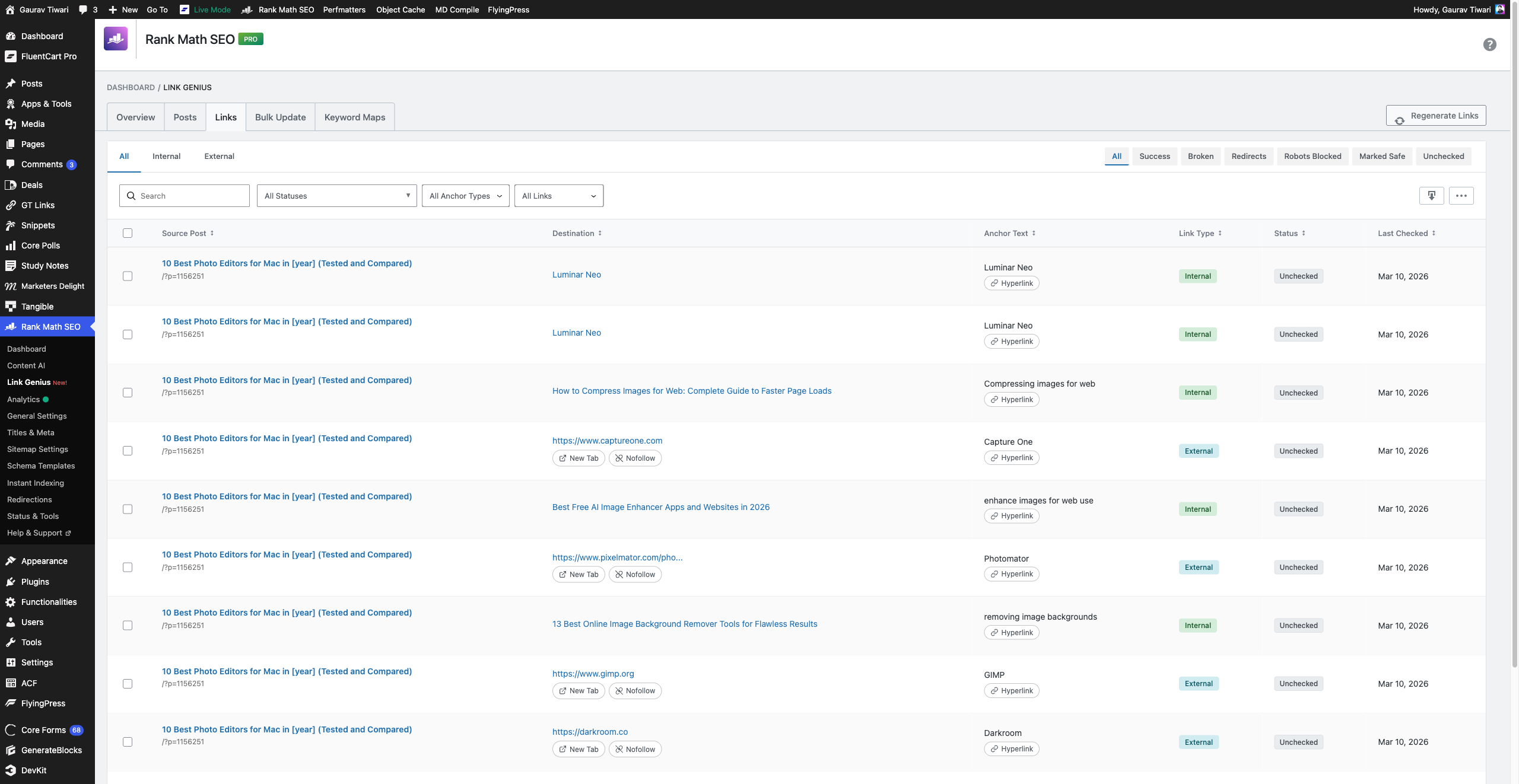
The filters here are powerful:
- Internal vs External toggle
- Status filters: Success, Broken, Redirects, Robots Blocked, Marked Safe, Unchecked
- Status code dropdown for specific HTTP codes
- Anchor Type: Hyperlink or Image
- Nofollow Status: With Nofollow, Without Nofollow
You can select multiple links using the checkboxes for bulk actions. The footer shows: 23.3K total links, 10.6K internal, 12.7K external, 4.1K nofollow.
One thing I noticed: each link row shows a “Remove nofollow” button if the link has nofollow. Handy for fixing accidental nofollows on internal links.
The Bulk Update Tab
This is a 3-step wizard for making bulk changes to links across your site.
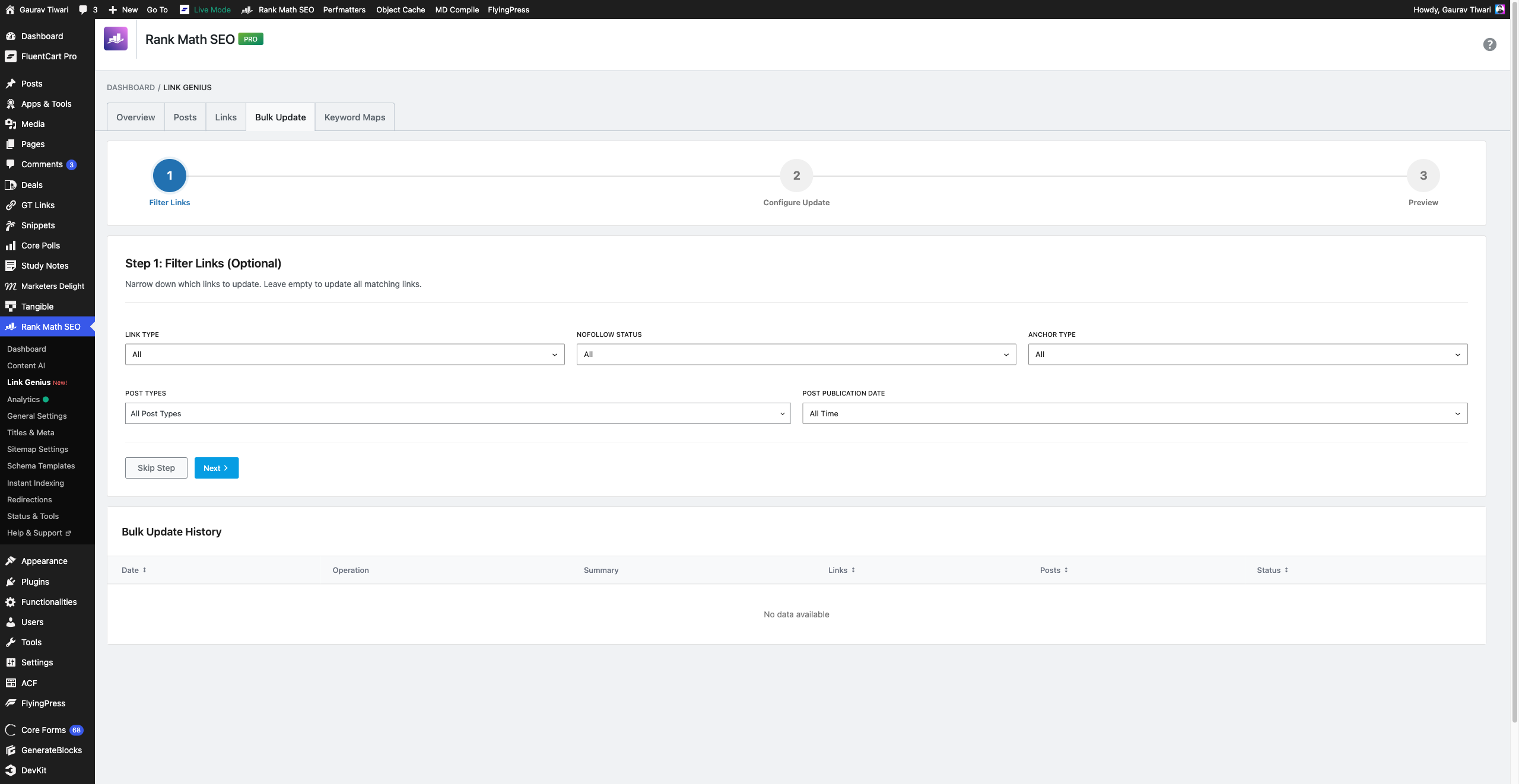
Step 1: Filter Links. Narrow down by link type (internal/external), nofollow status, anchor type, post types, and publication date range. Leave empty to update all matching links.
Step 2: Configure Update. Set what you want to change (add/remove nofollow, change URLs, update anchor text).
Step 3: Preview. See exactly what will change before committing. This is crucial. Never skip the preview.
Below the wizard, a Bulk Update History table tracks every bulk operation you’ve run with date, operation type, summary, link count, post count, and status.
The Keyword Maps Tab
This is the power feature. Keyword maps are reusable rules that automatically link matching text to a target URL.
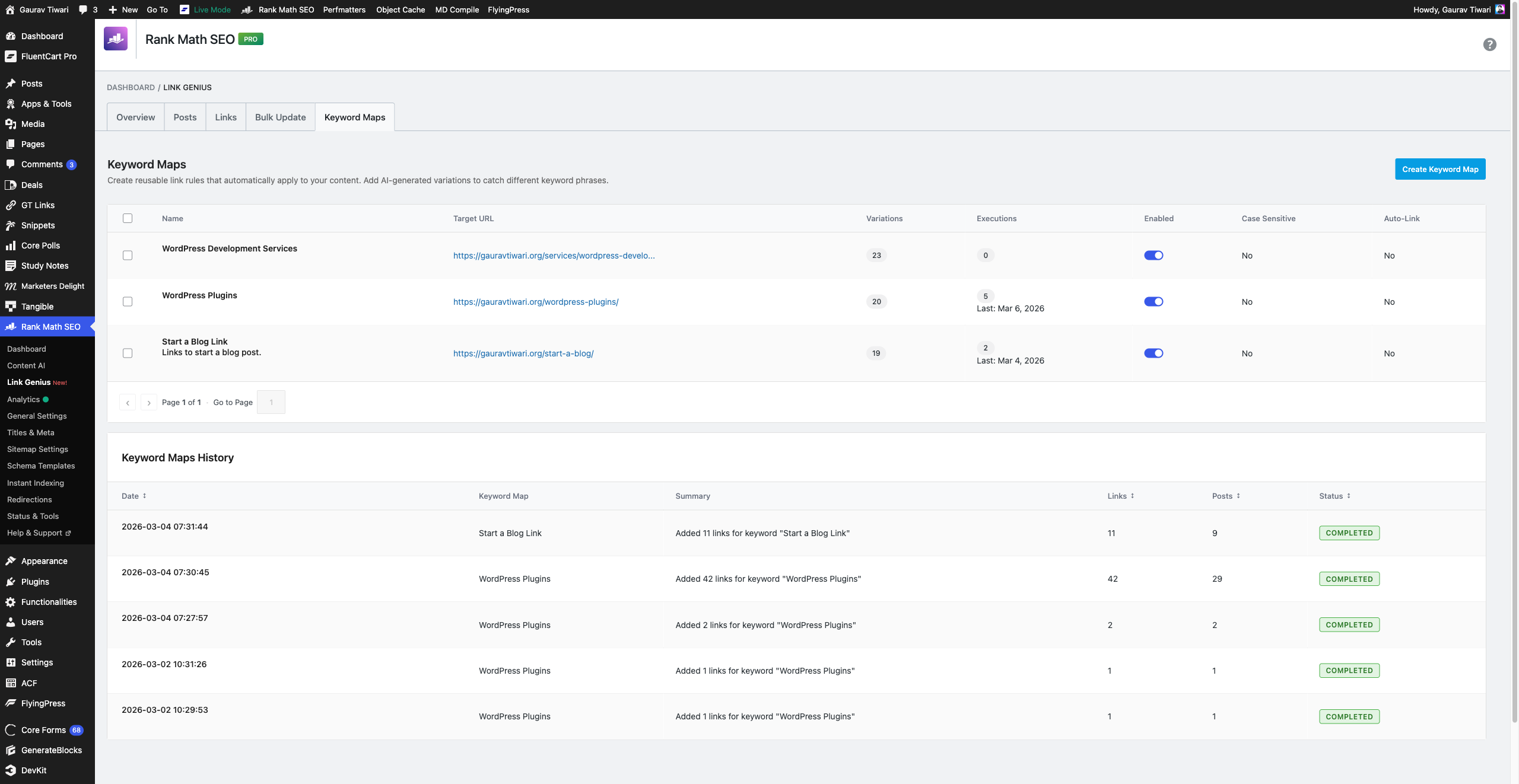
I’m slowly setting up keyword maps and currently have three keyword maps running:
| Map | Target URL | Variations | Executions |
|---|---|---|---|
| WordPress Development Services | /services/wordpress-development-services/ | 23 | 0 (recently created) |
| WordPress Plugins | /wordpress-plugins/ | 20 | 5 (last: Mar 6, 2026) |
| Start a Blog Link | /start-a-blog/ | 19 | 2 (last: Mar 4, 2026) |
Each map has toggles for Enabled, Case Sensitive, and Auto-Link. Below the maps table, a Keyword Maps History section shows every execution with rollback, export, and delete options.
How to Set Up Your First Keyword Map (Step by Step)
Keyword mapping is the first feature you should configure. It takes 5 minutes and pays dividends every time you publish a new post.
Step 1: Go to Rank Math > Links > Keyword Maps tab. Click the blue “Create Keyword Map” button in the top-right.
Step 2: Give it a name and set your target URL. This should be a page you want to strengthen, like pillar posts, revenue-generating pages, or cornerstone content. For my WordPress Plugins hub page, I used “WordPress Plugins” as the name and https://gauravtiwari.org/wordpress-plugins/ as the target.
Step 3: Configure the settings on the right side:
- Max Links Per Post: I use 3. More than that feels spammy.
- Case Sensitive: Leave off unless you have a specific reason. Off means “wordpress plugins” matches “WordPress Plugins.”
- Auto-Link on Publish: Turn this on. Every new post automatically gets scanned for keyword map matches.
- Enabled: Toggle on to activate the map.
Step 4: Add keyword variations. You have two options:
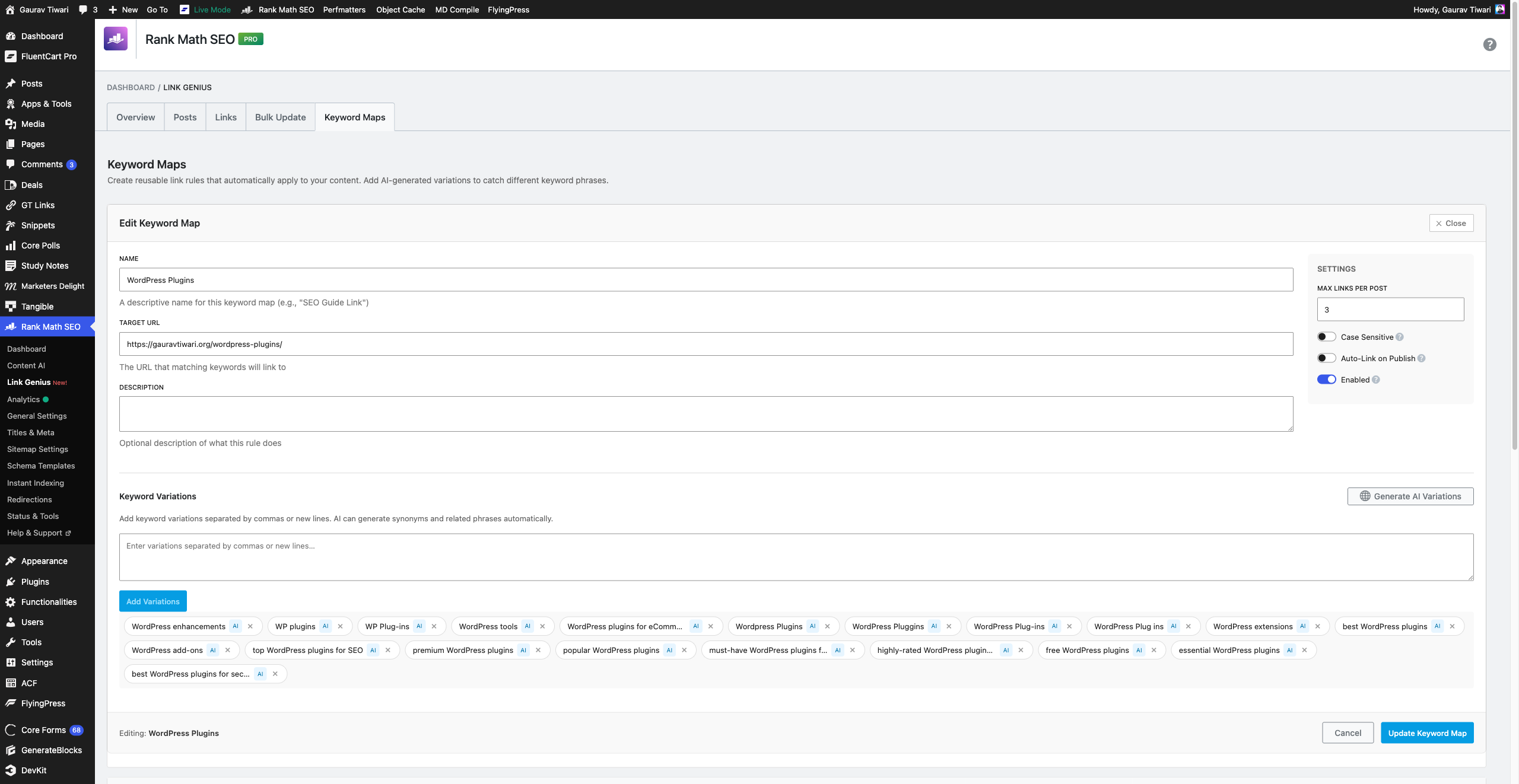
Option A: Generate AI Variations. Click the purple “Generate AI Variations” button. Rank Math’s Content AI generates 15-20 keyword variations automatically. For “WordPress Plugins,” it generated:
- WordPress extensions, WP plugins, WP Plug-ins
- WordPress tools, WordPress enhancements
- WordPress Pluggins (typo catch), Wordpress Plugins (lowercase p)
- best WordPress plugins, free WordPress plugins, essential WordPress plugins
- premium WordPress plugins, popular WordPress plugins
- WordPress add-ons, WordPress plugins for eCommerce
- top WordPress plugins for SEO, must-have WordPress plugins for beginners
That typo catch is clever, honestly. If any of your posts contain “WordPress Pluggins” (common in imported or user-generated content), it’ll get linked too. I didn’t expect that level of detail.
Option B: Add Manually. Type variations in the text box separated by commas or new lines, then click “Add Variations.” This costs zero credits and works perfectly fine for most use cases.
Step 5: Click “Update Keyword Map” to save. Your map is now active.
Step 6: Execute it. Go back to the Keyword Maps list, hover over your map, and click “Preview & Execute.” Preview first to see exactly which posts will be modified, what anchor text will be linked, and where in the content the link will be placed.
I previewed my “WordPress Plugins” map before execution and caught three instances where it wanted to link text inside a heading tag. Previewing saved me from bad link placements.
How to Run Your First Link Audit
The link audit crawls every URL on your site and flags broken, redirected, and dead links. Here’s how to run it and what to do with the results.
Step 1: Go to Rank Math > Links > Overview tab. Click the “Crawl” button in the top-right corner.
Step 2: Wait. The crawler runs as a background process. On my site with 9,683 unique URLs, it took about 20 minutes. You’ll see a progress bar with the total, processed, failed, and percentage complete.
Step 3: Once complete, review the Link Health section. It’s organized into tabs:
- Broken: Links returning 4xx/5xx errors or timeouts. Fix or remove these.
- Redirects: Links with 3xx status codes. Update to the final URL where possible.
- Unchecked: Links the crawler couldn’t reach. Run another crawl to retry.
- Top Linked: Your most-linked URLs. Useful for understanding your site structure.
- Marked Safe: Links you’ve manually marked as safe (not actually broken).
Here’s the trick for handling false positives: sites like Perplexity, ChatGPT, Claude, and Instagram return 403 status codes to any bot that checks them. They’re not actually broken. Click into the broken link detail, and use the “Mark Safe” option to clear them from your dashboard.
7 Tips to Get Maximum Value
1. Start with your money pages
Don’t create 50 keyword maps on day one. Start with your top 3-5 revenue-generating URLs. For me, that’s my WordPress Plugins hub and my Start a Blog guide. These are the pages that drive affiliate revenue and organic traffic. Strengthen them first.
2. Fix broken links before building new ones
My audit shows 1,734 broken links. Before I start adding more internal links, I need to clean those up. Broken links waste crawl budget and signal a neglected site to search engines.
Here’s the trick: sort by status category and focus on real 4xx errors first. Many 403s are bot-blocking sites (Perplexity, ChatGPT, Claude, Instagram). Mark those as safe using the “Mark Safe” button. This clears your dashboard without creating false fixes.
3. Turn on auto-link for every keyword map
The auto-linker hooks into WordPress’s save_post action at priority 999. It waits 10 seconds, then asynchronously scans your newly published or updated post for all enabled keyword map variations. Completely non-blocking. Your editor won’t slow down.
Every new post I publish now automatically gets links to my pillar content. Zero manual effort. I tested this by publishing three draft posts in quick succession, and all three had keyword map links applied within 30 seconds.
4. Always preview before bulk-executing on existing content
When you execute a keyword map against existing content, use the Preview feature first. It shows you exactly which posts will be modified, what anchor text will be linked, and where in the content the link will be placed.
I previewed my “WordPress Plugins” map before execution and caught three instances where it wanted to link text inside a heading tag. Previewing saved me from bad link placements. Trust me on this one.
5. Use free Content AI credits strategically
Rank Math gives you 750 free Content AI credits per month. AI keyword variation generation costs roughly 500 credits per map. That’s enough to AI-generate variations for one keyword map per month on the free tier.
My strategy: use the free credits for your top 5-10 keyword maps over the first few months. After that, add variations manually for lower-priority maps. The manual approach takes 5 minutes per map. The AI approach takes 5 seconds. But the manual approach is free.
6. Mark articles as Pillar Content for priority treatment
I dug through the plugin code (specifically class-content-similarity.php) and found something interesting. The content similarity engine explicitly prioritizes posts marked as “Pillar Content” in Rank Math when generating link suggestions.
The candidate pool builds in this order: Pillar content first, then taxonomy-related posts, then recently updated content. So if you mark your cornerstone articles as Pillar Content (Rank Math > Post Settings > Advanced > Pillar Content), they’ll appear more frequently in link suggestions across your entire site. I’ve marked my top 15 posts as pillar content and the suggestion quality improved noticeably.
7. Export your link data regularly
The export feature runs as a background process and gives you a full CSV of every link on your site. I export monthly and load it into a spreadsheet to track trends: internal link count over time, orphan count trajectory, broken link resolution rate.
Link Genius doesn’t have built-in historical graphs. But with monthly exports, you can build your own. Not ideal, but it works.
The Costs: An Honest Breakdown
Rank Math PRO costs $6.99/month (annual) and includes AI Link Genius at no extra charge. Here’s the full cost breakdown with no surprises.
Rank Math PRO: $6.99/month (billed annually)
This gets you the full AI Link Genius feature set minus AI generation:
- Complete link audit with crawler
- Keyword maps with manual variations
- Auto-linking on publish
- Orphan post detection
- Bulk operations with rollback
- Related Posts block (non-AI mode)
- Export functionality
- REST API access (40+ endpoints)
- Link health monitoring
For most sites, this is enough. The non-AI features alone replace Link Whisper and a broken link checker plugin. Also, the new purchase comes with one month free trial of Content AI, so you run things for the first month for free.
Content AI: $5.99-$18.99/month (separate subscription)
This is optional and only needed if you want:
- AI-generated keyword variations (saves 5 minutes per map)
- AI-refined link suggestions in the editor
- AI-refined related posts
| Plan | Monthly Cost | Annual Credits | Per Month |
|---|---|---|---|
| Free | $0 | 9,000 | 750 |
| Starter | $6.99 ($5.99 right now) | 90,000 | 7,500 |
| Creator | $11.99 ($10.99 right now) | 216,000 | 18,000 |
| Expert | $18.99 ($16.99 right now) | 540,000 | 45,000 |
Credits don’t roll over. If you don’t use your monthly allocation, it’s gone.
If you’re willing to add keyword variations manually (takes 5 minutes per map), you can use everything else without spending extra. I’d recommend manual for anyone with fewer than 20 keyword maps.
AI Link Genius vs the Competition
AI Link Genius outperforms Link Whisper, LinkBoss, and Internal Link Juicer across features, pricing, and integration. Here’s how they stack up.
| Feature | Rank Math AI Link Genius | Link Whisper ($77/yr) | LinkBoss ($19.99/mo) | Internal Link Juicer (Free/$69.99/yr) |
|---|---|---|---|---|
| Link audit/health check | Yes (full crawler) | No | No | No |
| AI-powered suggestions | Yes (Content AI) | Yes (built-in LLM) | Yes (NLP/ML) | No |
| Keyword maps/rules | Yes (auto-link on publish) | No | Yes (link rules) | Yes (manual keywords) |
| Orphan post detection | Yes | Yes | No | No |
| Bulk operations + rollback | Yes (with snapshots) | Yes (basic) | Yes | No |
| Related Posts block | Yes (TF-IDF + AI) | No | No | No |
| REST API | Yes (40+ endpoints) | No | No | No |
| Broken link detection | Yes (3xx/4xx/5xx/timeout) | No | No | No |
| Separate plugin needed | No (part of Rank Math PRO) | Yes | Yes (SaaS) | Yes |
| Starting price | $6.99/mo (included in PRO) | $77/year | $19.99/month | Free / $69.99/yr |
My recommendation: If you already use Rank Math PRO (and I think you should for SEO, here’s my full review), AI Link Genius makes Link Whisper redundant. You’re getting a better internal linking tool, a broken link checker, and a related posts system, all included in your existing subscription.
The only scenario where Link Whisper or LinkBoss makes sense alongside Rank Math is if you specifically prefer their suggestion algorithm. Link Whisper got a major LLM update in August 2025 that improved suggestion quality. LinkBoss uses NLP-powered semantic analysis that some users find more contextually accurate. But neither offers link auditing, REST API access, or the keyword map system.
What I Don’t Like
No tool is perfect. Here’s what frustrates me after a month of daily use.
1. False positives in the link audit
Sites that block bots (Perplexity, ChatGPT, Claude, Instagram) show up as 403 errors. There’s no way to auto-exclude specific domains from the audit. You have to manually mark each one as safe. On a site with thousands of external links, this gets tedious fast.
2. Content AI credit consumption is opaque
There’s no per-operation credit counter. I can’t see exactly how many credits a keyword variation generation consumed. Currently, it’s not a problem for me as I’m on a content AI plan, but it can be frustrating when you’re trying to budget 750 free credits.
3. No WP-CLI integration
Rank Math only exposes wp rankmath sitemap via WP-CLI. You can’t trigger link audits, regenerate links, or manage keyword maps from the command line. For developers who automate everything, this is a gap. The REST API compensates somewhat, but CLI commands would be faster.
4. Keyword maps are global
You can’t scope a keyword map to a specific category, post type, or date range. If I create a map for “WordPress Plugins,” it applies to every post on the site. Including study notes, tools, and pages where that link doesn’t make sense.
This is my biggest frustration. I’d want post type and category filters on keyword maps.
5. No scheduled audits
The link audit is manual trigger only. I’d love to set it to run weekly and email me a summary. Right now I’ve to remember to go into the dashboard and click “Start Audit” periodically.
6. Database overhead on large sites
AI Link Genius creates five custom database tables. On my site, the audit table alone has 23,471 rows. On shared hosting with limited database resources, this could cause performance issues.
wp_rank_math_link_genius_audit 23,471 rows
wp_rank_math_link_genius_history 5 rows
wp_rank_math_link_genius_map_variations 62 rows
wp_rank_math_link_genius_maps 3 rows
wp_rank_math_link_genius_snapshots 42 rowsIf you’re on shared hosting with limited database resources, the audit and snapshot tables can grow large on sites with 1,000+ posts. Consider a VPS before enabling AI Link Genius on a large site.
Frequently Asked Questions
Does AI Link Genius work with the free version of Rank Math?
Partially. The Link Counter module (which shows incoming and outgoing link counts in the post list) works with free Rank Math. But the full AI Link Genius feature set, including the audit dashboard, keyword maps, bulk operations, orphan detection, and AI suggestions, requires Rank Math PRO ($6.99/month). Content AI features require a separate Content AI subscription starting at $11.99/month.
How many Content AI credits does AI Link Genius use?
AI keyword variation generation uses approximately 500 credits per keyword map. AI-refined link suggestions and related posts in the editor use approximately 500 credits per request. Non-AI features (audit, link counter, keyword map execution, bulk operations, orphan detection, export) consume zero credits. Rank Math provides 750 free credits per month even without a Content AI subscription.
Can I use keyword maps without Content AI credits?
Yes. You can create keyword maps and add keyword variations manually without spending any credits. The AI button generates variations automatically using Content AI, but you can skip it entirely and type your own variations. The keyword map execution (applying links to existing content) and auto-linking on publish both work without credits.
Does AI Link Genius slow down my site?
The auto-linker fires asynchronously 10 seconds after you publish or update a post. It runs via wp-cron in the background, so it won’t slow down your editor or frontend. The link audit crawler also runs as a background process. The five database tables it creates can grow large on big sites (23,000+ rows on my 2,253-post site), but this only affects wp-admin performance slightly, not frontend speed.
Can I rollback changes made by AI Link Genius?
Yes. Every bulk operation and keyword map execution creates a snapshot of the affected content before making changes. You can rollback any batch operation from the History section in the Keyword Maps tab. This is one of the best features because it makes experimentation safe. Apply a keyword map to all posts, check the results, and undo if anything looks wrong.
Does it work with custom post types?
Yes. AI Link Genius works with any post type registered with Rank Math. On my site, it tracks links across posts, pages, deals, snippets, study notes, and tools. The keyword map auto-linker processes all post types, which is why I mentioned the lack of post type filtering as a con. It links everywhere, even when you might not want it to.
How does the Related Posts feature compare to dedicated plugins?
Rank Math’s Related Posts uses a hybrid TF-IDF and AI approach. It builds candidate pools starting with pillar content, then taxonomy-related posts, then recently updated content. It calculates cosine similarity scores locally (no credits), then optionally refines with AI. Compared to plugins like YARPP or Jetext, it’s more intelligent about content matching. The Gutenberg block makes it easy to place anywhere. For most sites, it eliminates the need for a separate related posts plugin.
Is AI Link Genius worth it for small sites under 50 posts?
For very small sites, the link audit is less useful because you can manually check your links. But the keyword maps feature still saves time. Even with 50 posts, setting up 3-5 keyword maps means every future post automatically links to your important pages. That’s a workflow improvement regardless of site size. If you already pay for Rank Math PRO for other SEO features, enabling Link Genius is a no-brainer at any scale.
The Bottom Line: Why AI Link Genius Beats Everything Else
Let me put this bluntly. I’ve tested Link Whisper, LinkBoss, Internal Link Juicer, and half a dozen other internal linking tools over the past two years. None of them come close to what AI Link Genius delivers, especially when you factor in the price.
Link Whisper costs $77/year and only does link suggestions. The link audit isn’t as good as Rank Math’s AI Link Genius. No keyword maps. No auto-linking on publish. No REST API. No rollback.
LinkBoss costs $19.99/month and offers link rules and NLP suggestions, but it’s a SaaS product that processes your content externally. No link health monitoring. No orphan detection. No related posts block.
AI Link Genius does all of it. Link auditing, keyword maps with AI variations, orphan detection, bulk operations with snapshots and rollback, related posts, 40+ REST API endpoints, broken link detection, and auto-linking on publish. All inside your WordPress dashboard. All included in Rank Math PRO at $6.99/month. That’s less than what Link Whisper charges for one-tenth of the features.
Here’s my recommended setup order if you’re starting today:
- Enable Link Counter module in Rank Math > Dashboard
- Run the link audit and fix genuine broken links (ignore bot-blocked 403s, mark them safe)
- Identify your orphan posts in the Posts tab
- Create 2-3 keyword maps for your most important pages, with auto-link enabled
- Generate AI variations using your free 750 monthly credits
- Preview and execute keyword maps against existing content
- Add the Related Posts block to your post template
You don’t need Content AI for most of this. The free features in Rank Math PRO are already better than what Link Whisper offers at $77/year. The AI layer is a bonus, not a requirement.
The one thing I’d change: I wish keyword maps could be scoped to specific post types and categories. Linking “WordPress Plugins” in a study notes post about mathematics doesn’t make sense. Until Rank Math adds that filter, I preview every execution before applying. A minor annoyance for what is otherwise the best internal linking tool available for WordPress. There were a few more issues that I reported to the team, which were actually minor and should be fixed any time now.
For a deeper look at internal linking strategy beyond the tool itself, check out my guides on internal linking for WordPress and how to fix orphan pages. And if you’re optimizing for AI search engines alongside Google, my GEO vs SEO playbook covers how proper internal linking affects both channels. Also worth reading: the best WordPress SEO plugins roundup if you’re still deciding on your SEO stack.
Disclaimer: This site is reader-supported. If you buy through some links, I may earn a small commission at no extra cost to you. I only recommend tools I trust and would use myself. Your support helps keep gauravtiwari.org free and focused on real-world advice. Thanks. - Gaurav Tiwari