How to Edit or Remove the Genesis Footer (the Right Way)
The Genesis footer credit can't be edited from any settings screen, but one filter changes the text and two lines remove it entirely. This updated guide shows the correct genesis_footer_creds_text and remove_action code, where that code should live in 2026 (hint: not the theme file editor), the GPL answer on credit removal, and an honest verdict on staying with Genesis.
 by
by
The Genesis footer credit (“Copyright © · Genesis Sample Theme on Genesis Framework · WordPress · Log in”) can’t be edited from any normal settings screen, which is why removing it stays one of the most-searched Genesis questions years after the framework’s heyday. The fix is genuinely small: one filter to change the text, or two lines to replace the footer entirely.
I ran Genesis child themes on my own sites for years, and this article has lived through every era of the framework since 2014. Below is the current, correct way to edit or remove the Genesis footer, where that code should actually live in 2026, and the honest answer to the bigger question: whether you should still be on Genesis at all.
Why the Genesis Footer Works Differently
In an ordinary classic theme, footer credits sit in footer.php where anyone can edit them. Genesis doesn’t work that way. The framework builds its entire layout from action hooks, and the footer credits come from one function attached to one hook:
do_action( 'genesis_footer' );Genesis attaches its default credit text to that hook through a function called genesis_do_footer. That design is actually the framework’s best feature: instead of editing template files, you unhook what you don’t want and hook in what you do. Everything below is just that pattern applied to the footer.
First: Where Should This Code Live?
Older tutorials (including the earlier version of this one) sent you to Appearance → Theme File Editor to paste code into functions.php. It works, but one typo in that editor can white-screen your site with no undo. In 2026 you have two better options:
- A code snippets plugin like the free WPCode. Each snippet is separate, deactivatable, and survives theme updates. This is what I’d tell most readers to use.
- Your child theme’s functions.php via SFTP, if you’re comfortable with file access and keep backups. Never the parent Genesis functions.php; the next framework update erases your work.
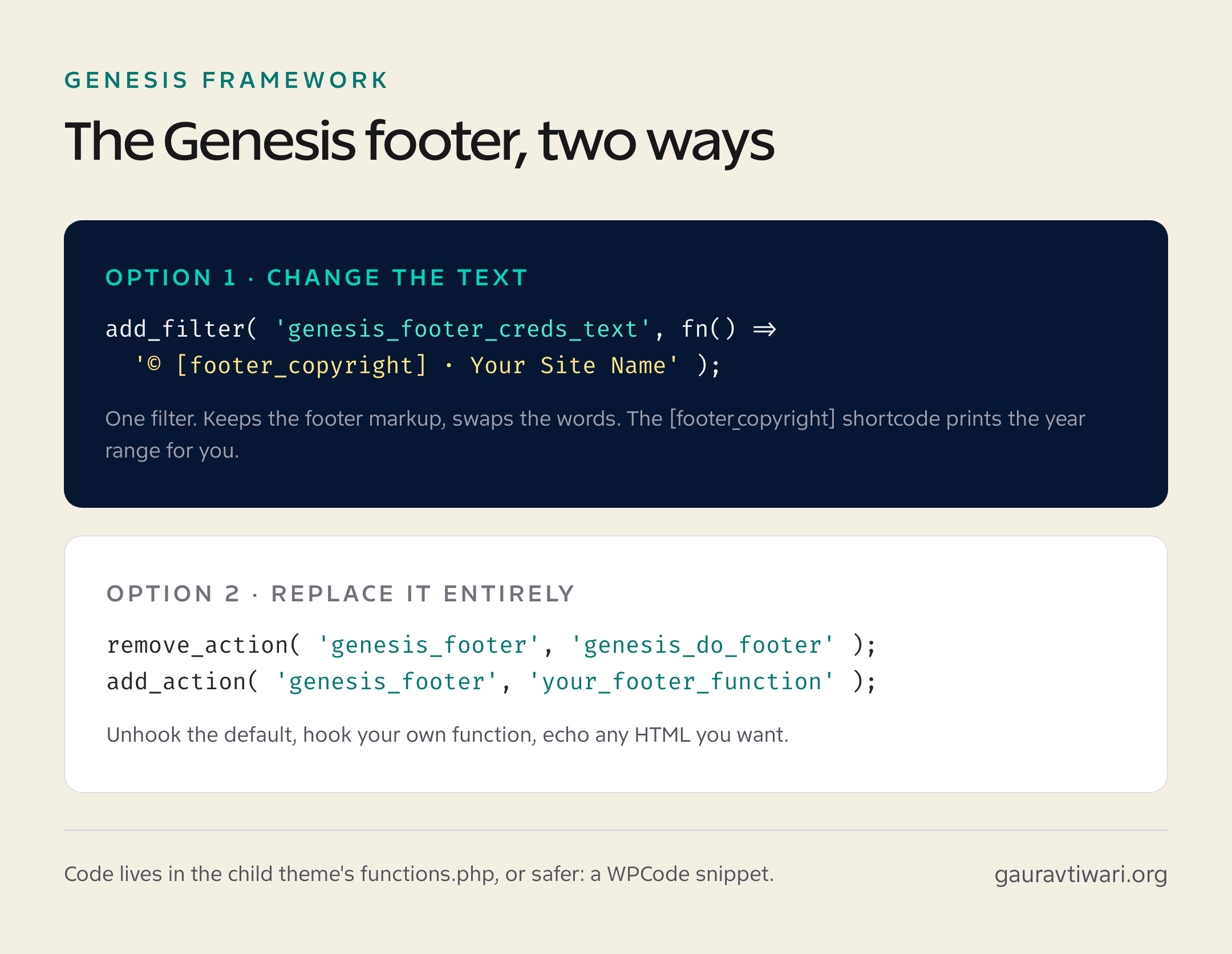
Method 1: Change the Footer Text (One Filter)
If you just want your own copyright line instead of the Genesis credit, use the genesis_footer_creds_text filter. It swaps the words and keeps the footer’s markup and styling intact:
add_filter( 'genesis_footer_creds_text', 'gt_footer_creds' );
function gt_footer_creds() {
	return '© [footer_copyright] · <a href="https://example.com">Your Site Name</a> · All rights reserved';
}
The [footer_copyright] shortcode is built into Genesis and prints the copyright symbol with an automatic year range, so your footer never displays a stale year. Genesis ships several of these footer shortcodes; [footer_childtheme_link] and [footer_loginout] are the other two you’ll meet in default credits.
Method 2: Remove or Fully Replace the Footer
To remove the default credits and output your own HTML from scratch, unhook the Genesis function and attach yours:
// 1. Unhook the default Genesis footer output.
remove_action( 'genesis_footer', 'genesis_do_footer' );

// 2. Hook your own function in its place.
add_action( 'genesis_footer', 'gt_custom_footer' );

function gt_custom_footer() {
	echo '<p>© ' . esc_html( date( 'Y' ) ) . ' <a href="https://example.com">Your Site Name</a>. Built with care.</p>';
}
Want the footer gone entirely? Stop after the remove_action line. Nothing renders, and the markup never reaches the page. (The 2014 version of this article showed this code with a missing semicolon and a mangled PHP tag. If you copy-pasted it back then and got a white screen… that one’s on me.)
Avoid the CSS-only “fix” you’ll see elsewhere: .site-footer .wrap {
display: none;
} hides the credit visually, but the HTML (including the Log in link) still ships to every visitor and search engine. Hiding isn’t removing. Use the hook.
Is Removing the Genesis Credit Allowed?
Yes. Genesis is GPL software, and nothing in the license requires you to advertise your theme framework in the footer. The credit is a courtesy default, not a legal obligation. The one nuance: if you bought a third-party child theme whose designer asks for attribution, keeping their link is good manners, not law. Your site, your footer.
Should You Still Be on Genesis in 2026?
The framework that powered tens of thousands of professional WordPress sites through the 2010s is now in maintenance mode. WP Engine (which acquired StudioPress in 2018) still ships security patches and compatibility updates, but meaningful feature development stopped years ago, and the StudioPress theme store has gone quiet.
My honest verdict, as someone who ran Genesis for the better part of a decade: if your Genesis site works, don’t migrate just to migrate. The framework remains secure, fast, and stable, and these footer techniques work exactly as they did ten years ago. But if you’re starting a new site, pick a modern theme instead: GeneratePress gives you the same lean-and-hooks philosophy with an active roadmap. I’ve written a full state-of-the-framework piece in Genesis Framework in 2026, and if you’re weighing the bigger jump, my guide to moving to block themes covers what the migration really involves.
For everything else Genesis can do with a few lines in functions.php, the official StudioPress snippets library is still online and still the best reference of its kind.
FAQs: Editing the Genesis Footer
How do I change the footer text in Genesis?
Add the genesis_footer_creds_text filter to your child theme’s functions.php or a WPCode snippet, returning your own text. Genesis swaps its default credit for yours while keeping the footer markup and styling. The [footer_copyright] shortcode keeps the year current automatically.
How do I remove the Genesis footer completely?
One line: remove_action( ‘genesis_footer’, ‘genesis_do_footer’ ); placed in your child theme’s functions.php or a snippets plugin. The footer credit stops rendering entirely. Don’t use CSS display:none for this; the markup still loads for every visitor, including the Log in link.
Is it legal to remove the Genesis Framework credit?
Yes. Genesis is GPL-licensed, and the license doesn’t require footer attribution. The credit is a default, not an obligation. If a third-party child theme designer requests attribution, honoring it is courtesy rather than a legal requirement.
Where should I put Genesis customization code?
In your child theme’s functions.php (never the parent framework’s), or better, in a snippets plugin like WPCode. Snippets survive theme updates, can be toggled off when something breaks, and won’t white-screen your site the way a typo in the theme file editor can.
Is the Genesis Framework still maintained in 2026?
It receives security patches and compatibility updates under WP Engine, but no meaningful new features. Genesis is in maintenance mode. Existing sites are safe to continue running; for new builds, choose an actively developed theme like GeneratePress or a modern block theme.
Why doesn’t my Genesis child theme show footer settings in the Customizer?
Only some child themes expose a footer settings panel, and the Theme Settings footer box was removed from later Genesis versions. If you don’t see one, the filter method works on every Genesis child theme regardless of what the Customizer shows.
Tell Google you want more of this.
Add Gaurav Tiwari as a preferred sourceOne tap, and this site shows up more often in your own Top Stories, AI Overviews and AI Mode. Remove it any time.