
12 Best Chrome Extensions for Bloggers in 2026 (Free + AI Picks)
I have had the same core set of Chrome extensions pinned for four years. Some I use every day (Grammarly, SEOquake, Keyword Surfer). Some I installed once and forgot about. And a few I uninstalled in 2025 when AI tools replaced them entirely. This list is the survivors plus the new additions that earned a permanent spot in 2026.
Every extension below is verified working in April 2026, Manifest V3 compliant, and either free or has a free tier that does enough to be useful without upgrading.
12 best Chrome extensions for bloggers in 2026
Chrome holds roughly 65% of the desktop browser market (StatCounter, 2026). If you blog, you live in Chrome. These 12 extensions cover writing, SEO research, email outreach, productivity, and the AI tools that didn’t exist when this list was first published in 2021.
| Extension | Category | Free tier? | Best for |
|---|---|---|---|
| Grammarly | Writing | Yes | Grammar, tone, clarity |
| Keyword Surfer | SEO | Yes (fully free) | Keyword volume in SERP |
| SEOquake | SEO | Yes (fully free) | On-page audit, SERP overlay |
| Ahrefs SEO Toolbar | SEO | Yes (free version) | DR, backlinks, broken links |
| Hunter | Outreach | 25 free/month | Find email addresses |
| GMass | 50 emails/day free | Mail merge in Gmail | |
| Awesome Screenshot | Productivity | Yes | Screenshots, screen recording |
| StayFocusd | Productivity | Yes (fully free) | Block distracting sites |
| Honey | Savings | Yes (fully free) | Auto-apply coupon codes |
| ChatGPT for Google | AI | Yes | AI answers alongside Google results |
| Perplexity | AI | Yes | AI research assistant |
| Detailed SEO Extension | SEO | Yes (fully free) | Meta tags, headings, schema check |
1. Grammarly
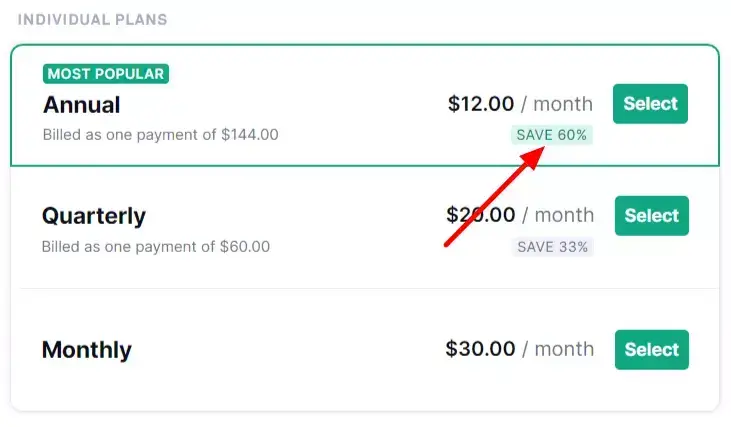
Grammarly catches grammar, spelling, tone, and clarity issues in real-time everywhere you type in Chrome: WordPress editor, Gmail, Google Docs, social media. The free tier handles grammar and spelling. The Premium tier ($12/month annual) adds tone detection, full-sentence rewrites, and plagiarism checking. I have used Grammarly Premium since 2019 and it catches errors my eyes miss after the third proofread.
2. Keyword Surfer
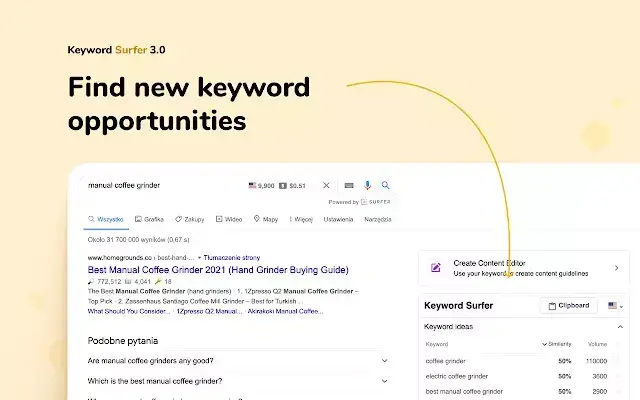
Keyword Surfer shows search volume, CPC, and related keywords directly in Google search results without leaving the SERP. No login required, no account needed, completely free. It is built by the Surfer SEO team. I use it for quick volume checks before committing to a topic. If a keyword shows under 200 monthly searches, I skip it or look for a broader variant.
3. SEOquake
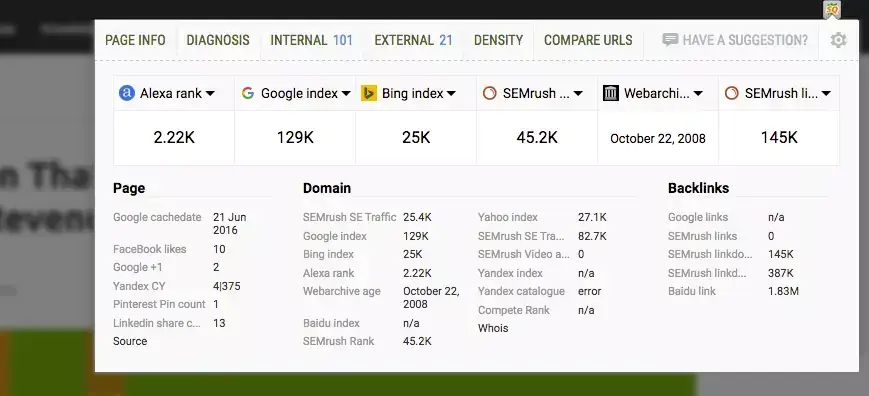
SEOquake is Semrush’s free Chrome extension. It overlays SEO metrics on every Google result (Semrush Authority Score, backlinks, indexed pages) and runs instant on-page audits on any URL. The SERP overlay alone saves me from opening Semrush for quick competitive checks. Free, no account required, and it has been Manifest V3 compliant since 2024.
4. Ahrefs SEO Toolbar
The Ahrefs SEO Toolbar is the 2024-era addition to my stack. The free version shows Domain Rating (DR), URL Rating (UR), backlink count, and estimated organic traffic for every page you visit. The paid version (requires an Ahrefs subscription) adds keyword difficulty overlays and SERP position history. If you use Ahrefs, this extension brings the data to your browser instead of the dashboard.
5. Hunter
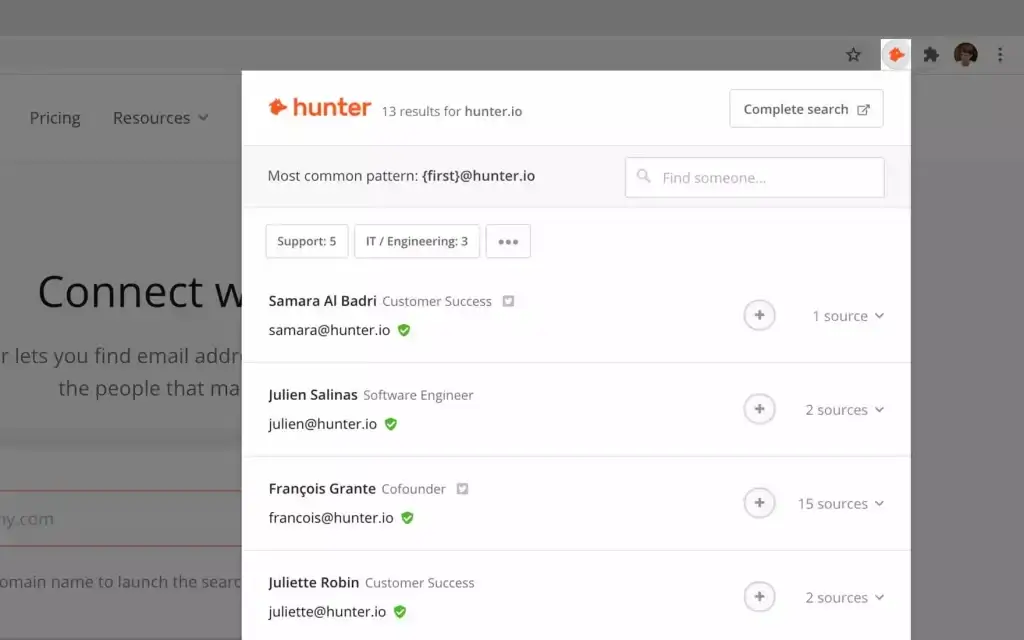
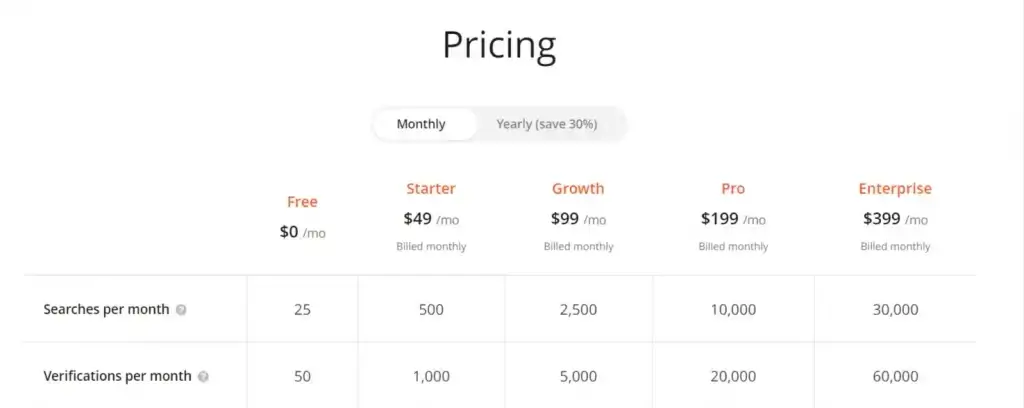
Hunter finds professional email addresses associated with any website. Visit a site, click the Hunter icon, and it shows verified email addresses for that domain. The free plan gives you 25 searches per month. I use it for link building outreach: find the editor’s email, send a personalized pitch, skip the generic contact form. Hunter verifies deliverability before you hit send.
6. GMass
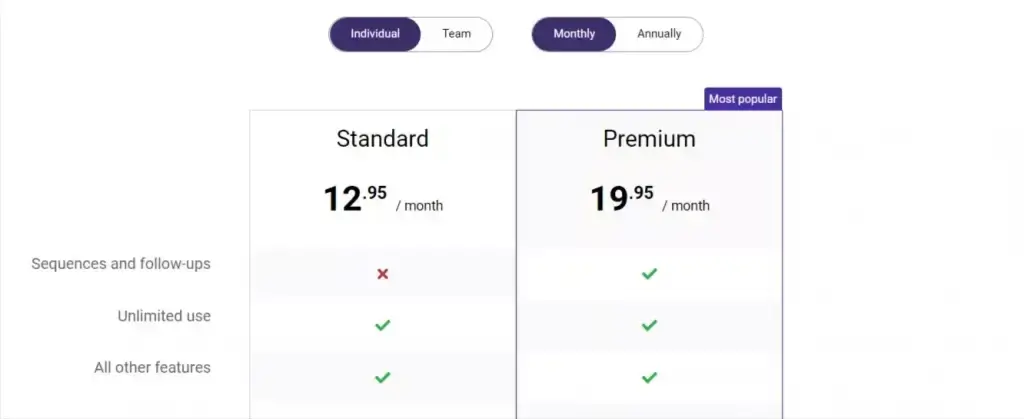
GMass turns Gmail into a mail merge tool. Write one email, personalize it with merge tags (first name, company, custom fields), and send to hundreds of recipients from your regular Gmail account. The free tier sends 50 emails/day. Paid plans start at $25/month. I use it for affiliate outreach and guest post pitches where personalization at scale matters more than using a full CRM.
7. Awesome Screenshot
Awesome Screenshot captures full-page screenshots, visible area screenshots, and screen recordings directly from Chrome. Annotate, blur sensitive data, and share via link. The free tier covers basic screenshots. I use it for every product review screenshot on gauravtiwari.org. The full-page capture (including below-the-fold content) is the feature that keeps me from switching to anything else.
8. StayFocusd
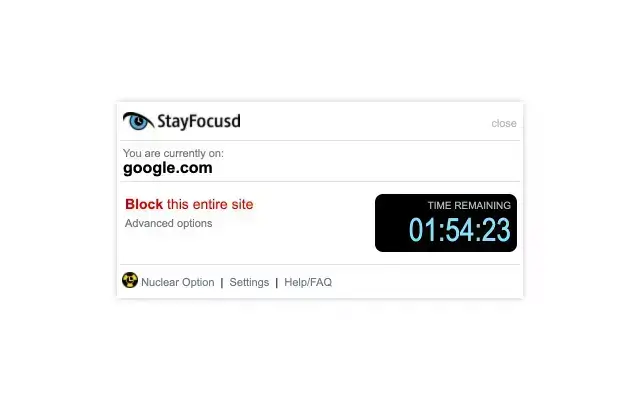
StayFocusd blocks distracting websites after you’ve spent a set amount of time on them. Set Twitter to 10 minutes/day and after that it’s gone until midnight. The “Nuclear Option” blocks everything except whitelisted sites for a set period. Free, 600,000+ users, and updated to Manifest V3 in late 2025. I use the Nuclear Option during writing blocks: 2 hours, only Google Docs and WordPress allowed.
9. Honey (PayPal)
Honey auto-applies coupon codes at checkout on thousands of online stores. Owned by PayPal since 2020. It doesn’t always find a discount, but when it does (roughly 1 in 4 purchases in my experience), it saves $5-20 per transaction. Useful for buying hosting, themes, plugins, and SaaS tools. Completely free.

10. ChatGPT for Google
This extension shows ChatGPT’s answer alongside Google search results in a sidebar. Search for any query and you get Google’s organic results on the left and an AI-generated answer on the right. I use it to compare what Google ranks against what AI would answer, which helps me write content that satisfies both channels (SEO and GEO). Free tier uses GPT-3.5. The paid version ($19/month) uses GPT-4.
11. Perplexity
Perplexity’s Chrome extension turns any webpage into a research assistant. Highlight text, right-click, and ask Perplexity to summarize, explain, or find related sources. I use it during the research phase of every article: highlight a competitor’s claim, ask Perplexity to verify it with sources, and use the cited sources in my own post. The free tier is generous (unlimited searches with some model limits).
12. Detailed SEO Extension
Detailed SEO Extension (by Glen Allsopp) gives you a one-click view of any page’s meta tags, heading structure, schema markup, canonical URL, robots directives, and Open Graph data. Completely free, no account required. I check it on every competitor page during research to see what schema they’re running and whether they’ve optimized their headings. It’s the fastest way to audit a page without opening a full tool.
Extensions I uninstalled in 2025 (and why)
Three extensions that used to be on this list didn’t make the cut this year:
- MailTrack: Still works, but I stopped needing open tracking when I switched to GMass (which has it built in). Running both was redundant.
- Link Miner (Mangools): Good extension, but the Ahrefs SEO Toolbar now shows broken links on any page for free. Duplicate functionality.
- MozBar: Became unreliable after MV3 migration. SEOquake and the Ahrefs Toolbar cover the same data more consistently.
How to manage Chrome extensions without killing performance
Every extension uses memory. With 12 running, Chrome’s RAM usage increases noticeably. Here’s how I manage it:
- Pin the 4 you use daily. Grammarly, Keyword Surfer, SEOquake, and StayFocusd stay active. Everything else stays in the extension menu.
- Disable extensions you only use weekly. Hunter, GMass, and Awesome Screenshot are disabled until I need them. One click to enable, one click to disable.
- Use Chrome profiles. I have a “Writing” profile (Grammarly, StayFocusd, Perplexity) and a “Research” profile (SEOquake, Ahrefs, Keyword Surfer, Detailed). This cuts per-profile memory usage in half.
Frequently asked questions
Chrome Extensions by Category
Not every extension serves the same purpose. Here is how the 12 extensions in this guide break down by what they actually help with.
SEO and keyword research: Keyword Surfer, SEOquake, Ahrefs SEO Toolbar, Detailed SEO Extension
Writing and editing: Grammarly
Outreach and email: Hunter, GMass
AI and research: ChatGPT for Google, Perplexity
Productivity: StayFocusd, Awesome Screenshot
Shopping and deals: Honey
If you are a blogger focused primarily on SEO, install Keyword Surfer + Detailed SEO Extension + Ahrefs SEO Toolbar. That three-extension stack gives you search volume data, on-page SEO analysis, and backlink metrics without leaving Google search results.
How Many Chrome Extensions Is Too Many?
Chrome extensions run in the background and consume memory, CPU, and sometimes network bandwidth. Every extension you install makes your browser slightly slower.
The practical limit for most machines: 8-12 active extensions. Beyond that, you will notice Chrome getting sluggish, especially on laptops with 8GB RAM or less.
My approach: install only what you use weekly. If you have not clicked an extension in a month, disable it. Chrome lets you disable extensions without uninstalling them (chrome://extensions, toggle the switch). Keep your active set to under 10 and your browser stays fast.
Are Chrome extensions safe to install?
Extensions from the Chrome Web Store are reviewed by Google, but not all are safe. Stick to extensions with 100,000+ users, recent update dates, and known publishers. Avoid extensions that request permissions they shouldn’t need (a screenshot tool asking for browsing history is a red flag). The Manifest V3 migration in 2025 improved security by restricting what extensions can do in the background.
Do Chrome extensions slow down my browser?
Yes, each active extension uses RAM and CPU. The impact is small with 4-5 extensions but noticeable above 10. Disable extensions you only use occasionally and use Chrome profiles to split your extensions across workflows. This cuts per-profile memory usage roughly in half.
What is Manifest V3 and why does it matter?
Manifest V3 (MV3) is Google’s new extension platform that replaced Manifest V2 in Chrome 139 (July 2025). It restricts background processing, improves security, and reduces memory usage. Any extension that hasn’t migrated to MV3 no longer works in current Chrome versions. All 12 extensions on this list are MV3 compliant.
What is the best free AI Chrome extension for writers?
Perplexity for research (summarize pages, verify claims, find sources) and ChatGPT for Google for seeing AI answers alongside search results. Both have generous free tiers. For grammar and clarity, Grammarly’s free tier handles spelling, grammar, and basic tone checks without paying for Premium.
How many Chrome extensions is too many?
There’s no hard limit, but I keep 4-5 active at any time and disable the rest. More than 10 active extensions noticeably increases Chrome’s memory usage and startup time. Review your extension list every 6 months and remove anything you haven’t clicked in 30 days.
Can I use Chrome extensions on Firefox or Edge?
Microsoft Edge supports most Chrome extensions natively since it’s built on Chromium. Install directly from the Chrome Web Store. Firefox doesn’t support Chrome extensions directly, but many popular extensions (Grammarly, Honey, SEOquake) have separate Firefox versions on addons.mozilla.org.
Do I need paid extensions or are free ones enough?
Free is enough for most bloggers. Keyword Surfer, SEOquake, Detailed SEO Extension, StayFocusd, and Honey are completely free with no paid tier. Grammarly, Hunter, and ChatGPT for Google have free tiers that cover the core functionality. The only extension where paying makes a real difference is Grammarly Premium if you write daily.
Final word
The best Chrome extensions for bloggers in 2026 aren’t the same as they were in 2021. AI tools (ChatGPT for Google, Perplexity) and better free SEO toolbars (Ahrefs, Detailed) have replaced several paid options that used to be essential. Install the 4-5 that match your workflow, disable the rest, and review your extension list every 6 months. For broader tool recommendations, read the best SEO tools guide. Questions? Find me on X @wpgaurav or through the contact form.