
15 Best Apps for Virtual Study Groups and Collaborations
Group study works. Students who study collaboratively score 15-20% higher on average than those who study alone. But coordinating schedules across 4-5 people, sharing notes without version chaos, and actually staying focused during remote sessions? That’s where most study groups fall apart.
The coordination tax is real. You lose 20 minutes scheduling on one app, switch to another for video, a third for shared notes, and a fourth for task tracking. By the time everyone’s on the same page, half the study session is gone. Worse, important notes get buried in chat threads nobody scrolls back through.
The right apps eliminate that friction. Video calls with screen sharing, shared documents with real-time editing, task boards that keep group projects on track, and flashcard tools that make review sessions actually productive. Here are 15 apps that make virtual study groups work.
The best apps for virtual study groups
- Zoom for video study sessions with breakout rooms and recording
- Microsoft Teams for groups already in the Microsoft 365 ecosystem
- Slack for organized, channel-based study discussions
- Google Meet for quick, no-install video calls via Google Calendar
- Discord for always-on voice channels and community-style study servers
- GroupMe for simple group messaging without app requirements
- Google Docs for real-time collaborative note-taking and writing
- Trello for visual task management on group projects
- WhatsApp for encrypted group chat with global reach
- Remind for teacher-to-student communication and deadline alerts
- Google Keep for shared quick notes, checklists, and reminders
- Notion for building a shared study wiki with databases and templates
- Quizlet for collaborative flashcards and practice quizzes
- Forest for gamified focus sessions during group study time
- Apple Notes for quick shared notes and PDF annotation on Apple devices
1. Zoom

Best for: Video study sessions with breakout rooms, screen sharing, and session recording.
Zoom remains the default for virtual study sessions, and for good reason. It handles video conferencing, screen sharing, and session recording in one place. The breakout rooms feature is what sets it apart for study groups: you can split a 20-person class into 4-5 smaller discussion groups, then bring everyone back together. Annotations let you mark up shared screens in real time, and polls keep sessions interactive.
The free tier gives you 40-minute meetings with up to 100 participants, which is enough for most study sessions. If you need longer sessions, the Pro plan ($13.33/month) removes the time limit. The recording feature is invaluable for group members who miss a session or want to review complex material later.
The downside is “Zoom fatigue,” which is real after back-to-back sessions. The free tier’s 40-minute cap can also cut discussions short at the worst moment. But for structured study sessions where you need face-to-face interaction, breakout discussions, and recordings, Zoom is still the most reliable choice.
Price: Free (40-min limit); Pro $13.33/month
2. Microsoft Teams
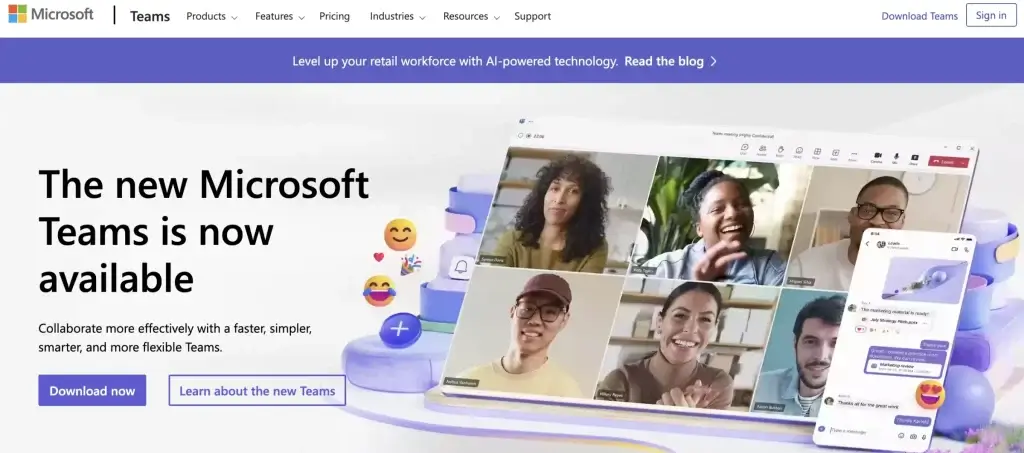
Best for: Study groups at institutions that use Microsoft 365 for assignments and collaboration.
Microsoft Teams isn’t just a video call app. It’s a full collaboration platform that integrates with Word, Excel, PowerPoint, and OneNote. If your school or university already uses Microsoft 365 (and most do), Teams lets you co-edit documents during a call, share files from OneDrive, and manage group assignments without leaving the app.
The channel system keeps conversations organized. You can create separate channels for different subjects or projects, pin important files, and use the built-in task planner to assign work with deadlines. Video calls support up to 1,000 participants (300 for free accounts), with screen sharing, background blur, and live captions.
Teams can feel overwhelming at first because it does so much. The interface isn’t as clean as Zoom or Discord, and notifications can be noisy if you’re in multiple teams. But for groups that need video calls, document collaboration, and task management in one place, Teams eliminates the need to juggle multiple apps.
Price: Free (limited features); Microsoft 365 Education is free for students at participating institutions
3. Slack

Best for: Organized, searchable study discussions with channel-based messaging.
Slack organizes conversations into channels, which is its biggest advantage for study groups. Create #calculus-homework, #group-project, and #exam-prep channels, and discussions stay separated instead of getting lost in one giant group chat. Every message, file, and link is searchable, so you can find that formula someone shared three weeks ago in seconds.
Slack integrates with 2,400+ apps including Google Drive, Trello, Notion, and Zoom. Huddles (quick voice calls) let you jump into a discussion without scheduling a formal meeting. The free tier includes 90 days of message history and 10 integrations, which works for most study groups.
The main limitation is the learning curve. Slack has a lot of features, and students used to simpler chat apps (WhatsApp, iMessage) might find it overbuilt for casual study coordination. The 90-day message history on free plans means older notes disappear. But if your study group generates a lot of discussion and shared resources, Slack’s organization is unmatched.
Price: Free (90-day history); Pro $7.25/month per person
4. Google Meet
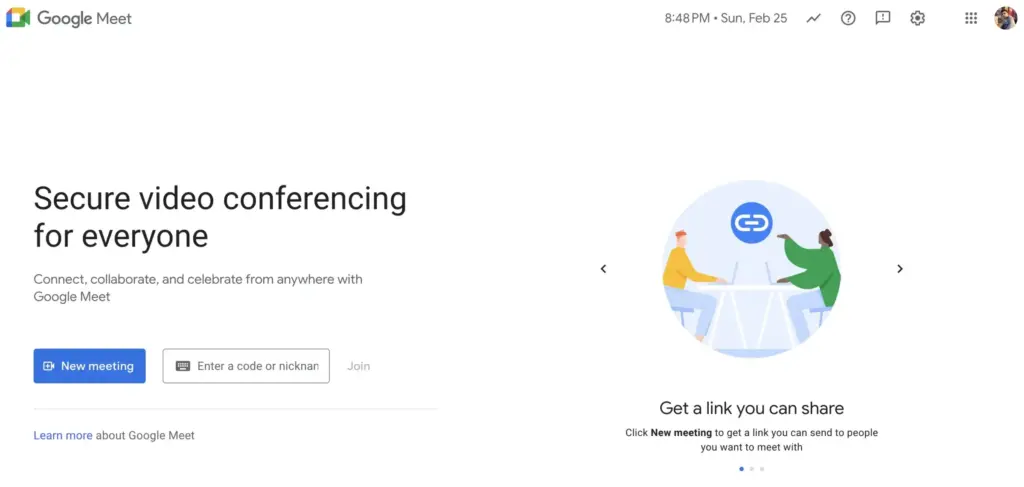
Best for: Quick video calls with zero friction, especially if you use Google Workspace.
Google Meet is the easiest way to start a video study session. No app download required. Just share a link and everyone joins from their browser. It integrates directly with Google Calendar, Gmail, and other Google apps, so scheduling a study session creates a Meet link automatically.
The free tier supports calls up to 60 minutes with 100 participants. Real-time captions (powered by Google’s speech recognition) are surprisingly accurate and helpful for students who are non-native English speakers or studying in noisy environments. Screen sharing, virtual backgrounds, and hand-raise features cover the basics well.
Meet lacks Zoom’s breakout rooms and advanced collaboration features. You won’t find annotation tools or built-in polling. It’s intentionally simple, which is both its strength and limitation. For study groups that just need reliable video calls without the setup overhead, Meet delivers. For groups that need structured sessions with breakout discussions, stick with Zoom.
Price: Free (60-min limit); Google Workspace plans start at $7/month
5. Discord
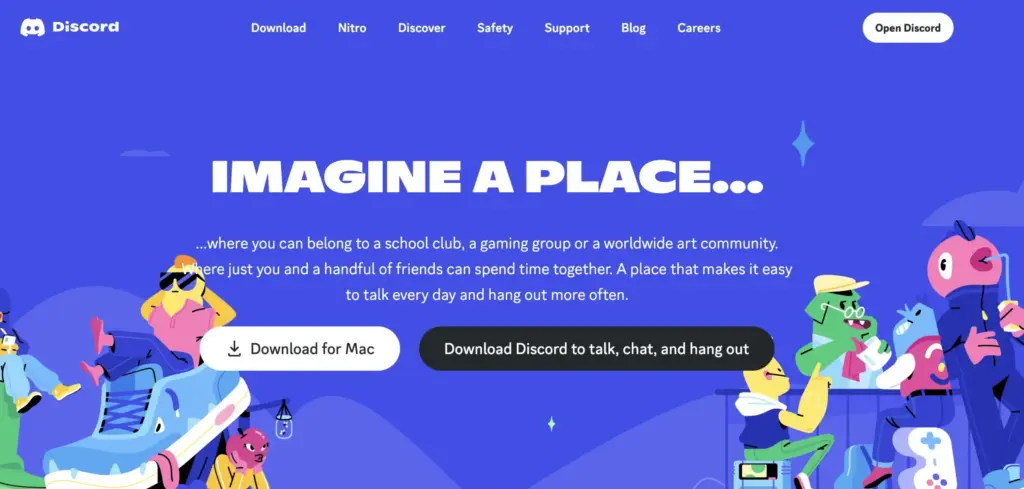
Best for: Always-on voice channels and community-style study servers with text and voice.
Discord started as a gaming platform but has become one of the most popular tools for student communities. The killer feature for study groups is persistent voice channels. Unlike Zoom or Meet, you don’t schedule a call. You just join a voice channel whenever you’re studying, and others can drop in and out. It recreates the feel of studying in a library with friends nearby.
Create a server for your course or study group, then organize it with text channels (#homework-help, #exam-review, #off-topic) and voice channels (Study Room 1, Study Room 2). Roles and permissions let you control who can do what. Bots can automate tasks like scheduling study sessions, creating polls, or even running quiz games.
Discord is completely free for everything study groups need. Nitro ($9.99/month) adds higher upload limits and custom emoji, but it’s unnecessary for academic use. The gaming-centric reputation can make it feel less “serious” than Teams or Slack, and the notification system takes some configuring to avoid constant pings. But for students who want an always-available study space with voice, text, and community features, Discord is hard to beat.
Price: Free; Nitro $9.99/month (optional)
6. GroupMe
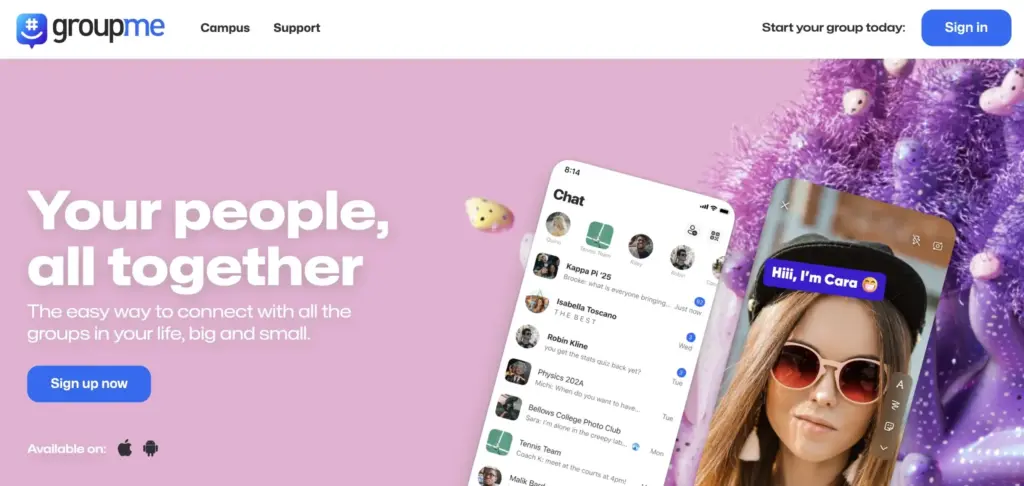
Best for: Simple group messaging that works via SMS for people without the app.
GroupMe solves the simplest problem: getting everyone in one group chat without requiring everyone to download the same app. Messages can be received via SMS, so even group members without smartphones or data plans stay in the loop. It’s incredibly popular on college campuses precisely because of this low barrier to entry.
The app handles group chats, direct messaging, photo and video sharing, and event scheduling. Polls help the group make decisions (when to meet, which topic to cover). Calendar integration reminds everyone of upcoming study dates. The “like” feature on messages helps surface important information without cluttering the chat with “+1” replies.
GroupMe lacks voice and video calling, which means you’ll need a separate app for actual study sessions. It’s purely a coordination and messaging tool. The search function is weak compared to Slack, and older messages can be hard to find. But for the specific task of organizing a study group, sending reminders, and sharing quick updates, GroupMe’s simplicity is its biggest asset.
Price: Free
7. Google Docs
Best for: Real-time collaborative writing, note-taking, and document editing.
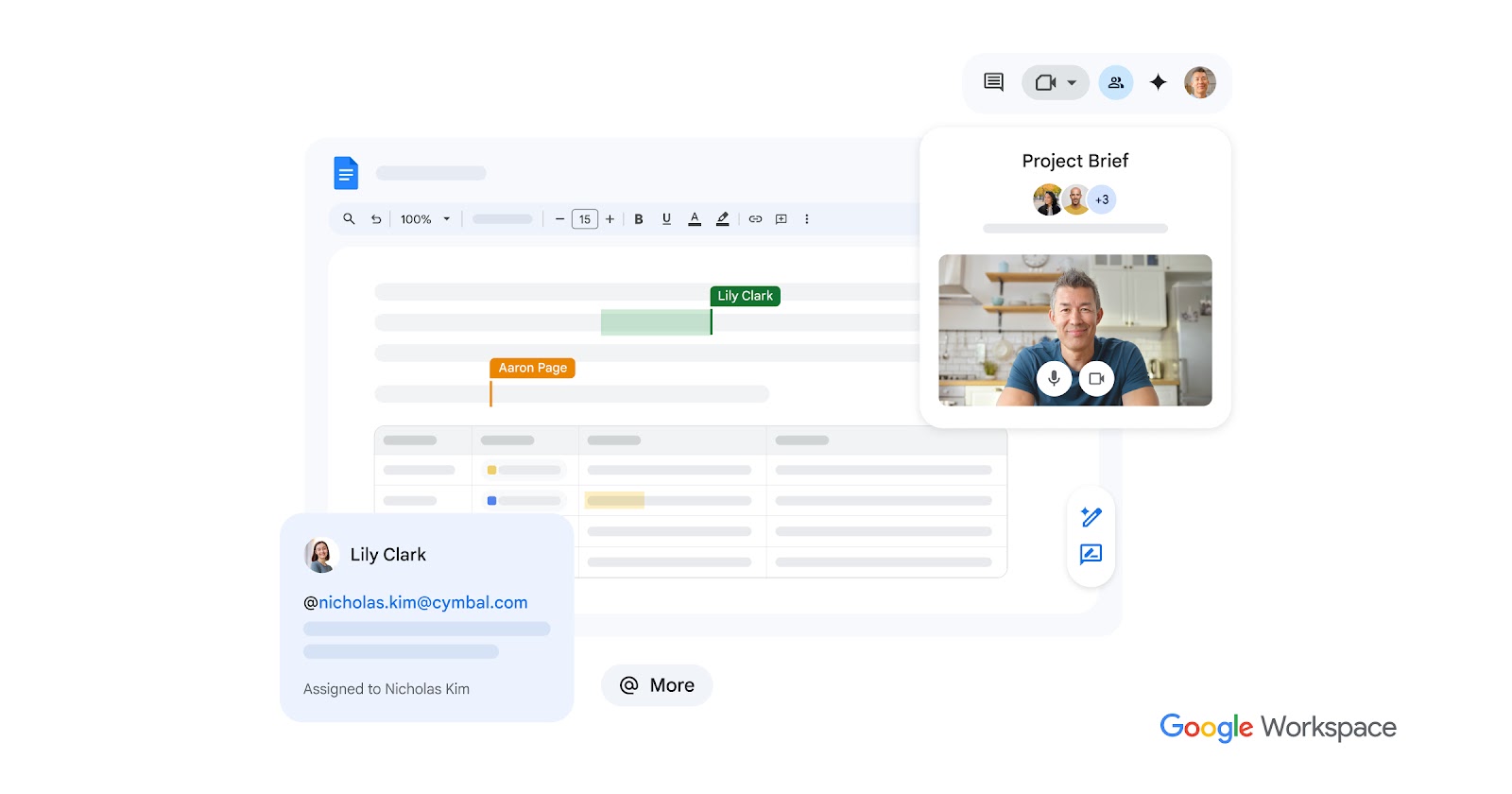
Google Docs is the standard for collaborative writing in study groups. Multiple people can edit the same document simultaneously, with each person’s cursor visible in a different color. The suggesting mode lets you propose edits without changing the original text, and threaded comments make it easy to discuss specific sections.
For study groups, the most common use cases are shared lecture notes (everyone takes notes in the same doc during class), group project drafts, and collaborative study guides before exams. Version history lets you see who changed what and revert if someone accidentally deletes content. The document auto-saves, so you never lose work.
Google Docs isn’t a communication tool, so you’ll still need something like Zoom or Discord for actual discussions. Formatting options are more limited than Microsoft Word, and large documents with many simultaneous editors can lag. But for the specific task of writing together in real time, nothing is simpler or more accessible. It works in any browser, requires no installation, and everyone with a Google account already has access.
Price: Free with Google account; Google Workspace from $7/month for extra storage
8. Trello
Best for: Visual task management and deadline tracking for group projects.
Trello uses a kanban board system (columns of cards) that makes project management visual and intuitive. Create columns like “To Do,” “In Progress,” “Review,” and “Done,” then drag task cards between them as work progresses. Each card can hold checklists, due dates, file attachments, and comments.
For group projects, Trello shows at a glance who’s responsible for what and which tasks are behind schedule. Assign group members to specific cards, set deadlines with email reminders, and attach reference files directly to tasks. The Butler automation feature can handle repetitive actions (like moving a card to “Review” when all checklist items are checked).
Trello’s free tier supports unlimited boards, cards, and members with up to 10 boards per workspace. That’s more than enough for study group use. The downside is that Trello doesn’t handle communication. You’ll need a separate app for discussions and video calls. It also requires everyone to actually update their cards, which doesn’t always happen in student groups. But when it works, it’s the clearest way to see project status at a glance.
Price: Free; Standard $6/month per user
9. WhatsApp

Best for: Group chat with end-to-end encryption, especially for international students.
WhatsApp has 2 billion+ users worldwide, which means everyone in your study group probably already has it installed. Group chats support up to 1,024 members, with voice messages, video calls (up to 32 people), file sharing (documents, photos, PDFs up to 2GB), and polls. End-to-end encryption means your conversations stay private.
For international study groups, WhatsApp is often the only realistic option. It works over Wi-Fi or mobile data without SMS charges, making it the default communication tool for students in India, Latin America, Europe, Africa, and Southeast Asia. The “Communities” feature lets you organize multiple group chats under one umbrella, useful for course-wide coordination with separate groups per topic.
WhatsApp isn’t built for long-form collaboration. Messages get buried fast in active groups, there’s no threading (so conversations overlap), and search is basic. Shared files disappear from the chat after a while unless downloaded. For quick coordination and staying in touch, it’s unbeatable. For anything requiring organized discussions or document collaboration, you’ll need a complementary tool.
Price: Free
10. Remind
Best for: Teacher-to-student communication with scheduled messages and deadline reminders.
Remind is built specifically for education. Teachers can send announcements to entire classes without sharing personal phone numbers, and students receive them via push notification, SMS, or email. Messages can be scheduled in advance, which is perfect for sending exam reminders, assignment deadlines, or study session links at the right time.
The platform supports one-to-one messaging (teacher to student or student to student), class-wide announcements, and small group conversations. File attachments, voice clips, and links work within messages. The translation feature automatically translates messages into 90+ languages, which helps in diverse classrooms.
Remind is free for basic use and most study group needs. The limitations are that it’s more of a broadcast tool than a collaboration platform. You can’t co-edit documents, share screens, or have video calls through Remind. Think of it as the notification layer that ensures nobody misses important updates, while using other tools for the actual studying.
Price: Free for basic use; Remind Hub plans for schools
11. Google Keep
Best for: Quick shared notes, checklists, and color-coded reminders.
Google Keep is Google’s lightweight note-taking app. You can create text notes, checklists, voice memos, and image-based notes, then share them with study group members for collaborative editing. Color-coding and labels help organize notes by subject or priority. Location-based and time-based reminders ensure you don’t forget to review study materials before exams.
The app syncs across all devices (Android, iOS, web, Chrome extension), so notes you create on your phone during a lecture are instantly available on your laptop. The handwriting and image recognition features let you search for text within handwritten notes or photos of whiteboards. You can also pin important notes to the top of your list.
Google Keep isn’t meant for long documents or structured note-taking. For that, use Google Docs or Notion. Keep’s strength is speed: you can capture a thought, create a shared checklist, or snap a photo of a whiteboard in seconds. It’s the digital equivalent of sticky notes, and for quick study group coordination (shared to-do lists, quick reference notes, exam checklists), it does the job perfectly.
Price: Free with Google account
12. Notion
Best for: Building a shared study wiki with databases, templates, and structured knowledge bases.
Notion is the most powerful organizational tool on this list. It combines notes, databases, wikis, task boards, and calendars in a single workspace. For study groups, you can build a shared knowledge base with pages for each subject, linked databases tracking assignments and grades, and templates for meeting notes or study guides.
The template gallery has hundreds of student-specific templates: course trackers, exam schedulers, research paper organizers, and group project dashboards. The database feature lets you create custom views (table, board, calendar, timeline) of the same data, so everyone can see information the way they prefer. Real-time collaboration means multiple group members can work on the same page simultaneously.
Notion’s flexibility is also its weakness. Setting up a good workspace takes time, and the learning curve is steeper than simpler tools like Google Keep or Google Docs. The free plan for education (available with a .edu email) includes unlimited blocks and pages for individual use, and the team plan is free for small groups. If your study group is willing to invest the setup time, Notion becomes the central hub that connects everything else.
Price: Free for education (with .edu email); Plus $10/month per person
13. Quizlet
Best for: Collaborative flashcards, practice quizzes, and spaced repetition study.
Quizlet turns study material into interactive learning tools. Create flashcard sets for vocabulary, formulas, definitions, or concepts, then study them using multiple modes: classic flashcards, learn mode (adaptive questions), write mode (typed answers), spell mode, test mode (auto-generated practice exams), and match games. Study groups can create collaborative sets where everyone contributes cards.
The platform has millions of existing flashcard sets created by other students, so you might find sets for your exact course and textbook already made. Quizlet’s spaced repetition algorithm prioritizes cards you struggle with, making review sessions more efficient. The “Quizlet Live” feature turns studying into a competitive team game that works well during group sessions.
Quizlet Plus ($7.99/month or $35.99/year) removes ads and adds AI-enhanced study tools, custom images, and offline access. The free tier includes ads and limits some AI features but covers the core flashcard experience. Quizlet works best for memorization-heavy subjects (languages, biology, history, law). For subjects requiring deep conceptual understanding rather than recall, it’s less useful.
Price: Free (with ads); Quizlet Plus $7.99/month or $35.99/year
14. Forest
Best for: Gamified focus sessions to keep the entire study group off their phones.
Forest uses a simple but effective trick: you plant a virtual tree when you start studying, and it grows as long as you don’t touch your phone. Leave the app to check Instagram? The tree dies. Over time, you grow a virtual forest that represents your cumulative focus time. The “plant together” feature lets study group members sync their focus sessions, so everyone’s tree is at stake.
The social accountability element is what makes Forest useful for study groups. When you know your friend’s tree dies if you break focus, there’s genuine peer pressure to stay on task. The app tracks your focus history with detailed statistics, showing which days and times you’re most productive. Forest also partners with Trees for the Future, so virtual coins earned through focus sessions can be spent planting real trees.
Forest is a focus tool, not a communication or collaboration tool. You’ll still need Zoom, Discord, or another app for the actual studying. The Android version is free (with ads), while the iOS version costs $3.99 as a one-time purchase. The gamification can feel gimmicky after a while, but the social planting feature genuinely helps groups maintain discipline during study sessions.
Price: Free on Android (with ads); $3.99 on iOS (one-time)
15. Apple Notes
Best for: Quick shared notes, PDF annotation, and handwriting on Apple devices.
Apple Notes comes pre-installed on every iPhone, iPad, and Mac, which means zero setup friction for study groups where everyone’s on Apple devices. Shared folders let multiple people contribute to and edit notes. The app handles text, checklists, photos, document scans, and handwritten notes (with Apple Pencil on iPad). You can import and annotate PDF files directly within notes.
For students with iPads, the handwriting recognition is excellent. You can write notes by hand, and Apple Notes makes them searchable as text. The document scanner converts whiteboard photos into clean, cropped documents. Tags and smart folders help organize notes across multiple classes. FaceTime integration means you can share your screen and collaborate on notes during a video call.
The obvious limitation is platform lock-in. Apple Notes works on Apple devices and icloud.com only. If anyone in your study group uses Android or Windows, they’re limited to the web version, which lacks most of the advanced features. For mixed-platform groups, Google Docs or Notion are better choices. But for all-Apple study groups, Notes is the fastest path from thought to shared document.
Price: Free (included with Apple devices); iCloud+ from $0.99/month for extra storage
Conclusion
You don’t need all 15 of these apps. Most study groups work well with a combination of three: one for video calls (Zoom, Meet, or Discord), one for messaging (WhatsApp, GroupMe, or Slack), and one for collaboration (Google Docs, Notion, or Trello). Pick based on what your group actually struggles with.
Related: Looking for the best individual note-taking app? See my ranked guide to the best note-taking apps for students covering 15 apps across every platform.
If coordination is the problem, start with GroupMe or WhatsApp. If focus is the issue, add Forest. If your group projects are disorganized, Trello or Notion will help. The tool matters less than the consistency. A study group that meets regularly on any platform will outperform one with perfect tools that meets sporadically.
Disclaimer: This site is reader-supported. If you buy through some links, I may earn a small commission at no extra cost to you. I only recommend tools I trust and would use myself. Your support helps keep gauravtiwari.org free and focused on real-world advice. Thanks. - Gaurav Tiwari