
Project Management Software: How to Pick the Right Tool for Your Team
Your team is juggling tasks across Slack threads, spreadsheets, and email chains. Deadlines slip because nobody knows who owns what. Someone asks “where’s that file?” three times a day. You’ve tried sticky notes, shared docs, maybe even a whiteboard. Nothing sticks. Finding the best software for project management feels like its own full-time project.
Here’s what that chaos actually costs. I switched task management software four times between 2011 and 2026, from Basecamp to Trello to Asana to Monday.com. Every migration burned two weeks of productivity and at least $500 in overlapping subscriptions. Multiply that across a team of 10, and you’re looking at real money and real momentum lost. The wrong project management app doesn’t just fail quietly. It trains your team to stop trusting any system at all.
I’ve tested every major program management software option with real teams and real projects. This guide breaks down exactly which tool fits which team, what the free tiers actually get you, and how to pick the right one without the expensive trial-and-error I went through. Whether you need a simple project tracker or a full enterprise platform, I’ll show you the shortest path to the right choice.
What Project Management Software Actually Does
At its core, task management software does three things: it tracks who’s doing what, when it’s due, and how it connects to everything else. That’s it. Every feature you see in a sales demo is a variation of those three things.
The problem is that every tool approaches these three things differently. Some are built around boards (Trello, Monday.com). Some are built around lists and timelines (Asana, ClickUp). Some are built around documents that happen to have task features (Notion). And some are built specifically for engineering teams (Linear, Jira).
The tool you pick should match how your team already thinks about work. If your team communicates in Slack threads, you don’t need a tool that forces everything into formal task comments. If your team runs on spreadsheets, you want something with a strong table view.
If a tool requires more than one training session for your team to start using it, it’s the wrong tool. The best PM software feels obvious to the people who’ll use it every day.
The Top Tools Compared: Pricing, Strengths, and Who They’re For
I’ve used or tested all five of these tools with real projects. Here’s what you need to know about each one in 2026.
ClickUp
Free plan: Unlimited members, unlimited tasks, 100MB storage. Paid: From $7/user/month (billed annually).
ClickUp tries to be everything for everyone, and it mostly succeeds. You get docs, whiteboards, goals, time tracking, and task management all in one app. The free tier is the most generous in the industry. The downside? It can feel overwhelming when you first open it. There’s a learning curve of about 3-5 days before your team stops asking “where do I find X?”
I recommend ClickUp for teams of 5-50 that want one tool instead of five. If you’re currently paying for a task manager, a docs tool, and a time tracker separately, ClickUp replaces all three. ClickUp Brain (their AI assistant) can summarize tasks, write updates, and generate action items from meeting notes.
Notion
Free plan: Unlimited pages, 10 guest collaborators. Paid: From $10/user/month (billed annually).
Notion is the best tool for teams that think in documents first and tasks second. It’s a wiki, a database, a project tracker, and a note-taking app. The flexibility is both its biggest strength and its biggest weakness. You can build anything, which means you can also build a mess.
I use Notion for content planning and client knowledge bases. It works well for marketing teams, content teams, and agencies that need a place for SOPs alongside their task boards. Notion AI can auto-fill database properties, summarize pages, and even update project status from meeting notes. But for pure project management with Gantt charts and resource allocation, you’ll outgrow it fast.
Asana
Free plan: Up to 10 teammates. Paid: From $10.99/user/month (Starter, billed annually).
Asana is the tool I recommend when someone says “I just need tasks, timelines, and dependencies.” It does those three things better than anyone else. The interface is clean and fast, and most teams can start using it within 30 minutes. Asana Intelligence gives you AI-generated status reports and smart field suggestions.
The free plan caps at 10 users, which is limiting. And once you need things like portfolios, workload management, or custom fields, you’re looking at the Advanced plan at $24.99/user/month. That adds up fast for larger teams.
Monday.com
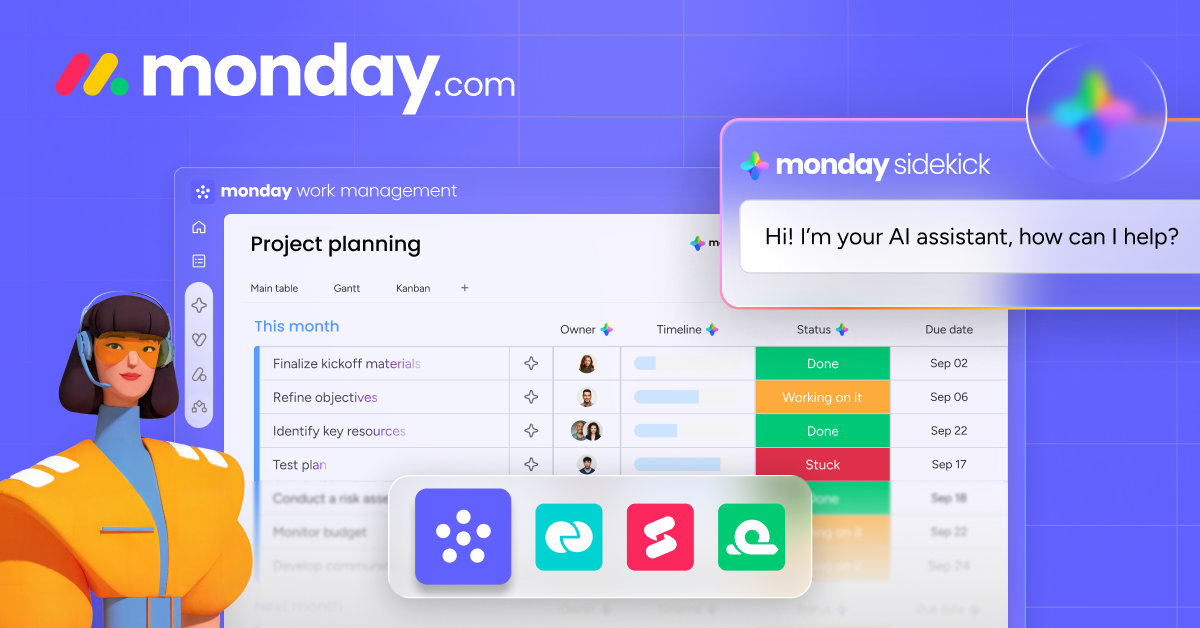
Free plan: Up to 2 users. Paid: From $9/user/month (Basic, billed annually, minimum 3 seats).
Monday.com is the most visual tool on this list. It’s built around color-coded boards that look like souped-up spreadsheets. Non-technical teams love it because it feels familiar. Sales teams, HR departments, and operations teams pick it up quickly because the board layout maps to how they already think about tracking things.
Monday Magic (their AI feature) can generate entire project structures from a text prompt. Describe your project in plain English, and it builds the board, assigns phases, and sets timelines. The 3-seat minimum on paid plans is annoying for solopreneurs, but for teams, the pricing is competitive.
Linear
Free plan: Unlimited members, up to 250 issues. Paid: From $8/user/month (billed annually).
Linear is for software engineering teams. Period. If you’re not shipping code, skip it. But if you are, it’s the fastest and cleanest issue tracker I’ve used. Keyboard shortcuts make it feel like a code editor. The design is opinionated: cycles, backlogs, triage. No clutter. Linear’s AI can auto-categorize issues and suggest labels based on the content.
I switched my development team to Linear in 2024, and sprint planning meetings dropped from 45 minutes to 20. The downside is zero flexibility. You can’t use Linear for marketing campaigns or client projects. It’s built for one thing, and it does that thing better than anyone.
AI Features in PM Tools: What’s Real and What’s Marketing
Every PM tool now has “AI” in its marketing. Some of it is useful. Most of it is a chatbot wrapper. Here’s what actually saves time based on my testing.
Useful AI features (these save real hours):
- Auto-generating status updates from task progress (Asana, ClickUp)
- Summarizing long comment threads into action items (ClickUp Brain, Notion AI)
- Creating project structures from plain-text descriptions (Monday Magic)
- Predicting timeline risks based on past project data (Asana Intelligence)
Marketing fluff (sounds good, rarely used):
- AI writing assistants inside task descriptions (just use ChatGPT)
- Smart scheduling that “learns your preferences” (barely works in practice)
- AI-powered insights dashboards (usually just pre-built charts with a new label)
The one AI feature I’d actually pay for? Automated standup summaries. ClickUp Brain and Notion AI both do this. You skip the 15-minute daily standup, and the AI compiles what everyone did yesterday and what’s blocked. For a team of 10, that’s 25 hours saved per week.
Agile vs. Waterfall: Which Approach Fits Your Team?
Before you pick a project planning tool, you need to know how your team manages work. The two main approaches are Agile and Waterfall, and your choice here narrows your tool options significantly.
Waterfall means you plan everything upfront, execute in order, and move through phases sequentially. Phase 1 finishes before Phase 2 starts. This works for construction, manufacturing, event planning, and any project where the scope is fixed and changing direction mid-project is expensive.
Agile project management means you work in short cycles (usually 1-2 weeks), ship something small, get feedback, and adjust. This works for software development, content marketing, product design, and any project where requirements change as you learn more.
Most teams I’ve worked with across hundreds of client projects actually use a mix. They plan big milestones like Waterfall but execute the day-to-day work in Agile-style sprints. That’s completely fine. Just make sure your project planning tool supports both views.
Best tools for Waterfall: Asana (timeline view), Monday.com (Gantt charts), Microsoft Project.
Best tools for Agile project management: Linear (cycles), ClickUp (sprints), Jira.
Best tools for the mix: ClickUp, Asana, Monday.com.
Choosing the Right Tool Based on Your Team Size
Team size changes everything about which team management tool works. A tool that’s perfect for three people becomes a nightmare at thirty. Here’s how I’d break it down.
Solo or 2-3 People
You don’t need a PM tool. Use Notion or Apple Reminders. If you insist on proper project management, Todoist or Trello’s free plan will cover you. Don’t overcomplicate it. The overhead of setting up a full PM system for three people costs more time than it saves. If you’re a freelancer, check out productivity tools built for solo operators before jumping into enterprise software.
Small Teams (4-15 People)
This is where PM tools start paying for themselves. You need visibility into who’s working on what, and verbal updates don’t scale past 5 people. Asana’s free plan (up to 10 users) or ClickUp’s free tier are your best bets. Monday.com works well here too, especially if your team includes non-technical members.
If you’re looking for a project management tool for startups, ClickUp’s free plan is hard to beat. Unlimited users, unlimited tasks, and enough features to run a 10-person team without paying a cent. Pair it with Notion for docs and you’ve got a startup stack under $10/user/month.
Mid-Size Teams (15-50 People)
Now you need departments, permissions, and reporting. You can’t have everyone in one flat list. ClickUp’s folder/list/task hierarchy handles this well. Monday.com’s workspace structure also scales here. Expect to pay $7-$12/user/month. For a 30-person team, that’s $210-$360/month. Worth it if it replaces even one missed deadline per quarter.
Large Teams (50+ People)
At this scale, you need enterprise-grade program management software with SSO, audit logs, advanced permissions, and dedicated support. Asana Enterprise, Monday.com Enterprise, or ClickUp Enterprise are your options. Budget $20-$40/user/month. The choice at this level is usually driven by IT and security requirements more than feature preferences.
Free vs. Paid: When to Upgrade
Every project tracker I’ve mentioned has a free tier. But free plans have limits that bite you at exactly the wrong time. Here’s when you’ll hit them.
ClickUp Free: No Gantt charts, limited storage (100MB), no custom fields. You’ll outgrow this free project tracker in about 3 months if you’re using it daily.
Asana Free: 10-user cap is the hard wall. You also lose timeline view and custom fields. Teams hit this limit fast, especially when you add contractors and freelancers.
Monday.com Free: 2 users only. This isn’t really a free tier for teams. It’s a trial that doesn’t expire.
Notion Free: The best free plan for small teams. You get unlimited pages, basic databases, and 10 guest collaborators. But file upload limits (5MB per file) and no admin tools are the constraints.
Linear Free: 250 active issues is the cap. For a small dev team doing 2-week sprints, that’s about 4-6 months of runway before you need to upgrade.
Upgrade to a paid plan when you have more than 5 active users, when you need reporting/dashboards, or when you’re losing tasks because the free plan lacks proper search and filtering. That tipping point usually hits around month 3 for teams that are using the tool daily.
Integrations Matter More Than Features
A project collaboration tool that doesn’t connect to your other apps is a tool that creates more work. I’ve watched teams adopt Monday.com only to realize their CRM didn’t integrate with it, so now someone manually copies lead data into tasks every morning.
Before you commit to any tool, check three things:
- Communication tools: Does it connect to Slack/Teams? Can you create tasks from messages?
- File storage: Does it work with Google Drive/Dropbox/OneDrive? Can you attach files without downloading and re-uploading?
- The tool your team uses most: If your team lives in Figma, Salesforce, HubSpot, or GitHub, the PM tool needs to talk to it.
ClickUp and Monday.com have the widest integration ecosystems (200+ each). Asana is close behind. Notion has fewer native integrations but connects to almost everything through Zapier. Linear integrates deeply with GitHub and GitLab but little else. If you’re running an online business, make sure your project collaboration tool connects to your payment processor, CRM, and email marketing tool at minimum.
Remote Team Considerations
If your team is fully remote or hybrid (and most teams are in 2026), your project management app becomes your virtual office. It’s not just task tracking. It’s the place where people figure out what’s happening without tapping someone on the shoulder.
For remote teams, I prioritize these features:
- Async updates: Status updates that don’t require a meeting. ClickUp and Asana both do this well with built-in check-ins.
- Time zone awareness: Due dates that adjust for time zones. Most tools handle this, but check.
- Activity feeds: A single place to see what happened while you were sleeping. Notion’s activity log is weak here. ClickUp’s is strong.
- Video/screen recording: Loom integrations or built-in recording. Monday.com has a native screen recorder. ClickUp integrates with Loom.
- Mobile app quality: Your team will check tasks from their phone. ClickUp’s mobile app has improved a lot in 2026. Asana’s has always been solid. Linear’s mobile app is minimal but fast.
Remote teams also need clearer task descriptions, because you can’t just walk over and ask someone what they meant. Tools with built-in docs (ClickUp, Notion) help here because context lives right next to the task. For async collaboration, whiteboard tools can complement your PM software when brainstorming sessions need a visual canvas. If you’re building a remote team alongside your digital marketing strategy, pick a tool that handles both task management and knowledge management in one place.
How to Actually Choose: A Step-by-Step Process
I’ve helped dozens of clients pick PM tools. Here’s the process that works every time.
PM Tool Selection Checklist
The most common mistake? Picking a tool based on a feature checklist instead of a real trial. Features on a pricing page don’t tell you how the tool feels at 9 AM when you have 40 tasks to sort through. Only a real two-week test tells you that.
My Honest Recommendations
After testing and using all of these tools across different teams and projects, here’s who I’d point where:
- Best all-around for most teams: ClickUp. The free plan is unbeatable, and the paid plans are cheaper than Asana once you need advanced features.
- Best for simplicity: Asana. If your team just needs tasks, timelines, and dependencies without the clutter.
- Best for non-technical teams: Monday.com. The visual board layout makes sense to people who’ve never used PM software before.
- Best for content/docs-heavy teams: Notion. When your work is 60% documents and 40% tasks.
- Best for engineering teams: Linear. Nothing else comes close for speed and focus.
Don’t overthink this. Pick one, run a two-week trial with a real project, and commit. The worst PM tool is the one your team doesn’t use. And the best one is whichever one they’ll actually open every morning.
Project Management Software Comparison
Here’s a side-by-side look at every tool covered in this guide. Use this table to narrow your shortlist before starting a free trial.
| Tool | Free Plan | Paid From | Best For | AI Features |
|---|---|---|---|---|
| ClickUp | Unlimited users, unlimited tasks, 100MB storage | $7/user/month | All-around teams (5-50 people) | ClickUp Brain: standup summaries, task generation, action items |
| Notion | Unlimited pages, 10 guests | $10/user/month | Content and docs-heavy teams | Notion AI: auto-fill properties, page summaries, status updates |
| Asana | Up to 10 users | $10.99/user/month | Teams needing clean task/timeline management | Asana Intelligence: status reports, smart fields, timeline risk |
| Monday.com | Up to 2 users | $9/user/month (min 3 seats) | Non-technical and visual teams | Monday Magic: project generation from text prompts |
| Linear | Unlimited members, 250 issues | $8/user/month | Software engineering teams | Auto-categorization, label suggestions |
| Basecamp | Free for personal use | $15/user/month | Client-facing agencies | Minimal (no AI features) |
| Todoist | 5 active projects, 5 collaborators | $4/user/month | Solo users and micro-teams | Smart scheduling, natural language input |
| Trello | Unlimited cards, 10 boards | $5/user/month | Simple kanban workflows | Atlassian Intelligence: card summaries |
| Wrike | Up to 5 users | $10/user/month | Enterprise cross-functional teams | Wrike AI: risk prediction, task creation from briefs |
If budget is the constraint, start with ClickUp’s free plan for task management or Notion’s free tier for docs-heavy workflows. Both offer unlimited users on free plans, which is rare. Trello and Todoist are solid if you just need a simple free project tracker without the complexity.
3 Mistakes That Waste Months (I Made All of Them)
1. Migrating everything at once. When I switched from Asana to ClickUp, I tried to import 3 years of projects. It took a week, confused the team, and most of those old projects never got looked at again. Start fresh. Archive the old tool. Only migrate active projects.
2. Customizing before using. I spent two days building custom ClickUp dashboards before anyone on my team had created a single task. Nobody used those dashboards. Set up the basic structure, use it for a month, then customize based on what’s actually needed.
3. Choosing based on the demo. Every PM tool looks great in a demo. They all have that one “wow” feature that gets you excited. But the day-to-day experience is about speed, search, and notifications. Ask for a trial, not a demo.
Frequently Asked Questions
Should I use free project management software or pay for a tool?
For solo operators or teams under 3 people, free tiers from tools like Notion, Trello, or ClickUp’s free plan are genuinely good enough. I ran my first agency on Trello’s free plan for two years without hitting a wall. The case for paid tools starts at 5+ people: you need permission controls, time tracking, reporting, and integrations that free plans either cap or exclude.
What project management software works best for small teams under 10 people?
Notion is my pick for knowledge-heavy teams that mix project tracking with documentation. Basecamp works well for client-facing agencies because the client portal reduces email overhead. ClickUp has the most features but also the steepest learning curve. Pick based on your team’s primary bottleneck. If it’s communication, Basecamp. If it’s documentation, Notion. If it’s complex task dependencies, ClickUp or Asana.
How long does it take for a team to actually adopt a new project management tool?
Expect 4-6 weeks before it clicks and 3 months before it’s fully embedded. The first two weeks are always optimistic. Week 3 is when old habits creep back in and Slack DMs start replacing task comments. Week 5 is make-or-break. The key is a mandatory workflow: if a task doesn’t exist in the tool, it doesn’t get done.
What integrations should I look for in a project management tool?
Prioritize integrations with the tools your team uses daily, not impressive integrations with tools you might use someday. For most small businesses, the essential integrations are: your communication tool (Slack or Teams), your file storage (Google Drive or Dropbox), your calendar (Google Calendar), and if you’re client-facing, your invoicing tool.
How do I choose a project management tool for a fully remote team?
Asynchronous-first design is non-negotiable for remote teams. That means robust notifications, clear task ownership, comment threads on tasks (not just global channels), and a good mobile app. Notion and Linear are designed with async workflows in mind. I’d also prioritize tools with a strong search function. On remote teams, knowledge gets buried fast.
What is the best free project tracker for small teams?
ClickUp’s free plan is the best free project tracker for small teams. You get unlimited users, unlimited tasks, and multiple views (list, board, calendar) without paying anything. Notion’s free tier is a close second if your team needs more documentation than task tracking. Trello works well for simple kanban workflows, and Todoist is great for individual task management with basic team features.
Is there good project management software for startups?
Yes. ClickUp and Notion are the two best options for startups. ClickUp gives you a full-featured project management platform on a free plan that can scale to 50+ people. Notion works better for startups that need a combined wiki, project tracker, and knowledge base. Linear is the pick for developer-heavy startups shipping software. Avoid enterprise tools like Wrike or Microsoft Project early on. They add overhead that slows small teams down.
Picking a project management tool feels like a big decision because switching costs are real. But the bigger cost is running without one or sticking with one that doesn’t fit. Take two weeks, test two tools with a real project, and let your team’s behavior tell you which one wins. That’s how you avoid the four-tool shuffle I went through.
Disclaimer: This site is reader-supported. If you buy through some links, I may earn a small commission at no extra cost to you. I only recommend tools I trust and would use myself. Your support helps keep gauravtiwari.org free and focused on real-world advice. Thanks. - Gaurav Tiwari