
Best 4K Monitors for Programming in 2026
I code on a 4K monitor. I also coded on a 1080p monitor for eight years before that, and a QHD monitor for three years in between. The jump from 1080p to 4K at 27 inches changed how I read code. Characters are razor-sharp. Line numbers don’t blur into the code. I can set VS Code to 13pt font and still read it from arm’s length. That clarity compounds over a 10-hour day into measurably less eye fatigue. It’s not marketing. It’s pixel density math.
But here’s what nobody tells you: 4K at 27 inches requires display scaling, which means you don’t actually get four times the workspace. You get the same workspace as QHD but with sharper text. If you want more visible code lines, buy a 32-inch 4K or stick with 27-inch QHD at native resolution. I’ll explain exactly which scenario fits you in the how-to-choose section below.
For broader monitor recommendations that include ultrawide and curved options, see my best monitors for programmers guide. This guide is specifically about 4K panels for code work.
Quick List
- LG 27UP850N-W — Best overall. My daily driver. USB-C 96W, DCI-P3 95%, portrait pivot. One cable from MacBook to everything.
- Dell S2725QS — Best budget 4K. $109 for a real Dell 4K IPS panel. No USB-C, but impossible to beat at this price.
- Dell UltraSharp U2723QE — Best for professionals. USB-C hub with ethernet, DCI-P3 98%, factory calibrated. The office workhorse.
- LG 27UL850-W — Best value USB-C. Previous-gen LG that goes on sale under $300. 90% of my daily driver at a lower price.
- Samsung ViewFinity S8 — Best for dark mode. Highest contrast in this tier. Samsung’s panel makes dark themes look incredible.
Best 4K Monitor for Programming Overall
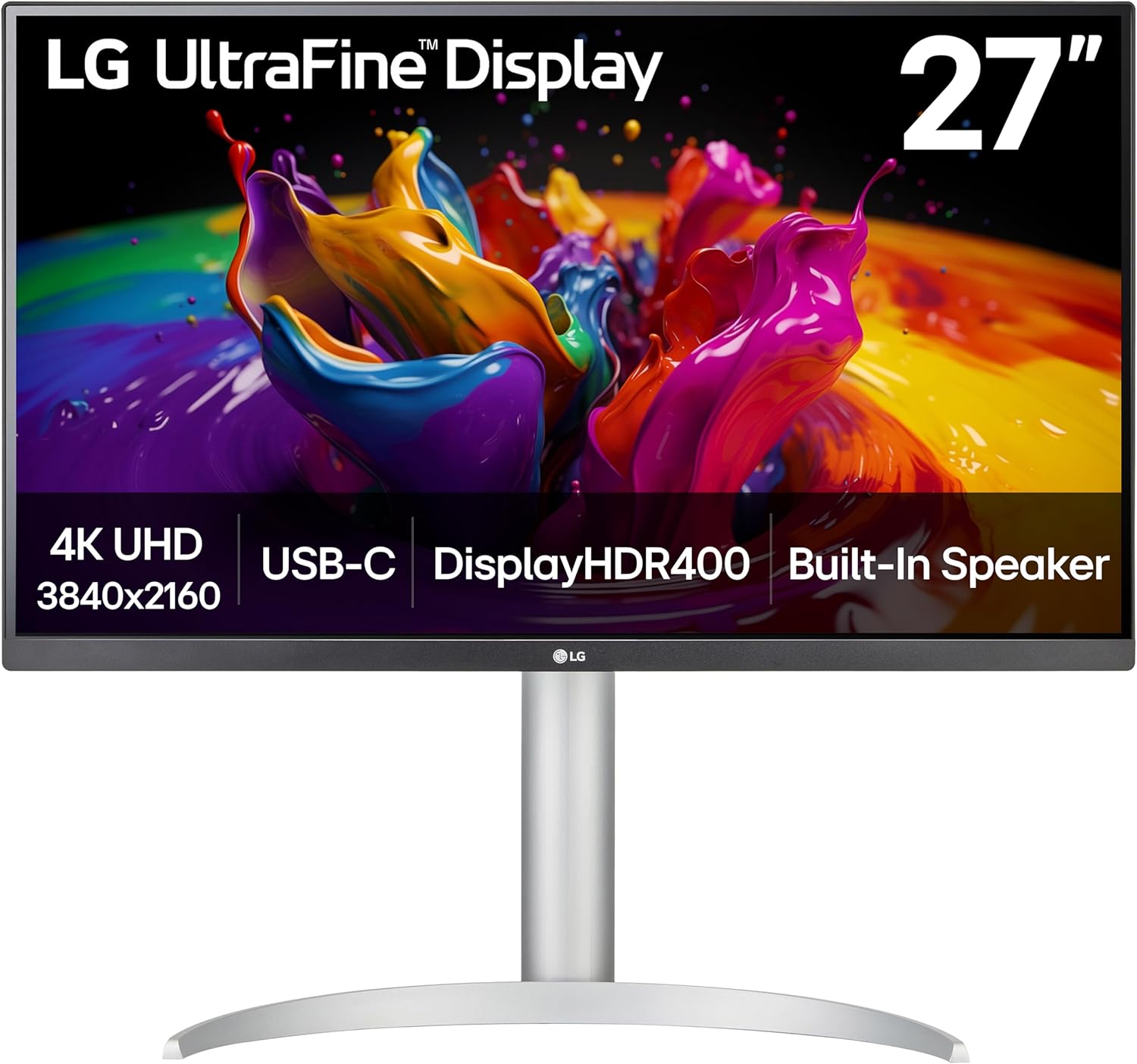
1. LG 27UP850N-W (My Daily Driver)
| Spec | Detail |
|---|---|
| Size / Resolution | 27″ / 3840 x 2160 (4K UHD) |
| Panel | IPS, 60Hz, HDR400 |
| Color | DCI-P3 95%, factory calibrated sRGB |
| Ports | USB-C (96W PD), HDMI 2.0 x2, DisplayPort 1.4, USB-A hub |
| Ergonomics | Height, tilt, pivot to portrait |
Reasons to buy
- USB-C 96W charges even a MacBook Pro under load
- DCI-P3 95% color accurate enough for design checks
- Portrait pivot for reading docs and reviewing tall files
- LG panel quality: zero dead pixels after 2 years
- One cable for video, power, and USB passthrough
Reasons to avoid
- 60Hz refresh rate (irrelevant for code, matters for gaming)
- No ethernet passthrough (Dell UltraSharp has it)
- $350 is 3x the Dell budget pick
✅ Buy if you want one USB-C cable from MacBook to monitor with no dock, no adapter, no compromises. The 96W power delivery means it charges even a 16-inch MacBook Pro under full CPU load. That single-cable setup is worth the price premium alone.
❌ Don’t buy if you’re on a strict budget. The Dell S2725QS at $109 gets you the same 4K text sharpness. You lose USB-C, portrait pivot, and the wider color gamut. But for pure coding, the Dell is 80% of the experience at 30% of the price.
This is the monitor on my desk right now. The LG 27UP850N-W is a 27-inch 4K IPS panel with USB-C (96W power delivery), DCI-P3 95% color gamut, HDR400, and a factory-calibrated sRGB mode. I plug in one USB-C cable to my MacBook and it drives the display, charges the laptop, and passes through USB to my keyboard and mouse. One cable. That’s the entire desk setup.
Text at 4K on this panel is the sharpest I’ve seen outside of Apple’s Studio Display, which costs four times as much. The color accuracy is good enough that I trust it for checking design mockups without a separate calibrator. The stand adjusts in height, tilt, and pivots to portrait mode, which matters more than you’d think for reading documentation or reviewing tall files. LG’s panel quality control is consistently better than budget brands, and I’ve had zero dead pixels after two years of daily use. If you code for a living, this is the monitor to beat.
Best Budget 4K Monitor for Programming
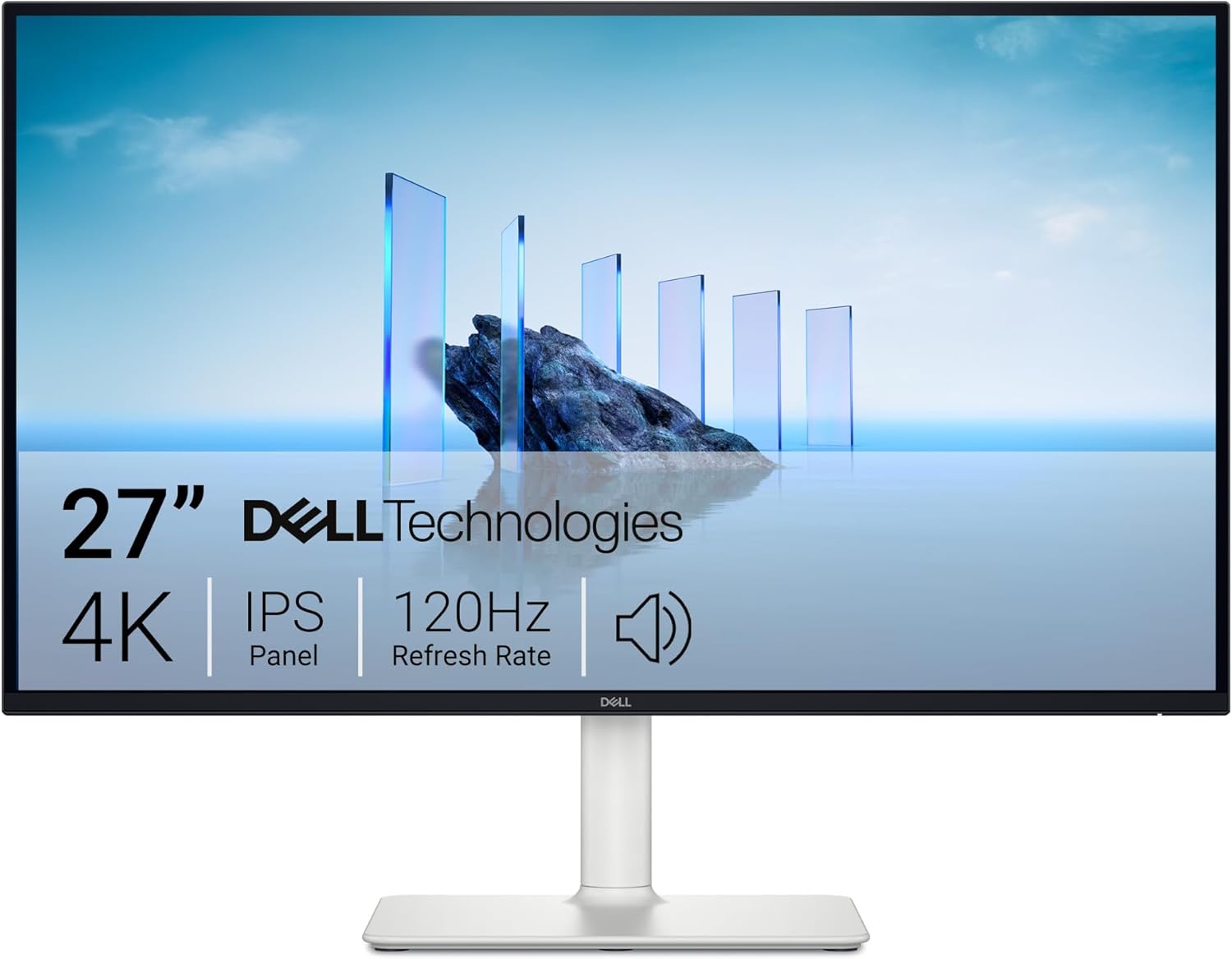
2. Dell 27 Plus 4K S2725QS ($109)
| Spec | Detail |
|---|---|
| Size / Resolution | 27″ / 3840 x 2160 (4K UHD) |
| Panel | IPS, 120Hz, AMD FreeSync Premium |
| Color | sRGB 99%, 1500:1 contrast |
| Ports | HDMI 2.1 x2, DisplayPort 1.4 |
| Ergonomics | Height, tilt (no pivot) |
Reasons to buy
- $109 for a genuine Dell 4K IPS panel
- Dell build quality and warranty support
- 120Hz refresh (smooth scrolling, useful for gaming too)
- Thin bezels, integrated speakers
Reasons to avoid
- No USB-C input (HDMI and DP only)
- Stand doesn’t pivot to portrait mode
- sRGB only, not wide gamut (fine for code, not for design)
✅ Buy if you want the sharpest text per dollar spent. At $109, this monitor has no competition. Dell’s panel technology is the same they use in the $400 UltraSharp line. For pure coding where you don’t need USB-C, this is the rational choice.
❌ Don’t buy if you use a MacBook and hate dongles. Without USB-C, you’ll need a USB-C to DisplayPort cable ($15) or a dock. If single-cable setup matters, spend more on the LG or Dell UltraSharp.
Dell selling a 4K 27-inch IPS monitor for $109 is the kind of thing that makes me question whether I’m reading the price wrong. I’m not. 735 reviews at 4.5 stars. This is a real Dell, with real Dell build quality, real Dell warranty support. The bezels are thin, the stand has height and tilt adjustment, and text rendering at 4K is exactly what you’d expect from Dell.
What you give up at this price: the stand doesn’t pivot to portrait, USB-C input isn’t included, and the color accuracy is sRGB rather than the wider P3 gamut you’d get from the LG or UltraSharp. For coding, sRGB is all you need. Syntax highlighting doesn’t require P3. This is the best budget 4K option from a brand you can trust, period.
Best 4K Monitor for Professional Developers
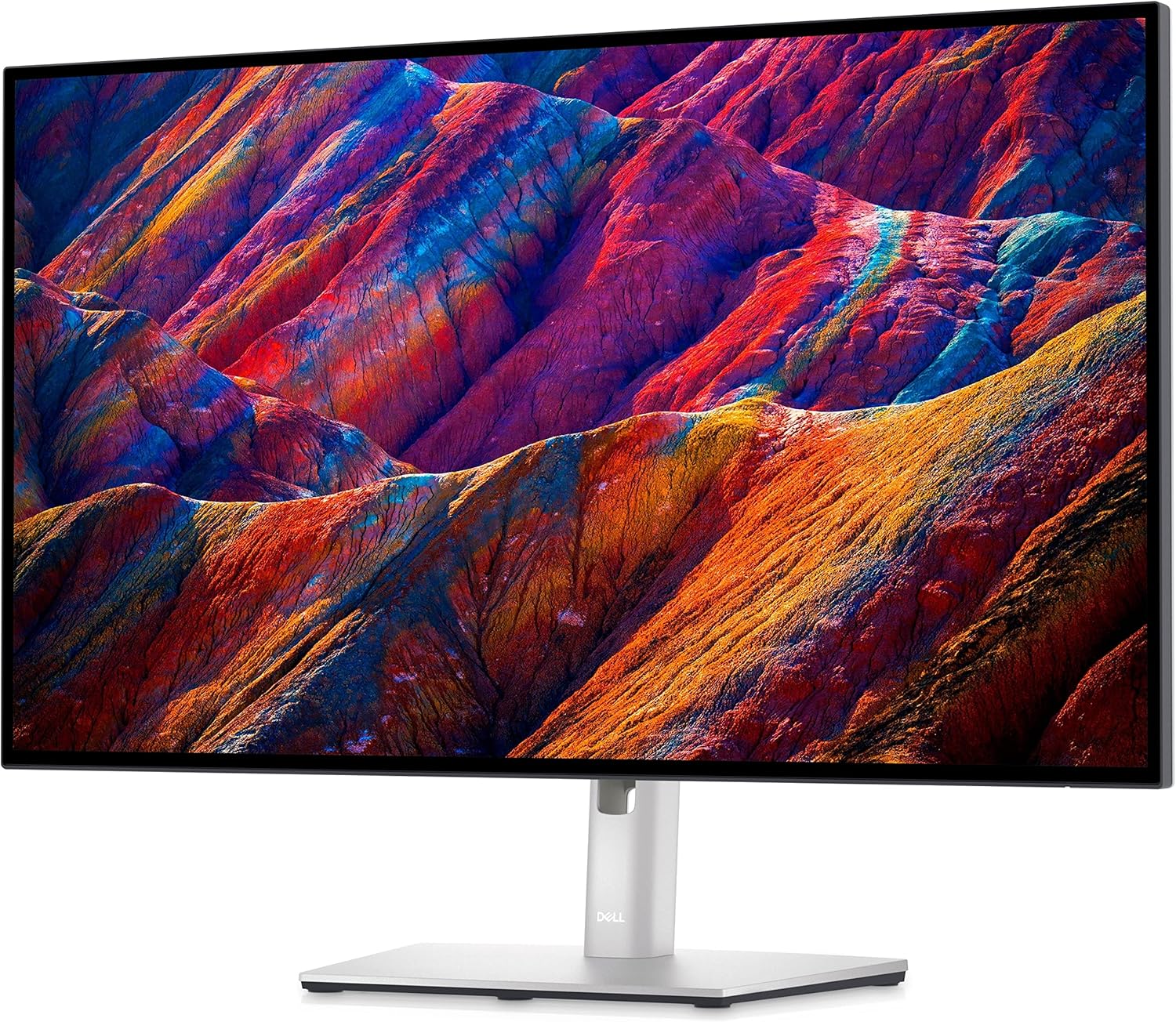
3. Dell UltraSharp U2723QE ($350-400)
| Spec | Detail |
|---|---|
| Size / Resolution | 27″ / 3840 x 2160 (4K UHD) |
| Panel | IPS Black, 60Hz, HDR400 |
| Color | DCI-P3 98%, Delta E < 2 factory calibrated |
| Ports | USB-C (90W PD) + RJ45 ethernet, HDMI, DP 1.4, DP Out (MST daisy-chain), USB-A hub x4 |
| Ergonomics | Height, tilt, swivel, pivot to portrait |
Reasons to buy
- USB-C hub with ethernet passthrough replaces a dock
- DisplayPort Out for daisy-chaining a second monitor
- Factory calibrated with Delta E < 2 color accuracy report
- Best anti-glare coating in class
- Full stand adjustability including portrait pivot
Reasons to avoid
- $350-400 is steep when the Dell 27 Plus exists at $109
- 60Hz only (no gaming after hours)
- HDR400 is marketing, not real HDR
✅ Buy if your employer pays for gear, or you need the ethernet passthrough and daisy-chaining. The USB-C hub eliminates a $200 dock and cleans up your desk instantly. For multi-monitor setups in an office, this is the right choice.
❌ Don’t buy if you’re spending your own money and the Dell 27 Plus exists at $109. The extra $250 buys you USB-C convenience and marginally better color. If you don’t need USB-C or ethernet on your monitor, it’s not worth the premium.
The Dell UltraSharp U2723QE is the monitor most professional developers I know actually use. One cable connects your laptop to the monitor, and the monitor connects to ethernet and all your peripherals. It’s the Swiss Army knife of coding monitors. I’ve used this at client offices and it’s noticeably better than my LG in color consistency across the panel. The anti-glare coating is the best in class.
The real selling point isn’t the panel. It’s the hub. Four USB-A ports, ethernet, and DisplayPort out for daisy-chaining a second monitor. You plug one USB-C cable into your laptop and your entire desk is connected. For developers who move between a desktop and a laptop, this monitor turns “docking” from a five-cable ritual into a one-second plug.
Best Value USB-C 4K Monitor for Coding
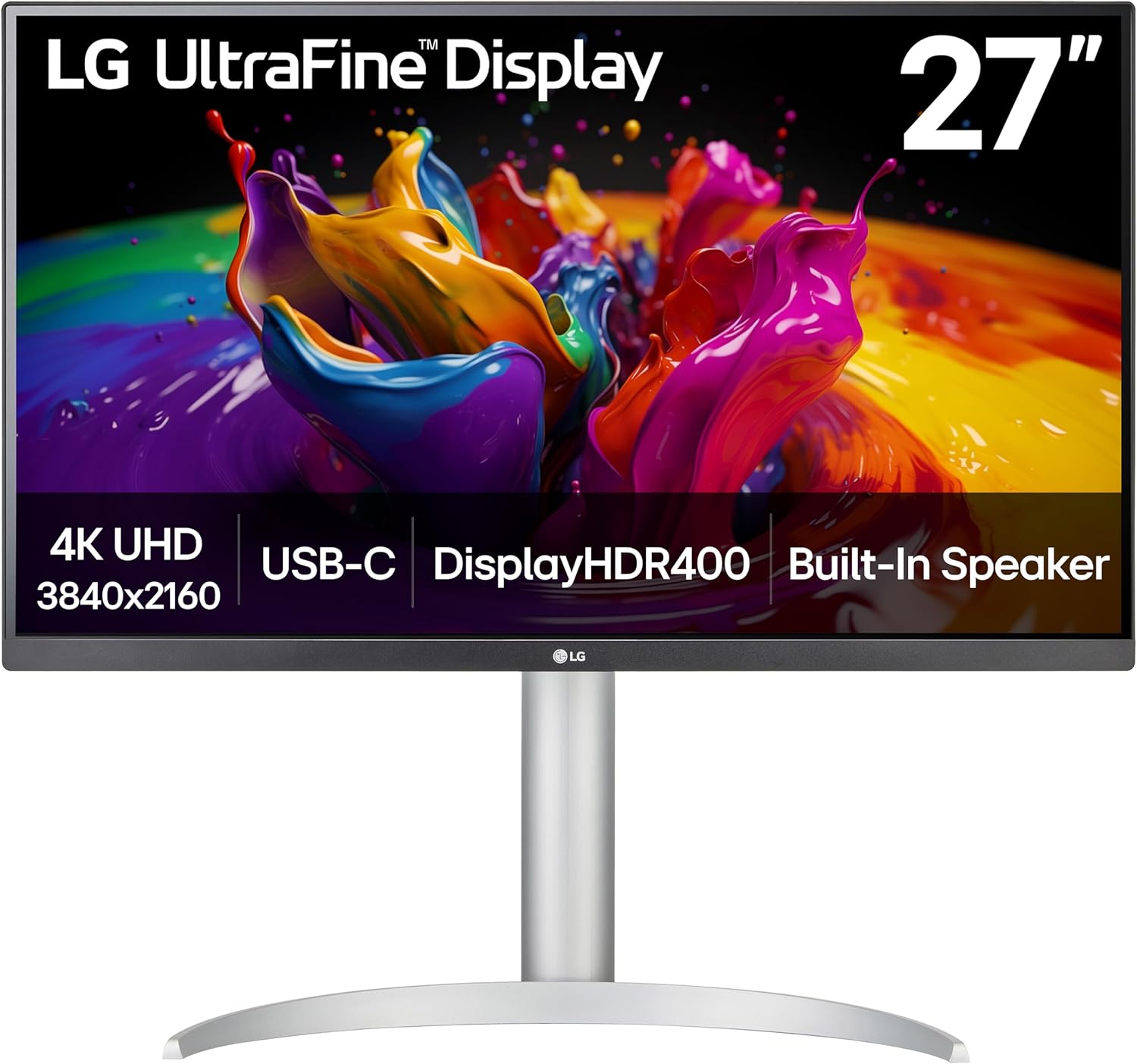
4. LG 27UL850-W ($300-350)
| Spec | Detail |
|---|---|
| Size / Resolution | 27″ / 3840 x 2160 (4K UHD) |
| Panel | IPS, 60Hz, HDR400 |
| Color | DCI-P3 95%, VESA DisplayHDR 400 |
| Ports | USB-C (60W PD), HDMI 2.0 x2, DisplayPort 1.4, USB-A x2 |
| Ergonomics | Height, tilt, pivot to portrait |
Reasons to buy
- Same LG IPS panel quality as the 27UP850N at a lower price
- USB-C with 60W PD (charges MacBook Air, 13″ Pro)
- Portrait pivot for reading documentation
- Frequently goes on sale under $300
Reasons to avoid
- 60W USB-C won’t charge a 16″ MacBook Pro under load
- No ethernet passthrough (Dell UltraSharp has it)
- Previous generation, may be discontinued soon
✅ Buy if you want USB-C and wide color gamut without the Dell UltraSharp price tag. When this monitor goes on sale under $300, it’s the best value USB-C 4K panel you can buy. Same underlying panel tech that LG supplies to Apple and Dell.
❌ Don’t buy if you have a 16-inch MacBook Pro. The 60W power delivery isn’t enough to keep it charged during heavy builds. You’ll watch the battery slowly drain while compiling. Spend the extra $50 on the newer 27UP850N-W with 96W delivery.
The LG 27UL850-W is the previous generation of my daily driver. Same 4K IPS panel, same DCI-P3 95%, same portrait pivot. The newer 27UP850N-W I use adds 96W charging and slightly better HDR, but this model is 90% of the experience at a lower price when you catch a deal.
LG’s monitor division has been making IPS panels for Apple, Dell, and HP for decades. When you buy an LG monitor, you’re buying the same panel technology those brands use, without the brand tax. The 27UL850-W is the proof: same panel quality as a Dell UltraSharp, $100 less. The only thing Dell does better is the stand and the USB-C hub. If you don’t need ethernet on your monitor, the LG wins on value.
Best 4K Monitor for Dark Mode Developers
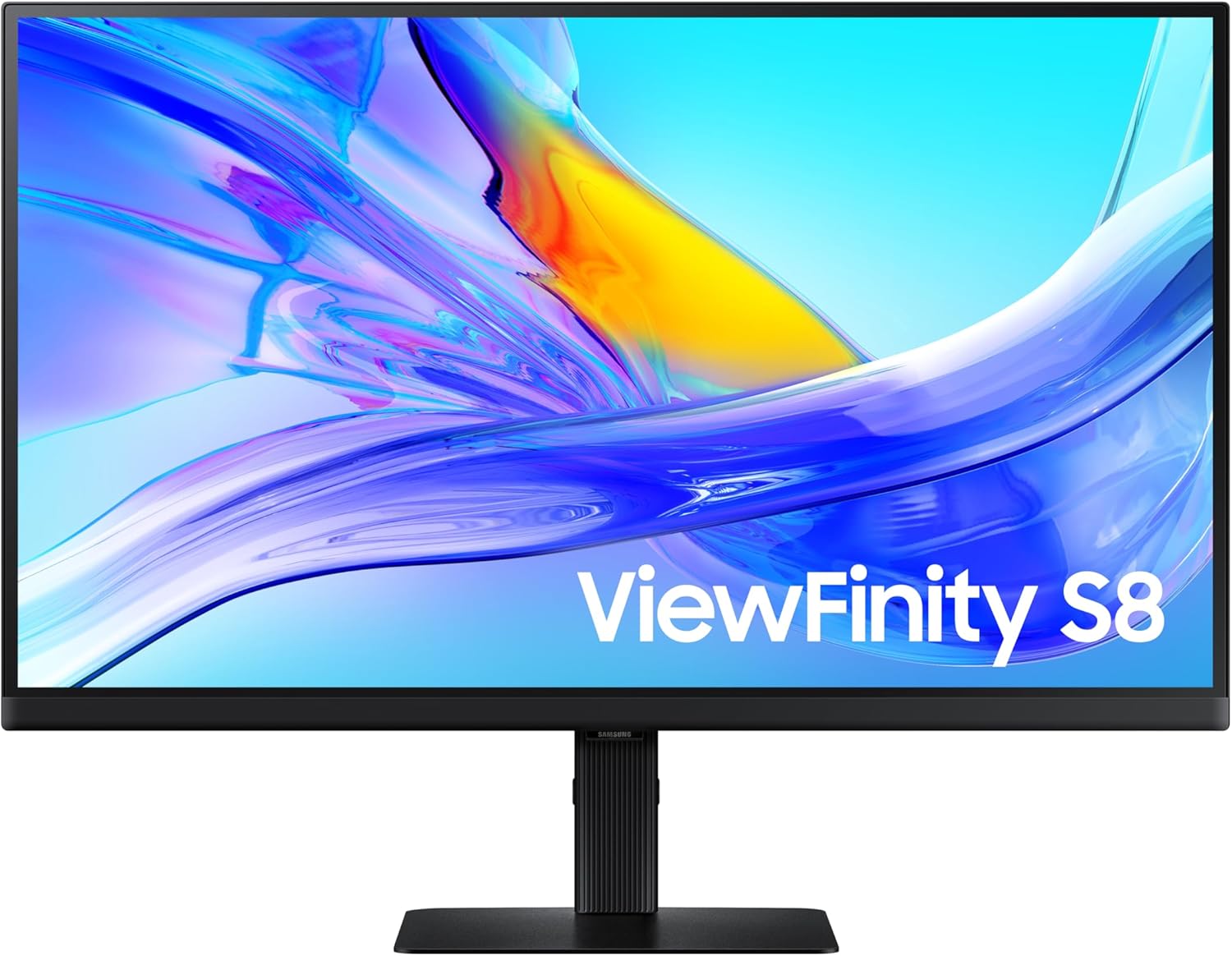
5. Samsung ViewFinity S8 S80UA ($330)
| Spec | Detail |
|---|---|
| Size / Resolution | 27″ / 3840 x 2160 (4K UHD) |
| Panel | IPS, 60Hz, HDR10 |
| Color | DCI-P3 98%, 1 billion colors |
| Ports | USB-C (90W PD), HDMI 2.0, DisplayPort 1.4, USB-A hub x3 |
| Ergonomics | Height, tilt, swivel, pivot to portrait |
Reasons to buy
- Highest contrast ratio in this tier: dark mode looks incredible
- DCI-P3 98% with 1 billion color depth
- USB-C 90W power delivery
- Samsung warranty: fastest US support among the three brands
- Full stand adjustability with pivot
Reasons to avoid
- Panel calibration runs warm: slightly oversaturated on light themes
- No ethernet passthrough (Dell UltraSharp wins here)
- No DisplayPort Out for daisy-chaining
✅ Buy if you code in dark mode. Samsung’s aggressive contrast calibration makes dark backgrounds genuinely dark and syntax colors pop. If VS Code’s One Dark Pro or Dracula theme is your default, this monitor makes it look better than any LG or Dell panel.
❌ Don’t buy if you switch between light and dark themes. The warm calibration that makes dark mode gorgeous makes light mode look slightly yellowish. The LG is more neutral. If you bounce between themes based on time of day, the LG 27UP850N-W is the safer pick.
The Samsung ViewFinity S8 is Samsung’s answer to the Dell UltraSharp and LG UP series. USB-C with 90W power delivery, a fully adjustable stand with pivot, DCI-P3 98%, and HDR10. Samsung’s panel calibration is aggressive on contrast, which makes code pop against dark backgrounds but can look slightly oversaturated on light themes.
Where it loses to the LG: no ethernet passthrough, and the color temperature runs warm. Where it wins: Samsung’s warranty service in the US is faster than both LG and Dell, and the panel’s contrast ratio is meaningfully higher. If you work in dark mode all day (and most developers do), the Samsung S8 makes your code look better than the alternatives. If you switch between light and dark themes, the LG is more neutral.
Quick Comparison: 4K Monitors for Programming
| Monitor | Resolution | USB-C | Color Gamut | Best For | Price |
|---|---|---|---|---|---|
| LG 27UP850N-W | 4K UHD | 96W PD | DCI-P3 95% | All-rounder (my pick) | ~$350 |
| Dell S2725QS | 4K UHD | No | sRGB 99% | Budget 4K | $109 |
| Dell U2723QE | 4K UHD | 90W PD + Hub | DCI-P3 98% | Professional | ~$380 |
| LG 27UL850-W | 4K UHD | 60W PD | DCI-P3 95% | Value USB-C | ~$300 |
| Samsung S80UA | 4K UHD | 90W PD | DCI-P3 98% | Dark mode coders | ~$330 |
How to Choose a 4K Monitor for Programming
I’ve tested monitors for coding across five workstations and 90+ client projects. Here’s what actually matters and what’s marketing.
4K vs QHD: The Scaling Truth
At 27 inches, 4K (3840 x 2160) requires 150% display scaling on macOS and Windows to keep text readable. That scaling means your effective workspace is equivalent to 2560 x 1440, which is the same as QHD. The difference is text sharpness, not workspace size. 4K text looks like a printed page. QHD text looks like a good monitor.
If you want more code lines on screen, buy a larger panel (32-inch 4K) or stick with 27-inch QHD at 100% scaling. If you want sharper text that reduces eye strain over long sessions, 4K at 27 inches with 150% scaling is the right call.
IPS Is the Only Panel Type for Code
VA panels have better contrast but worse viewing angles and slower pixel response. TN panels have faster response but terrible color and angles. IPS panels have accurate colors, wide viewing angles, and fast enough response for everything except competitive gaming. For staring at syntax-highlighted text for 8+ hours, IPS is the only correct choice. Every monitor on this list is IPS.
USB-C Decides Your Cable Setup
USB-C with DisplayPort Alt Mode lets you connect your MacBook with one cable (video + power). HDMI 2.0 supports 4K at 60Hz. DisplayPort 1.4 supports 4K at 120Hz+. If you use a MacBook, check whether the monitor has USB-C input before buying. If it doesn’t (like the Dell S2725QS), you need a USB-C to DisplayPort cable or a dock. A $15 cable is cheaper than a $100 dock, so plan accordingly.
Refresh Rate Doesn’t Matter for Code
60Hz is enough for coding. Scrolling code at 60Hz versus 144Hz is slightly smoother, but the difference doesn’t affect productivity. Don’t pay extra for refresh rate on a coding monitor unless you also game on it. The Dell S2725QS at $109 includes 120Hz as a bonus, but I wouldn’t have paid a premium for it.
Portrait Pivot Is Underrated
Rotating a 27-inch 4K monitor to portrait gives you 2160 x 3840 pixels of vertical space. That’s roughly 120 lines of code visible simultaneously at 14pt font. I keep my secondary monitor in portrait mode for reading documentation, reviewing PRs, and tailing logs. If you code and review in the same session, budget for a monitor that pivots. All three LG and Dell picks in this guide support portrait rotation.
My Setup
I code on the LG 27UP850N-W mounted on a gas-spring arm, with display scaling at 150% on macOS. One USB-C cable to my MacBook. That’s the entire desk connection. The text sharpness at 13pt Monaco in VS Code is the closest I’ve gotten to Retina quality on an external monitor without buying an Apple Studio Display. My eyes are noticeably less tired at the end of a 10-hour coding day compared to the QHD panel I replaced.
If I were buying on a tight budget, I’d get the Dell 27 Plus 4K at $109 and a $30 monitor arm. That’s a $139 setup with brand-name reliability, real 4K text sharpness, and proper ergonomics. If USB-C matters (and it should if you use a MacBook), the LG 27UL850-W on sale under $300 is the value play. The Samsung S8 is the right pick if you’re a dark-mode developer who cares about contrast. Stick to Dell, LG, and Samsung for monitors you’ll use 8+ hours daily. Life is too short for off-brand panels.
Frequently Asked Questions
Is 4K worth it for programming?
Yes, at 27 inches or larger. The pixel density at 27-inch 4K (163 PPI) makes code text noticeably sharper than QHD (109 PPI). After a full day of reading code, the reduced eye strain is measurable. At 24 inches, 4K is overkill because QHD already looks sharp at that size. At 32 inches, 4K is almost mandatory because QHD text gets visibly soft.
Do I need a 4K monitor for web development?
Not strictly, but it helps. Testing responsive designs at native 4K resolution shows you exactly what high-DPI users see. You can simulate this on a QHD monitor with browser zoom, but native 4K is more accurate. If you build for users who are mostly on Retina MacBooks and modern phones, developing on a 4K monitor catches rendering issues that QHD misses.
What scaling should I use for 4K at 27 inches?
150% on macOS and Windows gives you the best balance of text sharpness and workspace. 125% gives more space but text gets small after a few hours. 200% makes text huge and wastes the resolution advantage. macOS handles fractional scaling better than Windows, so if you are on Windows, test 150% first and adjust from there. Linux with Wayland handles 150% well. X11 does not.
Can my laptop drive a 4K monitor?
Any laptop from the last 5 years with HDMI 2.0 or USB-C with DisplayPort Alt Mode can drive 4K at 60Hz. For 4K at 120Hz+, you need HDMI 2.1 or DisplayPort 1.4, which most laptops from 2022 onward support. M-series MacBooks drive 4K at 60Hz over any USB-C cable. Check your laptop specs for the specific port version if you want higher refresh rates.
Should I get one 4K monitor or two QHD monitors?
Two QHD monitors give you more total workspace and cost about the same as one 4K. One 4K monitor gives you sharper text on a single focused screen. For coding, I prefer one 4K center monitor for the editor plus one cheap secondary for terminal and browser. If your workflow needs maximum screen area (multiple apps visible simultaneously), two QHD monitors is the practical choice.
What refresh rate do I need for programming?
60Hz is fine. Scrolling code at 60Hz versus 144Hz is slightly smoother at 144Hz, but the difference does not affect productivity. Higher refresh rates matter for gaming and video editing, not for staring at text. Do not pay extra for refresh rate on a coding monitor unless you also game on it. The Dell 4K at $109 runs at 60Hz and that is perfectly adequate for code work.
The LG 27UP850N-W is what I use. One cable, great panel, reliable brand. If that’s over budget, the Dell 27 Plus 4K at $109 is the best value in a 4K monitor I’ve ever seen. Either way, buy from Dell, LG, or Samsung. Your monitor is the thing you stare at more than anything else you own. Don’t cheap out on it with brands that won’t exist in two years.