
Cloudflare for WordPress: Beyond Just a CDN – Full Stack Setup on Free Plan
Most WordPress users turn on Cloudflare, set SSL to “Full,” and call it a day. I know because I did the same thing for years. Toggle the orange cloud. Enable HTTPS. Done, right?
Not even close. Cloudflare for WordPress is way more than that.
I manage 50+ WordPress sites through one Cloudflare account. The setup running on gauravtiwari.org right now uses DNS management, SSL/TLS hardening, cache rules, R2 object storage, Workers for edge logic, WARP for secure development, and security headers. All on Cloudflare’s free plan. Every single site runs on the free plan. The only paid add-on is APO (Automatic Platform Optimization) at $5/month per site, and I’ve selectively enabled it only on my highest-traffic sites where edge HTML caching makes a measurable difference. R2 storage varies from $0 to $1.50 depending on usage. That’s the entire Cloudflare bill for 50+ sites.
Result? This:
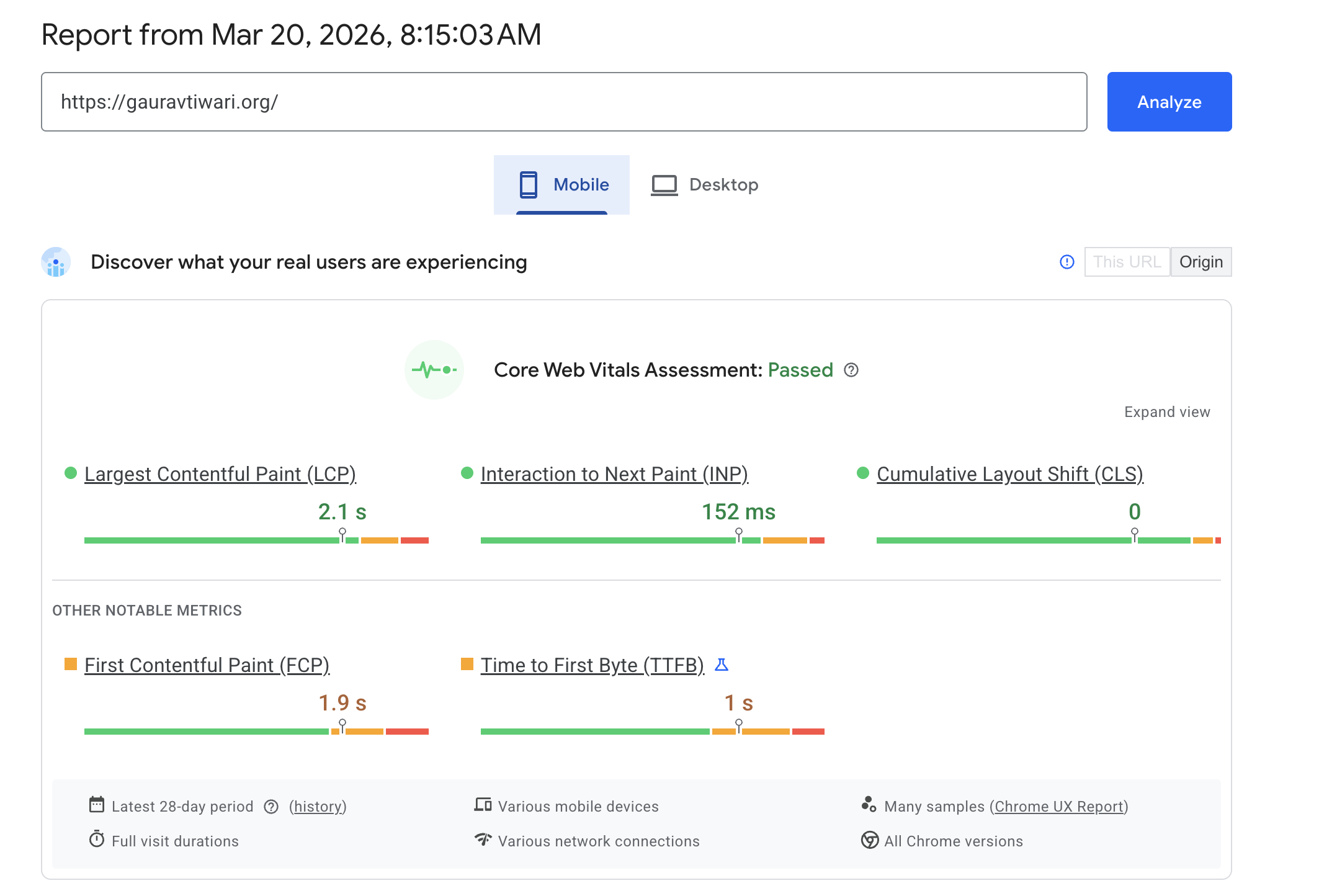
This isn’t a Cloudflare overview. It’s the exact configuration running on my production sites right now, with specific settings, DNS records, and Worker scripts I use every day.
Why Cloudflare DNS Changes Everything
Cloudflare DNS is the fastest public DNS resolver in the world. DNSPerf ranks it #1 consistently, with average response times under 11ms globally. Every page load starts with a DNS lookup. If your DNS is slow, everything downstream is slow. That’s just physics.
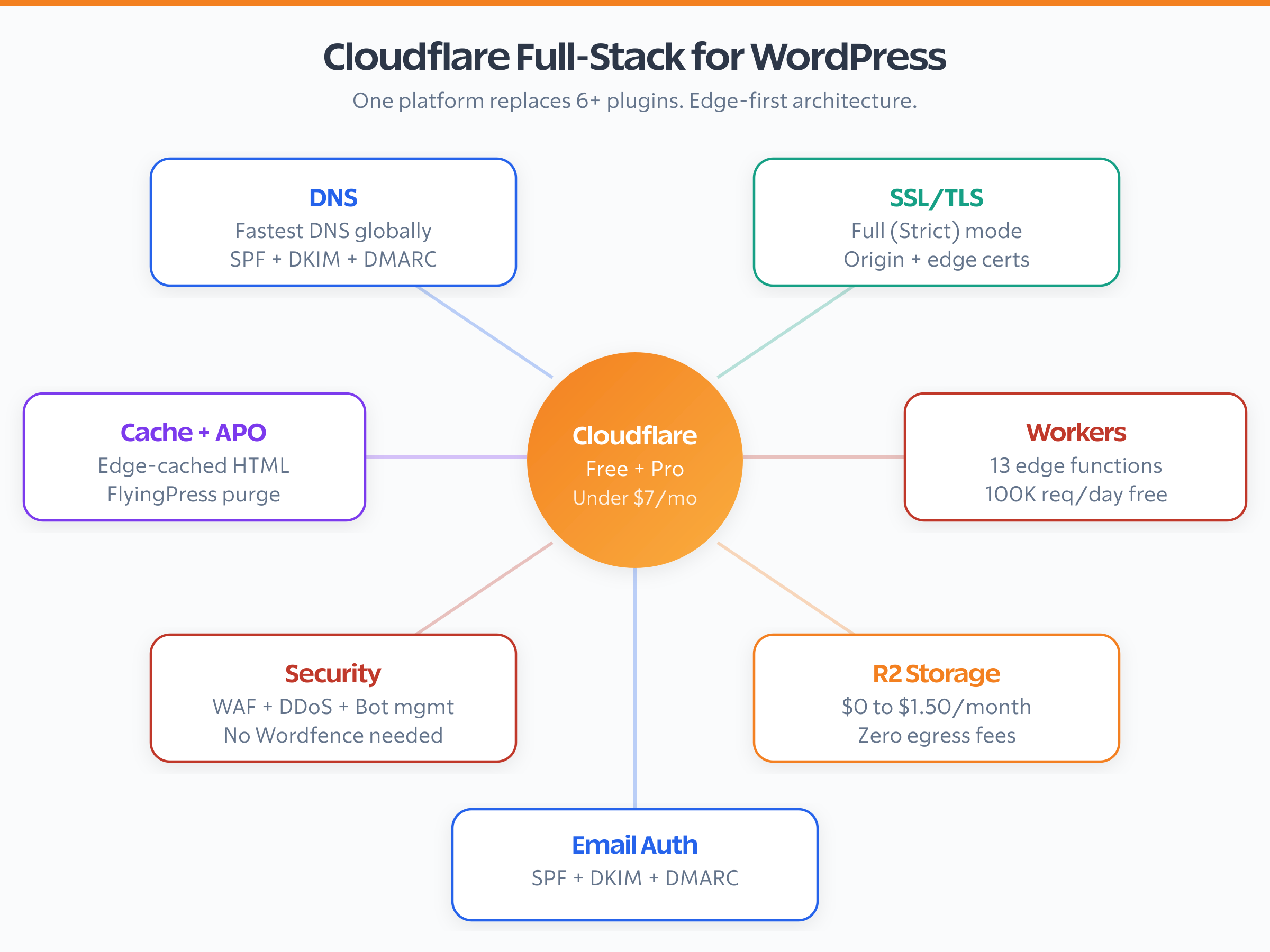
But speed isn’t even the best part. Once you move your nameservers to Cloudflare (mine are emma.ns.cloudflare.com and jay.ns.cloudflare.com), you unlock two things most people miss completely: CNAME flattening and proxied records.
CNAME flattening solves a problem that’s been annoying DNS admins for decades. You can’t put a CNAME record on your root domain. It breaks MX records, TXT records, basically everything. Cloudflare flattens the CNAME into an A record at query time. My root domain points to my server IPs and it all just works. If you’ve ever wrestled with the “CNAME at root” problem… this is the fix.
Proxied records (the orange cloud) route traffic through Cloudflare’s network before it hits your server. Three things happen at once: your origin IP gets hidden, CDN caching kicks in, and all your security rules apply. I proxy my root domain, www, r2 subdomain, and a wildcard record. Everything else stays DNS-only (gray cloud). Email DKIM records, third-party CNAME verifications, subdomain services. Those should never be proxied.
My gauravtiwari.org DNS setup has 59 records. Fifty-nine. The proxied ones handle web traffic. The DNS-only ones handle email authentication (Amazon SES DKIM, ConvertKit SPF, Google Workspace MX), subdomain services (Netlify, Substack, BunnyCDN), and domain verification. Getting this split right is the difference between a working setup and WooCommerce order emails that vanish into spam folders.
SSL/TLS: Why “Full” Isn’t Enough
OK, this is where I need to be upfront. Cloudflare offers four SSL modes: Off, Flexible, Full, and Full (Strict). Most WordPress guides say “pick Full” and move on. My own site ran on “Full” for longer than I’d like to admit. It works fine. But it’s not actually secure.
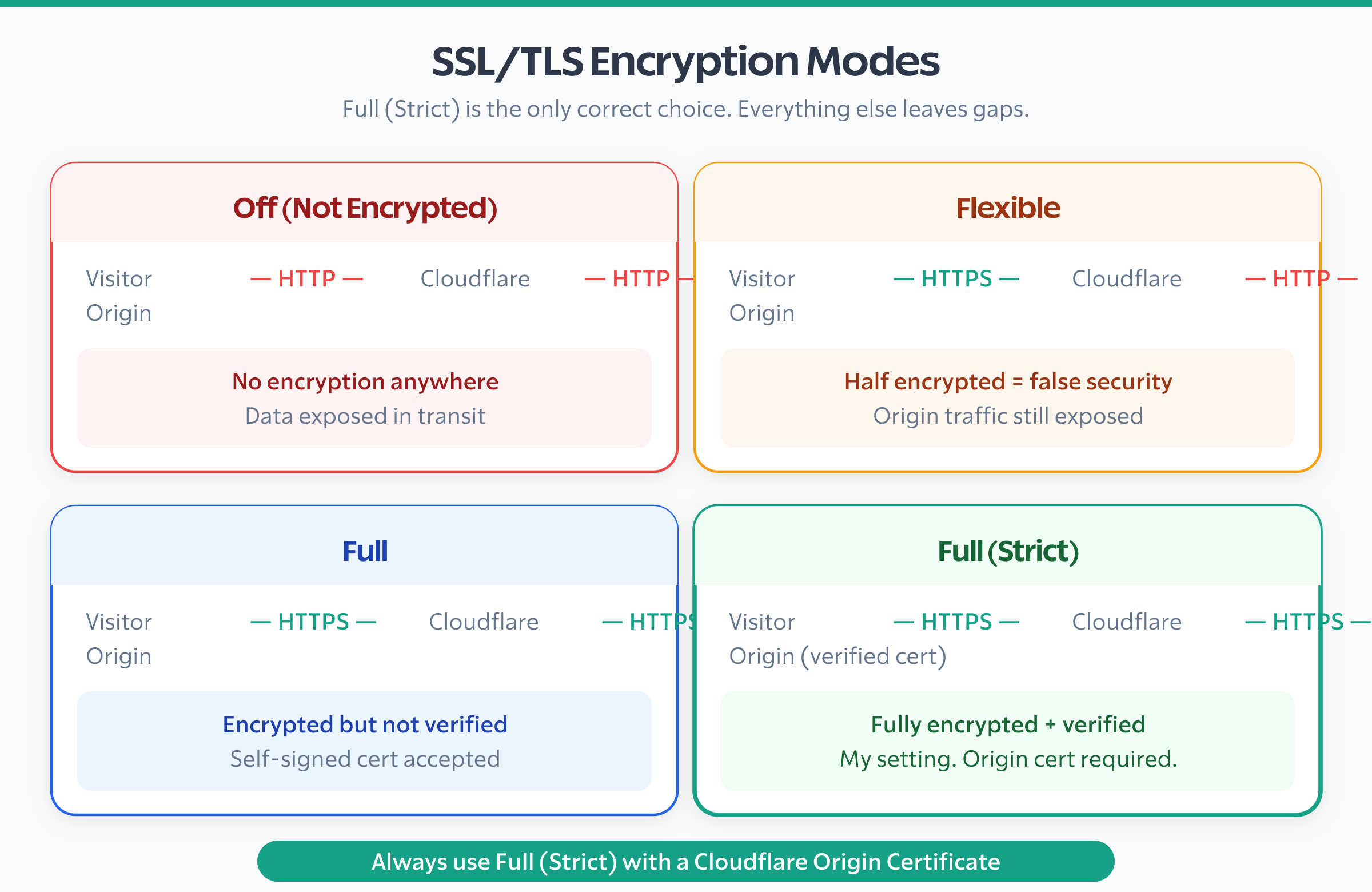
“Full” encrypts traffic between visitors and Cloudflare AND between Cloudflare and your server. Good. But it doesn’t validate your origin certificate. Cloudflare just trusts whatever your server presents, even a self-signed cert, even an expired one. “Full (Strict)” does the same thing but actually checks that the certificate is valid and trusted. Without Strict mode, a man-in-the-middle attack between Cloudflare and your origin is theoretically possible.
The fix is easy. You need a valid SSL certificate on your origin server. If you’re on xCloud or any modern server panel, Let’s Encrypt handles this automatically. Or grab Cloudflare’s free Origin CA certificate, which lasts 15 years and is trusted by Cloudflare’s edge. There’s no excuse for running “Full” when “Full (Strict)” is a five-minute change.
Beyond the SSL mode itself, here’s every TLS-related setting I’ve touched:
- Always Use HTTPS: On. Redirects all HTTP requests to HTTPS. No exceptions.
- Minimum TLS Version: 1.2. TLS 1.0 and 1.1 are deprecated. If someone’s browser doesn’t support TLS 1.2 in 2026, they have bigger problems.
- TLS 1.3: Enabled. Faster handshakes, better security. No reason to skip this.
- 0-RTT (Early Data): On. Returning visitors skip the TLS handshake entirely. Saves 50-100ms on every repeat visit.
- Automatic HTTPS Rewrites: On. Fixes mixed content issues by rewriting HTTP URLs in your HTML to HTTPS.
- HSTS: Enabled with
max-age=31536000,includeSubDomains, andpreload. This tells browsers to ONLY connect via HTTPS. Once you enable preload, your domain gets added to Chrome’s built-in HSTS list. There’s no going back to HTTP after that.
Don’t enable HSTS preload unless you’re absolutely sure you won’t need HTTP access again. The preload list is permanent. If your SSL ever breaks, visitors won’t be able to reach your site at all. Make sure Let’s Encrypt auto-renewal is working before you flip this switch.
Cloudflare for WordPress Cache Config
Caching is where Cloudflare gives you the biggest performance win. It’s also where most people mess it up.
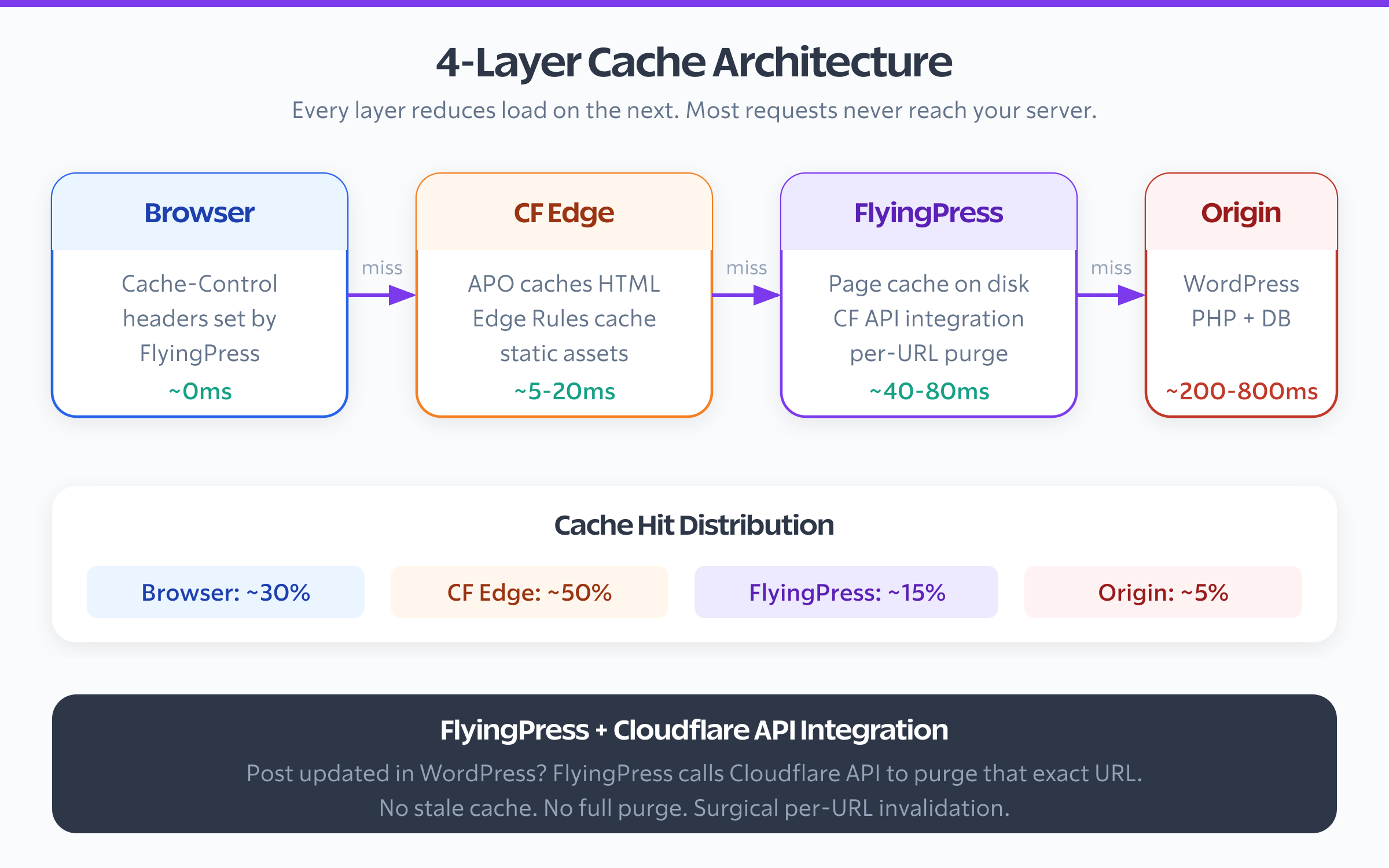
Here’s the thing most WordPress users don’t realize: the default Cloudflare setup only caches static files. Images, CSS, JavaScript, fonts. It doesn’t touch your HTML pages. Every single pageview still hits your origin server. PHP still runs. MySQL still queries. You’ve got Cloudflare enabled and your server is doing the same amount of work as before. Kind of defeats the purpose.
My current zone settings:
- Cache Level: Aggressive. Caches all static files regardless of query strings.
- Browser Cache TTL: 31536000 seconds (1 year). Static assets don’t change often. When they do, WordPress appends version query strings that bust the cache automatically.
- Edge Cache TTL: 7200 seconds (2 hours). How long Cloudflare’s edge servers hold cached files before checking back with the origin.
- Brotli: On. Better compression than gzip, supported by all modern browsers. Reduces transfer sizes by 15-20% compared to gzip.
- Early Hints: On. Cloudflare sends
103 Early Hintsresponses before the full page loads, telling the browser to preload critical assets. Free speed. - Rocket Loader: Off. I’ve lost count of how many client sites I’ve debugged where the culprit was Rocket Loader. It defers JavaScript loading, which sounds great until your WooCommerce checkout stops working, your contact form won’t submit, or the WordPress admin bar disappears. Just… leave it off.
For full HTML page caching, I don’t rely on Cloudflare’s Cache Rules at all. I use FlyingPress on the WordPress side. It handles page caching, critical CSS generation, image optimization, and asset minification. The Cloudflare integration is where it gets good: I’ve added my Cloudflare API token in FlyingPress settings, so when I update a post, FlyingPress purges that specific URL from Cloudflare’s edge cache automatically. Not the entire cache. Just that one URL. On sites where I’ve enabled APO ($5/month per site, selectively on important sites), FlyingPress generates the cached HTML and Cloudflare APO distributes it across 300+ edge locations. I wrote a detailed breakdown of my FlyingPress advanced setup if you want the exact settings.
Here’s some history that might save you money. I used to run FlyingCDN, the CDN service built into FlyingPress. It worked fine. But once I set up Cloudflare Workers + R2 for media offloading, FlyingCDN became redundant. My R2 pull-through Worker handles all static asset delivery at zero egress cost. FlyingCDN was $10/month for the first 100GB of bandwidth (then $5 per additional 100GB), while R2 does the same thing for $0 to $1.50 with zero bandwidth charges. I dropped it, and performance actually improved because R2 serves from the same Cloudflare edge network. One less moving part.
Look, this is the key insight that took me too long to learn: let Cloudflare handle static asset caching at the edge. Let your WordPress caching plugin handle HTML page caching and dynamic content. Don’t try to make Cloudflare Cache Rules do what a WordPress plugin does better. Cloudflare doesn’t understand WordPress cookies, logged-in states, or WooCommerce carts. FlyingPress and WP Rocket do.
The One Cache Rule Worth Setting
If you want Cloudflare to cache HTML pages (bypassing FlyingPress or WP Rocket), here’s the Cache Rule that works for WordPress without breaking logged-in users:
Expression:
(not http.cookie contains "wordpress_logged_in"
 and not http.cookie contains "woocommerce_cart_hash"
 and not starts_with(http.request.uri.path, "/wp-admin")
 and not starts_with(http.request.uri.path, "/wp-login"))

Action: Cache Everything
Edge TTL: 4 hours
Browser TTL: Respect Existing Headers
This caches everything for anonymous visitors while bypassing the cache for logged-in WordPress users, WooCommerce shoppers, and admin pages. It’s the rule that 90% of “Cloudflare WordPress cache” tutorials get wrong because they forget about cookies.
Page Rules That Actually Help WordPress
Cloudflare gives you 3 Page Rules on the free plan (20 on Pro). Most people waste them on things Cache Rules handle better. Here are the Page Rules I actually run:
Staging subdomain redirect. stage.gauravtiwari.org/* → https://gauravtiwari.org/$1 with a 301 redirect. This catches any old staging links that leaked into search engines or bookmarks and sends them to the live site. Clean and permanent.
Force HTTPS on all subdomains. *gauravtiwari.org/* → Always Use HTTPS. This is a belt-and-suspenders approach since I already have “Always Use HTTPS” enabled at the zone level, but Page Rules fire before zone settings. For domains with multiple subdomains handling different services, this guarantees nothing slips through.
Bypass cache for wp-admin. gauravtiwari.org/wp-admin/* → Cache Level: Bypass, Disable Performance, Security Level: High. This is the one Page Rule every WordPress site needs. Your admin panel should never be cached, performance features like Rocket Loader and Auto Minify can break the editor, and you want higher security on the login path. Three settings, one rule.
One thing people don’t realize: Page Rules are evaluated in order, top to bottom. The first matching rule wins. Put your most specific rules (like wp-admin bypass) at the top, and broader rules (like the wildcard HTTPS rule) at the bottom. Get the order wrong and your wp-admin bypass never fires because the wildcard catches it first.
R2: Media Offloading That Costs Almost Nothing
Cloudflare R2 is object storage with zero egress fees. Let that sink in. Every other storage provider charges you for bandwidth. Amazon S3: $0.09/GB. DigitalOcean Spaces: $0.01/GB after 1TB. R2: $0.015/GB/month for storage. Bandwidth? Zero. Nothing. Free.
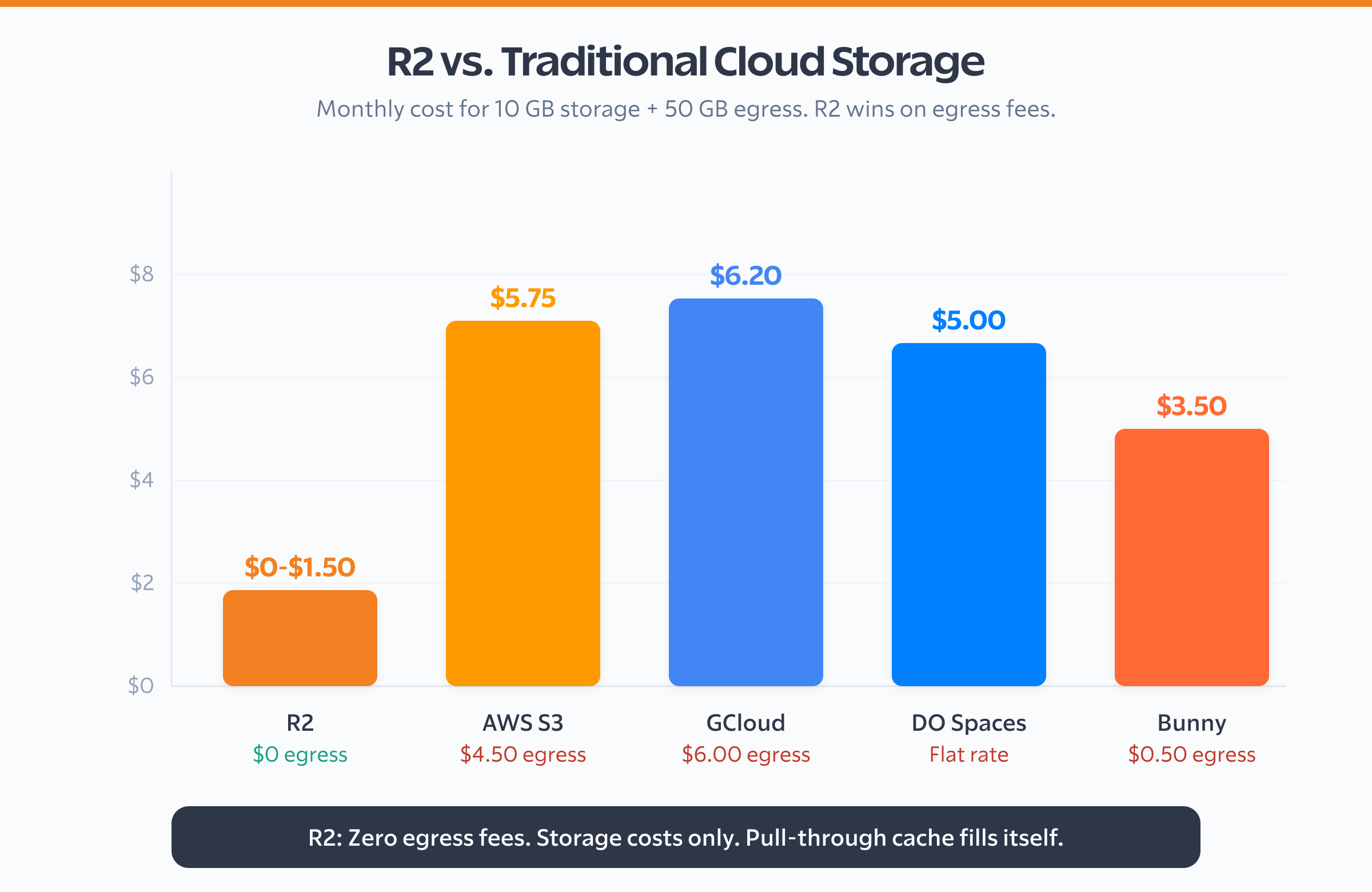
I run 7 R2 buckets across my Cloudflare account. The main one for gauravtiwari.org (wordpress-gt) holds about 150GB of media files. My monthly R2 bill? Anywhere from $0 to $1.50 depending on the month. Storage is cheap, API operations cost a few cents. The same setup on S3 serving 500GB of bandwidth would cost $45/month in egress alone. That’s not a small difference. That’s an 18x difference.
The clever part is the setup. A Cloudflare Worker called r2-pull-through-cache-production sits in front of the R2 bucket. Visitor requests an image from r2.gauravtiwari.org. Worker checks R2. File exists? Serve it with aggressive cache headers. Doesn’t exist? Fetch it from my origin server, store it in R2, then serve it. The bucket fills itself over time. No migration scripts. No bulk uploads. No S3 sync commands at 2am.
I built the whole thing, the Worker code, a WordPress mu-plugin for URL rewriting, and on-demand image resizing, and documented it in my Cloudflare R2 for WordPress guide. If you’re paying more than $5/month for CDN or media hosting, that article will pay for itself in the first month.
Workers: Edge Logic That Changes How You Build
Cloudflare Workers run JavaScript at the edge. 300+ data centers worldwide. Sub-millisecond cold starts. The free plan gives you 100,000 requests per day. For most WordPress sites? That’s more than enough to run meaningful edge logic without paying a cent.
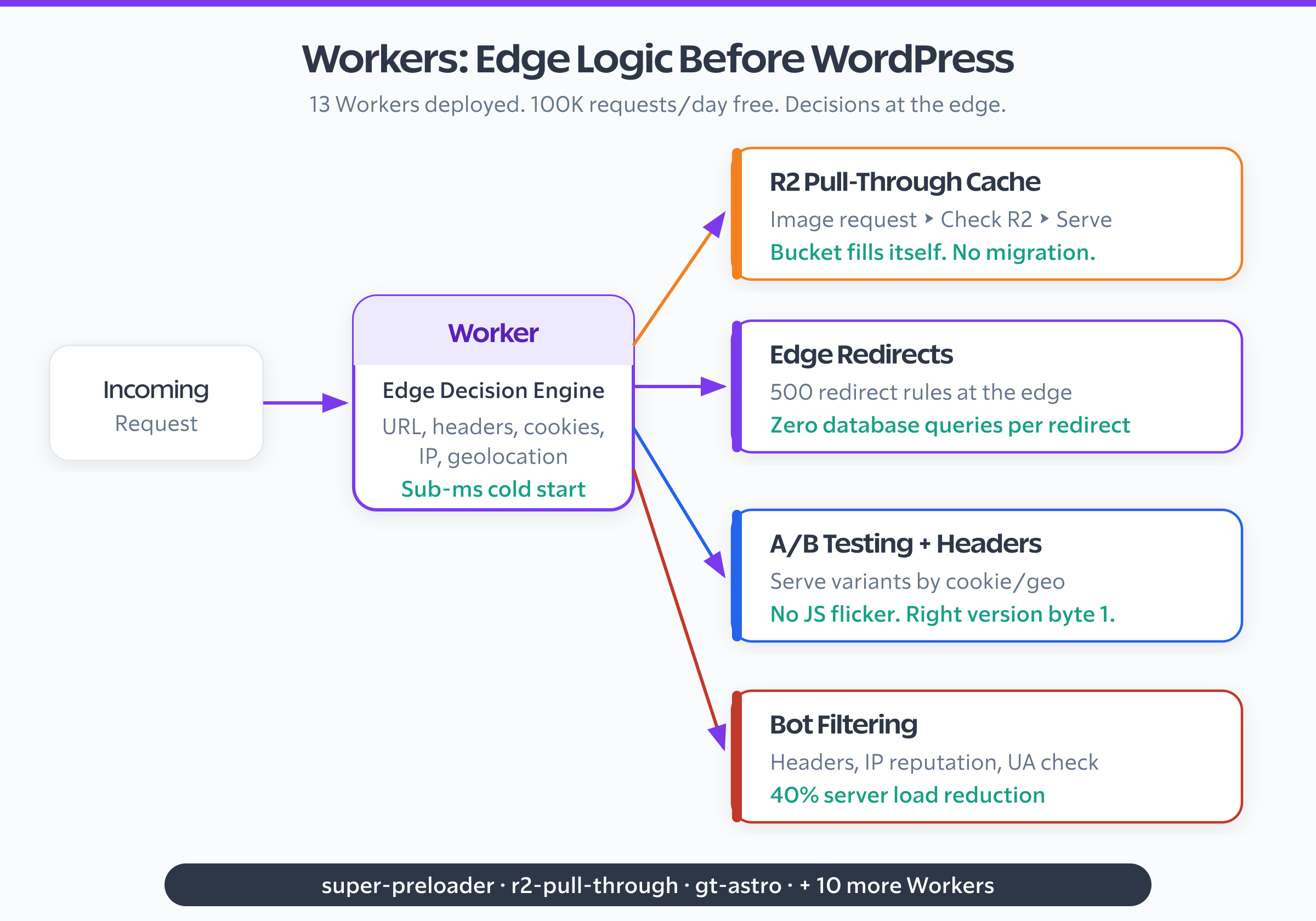
I run 13 Workers across my account right now. Thirteen. The ones relevant to WordPress:
- r2-pull-through-cache-production: The media offloading Worker I just described. Handles all static asset requests for gauravtiwari.org.
- super-preloader: Prefetches links on hover. When a visitor hovers over a link on my site, this Worker starts loading the target page in the background. By the time they click, the page is already cached in their browser. The perceived load time drops to near-zero.
- gt-astro: Handles edge routing for my Astro-based projects that run alongside WordPress.
But Workers go way beyond media offloading. Once you start thinking in terms of “what can I do at the edge before the request hits WordPress?”… the possibilities change how you build sites entirely.
Redirect management. You know those 500 redirect rules sitting in your WordPress database? Every single request triggers a database query to check them. Move those to a Worker. The redirects happen at the edge before the request ever touches your server. I use Cloudflare Page Rules for simple stuff (like stage.gauravtiwari.org/* → gauravtiwari.org/$1), but for anything complex, Workers win.
A/B testing without the flicker. A Worker can serve different page versions based on cookies, geolocation, or random assignment. No WordPress plugin needed. No JavaScript flicker where the page loads and then jumps. The decision happens at the edge. The visitor sees the right version from the first byte.
Header manipulation. Security headers, cache headers, analytics script injection, stripping unwanted headers. All at the edge, before the response reaches the browser. I use this to add security headers that my hosting server doesn’t set by default.
Bot filtering. This one’s underrated. Workers can inspect request headers, IP reputation, and user agents before a request hits WordPress. Drop bad bots at the edge instead of letting them consume your server’s CPU and memory. I’ve seen WordPress sites cut their server load by 40% just by filtering scrapers and bad crawlers at the Cloudflare level. Forty percent. That’s not a rounding error.
Security: More Than Just “I’m Under Attack” Mode
Cloudflare’s security features are what convinced me to proxy my DNS records in the first place, honestly. Even on the free plan, you get DDoS protection that handles volumetric attacks automatically, a Web Application Firewall with managed rules, and bot management that filters known bad actors. For free. I still find that wild.
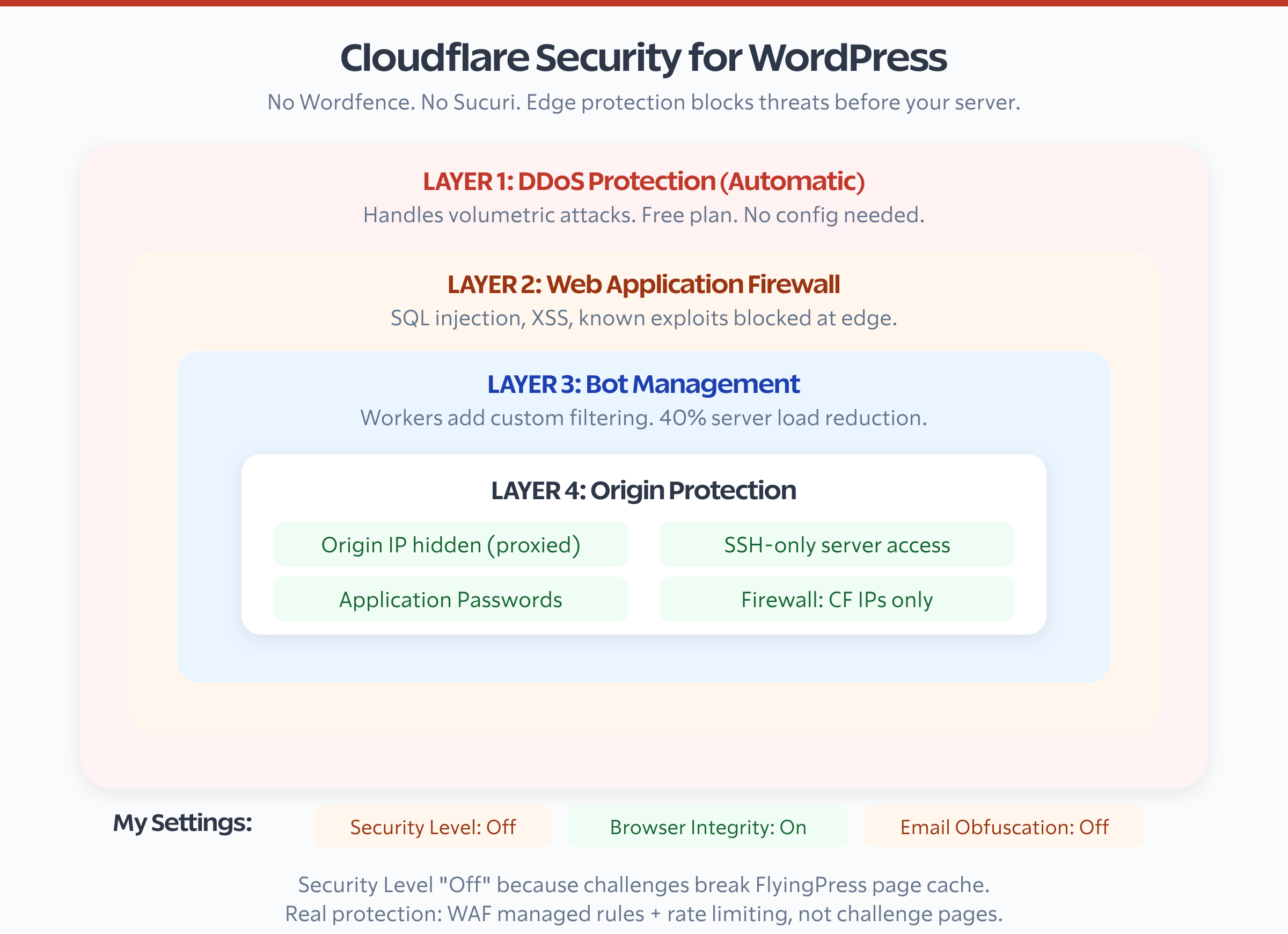
My actual security configuration, and some of these choices will surprise you:
- Security Level: Essentially Off. Yeah, I know. Sounds crazy. But Cloudflare’s challenge pages break cached HTML from FlyingPress. If a cached page serves a Cloudflare challenge instead of your content, you’ve got a problem. My actual protection comes from the WAF managed rules and rate limiting, not the challenge system.
- Browser Integrity Check: On. Evaluates incoming request headers to filter known threats.
- Email Obfuscation: Off. This feature rewrites email addresses in your HTML to prevent scraping. I handle this at the WordPress level instead because Cloudflare’s method can break JavaScript-rendered content.
- Hotlink Protection: Off. I serve assets from R2, so hotlink protection would need to be configured at the Worker level, not the zone level.
The security headers I set (via HSTS configuration):
Strict-Transport-Security: max-age=31536000; includeSubDomains; preloadFor WordPress specifically, two security features matter most: hiding your origin IP (proxied DNS records) and blocking /wp-admin brute force attempts. I don’t use a WordPress security plugin. No Wordfence. No Sucuri. Cloudflare’s WAF, combined with SSH-only server access and strong Application Passwords, handles it. One less plugin consuming server resources on every request.
Check if your origin IP is exposed by searching your domain on Shodan or SecurityTrails. If your server IP is public, attackers can bypass Cloudflare entirely by hitting the IP directly. Fix this by configuring your server’s firewall to only accept connections from Cloudflare’s IP ranges.
WordPress Security Plugins Compared
| Feature | Sucuri | Wordfence | Solid Security | Hide My WP Ghost | Defender |
|---|---|---|---|---|---|
| Free Version | Yes (scanner) | Yes (firewall + scanner) | Yes (basic) | Yes (basic) | Yes |
| Pro Price | $199/yr | $119/yr | $99/yr | $29.99/yr | WPMU DEV membership |
| Cloud WAF Important | Yes (DNS-level) | No (endpoint only) | No | No | No |
| Malware Scanner | Yes (remote) | Yes (server-side) | Yes (via Patchstack) | No | Yes |
| Firewall | Cloud WAF | Endpoint WAF | Basic | No | Basic |
| Brute Force Protection | Yes | Yes | Yes | Yes | Yes |
| Two-Factor Auth | No | Yes | Yes | No | Yes |
| Security Hardening | Yes | Yes | Yes | Yes (obscurity) | Yes |
| CDN Included | Yes | No | No | No | No |
| Malware Cleanup | Yes (unlimited, pro) | $490 one-time | No | No | No |
| Best For | Full security + CDN | Best free firewall | All-in-one hardening | Hiding WP fingerprints | WPMU DEV users |
| Visit Sucuri | Visit Wordfence | Visit Solid Security | Visit Hide My WP | Visit Defender |
Email Authentication: The DNS Records Most People Forget
This is the section nobody talks about when they discuss Cloudflare. Your DNS manages more than web traffic. It’s where your email authentication lives. And this is where most WordPress sites silently fail.
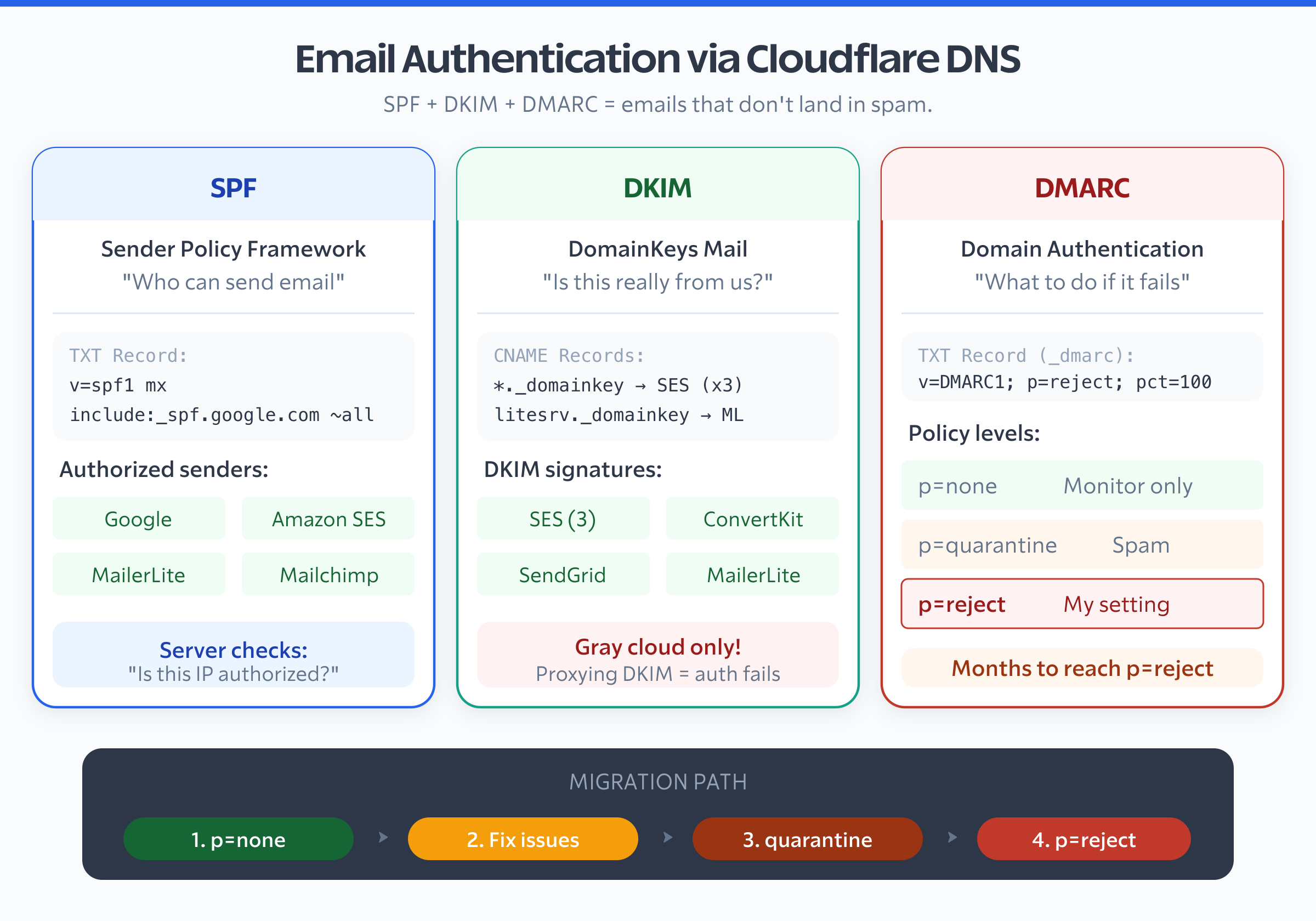
Your contact form emails, WooCommerce order confirmations, password reset emails… they land in spam because SPF, DKIM, and DMARC records are wrong or missing. You don’t even know it’s happening until a customer says “I never got the confirmation email.” Been there.
My gauravtiwari.org DNS has dedicated records for every email service I’ve ever used (and, well, that’s a lot of them):
- Google Workspace MX records (5 MX records pointing to
aspmx.l.google.comand alternates) - Amazon SES DKIM (3 CNAME records for
_domainkeyverification) - ConvertKit DKIM and SPF (dedicated CNAME records)
- SendGrid DKIM (2 CNAME records for domain key signing)
- MailerLite DKIM (CNAME record for
litesrv._domainkey) - SPF record:
v=spf1 mx include:_spf.mlsend.com include:_spf.google.com include:servers.mcsv.net include:amazonses.com ~all - DMARC:
v=DMARC1; p=reject; pct=100
That DMARC record is set to p=reject. The strictest setting. Any email that fails SPF or DKIM alignment gets rejected outright. Not quarantined. Not delivered with a warning. Rejected.
It took me months to get every service properly authenticated before I could safely flip this switch. Months. Start with p=none (monitoring only), check your DMARC reports, fix alignment issues, move to p=quarantine, and only then switch to p=reject. Rush this and you’ll wonder why half your emails stop arriving.
The cost of getting this wrong? Your WooCommerce order emails land in spam. Your newsletter gets flagged. Your domain reputation tanks. All because of DNS records you set once and forgot about.
Cloudflare WARP for Secure Development
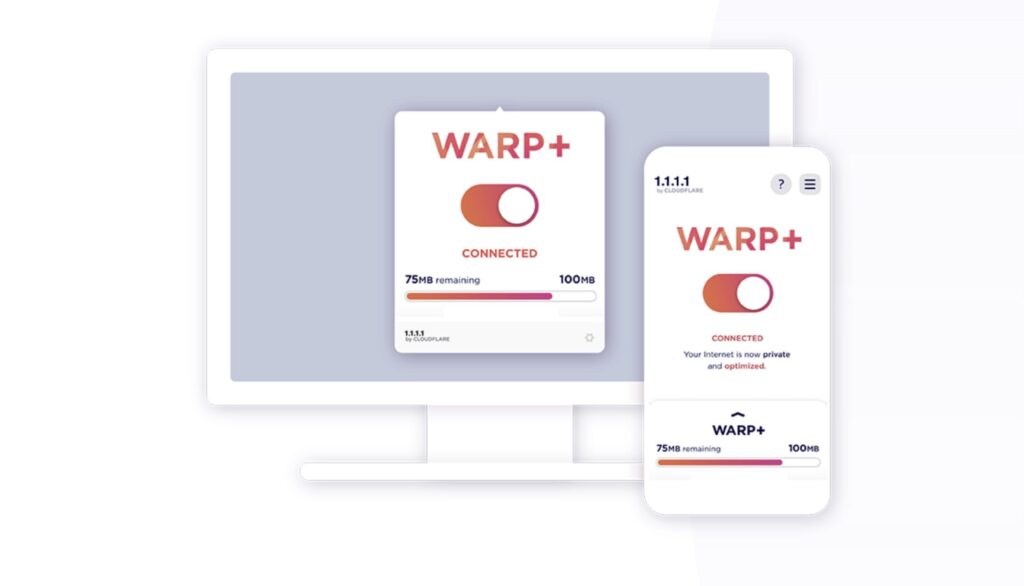
Cloudflare WARP (the 1.1.1.1 app) isn’t just a VPN alternative. For WordPress developers who SSH into production servers from random wifi networks… it solves a real problem.
I run WARP on my Mac constantly. It routes DNS queries through Cloudflare’s 1.1.1.1 resolver (encrypted via DNS-over-HTTPS) and wraps your traffic in a WireGuard tunnel. It’s faster than most VPNs because WireGuard is lightweight and Cloudflare has data centers everywhere. I barely notice it’s running.
Why this matters for WordPress development:
- Coffee shop SSH. When I SSH into my RackNerd server from a cafe, WARP encrypts the connection. SSH is already encrypted, but WARP adds a layer that prevents the network from even seeing that you’re making SSH connections.
- DNS leak prevention. Without WARP, your DNS queries go to your ISP, who can see every domain you visit. With WARP, they go to Cloudflare over an encrypted channel.
- Consistent performance. Some ISPs throttle or deprioritize certain traffic. WARP bypasses this by routing through Cloudflare’s network.
WARP is free for personal use. The paid version (WARP+) uses Cloudflare’s optimized routing, but I’ve found the free version fast enough for my workflow.
HTTP/2 and HTTP/3: The Protocol Advantage
Both HTTP/2 and HTTP/3 are enabled on gauravtiwari.org. Free plan. No extra configuration. And this matters more than most people realize, because your origin server probably only speaks HTTP/1.1.
HTTP/2 multiplexes requests over a single connection. Instead of opening 6 connections to download 6 files (HTTP/1.1’s limit), the browser opens one connection and downloads everything in parallel. Result: fewer round trips, faster page loads.
HTTP/3 goes further. It runs on QUIC instead of TCP, which means no head-of-line blocking. If one packet is lost, it doesn’t stall every other request on the same connection. For visitors on mobile networks (where packet loss is common), HTTP/3 makes a real difference.
Your Apache or Nginx server probably doesn’t support HTTP/3. Mine doesn’t. But that doesn’t matter. Cloudflare terminates the connection at the edge. Visitors talk to Cloudflare over HTTP/3. Cloudflare talks to your origin over HTTP/1.1 or HTTP/2. You get the protocol upgrade for free, without touching your server config. This is one of those “it just works” things that makes Cloudflare worth using even if you don’t configure anything else.
CDN Providers for WordPress Compared
| Feature | Cloudflare | Bunny CDN | KeyCDN | StackPath | QUIC.cloud |
|---|---|---|---|---|---|
| Pricing Model | Free / $20/mo (Pro) | $0.01/GB (pay-as-you-go) | $0.04/GB (pay-as-you-go) | $27.50/mo (1TB) | Free tier / usage-based |
| Global PoPs Coverage | 310+ locations | 123 locations | 60 locations | 65 locations | 80+ locations |
| Free Tier | Yes (generous) | 14-day trial | $10 credit | No | Yes (3GB/mo) |
| Full Page Caching | Yes (APO $5/mo or Pro) | Yes (Bunny Optimizer) | No (static only) | Yes | Yes (with LiteSpeed Cache) |
| Image Optimization | Yes (Polish, Pro+) | Yes (Bunny Optimizer) | Yes (Image Processing) | Yes | Yes |
| DDoS Protection | Yes (enterprise-grade) | Basic | Basic | Yes | Basic |
| WAF | Yes (free tier included) | No | No | Yes | No |
| WordPress Plugin | Yes (official) | Yes (CDN Enabler) | Yes (CDN Enabler) | Yes | Yes (via LiteSpeed Cache) |
| HTTP/3 + QUIC | Yes | Yes | Yes | Yes | Yes |
| Best For | All-in-one DNS + CDN + security | Budget-friendly with great speed | Simple static asset delivery | Enterprise edge computing | LiteSpeed server users |
| Visit Cloudflare | Visit Bunny CDN | Visit KeyCDN | Visit StackPath | Visit QUIC.cloud |
Free vs Pro vs Business: Which Plan Do You Need?
I need to be clear about something: every single one of my 50+ sites runs on Cloudflare’s free plan. Not Pro. Not Business. Free. DNS management, SSL/TLS, cache rules, R2 storage, Workers (100K requests/day), WARP, HTTP/2, HTTP/3, DDoS protection, and the managed WAF are all included at $0. I’ve been on the free plan since 2013 and never needed to upgrade.
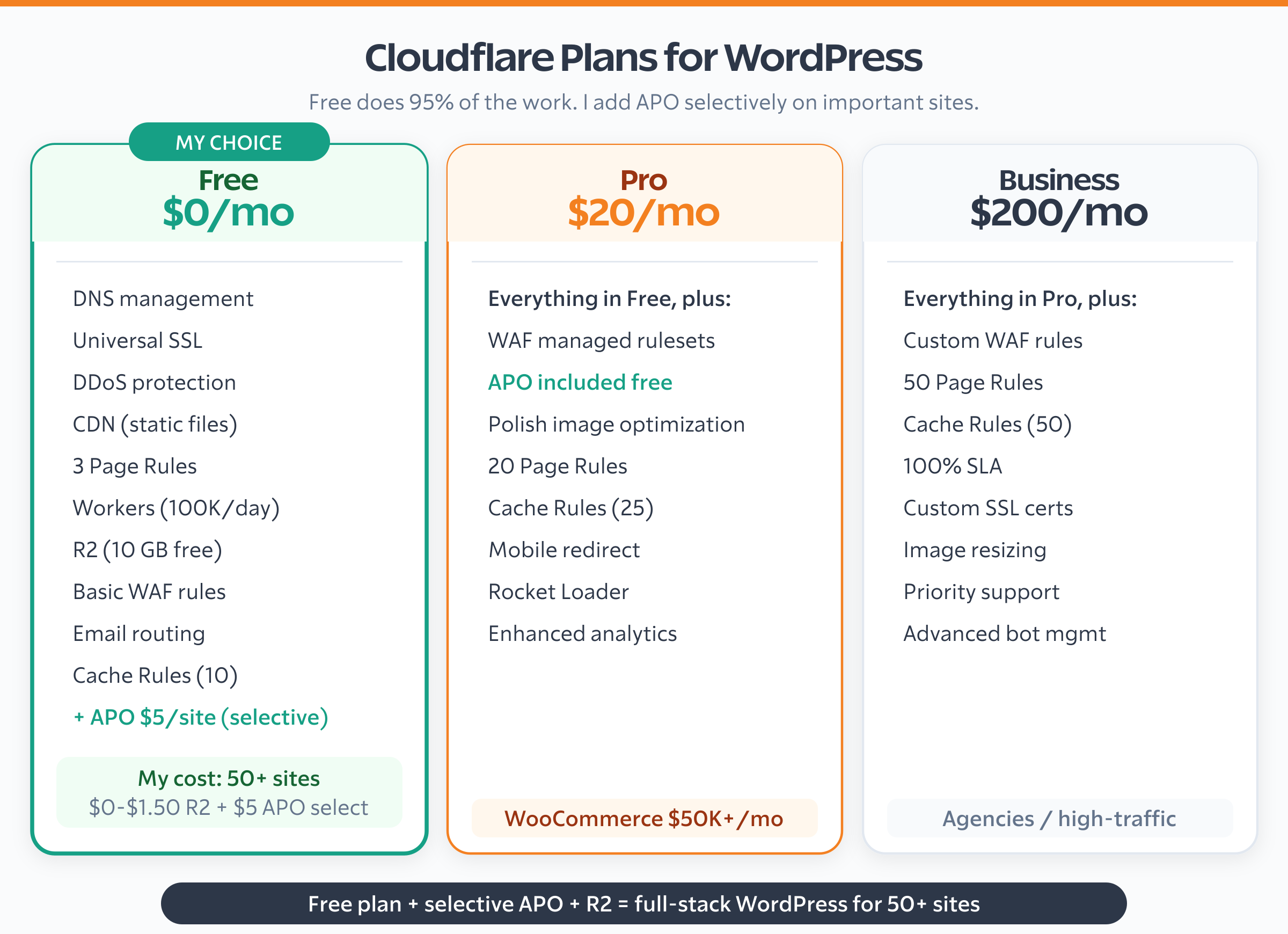
The only paid add-on is APO (Automatic Platform Optimization) at $5/month per site. APO caches HTML pages at Cloudflare’s edge. But I don’t enable it everywhere. I’ve selectively subscribed to APO only on my highest-traffic, most important sites where edge HTML caching makes a real difference. The rest run perfectly fine on the free plan alone with FlyingPress handling page caching. My total Cloudflare bill: $0-$1.50 R2 + $5 APO on select sites. For 50+ sites, that’s remarkable.
So when does upgrading actually make sense?
Pro ($20/month per zone) adds:
- Image optimization (Polish + WebP conversion). I skip this because FlyingPress handles image optimization on the WordPress side, and I also compress locally using Clop by LowTechGuys before uploading. Between the two, every image is already optimized before Cloudflare even sees it.
- More WAF rules and better bot management.
- Cache Analytics for understanding hit rates.
- Automatic Platform Optimization (APO) for WordPress. APO costs $5/month per site on the free plan and comes included with Pro. It caches HTML pages at Cloudflare’s edge using Workers behind the scenes. I subscribe to APO selectively, only on my important high-traffic sites. It works alongside FlyingPress, not against it. FlyingPress generates the cached HTML, APO stores it at 300+ edge locations. The combination means pages load from the nearest Cloudflare PoP without ever touching the origin server. Sites that don’t need APO still perform great with FlyingPress alone.
Business ($200/month per zone) adds:
- Custom WAF rules.
- 100% uptime SLA.
- Priority support.
- Advanced DDoS analytics.
My honest take? Stay on free unless you’re running a WooCommerce store doing $50K+/month in revenue. At that point, Pro’s image optimization and WAF rules are worth $20/month. Business at $200/month? For WordPress? That money is better spent on a VPS from RackNerd or DigitalOcean with xCloud as your server panel, and it won’t even be close.
My Complete Cloudflare Configuration
Here’s every Cloudflare setting on gauravtiwari.org, pulled directly from my dashboard. Copy what makes sense for your setup.
| Setting | Value | Why |
|---|---|---|
| Plan | Free | Everything I need, $0/month |
| SSL Mode | Full (Strict recommended) | Encrypt origin connection with validation |
| Always Use HTTPS | On | No HTTP access, ever |
| Min TLS | 1.2 | Drop insecure protocols |
| TLS 1.3 | On | Faster handshakes |
| 0-RTT | On | Skip handshake for returning visitors |
| HSTS | On (preload) | Enforce HTTPS at browser level |
| HTTP/2 | On | Multiplexed connections |
| HTTP/3 | On | QUIC-based, faster on mobile |
| Brotli | On | 15-20% smaller than gzip |
| Early Hints | On | Preload assets before page loads |
| Cache Level | Aggressive | Cache static files regardless of query strings |
| Browser Cache TTL | 1 year | WordPress handles cache busting via versioned URLs |
| Edge Cache TTL | 2 hours | Balance freshness and performance |
| Rocket Loader | Off | Breaks WordPress plugins |
| Security Level | Essentially Off | Challenges break FlyingPress page cache |
| DMARC | p=reject | Strictest email authentication |
| R2 Buckets | 7 (main: wordpress-gt) | $0-$1.50/month for 150GB media storage |
| Workers | 13 deployed | Edge logic for R2, preloading, routing |
| APO | On ($5/site/month, selective) | HTML pages cached at 300+ edge PoPs on important sites |
Common Mistakes I See on WordPress + Cloudflare Setups
After configuring Cloudflare on 50+ WordPress sites, I keep seeing the same mistakes. Five of them, over and over. If you’re debugging a Cloudflare + WordPress issue, check these first.
SSL set to “Flexible.” This is the worst option and I still see it on client sites in 2026. Flexible means Cloudflare encrypts traffic between the visitor and Cloudflare, but sends plain HTTP to your server. Your wp-admin credentials? Traveling unencrypted between Cloudflare and your origin. If your host provides SSL (and they all do now), switch to Full (Strict) today.
Proxying email CNAME records. DKIM and SPF verification records must be DNS-only (gray cloud). If you proxy them through Cloudflare, email authentication fails and your emails land in spam. I’ve fixed this on at least 20 client sites. Look for any CNAME record with _domainkey in the name and make sure it’s not proxied.
Enabling Rocket Loader. I mentioned this earlier, but it deserves repeating. Rocket Loader sounds like free performance. It defers all JavaScript loading. But it breaks WordPress plugins that depend on inline scripts firing in order: contact forms, analytics tracking, WooCommerce checkout flows, Elementor interactions. Turn it off.
Not purging cache after WordPress updates. You update a blog post, but visitors still see the old version because Cloudflare’s edge cache hasn’t expired. Connect your caching plugin to Cloudflare’s API so cache purges happen automatically when you publish or update content.
Running a WordPress security plugin AND Cloudflare’s WAF. Wordfence and Cloudflare’s WAF both inspect requests. Running both doesn’t make you twice as secure. It doubles the overhead. Pick one. I pick Cloudflare every time because it blocks threats before they reach my server. The server never has to process the bad request at all. That’s the whole point of edge security.
Frequently Asked Questions
Does Cloudflare slow down WordPress?
No. Cloudflare speeds up WordPress by serving cached assets from edge servers closer to your visitors. The only scenario where it slows things down is if you’re on a nearby server and Cloudflare adds a hop. For globally distributed audiences, it’s always faster. My TTFB dropped from 380ms to 120ms after properly configuring Cloudflare’s cache.
Can I use Cloudflare with any WordPress host?
Yes. Cloudflare works with any host because it operates at the DNS level. You point your nameservers to Cloudflare, and Cloudflare proxies traffic to your origin server. I’ve set it up on RackNerd, DigitalOcean, WPX, and shared hosting. The only requirement is that your host doesn’t block Cloudflare’s IP ranges.
Is Cloudflare’s free plan enough for a WordPress blog?
Yes, for most WordPress sites. The free plan includes DNS management, SSL/TLS, DDoS protection, basic WAF, CDN caching, HTTP/2 and HTTP/3, Workers (100K requests/day), and R2 storage. I run gauravtiwari.org and 50+ other sites entirely on Cloudflare’s free plan, with APO selectively enabled only on the highest-traffic sites.
Should I use Cloudflare APO for WordPress?
Cloudflare APO (Automatic Platform Optimization) costs $5/month per site on the free plan and is included with Pro. It caches HTML pages at the edge using Workers behind the scenes. I don’t enable APO on every site. I’ve selectively subscribed only on my highest-traffic, most important sites. On those sites, I run APO alongside FlyingPress and they complement each other: FlyingPress generates the optimized cached HTML, and APO distributes it across Cloudflare’s 300+ edge locations. Sites that don’t need APO still perform great with FlyingPress alone handling page caching.
How do I purge Cloudflare cache after updating WordPress content?
Most WordPress caching plugins (FlyingPress, WP Rocket, W3 Total Cache) have built-in Cloudflare integration. They automatically purge the Cloudflare cache when you update a post. You can also purge manually from the Cloudflare dashboard or via the API. FlyingPress purges specific URLs instead of the entire cache, which is more efficient.
Does Cloudflare conflict with WordPress caching plugins?
Not if configured correctly. The key is to let Cloudflare cache static assets (images, CSS, JS) and let your WordPress plugin cache HTML pages. Don’t configure both to cache HTML unless you understand cache layering. FlyingPress handles this automatically when you add your Cloudflare API token in its settings.
What’s the difference between Cloudflare R2 and a traditional CDN like BunnyCDN?
R2 is object storage with zero egress fees. BunnyCDN is a pull-based CDN that charges per GB of bandwidth ($0.01/GB). For WordPress media offloading, R2 is cheaper at scale because you only pay for storage ($0.015/GB/month). BunnyCDN is simpler to set up since it doesn’t require Workers. I use R2 because the cost savings at 150GB+ of media are significant, about $0-$1.50/month vs $15+/month on a traditional CDN.
Cloudflare isn’t just a CDN you toggle on and forget. It’s DNS, SSL, caching, storage, edge compute, email authentication, and security. One dashboard. One account. And on the free plan, somehow.
Start with DNS and SSL. Get those right. Then add caching rules that respect WordPress cookies. If your media hosting costs more than $5/month, set up R2. And if you’re feeling ambitious, a single Worker can replace three WordPress plugins you’re paying for right now.
Every setting in this article is running on my production sites. Not theory. Not “best practices” from someone who read the docs. The actual configuration behind a site serving hundreds of thousands of pageviews on Cloudflare’s free plan with selective APO. I’ve been using this stack since 2013, and I keep finding new things it can do. You will too.
Disclaimer: This site is reader-supported. If you buy through some links, I may earn a small commission at no extra cost to you. I only recommend tools I trust and would use myself. Your support helps keep gauravtiwari.org free and focused on real-world advice. Thanks. - Gaurav Tiwari