
How to Make Your Website ADA Compliant?
Over 4,600 ADA web accessibility lawsuits were filed in 2023 alone. The average settlement runs $5,000 to $25,000 for a first offense, and serial plaintiff firms use automated scanners to find their next target. Your WordPress site might already be on someone’s list.
I’ve fixed accessibility issues on dozens of client sites over the past 16 years, and the story is always the same. Nobody thinks about compliance until a demand letter shows up. The frustrating part? Most of these issues take hours to fix, not weeks. Missing alt text, broken heading hierarchy, tiny tap targets, forms without labels. Basic stuff that slips through because nobody checked.
This guide covers everything you need to make your website ADA compliant in 2026. I’m walking you through the current legal landscape (ADA, WCAG 2.2, the European Accessibility Act), a 15-point WordPress audit checklist, plugin recommendations that actually work, manual testing methods, and what to do if you need professional help. You’ll get the exact process I use with clients, not generic advice recycled from W3C docs.
What Is ADA Compliance for Websites?
ADA compliance means your website is usable by people with disabilities, as required under Title III of the Americans with Disabilities Act. The ADA was passed in 1990 to prevent discrimination in public life. Courts have consistently ruled that websites count as “places of public accommodation,” which means they fall under the same rules as physical businesses.
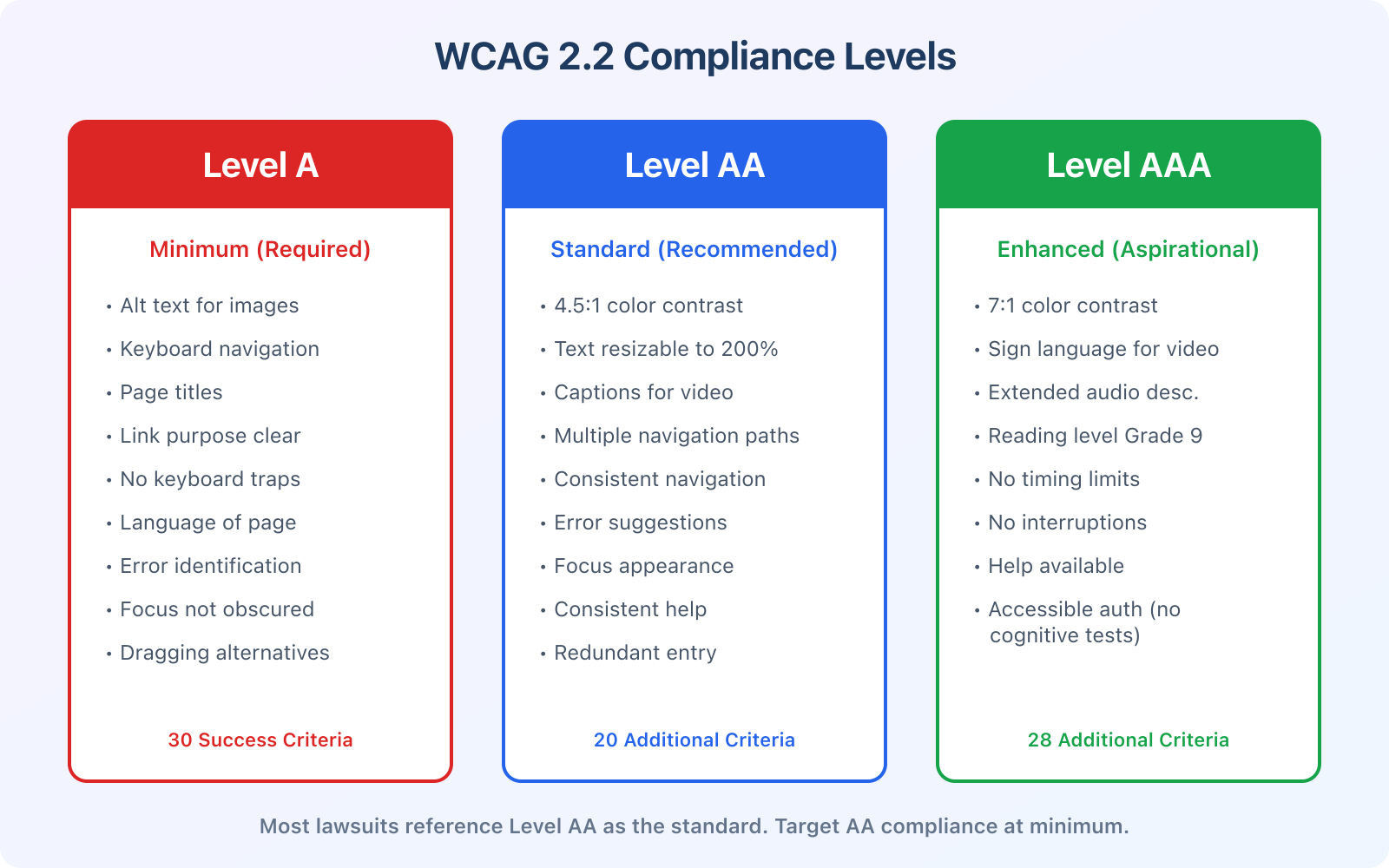
The ADA itself doesn’t spell out technical standards for websites. Instead, the Department of Justice points to the Web Content Accessibility Guidelines (WCAG) as the benchmark. WCAG 2.2, published by the W3C in October 2023, is the current standard. Most courts and regulators reference WCAG 2.2 Level AA as the target. If you meet Level AA, you’re in a strong legal position.
There’s an important distinction between ADA and Section 508. Section 508 applies to federal agencies and their contractors. ADA applies to private businesses. If you run an e-commerce store, a restaurant website, a SaaS product, or any business open to the public, ADA Title III applies to you. Businesses with 15 or more employees also fall under ADA Title I for employment-related web content.
The 2026 Legal Landscape: ADA, EAA, and Beyond
Web accessibility lawsuits aren’t slowing down. They’ve accelerated. Over 4,600 federal ADA lawsuits were filed in 2023, and the trend has continued climbing through 2026. Most target e-commerce, restaurants, banking, healthcare, and education websites. Serial plaintiff firms use automated scanning tools to identify non-compliant sites, then send demand letters requesting $5,000 to $25,000 settlements.
Here’s what changed recently and why it matters to you:
- DOJ Final Rule (April 2024): The Department of Justice finalized requirements for state and local government websites to meet WCAG 2.1 Level AA. Deadline is April 2026 for entities serving 50,000+ people, April 2027 for smaller ones. This signals the direction for private sector enforcement too
- European Accessibility Act (June 2025): The EAA requires digital products and services sold to EU customers to be accessible. If you sell to anyone in Europe, including digital products, SaaS, or e-commerce, this applies to you regardless of where your business is based
- California’s Unruh Civil Rights Act: California allows minimum $4,000 per violation in statutory damages, with no cap on violations. A single website with 50 pages that each have accessibility issues could theoretically face $200,000+ in damages. This is why a disproportionate number of lawsuits originate in California
- First-time ADA penalties: Up to $75,000 for initial violations, $150,000 for repeat violations, plus attorney fees and remediation costs
The cost of proactive compliance, typically $500 to $5,000 for a small to mid-size WordPress site, is a fraction of what even one lawsuit costs. I’ve seen clients spend $15,000 in legal fees alone before the actual remediation work even started.
The Business Case Beyond Lawsuits
About 1.3 billion people globally live with some form of disability. That’s roughly 16% of the world’s population. In the US alone, 61 million adults (26%) have a disability, and they control over $490 billion in disposable income. Ignoring accessibility means ignoring a massive market.
But the benefits go beyond the disability community. Accessibility improvements help everyone. Captions help people watching videos in noisy environments. High contrast helps users reading screens in bright sunlight. Keyboard navigation helps power users who prefer shortcuts over mouse clicks. Voice control, which relies on accessible markup, is increasingly how people interact with the web.
Then there’s the SEO angle. Google’s ranking factors overlap significantly with accessibility requirements. Proper heading hierarchy helps search engines understand page structure. Alt text feeds image search. Descriptive link text improves anchor quality. Fast load times and mobile-friendliness are both core ranking factors and accessibility requirements. I’ve consistently seen organic traffic improvements on sites after accessibility remediation, sometimes 15-20% within a quarter.
WCAG 2.2: What Changed and Why It Matters
WCAG 2.2, released in October 2023, added nine new success criteria on top of WCAG 2.1. These focus on improving experiences for users with cognitive disabilities, low vision, and motor impairments. One criterion from WCAG 2.1 (4.1.1 Parsing) was removed since modern browsers handle parsing errors gracefully.
Here are the changes that affect WordPress site owners most:
Focus Appearance (Level AA)
When an element gets keyboard focus, the focus indicator must be clearly visible. It needs a minimum contrast ratio and size. This is a problem on WordPress sites that use outline: none in their CSS to remove the default browser focus ring. If your theme strips focus indicators, you’re failing this criterion. Replace outline: none with a custom, visible focus style instead.
Focus Not Obscured (Level AA)
When an element receives focus, it can’t be completely hidden behind sticky headers, cookie banners, or floating chat widgets. This one catches a lot of WordPress sites because sticky navigation bars and fixed cookie consent popups are everywhere. Test by tabbing through your entire page and checking if any focused element disappears behind a fixed element.
Dragging Movements (Level A)
Any functionality that requires dragging, like image carousels with drag-to-scroll, drag-and-drop interfaces, or range sliders, must have a non-dragging alternative. A click or tap option must exist. Most WordPress slider plugins fail this because they only support mouse drag or touch swipe with no keyboard or button alternative.
Target Size Minimum (Level AA)
Interactive elements need to be at least 24×24 CSS pixels. This includes buttons, links, form controls, and close buttons. The tiny “X” buttons on popups, tightly spaced social icons, and small hamburger menu icons are the most common failures I see. Inline text links within paragraphs are exempt, but everything else needs to meet the minimum.
Consistent Help and Accessible Authentication (Level A)
If you offer help mechanisms (contact info, live chat, FAQ link), they must appear in the same relative location across every page. And login processes can’t require cognitive function tests like puzzles or CAPTCHAs without providing an alternative. This means standard image CAPTCHAs fail unless you also offer an audio or email-based alternative.
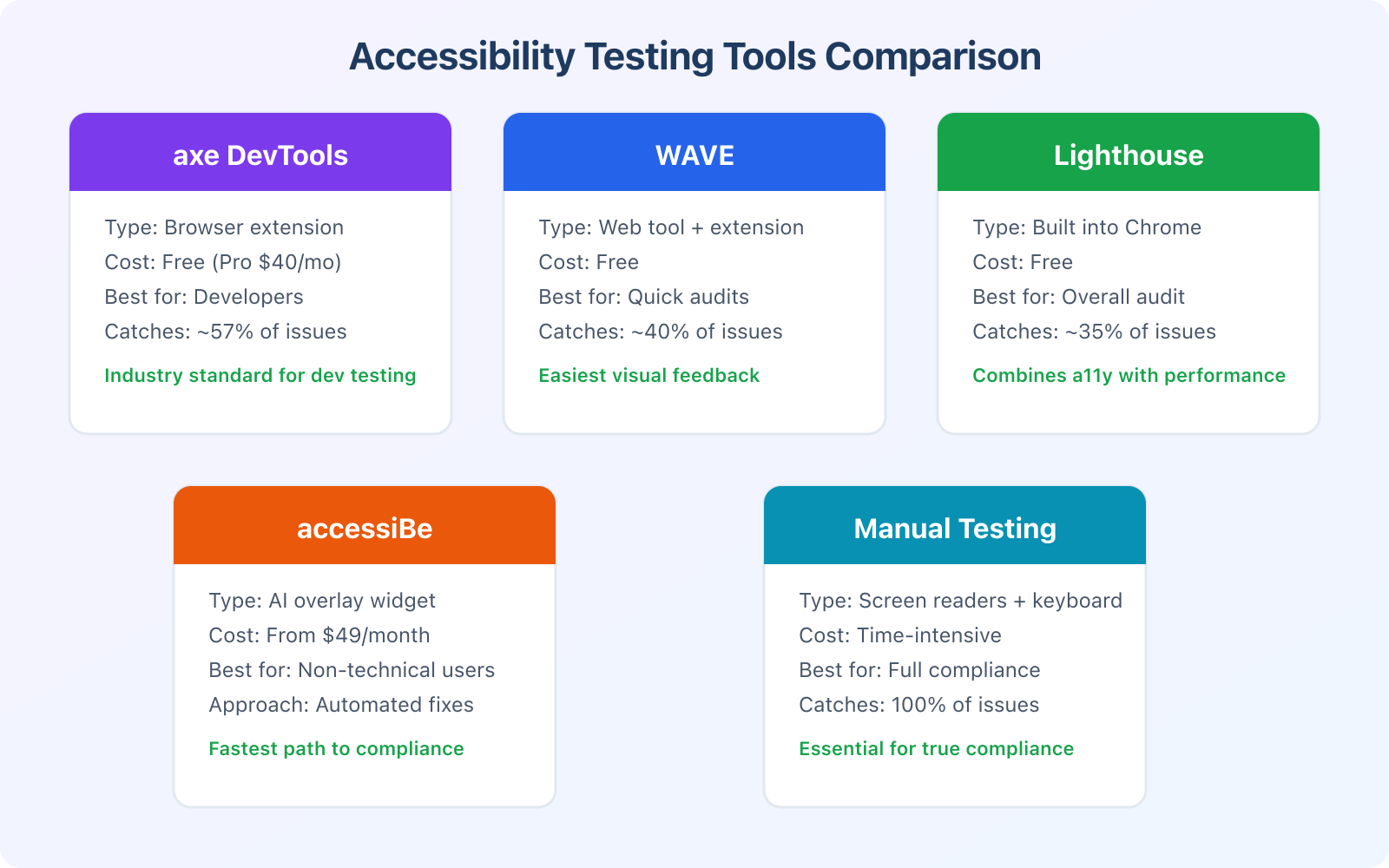
WordPress 15-Point Accessibility Audit Checklist
This is the checklist I run through on every WordPress site I audit. You can work through it yourself or hand it to your developer. Each item is something I’ve found broken on real client sites, not theoretical problems.
- Alt text on all images: Check every image in your media library. Informational images need descriptive alt text. Decorative images need empty alt attributes (
alt=""). “IMG_4532.jpg” is not alt text - Heading hierarchy: H1 appears once per page (your title). H2s for main sections. H3s for subsections under H2s. Never skip levels. Screen reader users navigate by headings like a table of contents
- Color contrast ratios: Normal text needs 4.5:1 contrast against its background. Large text (18px+ or 14px+ bold) needs 3:1. Test with WebAIM Contrast Checker
- Form labels: Every input field needs an associated
<label>element. Placeholder text doesn’t count. Use theforattribute on labels matching theidon inputs - Keyboard navigation: Tab through your entire site without touching the mouse. Every interactive element must be reachable and operable. Focus order must follow visual order
- Focus indicators: Visible focus rings on every interactive element. Never use
outline: nonewithout replacing it with a custom visible style - Skip navigation link: A “Skip to main content” link as the first focusable element on every page. Hidden until focused with keyboard
- Link text is descriptive: “Click here” and “Read more” are failures. Links should describe their destination: “Download the accessibility checklist” or “Read our WordPress security guide”
- Video captions and transcripts: All videos need accurate captions. Pre-recorded audio needs transcripts. Auto-generated YouTube captions don’t count unless you’ve reviewed and corrected them
- ARIA landmarks: Your theme should use semantic HTML (
<header>,<nav>,<main>,<footer>) or ARIA roles. Most modern WordPress themes handle this, but check if you’re using a page builder - Target sizes: All clickable elements at least 24×24 CSS pixels (WCAG 2.2). Check especially on mobile
- Resize to 200%: Zoom your browser to 200%. No content should be lost, overlap, or require horizontal scrolling on a standard 1280px viewport
- Error identification in forms: Form validation errors must be announced, associated with the specific field, and described in text (not just red borders)
- Consistent navigation: Navigation menus must appear in the same order on every page. Help links (contact, chat, FAQ) must stay in the same relative location
- No auto-playing media: Audio or video that plays automatically for more than 3 seconds must have a pause/stop mechanism. Better yet, don’t auto-play at all
How accessible is your website?
Best WordPress Accessibility Plugins
Plugins won’t make your site fully compliant on their own. But the right ones can automate the easy fixes and help you find the harder ones. Here are the three categories worth considering.
Detection and Reporting Plugins
Accessibility Checker by Equalize Digital is the best option here. It scans your pages and posts for WCAG violations right inside the WordPress editor, similar to how Yoast works for SEO. It checks alt text, heading structure, link text, color contrast, and more. The free version covers the basics. The Pro version ($145/year for a single site) adds full-site scanning, PDF reports, and WCAG 2.2 criteria.
WP Accessibility is a free plugin by Joe Dolson (a WordPress Core contributor focused on accessibility). It adds skip navigation links, fixes common theme issues, forces focus outlines, and removes title attributes from images. It won’t do a full audit, but it patches the most common problems automatically.
The Overlay Widget Debate
Tools like accessiBe, UserWay, and AudioEye add a floating widget to your site that lets users adjust fonts, contrast, spacing, and cursor size. They also use AI to auto-remediate some code-level issues.
I’ll be direct: the accessibility community largely opposes overlays. Organizations like the National Federation of the Blind have publicly criticized them. The argument is that overlays paper over bad code instead of fixing it, and sometimes introduce new accessibility problems.
That said, I understand the reality for small businesses. A $49/month overlay is a lot more affordable than a $5,000+ developer audit. If you’re a small business with a limited budget, an overlay can reduce your immediate legal risk while you plan code-level fixes. Just don’t treat it as a permanent solution. Use it as a bridge, not a destination.
Manual Testing: Keyboard, Screen Reader, and Contrast
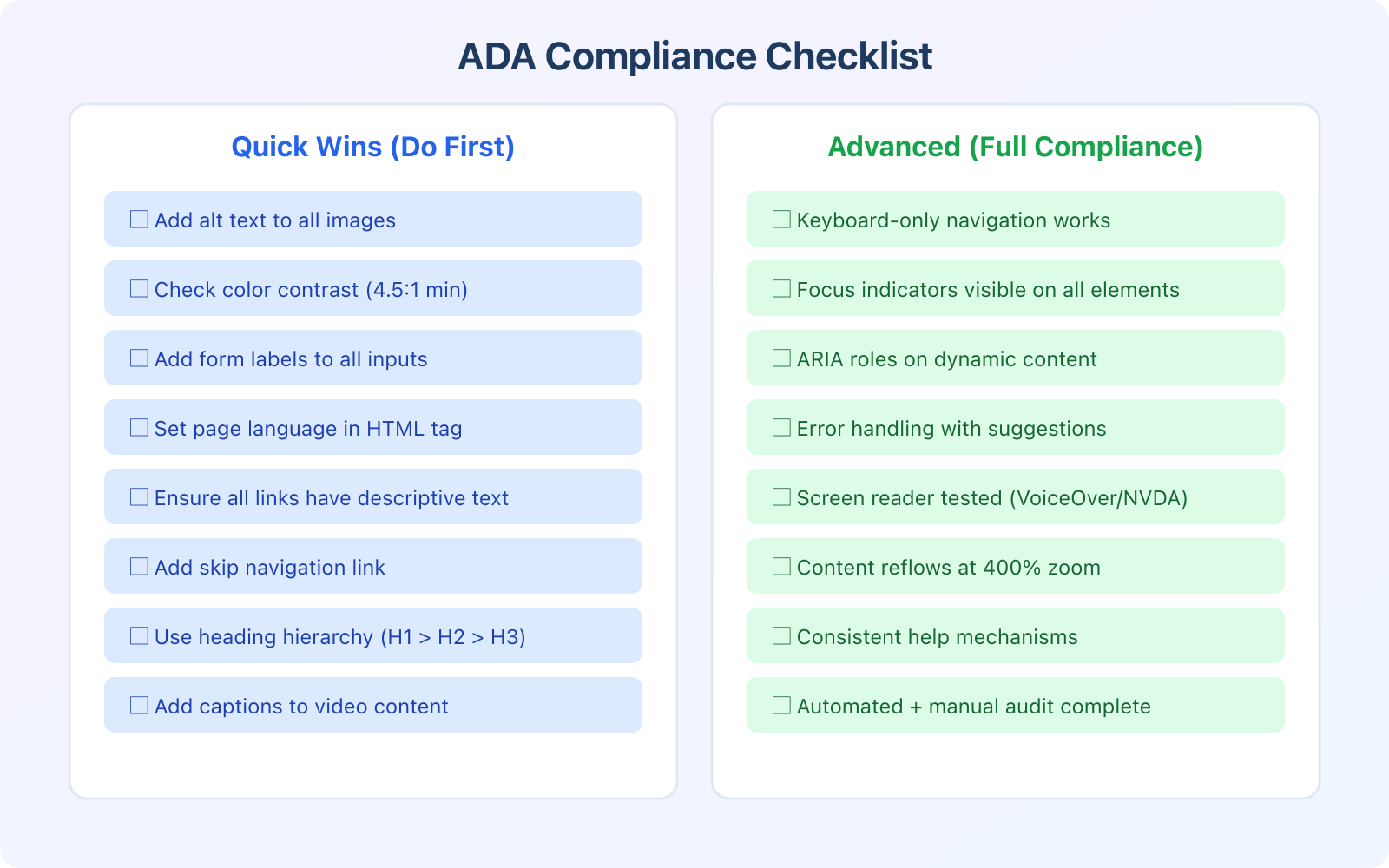
Automated tools catch roughly 30-57% of accessibility issues according to research from the UK’s Government Digital Service. The rest require human testing. Here’s my three-step manual testing process.
Keyboard Testing
Put your mouse in a drawer and navigate your entire site with just the keyboard. Tab moves forward through interactive elements. Shift+Tab moves backward. Enter activates links and buttons. Space toggles checkboxes and activates buttons. Arrow keys navigate dropdown menus, radio buttons, and tabs.
What you’re looking for: Can you reach every interactive element? Can you see where focus is at all times? Can you operate every control? Can you escape from modals and menus? Are dropdown menus navigable with arrow keys? If you get stuck or lose track of focus, that’s a WCAG failure.
Common keyboard traps I find on WordPress sites: modal popups that don’t return focus when closed, dropdown menus that only respond to hover events, custom sliders with no keyboard support, and cookie consent banners that aren’t reachable via Tab.
Screen Reader Testing
Screen reader testing reveals problems automated tools completely miss. Use VoiceOver (built into macOS, activated with Cmd+F5) or NVDA (free for Windows). Navigate your site the way a blind user would: by headings, landmarks, links, and form controls.
Listen for: Images announced as “image” with no description (missing alt text). Form fields announced without labels. Headings that skip from H2 to H4. Links that all say “read more” with no context. Decorative images announced unnecessarily. These issues become immediately obvious when you hear them spoken aloud.
Contrast and Visual Testing
Check every text-background combination on your site. Light gray text on white backgrounds is the most common failure I see, followed by low-contrast placeholder text in form fields. Use WebAIM’s Contrast Checker or the color contrast analyzer in Chrome DevTools (inspect element, look at the contrast ratio in the color picker).
Also test at 200% browser zoom. Your content should reflow properly without horizontal scrolling, overlapping text, or cut-off content. This catches responsive design issues that disproportionately affect users with low vision who increase their text size.
Automated Testing Tools for Your Workflow
Automated scanners are your first line of defense. They’re fast, consistent, and catch the low-hanging fruit so you can spend your manual testing time on the issues that require human judgment.
- axe DevTools (free browser extension by Deque): The industry standard. Scans your page and reports WCAG 2.2 violations with specific code references, severity levels, and fix suggestions. I run this on every page I work on
- WAVE (free web tool by WebAIM): Overlays visual icons on your page showing errors, alerts, structural elements, and ARIA information. Great for non-developers because the results are visual and intuitive
- Google Lighthouse (built into Chrome DevTools): Includes an accessibility audit as part of its performance report. Gives you a score out of 100 and highlights failures. Limited compared to axe, but useful for a quick check
- Pa11y (free, command line): Run scans from the command line or integrate into your CI/CD pipeline. Blocks deployments that introduce new accessibility violations. Ideal for development teams
- Siteimprove Accessibility Checker (free browser extension): Checks WCAG 2.2 conformance at all three levels (A, AA, AAA) and provides plain-language explanations of each issue
If you have a development team, integrate axe-core or Pa11y into your build pipeline. Catch issues before they reach production. Prevention is always cheaper than remediation.
Common WordPress Accessibility Problems
WordPress has made significant progress on accessibility. The core editor (Gutenberg) is largely accessible. But themes, plugins, and page builders introduce issues constantly. Here are the problems I fix most often on WordPress sites.
Theme-Level Issues
Many premium WordPress themes strip focus indicators for aesthetic reasons. They use outline: none or outline: 0 on links and buttons, making the site unusable for keyboard users. Others use insufficient color contrast in their default color schemes, especially for secondary text, meta information, and placeholder text.
Page builders like Elementor, Divi, and WPBakery generate complex nested HTML that can break heading hierarchy and create confusing reading orders for screen readers. If you use a page builder, you need to be extra careful about structure.
Plugin-Level Issues
Contact form plugins often generate forms without proper <label> elements. Slider and carousel plugins typically lack keyboard controls and ARIA attributes. Popup plugins create modals that don’t trap focus properly (keyboard users can tab behind the modal to the page underneath). Cookie consent banners frequently aren’t keyboard-accessible.
Before installing any WordPress plugin, check whether it mentions accessibility in its documentation. Building a website with accessibility in mind from the start is significantly cheaper than retrofitting later.
Content-Level Issues
The most common content problems are missing or poor alt text, broken heading hierarchy (jumping from H2 to H4), non-descriptive link text (“click here”), PDFs that aren’t tagged for accessibility, and videos without captions. These are all issues content editors create, not developers. Training your content team on accessibility basics prevents the majority of ongoing issues.
Accessibility for Different Content Types
Different content types have different accessibility requirements. Here’s what to watch for with each.
Blog posts and articles: Proper heading hierarchy, descriptive alt text on images, meaningful link text, adequate contrast. If you embed social media posts, they need alternative text descriptions because embedded iframes are often inaccessible to screen readers.
E-commerce product pages: Product images need detailed alt text (not just the product name, but color, size, and key features). Price changes and sale badges need to be accessible to screen readers. Add-to-cart buttons need clear labels. The entire purchase flow, from product page to checkout to confirmation, must be keyboard-operable.
Forms and surveys: Every field needs a visible label. Error messages must be associated with specific fields using aria-describedby. Required fields must be indicated in a way that doesn’t rely solely on color (an asterisk with a text note works). Multi-step forms need progress indicators.
PDFs and documents: PDFs need to be tagged with a proper reading order, headings, and alt text. Scanned PDFs (just images of text) are completely inaccessible. If you link to PDFs, consider offering an HTML alternative. Google Workspace docs exported as PDF typically have better tagging than Word-to-PDF conversions, but you still need to verify.
- Docs, Sheets, and Slides with built-in accessibility features
- Tagged PDF export for screen reader compatibility
- Live captions in Google Meet for hearing-impaired users
- Screen reader support across all apps
- 30GB storage on Business Starter plan
Multimedia: Videos need synchronized captions (not just auto-generated). Pre-recorded audio needs transcripts. Live events need real-time captions (services like Otter.ai or human CART providers). Audio descriptions are required for video content where visual information isn’t conveyed through the audio track.
Accessibility isn’t a feature you add at the end. It’s a quality you build in from the start. Every time I’ve retrofitted accessibility onto an existing site, it cost 3-5x more than it would have to build it right the first time.
Tools That Help You Stay Compliant
Beyond accessibility-specific tools, some of the software you already use can help you maintain compliance as part of your regular workflow.
Semrush includes a site audit feature that flags accessibility-adjacent issues: missing alt text, broken links, redirect chains, and page speed problems. It won’t replace a dedicated accessibility audit, but it catches content-level issues as part of your regular SEO monitoring. I run Semrush audits monthly on client sites and always find a handful of new missing alt texts that content editors introduced since the last check.

- Site audit catches missing alt text and broken links
- Monitors 130+ on-page and technical SEO checks
- Tracks page speed scores across your entire site
- Scheduled weekly crawls to catch new issues automatically
- Exportable reports for client or team review
For documenting your accessibility process, tracking audit findings, and managing remediation tasks, Notion works well. I keep a database of accessibility issues per site, their severity, WCAG criterion, status, and who’s responsible. It’s not a purpose-built accessibility tool, but it keeps the remediation process organized across teams.
- Database templates for tracking accessibility issues
- Assign remediation tasks to team members with deadlines
- Free plan for individual use, $10/user/mo for teams
- Document your accessibility policy and audit history
- Works as a central knowledge base for WCAG guidelines
When to Hire an Accessibility Consultant
You can handle a lot of accessibility work yourself using this guide. But there are situations where professional help makes sense.
Hire a consultant if: You’ve received a demand letter or lawsuit (you need an expert and possibly legal counsel, not a plugin). Your site handles financial transactions or healthcare data where compliance is critical. You need a formal VPAT (Voluntary Product Accessibility Template) for enterprise sales. You have a complex web application with custom interactive components. You’ve done the basics but want a comprehensive audit to WCAG 2.2 AAA level.
Expect to pay $2,000 to $10,000 for a professional accessibility audit of a typical WordPress site, depending on the number of pages and complexity. An audit of a simple 20-page brochure site runs around $2,000 to $3,000. An e-commerce site with a checkout flow, user accounts, and dynamic content runs $5,000 to $10,000. Large enterprise sites can go higher.
Look for consultants who are IAAP (International Association of Accessibility Professionals) certified, specifically the CPAC (Certified Professional in Accessibility Core Competencies) or CPACC certification. Ask for sample audit reports before hiring. A good audit report includes specific WCAG criteria violated, affected pages, code-level fix recommendations, and severity ratings.
The cheapest time to make your site accessible is right now. Every day you wait, you’re adding more content, more pages, and more code that will eventually need to be fixed. And you’re one demand letter away from an expensive emergency.
Getting Started This Week
Here’s what I recommend doing in the next 7 days:
- Install axe DevTools and run it on your homepage and top 5 most-visited pages. Document every issue it finds
- Fix the quick wins: add missing alt text, correct heading hierarchy, increase color contrast on problem areas, and add labels to form fields. These usually take 1-2 hours per page
- Install WP Accessibility plugin to patch common theme-level issues (skip links, focus outlines, title attribute removal)
- Test keyboard navigation on your main user flows: homepage, product/service pages, contact form, checkout (if e-commerce). Note where focus gets lost or trapped
- Create a budget for ongoing accessibility work. Set aside time for quarterly audits. Even 2-3 hours per quarter keeps you ahead of most issues
Accessibility isn’t a one-time checkbox. It’s an ongoing practice, similar to security or SEO. Content changes, plugins update, themes evolve. But the first audit and round of fixes gets you 80% of the way there. That 80% is what protects you from the vast majority of legal risk and opens your site or app to the 1.3 billion people worldwide who need accessible experiences.
The tools exist. The standards are clear. The only thing standing between your website and compliance is the decision to start. Make it today.
What is the penalty for not being ADA compliant?
First-time ADA violations can result in fines up to $75,000. Repeat violations reach $150,000. Most web accessibility lawsuits settle for $5,000 to $25,000, plus remediation costs and legal fees. Under California’s Unruh Act, statutory damages start at $4,000 per violation with no cap. Beyond fines, there’s reputational damage and the cost of becoming compliant under court supervision, which is always more expensive than proactive compliance.
What is the difference between WCAG 2.1 and WCAG 2.2?
WCAG 2.2 adds nine new success criteria on top of WCAG 2.1. The biggest additions are Focus Appearance (visible focus indicators), Target Size Minimum (24x24px interactive elements), Dragging Movements (non-drag alternatives required), Consistent Help (help in same location across pages), and Accessible Authentication (no cognitive function tests for login). One WCAG 2.1 criterion (4.1.1 Parsing) was removed. Target WCAG 2.2 Level AA for the most current standard.
Can an accessibility overlay make my site fully compliant?
No. Overlay widgets like accessiBe, UserWay, and AudioEye can fix roughly 30-50% of accessibility issues automatically. The remaining issues, like logical heading structure, meaningful alt text, proper keyboard navigation, and correct ARIA usage, require manual code changes. Several lawsuits have been filed against companies using overlays, with courts ruling the overlay didn’t achieve compliance. Use overlays as a temporary bridge while you do code-level remediation, not as a permanent solution.
How often should I audit my website for accessibility?
Run a basic automated scan (axe DevTools or WAVE) monthly. Do a thorough audit including manual keyboard and screen reader testing quarterly. Any time you redesign pages, add new features, install plugins, or change themes, run an accessibility check on the affected areas. Integrate automated testing into your deployment pipeline if you have a development team. Annual comprehensive audits by a professional consultant are recommended for sites with legal exposure.
Does ADA compliance help with SEO?
Yes, significantly. Proper heading hierarchy helps search engines understand page structure. Alt text feeds image search results. Descriptive link text improves anchor quality. Fast load times and mobile-friendliness are ranking factors and accessibility requirements. Semantic HTML helps both screen readers and search engine crawlers. I’ve consistently seen 15-20% organic traffic improvements on sites after thorough accessibility remediation.
What does the European Accessibility Act mean for US businesses?
The European Accessibility Act (EAA) took full effect in June 2025. It requires digital products and services sold to EU customers to be accessible. If you sell digital products, run a SaaS platform, or operate an e-commerce site that serves EU customers, the EAA applies regardless of where your business is physically located. Non-compliance can result in fines determined by each EU member state, and products can be pulled from the market.
How much does it cost to make a website ADA compliant?
For a small WordPress site (under 20 pages), basic remediation costs $500 to $2,000 if you do it yourself or hire a freelancer. A professional audit runs $2,000 to $5,000. For mid-size e-commerce sites with custom functionality, expect $5,000 to $10,000 for audit and remediation. Enterprise sites can exceed $20,000. Overlay tools cost $49 to $500 per month. The cost of proactive compliance is always a fraction of a lawsuit, which typically costs $10,000 to $50,000+ including legal fees and settlements.
Is my WordPress theme automatically ADA compliant?
No WordPress theme is automatically fully compliant. Some themes carry the “accessibility-ready” tag in the WordPress.org directory, which means they passed a basic accessibility review. But “accessibility-ready” doesn’t mean “accessible.” It means the theme provides a foundation (proper heading structure, skip links, ARIA landmarks, keyboard navigation) that won’t actively break accessibility. Your content, plugins, customizations, and page builder usage all introduce additional issues that the theme can’t control.
Disclaimer: This site is reader-supported. If you buy through some links, I may earn a small commission at no extra cost to you. I only recommend tools I trust and would use myself. Your support helps keep gauravtiwari.org free and focused on real-world advice. Thanks. - Gaurav Tiwari