
Must Have Firefox Tools and Extensions for Bloggers
I’ve been using Firefox since 2009. Back then, it was the only browser that let you install extensions worth a damn. Things have changed since, but Firefox is still the browser I keep coming back to for one simple reason: it respects your privacy without crippling your workflow.
Over the years, I’ve tested hundreds of browser extensions. Most get uninstalled within a week. The ones in this guide? They’ve survived years of monthly audits. Every extension here runs in my daily Firefox setup across my MacBook Air and Mac mini. I’ll also cover Firefox’s built-in developer tools, which are genuinely best-in-class for front-end work.
Whether you’re a blogger, a WordPress developer, or someone who just wants a faster, more private browsing experience, this is the stack I’d recommend starting with.
SEO and Analytics Extensions
If you’re publishing content and not checking SEO data in your browser, you’re flying blind. These three extensions show you what’s happening under the hood of any webpage without opening a separate dashboard.
SEOquake
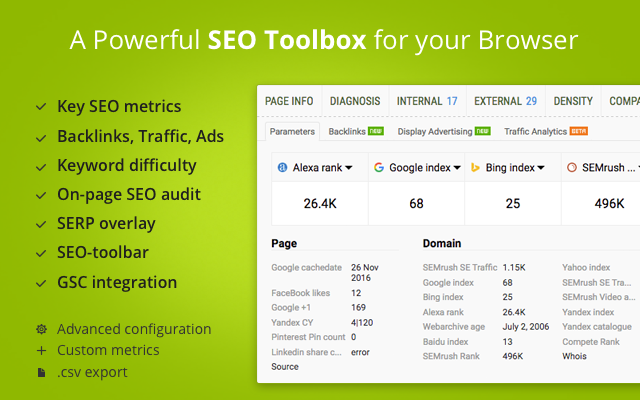
SEOquake is the extension I’ve had installed the longest. It adds an SEO data bar below every Google search result showing domain authority, page authority, backlink count, and indexed page counts. Visit any website, click the icon, and you get a full SEO dashboard with keyword density, internal/external link analysis, and page metadata.
The data comes from Semrush, so you’re getting real metrics, not guesswork. I use it every time I research a competitor or audit one of my own pages. It’s free for basic features. Connect your Semrush account and you unlock the full dataset including traffic estimates and keyword positions. If you only install one SEO tool in your browser, make it this one.
Available on: Firefox Add-ons
Detailed SEO Extension
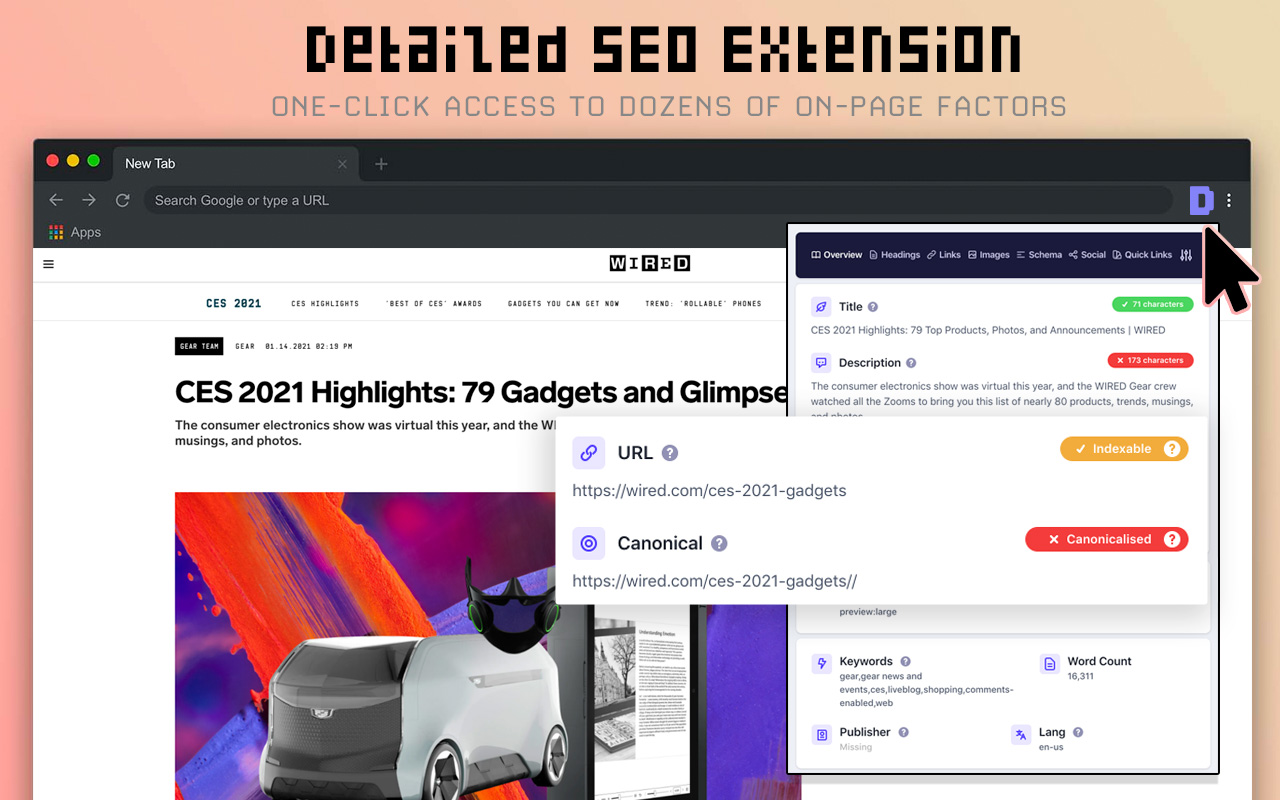
Where SEOquake gives you the big picture, Detailed SEO Extension gives you the technical breakdown. One click shows the page’s title tag, meta description, canonical URL, heading hierarchy, schema markup, and Open Graph tags. It’s lighter than SEOquake and loads faster when I just need a quick on-page SEO check.
I keep both installed. SEOquake for competitive research across search results. Detailed SEO for auditing individual pages. They don’t overlap much, and together they cover about 80% of what you’d need a paid SEO tool for during daily browsing.
Available on: Firefox Add-ons
BuiltWith Technology Profiler
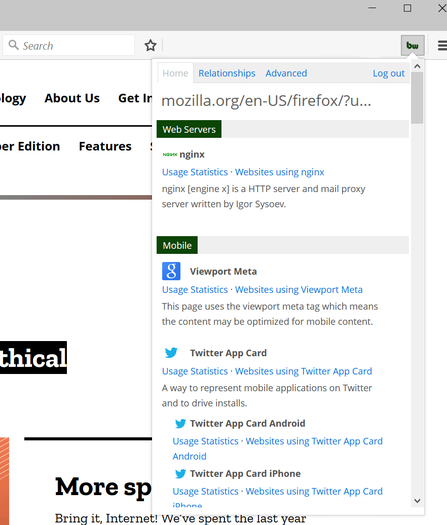
BuiltWith shows you exactly what tech stack any website runs. CMS, hosting provider, CDN, analytics tools, ad networks, email service, A/B testing platform… all of it. Visit a site, click the icon, and the entire stack unfolds.
I use this more than I’d like to admit. When a competitor’s site loads in under a second, I check BuiltWith to see their CDN and caching setup. When I spot a clean design, I check what theme and page builder they’re using. When a Shopify store has great conversion elements, I check the apps powering them. It’s competitive intelligence in two clicks.
Available on: Firefox Add-ons
Web Development Extensions
Even if you’re not a full-time developer, you probably tweak CSS, inspect elements, or debug layout issues on your site. These two extensions make that work significantly faster.
Web Developer by Chris Pederick
This extension has been around for over a decade and it’s still in my toolbar. Web Developer adds a menu with dozens of tools: disable CSS, outline elements, view cookie details, check image dimensions, validate HTML, and test responsive layouts. All without opening DevTools.
The feature I use most is “Display Element Information.” Click any element on a page and it shows the CSS classes, IDs, dimensions, and computed styles. It’s faster than right-click > Inspect for quick checks. If you build or maintain WordPress sites, this saves you from opening DevTools for every little thing.
Available on: Firefox Add-ons
ColorZilla
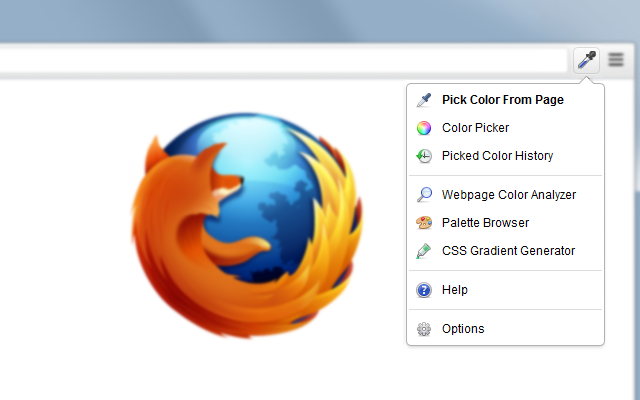
ColorZilla is one of those extensions that does one thing perfectly. Hover over any pixel on a page and it gives you the exact hex code, RGB value, or HSL value. It also includes a gradient generator, palette viewer, and color history. When I’m matching brand colors across a site redesign or pulling a color from a competitor’s design, ColorZilla is what I reach for.
Available on: Firefox Add-ons
Keep your extension count under 15. Every extension eats RAM and slows page loads. I audit mine every couple of months and remove anything I haven’t clicked in 30 days. Quality beats quantity every time.
Productivity and Research Extensions
Your browser is where you research, save ideas, manage tasks, and organize your digital life. These extensions make all of that faster without switching between apps.
Bitwarden (Password Manager)
Bitwarden is the password manager I recommend to anyone on a budget. It’s open-source, free for personal use, and handles passwords, credit cards, and secure notes across all your devices. The Firefox extension auto-fills login forms, generates strong passwords, and syncs instantly.
I switched from LastPass to Bitwarden years ago. The free tier gives you everything LastPass charges for: unlimited passwords, unlimited devices, cross-browser sync. The premium plan ($10/year) adds TOTP authentication and emergency access. If you’re still reusing passwords or storing them in a notepad file… stop that. Install Bitwarden tonight.
Enpass
If you want something more powerful than Bitwarden and you don’t want another subscription bleeding your wallet every month, Enpass is the answer. It costs $79.99 one-time for a lifetime license. No annual renewal. No surprise price hikes.
What sets it apart: Enpass stores your vault locally and syncs through your own cloud service (iCloud, Dropbox, Google Drive, or OneDrive). Your passwords never sit on Enpass’s servers. The Firefox extension auto-fills passwords, credit cards, and addresses. It also fills credit cards reliably in third-party browsers, which is something Apple’s built-in Passwords app still can’t do properly outside Safari. Read my full Enpass review for the detailed breakdown.
Available on: Firefox Add-ons, Brave, Safari, and Edge
Pocket comes built into Firefox. One click saves any article for later reading with a clean, distraction-free layout. You can tag saved articles, search through them, and sync across devices. The offline reading feature is perfect for flights or commutes.
I save 10-15 articles per week to Pocket. When I sit down to write, I pull up my tagged research on the topic and everything is in one place. It’s become such a core part of my content workflow that I can’t imagine working without it.
Available on: Built into Firefox, also on getpocket.com
Notion Web Clipper
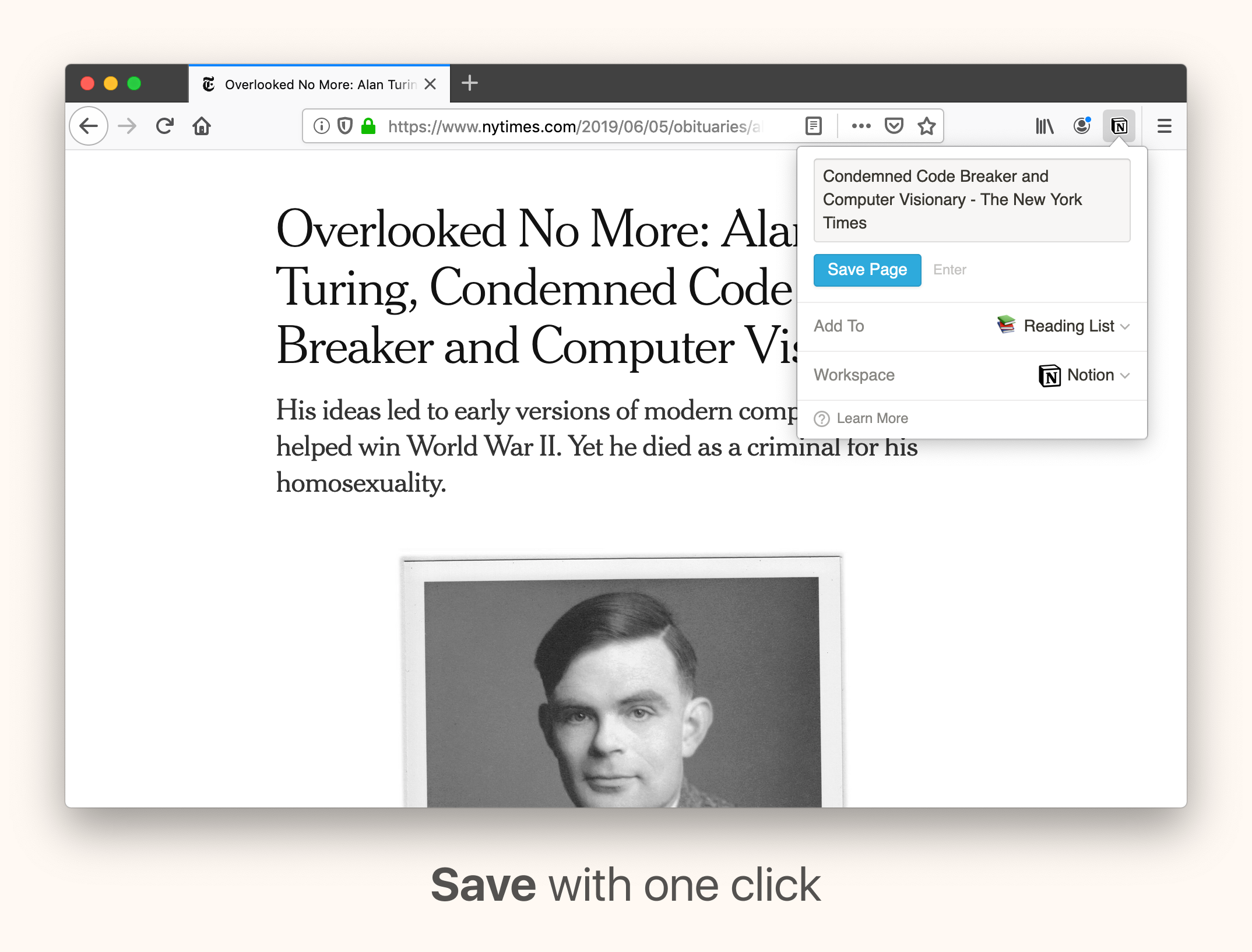
If you use Notion for project management or editorial planning, the Web Clipper is essential. Click the icon, pick a destination database, add tags, and the page gets saved to your Notion workspace with text, images, and formatting intact.
I use it to clip competitor articles, save product pages I’m reviewing, and bookmark resources for upcoming blog posts. It captures content much cleaner than a simple bookmark, and having everything in Notion means I can add my own notes right alongside the clipped content.
Available on: Firefox Add-ons
Todoist
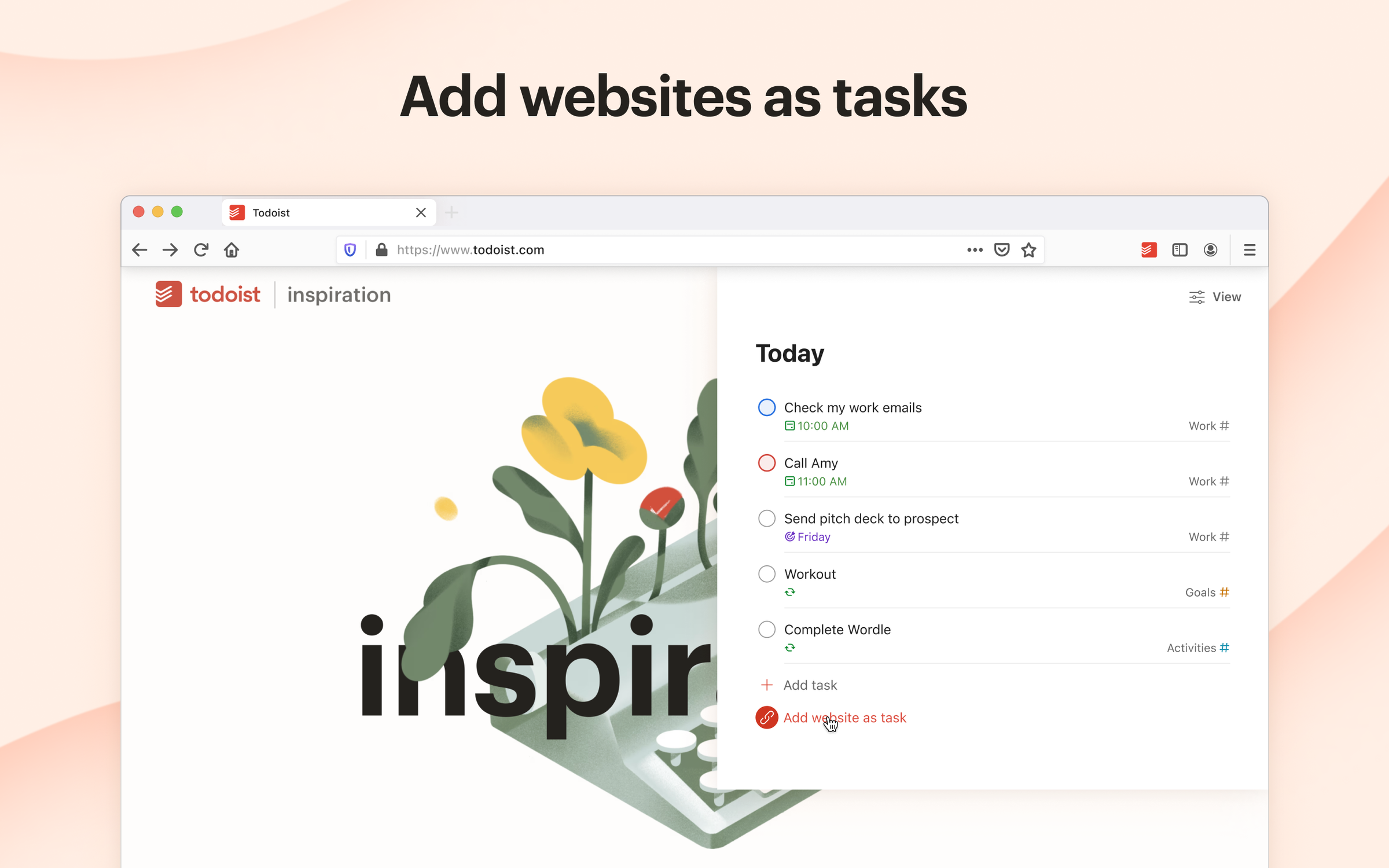
The Todoist extension turns any webpage into a task. Reading something you need to follow up on? Right-click and add it as a task with a due date, project, and priority. There’s also a keyboard shortcut for quick-adding ideas without leaving your current tab.
I use it to capture blog post ideas, flag pages that need updates, and create follow-up tasks from competitor research. It syncs instantly with the Todoist desktop and mobile apps. Nothing falls through the cracks. It’s one of the best productivity tools I’ve used for content work.
Available on: Firefox Add-ons
Content Creation Extensions
You don’t need Photoshop open in a separate tab for quick graphics work. This extension handles the common stuff right inside your browser.
Canva
The Canva browser extension does two things well. First, it captures any webpage screenshot and opens it in Canva for editing. Second, it gives you quick access to Canva’s design tools from any tab. Right-click any image on the web and you can edit it in Canva instantly.
I use it for creating quick social media graphics from screenshots, annotating competitor page captures, and building blog header images without context-switching. If you already use Canva (free or Pro), the extension removes the friction of opening Canva separately, uploading an image, and then starting. You just… start.
Available on: Firefox Add-ons
AI-Powered Browser Extensions
AI extensions have exploded in 2026. Most are bloated wrappers around ChatGPT’s API that chew through RAM and add nothing you couldn’t do by opening ChatGPT in a tab. But a couple of them genuinely save time.
Grammarly
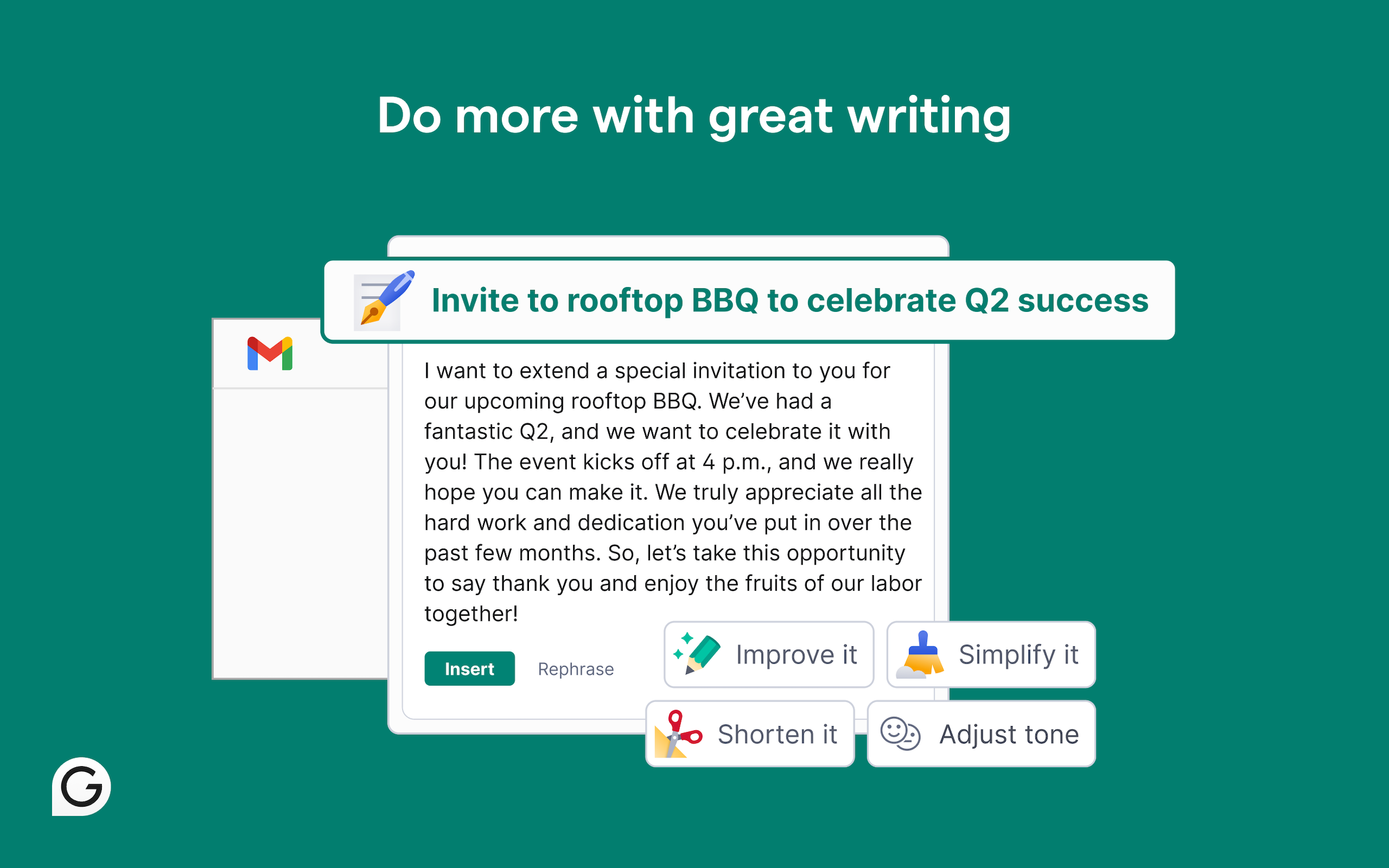
Grammarly has been doing AI-assisted writing longer than the current AI hype cycle, and it shows. The extension checks grammar, spelling, tone, and clarity in real-time across every text field you type in: email, WordPress editor, social media, Google Docs, everything. Read my Grammarly review for the full breakdown.
The free tier catches basic errors and is enough for most people. Premium ($12/month) adds tone detection, full-sentence rewrites, and plagiarism checking. I’ve caught embarrassing typos seconds before hitting publish more times than I’d like to admit. If you write content for the web, this is non-negotiable. For alternatives, check my writing assistant comparison.
Available on: Firefox Add-ons, Safari, and Edge
Monica AI
Monica is an AI sidebar that lives in your browser. Ask it to summarize the page you’re viewing, translate content, draft replies, or explain complex topics. It supports GPT-4 and Claude models, and the chat panel is accessible from any webpage.
I use it mostly for quick content summaries during research. Instead of reading through a 5,000-word article, Monica gives me the key points in 30 seconds. The free tier offers 30 queries per day, which is enough for casual use. It’s not a replacement for doing the actual reading, but it’s a solid triage tool when you’re scanning 20 articles for one blog post.
Available on: Firefox Add-ons
Privacy and Security Extensions
Firefox already has stronger privacy defaults than any Chromium-based browser. These extensions take it further. And unlike on other browsers, Firefox doesn’t cripple ad blockers with Manifest V3 restrictions.
uBlock Origin

uBlock Origin is the first extension I install on every browser. It’s free, open-source, and blocks ads, trackers, malware domains, and other garbage. Unlike AdBlock Plus, it doesn’t run a “paid whitelist” program where advertisers pay to bypass your blocker. It just blocks everything it should.
The performance difference is measurable. Pages load 30-50% faster with uBlock Origin because it prevents dozens of tracking scripts and ad networks from loading in the first place. It also uses less RAM than any other ad blocker I’ve tested. And here’s the big one: Firefox is now the only major browser where uBlock Origin works at full power. Manifest V3 restrictions in Chromium-based browsers limit what content blockers can do. If you care about ad blocking, Firefox + uBlock Origin is the best combination available.
Available on: Firefox Add-ons
Privacy Badger

Privacy Badger is built by the Electronic Frontier Foundation. Instead of using a static blocklist, it learns which domains track you across websites and blocks them automatically. It focuses specifically on cross-site tracking, which makes it a complement to uBlock Origin, not a replacement.
I run both. uBlock Origin handles ads and known trackers. Privacy Badger catches the sneaky ones that slip through by observing their behavior. Together, they block more tracking than either one alone.
Available on: Firefox Add-ons
NordVPN Browser Extension

NordVPN‘s browser extension is a lightweight proxy that encrypts only your browser traffic. Unlike the full desktop app, it doesn’t route all your system traffic through the VPN, so your other apps and downloads run at full speed while your browsing stays private.
I use it when checking how a website renders from different countries, accessing region-locked content for research, or adding privacy on public Wi-Fi. It connects in under 2 seconds with servers in 60+ countries. The built-in Threat Protection feature also blocks ads, trackers, and malicious sites at the proxy level. For more on why you should use a VPN, I’ve written a separate guide. Check my NordVPN review for the full analysis.
Available on: Firefox Add-ons
Screenshots and Media Extensions
Firefox has a built-in screenshot tool (Ctrl+Shift+S), but it’s basic. For full-page captures with annotation, you need FireShot.
FireShot
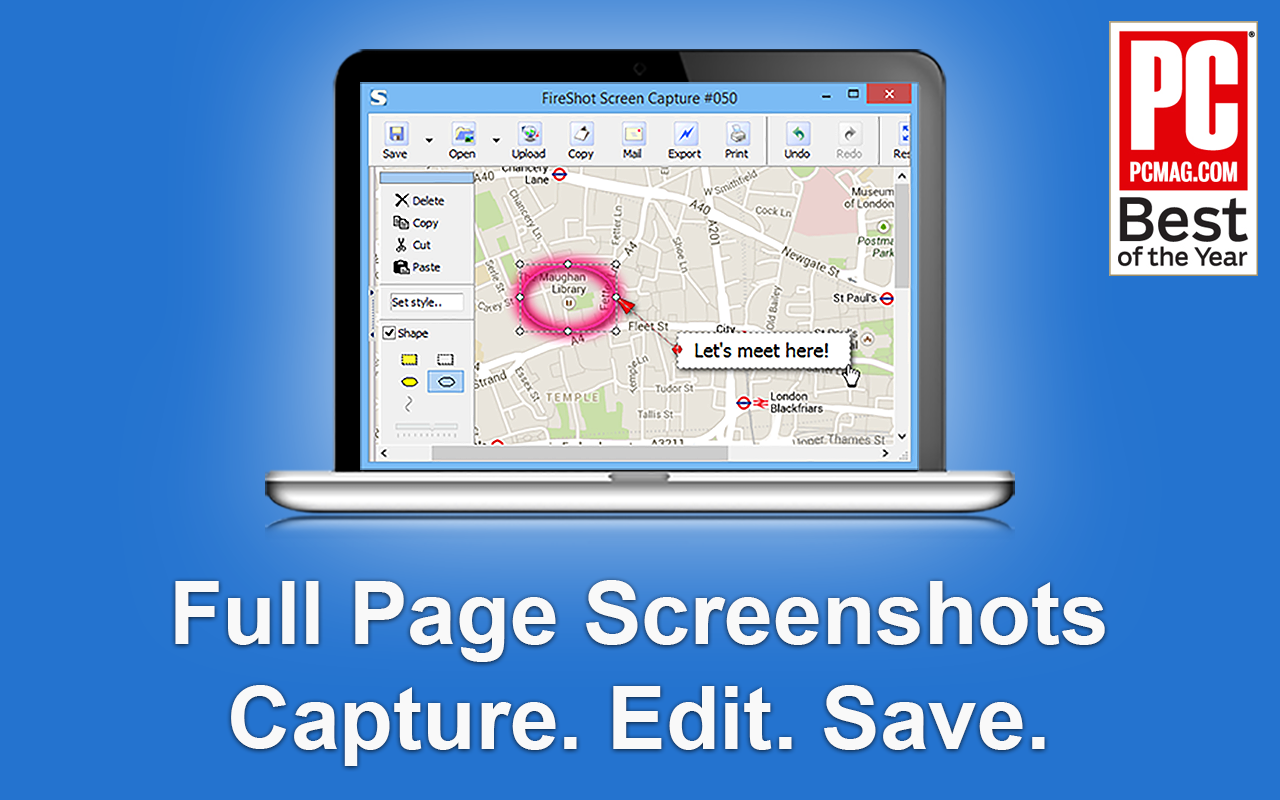
FireShot captures full-page screenshots, including everything below the fold. You can capture the visible area, the entire page, or a selected region, then save as PNG, JPG, or PDF. It also lets you annotate screenshots with arrows, text, and highlights before saving.
I use it for documenting competitor pages, capturing before/after states during A/B tests, and creating visual references for client discussions. The free version handles 90% of use cases. The paid upgrade adds cloud storage and batch capture.
Available on: Firefox Add-ons
Firefox Built-in Developer Tools
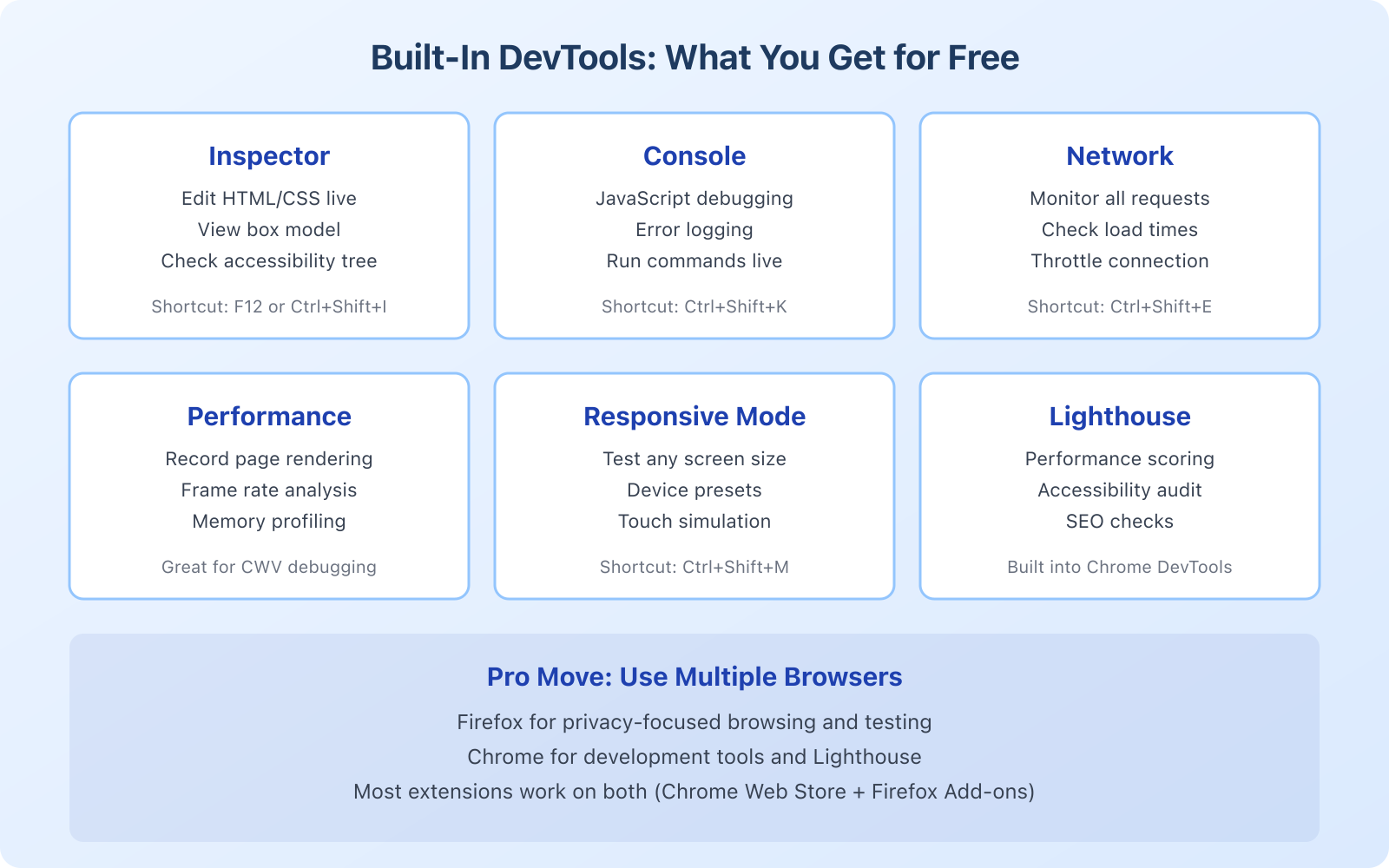
You don’t need an extension for this. Firefox ships with developer tools that rival anything you’d install separately. Press F12 on any page to access them. Here’s what you should know about each tab.
Inspector: Edit HTML and CSS live. Want to test a different heading size or button color? Change it in the Inspector and see the result instantly. Nothing is permanent. It’s a sandbox for experimentation.
Console: JavaScript errors show up here. If your contact form breaks, an animation glitches, or a script fails to load, the Console tells you exactly what went wrong. I check this on every site I launch.
Network: Every file your page loads appears here: images, scripts, stylesheets, fonts, API calls. Sort by size and you’ll find the files killing your load time. I’ve found sites loading 3MB hero images that should have been 200KB after compression. This tab alone has saved me hours of performance debugging.
Responsive Design Mode (Ctrl+Shift+M): Test your site on any screen size with device presets for iPhone, iPad, and Android. Way more reliable than manually resizing your browser window. Firefox’s responsive mode is genuinely the best of any browser.
CSS Grid and Flexbox Inspector: This is where Firefox really shines. The visual overlay for Grid and Flexbox layouts makes debugging layout issues trivial. No other browser’s DevTools come close to this feature.
Firefox DevTools are best-in-class for CSS work. The Grid inspector, Flexbox debugger, and responsive design mode are features other browsers are still catching up to. Firefox also has stronger privacy defaults and doesn’t restrict extensions like Chromium-based browsers do with Manifest V3. For both development and daily browsing, it’s the browser I recommend.
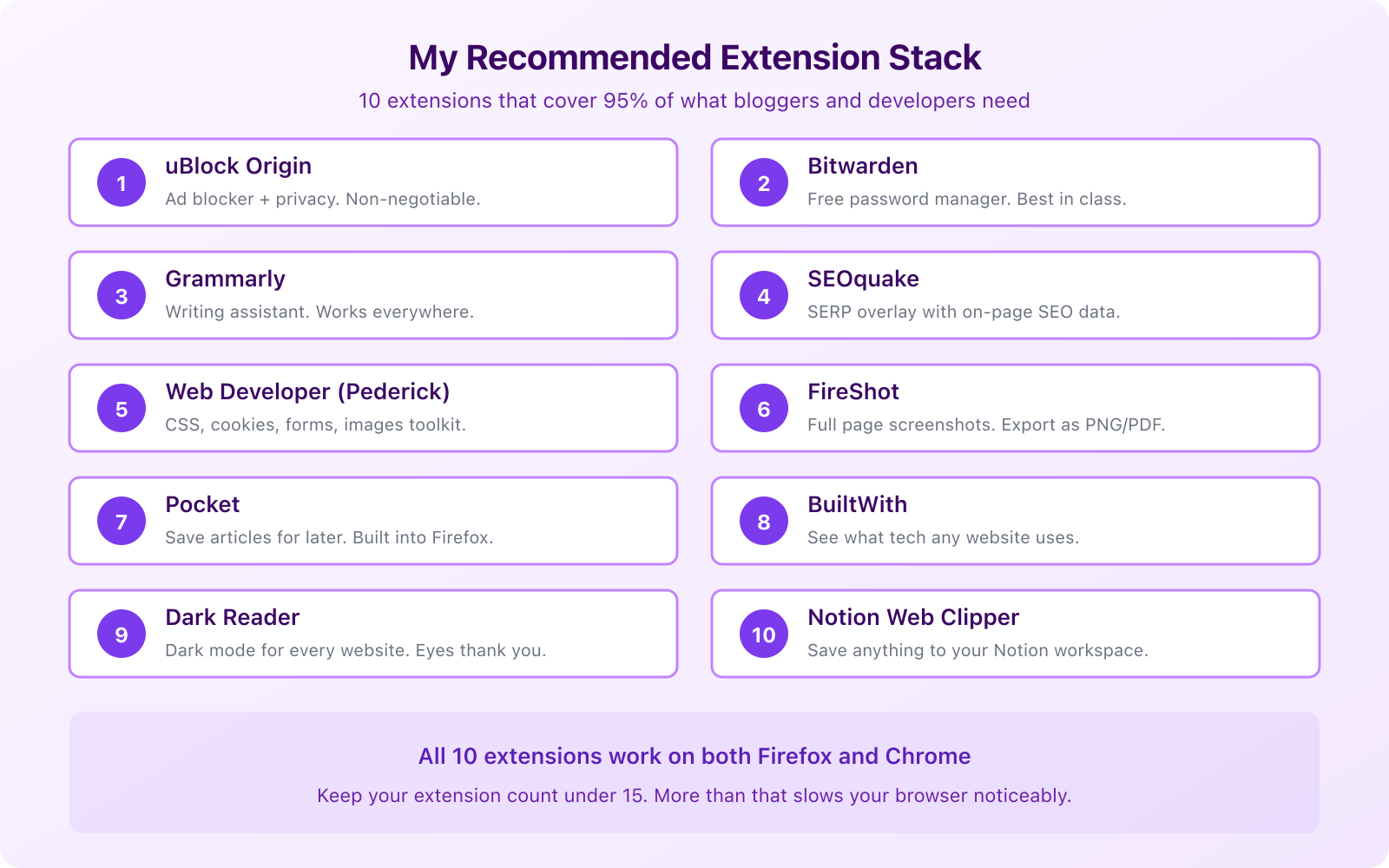
How to Manage Extensions Without Killing Performance
Every extension you install adds overhead to every page load. I’ve benchmarked this on my own setup: 20 active extensions used 40-60% more RAM than running with just 5. Page loads were 15-20% slower. Extensions aren’t free, they cost you performance.
Here’s how I keep things lean:
- Cap your active extensions at 10-12. If you only need something occasionally (like BuiltWith), enable it when you need it and disable it after. Firefox makes this easy from the Add-ons Manager.
- Use Firefox profiles. I run two profiles: one for development (with SEO and dev extensions) and one for writing and research (with productivity extensions). They don’t share extensions, cookies, or cache. It keeps things clean.
- Audit every quarter. Open
about:addons, check what you haven’t used in 30 days, and uninstall it. No exceptions. - Check permissions. Some extensions request access to “all websites” when they don’t need it. Be skeptical. Prefer extensions that only activate on specific sites or when you click them. Permissions matter more than most people think.
For more on optimizing your Mac workflow, check my list of essential Mac apps and utilities I use daily alongside these Firefox extensions.
Frequently Asked Questions
Are browser extensions safe to use?
Most extensions from the official Firefox Add-ons store are safe, but not all. Stick to extensions with high ratings, many reviews, and active development. Check permissions before installing and avoid extensions that request ‘read and change all data on all websites’ unless they genuinely need it (ad blockers and password managers need this, a color picker doesn’t). Open-source extensions like uBlock Origin and Bitwarden are the safest since their code is publicly auditable.
Why is Firefox better than other browsers for extensions?
Firefox is the only major browser that hasn’t adopted Manifest V3 restrictions, which limit what content blockers like uBlock Origin can do. This means ad blockers and privacy extensions work at full power on Firefox. Firefox also has stronger built-in privacy protections (Enhanced Tracking Protection) and doesn’t send browsing data to an advertising company. For developers, Firefox DevTools offer the best CSS Grid and Flexbox debugging available in any browser.
How many Firefox extensions should I install?
Keep it under 15 active extensions. In my testing, 20+ active extensions caused about 40-60% more memory usage and 15-20% slower page loads compared to running 5 extensions. Use Firefox profiles to separate your development and browsing extensions so you never have everything loaded at once.
What are the best Firefox extensions for SEO?
SEOquake and Detailed SEO Extension are the two I use daily. SEOquake shows domain authority, backlink data, and traffic estimates powered by Semrush data. Detailed SEO Extension gives you quick on-page analysis: title tags, meta descriptions, heading structure, schema markup, and Open Graph tags. Together they cover about 80% of what you’d need a paid SEO tool for during daily browsing.
What replaced the Alexa Toolbar and Google PageRank toolbar?
Alexa was shut down in May 2022. Google PageRank toolbar was discontinued in 2016. The modern replacements are SEOquake (powered by Semrush data), Ahrefs SEO Toolbar, and Moz Bar. SEOquake is the closest free replacement for both, showing domain authority, backlink metrics, and traffic estimates directly in your browser and search results.
Which password manager extension is best for Firefox?
Bitwarden is the best free option: open-source, unlimited passwords, cross-device sync. Enpass is the best paid option if you want a one-time $79.99 lifetime license instead of an annual subscription. Both have excellent Firefox extensions with auto-fill, password generation, and cross-browser sync. Bitwarden stores your vault on their servers (encrypted). Enpass stores it locally and syncs through your own cloud service.
Disclaimer: This site is reader-supported. If you buy through some links, I may earn a small commission at no extra cost to you. I only recommend tools I trust and would use myself. Your support helps keep gauravtiwari.org free and focused on real-world advice. Thanks. - Gaurav Tiwari