
Enpass Review 2026: The Privacy-First Password Manager Worth Owning
I’ve been using Enpass as my primary password manager for over 4 years, and it’s still the one I recommend to anyone who values data ownership over convenience. While 1Password and Bitwarden dominate the headlines, Enpass quietly does something none of them do: it keeps your data off their servers entirely. Your vault lives on your device, synced through your own cloud storage. In this updated Enpass review for 2026, I’ll cover the current pricing (including the lifetime license), features, passkeys support, and how it compares to the competition.
Enpass Review: The Short Version
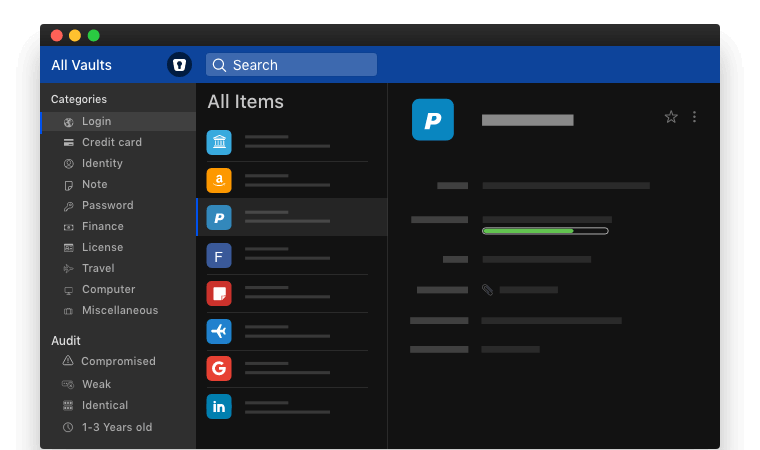
Enpass is an easy-to-use tool that saves all of your password information on your computer and allows you to build numerous vaults for different purposes. In addition, you can use Enpass across multiple platforms to remember your login details, passwords, and personal payment information. This makes your digital life a whole lot easier.
Enpass is free to use with optional paid upgrades. And that’s the best thing it offers. Plus it stores your data either offline or on your Google Drive/Dropbox account. In addition to these, Enpass does everything other password managers do.
Done. This was my Enpass review.
Enpass Review: The Longer Version
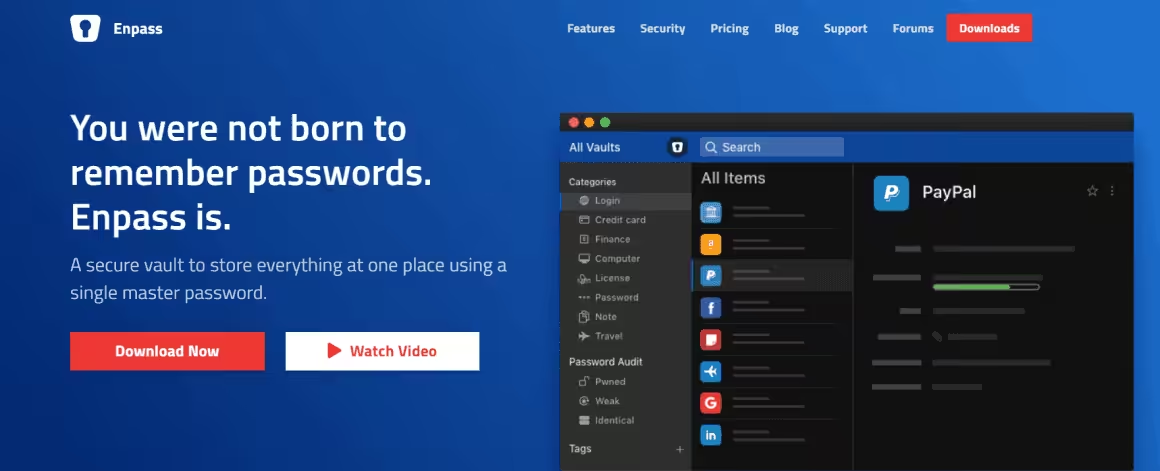
Interested to know more? Let’s continue with the longer version of this Enpass review.
Here I will discuss its features, security, user-friendliness, and effectiveness to help you know about Enpass before committing to it.
Pros and Cons of Enpass
What I Like
- Data stays on your device, not Enpass’s servers
- Free desktop version with unlimited passwords and vaults
- One-time lifetime license available (~$99.99, often discounted to $25-70)
- Sync through your own cloud: iCloud, Google Drive, OneDrive, Dropbox, WebDAV
- AES-256 encryption with SQLCipher
- Built-in TOTP authenticator
- Passkeys support added in 2024
- Clean three-column desktop interface
- Password audit with Have I Been Pwned integration
What I Don't Like
- Mobile free version limited to 25 passwords
- No built-in 2FA for vault login (uses Keyfile instead)
- No master password recovery option
- Password sharing is clunky (shares in plain text without PSK)
- No data breach scanner built in
- Autofill can be inconsistent on some sites
- No emergency access feature
- Closed-source (unlike Bitwarden)
Enpass: Features
- Offline- No data on the enpass servers.
- Stores logins, credit cards, bank accounts, licenses, attachments or any other sort of information.
- Encrypted by AES-256 bit, using open-source SQLCIPHER Engine.
- Data Sync through Google Drive, OneDrive, iCloud, Dropbox, WebDAV and Box.
- Available for all mobile and desktop platforms.
- Separate your personal, family and work data in different vaults.
- Enpass Browser extensions for easy autofill.
- Biometric authentication wherever supported.
- Password Generation
- Password Audit
- Dark theme
- Import from others
Is Enpass Safe?
Enpass uses one of the best encryption methods available that’s even used by governments and banks worldwide. It also provides various features to keep your data safe on the internet. So yes, it’s safe.
A few of its safety features are listed below:
Encryption
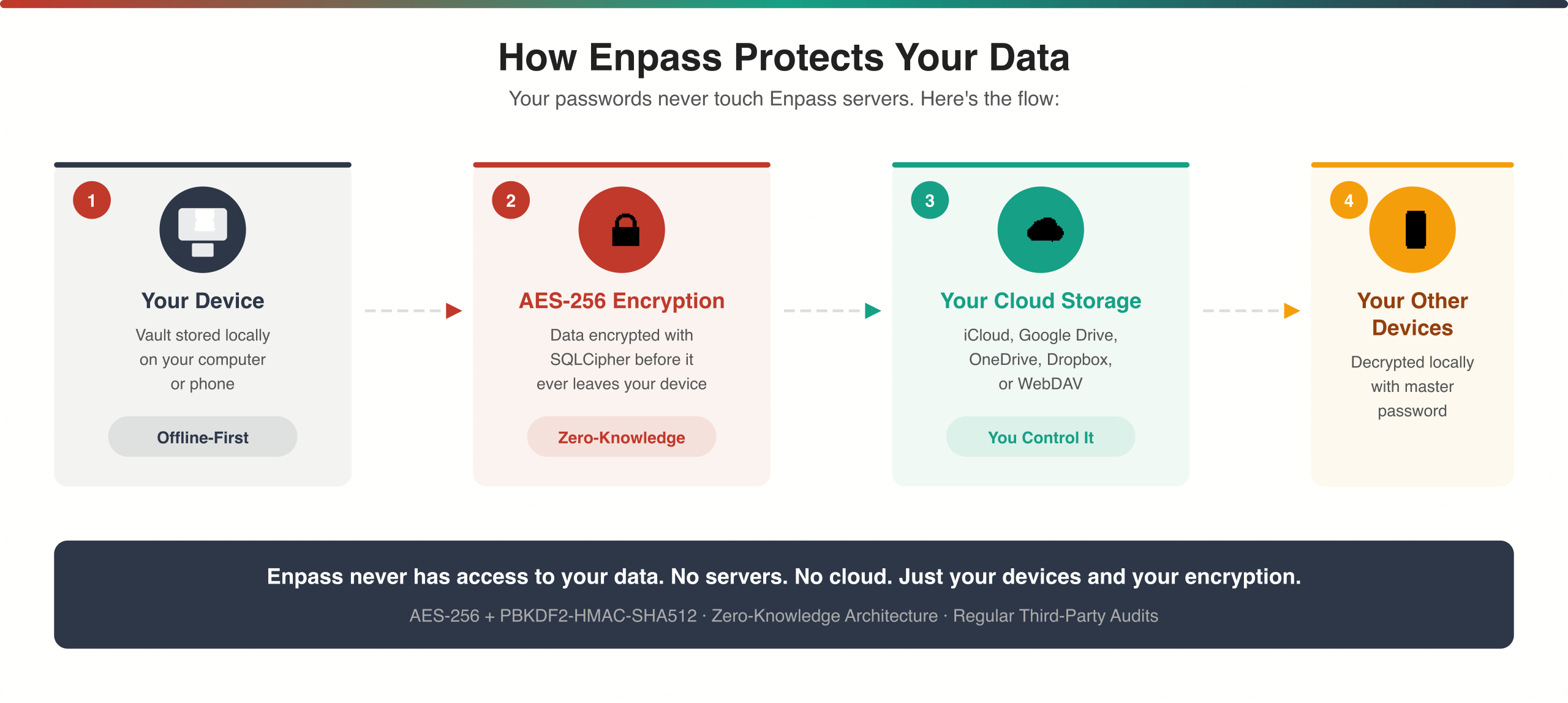
Enpass uses industry-standard AES 256-bit encryption for its services. It’s one of the best and most advanced encryption methods available. It also ensures security even further by providing another layer of protection through an SQLCipher. Thus you need not worry about its encryption process.
Storage
The best thing about Enpass is that it doesn’t upload its user’s personal information to its servers.
Since it’s an offline service, the data stays on your desktop or your mobile device. Thus you don’t have to worry about losing your data.
Enpass also lets you make a backup file that’s entirely encrypted, and only you can access it through your master password.
Syncing is also provided on your backup file to store it to any cloud storage service. It also supports major cloud storage services such as iCloud, Dropbox, Google Drive, and many more.
Two-factor authentication
Enpass supports 2FA which is required for not just good protection of your data but also for easy data recovery when you get locked out of your account.
Features of Enpass
Enpass offers tons of features for its users on desktop versions for Windows, macOS, and Linux, but the features on mobile phone versions are a little limited compared to other dedicated password managers.
Depending on your setup, Enpass can work in local-only/offline mode and online mode. You can use a cloud storage service, like Google Drive to backup and sync your passwords over multiple devices without paying a dime.
This, however is effective only on computers and laptops. On mobile devices you should upgrade to their cheap subscription plan for effective sync.
Since Enpass is encrypted by high standards as listed above, you don’t have to worry about data leakage.
Also, if you choose to be in offline mode, offline password managers are considered very safe as data never leaves your device. But the data protection risk remains in your hand.
How to use Enpass?
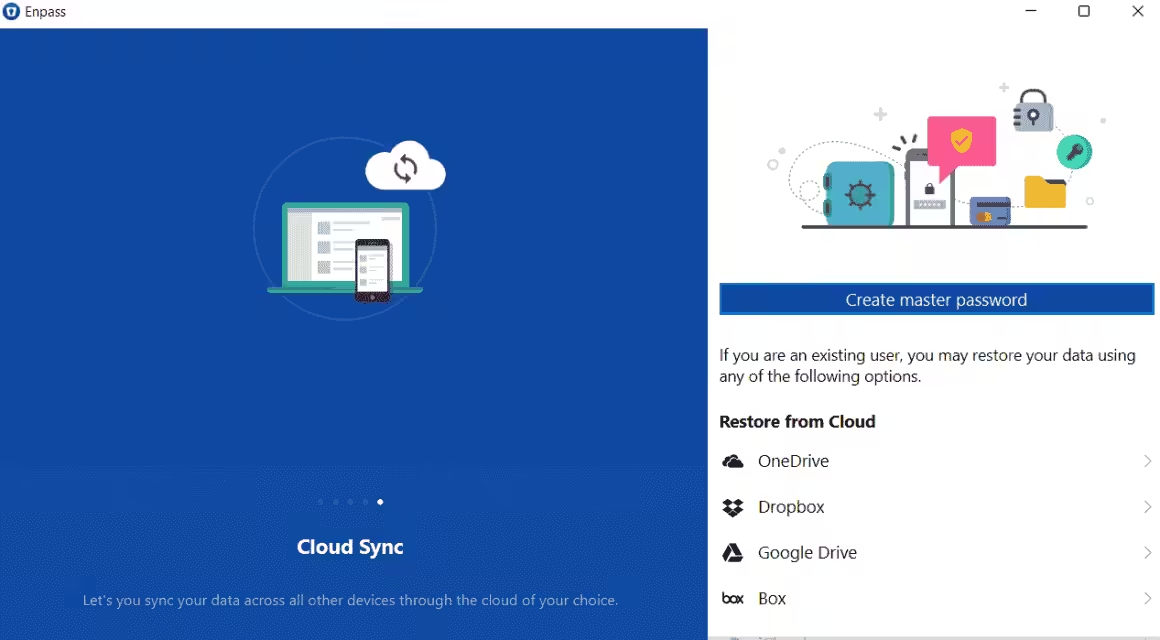
First, you have to create a free account on Enpass.
Just visit enpass.io and download one of the apps for your platform. There’s no need to create an account. Enpass is totally free for desktop users unless you require specific features like mobile sync etc.
Enpass lets you access the main vault, where you can store your passwords. These will be encrypted with a master password, so don’t worry about putting your passwords here. You can create multiple vaults if you want to organize passwords more efficiently.
Remember to keep your master password safe, else you won’t be able to recover your data.
On the desktop version of the app, you’ll find options such as:
- Cloud storage settings
- Creating new entries
- General settings
- Search function
- Password generator
- A button to completely lock the app
In the settings section, you can also back up your saved passwords through cloud syncing, set a pin for Enpass security, share passwords, and much more. Even “dark mode” is available in Enpass.
Interface
Enpass uses a three-column-based interface for navigation on the desktop. The left column shows you all the options that you use on Enpass. A few of those entries are log-in details, credit card information, and personal IDs.
It also has a password audit option, a tag section, and another section. Here you’ll find all the necessary features that you can use for the protection and management of your passwords.
Password Generator and Auditor
It consists of basic password security tracking tools that show weak, duplicate, and compromised passwords. Discarded passwords are kept in either of these three categories – Weak, Identical, Pwned.
If you check your passwords against the ‘Have I been Pwned’ option, Enpass goes through its database to find if passwords are compromised or not. Enpass doesn’t automatically change these bad passwords, but it does suggest new strong passwords for you to choose from.
The default password creator of Enpass creates six-word ‘passphrases.’ These ‘passphrases’ are jumbled characters but sorted in such a way that they can be memorized easily.
These ‘passphrases’ are always 32 characters long. You can choose yourself if you want the generated password to have a lower case, upper case, digits, or symbols.
Enpass’s security tools are very basic compared to other password manager applications, but some of its tools are free on the desktop version. So you can easily have an authentic and secure system for your passwords and personal data for free.
Personal information and form-filler
With Enpass, you can save passwords and various personal information to use later throughout your online accounts. You can even sync such information through multiple devices.
Enpass also lets you securely save details such as payment info, debit and credit cards, addresses, contact information, and more.
Enpass also lets you arrange and sort details like personal identification numbers, contact lens prescriptions, garment sizes, vehicle registration, and others. You can also keep photos and files here.
With Enpass, you can auto-fill and auto-save passwords. To do so, users need to install the Enpass browser extension on their devices. Enpass supports browser extensions for Chrome, Firefox, Safari, Edge, Opera, and Vivaldi. Though you don’t get the autofill option when you click on the form field, you can go into the Enpass extension and choose the relevant details.
Authenticator
As stated earlier, Enpass doesn’t provide two-factor authentication by itself, which is a bit sad. Nonetheless, you can use it as an authenticator for various other websites similar to Google Authenticator or Microsoft Authenticator.
Syncing
As Enpass is an offline password manager, it doesn’t upload your personal information and passwords anywhere on the internet. Hence, all the information will remain on your device.
Though if you want to take those pieces of information and use them somewhere else, Enpass allows you to do so through sync.
To sync any information through Enpass, you’ll have to click on the ‘cloud’ icon on the desktop app and then permit Enpass to create folders in the cloud storage. For example, you can sync with the following cloud storage services.
- iCloud
- Google Drive
- OneDrive
- Dropbox
Password Sharing
Enpass also allows its users to share individual entries and vault entries, even on its free plan giving a huge advantage as most of the password manager services available restrict users from doing so for free.
Sharing a password isn’t good if you think from a security perspective. But you may need to do so anytime if you share an account with family members or share any other details in your work or school-related stuff.
Enpass offers an effortless way to share passwords with your group in a matter of a few seconds. To do so, you need to follow the following steps.
- Pick the password you want to share.
- Then click the ‘Share’ option in the item menu.
- You’ll get a warning stating how it’s risky to share such valuable info, and it’s under encryption, and that sharing it will no longer keep it encrypted.
- Then create a PSK (Pre-Shared Key).
- Then share the required information.
It sounds a bit complex, but it’s relatively easy to share passwords. Using PSK is highly recommended since Enpass will share all the details in plain text (including passwords, websites, and usernames). In conclusion, Enpass’s sharing feature is terrible, but it does the work if you want to.
The risk to leakage of data will always be involved, so at least to lower the risk, use PSK.
Keyfile
Keyfile is an optional feature provided by Enpass. It can be used as a second-factor authentication when logging into your Enpass account.
Keyfile is an encryption key generated when you’re adding or updating your master password as a means of security. This file is saved on your desktop, and every time you want to log into your Enpass account, you have to type your master password and open the key file from your device.
Follow the steps below to set up Keyfile successfully.
- Settings -> Security -> Change master password.
- Enter the master password that you choose and click on ‘Continue.’
- Then click on ‘Advanced’ on the screen bottom.
- Select ‘Generate Keyfile’ and then save the file on my PC.
- Then put the master password in the ‘Enter new password field and ‘Confirm new password field.
- Click ‘Done,’ and you’re good to go.
Setting up the Keyfile isn’t super easy, and also if you forget your master password or Keyfile, you won’t be able to access your Enpass account. Other password managers do provide various recovery options, but Enpass doesn’t. This is the major downside of this tool.
Enpass plans and pricing
Enpass offers four plans: Free, Individual, Family, and a one-time Perpetual License. The desktop apps are completely free with unlimited passwords and vaults. Here’s the current 2026 pricing:
| Plan | Price | Users | Key Features |
|---|---|---|---|
| Free | $0 | 1 | Unlimited passwords/vaults on desktop, 25 on mobile |
| Individual | $1.99/mo ($23.99/yr) | 1 | Unlimited on all devices, 2FA, breach alerts |
| Family | $2.99/mo ($47.99/yr) | 6 | All Individual features for 6 people |
| Lifetime | $99.99 one-time | 1 | All Individual features, pay once, own forever |
The lifetime license regularly goes on sale for $25-$70 during Black Friday and other promotions. At that price, it’s an absolute steal compared to 1Password ($36/year recurring) or Bitwarden Premium ($10/year). Check Enpass’s website for current deals.
Individual plan
The Enpass individual option is just an upgrade of the free plan as it adds a couple features including 2FA. If you are an Android user, try buying the subscription from Play Store. You may get some handy discounts.
This plan includes:
- Unlimited items
- Unlimited vaults
- Use the same account on multiple devices simultaneously
- Receive alerts and notifications in case of a security breach.
- 2FA support.
Family plan
The family plan lets six people use the same account. IF you subscribe to it, the price is only $35.99 for the first year and $47.99 / annum after the 1st year is over.
This plan includes:
- Unlimited items
- Unlimited vaults
- Use the same account on an unlimited number of devices
- Rceive alerts and notifications in case of a security breach.
- 2FA support.
- Six people can access it at a time.
Enpass vs 1Password vs Bitwarden
How does Enpass compare to the two other password managers I get asked about most?
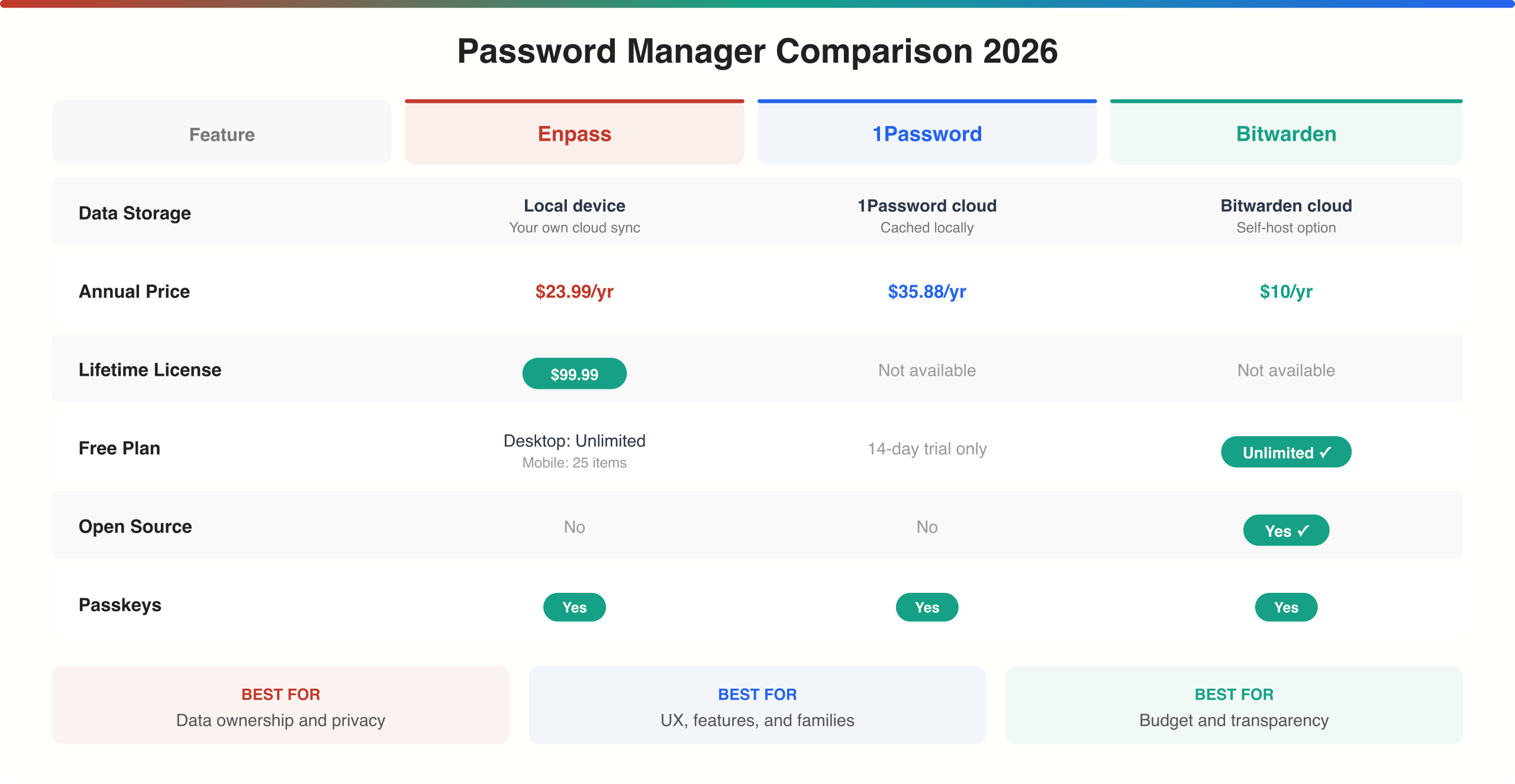
| Feature | Enpass | 1Password | Bitwarden |
|---|---|---|---|
| Free Plan | Yes (desktop unlimited, mobile 25) ✓ | 14-day trial only | Yes (unlimited, all devices) ✓ |
| Lifetime License | $99.99 (often $25-70 on sale) ✓ | No | No |
| Annual Price | $23.99/yr | $35.88/yr | $10/yr ✓ |
| Family Price | $47.99/yr (6 users) | $59.88/yr (5 users) | $40/yr (6 users) ✓ |
| Data Storage | Local device only ✓ | 1Password servers | Bitwarden servers (self-host option) |
| Sync Method | Your own cloud (iCloud, GDrive, etc.) ✓ | 1Password cloud | Bitwarden cloud |
| Open-Source | No | No | Yes ✓ |
| Passkeys | Yes ✓ | Yes ✓ | Yes ✓ |
| Breach Scanner | No | Watchtower ✓ | Yes ✓ |
| Emergency Access | No | Yes ✓ | Yes ✓ |
| Best For | Privacy-first, data ownership | Best UX, families | Budget, open-source fans |
My take: If you want your passwords on someone else’s server, go with 1Password for the best UX or Bitwarden for the best value. If you want no one else touching your data, Enpass is the clear winner. The lifetime license on sale makes it a no-brainer for privacy-focused users.
Enpass Coupons and Deals
Looking for the best deal on Enpass? Check the latest coupons and discounts below:
| Enpass Plan | Offer | Coupon | Redeem Link |
|---|---|---|---|
| Individual 12-Month Subscription plan | 60% discount | EN5F8-QWNR7 | Redeem here |
| One-Time plan | 10% discount | ENB49-VYAAC | Redeem here |
My Verdict
Enpass isn’t for everyone. If you want the slickest UI, the most polished autofill, and zero setup required, 1Password is better. If you want the cheapest option with full features, Bitwarden at $10/year wins.
But if you care about data sovereignty, if the idea of your passwords sitting on someone else’s server makes you uncomfortable, Enpass is the only serious option. Your vault never leaves your device unless you choose to sync it through your own cloud storage. No Enpass employee can ever access your data, because they never have it in the first place.
I’ve used it for 4+ years across macOS, Windows, iOS, and Android. The desktop app is excellent. The mobile free version’s 25-password limit is annoying but the Individual plan at $23.99/year fixes that. And the lifetime license on sale ($25-70) is the best deal in password management. Period. 4.2/5.
Enpass
Pros
- Data stored locally, never on Enpass servers
- One-time lifetime license available ($25-70 on sale)
- Free desktop version with unlimited passwords
- AES-256 encryption with SQLCipher
- Sync through your own cloud storage
- Passkeys and TOTP authenticator built in
Cons
- Mobile free version limited to 25 passwords
- No master password recovery
- Password sharing is clunky
- No emergency access feature
- Closed-source, unlike Bitwarden
Summary
Enpass is a privacy-first password manager that stores your vault locally, with sync through your own cloud (iCloud, Google Drive, OneDrive, Dropbox). Free desktop version with unlimited passwords. Individual plan at $23.99/year or a one-time lifetime license ($99.99, often discounted to $25-70). AES-256 encryption, passkeys support, TOTP authenticator, and password auditing. Best for users who prioritize data ownership over convenience.
Price: USD 23.99 /year
Get EnpassFrequently Asked Questions
Is Enpass safe?
Yes. Enpass uses AES-256 encryption with SQLCipher and operates on a zero-knowledge architecture. Your data is stored locally on your device, not on Enpass’s servers. Even when syncing, the encrypted vault goes through your own cloud storage (iCloud, Google Drive, etc.), so Enpass never has access to your data. The app undergoes regular third-party security audits.
Is Enpass better than 1Password?
It depends on your priorities. Enpass is better for data privacy (local storage, your own cloud sync) and value (lifetime license available). 1Password is better for features (Watchtower, Travel Mode, emergency access), user experience, and family sharing. If data sovereignty matters most, choose Enpass. If polish and features matter more, go with 1Password.
Does Enpass support passkeys?
Yes, Enpass added passkey support in 2024. You can create, store, and use passkeys directly from Enpass on supported websites and apps. This works alongside traditional password storage and the built-in TOTP authenticator.
Can I use Enpass for free?
Yes. The desktop version (Windows, Mac, Linux) is completely free with unlimited passwords and vaults. The mobile version is free but limited to 25 stored items. For unlimited mobile use, you need the Individual plan ($23.99/year) or the one-time lifetime license ($99.99, often on sale for $25-70).
What happens if I forget my Enpass master password?
You lose access to your vault. Enpass has no master password recovery option because they never have access to your data. This is the tradeoff for maximum privacy. I recommend writing your master password on paper and storing it securely (safe, safety deposit box). You can also set up a Keyfile as an additional backup authentication method.
Disclaimer: This site is reader-supported. If you buy through some links, I may earn a small commission at no extra cost to you. I only recommend tools I trust and would use myself. Your support helps keep gauravtiwari.org free and focused on real-world advice. Thanks. - Gaurav Tiwari