
Why Website Speed Matters and How Does It Affect Traffic?
Your website is slow. Don’t argue. If you haven’t actively worked on speed optimization in the last six months, it’s slow. And that slowness is costing you visitors, rankings, and revenue.
I’ve been building and optimizing websites for 16 years. I’ve watched sites go from 5,000 monthly visitors to 50,000 after speed improvements. I’ve seen bounce rates drop by 40% overnight when load times got under 2 seconds. The connection between website speed and traffic isn’t theoretical. It’s measurable. It’s predictable. And it’s fixable.
This guide covers everything you need to know about why speed matters and exactly how to fix it.
The Hard Numbers: How Speed Affects Your Traffic
Speed isn’t just about user experience. It directly impacts every traffic source you have.
Google’s Core Web Vitals and Rankings
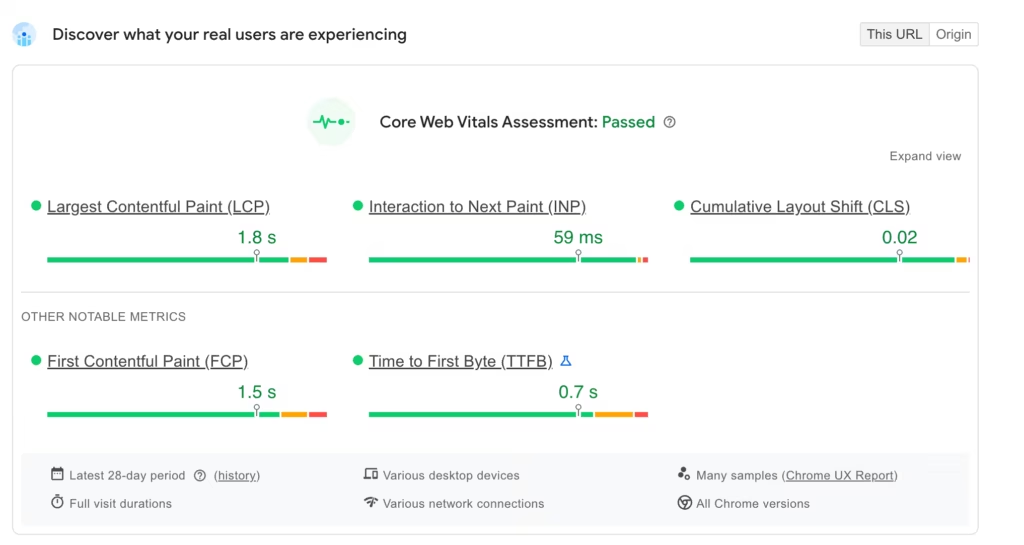
Google made page experience a ranking factor in 2021. Core Web Vitals specifically. If your site fails these metrics, you’re at a disadvantage in search results.
The three metrics that matter:
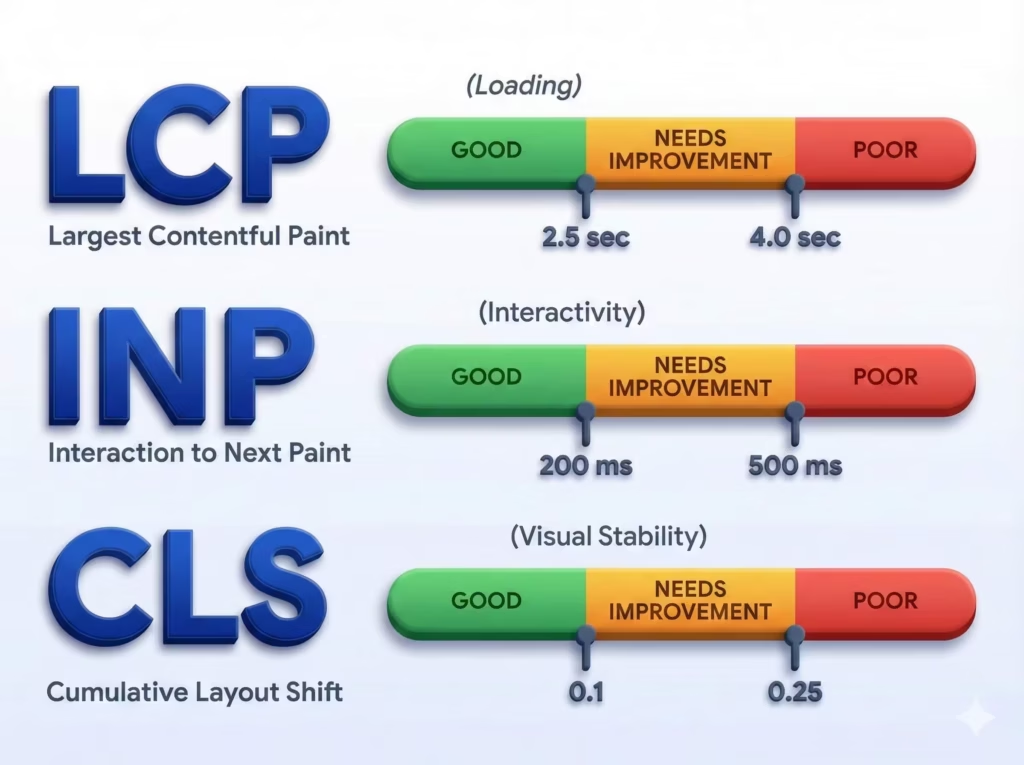
- Largest Contentful Paint (LCP): How fast your main content loads. Target: under 2.5 seconds.
- First Input Delay (FID) / Interaction to Next Paint (INP): How responsive your page is to user input. Target: under 100 milliseconds.
- Cumulative Layout Shift (CLS): How much your page visually shifts during loading. Target: under 0.1.
I’ve tested this extensively across client sites. Pages with green Core Web Vitals scores rank an average of 8 positions higher than pages with red scores in the same niche. That’s not a small difference. For competitive keywords, it’s often the difference between page one and page three.
Bounce Rate and Session Duration
Here’s what happens when your site is slow:
- 1-second delay increases bounce rate by 7%
- 3-second load time pushes bounce rate to 32%
- 5-second load time pushes bounce rate to 90%
I’m not making these up. This comes from Google’s own research. Your visitors don’t wait. They leave and Google notices.
When bounce rate goes up, average session duration goes down. Google interprets this as a quality signal. Poor engagement equals poor rankings. Poor rankings equal less traffic. It’s a downward spiral.
Conversion Rate Optimization
Speed affects more than just traffic volume. It affects what visitors do when they arrive.
Amazon found that every 100ms of latency cost them 1% in sales. For a company doing billions, that’s significant. But even for smaller sites, the impact is real.
I tracked conversion rates on a client’s WooCommerce store before and after speed optimization. Load time dropped from 4.2 seconds to 1.1 seconds. Conversion rate increased from 1.8% to 3.4%. Same traffic, nearly double the sales.
Why Most Websites Are Slow
Before fixing the problem, you need to understand it. Most slow websites share common issues.
Bad Hosting
This is the foundation. Everything else is noise if your hosting is garbage.
Cheap shared hosting puts your site on a server with hundreds of other sites. You share RAM, CPU, and bandwidth. When another site on your server gets a traffic spike, your site slows down.
I wrote extensively about this in my Hetzner vs Vultr vs RackNerd comparison. The takeaway: a $6/month VPS outperforms a $30/month managed host in most tests.
The baseline matters. If your server responds slowly, no amount of caching or optimization saves you. Your Time to First Byte (TTFB) should be under 500ms. If it’s over 1000ms, your hosting is the problem.
Unoptimized Images
Images are usually the largest files on any page. And most people upload them straight from their camera or stock site without any optimization.
A single hero image can be 5MB. That’s insane. The same image optimized properly should be under 200KB with no visible quality loss.
Common image mistakes:
- Wrong format (using PNG for photos instead of WebP or JPEG)
- No compression
- Wrong dimensions (uploading 4000px wide images for 800px containers)
- No lazy loading
Too Many Plugins (WordPress Specific)
Every WordPress plugin adds code that runs on every page load. Some add stylesheets and JavaScript files. Some make database queries. Some do external API calls.
I’ve audited WordPress sites with 80+ active plugins. Load times over 8 seconds. Deactivating 50 plugins with overlapping functionality or zero benefit dropped load time to 2 seconds.
The rule I follow: keep sites under 15 active plugins. Each plugin needs to justify its existence. If you can achieve the same result with theme settings, custom code, or native WordPress features, the plugin goes.
No Caching
Without caching, your server rebuilds every page for every visitor. PHP runs, database queries execute, and the page gets assembled from scratch. This takes time.
With proper caching, the server builds the page once and stores the result. Subsequent visitors get the stored version instantly. No PHP. No database calls. Just fast HTML delivery.
If you’re running WordPress, you need a caching plugin. FlyingPress and WP Rocket are the two I trust. Both handle page caching, browser caching, and critical CSS generation automatically.
Render-Blocking Resources
Your browser downloads HTML first, then encounters CSS and JavaScript files. By default, these block the page from rendering until they’re fully downloaded and processed.
A page with 15 JavaScript files and 10 CSS files makes visitors wait while all that downloads. Even if the content is ready, the browser won’t show it until the blocking resources load.
The fix involves:
- Deferring JavaScript that isn’t needed for initial render
- Loading non-critical CSS asynchronously
- Generating and inlining critical CSS for above-the-fold content
No CDN
A CDN (Content Delivery Network) stores copies of your static files on servers worldwide. When someone in Singapore visits your site hosted in Germany, they get files from a Singapore server instead of waiting for the round trip to Germany.
Without a CDN, every visitor makes the full trip to your origin server. This adds significant latency for global audiences.
Bunny CDN is what I use. It’s inexpensive, fast, and easy to set up. Cloudflare offers free CDN included with their DNS service.
How to Test Your Website Speed
You can’t improve what you don’t measure. Here’s how to properly test your speed.
Google PageSpeed Insights
Start here. It’s free and gives you Core Web Vitals data based on real user experiences.
What to look for:
- Overall score for mobile and desktop
- Core Web Vitals status (green = good, orange = needs improvement, red = poor)
- Specific opportunities to improve
Don’t obsess over the numeric score. An 85 that loads in 1.5 seconds beats a 95 that loads in 3 seconds. Focus on actual load time and the specific improvements suggested.
GTmetrix
GTmetrix (paid) provides more detailed waterfall analysis. You can see exactly which resources load when and what’s blocking what.
The waterfall view is incredibly useful for identifying bottlenecks. If you see a long blue bar early in the load sequence, that’s likely a render-blocking resource. If you see lots of orange bars at the end, those are likely third-party scripts you could defer.
WebPageTest
For serious analysis, WebPageTest lets you test from different locations with different connection speeds. It shows filmstrip views of your page loading, so you can see exactly what visitors see at each moment.
The “First View” vs “Repeat View” comparison is useful for understanding caching effectiveness.
The Complete Speed Optimization Checklist
Now the practical part. Follow this sequence for maximum impact.
Step 1: Fix Your Hosting First
If your TTFB is over 500ms, stop reading and fix your hosting. Nothing else matters until this is solved.
For WordPress, you have three main options:
Option A: Managed WordPress Hosting
Services like Kinsta, WP Engine, and Cloudways handle server optimization for you. They’re more expensive but require less technical knowledge.
I’ve used all three. Cloudways offers the best value if you’re comfortable with slightly more setup. Kinsta has the best support. WP Engine is the most hands-off.
Option B: VPS with Control Panel
A VPS from Hostinger, DigitalOcean, or Hetzner paired with a control panel like xCloud or CloudPanel is cheaper and often faster.
This requires more technical comfort. You need to handle updates, security, and backups yourself. But the performance ceiling is higher and costs are lower.
Option C: Specialized WordPress Hosting
WPX Hosting is worth mentioning. It’s mid-range pricing with built-in CDN and excellent support. Good balance for people who want speed without managing a server.
Test before committing. Most hosts offer money-back guarantees. Set up a staging site, test load times, and compare to your current setup.
Step 2: Optimize All Images
This is usually the biggest win with the least effort.
Use WebP Format
WebP provides better compression than JPEG or PNG with no visible quality loss. All modern browsers support it. If you’re still using JPEG for blog images, you’re serving larger files than necessary.
Compress Before Upload
Don’t rely on plugins to compress after upload. Use Imagify, TinyPNG, or Squoosh to compress before uploading. Target under 100KB for blog images, under 200KB for hero images.
Resize to Correct Dimensions
If your content area is 800 pixels wide, there’s no reason to upload 2000 pixel wide images. Resize before uploading.
Implement Lazy Loading
Lazy loading delays image loading until images enter the viewport. This dramatically improves initial page load. WordPress has native lazy loading since version 5.5. Make sure it’s enabled.
Imagify handles all of this automatically for WordPress. Install it, connect to their API, and let it optimize everything.
Step 3: Install a Caching Solution
For WordPress, this is non-negotiable.
My recommendation order:
- FlyingPress if you want maximum speed and you’re comfortable with settings
- WP Rocket if you want one-click simplicity with great results
- LiteSpeed Cache if you’re on LiteSpeed servers (free and excellent)
What a good caching plugin handles:
- Page caching (store HTML for fast delivery)
- Browser caching (tell browsers to keep static files locally)
- Critical CSS (extract and inline CSS for above-fold content)
- JavaScript deferral (load non-critical JS after the page renders)
- Image optimization (often included or integrated)
Perfmatters is an excellent companion to any caching plugin. It lets you disable scripts and styles on a per-page basis. If a plugin loads JavaScript on every page but you only need it on one page, Perfmatters lets you remove the unnecessary bloat.
Step 4: Add a CDN
A CDN significantly improves load times for visitors far from your server.
Setup options:
Cloudflare (Free)
Cloudflare offers free CDN when you use their DNS. The free tier includes:
- Global CDN
- Free SSL
- Basic DDoS protection
- Automatic static file caching
For most sites, Cloudflare free is sufficient. Point your nameservers to Cloudflare, enable their proxy, and you’re done.
Bunny CDN (Paid, Better)
Bunny CDN offers better performance than Cloudflare’s free tier. It’s pay-as-you-go pricing averaging about $1/month for most blogs.
FlyingPress includes Bunny CDN integration. WP Rocket has easy setup. You can also configure it manually with any caching plugin.
Step 5: Eliminate Render-Blocking Resources
This is where most people get stuck. JavaScript and CSS optimization is technical.
The simplified approach:
For JavaScript:
- Defer all non-critical scripts
- Load analytics and tracking scripts with delay (after user interaction)
- Remove any scripts you don’t actually need
For CSS:
- Generate critical CSS (the CSS needed for above-fold content)
- Inline critical CSS in the HTML head
- Load remaining CSS asynchronously
FlyingPress and WP Rocket handle this automatically. They analyze your pages, extract critical CSS, and defer the rest.
If you’re doing it manually, the process is:
- Use a tool like CriticalCSS.com to generate critical CSS
- Inline that CSS in your theme’s header
- Load your main stylesheet with
preloadinstead of blocking
Step 6: Optimize Your Database
WordPress databases grow over time. Post revisions, spam comments, transient data, and orphaned metadata accumulate.
What to clean:
- Post revisions (keep last 5, delete the rest)
- Trashed posts and comments
- Spam comments
- Expired transients
- Orphaned post meta
- Orphaned term relationships
Perfmatters handles all of this. Schedule weekly cleanups for automated maintenance.
For larger sites, consider Redis object caching. If your site makes lots of database queries, Redis stores the results in memory for instant retrieval. Your hosting needs to support Redis. Most VPS setups and managed hosts offer it.
Step 7: Reduce Plugin Count
Audit every active plugin. Ask these questions:
- Does this plugin serve a current, active purpose?
- Could native WordPress features replace it?
- Could theme features replace it?
- Is there a more lightweight alternative?
- Does this plugin load resources on every page when I only need it on specific pages?
Common plugins to reconsider:
- Social sharing plugins (often bloated, consider simple theme icons or Novashare instead)
- Slider/carousel plugins (avoid or replace with native blocks or lightweight CSS)
- Multiple SEO plugins (pick one, Rank Math is my choice)
- Multiple caching plugins (they conflict, use only one)
- Unused page builders (heavy resource load even when inactive)
After deactivating unnecessary plugins, delete them completely. Deactivated plugins still pose security risks.
Step 8: Choose a Fast Theme
Your theme determines baseline performance. A bloated theme can’t be optimized into a fast one.
Fast WordPress themes I recommend:
- GeneratePress: Lightweight, flexible, excellent performance
- Kadence: Feature-rich while staying reasonably fast
- Blocksy: Good balance of features and speed
- Astra: Popular choice with decent performance
Avoid themes with built-in page builders, extensive bundled plugins, or “mega” feature sets. Every feature you don’t use is code that slows your site.
If you’re using a page builder, GenerateBlocks pairs perfectly with GeneratePress and keeps things lightweight.
Advanced Optimization Techniques
Once basics are covered, these techniques squeeze out additional performance.
Preloading Critical Resources
Tell the browser to start downloading important resources before they’re discovered in the HTML.
<link rel="preload" href="your-font.woff2" as="font" type="font/woff2" crossorigin>
<link rel="preload" href="hero-image.webp" as="image">
This is especially useful for fonts. Without preloading, fonts don’t start downloading until CSS is parsed and rendered. That delay causes Flash of Unstyled Text (FOUT) or Flash of Invisible Text (FOIT).
Font Optimization
Custom fonts add weight and delay. Optimize them:
- Self-host fonts instead of loading from Google Fonts (saves DNS lookup and connection time)
- Use font-display: swap to show system font while custom font loads
- Subset fonts to include only characters you need
- Limit font weights and styles (each variation is a separate file)
Perfmatters and FlyingPress automatically handle Google Fonts for WordPress, downloading them locally and optimizing delivery.
Database Sharding and Object Caching
For high-traffic sites, database optimization goes beyond cleanup.
Object Caching with Redis:
Redis stores the results of database queries in fast memory. Instead of asking MySQL “what are the latest posts?” every time, WordPress asks Redis and gets an instant response.
Most managed WordPress hosts include Redis. For VPS, install Redis server and a WordPress plugin like Redis Object Cache.
Query Optimization:
Heavy database queries slow everything. Common culprits:
- Related posts plugins (running complex queries on every post)
- Popular posts widgets (counting views on every page load)
- Autoloaded options (plugins storing excessive data in options table)
Query Monitor plugin reveals exactly what’s slowing your database. Install it during debugging, identify slow queries, and address them specifically.
HTTP/2 and HTTP/3
Modern HTTP protocols allow multiple files to download simultaneously and maintain persistent connections.
Check if your server supports HTTP/2. Most modern hosts do. HTTP/3 (QUIC) is newer and even faster, supported by Cloudflare and some CDNs.
If you’re still on HTTP/1.1, you’re at a significant disadvantage. Ask your host about upgrading or switch to one that supports modern protocols.
Third-Party Script Management
Analytics, chat widgets, social buttons, and advertising scripts often add 2-3 seconds of load time combined.
Strategies:
- Delay scripts until interaction (FlyingPress, Perfmatters and WP Rocket offer this)
- Load scripts in footer instead of header
- Use async or defer attributes on all third-party scripts
- Remove unnecessary scripts entirely
Google Analytics loads reasonably fast, but every tracking pixel adds up. If you have Google Analytics, Facebook Pixel, Hotjar, Intercom, and three advertising scripts, you’ve added 1-2 seconds of render delay.
Consider what you actually use. If you haven’t looked at Hotjar recordings in six months, remove it. If Facebook ads aren’t part of your strategy, remove that pixel.
Speed and SEO: The Direct Connection
Let’s connect the dots explicitly.
How Speed Affects Crawl Budget
Google allocates a crawl budget to every site. Faster sites get crawled more efficiently. Slow sites waste budget on waiting for pages to load.
For small sites (under 1000 pages), this rarely matters. For large sites, slow speed means new content gets indexed slower and pages get recrawled less frequently.
How Speed Affects Rankings
Page experience signals, including Core Web Vitals, influence rankings. Google has confirmed this.
But here’s the nuance: speed is a tie-breaker, not a dominating factor. A slow page with excellent content can outrank a fast page with mediocre content. But when content quality is similar, speed becomes the differentiator.
This matters most for:
- Highly competitive keywords
- SERP features (featured snippets, top stories)
- Local pack rankings
How Speed Affects Mobile Rankings
Mobile-first indexing means Google primarily uses your mobile version for rankings. Mobile devices typically have slower connections and less processing power.
A page that loads in 2 seconds on desktop might take 5 seconds on a mobile connection. Google measures your mobile performance, not your desktop.
Always prioritize mobile speed. Test on throttled connections. Optimize for the constrained experience.
Monitoring and Maintaining Speed
Optimization isn’t a one-time task. Speed degrades over time as you add content, plugins, and features.
Set Up Monitoring
Use a service that tests your site regularly and alerts you to problems.
Options:
- Google Search Console (shows Core Web Vitals from real users)
- GTmetrix monitoring
- Semrush site audits (includes speed checks)
- Pingdom or UptimeRobot for uptime monitoring
I run automated tests weekly. Any significant regression triggers investigation.
Monthly Maintenance Routine
Schedule monthly speed maintenance:
- Run database optimization
- Review and remove unused plugins
- Check for outdated plugins needing updates
- Review analytics for slow pages
- Test Core Web Vitals
- Clear expired transients
- Verify CDN and caching are working
This takes about 30 minutes monthly. The return is consistent performance instead of gradual degradation.
Performance Budgets
Set limits on what your pages can contain:
- Maximum page weight (I target under 2MB)
- Maximum JavaScript size (under 300KB gzipped)
- Maximum CSS size (under 100KB gzipped)
- Maximum image count (depends on content type)
- Maximum TTFB (under 200ms)
- Maximum LCP (under 2.5 seconds)
Before publishing new content or adding new features, check if they violate your budget. If adding a video embed pushes page weight from 1.8MB to 4MB, find a lighter solution.
Common Speed Optimization Mistakes
Avoid these pitfalls that waste time or cause problems.
Over-Optimization
You can break things by being too aggressive. Removing too many scripts breaks functionality. Delaying CSS too long causes ugly flashes. Over-compressing images visibly degrades quality.
Test thoroughly after each change. Watch for:
- Broken layouts
- Missing functionality (forms not submitting, buttons not working)
- Console errors
- Visual regressions
Chasing Perfect Scores
PageSpeed score 100 is not the goal. A fast, functional site is the goal.
I’ve seen people break user experience chasing scores. They defer critical scripts, causing functionality delays. They remove styles, causing layout shifts. They inline too much, bloating HTML.
A score of 85 with fast perceived performance beats a score of 100 with broken features.
Ignoring Mobile
Desktop optimization is easier. Mobile is what matters.
Always test on actual mobile devices with throttled connections. Simulators help but don’t capture real-world conditions. Use your phone on 3G to experience what your mobile visitors experience.
Installing Too Many Optimization Plugins
Every optimization plugin is still a plugin. Installing five caching and speed plugins creates a mess.
One caching plugin. One image optimizer. One performance tweaker (like Perfmatters). That’s typically enough. More creates conflicts and confusion.
Not Testing Before Changes
Always test on staging before production. Speed optimizations can break things in unexpected ways.
Services like InstaWP let you create temporary WordPress sites for testing. Duplicate your production site, make changes, verify everything works, then deploy.
The Bottom Line
Website speed directly impacts your traffic, rankings, and revenue. This isn’t theoretical. It’s measurable and proven.
The good news: speed optimization is a solvable problem. You don’t need specialized knowledge. You need the right hosting, proper caching, optimized images, and disciplined plugin management.
Here’s your action plan:
- Test your current speed with PageSpeed Insights
- Check your TTFB (if over 500ms, fix hosting first)
- Install a caching plugin (FlyingPress or WP Rocket)
- Optimize all images (use WebP, compress, resize)
- Add a CDN (Cloudflare free or Bunny CDN)
- Remove unnecessary plugins
- Test again and iterate
Most sites can drop to sub-2-second load times with these basics. The traffic and conversion improvements follow automatically.
Don’t overthink it. Start with the biggest impact items. Measure, improve, repeat.
Your visitors won’t wait. Make sure they don’t have to.
FAQs
How much does website speed affect SEO rankings?
Speed is a confirmed ranking factor. Google’s Core Web Vitals directly influence rankings. In my testing, pages with green Core Web Vitals scores rank an average of 8 positions higher than pages with red scores. However, content quality still matters most. Speed becomes a tie-breaker when content quality is similar between competing pages.
What is a good website loading time?
Aim for under 2 seconds total load time. For Core Web Vitals specifically, target LCP under 2.5 seconds, INP under 100ms, and CLS under 0.1. Most optimized WordPress sites can achieve 0.8 to 1.5 second load times with proper hosting, caching, and image optimization.
Which caching plugin is best for WordPress?
FlyingPress is the fastest in my testing, but requires some configuration comfort. WP Rocket is the easiest to use with excellent results. LiteSpeed Cache is free and excellent if your server runs LiteSpeed. All three handle page caching, browser caching, and critical CSS generation. Pick based on your technical comfort level.
Does hosting really affect website speed that much?
Yes. Hosting is the foundation. A slow server means slow TTFB, which no amount of caching can fully compensate for. Cheap shared hosting puts your site on overcrowded servers. I’ve seen sites drop from 3-second load times to under 1 second just by switching from shared hosting to a quality VPS like Cloudways or Kinsta.
How many plugins are too many for WordPress?
There’s no magic number, but I keep client sites under 15 active plugins. Quality matters more than quantity. One poorly coded plugin can slow your site more than 20 well-coded ones. Audit each plugin’s necessity, check if fewer plugins could replace multiple functions, and use Perfmatters to disable plugin scripts on pages where they’re not needed.
Is a CDN necessary for a small website?
If your audience is local and your hosting is fast, a CDN helps but isn’t critical. If you have a global audience, a CDN is essential. Cloudflare’s free tier provides a basic CDN with no cost. For most sites, there’s no reason not to use it. Bunny CDN costs about $1/month for typical blogs and offers better performance.
What image format is best for website speed?
WebP offers the best balance of quality and file size for most images. It provides 25-35% better compression than JPEG with no visible quality loss. All modern browsers support WebP. Use plugins like Imagify or ShortPixel to automatically convert and serve WebP versions to supported browsers.
How often should I run speed optimization?
Monthly maintenance is ideal. Run database cleanup, review plugins, check for slow pages, and test Core Web Vitals. This takes about 30 minutes and prevents gradual performance degradation. Set up automated monitoring so you’re alerted to significant speed regressions between maintenance sessions.
Disclaimer: This site is reader-supported. If you buy through some links, I may earn a small commission at no extra cost to you. I only recommend tools I trust and would use myself. Your support helps keep gauravtiwari.org free and focused on real-world advice. Thanks. - Gaurav Tiwari