
6 Working Ways To Stay Safe Online
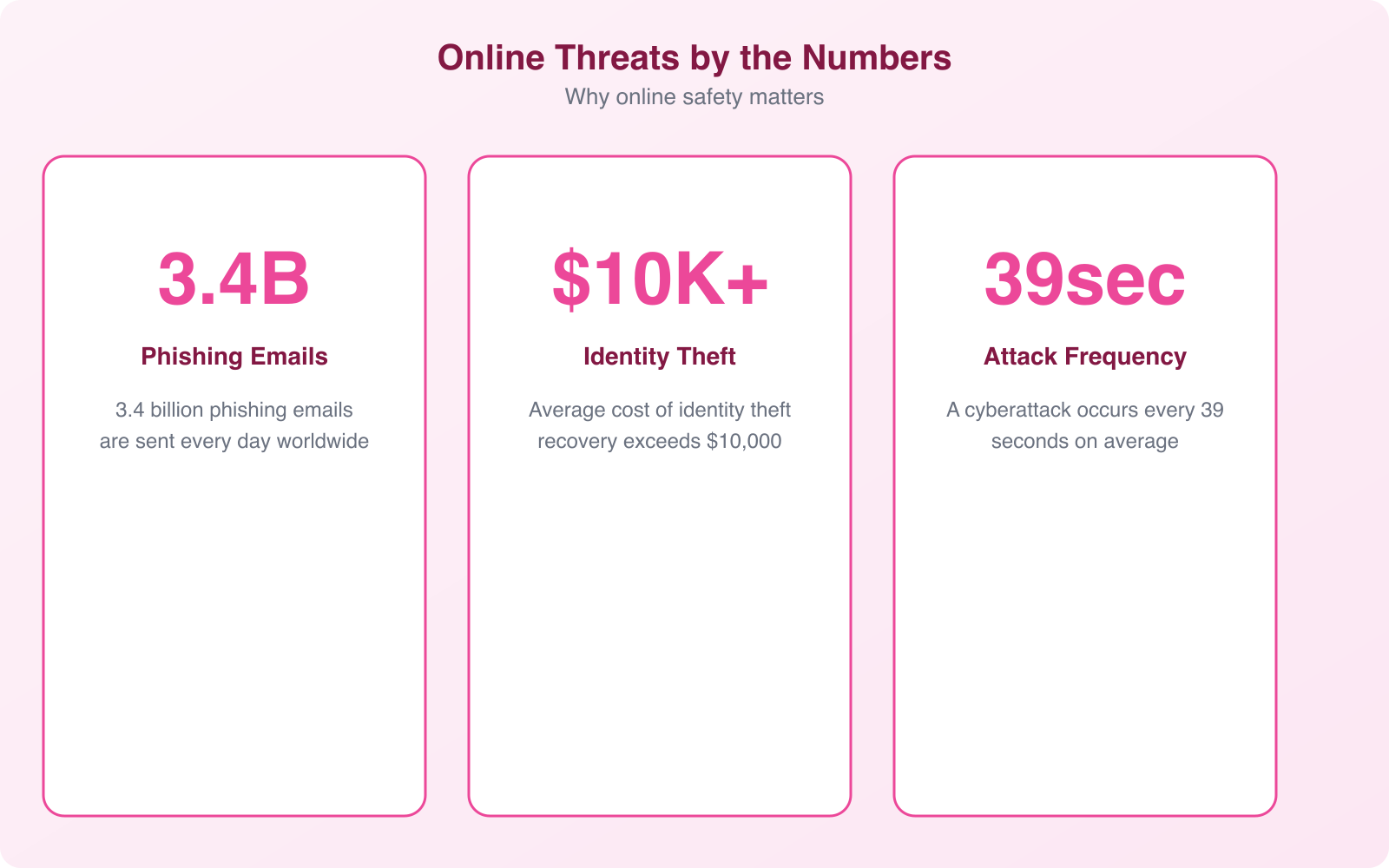
Every 39 seconds, someone’s account gets compromised. Every 11 seconds, a business gets hit with ransomware. And most of these attacks don’t succeed because of sophisticated hacking. They succeed because someone reused a password, clicked a suspicious link, or connected to public Wi-Fi without protection. Online safety isn’t about being a cybersecurity expert. It’s about building habits that make you a harder target than the next person.
I’ve worked with hundreds of clients on their digital presence over the years, and the security mistakes I see repeat themselves across almost every project. The good news is that protecting yourself online doesn’t require technical expertise. It requires consistency. Here’s what actually works.
Use Strong, Unique Passwords for Every Account
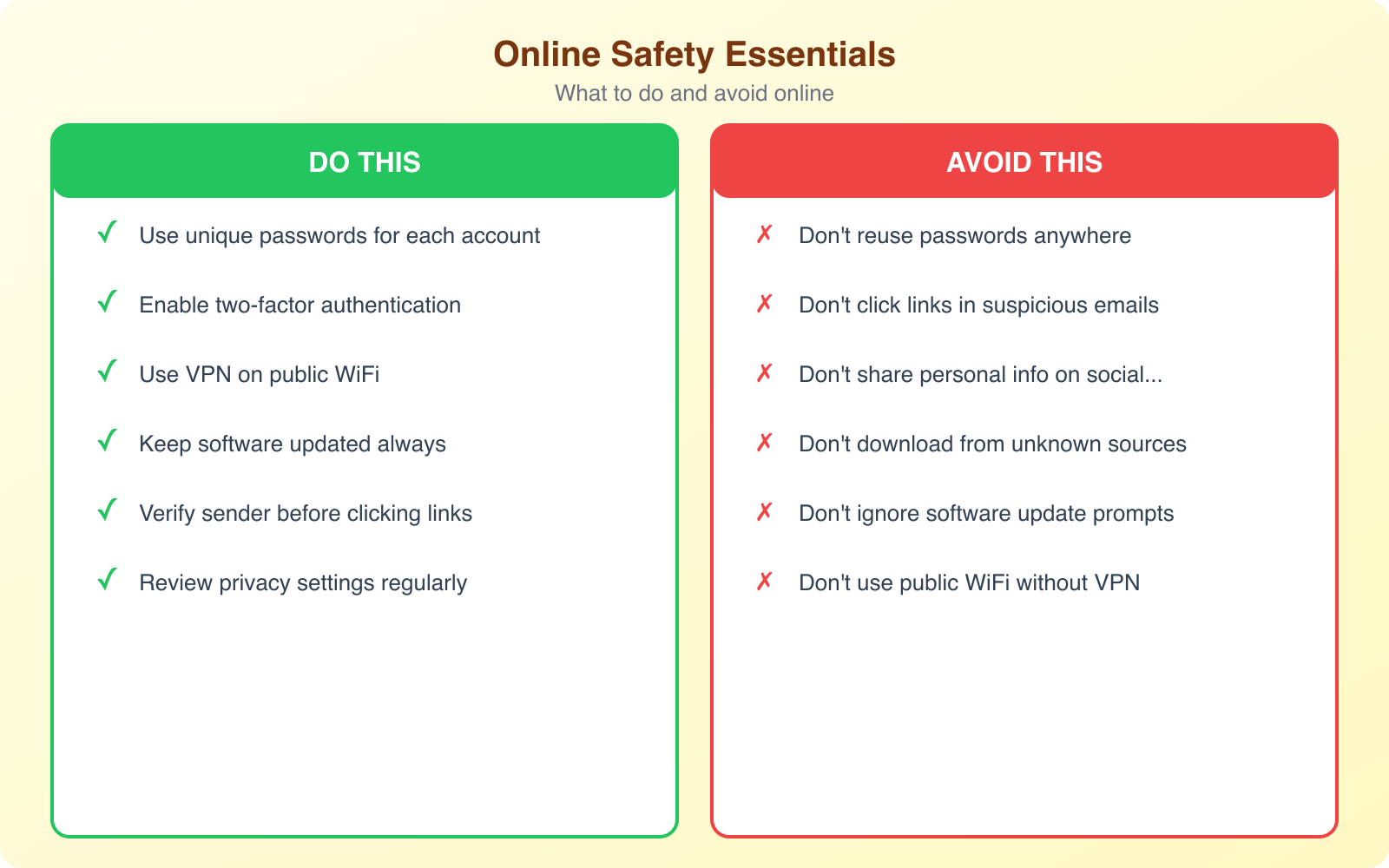
Password reuse is the single biggest security vulnerability for most people. When one service gets breached (and they do, regularly), attackers take those credentials and try them on every major platform. If you use the same password for your email, bank, and social media, one breach compromises everything.
The solution isn’t memorizing 50 complex passwords. That’s unrealistic. Instead, use a password manager. Tools like 1Password, Bitwarden, and Dashlane generate unique, complex passwords for every account and store them securely behind one master password. You only need to remember one strong password, and the manager handles everything else.
A good password manager also flags compromised passwords. If a service you use gets breached, the manager alerts you immediately so you can change that password before anyone uses it. Most breaches happen because people don’t know their credentials have been exposed. A password manager eliminates that blind spot.
For your master password, use a passphrase instead of a traditional password. Something like “correct-horse-battery-staple” is both easier to remember and harder to crack than “P@$$w0rd123.” Length beats complexity every time. Aim for at least 16 characters.
Enable Two-Factor Authentication Everywhere
Two-factor authentication (2FA) adds a second verification step after your password. Even if someone steals your password, they can’t access your account without the second factor. This single step blocks over 99% of automated attacks, according to Google’s security research.
There are several types of 2FA, and they’re not all equal. SMS-based codes are better than nothing but vulnerable to SIM-swapping attacks, where an attacker convinces your carrier to transfer your number to their SIM card. App-based authenticators like Google Authenticator, Authy, or Microsoft Authenticator are more secure because they generate codes locally on your device.
Hardware security keys are the gold standard. Devices like YubiKey or Google’s Titan key require physical possession to authenticate. No phishing email or social engineering attack can compromise a hardware key. If you’re protecting high-value accounts (email, banking, business tools), a hardware key is worth the $25-50 investment.
At minimum, enable 2FA on these accounts immediately: your primary email (it’s the recovery point for everything else), your bank and financial services, your social media accounts, and any cloud storage that holds personal files. Start there, then expand to every account that offers it.
Enable 2FA on your primary email first. Your email is the master key to every other account because it’s where password reset links go. Securing your email with 2FA protects everything else downstream.
Use a VPN on Public Wi-Fi and Untrusted Networks
Public Wi-Fi at coffee shops, airports, and hotels is convenient but dangerous. These networks are usually unencrypted, meaning anyone on the same network can potentially see your traffic. Man-in-the-middle attacks on public Wi-Fi are trivially easy to execute with freely available tools.
A Virtual Private Network (VPN) encrypts all your internet traffic and routes it through a secure server. Even if someone intercepts your data on a public network, they see nothing but encrypted gibberish. It’s the simplest and most effective protection for any situation where you don’t control the network.
I recommend NordVPN for most people. It’s fast enough that you won’t notice the performance impact during normal browsing, it covers up to 10 devices with a single subscription, and it has servers in 111+ countries. The Threat Protection feature blocks malicious websites and ads automatically, adding another layer of security without any extra effort on your part.
Beyond public Wi-Fi, a VPN protects your privacy from your internet service provider (ISP). Without a VPN, your ISP can see every website you visit and potentially sell that data to advertisers. A VPN prevents that tracking completely. It also bypasses geographic restrictions, letting you access content and services that might be blocked in your current location.
When choosing a VPN, avoid free services. Free VPNs have to make money somehow, and that usually means selling your data or injecting ads into your browsing. A paid VPN like NordVPN costs a few dollars per month and provides genuine protection without compromising your privacy in the process.
Recognize and Avoid Phishing Attacks
Phishing remains the most common attack vector by a wide margin. Over 90% of successful cyberattacks start with a phishing email. These messages impersonate trusted organizations (your bank, Amazon, Microsoft, your employer) and trick you into clicking a link or entering credentials on a fake website.
Modern phishing attacks are sophisticated. They use real company logos, match the exact formatting of legitimate emails, and create urgency (“Your account will be locked in 24 hours!”). Some even reference your real name, recent purchases, or account details gathered from previous data breaches.
Here’s how to spot them. First, check the sender’s email address carefully. A phishing email might say it’s from “support@paypal.com” but the actual address is “support@paypa1-secure.com.” Second, hover over links before clicking. The displayed text might say “paypal.com” but the actual URL points somewhere else entirely. Third, be suspicious of urgency. Legitimate companies rarely threaten account closure with a 24-hour deadline.
Never enter credentials on a page you reached through an email link. If your bank emails you about a security issue, close the email and go directly to your bank’s website by typing the URL in your browser. This simple habit eliminates almost all phishing risk because you’re never visiting the attacker’s fake page.
Spear phishing targets specific individuals with personalized attacks. If someone emails you claiming to be a colleague with an urgent document, verify through a different channel (call them, message them on Slack) before opening any attachment. Business email compromise (BEC) scams cost companies over $2.7 billion annually, and they succeed because people trust email from familiar names.
Keep Your Software Updated
Software updates aren’t just about new features. They patch security vulnerabilities that attackers actively exploit. When a company releases a security update, they’re publicly disclosing that a vulnerability exists. Attackers reverse-engineer the patch to create exploits that target anyone who hasn’t updated yet.
The WannaCry ransomware attack in 2017 affected over 200,000 computers across 150 countries. Microsoft had released a patch for the exploited vulnerability two months before the attack. Every compromised machine was simply unpatched. The story repeats constantly. The vast majority of successful attacks exploit known vulnerabilities with existing patches.
Enable automatic updates on everything: your operating system, your browser, your phone, and your apps. Yes, updates can occasionally cause issues. But the risk of running unpatched software is significantly higher than the inconvenience of an occasional restart. Modern operating systems handle updates gracefully, usually applying them during idle time or restarts you’d do anyway.
Pay special attention to your browser and browser extensions. Your browser is your primary interface with the internet, and extensions often have broad permissions to read page content and modify behavior. Remove extensions you don’t actively use. For the ones you keep, make sure they auto-update and come from reputable developers.
Protect Your Sensitive Data
Data protection starts with knowing what sensitive data you have and where it lives. Financial records, tax documents, personal photos, medical information, and business files all need different levels of protection. A good approach is to categorize your data and apply appropriate security measures to each category.
Encrypt your devices. Both Windows (BitLocker) and macOS (FileVault) offer full-disk encryption built into the operating system. If your laptop gets stolen, encryption means the thief can’t access your files without your password. Without encryption, they can simply remove the hard drive and read everything directly.
Cloud storage adds convenience but requires careful configuration. Services like Google Drive, Dropbox, and iCloud are generally secure, but your account security determines your data security. Use strong unique passwords and 2FA on these accounts. For highly sensitive documents, consider end-to-end encrypted storage services where even the provider can’t read your files.
Back up your data following the 3-2-1 rule: three copies, on two different types of media, with one copy stored off-site. If ransomware encrypts your files, a clean backup is the only way to recover without paying the ransom. Automated backup services make this painless. Set it up once and forget about it until you need it.
Be mindful of what you share online. Social media posts revealing your birthday, pet’s name, mother’s maiden name, or first car model are basically handing out answers to common security questions. Limit what personal information you share publicly, and consider using fake answers for security questions (just make sure you remember them or store them in your password manager).
Browse Safely and Reduce Your Digital Footprint
Every website you visit collects data about you. Trackers follow you across the web, building detailed profiles of your interests, habits, and behaviors. While this isn’t always malicious, it creates a data trail that can be exploited if any of those tracking companies get breached.
Start with your browser settings. Use a privacy-focused browser like Firefox or Brave as your daily driver. Enable the built-in tracking protection features. Install a reputable ad blocker like uBlock Origin, which blocks both ads and the tracking scripts that come with them. This isn’t just about privacy. It also makes your browsing faster and reduces your exposure to malvertising (malicious ads).
Clear your cookies regularly, or better yet, configure your browser to clear them when you close it. Cookies are how websites remember you, but they’re also how trackers follow you across the web. Keeping only essential cookies (login sessions for trusted sites) reduces your tracking exposure significantly.
Review and tighten your privacy settings on social media platforms. Most default to maximum sharing. Go through each platform’s privacy settings and restrict who can see your posts, find your profile, and access your data. Disconnect third-party apps you no longer use. Each connected app is a potential access point that you’ve probably forgotten about.
Consider using a VPN for everyday browsing, not just public Wi-Fi. NordVPN prevents your ISP from logging your browsing history and adds encryption to every connection. Combined with a privacy-focused browser and ad blocker, you’ve created a solid foundation for private browsing without any complex configuration.
Secure Your Mobile Devices
Your phone probably contains more sensitive information than your computer. Banking apps, email, personal photos, health data, location history, and authentication tokens all live on a device that’s easy to lose or steal. Mobile security deserves the same attention as computer security.
Enable biometric authentication (fingerprint or face recognition) along with a strong PIN or passcode. Configure your phone to auto-lock after 30 seconds of inactivity. Enable remote wipe capabilities through Find My iPhone (iOS) or Find My Device (Android) so you can erase your data if the phone is lost or stolen.
Be selective about app permissions. A flashlight app doesn’t need access to your contacts, camera, and location. Review permissions for every app and revoke anything that isn’t necessary for the app’s core function. Both iOS and Android now show when apps access your camera, microphone, or location, making it easier to spot suspicious behavior.
Only install apps from official stores (App Store or Google Play). Sideloading apps from unknown sources is the primary vector for mobile malware. Even within official stores, check reviews, developer reputation, and requested permissions before installing. If an app has few reviews, no website, and asks for extensive permissions, skip it.
Public USB charging stations can be compromised to steal data from connected devices, a technique called “juice jacking.” Use your own charger plugged into a wall outlet, or carry a portable battery pack. If you must use a public USB port, use a data-blocking USB adapter that only allows power to pass through.
Secure Your Online Payments
Online financial transactions are the highest-stakes activity you do on the internet. A compromised payment method can drain your account before you realize anything is wrong. Protecting your payment information requires multiple layers of precaution.
Use credit cards instead of debit cards for online purchases. Credit cards offer better fraud protection, and disputed charges don’t immediately affect your bank balance. If someone makes fraudulent purchases with your credit card, you’re liable for at most $50 (and most issuers offer zero-liability policies). With a debit card, the money leaves your account immediately, and recovery can take weeks.
Consider using virtual card numbers for online shopping. Services like Privacy.com let you create disposable card numbers for each merchant. If a retailer’s database gets breached, the attackers get a card number that only works at that specific merchant and can be instantly deactivated. Your real card number is never exposed.
Always verify you’re on the legitimate website before entering payment information. Check for HTTPS (the padlock icon in your browser’s address bar), verify the domain name carefully, and be especially cautious with unfamiliar online stores. Stick to well-known ecommerce platforms or use payment intermediaries like PayPal that don’t share your card details with the merchant.
Set up transaction alerts on all your financial accounts. Most banks and credit card companies offer instant notifications for every transaction. If someone uses your card, you’ll know within seconds and can freeze it immediately. This turns a potential disaster into a minor inconvenience.
Social Media Safety and Privacy Settings
Social media is a goldmine for attackers. The information people voluntarily share, birthdays, family names, workplaces, vacation schedules, provides everything needed for social engineering attacks and identity theft. A recent study found that 78% of burglaries on social-media-connected homes were linked to posts about being away on vacation.
Review your privacy settings on every platform. Facebook, Instagram, LinkedIn, and X/Twitter all default to sharing more than most people realize. Set your profiles to share with friends only, not the public. Disable location tagging on posts. Turn off the setting that lets search engines index your profile.
Be cautious about accepting friend or connection requests from people you don’t know. Fake profiles are a primary tool for social engineering. An attacker creates a convincing profile, connects with your colleagues, and then sends you a request that looks legitimate because you share mutual connections. Once connected, they can see your private posts and use that information for targeted attacks.
Regularly audit your connected apps and services. Over the years, you’ve probably granted dozens of apps access to your social media accounts. Each one is a potential vulnerability. Go to the settings of each platform and revoke access for anything you don’t actively use.
What to Do If You’ve Been Compromised
Despite your best efforts, breaches happen. Knowing what to do immediately can limit the damage significantly. Speed matters. The faster you respond, the less damage an attacker can cause.
If you discover a compromised account, change the password immediately from a different, clean device. Enable 2FA if it wasn’t already active. Check for any changes the attacker might have made: recovery email addresses, phone numbers, forwarding rules in email, or connected apps. Revoke any sessions you don’t recognize.
For financial compromises, contact your bank or credit card company immediately. They can freeze your account, reverse fraudulent charges, and issue new card numbers. File a report with the FTC at identitytheft.gov if your identity has been stolen. Place a fraud alert or credit freeze with the three major credit bureaus (Equifax, Experian, TransUnion).
Check haveibeenpwned.com to see if your email has appeared in known data breaches. If it has, change passwords for any accounts using that email and the compromised password. This is where a password manager pays for itself, because you can quickly identify and update every affected account.
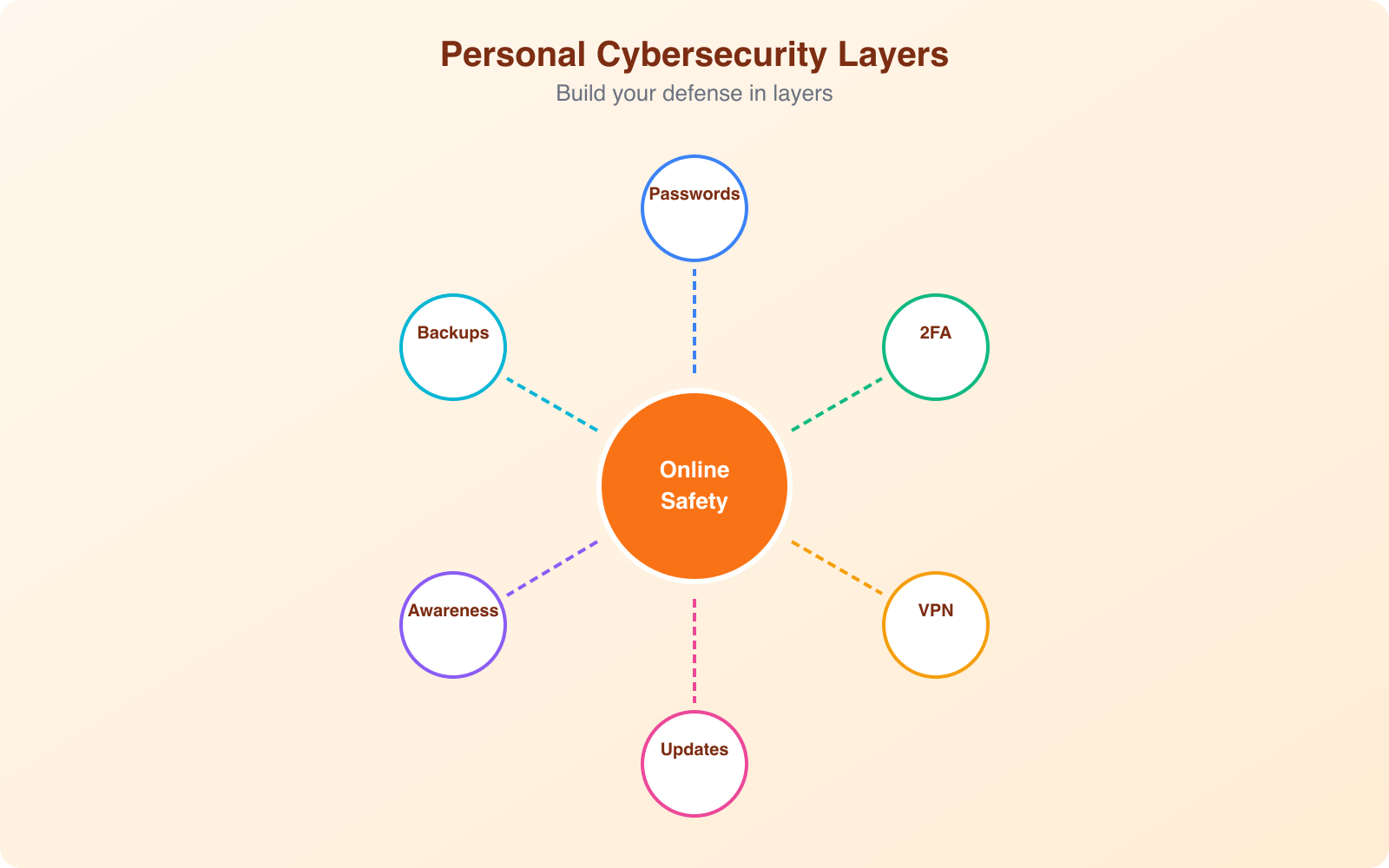
Online safety isn’t a one-time setup. It’s an ongoing practice. Threats evolve, and your defenses need to evolve with them. But the fundamentals haven’t changed: strong unique passwords, two-factor authentication, a reliable VPN, careful attention to phishing, and regular software updates. Get these basics right, and you’re ahead of 95% of internet users. The attackers will move on to easier targets. That’s all security really is: making yourself not worth the effort.
Frequently Asked Questions
Do I really need a VPN if I only use my home Wi-Fi?
A VPN adds a layer of protection even on your home Wi-Fi. It prevents your ISP from monitoring your browsing activity, blocks some types of tracking, and encrypts your data against potential network-level attacks. While your home network is safer than public Wi-Fi, it’s not immune to threats. That said, if you only browse at home and trust your ISP, a VPN is less critical than on public networks. A VPN is most valuable when you use public Wi-Fi, access sensitive accounts, or want privacy from your internet provider.
What is the best type of two-factor authentication?
Hardware security keys (like YubiKey or Google Titan) are the most secure form of 2FA because they can’t be phished or intercepted. Authenticator apps (Google Authenticator, Authy) are the next best option, generating time-based codes on your device. SMS-based 2FA is the weakest because text messages can be intercepted through SIM-swapping attacks. Any 2FA is better than none, but upgrade from SMS to an authenticator app or hardware key for your most important accounts like email, banking, and cloud storage.
How do I know if my password has been compromised?
Check HaveIBeenPwned.com by entering your email address. It searches known data breaches for your credentials. Most password managers (1Password, Bitwarden) have built-in breach monitoring that alerts you when saved passwords appear in data leaks. Google Chrome also warns you about compromised passwords in Settings > Passwords > Check Passwords. If any password has been compromised, change it immediately on the affected site and any other site where you used the same password.
Are free VPNs safe to use?
Most free VPNs are not safe. They often make money by selling your browsing data, injecting ads, or providing minimal encryption. Some free VPNs have been caught installing malware. There are a few reputable free options with limitations: ProtonVPN Free offers unlimited data on one device with slower speeds. Windscribe provides 10GB/month free. For reliable protection, a paid VPN like NordVPN, ExpressVPN, or Surfshark costs $3-$6/month on annual plans and is worth the investment for proper security.
What should I do immediately if I think I’ve been hacked?
Act within the first 30 minutes. Change passwords for your email account first (it’s the key to all other accounts), then banking, social media, and cloud storage. Enable 2FA on every account that offers it. Check your email for any password reset notifications you didn’t initiate. Scan your devices for malware using a reputable antivirus tool. Monitor your bank and credit card statements for unauthorized transactions. If financial accounts are compromised, contact your bank immediately and consider a credit freeze. Document everything for potential identity theft claims.
Disclaimer: This site is reader-supported. If you buy through some links, I may earn a small commission at no extra cost to you. I only recommend tools I trust and would use myself. Your support helps keep gauravtiwari.org free and focused on real-world advice. Thanks. - Gaurav Tiwari
वाह बेहतरीन। इस जानकारी के लिए आपका आभार।