
Impact of Website Performance Optimization on Your Business in 2026
I ran a speed audit on a client’s WooCommerce store last year. Time to Interactive was 8.4 seconds on mobile. Bounce rate sat at 67%. We brought that down to 2.1 seconds over three weeks, and their monthly revenue jumped 34%. No redesign, no new products, no ad spend increase. Just performance optimization.
That’s what makes website performance optimization so frustrating to ignore. It’s the single highest-ROI investment most site owners skip because they can’t “see” the problem. Your visitors can, though. Every extra second of load time costs you real money, real customers, and real rankings.
I’ve optimized over 200 WordPress sites across my career, from small blogs to enterprise storefronts processing thousands of daily orders. In this guide, I’ll walk you through everything that actually moves the needle, from server-side fundamentals to JavaScript optimization strategies that cut load times in half.
Why Website Performance Optimization Matters
Website performance directly impacts your revenue, search rankings, and user retention. Google’s own research shows that a page loading in 1 second has a conversion rate 3x higher than a page loading in 5 seconds. And a 1-second delay in mobile load time can reduce conversions by up to 20%, according to Google/SOASTA research.
The data gets worse as you zoom in. Akamai found that a 100-millisecond delay in load time drops conversion rates by 7%. Amazon famously calculated that every 100ms of latency costs them 1% in sales. That’s billions of dollars tied to fractions of a second.
But it’s not just about e-commerce. Content sites lose ad revenue when visitors bounce before pages fully render. SaaS companies see higher churn when their dashboards feel sluggish. Even portfolio sites lose clients when they take 4+ seconds to showcase work.
I’ve seen this play out repeatedly with my own clients. A travel blog I optimized in 2026 went from 4.8s load time to 1.9s. Pageviews per session increased 41%, and ad revenue climbed 28% the following month. No content changes, no new traffic sources. Speed alone did the heavy lifting.
For every 0.1 second improvement in site speed, retail sites see a 8.4% increase in conversions and a 9.2% increase in average order value, according to Deloitte’s milliseconds research. If you’re running any kind of online business, speed optimization isn’t optional.
Core Web Vitals Explained
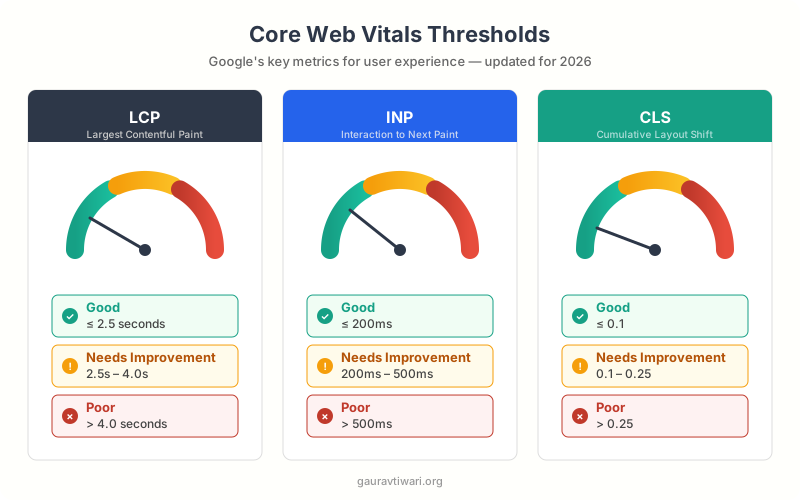
Core Web Vitals are Google’s standardized metrics for measuring real-world user experience. They directly influence your search rankings, and understanding them is the foundation of any serious performance strategy. Google rolled these into its ranking algorithm in 2021, and they’ve only gotten more important since.
There are three Core Web Vitals you need to track:
Largest Contentful Paint (LCP) measures how long it takes for the largest visible element (usually a hero image or heading) to fully render. Google considers LCP “good” at 2.5 seconds or less. Anything above 4 seconds is “poor.” I aim for under 2 seconds on every site I build.
Interaction to Next Paint (INP) replaced First Input Delay (FID) as the responsiveness metric in March 2024. While FID only measured the delay before processing the first interaction, INP tracks the latency of all interactions throughout a page visit and reports the worst one. A good INP score is 200 milliseconds or less. This change matters because FID let sites pass even when they felt janky after the first click.
Cumulative Layout Shift (CLS) measures visual stability. Ever click a button only to have the page shift and you tap something else? That’s layout shift. Google wants your CLS score below 0.1. Common culprits include images without dimensions, dynamically injected ads, and web fonts loading late.
I check Core Web Vitals using both lab data (PageSpeed Insights, Lighthouse) and field data (Chrome User Experience Report). Lab data tells you what’s theoretically possible. Field data tells you what real users actually experience. The gap between the two often reveals problems that lab testing misses, like slow third-party scripts that only fire on certain pages.
Server-Side Optimization
Your server response time sets the floor for everything else. If your server takes 800ms to respond, your page physically can’t load in under 800ms. Google recommends a Time to First Byte (TTFB) under 200ms, and I consider anything above 400ms a red flag.
Here’s what actually moves the needle on the server side:
Hosting quality matters more than most people think. I’ve moved WordPress sites from cheap shared hosting to managed platforms like Cloudways or Kinsta and seen TTFB drop from 1.2 seconds to under 150ms. The hosting alone cut total load time in half. Shared hosting stacks 200+ sites on one server. When your neighbor’s site gets a traffic spike, your site slows down. Managed hosting isolates your resources.
Server-level caching eliminates redundant processing. Every uncached WordPress page request triggers PHP execution, database queries, and template rendering. Full-page caching stores the final HTML output and serves it directly. Object caching with Redis or Memcached keeps database query results in memory. I use WP Rocket for page caching on most client sites because it handles cache preloading, browser caching rules, and database optimization in one plugin. For deeper server-level cache tuning, check my WP Rocket settings guide.
HTTP/3 and QUIC reduce connection overhead. HTTP/3 uses QUIC (a UDP-based transport protocol) instead of TCP, which eliminates head-of-line blocking and reduces connection setup time. Most modern CDNs like Bunny CDN and Cloudflare support HTTP/3 out of the box. On mobile networks with higher latency, HTTP/3 can shave 100-300ms off initial page loads.
PHP version matters. PHP 8.3 is roughly 3x faster than PHP 7.0 for WordPress workloads. I still find clients running PHP 7.4 or even 7.2. Upgrading PHP is free and usually takes 10 minutes. It’s the easiest performance win you’ll ever get.
Before upgrading PHP, test your site on a staging environment. Some older plugins break on PHP 8.x. Check your error logs after upgrading. I’ve seen outdated contact form plugins and legacy custom code throw deprecation errors that crash entire sites.

Image and Media Optimization
Images account for roughly 50% of total page weight on the average website, according to HTTP Archive data. They’re the single biggest optimization target for most sites, and the one where I see the most wasted potential.
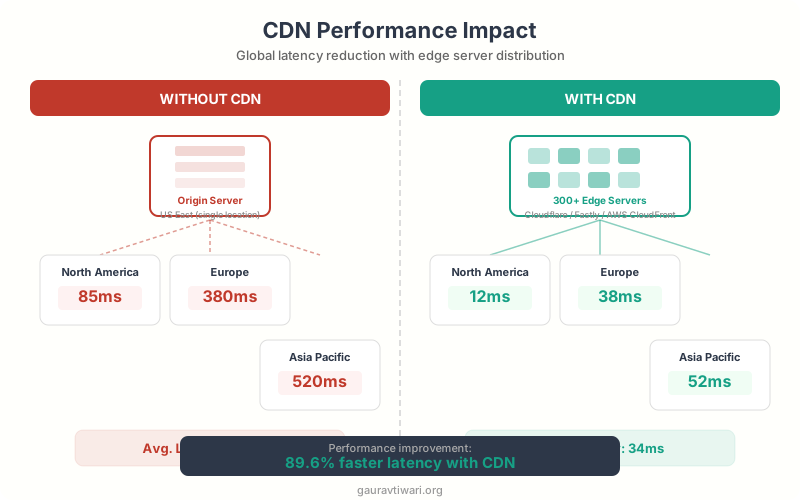
Modern formats cut file sizes dramatically. WebP delivers 25-35% smaller files than JPEG at equivalent quality. AVIF pushes that further, often 50% smaller than JPEG. I convert all images to WebP as a baseline and use AVIF where browser support allows it. As of 2026, AVIF is supported in Chrome, Firefox, Safari, and Edge. For WordPress sites, ShortPixel or Imagify handle automatic conversion on upload.
Lazy loading defers off-screen images. WordPress has native lazy loading built in since version 5.5 (the loading="lazy" attribute). But here’s the mistake I see constantly: people lazy-load the hero image above the fold. That actually hurts LCP because the browser waits for JavaScript to trigger the load. Always exclude above-the-fold images from lazy loading. WP Rocket handles this automatically by detecting the first visible images.
Responsive images save mobile bandwidth. The srcset attribute lets browsers choose the right image size for each viewport. A 2400px hero image on a 375px phone wastes 80%+ of the downloaded data. WordPress generates multiple sizes automatically, but I’ve seen themes that output only one or two sizes. Check your rendered HTML. If your img tags don’t have srcset attributes, you’re serving desktop-sized images to everyone.
Video optimization follows different rules. Never self-host video if you can avoid it. YouTube and Vimeo embeds use adaptive bitrate streaming, which adjusts quality based on the viewer’s connection. If you must self-host, use the preload="none" attribute and add a poster image. For background videos, I use lightweight facade patterns that load a static image first and only fetch the video on interaction.
JavaScript and CSS Optimization
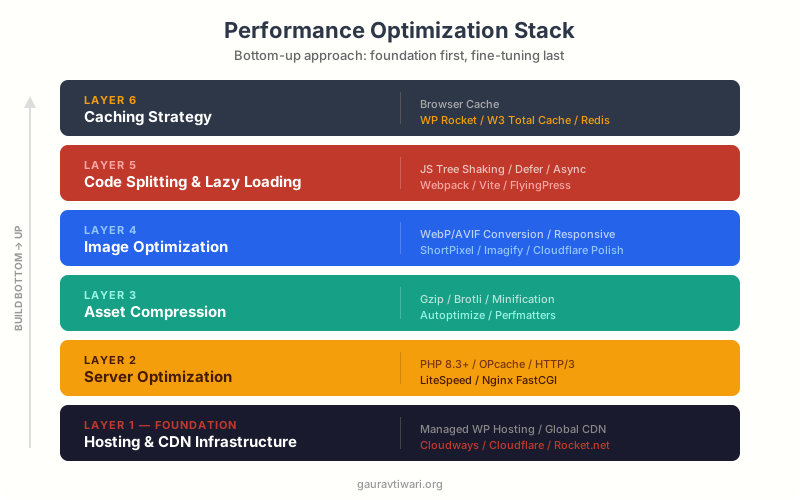
JavaScript is the most expensive resource on the web, byte for byte. A 200KB JavaScript bundle costs far more processing time than a 200KB image because the browser has to download, parse, compile, and execute it. CSS blocks rendering entirely until it’s fully loaded. Together, they’re responsible for most of the “invisible” slowness users feel.
Minification removes unnecessary characters. Comments, whitespace, and long variable names get stripped from production files. This typically saves 10-30% on file sizes. Every caching plugin handles this, and build tools like Webpack, Vite, and esbuild do it automatically. It’s table stakes, not a competitive advantage.
Code splitting loads only what’s needed. Instead of shipping one massive JavaScript bundle for your entire site, code splitting breaks it into page-specific chunks. A visitor on your homepage doesn’t need the checkout page’s JavaScript. Modern frameworks like Next.js, Nuxt, and Astro handle this by default. For WordPress, I use WP Rocket’s delay JavaScript execution feature, which prevents non-critical scripts from loading until user interaction.
Tree shaking eliminates dead code. If you import one function from a library, tree shaking ensures only that function (and its dependencies) ship to the browser. I’ve audited WordPress sites loading entire jQuery UI just for an accordion component. Replacing that with a 2KB vanilla JavaScript solution cut 87KB from the critical path.
Critical CSS inlines above-the-fold styles. Instead of waiting for your entire 150KB stylesheet to download before rendering anything, critical CSS extraction identifies only the styles needed for the visible viewport and inlines them in the HTML <head>. The rest loads asynchronously. WP Rocket generates critical CSS automatically. On a recent project, this alone improved LCP from 3.8s to 1.6s.
I covered several of these techniques in my article on key trends in website building, where I discuss how modern development practices prioritize performance from the start.
CDN and Caching Strategy
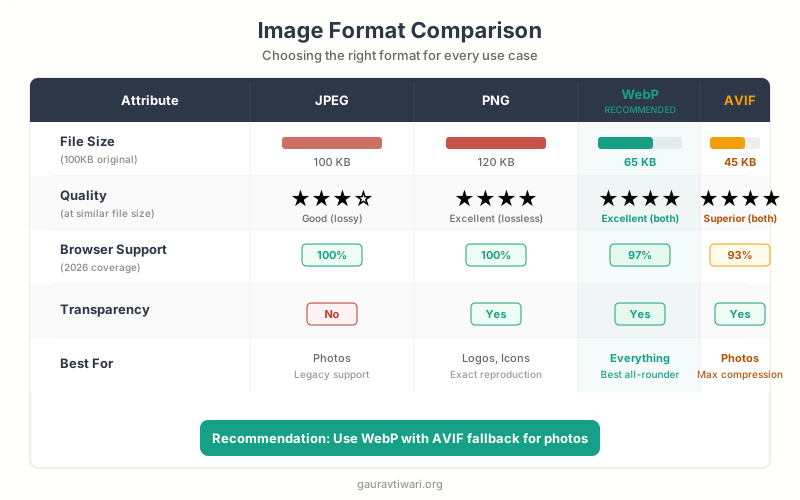
A Content Delivery Network copies your static assets (images, CSS, JavaScript, fonts) to edge servers worldwide. When someone in Tokyo visits your site hosted in New York, they get assets from a nearby edge server instead of making a 12,000-mile round trip. The latency difference is dramatic, often 200-400ms saved per request.
Edge caching is the foundation. Bunny CDN is my go-to recommendation for most WordPress sites. It’s fast, affordable ($0.01/GB in North America), and has 123 global PoPs (Points of Presence). Cloudflare’s free tier works well for smaller sites, but Bunny CDN consistently delivers lower latency in my testing across Asian and European locations. For a travel blog I manage, switching from Cloudflare Free to Bunny CDN dropped average global TTFB from 340ms to 85ms.
Browser caching tells repeat visitors’ browsers to skip downloads. When you set proper Cache-Control headers, returning visitors load your site almost instantly because CSS, JavaScript, images, and fonts are served from their local disk. I set cache durations of 1 year for versioned assets (files with hashes in their filenames) and 1 month for everything else. WP Rocket configures these headers automatically through .htaccess rules.
Service workers enable offline-first experiences. A service worker is a JavaScript file that intercepts network requests and can serve cached responses when the network is unavailable or slow. Progressive Web Apps (PWAs) rely on service workers for offline functionality. Even for regular websites, a service worker can pre-cache critical pages and serve them instantly on repeat visits. I implement this selectively, usually for documentation sites and web apps where users navigate the same pages repeatedly.
Cache invalidation is where most people mess up. Setting aggressive caching without a versioning strategy means users see stale content after updates. The solution: use content-based hashes in filenames (e.g., style.a3f2b1.css). When the file changes, the hash changes, and browsers fetch the new version. WordPress handles this through the wp_enqueue_style() version parameter, but many themes hardcode version numbers or omit them entirely.
Mobile Performance Optimization
Over 60% of web traffic comes from mobile devices, yet most performance optimization happens on desktop connections. Testing exclusively on a MacBook with gigabit fiber gives you a dangerously optimistic view of your site’s real-world performance.
Test on throttled connections. Chrome DevTools lets you simulate 3G speeds (1.6 Mbps download, 750 Kbps upload, 300ms RTT). I run every optimization through this filter. If a page loads acceptably on Slow 3G, it’ll fly on faster connections. A client’s landing page that loaded in 2.1 seconds on my desktop took 14 seconds on simulated 3G. After optimization, we got the 3G time down to 4.8 seconds.
Adaptive loading matches resources to device capability. The Network Information API lets you detect whether a user is on a fast or slow connection. You can serve lower-resolution images, skip non-essential animations, and defer secondary content for slow connections. The prefers-reduced-data media query (still experimental) signals when users want to minimize data usage. I use this approach on image-heavy portfolio sites where a single page might contain 20+ high-resolution photos.
Reduced motion improves performance and accessibility. The prefers-reduced-motion media query detects users who’ve enabled reduced motion in their OS settings. Respecting this preference isn’t just about accessibility. Removing heavy animations and parallax effects on these devices also reduces JavaScript execution and compositor work. I wrap all non-essential animations in @media (prefers-reduced-motion: no-preference) blocks by default.
Touch targets and viewport configuration affect perceived speed. Tiny buttons that require precise tapping create frustration that feels like slowness. Google requires touch targets of at least 48×48 CSS pixels. The <meta name="viewport"> tag must include width=device-width to prevent the browser from rendering a desktop-width page and scaling it down, which adds processing time and makes text unreadable.
For more on building mobile-friendly sites from the ground up, I wrote a practical guide on why responsive design matters that covers the layout and UX side of the equation.
Browser throttling simulates network speed but not CPU constraints. A mid-range Android phone has 4-6x less processing power than your development machine. I keep a Moto G Power on my desk specifically for real-device testing. If you can’t buy a test device, BrowserStack and LambdaTest offer remote access to real hardware.
Performance Monitoring Tools
You can’t optimize what you don’t measure. I use a combination of lab tools and real user monitoring (RUM) to get a complete picture of site performance. Each tool serves a different purpose, and relying on just one gives you blind spots.
Google PageSpeed Insights is the starting point. It runs Lighthouse audits and overlays them with real-world Chrome User Experience Report (CrUX) data from the last 28 days. The CrUX data shows your actual Core Web Vitals scores as experienced by real Chrome users. I check this first on every audit because it tells me if there’s a gap between lab and field performance.
GTmetrix provides waterfall charts that show exactly when each resource loads. I use it to identify bottlenecks, like a third-party analytics script that blocks rendering for 600ms or a font file loaded from a slow external CDN. The comparison feature lets you test before and after optimizations side by side. GTmetrix also lets you test from different locations and connection speeds.
WebPageTest is the most detailed tool available. It supports real browsers, multiple locations, custom connection profiles, and filmstrip views that show exactly what users see at each point during page load. The “repeat view” test shows how your caching strategy performs. I use WebPageTest for deep dives when PageSpeed Insights flags an issue but doesn’t explain the root cause.
Real User Monitoring (RUM) tracks actual visitors. Tools like Google Analytics 4 (with Web Vitals integration), Vercel Analytics, or dedicated platforms like SpeedCurve capture performance data from every real page load. Unlike lab tools that test a single page from one location, RUM reveals patterns: which pages are slow, which devices struggle, which geographic regions have poor performance. I set up RUM on every client site because lab scores can be perfect while real users still have a terrible experience due to ad scripts, A/B testing tools, and chat widgets that lab tests don’t trigger.
Real-World Case Studies
Theory is useful, but real results are what convince teams to invest in performance. Here are documented case studies that show the direct business impact of speed optimization.
Pinterest rebuilt their pages for performance and reduced perceived wait times by 40%. The result: a 15% increase in sign-ups and a 15% increase in SEO traffic. They achieved this primarily through code splitting, progressive image loading, and reducing JavaScript execution time.
Vodafone improved LCP by 31% through a combination of image optimization, critical CSS inlining, and server-side rendering improvements. The payoff: 8% more sales, 15% improvement in their lead-to-visit rate, and an 11% improvement in cart-to-visit rate. Every percentage point of speed improvement translated directly to revenue.
The BBC found they lost 10% of users for every additional second of page load time. When they optimized their site to load 1 second faster, they recovered a significant portion of those lost visitors. For a site with hundreds of millions of monthly visitors, even small percentage improvements translate to millions of recovered pageviews.
From my own client work: A WordPress-based e-commerce site selling custom phone cases had a 5.7-second load time on product pages. We moved them from shared hosting to Cloudways, implemented Bunny CDN for global asset delivery, converted all product images to WebP, installed WP Rocket with optimized settings, and deferred all non-critical JavaScript. Load time dropped to 1.8 seconds. Conversion rate increased from 1.2% to 2.1% within 60 days. That’s a 75% improvement in conversions from performance work alone.
Before starting any optimization project, capture baseline metrics: PageSpeed score, LCP, INP, CLS, TTFB, full page load time, and conversion rate. Screenshot your GTmetrix waterfall. You’ll need these numbers to prove ROI to stakeholders and to know when you’ve hit diminishing returns.
How to Design a Performance-First Website
Performance optimization shouldn’t be an afterthought you bolt on after launch. The most performant sites I’ve worked on were designed with speed as a constraint from day one. Retrofitting performance into a bloated site is 5x harder than building it lean from the start.
Choose a lightweight theme or framework. For WordPress, I use GeneratePress or developer-first block themes that output clean, minimal HTML. Many popular themes ship 500KB+ of CSS and JavaScript before you add a single plugin. Your theme choice sets a performance budget for everything that follows.
Audit every plugin before installing it. Each WordPress plugin adds HTTP requests, database queries, and JavaScript/CSS. I’ve seen sites with 40+ active plugins where removing 15 of them (redundant, unused, or replaceable with code snippets) cut load time by 2 seconds. Before installing any plugin, I check its impact using the Query Monitor plugin, which shows exactly how many queries, scripts, and styles each plugin adds.
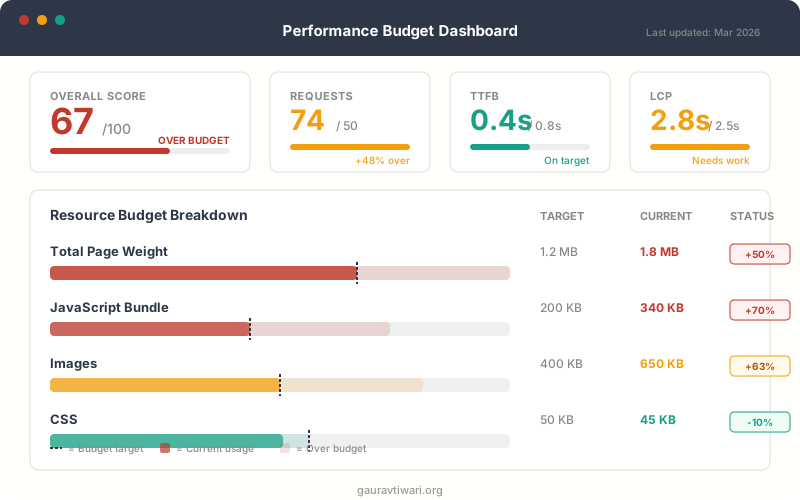
Set a performance budget and enforce it. A performance budget defines maximum thresholds: total page weight under 1.5MB, no more than 60 HTTP requests, LCP under 2.5 seconds. I set these at the start of every project and test against them in CI/CD pipelines. When a new feature pushes the budget over, something else has to shrink. This discipline prevents the gradual bloat that kills site speed over time.
I wrote a detailed walkthrough on designing user-friendly websites that covers the UX principles that complement performance optimization.
Performance Optimization Checklist
Here’s my prioritized checklist, ordered by impact. Start at the top and work down. Each item links back to the relevant section above.
Server and hosting (highest impact):
- Upgrade to managed hosting with TTFB under 200ms
- Enable full-page caching (WP Rocket or server-level)
- Upgrade to PHP 8.2 or 8.3
- Enable object caching with Redis
- Set up a CDN (Bunny CDN recommended)
Images and media:
- Convert all images to WebP (AVIF where supported)
- Enable lazy loading for below-the-fold images
- Exclude above-the-fold images from lazy loading
- Add explicit width and height attributes to all images
- Implement responsive images with srcset
CSS and JavaScript:
- Minify and combine CSS/JS files
- Generate and inline critical CSS
- Defer non-critical JavaScript
- Remove unused CSS (PurgeCSS or UnCSS)
- Delay third-party scripts until user interaction
Core Web Vitals:
- Achieve LCP under 2.5 seconds (target under 2s)
- Keep INP under 200 milliseconds
- Maintain CLS below 0.1
- Preload LCP image or font
- Set explicit dimensions on all media elements
Monitoring and maintenance:
- Set up real user monitoring (RUM)
- Run monthly PageSpeed and GTmetrix audits
- Test on real mobile devices (not just emulators)
- Review third-party script impact quarterly
- Set up alerts for Core Web Vitals regressions
If you’re overwhelmed, focus on three things first: upgrade your hosting, set up a CDN, and install WP Rocket with proper settings. These three changes alone handle 70-80% of performance gains for most WordPress sites. Everything else is fine-tuning.
Frequently Asked Questions
What is website performance optimization?
Website performance optimization is the process of improving how fast your website loads, responds to user interactions, and delivers content. It covers server configuration, image compression, code minification, caching, CDN setup, and Core Web Vitals improvement. The goal is to reduce load times, improve user experience, and increase conversions and search rankings.
How does website speed affect SEO rankings?
Google uses Core Web Vitals (LCP, INP, and CLS) as ranking signals. Sites that pass all three Core Web Vitals thresholds get a ranking boost in search results. Page speed also indirectly affects SEO through user behavior signals. Faster sites have lower bounce rates, higher engagement, and more pageviews per session, all of which signal quality to Google’s algorithm.
What is a good page load time?
A good page load time is under 3 seconds, but I aim for under 2 seconds for optimal conversions. Google considers LCP (Largest Contentful Paint) good at 2.5 seconds or less. Research from Google shows that the probability of bounce increases 32% as page load time goes from 1 second to 3 seconds, and 90% as it goes from 1 to 5 seconds.
What are Core Web Vitals and why do they matter?
Core Web Vitals are three Google metrics that measure real-world user experience: LCP (loading speed, target under 2.5s), INP (interactivity, target under 200ms), and CLS (visual stability, target under 0.1). They directly affect your Google search rankings and serve as a reliable proxy for user satisfaction. INP replaced the older FID metric in March 2024.
How much does website speed affect conversion rates?
Significantly. Deloitte found that a 0.1-second improvement in site speed increases retail conversions by 8.4% and average order value by 9.2%. Akamai’s research shows that a 100-millisecond delay drops conversions by 7%. From my own client work, I’ve seen conversion rate improvements of 40-75% after bringing load times from 5+ seconds down to under 2 seconds.
Do I need a CDN for a small website?
Yes, even small websites benefit from a CDN. A CDN reduces latency for visitors far from your server, improves TTFB, provides DDoS protection, and handles traffic spikes without overloading your origin server. Bunny CDN starts at $0.01/GB with no minimum commitment, making it affordable for any site size. I use CDNs on every site I manage, regardless of traffic volume.
What is the easiest way to speed up a WordPress site?
The three highest-impact changes are: upgrade to quality managed hosting (cuts TTFB dramatically), install WP Rocket for caching and optimization (handles page cache, critical CSS, JavaScript deferral, and image lazy loading), and set up Bunny CDN for global asset delivery. These three steps alone typically reduce load times by 50-70% and take under an hour to implement.
Website performance optimization isn’t a one-time project. It’s an ongoing discipline. Every new plugin, every redesign, every third-party script you add can erode the speed gains you’ve built. I schedule quarterly performance audits for all my client sites and catch regressions before they impact revenue.
Start with the checklist above. Tackle the server-side items first because they deliver the biggest improvements with the least effort. Then work through images, code optimization, and monitoring. Track your metrics before and after every change so you can prove the ROI.
The sites that win in 2026 won’t just have great content and strong backlinks. They’ll load fast, respond instantly, and work flawlessly on every device. Performance is the foundation everything else depends on.
Disclaimer: This site is reader-supported. If you buy through some links, I may earn a small commission at no extra cost to you. I only recommend tools I trust and would use myself. Your support helps keep gauravtiwari.org free and focused on real-world advice. Thanks. - Gaurav Tiwari