
How to Design a User-Friendly Website that Converts in 2026
88% of online visitors won’t return to a website after a bad experience. That single stat explains why user-friendly design isn’t a nice-to-have. It’s the difference between a website that makes money and one that hemorrhages traffic. Every confusing menu, slow page load, and buried CTA is costing you conversions you’ll never know about.
I’ve redesigned dozens of client websites over the past decade, and the pattern is always the same: they focus on making things look good before making things work well. A beautiful website that confuses visitors converts worse than an ugly one that’s easy to use. Design serves function, not the other way around.
Here’s how to design a user-friendly website that actually converts, with the specific principles and tools that work in 2026.
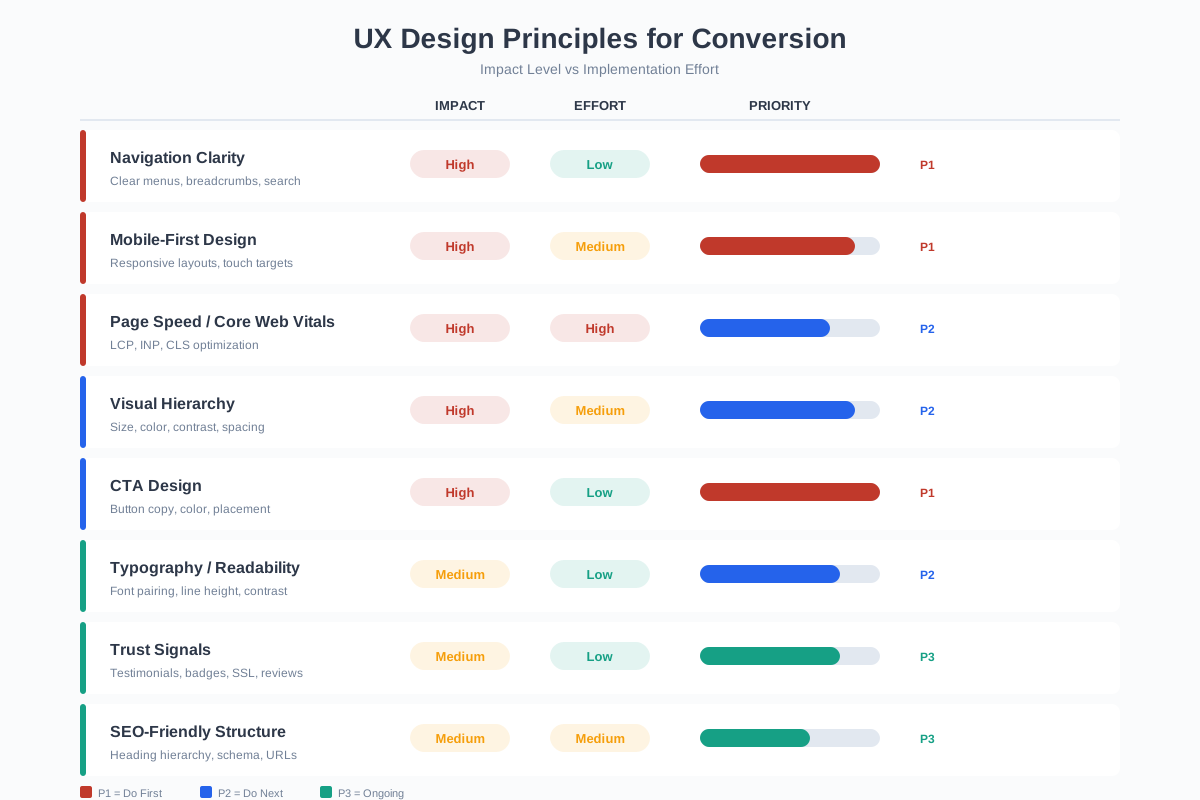
Organize Your Navigation for Clarity
Navigation is the skeleton of your website. If visitors can’t find what they’re looking for within 3-5 seconds, they leave. Period. A study by HubSpot found that 76% of consumers say the most important factor in website design is being able to easily find what they want.
Navigation rules that actually improve conversions:
- 7 items maximum in your primary nav: Miller’s Law says humans can hold 7 (plus or minus 2) items in working memory. More than 7 main nav items creates decision fatigue. Group related pages under dropdown categories if needed
- Descriptive labels: “Solutions” tells visitors nothing. “Email Marketing Tools” tells them exactly what they’ll find. Specific labels reduce clicks-to-content by 30-50%
- Sticky navigation: Keep your nav visible as users scroll. Smashing Magazine found sticky navigation makes finding content 22% faster
- Breadcrumbs: Show users where they are in your site hierarchy. Essential for sites with more than 3 levels of depth. Also improves conversion rate optimization by reducing bounce rates on deep pages
- Search function: For sites with 50+ pages, search isn’t optional. 30% of visitors use site search, and they convert at 1.8x the rate of non-searchers
Forget the “everything should be 3 clicks away” rule. Research from UIE (User Interface Engineering) showed that user success doesn’t correlate with number of clicks. What matters is confidence at each step. Users happily click 5+ times if each click clearly leads them closer to their goal. Focus on clarity, not click count.
Design Mobile-First, Not Mobile-Friendly
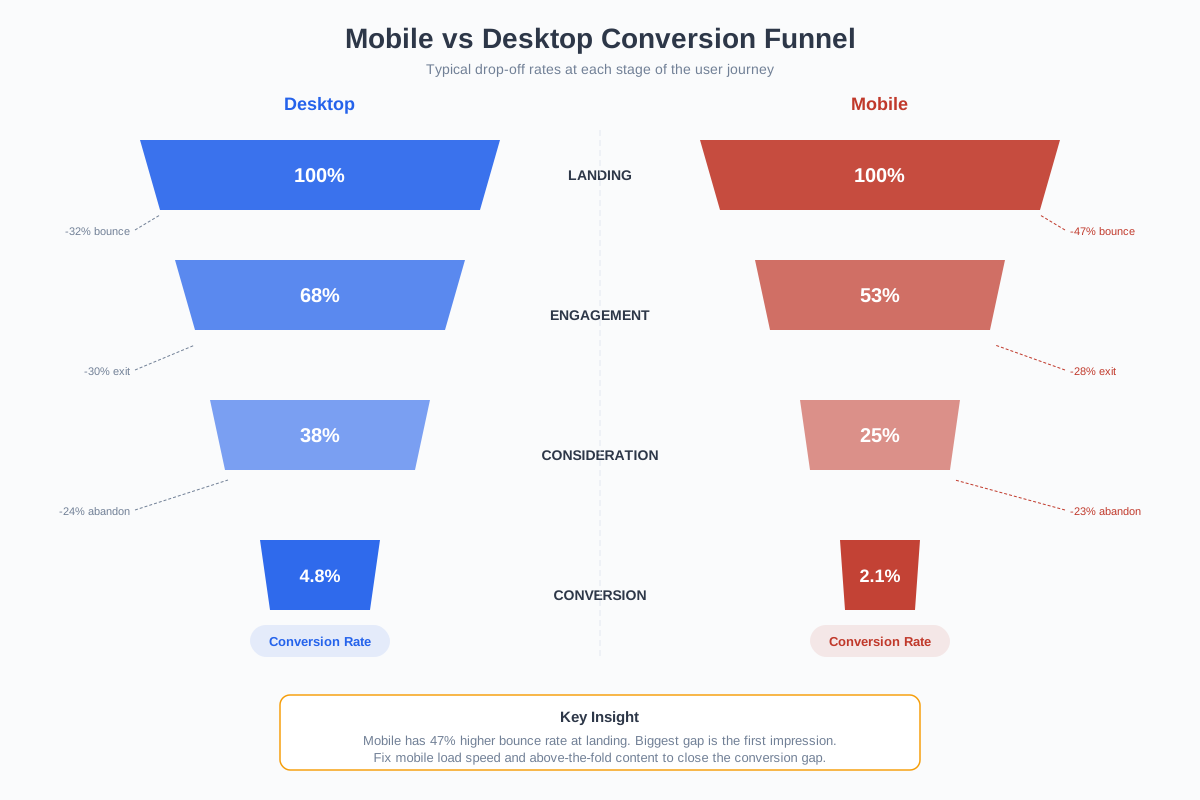
60% of web traffic comes from mobile devices. Google uses mobile-first indexing, meaning your mobile site IS your site for ranking purposes. Yet most businesses still design for desktop and then squeeze it onto smaller screens. That’s backwards.
Mobile-first design means starting with the smallest screen and progressively enhancing for larger ones. This forces you to prioritize ruthlessly. When you only have 375 pixels of width, every element must earn its space.
Mobile design essentials in 2026:
- Touch targets: Buttons and links need at least 44×44 pixels. Apple and Google both recommend this minimum. Tiny links and buttons are the #1 mobile usability complaint
- Thumb zone: Place primary actions in the bottom third of the screen where thumbs naturally rest. The hamburger menu in the top-left corner is the hardest spot to reach on modern 6.7″ phones
- Collapsible content: Use accordions and expandable sections to keep pages scannable without hiding important content. Let users drill into what interests them
- No horizontal scrolling: Ever. If content overflows horizontally on mobile, your layout is broken. Test every page at 375px width (iPhone SE size)
- Fast forms: Minimize form fields on mobile. Use autofill, dropdown selectors, and numeric keyboards for phone/zip fields. Every unnecessary field costs 10-15% of form completions
Tools for responsive testing: Chrome DevTools device emulator (free), BrowserStack ($29/month for real device testing), and responsive design frameworks that handle breakpoints automatically.
Optimize Page Speed Ruthlessly
A 1-second delay in page load time reduces conversions by 7%. Amazon calculated that every 100ms of latency cost them 1% in sales. Speed isn’t a technical nice-to-have. It’s a direct revenue lever.
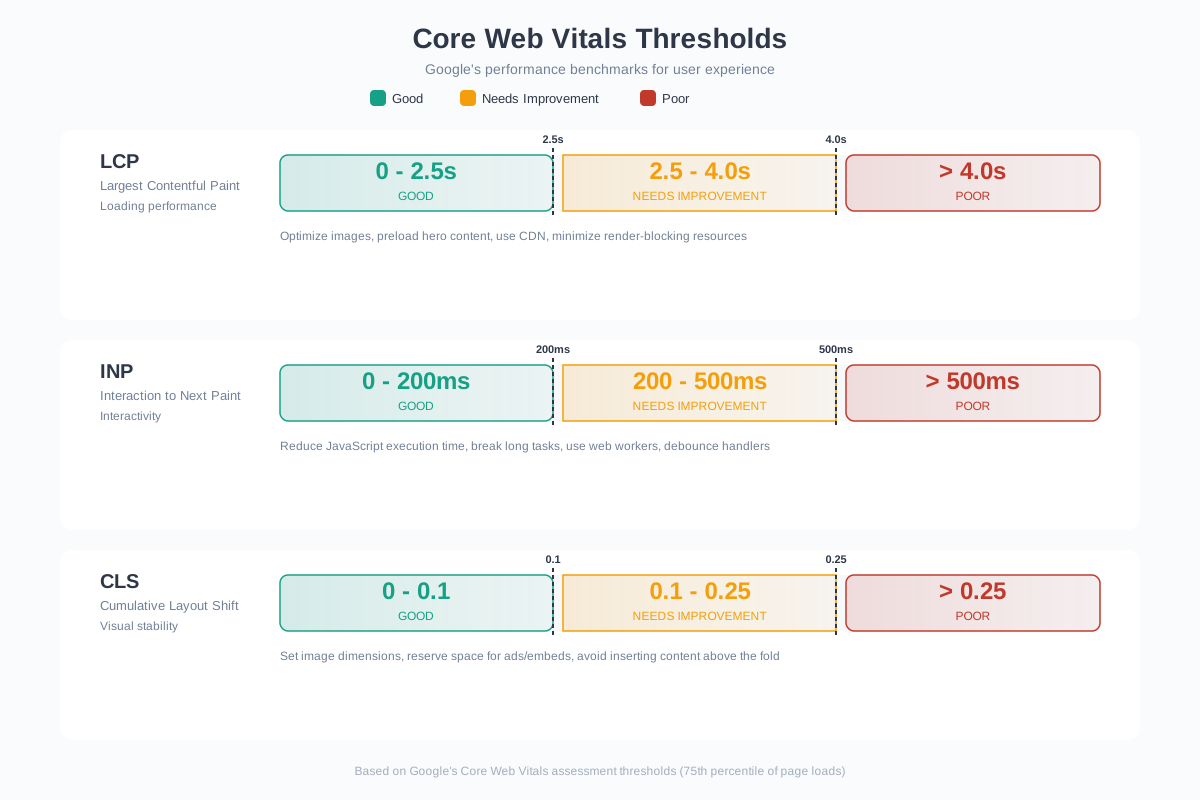
Google’s Core Web Vitals are now ranking factors, and they measure real-user experience:
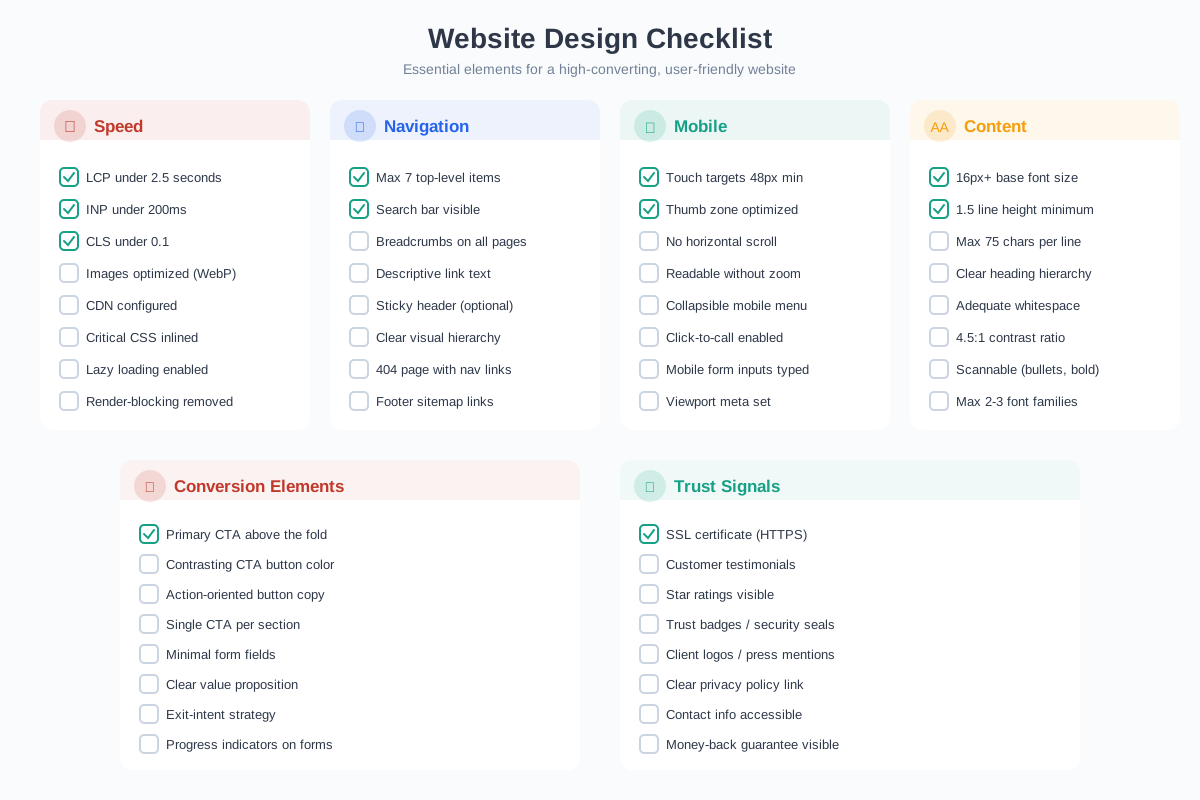
- Largest Contentful Paint (LCP): Main content should load within 2.5 seconds. Optimize by preloading hero images, using CDNs, and reducing server response times
- Interaction to Next Paint (INP): Replaced FID in March 2024. Measures responsiveness to ALL user interactions, not just the first one. Target under 200ms. Heavy JavaScript frameworks and third-party scripts are the usual culprits
- Cumulative Layout Shift (CLS): Keep below 0.1. Always set width and height on images. Reserve space for ads and dynamic content. Nothing frustrates users more than clicking a button that moved because an image loaded above it
Quick wins for speed: compress images with WebP/AVIF format (saves 30-50% file size), implement lazy loading for below-fold content, use a CDN for static assets, minimize third-party scripts (every chat widget, analytics tag, and pixel adds latency), and cache aggressively.
For WordPress sites specifically, check out WP Rocket settings for the fastest performance gains.
Master Visual Hierarchy and Layout
Visual hierarchy is how you guide visitors’ eyes to the most important elements first. Without it, every element competes for attention and nothing stands out. The result: visitors feel overwhelmed and leave.
The principles that drive effective visual hierarchy:
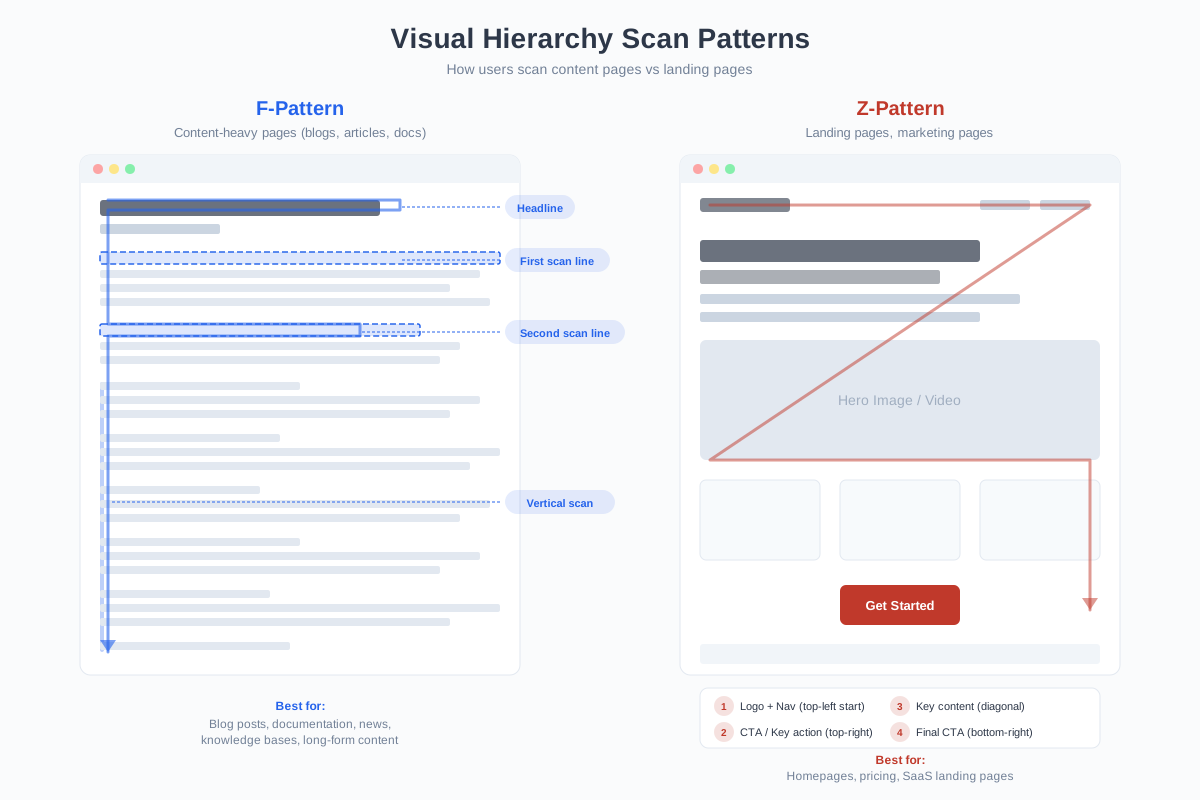
- F-pattern and Z-pattern: Eye-tracking studies show users scan in F-patterns (text-heavy pages) and Z-patterns (landing pages). Place your most important content, headlines, and CTAs along these natural scan paths
- Size establishes importance: Larger elements get noticed first. Your headline should be the biggest text on the page. Your CTA button should be the most prominent interactive element
- Whitespace is not empty space: It’s breathing room that makes content digestible. Apple’s website uses 40-50% whitespace and converts billions in sales. Cramming more content into the same space reduces comprehension and conversions
- Contrast draws attention: High contrast (dark text on light background, bright CTA on neutral page) naturally pulls the eye. Use contrast intentionally to highlight CTAs and key information
- Progressive disclosure: Don’t show everything at once. Reveal information as users need it. Tabs, accordions, and “learn more” expandables keep pages clean while making depth available
Every page should have exactly one primary action you want visitors to take. Secondary actions can exist, but they should be visually subordinate. When everything is a priority, nothing is. If your hero section has “Get Started,” “Watch Demo,” “Read Blog,” and “Contact Us” all at the same visual weight, you’ve diluted your conversion focus.
Design CTAs That Actually Get Clicked
Your CTA button is where design meets revenue. The difference between a mediocre CTA and an optimized one can be a 2-3x conversion improvement. It’s the most testable, improvable element on any page.
CTA design principles backed by data:
- Action-oriented copy: “Get My Free Guide” outperforms “Submit” by 30-40% in most A/B tests. Use first-person possessive language (“My” instead of “Your”) for a 90% increase per Unbounce research
- Contrasting color: Your CTA should be the most visually distinct element on the page. If your site is blue, your CTA should be orange or green. Contrast, not a specific color, is what matters
- Size and padding: CTAs need generous padding (at least 12-16px vertical, 24-32px horizontal). They should be large enough to tap easily on mobile but not so large they feel desperate
- Placement: Above the fold (always), after value propositions, at the end of content sections, and in sticky headers/footers on mobile. Read more about types of CTAs that drive conversions
- Reduce friction: “Start Free Trial (No Credit Card)” outperforms “Start Free Trial” because it removes the biggest objection. Add micro-copy near CTAs that addresses fears
Typography and Readability
95% of the web is typography. If your text isn’t readable and well-structured, it doesn’t matter how good your design is. Most websites fail basic readability because they prioritize aesthetics over legibility.
Typography rules for conversion-focused sites:
- Body text: 16-18px minimum. Anything smaller strains eyes on screens. Older audiences and mobile users need at least 16px. Some of the highest-converting sites use 18-20px body text
- Line height: 1.5-1.7 for body text. Too tight and lines blur together. Too loose and the eye loses its place. 1.6 is the sweet spot for most fonts
- Line length: 50-75 characters. Lines that are too long cause reading fatigue. Too short and the eye bounces constantly. Use max-width on text containers, not full-width paragraphs
- Font pairing: 2 fonts maximum. One for headings (can be distinctive), one for body (must be highly readable). System fonts like Inter, Source Sans, and IBM Plex load instantly with zero performance cost
- Paragraph length: 3-5 lines on desktop, 5-8 on mobile. Long paragraphs create walls of text that visitors skip entirely. Break them up
Build Trust Through Design
Users make trust judgments about a website within 50 milliseconds. That’s faster than conscious thought. If your site looks untrustworthy, no amount of great copy will save it. Trust in design comes from consistency, professionalism, and proof.
Trust signals that increase conversions:
- Social proof: Customer testimonials, review counts, client logos, and case study links. Place them near CTAs where visitors make decisions
- Security badges: SSL certificates (HTTPS), payment processor logos, trust seals. These matter most on checkout and form pages
- Real photos: Show real team members, real office, real product photos. Stock photos of diverse people in meeting rooms do nothing for trust
- Professional consistency: Consistent colors, typography, spacing, and image treatment across every page. Inconsistency signals “amateur” at a subconscious level
- Contact information: Physical address, phone number, email address visible in the footer. Sites that hide contact info feel untrustworthy. This is also important for accessibility compliance
Design for SEO from the Start
SEO and user-friendly design aren’t competing priorities. They’re the same thing. Google rewards sites that provide great user experiences. Core Web Vitals (speed), mobile-friendliness, and engagement signals (low bounce rate, high dwell time) are all ranking factors that also make sites more user-friendly.
Design decisions that directly impact SEO:
- Heading hierarchy: Use H1 once per page (your main heading), then H2s for sections, H3s for subsections. This helps both users and search engines understand your content structure
- Internal linking: Link related pages naturally within content. This distributes page authority and keeps visitors exploring your site longer
- Image optimization: Compress images, use WebP format, add descriptive alt text, and use responsive images with srcset. Images are often the biggest performance bottleneck
- URL structure: Clean, descriptive URLs that include target keywords.
/services/web-designbeats/page?id=47for both users and search engines - Schema markup: Add structured data for FAQs, reviews, products, and how-to content. This earns rich snippets in search results, increasing click-through rates 20-30%
For deeper SEO design integration, read about optimizing web design for conversions and current website building trends.
Test and Iterate with A/B Testing
Design opinions are just opinions. Data tells you what actually works. A/B testing lets you compare two versions of a page element and see which one converts better. Even small changes (button color, headline copy, image placement) can produce meaningful conversion lifts.
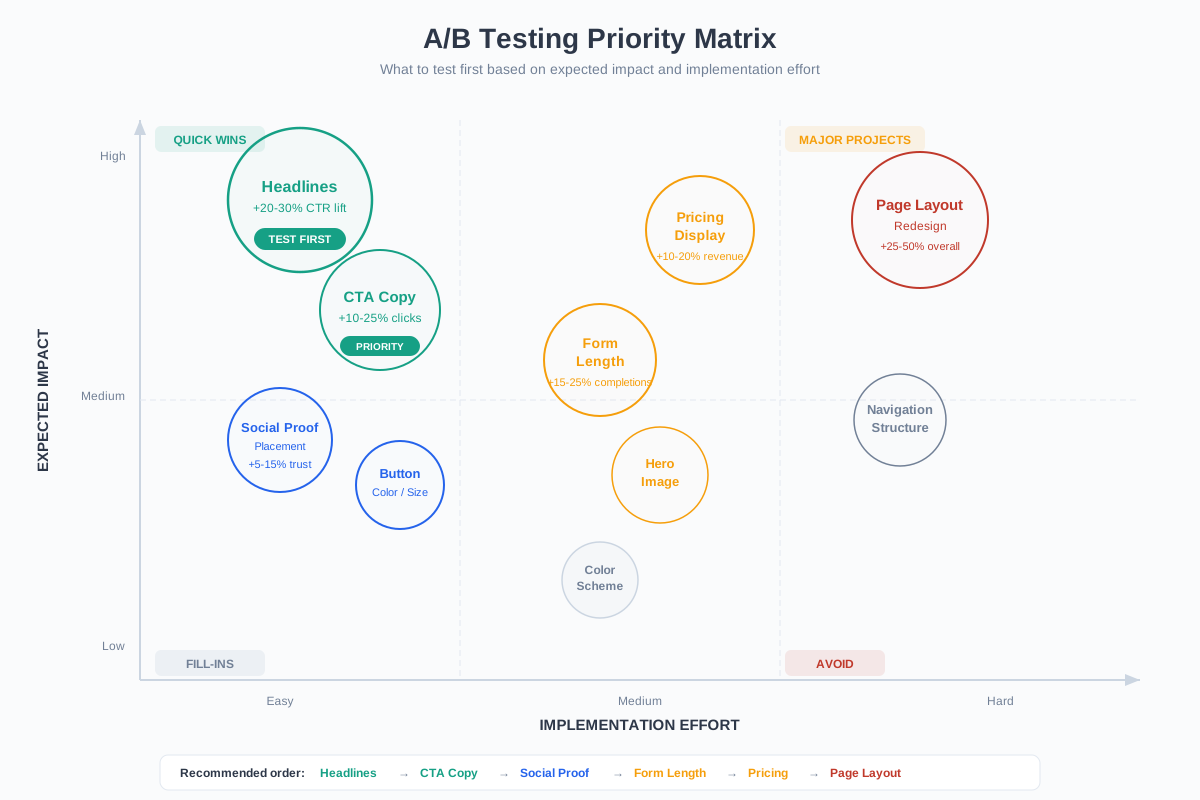
What to A/B test first (ordered by typical impact):
- Headlines: The first thing visitors read. Small changes in positioning, specificity, or emotional tone can swing conversion rates 10-30%
- CTA copy and placement: Test first-person vs second-person, benefit-driven vs action-driven, above fold vs below fold
- Social proof positioning: Test testimonials near CTAs vs in a dedicated section. Test star ratings vs written reviews
- Form length: Shorter forms get more submissions but lower-quality leads. Test to find your sweet spot
- Page layout: Single column vs two column. Long-form vs shorter with expandable sections. Image-heavy vs text-focused
A/B testing tools: Google Optimize (discontinued, but its successor is built into GA4), VWO ($199/month), Optimizely (enterprise), and Convert ($99/month). For simpler tests, many landing page builders like Webflow and Framer include built-in A/B testing.
Don’t call a test after 50 visitors. Most A/B tests need 1,000-5,000 visitors per variation to reach statistical significance. Running tests too short leads to false positives where you implement a “winning” change that was actually just random noise. Use a sample size calculator before launching any test.
AI Design Tools Changing the Game
AI is fundamentally changing how websites get designed and built. In 2026, tools like Framer AI, v0.dev by Vercel, Relume, and Webflow AI can generate entire page layouts from text prompts. This doesn’t replace designers, but it dramatically accelerates the ideation and prototyping phases.
How AI is being used in web design right now:
- Layout generation: Describe what you need (“SaaS pricing page with 3 tiers and FAQ section”) and get a working prototype in seconds. Framer AI and v0.dev lead here
- Copy generation: AI writes placeholder copy, headlines, and CTAs that are surprisingly usable. Refine rather than write from scratch
- Image creation: Canva AI, Midjourney, and DALL-E generate custom hero images, illustrations, and icons without stock photo subscriptions
- Personalization: AI tools analyze visitor behavior and dynamically adjust page content, CTAs, and recommendations in real-time. Mutiny, Dynamic Yield, and Intellimize lead this space
- Accessibility checking: AI-powered tools scan for WCAG compliance issues and suggest fixes automatically
The best approach: use AI to generate first drafts and prototypes quickly, then apply human design judgment to refine, brand, and optimize. AI handles the 80% of repetitive work so designers can focus on the 20% that requires creativity and strategy.
Before investing weeks in custom development, prototype your page with an AI design tool, add real content, and test it with 5 users. You’ll learn more from 30 minutes of user testing than from 30 hours of internal design reviews. Tools like Framer let you go from prompt to published prototype in under an hour.
User-friendly design isn’t about following trends or copying competitors. It’s about understanding how your specific visitors think, what they need, and removing every obstacle between them and the action you want them to take. Start with navigation and speed (the fundamentals), then optimize CTAs and layout (the conversion levers), then test and iterate (the competitive advantage).
The websites that convert best aren’t the prettiest. They’re the ones that respect their visitors’ time and make the next step obvious. Build for clarity, test relentlessly, and let the data guide your design decisions.
Frequently Asked Questions
What makes a website user-friendly?
A user-friendly website loads in under 3 seconds, has clear navigation with 7 or fewer main menu items, uses readable typography (16px+ body text), works perfectly on mobile devices, has visible and compelling CTAs, provides trust signals (testimonials, security badges), and maintains consistent visual design throughout. The core principle: visitors should find what they need and take action without thinking about how the website works.
How much does it cost to build a user-friendly website?
It ranges widely. DIY with builders like Webflow, Framer, or WordPress costs $0-$50/month. AI design tools can generate professional layouts for under $20/month. Hiring a freelance designer costs $2,000-$10,000 for a basic site. Agency builds range from $10,000-$100,000+. The most cost-effective approach for most businesses: use an AI tool or template to get 80% there, then hire a designer for refinement and custom elements.
What are the most important Core Web Vitals for user experience?
The three Core Web Vitals are Largest Contentful Paint (LCP, target under 2.5 seconds), Interaction to Next Paint (INP, target under 200ms, replaced FID in March 2024), and Cumulative Layout Shift (CLS, target under 0.1). LCP measures loading performance, INP measures responsiveness to user interactions, and CLS measures visual stability. All three directly impact user experience and are Google ranking factors.
Should I design for mobile or desktop first?
Mobile first, always. Over 60% of web traffic comes from mobile devices, and Google uses mobile-first indexing. Start your design at 375px width (iPhone SE), ensure everything works and converts at that size, then progressively enhance for tablet (768px) and desktop (1280px+). This approach forces you to prioritize content and simplify layouts, which actually improves the desktop experience too.
How do I know if my website design is working?
Track these metrics in Google Analytics: conversion rate (the ultimate measure), bounce rate (under 40% is good for most sites), average session duration (over 2 minutes indicates engagement), pages per session (1.5+ means people are exploring), and Core Web Vitals scores in Google Search Console. Use heatmaps (Hotjar or Microsoft Clarity, both free) to see exactly where users click, scroll, and drop off. A/B test changes to confirm they actually improve conversions.
What are the best website builders for non-designers?
Framer is the best for AI-assisted design (generates layouts from prompts). Webflow offers the most design control without code. Squarespace is easiest for beginners with beautiful templates. WordPress with a block theme is best for content-heavy sites and blogs. Shopify is the clear choice for e-commerce. Canva Websites is the simplest option for landing pages and portfolios. Each has trade-offs between ease of use, flexibility, and cost.
How often should I redesign my website?
A full redesign every 3-5 years is typical, but continuous optimization is better than periodic overhauls. Update content regularly, A/B test design elements monthly, refresh visual design elements (imagery, color accents) annually, and only do a ground-up redesign when your technology platform can’t support your business needs or when your brand identity changes significantly. Incremental improvements compound faster than big-bang redesigns.
Disclaimer: This site is reader-supported. If you buy through some links, I may earn a small commission at no extra cost to you. I only recommend tools I trust and would use myself. Your support helps keep gauravtiwari.org free and focused on real-world advice. Thanks. - Gaurav Tiwari