
Best Accessibility Plugins for WordPress in 2026
Over 4,600 ADA web accessibility lawsuits were filed in the US in 2023 alone. The European Accessibility Act (EAA) kicks in June 2025, covering every business that sells to EU customers. And WCAG 2.2, the latest accessibility standard, raised the bar again with new requirements for focus appearance, dragging alternatives, and consistent help patterns.
Most WordPress sites fail basic accessibility checks. Missing alt text, poor color contrast, no keyboard navigation, broken focus order, inaccessible forms. Every one of these is a potential lawsuit trigger and, more importantly, a barrier that locks real people out of your content. We’re talking about 1.3 billion people worldwide who live with some form of disability.
The good news: you don’t need to rebuild your site from scratch. WordPress accessibility plugins can fix the most common issues, add frontend accessibility toolbars, and scan your content for WCAG violations automatically. Here are the 8 best ones, including several that are completely free.
The best accessibility plugins for WordPress
- Equalize Digital Accessibility Checker for free, automated WCAG auditing inside the block editor
- WP Accessibility for free, developer-oriented fixes like skip links, alt text enforcement, and CSS diagnostics
- Sa11y for free, real-time content checking as you write in the editor
- UserWay for a free frontend accessibility widget visitors can customize
- One Click Accessibility for a free, lightweight accessibility toolbar with minimal setup
- accessiBe for AI-powered automated remediation on business sites
- WP Accessibility Helper for a free customizable accessibility sidebar with dark mode and widgets
- WP ADA Compliance Check for scanning pages and flagging specific WCAG violations
What Makes a Good Accessibility Plugin?
Not all accessibility plugins work the same way. Some add a frontend toolbar that lets visitors adjust font sizes, contrast, and spacing. Others scan your content for WCAG violations and tell you exactly what to fix. The best approach combines both: fix the underlying issues in your code AND give visitors tools to customize their experience.
A frontend widget alone won’t make you WCAG compliant. If your HTML structure is wrong, your images lack alt text, or your forms aren’t properly labeled, an overlay widget doesn’t fix the underlying code. That’s why the plugins below are ordered with auditing and code-level tools first, then frontend widgets. Use at least one of each.
Equalize Digital Accessibility Checker
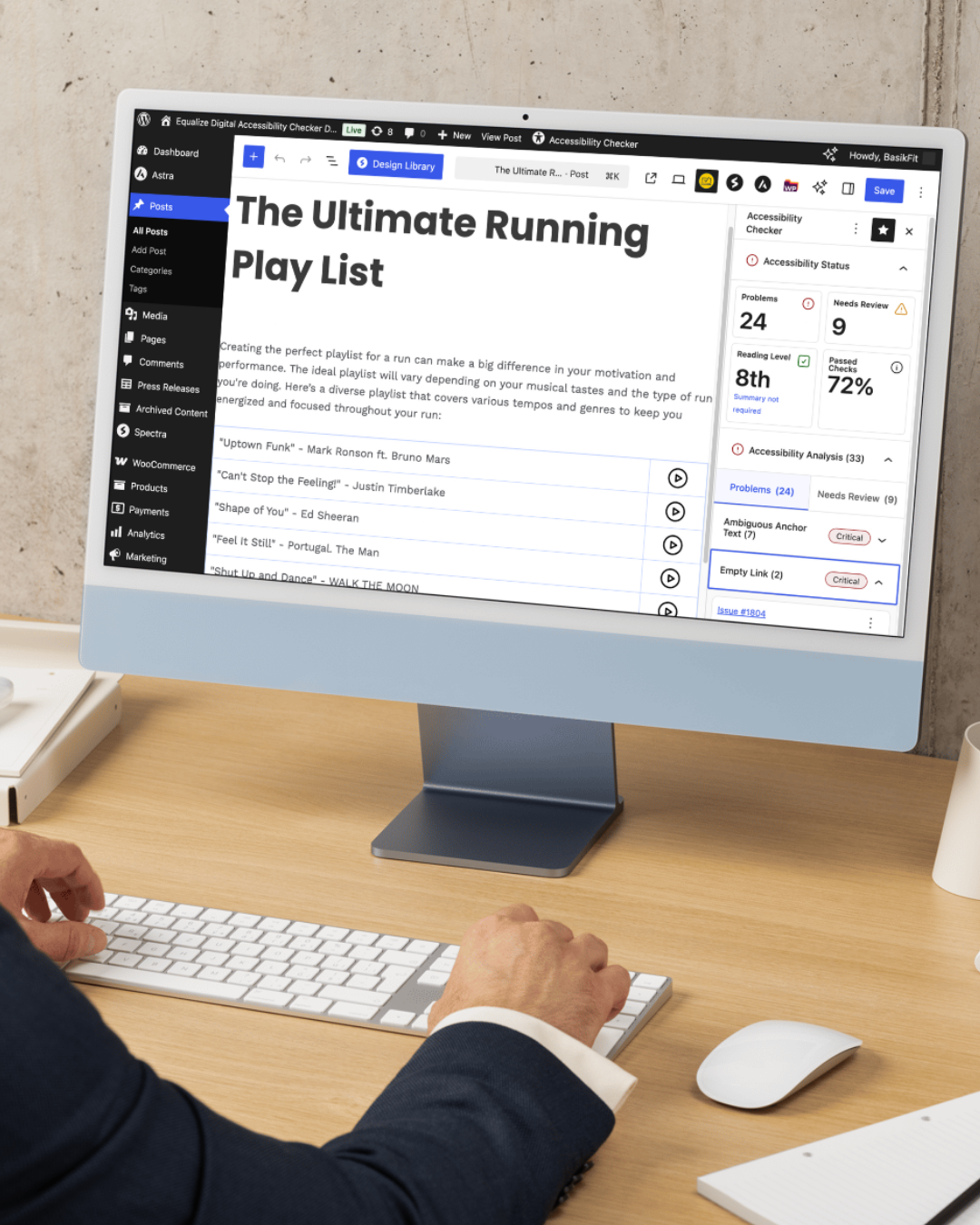
Best for: Free, automated WCAG auditing directly inside the WordPress editor.
Equalize Digital Accessibility Checker has become the gold standard for WordPress accessibility auditing. It scans your posts and pages for WCAG 2.2 violations right inside the block editor, showing errors, warnings, and passed checks in a sidebar panel. You don’t need to leave WordPress or use an external tool.
The free version is genuinely useful. It checks individual posts and pages for issues like missing alt text, empty headings, improper heading hierarchy, missing form labels, low color contrast, and links without descriptive text. Each issue includes an explanation of what’s wrong and how to fix it. For most small sites and blogs, the free tier catches the majority of common WCAG violations.
The Pro version ($145/year for one site) adds full-site scanning, so you can audit every page at once and track your overall compliance score over time. It also adds scans for theme and plugin output (not just your content), which is critical because many accessibility issues come from your theme’s code, not your writing.
The downside: it’s an auditing tool, not a fix-it tool. It tells you what’s wrong but doesn’t auto-fix anything. You still need to manually add alt text, restructure headings, and fix color contrast yourself. That’s actually the right approach since automated fixes often create worse problems, but it means more work on your end.
Price: Free for single-post scanning. Pro starts at $145/year for full-site auditing.
This is the first plugin I’d install on any WordPress site. Even the free version catches issues that would take hours to find manually. Run it on your most important pages first, fix the errors it flags, then work through warnings.
WP Accessibility
Best for: Free, developer-oriented accessibility fixes that work at the code level.
WP Accessibility is maintained by Joe Dolson, a WordPress Core Contributor who’s been working on WordPress accessibility for over a decade. This plugin doesn’t add a flashy frontend widget. Instead, it fixes underlying HTML and CSS issues that cause accessibility failures.
It adds skip links so keyboard users can jump past navigation menus. It forces alt attributes on images (adding empty alt=”” for decorative images, which is actually the correct WCAG approach). It removes tabindex from elements that shouldn’t have it. It adds language attributes, fixes redundant link titles, and includes a color contrast tester built into WordPress admin.
The Diagnostic CSS feature is particularly useful. When enabled, it adds visible outlines around elements that have accessibility problems: images without alt text get a red border, links without visible text get highlighted, and so on. It’s like a visual accessibility audit of your live site.
The trade-off is that WP Accessibility is a toolkit, not a one-click solution. You need to understand what each setting does and configure it for your specific theme. Beginners might find this overwhelming compared to simpler plugins. But the fixes it applies are real, code-level improvements, not cosmetic overlays.
Price: Completely free. No premium version.
Pair this with Equalize Digital Accessibility Checker. Use EDAC to find the problems, then use WP Accessibility to fix the structural ones. Together, they cover auditing and remediation for free.
Sa11y
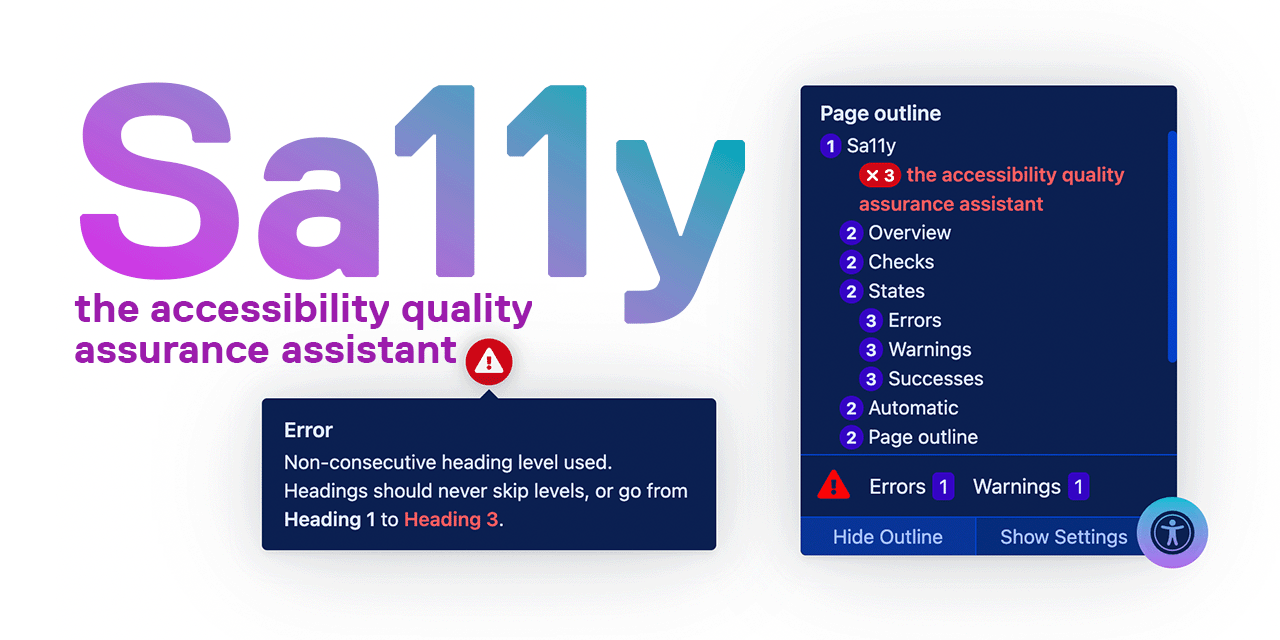
Best for: Free, real-time accessibility checking as you write content.
Sa11y (pronounced “Sally”) was created by Toronto Metropolitan University and is completely free and open source. It works differently from other accessibility plugins: instead of scanning after you publish, Sa11y checks your content in real time as you work in the editor. Think of it as a spell-checker, but for accessibility.
When enabled, Sa11y adds small icons next to elements that have accessibility issues. A red exclamation mark means an error (like a missing alt text or empty heading). A yellow triangle means a warning (like a heading that skips a level). Click the icon and you get a plain-English explanation of the problem and how to fix it. It’s the most intuitive accessibility tool I’ve used.
Sa11y checks for over 50 common issues: missing alt text, empty links, skipped heading levels, missing form labels, broken ARIA attributes, poor link text (“click here”), missing page language, and more. It also checks readability and flags overly complex sentences. The WordPress plugin version integrates directly with the block editor.
The limitation is that Sa11y only checks content you can edit in the editor. It doesn’t scan your theme’s header, footer, navigation, or widget areas. For those, you’ll need a full-site scanner like Equalize Digital’s Pro tier or an external tool like WAVE.
Price: Completely free and open source.
Best plugin for content creators and editors who aren’t technical. The inline feedback catches mistakes as they happen, which is faster than auditing and fixing after the fact.
UserWay Accessibility Widget
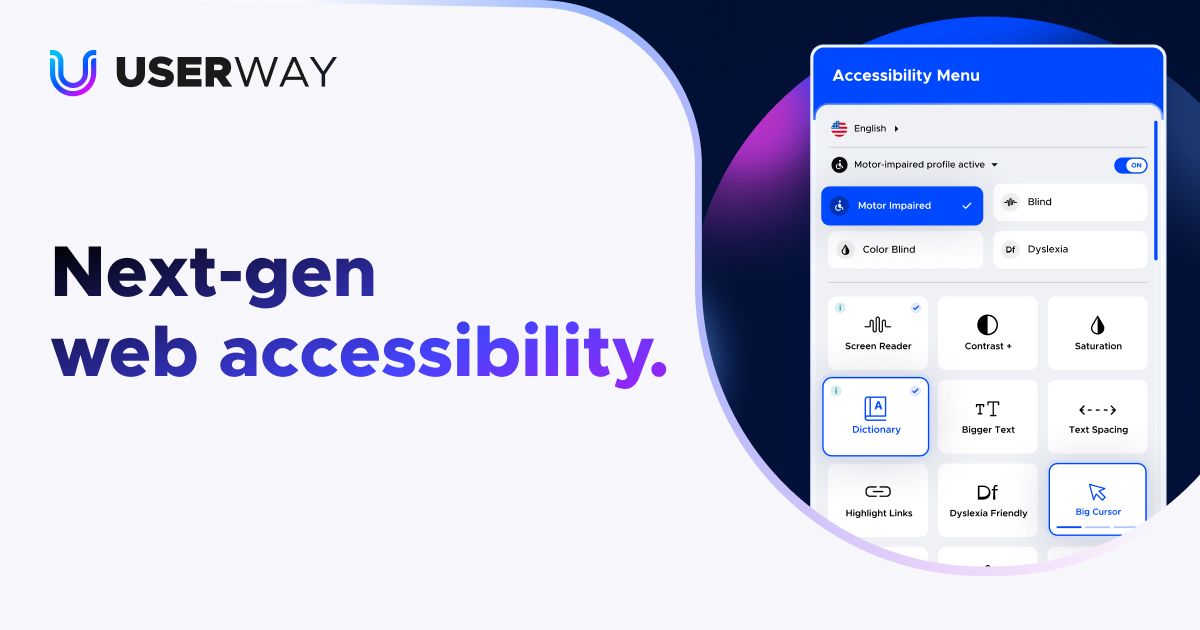
Best for: A free frontend accessibility widget that visitors can customize.
UserWay adds a floating accessibility icon to your site. When visitors click it, they get a panel with options to adjust text size, spacing, contrast, cursor size, text alignment, line height, and more. It also includes a screen reader, dyslexia-friendly font, and animation pause toggle. The free version includes all of these frontend features.
What makes UserWay different from similar widgets is the AI-powered remediation on paid plans. The AI scans your site, identifies accessibility barriers, and applies automated fixes: adding missing alt text suggestions, improving ARIA labels, fixing keyboard navigation issues. The free tier doesn’t include AI, but the manual widget tools are comprehensive enough for many sites.
Important caveat: accessibility overlay widgets like UserWay have drawn criticism from disability advocates and accessibility professionals. The argument is that overlays patch symptoms without fixing underlying code issues. Some screen reader users report that overlay widgets actually interfere with their assistive technology. UserWay’s widget is better-engineered than most competitors, but you should still fix your underlying code rather than relying solely on a widget. Use UserWay alongside a code-level plugin like WP Accessibility, not instead of it.
Price: Free for the basic accessibility widget. Paid plans with AI remediation start at $49/month.
The free widget gives visitors real control over their browsing experience. Just don’t treat it as a substitute for fixing your actual code. Layer it on top of real accessibility work.
One Click Accessibility
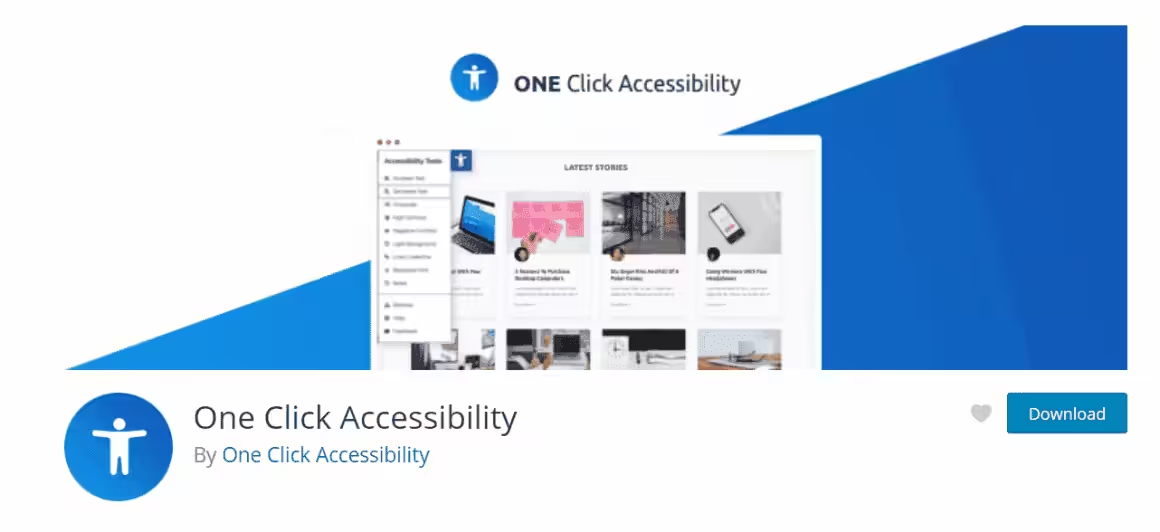
Best for: A free, lightweight accessibility toolbar with zero configuration.
One Click Accessibility does exactly what the name suggests. Install it, activate it, and your site immediately gets an accessibility toolbar. No settings to configure, no code to touch. Visitors can toggle high contrast, grayscale, bigger text, light background, link underlines, and readable font from the toolbar.
Behind the scenes, the plugin also adds some code-level improvements: it can remove target=”_blank” from links (which confuses screen readers), add outline focus styles for keyboard navigation, and insert skip-to-content links. These are accessible from the WordPress Customizer, so you can preview changes before they go live.
The plugin is maintained by the team behind Starter Templates (formerly Starter Templates). It’s been around since 2016 and has 100,000+ active installations. The codebase is simple and lightweight, so it won’t slow down your site. The entire plugin is under 50KB.
The downside: One Click Accessibility won’t help you pass a WCAG audit. It’s a user-facing toolbar, not an auditing or remediation tool. The features it offers are surface-level, primarily improving visual readability. It doesn’t fix heading structure, alt text, form labels, or ARIA roles. Think of it as a nice-to-have addition after you’ve addressed the real issues with tools like WP Accessibility and EDAC.
Price: Completely free.
The simplest option on this list. If you want a basic accessibility toolbar with zero learning curve, this is it. Just don’t mistake it for full WCAG compliance.
accessiBe
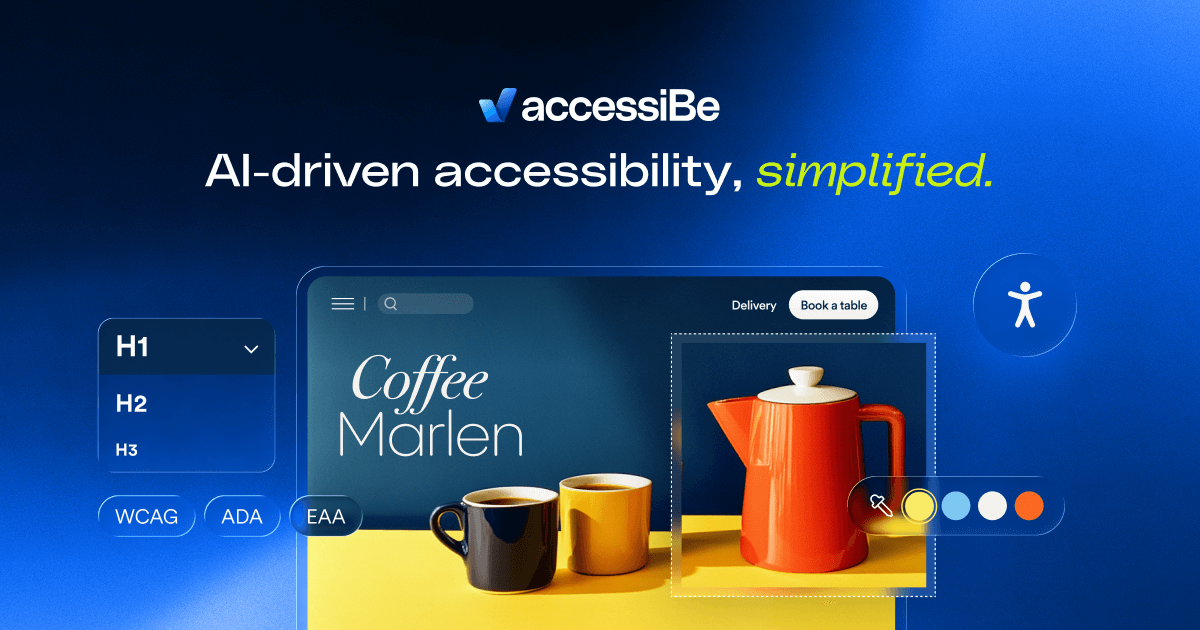
Best for: Business sites that need AI-powered automated remediation.
accessiBe is the most feature-rich option on this list, and the most expensive. It uses AI (computer vision and machine learning) to scan your site, identify accessibility barriers, and apply fixes automatically. The AI adds alt text to images, adjusts ARIA labels, fixes keyboard navigation, and modifies your page structure for screen reader compatibility, all without you touching code.
The frontend interface gives visitors a comprehensive accessibility panel: screen reader adjustments, visual profiles (epilepsy safe, vision impaired, cognitive disability, ADHD friendly), content adjustments (text magnification, font sizing, line height, letter spacing), and color adjustments (dark contrast, light contrast, monochrome, high saturation). It’s the most polished frontend experience of any accessibility plugin.
You should know about the controversy, though. accessiBe and similar AI overlay tools have been criticized by accessibility professionals and disability advocacy groups. The National Federation of the Blind issued a statement against overlay products in 2021. Critics argue that AI can’t fully understand context (like whether an image is decorative or informative), and the automated fixes sometimes make things worse for assistive technology users. accessiBe has improved significantly since those criticisms, but the debate continues.
My take: accessiBe works well as an additional layer of protection for business sites that also do manual accessibility work. It’s not a replacement for proper semantic HTML, manual alt text, and accessible design. But for small businesses that can’t afford a full accessibility audit ($5,000-$25,000), accessiBe’s $49/month is a reasonable middle ground.
Price: Plans start at $49/month for sites up to 1,000 pages. Enterprise pricing up to $349/month.
The most comprehensive automated solution. Use it alongside manual accessibility work, not as a replacement for it. If you need the full review, read my accessiBe breakdown.
WP Accessibility Helper
Best for: A free customizable accessibility sidebar with dark mode and visual widgets.
WP Accessibility Helper adds a sliding accessibility sidebar to your site. Visitors can toggle contrast adjustments, grayscale, text resizing, link highlighting, readable font, and a “lights off” dark mode. The free version includes all the essential toolbar features plus some nice extras like animation removal and cookie management.
What distinguishes WP Accessibility Helper from One Click Accessibility is the customization depth. You get full control over the sidebar’s appearance: custom colors, dark/light themes, logo placement, and widget positioning. The admin panel is well-organized with toggle switches for each feature, so you can enable exactly what your audience needs.
The premium version ($75-$199/year) adds an online accessibility-friendly accordion, custom widget areas, and priority support. For most sites, the free version is more than sufficient. The premium features are niche and won’t meaningfully improve your WCAG compliance.
Same caveat as all frontend toolbars: this won’t fix underlying code issues. It gives visitors visual customization options, which is helpful but not the same as WCAG compliance. Pair it with a proper auditing tool.
Price: Free. Premium plans from $75-$199/year.
Choose this over One Click Accessibility if you want more control over how the toolbar looks and what features it offers. The dark mode toggle is a nice touch.
WP ADA Compliance Check Basic
Best for: Scanning pages and flagging specific WCAG violations with categorized severity.
WP ADA Compliance Check scans your posts and pages for accessibility issues and categorizes them into alerts (critical) and notices (minor). The free version scans up to 25 pages, which covers the most important pages on a small site. Each issue is flagged with the specific WCAG criterion it violates.
The premium version removes the page limit and adds real-time scanning when you publish or update content. It also scans your entire site at once, gives you a compliance dashboard, and sends email notifications when new issues are detected. For sites that publish frequently, the auto-scan feature catches accessibility regressions before they go live.
Compared to Equalize Digital Accessibility Checker, WP ADA Compliance Check has a less polished interface and fewer educational explanations per issue. EDAC tells you what’s wrong and teaches you how to fix it. WP ADA Compliance Check identifies the problem but assumes you know WCAG well enough to understand the solution. That makes it better suited for developers or agencies who already understand accessibility standards.
Price: Free for up to 25 pages. Premium starts at $185 lifetime for unlimited scanning.
The lifetime pricing on the premium version is appealing compared to annual subscriptions. If you want a set-and-forget scanner without recurring fees, this is the most economical option.
Comparison Table
Which Plugins Should You Install?
You don’t need all 8. Here’s what I’d recommend based on your situation:
Every WordPress site (free): Install Equalize Digital Accessibility Checker + WP Accessibility. EDAC finds the problems, WP Accessibility fixes the structural ones. Both are free. This combination handles 80% of common accessibility issues.
Content-heavy sites (free): Add Sa11y to the stack above. Your writers and editors will catch accessibility mistakes as they create content, which is cheaper and faster than finding and fixing issues after publishing.
Want a visitor-facing toolbar (free): Add One Click Accessibility for the simplest option, or WP Accessibility Helper if you want more customization. UserWay’s free widget is the most feature-rich but adds more JavaScript weight.
Business sites with legal concerns (paid): accessiBe provides the most comprehensive automated solution. Pair it with EDAC for ongoing monitoring. Budget $49-$99/month, which is still far cheaper than an accessibility lawsuit (average settlement: $25,000-$50,000).
No plugin can make your site 100% accessible on its own. Accessibility is an ongoing process, not a checkbox. These tools catch the easy stuff: missing alt text, broken heading hierarchy, poor contrast, missing skip links. But real accessibility also means testing with actual screen readers (NVOX, VoiceOver, JAWS), navigating your site with only a keyboard, and listening to feedback from disabled users. The plugins get you 80% of the way there. The last 20% requires human attention.
Frequently Asked Questions
Can a plugin make my WordPress site fully WCAG compliant?
No single plugin achieves full WCAG 2.2 AA compliance. Plugins fix common technical issues like skip links, alt text enforcement, and color contrast. But full compliance also requires accessible theme design, proper HTML structure, keyboard testing, and screen reader testing. Use plugins as part of your accessibility workflow, not as the entire solution.
Are accessibility overlay widgets like UserWay and accessiBe enough for legal compliance?
Overlay widgets alone are generally not considered sufficient for ADA or EAA legal compliance. Courts and accessibility experts have stated that overlays don’t fix underlying code issues. They can reduce risk as part of a broader accessibility strategy, but shouldn’t be your only measure. Fix your HTML, add proper alt text, ensure keyboard navigation works, and use overlays as an additional layer.
Which free accessibility plugin should I install first?
Start with Equalize Digital Accessibility Checker. It audits your content for WCAG violations and tells you exactly what to fix. Then add WP Accessibility to apply code-level fixes like skip links and focus styles. Together, these two free plugins address both detection and remediation of the most common accessibility issues.
Do accessibility plugins slow down my site?
Auditing plugins like Equalize Digital and WP ADA Compliance Check only run in the admin area, so they add zero frontend overhead. Code-fix plugins like WP Accessibility add minimal CSS and JavaScript. Frontend widget plugins like UserWay, One Click Accessibility, and WP Accessibility Helper add the most weight since they load toolbar assets on every page. One Click Accessibility is the lightest at under 50KB. UserWay loads external scripts that can add 100-200ms to page load.
What accessibility standard should my WordPress site meet?
Target WCAG 2.2 Level AA. This is the standard referenced by the ADA in the US, the European Accessibility Act in the EU, and most international accessibility laws. Level A is the minimum but won’t protect you legally. Level AAA is aspirational but not required. Most of the plugins in this list test against WCAG 2.1 or 2.2 AA criteria.
Web accessibility isn’t optional anymore. Between the ADA, the EAA, and growing legal precedent, every business website needs to meet basic accessibility standards. The cost of not doing it, both in lawsuits and in excluding 15% of the global population, is far higher than the cost of a few free plugins and a couple hours of cleanup work.
Start with the free stack: Equalize Digital Accessibility Checker, WP Accessibility, and Sa11y. Run the audit, fix the errors, and add a frontend toolbar if you want one. That costs you nothing and puts you ahead of 90% of WordPress sites. The best time to fix your site’s accessibility was when you launched it. The second best time is right now.