
How Can a Gaming Mouse Improve Your Daily Computer Use?
I switched from a basic office mouse to a gaming mouse about 5 years ago. Not for gaming. For work. I was spending 10+ hours a day on my computer, editing websites, managing client projects, and writing content. My wrist hurt. My cursor felt sluggish. And the scroll wheel on my third $15 mouse had already started skipping.
That one upgrade changed how I use my computer every single day. A gaming mouse isn’t just for gamers. It’s for anyone who relies on a mouse for hours at a time and wants better comfort, precision, and speed. If you’re a developer, designer, writer, or just someone who lives at their desk, you’ll notice the difference in the first hour.
I’ve tested over a dozen gaming mice across different price points and brands. Below, I’ll walk you through why a gaming mouse makes daily computing better, what features actually matter for productivity, and the specific models I’d recommend in 2026.
Ergonomic Comfort for Long Hours
If you’re working 8 to 12 hours a day at a computer, your mouse is one of the most used tools on your desk. A standard office mouse is flat, lightweight, and designed to be cheap. A gaming mouse is shaped to fit your hand. The contours, thumb rests, and textured grips aren’t cosmetic. They reduce strain on your wrist and fingers during extended sessions.
I noticed the difference within the first week. My wrist pain dropped significantly after switching to an ergonomic gaming mouse with a proper palm rest. If you’re building websites, editing photos, or managing spreadsheets all day, comfort isn’t a luxury. It’s a productivity multiplier. You don’t realize how much a sore wrist slows you down until the pain stops.
Most gaming mice also weigh more than standard mice (or offer adjustable weights), which gives you a more controlled, deliberate feel when moving the cursor. That weight helps reduce accidental overshooting, something I used to deal with constantly when working in Figma or Photoshop.
Precision and Adjustable DPI
DPI (dots per inch) controls how sensitive your mouse is. A typical office mouse runs at 800 to 1,200 DPI with no adjustment. Gaming mice start at 800 and go up to 16,000 or even 25,000 DPI, with dedicated buttons to switch between levels on the fly.
Why does this matter for non-gaming work? Because different tasks need different sensitivity levels. When I’m writing or browsing, I keep my DPI low (around 800) for precise, controlled movement. When I’m working across two monitors and need to whip the cursor from one side to the other, I bump it up to 2,400. One button press, instant adjustment. No digging through settings.
For anyone doing design work, photo editing, or even just detailed spreadsheet work, this level of precision control is a genuine productivity upgrade. You’re not fighting the cursor anymore. It goes exactly where you want it to go.
Programmable Buttons and Shortcuts
This is the feature that sold me permanently. Most gaming mice have between 5 and 12 side buttons that you can map to any action. I’ve programmed mine to handle copy, paste, undo, switch tabs, close windows, and toggle between virtual desktops. All from my mouse hand, without touching the keyboard.
Think about how many times a day you press Ctrl+C, Ctrl+V, or Alt+Tab. Now imagine doing all of that with a thumb click. It sounds minor, but over an 8-hour workday, those micro-savings add up to real time. I estimate I save 15 to 20 minutes daily just from mouse shortcuts alone.
Most gaming mouse software (Logitech G Hub, Razer Synapse) lets you create application-specific profiles too. So your button assignments in Photoshop can be completely different from your setup in Chrome or VS Code. The software stores profiles on the mouse’s onboard memory, so your shortcuts follow you across computers.
Faster Response Time and Polling Rate
Gaming mice communicate with your computer at 1,000 Hz (1ms response time) by default. Some newer models go up to 4,000 or even 8,000 Hz. Standard office mice? They report at 125 Hz, which is an 8ms delay between your hand movement and the cursor reacting on screen.
You won’t notice 8ms on a single click. But when you’re dragging selections, scrolling through long documents, or making rapid precise movements across your screen, that responsiveness compounds. The cursor feels attached to your hand rather than trailing behind it. Once you’ve used a 1,000 Hz mouse for a week, going back to 125 Hz feels like moving through mud.
If you’re working with a laptop from home and using a trackpad or cheap wireless mouse, switching to a gaming mouse with a proper polling rate will feel like a hardware upgrade for your entire setup.
Durability That Justifies the Price
I used to go through a cheap mouse every 6 to 8 months. The scroll wheel would start double-clicking, the left button would register phantom clicks, or the sensor would just give up. A $15 mouse three times a year costs $45 and wastes your time replacing it each time.
Gaming mice are built to survive millions of clicks. The Razer DeathAdder Essential, for example, is rated for 10 million clicks. Logitech’s G502 uses mechanical switches that last even longer. I’ve been using the same Logitech G305 for over 3 years now, and it works exactly like it did on day one.
The build quality is noticeably better too. You can feel it the moment you pick one up. Rubberized grips, reinforced cables (or solid wireless connections), and scroll wheels that still feel crisp after thousands of hours of use. Spending $25 to $55 once beats spending $15 three times a year.
Customization Beyond RGB Lights
Yes, gaming mice come with RGB lighting. You can turn it off if it’s not your thing. The customization that actually matters for productivity is software-level control over DPI curves, lift-off distance, acceleration, debounce time, and macro assignments.
I’ve set up macros for common WordPress tasks, like switching between the code editor and visual editor, or triggering a series of clicks to publish a post. These automations save me minutes per task, and when you’re publishing 3 to 5 articles a week, those minutes add up fast.
Some mice like the Logitech G502 SE Hero even let you adjust the physical weight by adding or removing weights from the bottom. If you prefer a lighter feel for fast movements or a heavier feel for precision work, you can dial it in exactly. That kind of personalization is something you won’t find on any office mouse at any price.
Wireless vs Wired for Productivity
The old advice that “wired is always better” doesn’t hold anymore. Modern wireless gaming mice from Logitech and Razer have virtually zero perceptible lag. The Logitech G305 uses LIGHTSPEED wireless technology, and I can’t tell the difference between it and a wired connection. Razer’s HyperSpeed wireless is equally fast.
For a clean home office setup, wireless is the way to go. One less cable on your desk. No drag from the cord catching on your mousepad edge. Just a clean, unrestricted range of motion. The Razer Orochi V2 runs for up to 950 hours on Bluetooth mode, which means you’re charging (or replacing a battery) a few times a year, not a few times a month.
That said, if budget is tight, wired gaming mice are cheaper and you never have to worry about battery life. The Razer DeathAdder Essential at around $21 is hard to beat for a wired option.
Best Gaming Mice for Daily Productivity in 2026
I’ve narrowed this down to 8 mice that I’d actually recommend for daily computer use. Some are budget picks, some are premium. All of them are a massive upgrade over any standard office mouse. Here’s what I’d buy depending on your needs and budget.
Razer DeathAdder Essential (Best Budget Wired Pick)
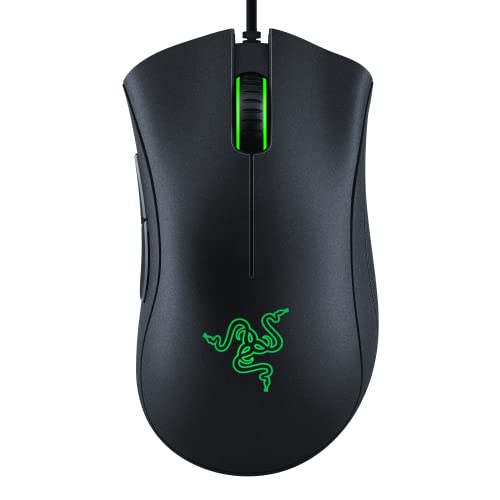
- 6,400 DPI optical sensor with on-the-fly sensitivity adjustment through dedicated DPI buttons
- Durable mechanical switches rated for up to 10 million clicks, backed by a 2-year warranty
At $21, the DeathAdder Essential is the easiest recommendation on this list. The ergonomic shape fits comfortably in a medium to large hand, and the 6,400 DPI sensor is more than enough for everyday productivity. Five programmable buttons give you copy, paste, and back/forward without touching the keyboard.
The mechanical switches are rated for 10 million clicks, which translates to years of heavy daily use. It’s wired, so no battery to worry about. If you’ve never used a gaming mouse before and want to test the waters without spending much, start here. I’ve recommended this to at least 10 friends and clients, and not one has been disappointed.
Logitech G305 LIGHTSPEED (Best Budget Wireless Pick)
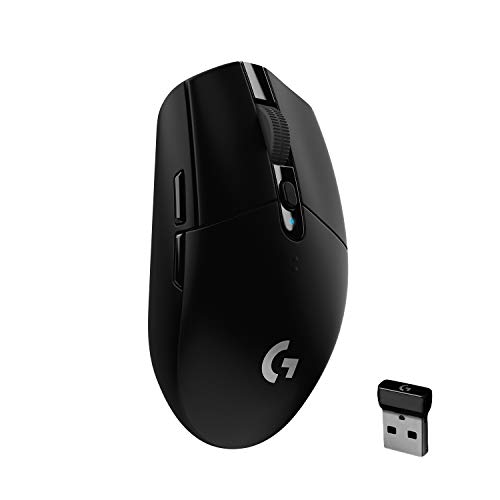
- HERO 12K sensor delivers up to 10x the power efficiency over other gaming mice with exceptional accuracy and responsiveness
- LIGHTSPEED wireless technology provides a lag-free experience with up to 250 hours of battery life on a single AA battery
This is my daily driver and has been for over 3 years. The G305 weighs just 99 grams, runs on a single AA battery for 250 hours, and connects via Logitech’s LIGHTSPEED wireless with zero perceptible lag. The HERO 12K sensor is accurate at any DPI level, and 6 programmable buttons cover all my productivity shortcuts.
At $30 (down from $50), this is genuinely the best value wireless mouse I’ve ever used. The onboard memory stores your profiles, so you can move it between your work laptop and desktop without reinstalling software. If you want one mouse that does everything well for work, browsing, and light gaming, the G305 is it. I can’t recommend it enough.
EVGA X12 Gaming Mouse (Best Value for Power Users)
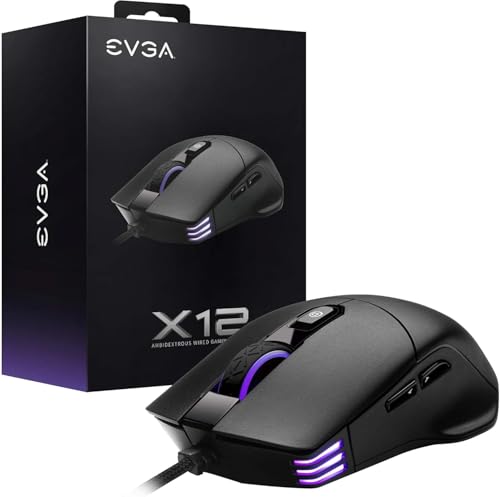
- Dual Sensor 2-Dimension Array Tech with Pixart 3389 optical sensor for precise tracking
- Native 8K Hz report rate (8x the standard 1K Hz) for the most responsive cursor movement available
Under $17 for a mouse with an 8,000 Hz polling rate and dual sensors? That’s absurd value. The EVGA X12 is ambidextrous (great for left-handed users), offers 8 programmable buttons, and lets you store 5 separate profiles. The 16,000 DPI sensor with Pixart 3389 tracking is the same sensor found in mice costing 3x more.
The 8K Hz polling rate is overkill for productivity, but it means this mouse will feel incredibly responsive for any task you throw at it. The ambidextrous design is a feature I rarely see at this price point. If you’re left-handed and have struggled to find a proper mouse, this one deserves a serious look. The only downside is that it’s wired, but at this price, you can’t complain.
Logitech G502 SE Hero (Best Overall for Productivity)
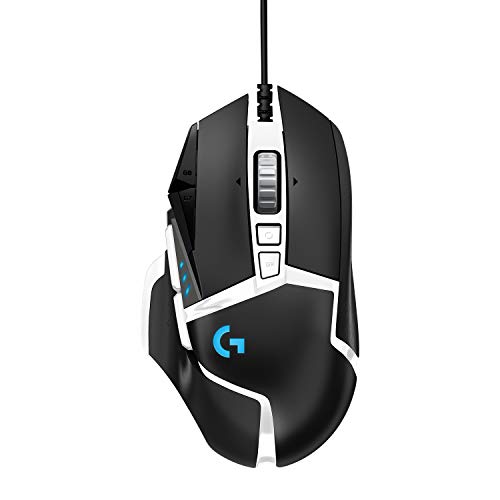
- HERO 16K sensor with up to 16,000 DPI for the ultimate in speed, accuracy, and responsiveness
- 11 customizable buttons with onboard memory to save up to 5 ready-to-play profiles directly on the mouse
If you want the single best gaming mouse for daily productivity work and don’t mind spending a bit more, it’s the G502 SE Hero. 11 programmable buttons, a 16K DPI sensor, adjustable weights, and onboard memory for 5 profiles. This mouse can handle every task you throw at it, from detailed design work to rapid multitasking across apps.
The dual-mode scroll wheel is my favorite feature. It clicks through notches for precise scrolling (like navigating a spreadsheet row by row), and you can unlock it for free-spinning mode to fly through long documents or web pages. That alone is worth the price. At $56, it’s the most expensive wired option on this list, but the build quality and feature set justify every dollar. If you’re setting up a home office, this is the mouse I’d pair with it.
Redragon M908 Impact (Best for Macro-Heavy Workflows)
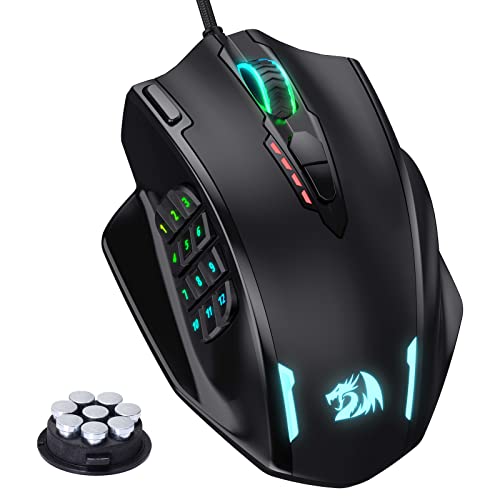
- Up to 12,400 DPI with 5 adjustable sensitivity levels for precision work and fast navigation
- 18 programmable buttons with 16.8 million RGB LED color options (backlight can be disabled)
12 side buttons. 18 programmable shortcuts total. If you run macro-heavy workflows in video editing, 3D modeling, or coding, the M908 Impact gives you a ridiculous number of one-click actions without ever touching the keyboard. I’ve seen video editors map their entire timeline control to this mouse and cut their editing time by 30%.
The ergonomic shape is surprisingly comfortable despite the button-heavy design. Redragon’s software lets you program complex macros (multi-step actions triggered by a single click), which is useful for repetitive tasks like batch file operations or formatting sequences. At $33, it’s a fraction of what you’d pay for a Corsair or Razer mouse with similar button counts. The RGB is flashy but fully customizable (and can be turned off).
T-DAGGER Wireless Gaming Mouse (Best Silent Option)
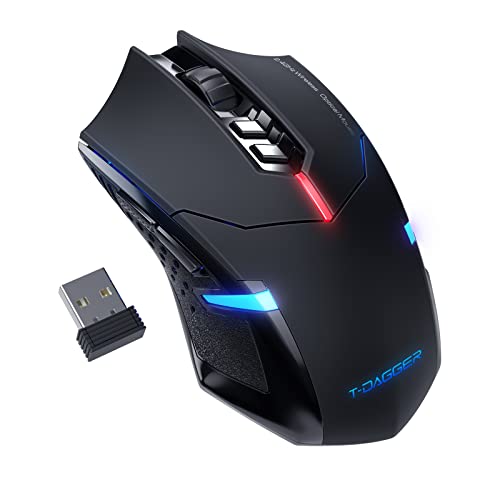
- Silent click design on left and right buttons, ideal for shared spaces and late-night work sessions
- 5 adjustable DPI levels with plug-and-play USB wireless, no driver installation needed
If you work in a shared space, a co-working office, or late at night while someone else is sleeping, the T-DAGGER’s silent click buttons are a genuine quality-of-life upgrade. The left and right buttons make virtually no noise. It’s wireless, plug-and-play (no software needed), and works with any PC or laptop out of the box.
At $17, you’re getting a wireless mouse with 7 buttons, 5 DPI levels, and an ergonomic shape. It’s not going to compete with the Logitech G305 on sensor quality or wireless latency, but it doesn’t need to. This is a reliable, quiet productivity mouse for people who value silence. I keep one at my bedside desk for late-night work sessions when I don’t want to wake anyone up.
Razer Orochi V2 (Best for Travel and Portability)
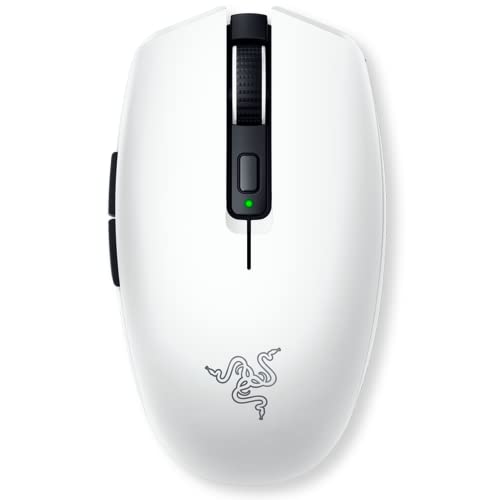
- Dual wireless modes: Bluetooth for battery efficiency and HyperSpeed wireless for lag-free performance
- Ultra-lightweight design with up to 950 hours of battery life, perfect for travel and on-the-go productivity
950 hours of battery life on Bluetooth. Let that number sink in. The Orochi V2 is Razer’s travel mouse, and it’s the one I throw in my bag whenever I’m working from a cafe, airport, or hotel. It’s incredibly light, compact enough to fit in a jeans pocket, and switches between Bluetooth (for battery savings) and HyperSpeed wireless (for responsiveness) with a flick of a switch.
The 18K DPI sensor is the same one Razer puts in their flagship mice, so you’re not sacrificing precision for portability. It runs on a single AA or AAA battery (AAA with an adapter for even lighter weight). If you travel with a laptop and hate using trackpads for real work, this is the mouse to carry. At $54, it’s not cheap for a compact mouse, but the battery life and build quality make it a buy-once solution.
Razer Viper Mini (Best Ultralight Wired Pick)
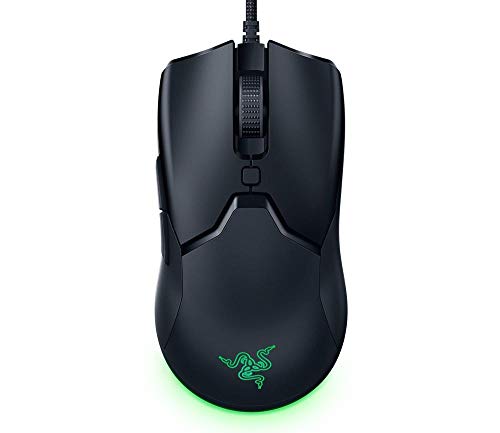
- Ultralight at just 61g, 10% smaller than the Razer Viper, with an 8500 DPI optical sensor
- Razer optical switches with light beam-based actuation, faster than traditional mechanical switches
At 61 grams, the Viper Mini feels like it’s barely there. If you have smaller hands or prefer a lightweight mouse that you can flick around with minimal effort, this is the one to get. Razer’s optical switches are faster than traditional mechanical switches because they use light-beam actuation instead of physical contact, which means zero debounce delay.
The 8,500 DPI sensor is more than sufficient for productivity work, and the drag-free cord (Razer calls it “Speedflex”) barely creates any resistance during use. 6 programmable buttons cover the essentials. At $70, it’s the priciest wired option here, and you’re paying a premium for the ultralight design and optical switches. If weight and speed are your top priorities, the Viper Mini delivers. For everyone else, the G502 SE Hero offers more features for less money.
Which Gaming Mouse Should You Buy?
Here’s my simple decision framework. If you want the cheapest possible upgrade from a standard mouse, get the Razer DeathAdder Essential at $21. If you want wireless without breaking the bank, the Logitech G305 at $30 is the best value per dollar I’ve found. For the best all-around productivity mouse with maximum buttons and features, go with the Logitech G502 SE Hero at $56.
If you travel frequently, the Razer Orochi V2 with its 950-hour battery life is the obvious choice. Need silence? T-DAGGER Wireless at $17. Want 18 programmable macros for heavy workflows? Redragon M908 Impact at $33. And for left-handed users or anyone who wants insane specs at a budget price, the EVGA X12 at $17 is hard to argue with.
The bottom line: you don’t need to be a gamer to benefit from a gaming mouse. The ergonomics, precision, durability, and customization make it the single best peripheral upgrade you can make for daily computer use. I made the switch years ago and I’m never going back.
Frequently Asked Questions
Is a gaming mouse worth it if I don’t play games?
Absolutely. The benefits of a gaming mouse, like ergonomic design, adjustable DPI, programmable buttons, and faster response times, apply to any computer task. I use mine exclusively for work (web development, writing, and project management) and the comfort and speed improvements are significant. You don’t need to be a gamer to justify the upgrade.
What DPI should I set my gaming mouse to for office work?
For most productivity tasks, 800 to 1,600 DPI is the sweet spot. This gives you precise control without the cursor flying across the screen. I keep mine at 800 DPI for writing and detailed work, and bump it up to 2,400 DPI when working across multiple monitors. The beauty of a gaming mouse is that you can switch DPI levels instantly with a button press.
Are wireless gaming mice as good as wired ones for daily use?
Yes, for productivity work. Modern wireless gaming mice from Logitech (LIGHTSPEED) and Razer (HyperSpeed) have latency that’s virtually identical to wired connections. You won’t notice any lag during normal computer use. The only trade-off is battery management, but most wireless gaming mice last 250 to 950 hours on a single charge or battery.
How many programmable buttons do I actually need for work?
For most people, 5 to 6 buttons are enough. You can map copy, paste, undo, back/forward, and one custom action. If you work in creative software (Photoshop, Premiere Pro, Blender) or run macro-heavy workflows, 8 to 12 buttons give you much more flexibility. Start with a 6-button mouse and upgrade if you find yourself wanting more shortcuts.
Can I use a gaming mouse with a Mac?
Most gaming mice work with macOS out of the box for basic functions (clicking, scrolling, side buttons as back/forward). However, not all companion software is available for Mac. Logitech G Hub has full Mac support, and Razer Synapse works on Mac too. Check the manufacturer’s compatibility list before buying if you need advanced button programming on macOS.
Will a gaming mouse help with wrist pain from long computer use?
It can help, but it’s not a cure. Gaming mice have ergonomic shapes with proper palm support, thumb rests, and textured grips that reduce strain compared to flat office mice. I noticed a significant improvement in wrist comfort after switching. That said, if you have persistent wrist pain, you should also look into an ergonomic keyboard, a proper desk height, and taking regular breaks.
How long do gaming mice typically last?
A quality gaming mouse lasts 3 to 5 years with heavy daily use. Most are rated for 10 to 70 million clicks depending on the switch type. My Logitech G305 has been going strong for over 3 years with no signs of wear. Compared to cheap office mice that typically fail within 6 to 12 months, a gaming mouse is a better long-term investment.
What’s the best gaming mouse under $30 for everyday productivity?
The Logitech G305 LIGHTSPEED at around $30 is the best option under $30. It’s wireless, has a 12,000 DPI sensor, 250 hours of battery life, and 6 programmable buttons. If you want wired and even cheaper, the Razer DeathAdder Essential at $21 is excellent. Both are reliable picks that outperform any standard office mouse at similar price points.