
Web Design Power Tips: The Complete Handbook for Building Sites That Actually Convert
I’ve built over 800 websites since 2009. Client sites, personal projects, WordPress builds, custom themes. And after all that work, I can tell you this: the difference between a site that converts visitors and one that just… exists? It comes down to about a dozen design decisions.
Not hundreds. Not “it depends.” A dozen.
This guide covers every single one. I’ve organized it like a book, chapter by chapter, because web design isn’t a checklist you rush through. Each principle builds on the last. Read it straight through the first time. Bookmark the chapters you need to revisit later.
No fluff, no generic “make it pretty” advice. Just what I’ve learned from building sites for brands like IBM, Adobe, HubSpot, and hundreds of smaller businesses who needed their website to actually do something.
Visual Simplicity
Every website gets exactly 3 seconds. That’s how long a first-time visitor takes to decide whether your site looks trustworthy or whether they’re hitting the back button. Three seconds. Not enough time to read your headline, definitely not enough to appreciate your “creative vision.”
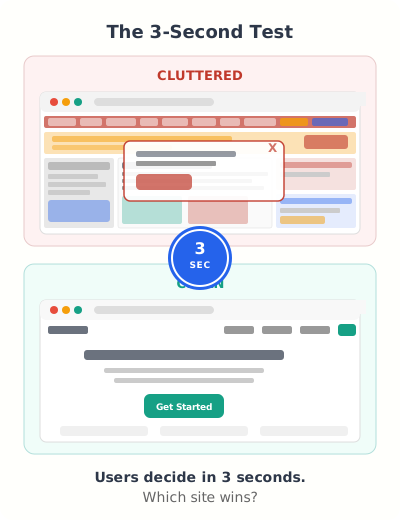
I learned this the hard way in my early freelancing days. I’d build these elaborate designs with gradients, multiple fonts, animations, and custom shapes everywhere. Clients loved the mockups. Visitors bounced in under 4 seconds. The lesson took me about two years and a dozen underperforming projects to internalize: complexity doesn’t impress anyone. Clarity does.
The 3-Second Test
Pull up your website on a phone. Hand it to someone who’s never seen it. Count to three. Then take it back and ask two questions: What does this site do? What should I click first?
If they can’t answer both, your design is too complicated. The fix isn’t adding more explanatory text. It’s removing everything that isn’t directly answering those two questions.
Removing vs. Adding
Most design problems aren’t solved by adding things. They’re solved by removing them. That sidebar widget you added “just in case”? Remove it. The three different call-to-action buttons competing for attention? Pick one. The stock photo that fills space but says nothing? Delete it.
I audit client sites regularly, and the pattern is always the same. The sites that convert best have the fewest elements on screen at any given time. Apple’s homepage typically shows one product, one headline, and one link. That’s not laziness. That’s discipline.
A Simple Design Audit
Open your homepage and ask yourself these questions about every single element:
Does this help the visitor understand what I offer?
If the element doesn’t communicate your value proposition, it’s noise.
Does this move them toward a specific action?
Every element should nudge the visitor closer to your primary CTA.
Would anyone miss this if I removed it?
If no, delete it. You’ll be surprised how much better the page looks with 30% less stuff.
The 3-second test is your reality check. If a stranger can’t tell what your site does and where to click within 3 seconds, strip it back. Remove elements until the answer is obvious.
Design Consistency
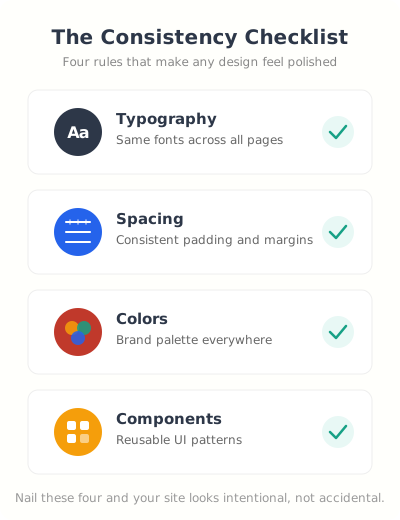
Consistency is the part of design that nobody notices when it’s done right and everybody notices when it’s wrong. You know that feeling when you click to a different page on a website and it looks like a completely different site? Different fonts, different spacing, different button styles. That’s a consistency failure, and it destroys trust faster than almost anything else.
Build a Typography System
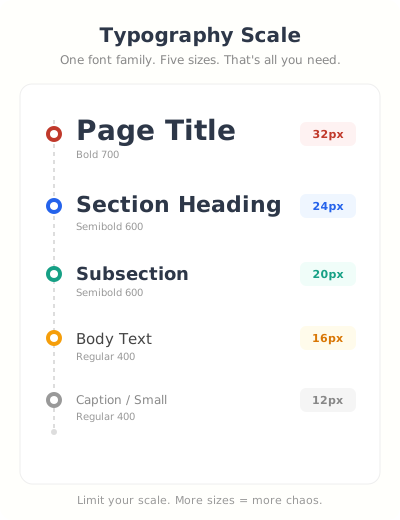
Pick one font family. Two at the absolute maximum, one for headings, one for body. Then define exactly five sizes and stick to them across every page. I use a scale like this: page title, section heading, subsection, body text, and caption. That’s it. No “slightly bigger for this special section” exceptions.
Every site I build with GeneratePress starts with this exact approach. One font family loaded from the system stack (no Google Fonts slowing things down), five defined sizes in the theme settings. It takes 10 minutes to set up and saves hours of design decisions later.
Spacing Rhythm
Use a base spacing unit and multiply it. I use 8px as my base. So all spacing in a design is 8px, 16px, 24px, 32px, 48px, or 64px. Nothing in between. This creates a visual rhythm that makes everything feel intentional even if visitors can’t articulate why.
Random spacing is the number one tell that a site was built by someone without design training. Fix the spacing, and a mediocre design starts looking professional.
Component Reuse
Every button should look the same. Every card should have the same border radius, padding, and shadow. Every form field should have identical styling. When you reuse components consistently, your site feels like one cohesive product instead of a collection of random pages stitched together.
Typography That Works
Typography isn’t about picking a “cool” font. It’s about readability, hierarchy, and making sure people actually consume the content you worked so hard to create. I’ve seen gorgeous websites with unreadable text. Thin gray fonts on white backgrounds. Decorative scripts for body copy. Headings that are the same size as paragraphs.
Good typography is invisible. The reader focuses on the words, not the font. If you notice the typeface, the designer failed.
Font Pairing That Works Every Time
If you’re not a designer, don’t try to get creative with font pairing. Use a system font stack: -apple-system, BlinkMacSystemFont, Segoe UI, Roboto, sans-serif. It’s already on every device, loads instantly (zero font files to download), and looks clean on every screen.
If you want a custom look, pair one display font for headings with a system font for body text. That’s as creative as you need to get. I’ve tested this on dozens of client sites. Nobody has ever complained that the body font was “boring.” They just read the content, which is the whole point.
Size and Line Height
Body text should be 16px minimum on desktop and 18px on mobile. Anything smaller and you’re asking people to squint. Line height should be 1.5 to 1.6 for body copy and 1.1 to 1.2 for headings. These aren’t suggestions. These are the numbers that consistently test best for readability.
Line length matters too. Keep paragraphs between 50 and 75 characters wide. That’s about 600-700px on desktop. Wider than that and the eye loses its place jumping to the next line. This is why full-width text blocks on wide monitors are painful to read.
Web Font Performance
Every custom font you load adds 20-100KB to your page weight and creates a render-blocking request. Two fonts with three weights each? That’s potentially 600KB of font files before your content even appears.
If you must use custom fonts, use font-display: swap so text appears immediately in a fallback font while the custom font loads. Better yet, subset your fonts to include only the characters you actually use. A full Google Font file includes Cyrillic, Greek, Vietnamese, and other character sets you probably don’t need.
Visual Media
Images and videos are the heaviest elements on any webpage. They’re also the most important for engagement. Getting this balance right, using strong visuals without destroying your load time, is one of the core skills of modern web design.
Choosing the Right Images for Web Design
Stock photos of people shaking hands in front of a whiteboard don’t help anyone. Your visitors have seen those images a thousand times and their brains filter them out completely. Use original photos when possible. Screenshots of your actual product. Real team photos, even imperfect ones. Diagrams that explain your process.
If you must use stock photos, pick ones that feel candid rather than staged. Sites like Unsplash have decent options, but you need to scroll past the first page of results because everyone else uses those top photos too.
Image Formats in 2026
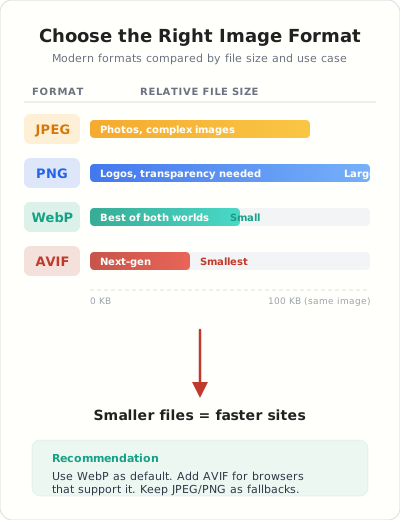
Stop uploading JPEG and PNG files directly. Convert everything to WebP, which gives you 25-35% smaller files with identical visual quality. If your audience uses modern browsers (and over 97% do), WebP is the default choice.
AVIF is even better, cutting file sizes by 50% compared to JPEG, but browser support is at about 93%. I use WebP as the standard and AVIF as a progressive enhancement through my CDN.
For logos and icons, use SVG. They scale perfectly to any screen size, the files are tiny, and you can style them with CSS.
For creating custom graphics, diagrams, and social images without hiring a designer, Canva is hard to beat. I use it for blog graphics, comparison charts, and quick social media visuals. The free tier covers most needs, but Pro gives you background removal and brand kit features that save real time.
Video Strategy
Don’t self-host videos. Ever. Use YouTube or Vimeo embeds, and lazy-load them so they don’t block your page from rendering. A single self-hosted video can add 5-50MB to your page weight. An embed adds about 500 bytes until the user clicks play.
Better yet, use a facade pattern: show a static thumbnail image that looks like a video player. Only load the actual YouTube iframe when someone clicks on it. This alone can save 500KB-1MB of JavaScript on pages with embedded videos.
Whitespace and Layout
Whitespace isn’t wasted space. It’s the single most powerful design tool you have, and the one most people are afraid to use. Clients see whitespace and think “why is there nothing there? We’re paying for the whole page!” But whitespace is what makes the content that IS there actually visible.
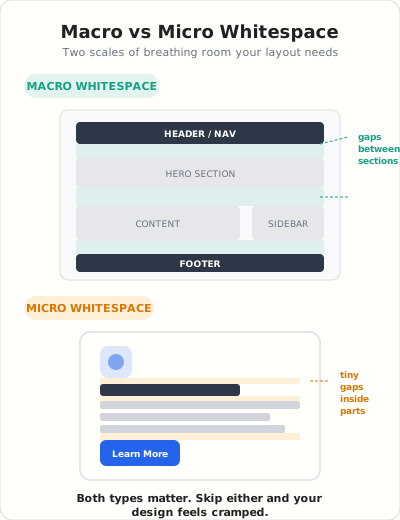
Macro vs. Micro Whitespace
Macro whitespace is the space between major sections. The gap between your header and your first content block. The margins around your main content area. The breathing room between your footer and the content above it. This should be generous, 48px to 96px typically.
Micro whitespace is the space within components. The padding inside a button. The gap between a heading and its paragraph. The space between list items. This should be consistent and proportional, usually 8px to 24px.
Most sites get macro whitespace somewhat right but completely botch micro whitespace. Text jammed right up against card borders. Buttons where the text is touching the edges. Headings that are closer to the paragraph above them than the content below. These small spacing failures make an otherwise decent design feel cheap.
Grid Systems
Use a grid. Not necessarily a visible one, but a consistent underlying structure. A 12-column grid is the industry standard because 12 divides evenly by 2, 3, 4, and 6, giving you maximum layout flexibility.
CSS Grid makes this trivial now. A simple display: grid; grid-template-columns: repeat(12, 1fr); gives you a professional layout foundation in one line of code. I use this on every project.
Content Density Balance
Aim for about 40-60% content density on any given screen. That means 40-60% of visible space contains content, and the rest is whitespace. Landing pages should be on the lower end (more whitespace, more breathing room). Blog posts and documentation can be on the higher end (more content density, less wasted scrolling).
Color Strategy
Color is where most self-taught designers go wrong. Not because they pick ugly colors, but because they pick too many and use them without a system. A well-designed site with three colors will always look better than a chaotic site with eight.
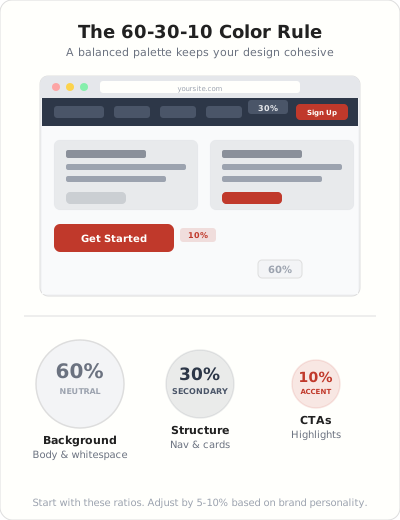
The 60-30-10 Rule
Interior designers have used this for decades, and it works just as well for websites. 60% of your design should be a neutral color (white, light gray, or your background color). 30% should be your secondary color (used for navigation, cards, headers, and structure). 10% should be your accent color (used for CTAs, important links, and things you want people to click).
This ratio creates visual hierarchy automatically. The 10% color pops because it’s rare. If everything is your brand color, nothing stands out.
Contrast Ratios for Accessibility
Your text needs a contrast ratio of at least 4.5:1 against its background. That’s not a design preference. That’s a WCAG guideline, and failing it means a significant portion of your audience literally cannot read your content.
Light gray text on a white background fails this. That trendy thin font in a soft color? Fails. Use a contrast checker (WebAIM has a free one) and test every text/background combination on your site. You’ll be surprised how many “stylish” designs are actually unreadable for people with even mild visual impairments.
If you want to see the 60-30-10 rule done well, look at sites built with Webflow. Their showcase gallery is full of examples where designers nail this ratio. It’s also a solid visual builder if you’re not locked into WordPress.
Dark Mode Considerations
Dark mode isn’t just “invert the colors.” Pure white text on pure black backgrounds creates harsh contrast that causes eye strain. Use off-white (#E0E0E0 or similar) on dark gray (#1A1A2E or similar) instead. And make sure your images, especially logos and diagrams, have transparent backgrounds or dark-mode variants so they don’t look like bright rectangles floating in a dark sea.
Navigation and Intuitive UX
If your visitors can’t find what they’re looking for in two clicks, your navigation has failed. It doesn’t matter how beautiful your homepage is or how compelling your copy. A confused visitor is a gone visitor.
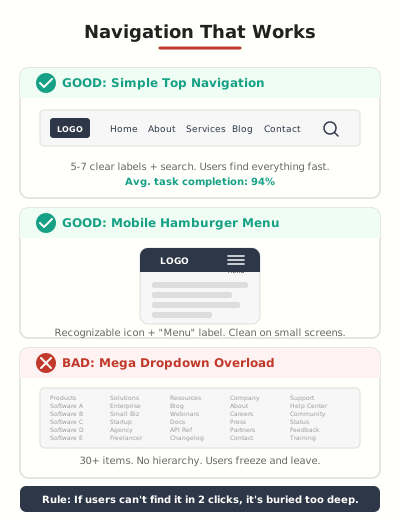
Menu Patterns That Work
Keep your primary navigation to 5-7 items maximum. Research consistently shows that users struggle to process menus with more than 7 options. If you have more pages than that, group them into logical dropdown categories.
And please, label your menu items clearly. “Solutions” means nothing. “Products” means nothing. “Pricing,” “Features,” “Blog,” “Contact,” these tell me exactly what I’ll find when I click. Don’t sacrifice clarity for cleverness.
Search Placement
If your site has more than 20 pages of content, add a search bar. Put it in the header, top right corner, where users expect it. Don’t hide it behind an icon that requires a click to expand. For content-heavy sites (blogs, documentation, e-commerce), search is the most-used navigation element after the homepage link.
Mobile Navigation
The hamburger menu (three horizontal lines) is universally understood at this point. Use it for mobile. But don’t put your most important CTA behind the hamburger. Keep your primary action button visible in the mobile header at all times, even when the menu is collapsed.
I’ve seen conversion rates increase 15-20% just by moving the main CTA out of the hamburger menu and into the fixed mobile header. Such a small change, but it makes sense. Out of sight, out of mind.
Breadcrumbs
For sites with more than two levels of hierarchy, use breadcrumbs. They help users understand where they are, give them a quick way to go back, and they’re great for SEO because they create logical internal link paths. WordPress with a good SEO plugin handles breadcrumb markup automatically.
What frustrates you most about website navigation?
Content Strategy for Websites
Design without content strategy is just decoration. Every visual decision should serve the content, and the content should be organized to guide visitors toward a specific action. Pretty pages with no clear purpose are just expensive business cards.
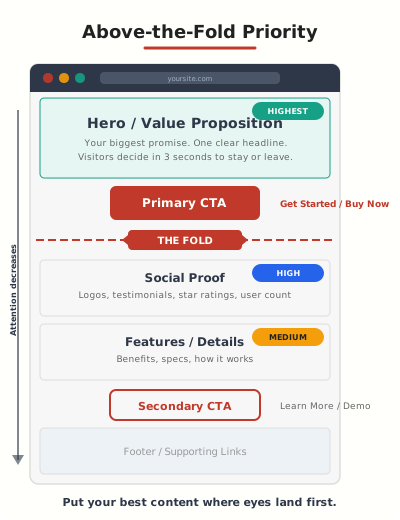
Above-the-Fold Hierarchy
“The fold” is the bottom of the visible screen before scrolling. And while people definitely scroll (the “nobody scrolls below the fold” myth died years ago), what appears above the fold still gets 80% of viewer attention.
Your above-the-fold content should answer three questions: What is this? Who is it for? What should I do next? That means a clear headline, a one-sentence supporting statement, and a visible call-to-action button. Everything else can go below.
Scannable Content Patterns
Nobody reads web pages word by word. Eye-tracking studies from the Nielsen Norman Group show people scan in an F-pattern: across the top, down the left side, and across again for anything that catches their eye.
Design for this reality. Put your most important information in the first two lines. Use descriptive headings that communicate value even when skimmed. Break up text with bullet points, bold key phrases, and short paragraphs. A wall of text is the fastest way to lose a reader.
CTA Placement
You need one primary CTA per page. Not three. Not five. One clear action you want the visitor to take. Secondary actions are fine, but they should be visually subdued, a text link or a ghost button, not competing with your primary CTA for attention.
Place your primary CTA above the fold and repeat it at the bottom of the page. Long pages can have a mid-page CTA too. But the style, text, and destination should be consistent every time it appears.
Performance and Speed
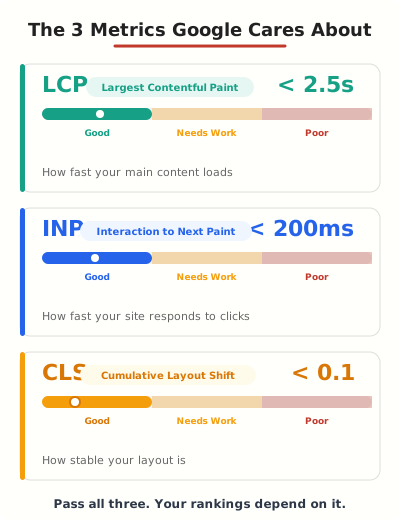
A one-second delay in page load time reduces conversions by 7%. That’s not a theory. That’s from Google’s own research. And starting in 2021, Google made page speed a direct ranking factor through Core Web Vitals. Your site’s speed isn’t just a user experience issue anymore. It directly affects whether Google shows your pages in search results.
Core Web Vitals Explained
Three metrics matter:
LCP (Largest Contentful Paint) measures how fast your main content loads. Target: under 2.5 seconds. The biggest killers here are unoptimized hero images, render-blocking JavaScript, and slow server response times.
INP (Interaction to Next Paint) measures how quickly your site responds when someone clicks, taps, or types. Target: under 200 milliseconds. Heavy JavaScript frameworks and unoptimized event handlers are the usual culprits.
CLS (Cumulative Layout Shift) measures how much your layout jumps around as the page loads. Target: below 0.1. Ads that push content down, images without defined dimensions, and fonts that load late and resize text cause this.
The Performance Stack I Use
After testing dozens of optimization setups, here’s what I run on my own sites and recommend to clients:
- FlyingPress for page caching, CSS/JS optimization, and image lazy loading. It handles more in one plugin than most sites need three plugins for.
- Cloudways managed hosting for server-level speed. Their Vultr High Frequency plan gives you NVMe storage and a fast TTFB right out of the box.
- Cloudflare free tier for CDN, DNS, and basic security. The free plan is genuinely good enough for most sites.
This stack consistently delivers sub-2-second load times on the sites I manage. No exotic tweaks required.
On a budget? SiteGround gives you solid shared hosting with built-in caching and a CDN. It’s what I recommend to beginners who aren’t ready for managed cloud hosting yet.
If you prefer a set-it-and-forget-it approach, WP Rocket is the easier option. Less configuration, still solid results. I recommend it to clients who don’t want to touch settings. For maximum performance, FlyingPress edges it out, but WP Rocket gets you 80% of the way with half the effort.
Quick Wins
If you do nothing else, do these three things: set explicit width and height on all images (fixes CLS), enable browser caching with far-future expiry headers, and defer non-critical JavaScript. These three changes alone can cut your load time by 40-60% on a typical WordPress site.
Mobile-First Design
63% of all web traffic comes from mobile devices. That number has been climbing for years and it’s not going back down. If you’re designing for desktop first and then “making it responsive,” you’re doing it backwards.
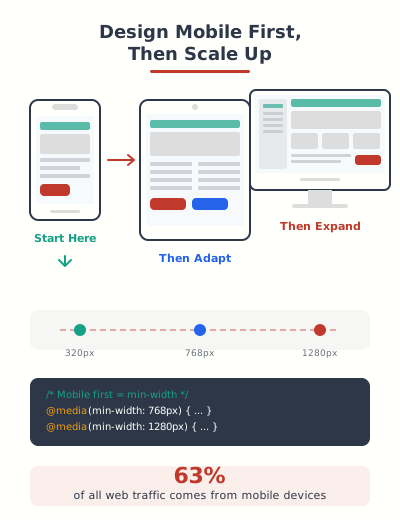
Mobile-first design means starting with the smallest screen and adding complexity as screen size increases. Not removing features from desktop to make it fit on mobile.
Touch Targets
Buttons and links need to be at least 44×44 pixels on mobile. That’s Apple’s Human Interface Guideline, and Google recommends the same. Anything smaller and you’re making people with average-sized fingers play a frustrating game of precision tapping.
This applies to nav links, form labels, checkboxes, and any interactive element. I see sites all the time where the desktop nav links are 12px text with 5px padding. On mobile, those become impossible to tap accurately.
Mobile Typography
Bump your body font to 18px on mobile. Screens are closer to your face on phones, but the display is smaller, so slightly larger text actually feels right. Reduce heading sizes proportionally. A 48px desktop heading should be 28-32px on mobile.
And increase line height slightly too. 1.6 to 1.7 for mobile body text gives enough breathing room between lines when reading on a small screen.
Testing Across Devices
Chrome DevTools device emulation is a decent starting point, but it doesn’t catch everything. Real device testing catches touch interaction bugs, font rendering differences, and performance issues that emulators miss.
At minimum, test on: an iPhone (Safari), an Android phone (Chrome), and an iPad (Safari). These three cover about 95% of your mobile audience. BrowserStack gives you access to real devices in the cloud if you don’t have them physically.
Set image dimensions (fixes CLS). Enable caching with far-future headers. Defer non-critical JS. Convert images to WebP. Use a CDN. These five changes handle 80% of performance issues on most sites.
Accessibility
96.3% of homepages have detectable accessibility failures. That stat is from WebAIM’s annual audit of the top million websites. Almost every site fails. And those failures aren’t exotic edge cases. They’re basic problems: low contrast text, missing alt text, broken keyboard navigation.
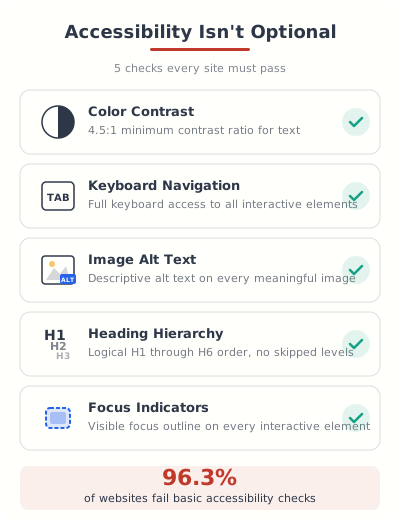
Accessibility isn’t a nice-to-have feature you add at the end. It’s a design requirement from the start. And beyond being the right thing to do, it’s increasingly a legal requirement. ADA lawsuits against websites have been climbing every year.
Color Contrast
WCAG 2.1 requires a minimum 4.5:1 contrast ratio for normal text and 3:1 for large text. Test every text and background combination. I mentioned this in the color chapter, but it’s worth repeating here because it’s the most common accessibility failure on the web.
Keyboard Navigation
Tab through your entire site without using a mouse. Can you reach every link, button, and form field? Can you tell where the focus is at all times? Can you open and close menus? Can you submit forms?
If the answer to any of those is no, fix it. Add visible focus indicators (a colored outline around the focused element), make sure your tab order follows the visual layout, and ensure all interactive elements are reachable.
Alt Text and Semantic HTML
Every image needs alt text. Not “image-1.jpg.” Not “photo.” A brief description of what the image shows and why it’s relevant. If it’s decorative and adds no information, use alt="" so screen readers skip it.
Use semantic HTML elements: <nav> for navigation, <main> for primary content, <article> for self-contained content, <aside> for supplementary content. Screen readers use these landmarks to help users jump to different sections of your page. A page built entirely with <div> elements is a wall of nothing to a screen reader.
Heading Hierarchy
Use one H1 per page. Follow it with H2s for major sections, H3s for subsections, and so on. Never skip levels (don’t jump from H2 to H4). Screen reader users navigate by heading level to understand page structure. A proper heading hierarchy is essentially a table of contents for assistive technology.
Conversion-Focused Design
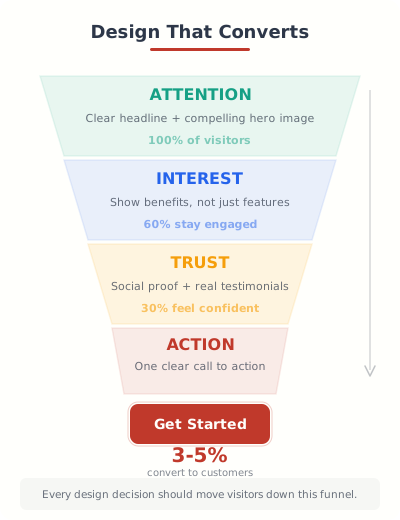
Everything in the previous eleven chapters builds toward this one. A site that’s simple, consistent, fast, accessible, and mobile-friendly is a site that’s ready to convert visitors into customers. But there are a few specific design patterns that push conversion rates even higher.
Trust Signals
People buy from sites they trust. And trust on the web is built through visual cues: client logos, testimonial quotes with real names and photos, security badges on checkout pages, specific numbers (“served 12,000 customers” is more believable than “thousands of happy clients”), and professional design that shows you’ve invested in your business.
Place trust signals near your CTAs. A testimonial right above the “Sign Up” button reduces hesitation more than any amount of feature description.
Form Design
Every additional form field reduces your conversion rate by roughly 5-10%. I’ve tested this across dozens of client sites. A 3-field form (name, email, message) consistently converts 2-3x better than a 7-field form asking for phone, company, job title, and budget range.
Ask for the minimum you need to move the conversation forward. You can always collect more information later. The hardest part is getting that first submission.
CTA Psychology
Your CTA button text matters more than its color. “Get Started Free” outperforms “Submit” by 20-30% in every test I’ve seen. Use action-oriented text that tells the user what they’ll get, not what they’re giving you. “Download the Guide” beats “Submit Form.” “Start My Free Trial” beats “Sign Up.”
Make your CTA button visually distinct. It should be the only element on the page using that specific color. This goes back to the 60-30-10 rule from Chapter 6. Your CTA color is the 10%.
Your CTA button text matters more than its color. “Get Started Free” outperforms “Submit” by 20-30% in every test I’ve seen.
Landing Page Patterns
The highest-converting landing pages I’ve built all follow the same structure: headline that states the benefit, supporting sentence with a specific proof point, hero image or short video, primary CTA, three to four feature blocks with icons, a testimonial section, pricing (if applicable), and a final CTA.
That’s the template. I’ve built dozens of sites using this exact pattern. It works for SaaS, for services, for e-commerce. The specific content changes, but the structure stays the same.
Design: Canva for graphics, Figma for prototypes
Theme: GeneratePress + GenerateBlocks
Performance: FlyingPress (primary) or WP Rocket (easier)
Hosting: Cloudways (advanced) or SiteGround (beginners)
Accessibility: WAVE browser extension + Lighthouse
Testing: Chrome DevTools + BrowserStack
The bottom line: Good web design isn’t about making things look pretty. It’s about making things work. Every chapter in this guide connects back to one question: does this design decision help the visitor accomplish what they came here to do? If the answer is yes, keep it. If the answer is no, cut it. That discipline is what separates professional sites from amateur ones.
Performance tip: Don’t try to fix everything at once. Pick the three chapters where your site has the biggest gaps. Fix those first. Then come back for the next three. Incremental improvement beats a massive redesign that never ships.
Simplify your design. Use one font, three colors (60-30-10), and generous whitespace. Optimize for mobile first. Hit all three Core Web Vitals. Make it accessible. Test every CTA. These dozen decisions determine whether your site converts or just exists.
What is the most important web design principle?
Visual simplicity. If your site confuses visitors in the first 3 seconds, nothing else matters. Start by removing clutter, establishing a clear visual hierarchy, and making your primary call-to-action obvious. Every other design principle builds on this foundation.
How many fonts should I use on my website?
One font family is ideal. Two at the absolute maximum: one for headings and one for body text. Using more than two fonts creates visual chaos and slows down your page. System font stacks like -apple-system give you clean typography with zero loading overhead.
What image format should I use for my website in 2026?
WebP is the standard choice with 97%+ browser support and 25-35% smaller files than JPEG. Use SVG for logos and icons. AVIF is even smaller but has about 93% browser support, so use it as a progressive enhancement through your CDN or hosting provider.
What is the 60-30-10 color rule in web design?
The 60-30-10 rule means 60% of your design uses a neutral background color, 30% uses your secondary/structural color, and 10% uses your accent color for CTAs and highlights. This ratio creates natural visual hierarchy and ensures your important elements stand out.
How fast should my website load?
Your Largest Contentful Paint (LCP) should be under 2.5 seconds, Interaction to Next Paint (INP) under 200 milliseconds, and Cumulative Layout Shift (CLS) below 0.1. These are Google’s Core Web Vitals thresholds and directly affect your search rankings.
What is mobile-first design and why does it matter?
Mobile-first design means designing for the smallest screen first, then adding complexity for larger screens. It matters because 63% of web traffic comes from mobile devices and Google uses mobile-first indexing, meaning your mobile site is what Google evaluates for search rankings.
How do I check if my website is accessible?
Start by tabbing through your entire site with a keyboard only. If you can reach and activate every link, button, and form field, you have the basics covered. Then use a tool like WAVE or Lighthouse to check contrast ratios, missing alt text, and heading hierarchy. 96.3% of websites fail basic accessibility checks, so even small improvements put you ahead.
What makes a high-converting landing page?
The highest-converting landing pages follow this structure: benefit-focused headline, supporting proof point, hero image or video, primary CTA, 3-4 feature blocks, testimonials, pricing if applicable, and a final CTA. Keep form fields to a minimum (3 fields converts 2-3x better than 7) and use action-oriented button text like “Get Started Free” instead of “Submit.”
Disclaimer: This site is reader-supported. If you buy through some links, I may earn a small commission at no extra cost to you. I only recommend tools I trust and would use myself. Your support helps keep gauravtiwari.org free and focused on real-world advice. Thanks. - Gaurav Tiwari
Pretty much helpful.
Thanks!
Pretty much helpful.
Thanks!