
10 Ideas to Make WordPress Blogs SEO Friendly
WordPress handles the basics. Clean HTML output, proper heading hierarchy, pingback support, RSS feeds. It’s a solid foundation. But running WordPress doesn’t mean Google will rank your site. I’ve built hundreds of WordPress sites over the past 16 years, and the gap between “SEO-friendly” and “actually ranking” is where most people get stuck.
The default WordPress install scores maybe a 4 out of 10 on SEO readiness. The permalink structure is wrong. There’s no schema markup. No sitemap configuration beyond what your SEO plugin auto-generates. No image optimization pipeline. And the theme you picked? It’s probably loading 400KB of CSS you don’t need.
I’m going to walk you through the ten changes that actually move rankings. Not theory. Not “SEO tips” recycled from 2015. These are the specific configurations and decisions that separate WordPress sites stuck on page 3 from those pulling organic traffic consistently.
Fix Your Permalink Structure First
WordPress ships with “Plain” permalinks enabled. Your URLs look like ?p=123. That tells Google nothing about what the page contains, and it tells your visitors even less.
Go to Settings > Permalinks and switch to “Post name.” Your URLs become /seo-friendly-wordpress/ instead of /?p=7858. This single change does two things: it puts your target keyword in the URL (a confirmed ranking signal), and it makes your links readable when shared on social media or in emails.
If your site has been live for more than a few weeks with a different permalink structure, changing it will break every existing URL. Set up 301 redirects before making the switch, or use a plugin like Redirection to handle it automatically. I’ve seen sites lose 40% of their traffic overnight from a careless permalink change.
Keep your slugs short. Strip out stop words. /how-to-make-your-wordpress-blog-seo-friendly-in-2026/ is worse than /seo-friendly-wordpress/. Shorter URLs correlate with higher rankings in every study I’ve seen, and they’re easier to remember.
Pick the Right SEO Plugin (and Actually Configure It)
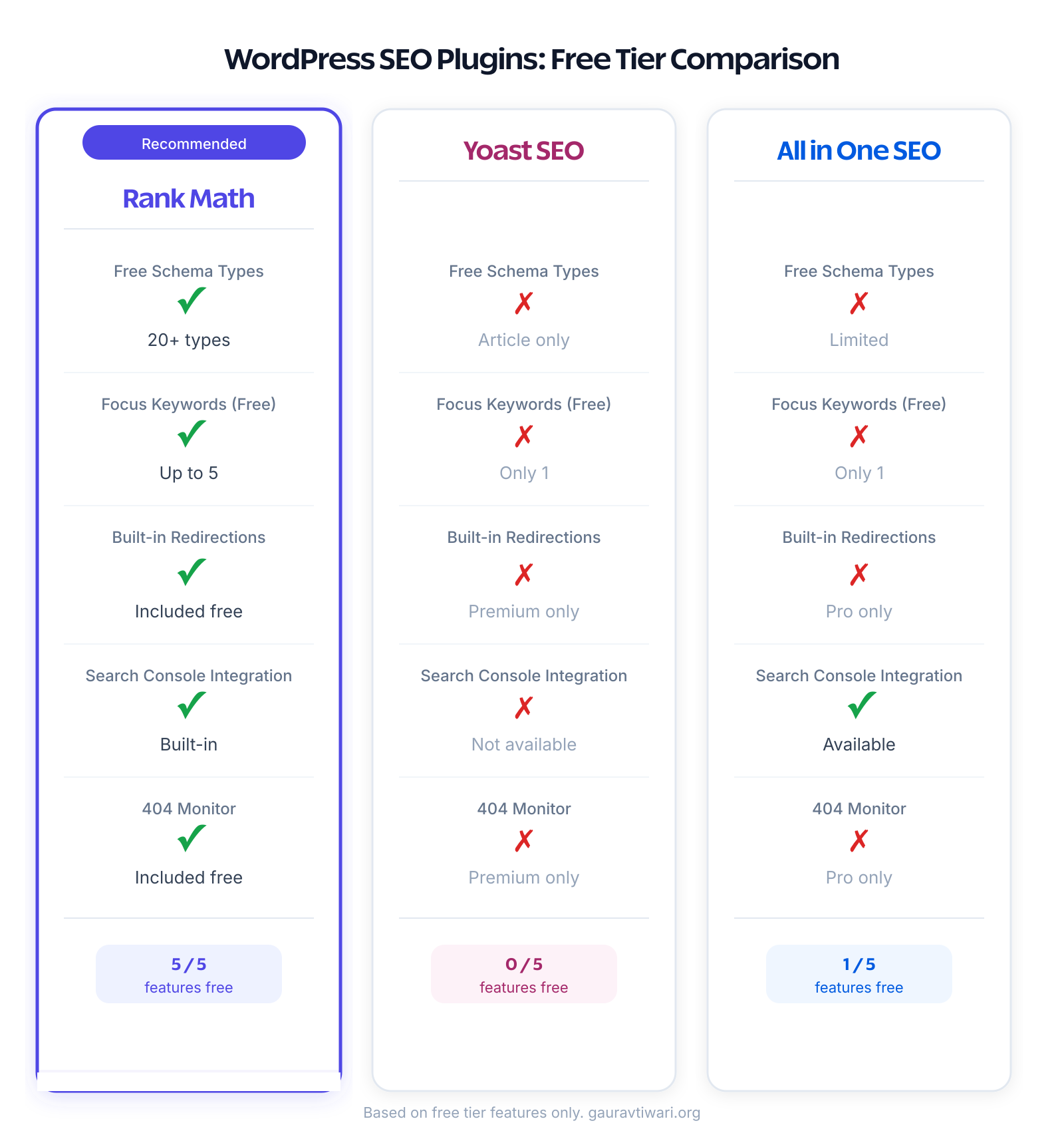
WordPress doesn’t ship with meta description fields, schema markup, or sitemap generation. You need an SEO plugin to fill those gaps. The three serious options are Rank Math, Yoast SEO, and All in One SEO.
I use Rank Math on every site I manage. It handles structured data better than either alternative, the content analysis is more useful than Yoast’s traffic-light system, and the free version includes features that Yoast charges $99/year for (like multiple focus keywords and advanced schema types). That’s not a knock on Yoast. It works. But Rank Math gives you more control without paying for it.
Whichever plugin you choose, don’t just install it and forget. Walk through every settings tab. The defaults are conservative. You’ll want to:
- Set your homepage title tag and meta description manually
- Configure your default title tag pattern for posts and pages
- Enable breadcrumb markup (Google uses this in search results)
- Set “noindex” on tag archives, author archives if you’re a solo blogger, and any thin taxonomy pages
- Connect Google Search Console directly through the plugin
That last point matters more than people realize. Your SEO plugin can submit your sitemap, pull search performance data, and flag indexing issues, but only if you’ve connected the APIs.
Choose a Theme That Doesn’t Sabotage Your Speed
Your WordPress theme controls your HTML structure, your CSS weight, your JavaScript load, and your Core Web Vitals scores. A bad theme choice will cap your performance ceiling no matter what else you do.
I’ve tested dozens of themes over the years. The pattern is consistent: multipurpose themes with built-in sliders, mega menus, and “300+ demo sites” load 2-4x more CSS and JavaScript than lightweight alternatives. That extra weight directly hurts your Largest Contentful Paint (LCP) score, which Google uses as a ranking signal.
My recommendation? GeneratePress. It outputs about 30KB of CSS total. The HTML is clean and semantic. It scores 98-100 on PageSpeed Insights with zero optimization. I’ve used it on my own sites and for client projects for years. The block theme version (GeneratePress Block Theme) takes it even further by eliminating jQuery entirely.
If GeneratePress isn’t your style, look for these signals in any theme:
- Total CSS under 100KB (check with Chrome DevTools)
- No jQuery dependency (modern WordPress doesn’t need it)
- Proper heading hierarchy in templates (H1 on page title, H2s for sections)
- Schema.org markup in header and footer
- No render-blocking JavaScript in the document head
Get Your Core Web Vitals Under Control
Google has been explicit: page experience signals affect rankings. Core Web Vitals are the measurable part of that. You need to pass three thresholds:
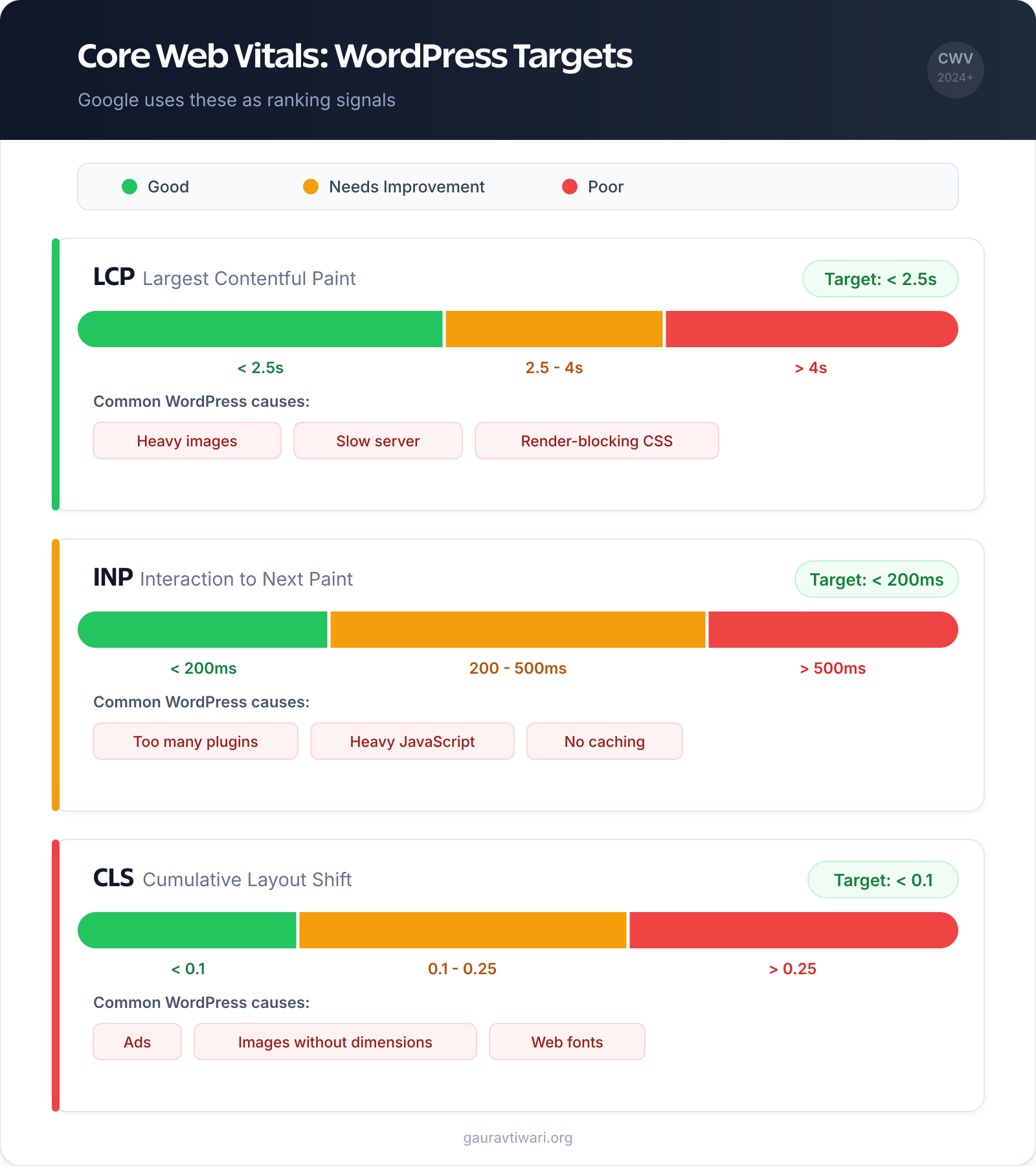
- LCP (Largest Contentful Paint): Under 2.5 seconds. This is how fast your main content loads.
- INP (Interaction to Next Paint): Under 200 milliseconds. This replaced FID and measures how responsive your page is to clicks and taps.
- CLS (Cumulative Layout Shift): Under 0.1. This measures how much your layout jumps around while loading.
WordPress sites fail CWV for predictable reasons. Too many plugins. Unoptimized images. Render-blocking CSS from themes with 15 Google Fonts loaded. No caching layer.
The fix stack I use on every site:
- Caching plugin: FlyingPress generates static HTML, optimizes CSS delivery, and handles JavaScript deferral. I’ve seen sites go from 4-second LCP to under 1.5 seconds with FlyingPress alone. If budget is a concern, WP Rocket is a solid alternative.
- Image optimization: ShortPixel compresses and converts images to WebP/AVIF automatically. This typically cuts image sizes by 60-80%.
- Asset cleanup: Perfmatters disables unnecessary scripts on pages where they aren’t needed. That contact form plugin loading its JavaScript on every single page? Perfmatters kills it everywhere except your contact page.
Run PageSpeed Insights on your homepage and your most-visited post. If either scores below 80 on mobile, you’ve got work to do. Check my guide on WordPress caching plugins for a deeper comparison.
Set Up Schema Markup (Structured Data)
Schema markup tells Google what your content actually is. Is this page a blog post, a product review, a recipe, or a FAQ? Without schema, Google guesses. With it, you get rich results: star ratings, FAQ dropdowns, how-to steps, breadcrumbs, and more showing up directly in search results.
Rich results don’t directly improve your ranking position. But they dramatically increase click-through rates. A search result with FAQ schema and star ratings takes up 3x more screen space than a plain blue link. More clicks at the same position means more traffic.
If you’re using Rank Math, schema is built in. For every post, you can set the schema type (Article, HowTo, FAQ, Product, etc.) right in the editor. For FAQ schema specifically, I use an ACF accordion block that outputs the JSON-LD automatically. Check my guide on adding FAQ schema in WordPress for the full setup.
The schema types that matter most for bloggers:
- Article: Should be on every blog post. Includes author, date published, date modified.
- FAQ: Add to any post with a FAQ section. Google may display these as expandable answers in search results.
- HowTo: For step-by-step tutorials. Google can display these as visual step cards.
- Breadcrumb: Shows your site hierarchy in search results. Helps both users and Google understand your site structure.
Validate your markup with Google’s Rich Results Test after adding schema to any page. Broken schema is worse than no schema because it can trigger manual actions.
Build an Internal Linking System
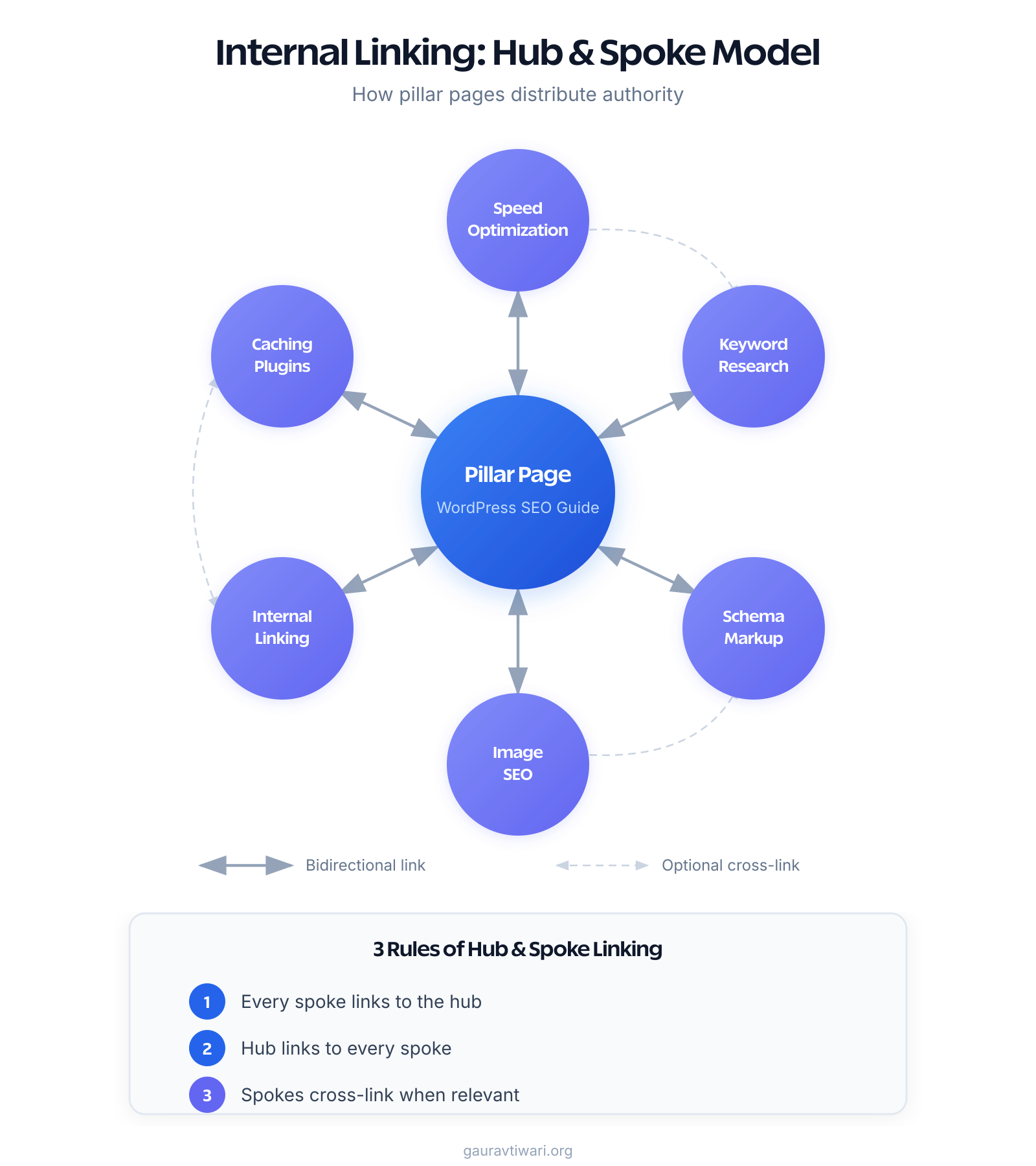
Internal links are the most underrated SEO lever in WordPress. They distribute page authority across your site, help Google discover and index new content, and keep readers engaged longer. I’ve seen internal linking improvements alone move posts from position 12 to position 5 within weeks.
The strategy isn’t complicated, but it requires discipline:
- Hub and spoke model: Pick your most important pages (your “hubs”). Every related post should link back to the hub, and the hub should link out to all the spokes. My keyword research guide links to every tool review and SEO tutorial I’ve written. Those posts all link back to it.
- 3-5 internal links per post: Every new article should reference 3-5 existing posts with natural anchor text. Not keyword-stuffed. Natural.
- Update old posts: When you publish something new, go back and add links from 3-5 older, related posts. This is the step most people skip, and it’s the one that matters most.
- Use descriptive anchor text: “click here” tells Google nothing. “WordPress caching plugins” tells Google exactly what the linked page covers.
Audit your internal links quarterly. Posts that have zero incoming internal links are “orphans.” Google treats them as low-priority content. I run a crawl every 3 months to find and fix orphaned posts. It takes an hour and consistently improves indexing within a week.
Optimize Every Image Before Uploading
Images are usually the heaviest assets on a WordPress page. An unoptimized PNG screenshot can easily be 2MB. Multiply that across 8-10 images per post, and you’ve got a page that takes 6 seconds to load on a mobile connection.
The optimization pipeline I use:
- Resize before uploading: No image on a blog post needs to be wider than 1200px. Most content areas are 700-800px wide. Resize to 2x your content width at most.
- Compress with ShortPixel: ShortPixel runs lossy compression that reduces file sizes by 60-80% with zero visible quality loss. It also generates WebP and AVIF versions automatically.
- Use next-gen formats: WebP is supported by every modern browser. AVIF is even smaller but has slightly less support. Serve WebP with AVIF as a progressive enhancement.
- Lazy load everything below the fold: WordPress has native lazy loading since version 5.5. Make sure your theme isn’t disabling it. The
loading="lazy"attribute defers image loading until users scroll near them. - Always add alt text: Every image needs descriptive alt text. Not keyword-stuffed. Describe what the image shows. Google Image Search drives real traffic, and alt text is how Google understands your images.
One thing I see constantly: people upload full-resolution photos from their phone (4000x3000px, 5MB each) directly to WordPress. Don’t do this. WordPress generates multiple sizes on upload, but the original still sits on your server eating storage, and some themes serve the full-size version in certain contexts.
Configure Your Sitemap and Robots.txt
WordPress generates a basic XML sitemap at /wp-sitemap.xml since version 5.5. It works, but it’s minimal. Your SEO plugin generates a better one with priority settings, last-modified dates, and the ability to exclude specific post types or taxonomies.
If you’re using Rank Math, your sitemap lives at /sitemap_index.xml. Submit this URL in Google Search Console under the Sitemaps section. Do this once and forget it. Google will re-crawl automatically.
Your robots.txt file tells search engines what to crawl and what to skip. WordPress generates a basic one, but you should customize it to block crawling of admin pages, login pages, and any internal search result pages (which create infinite URL patterns). A clean robots.txt looks like this:
User-agent: *
Disallow: /wp-admin/
Allow: /wp-admin/admin-ajax.php
Disallow: /?s=
Disallow: /search/

Sitemap: https://yourdomain.com/sitemap_index.xml
Don’t go overboard blocking things in robots.txt. A common mistake is blocking CSS and JavaScript files, which prevents Google from rendering your pages properly. If Google can’t render your page, it can’t understand your content.
Structure Your Content for Search Intent
Google doesn’t rank pages. It ranks answers. Your content structure needs to match what people are actually searching for and how Google interprets that query.
The basics that too many WordPress bloggers still get wrong:
- One H1 per page: Your post title. WordPress handles this automatically in most themes. Don’t add another H1 in your content.
- H2s for main sections, H3s for subsections: Never skip heading levels (H2 straight to H4). Screen readers and search engines both rely on heading hierarchy.
- Put your target keyword in the first 100 words: Google weighs early content more heavily. If your keyword doesn’t appear until paragraph 4, you’ve waited too long.
- Write for one primary keyword per post: One URL, one topic, one primary keyword. You’ll naturally pick up related long-tail keywords without targeting them explicitly.
- Use your keyword in the title tag, meta description, URL slug, and at least one H2: This isn’t keyword stuffing. It’s matching your content structure to search intent. If your post is about “SEO friendly WordPress,” those words should appear in all four places.
Meta descriptions don’t directly affect rankings, but they affect click-through rate. A compelling meta description can double your CTR at the same ranking position. Write them manually for every post. The auto-generated ones from SEO plugins are almost always worse than a hand-written version.
Do proper keyword research before writing. Tools like Semrush show you search volume, keyword difficulty, and what’s already ranking. Writing without keyword research is publishing blind.
Lock Down Security and Force HTTPS
Google confirmed HTTPS as a ranking signal back in 2014. If your WordPress site still loads on HTTP, you’re leaving rankings on the table and triggering “Not Secure” warnings in every browser. Most WordPress hosting providers include free SSL certificates through Let’s Encrypt. There’s no excuse for running HTTP anymore.
After enabling SSL, force HTTPS site-wide:
- Update your WordPress Address and Site Address in Settings > General to use
https:// - Add an HTACCESS redirect (or let your hosting panel handle it) to redirect all HTTP requests to HTTPS
- Run a search-and-replace on your database to update any hardcoded
http://URLs in your content
Beyond HTTPS, keep WordPress, themes, and plugins updated. Hacked WordPress sites get deindexed. Google Safe Browsing flags compromised sites with interstitial warnings that kill traffic completely. An updated WordPress install with strong passwords and two-factor authentication handles 90% of security threats without a dedicated security plugin.
Make Mobile Your Default Perspective
Google uses mobile-first indexing for every site. This means Google primarily crawls and indexes the mobile version of your site, not the desktop version. If your mobile experience is broken, truncated, or slow, that’s what Google sees.
Responsive design is the baseline, not the goal. Every modern WordPress theme is technically “responsive.” But responsive doesn’t mean optimized. Check these mobile-specific issues that hurt SEO:
- Tap targets too close together: Links and buttons should be at least 48px tall with 8px spacing between them. Google flags this in PageSpeed Insights.
- Text too small: Base font size should be at least 16px on mobile. Anything smaller and Google penalizes readability scores.
- Horizontal scrolling: Tables and code blocks that overflow horizontally break mobile usability. Wrap tables in a scrollable container or use responsive table patterns.
- Intrusive interstitials: Full-screen popups on mobile trigger a Google penalty. Small banners are fine. Full-page takeovers are not.
- Content parity: Don’t hide content on mobile that’s visible on desktop. Google indexes the mobile version. Hidden content won’t rank.
Test your key pages with Google’s Mobile-Friendly Test and in Chrome DevTools mobile emulation. What looks fine on your laptop might be unreadable on a phone screen.
What Actually Moves Rankings
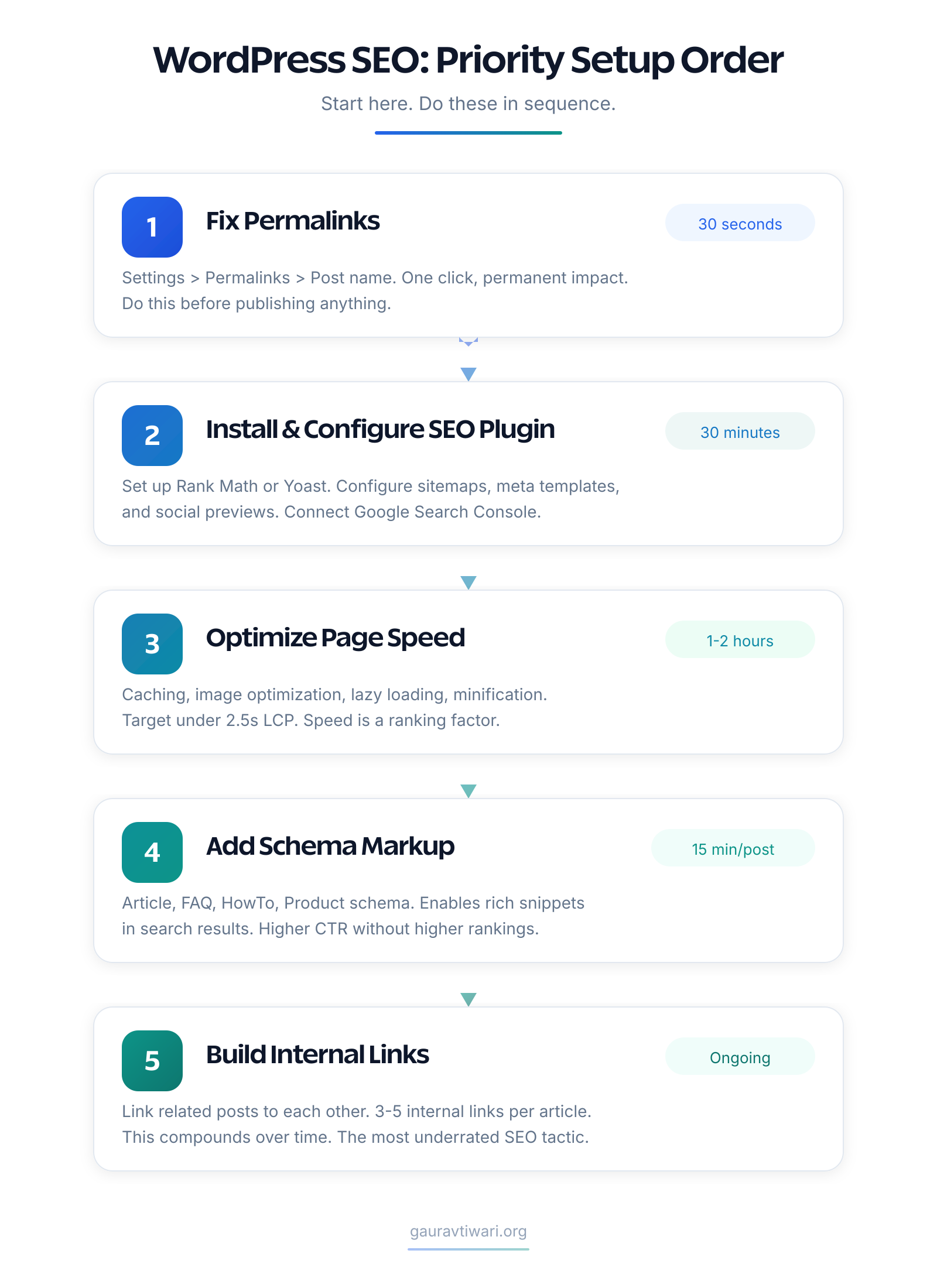
I’ve covered ten specific changes. If you’re feeling overwhelmed, here’s the priority order. Do these first, in this sequence:
- Permalinks: Takes 30 seconds. Immediate impact on new content.
- SEO plugin setup: Takes 30 minutes. Unlocks everything else.
- Page speed fixes: Takes 1-2 hours. Affects every page on your site.
- Schema markup: Takes 15 minutes per post. Compounds over time as Google shows your rich results.
- Internal linking: Ongoing. Start with your top 10 posts and link them together. Then make it a habit for every new post.
The WordPress sites that rank well don’t do anything exotic. They get the fundamentals right and stay consistent. Good content, clean technical setup, strong internal links, and fast page loads. That’s the formula. Everything else is noise.
Start with the highest-impact changes, measure your results in Google Search Console after 2-4 weeks, and iterate from there. SEO isn’t a one-time setup. It’s a system you maintain.
Is WordPress good for SEO?
Yes. WordPress generates clean HTML, supports proper heading hierarchy, and handles permalink structures well. But the default install needs configuration. You’ll need an SEO plugin for meta tags and schema, a caching plugin for speed, and a lightweight theme to avoid performance bottlenecks. WordPress gives you the tools. You still need to use them.
Which is the best SEO plugin for WordPress?
Rank Math is my recommendation. The free version includes features that Yoast and AIOSEO charge for, including advanced schema types, multiple focus keywords, and built-in 404 monitoring. Yoast works fine if you’re already using it. But for new setups, Rank Math gives you more without paying.
How long does it take for WordPress SEO changes to show results?
Technical changes like permalink structure, HTTPS, and page speed improvements typically show movement in 2-4 weeks. Content-level changes like better internal linking and schema markup take 4-8 weeks to reflect in rankings. New content can take 3-6 months to reach its ranking potential, depending on domain authority and competition.
Do I need a premium SEO plugin for WordPress?
For most bloggers, no. Rank Math’s free version covers everything you need: XML sitemaps, schema markup, content analysis, redirections, and Search Console integration. The premium version adds features like keyword tracking and advanced analytics that are useful for larger sites but aren’t required for solid SEO fundamentals.
Does WordPress theme affect SEO?
Absolutely. Your theme controls HTML structure, CSS weight, and JavaScript loading behavior, all of which affect Core Web Vitals scores. A bloated theme with 400KB of CSS and render-blocking scripts will cap your PageSpeed score regardless of other optimizations. Lightweight themes like GeneratePress output clean, minimal code that scores 95+ on PageSpeed without extra plugins.
What are Core Web Vitals and why do they matter for WordPress SEO?
Core Web Vitals are three performance metrics Google uses as ranking signals: LCP (how fast your main content loads, target under 2.5 seconds), INP (how responsive your page is to interaction, target under 200ms), and CLS (how much your layout shifts during loading, target under 0.1). WordPress sites typically struggle with LCP due to unoptimized images and heavy themes, and with CLS due to ads and lazy-loaded images without dimension attributes.
How many internal links should I add per WordPress blog post?
Target 3-5 internal links per post, using descriptive anchor text that matches the linked page’s topic. More important than the count per post is building a consistent linking structure. Every post should link to related content, and your pillar pages should link to all related posts. Update older posts to link to new content. The sites with the strongest internal linking structures consistently outrank competitors with better backlink profiles.
Disclaimer: This site is reader-supported. If you buy through some links, I may earn a small commission at no extra cost to you. I only recommend tools I trust and would use myself. Your support helps keep gauravtiwari.org free and focused on real-world advice. Thanks. - Gaurav Tiwari