
Cross-Browser Automation Testing is the Next Big Thing- Explore Now!
Your website looks perfect in Chrome. You ship it. Then the support tickets roll in. Safari users see broken layouts. Firefox renders your fonts differently. Mobile Edge drops your hover interactions entirely. Cross-browser testing isn’t glamorous work, but skipping it is one of the fastest ways to lose users and credibility. Automation makes it manageable.
I’ve shipped hundreds of web projects over the years, and cross-browser compatibility issues have caused more emergency fixes than I’d like to admit. The difference between teams that catch these problems early and those that don’t comes down to one thing: automated cross-browser testing integrated into the development workflow. Here’s how to set it up and get it right.
Why Cross-Browser Testing Matters More Than Ever
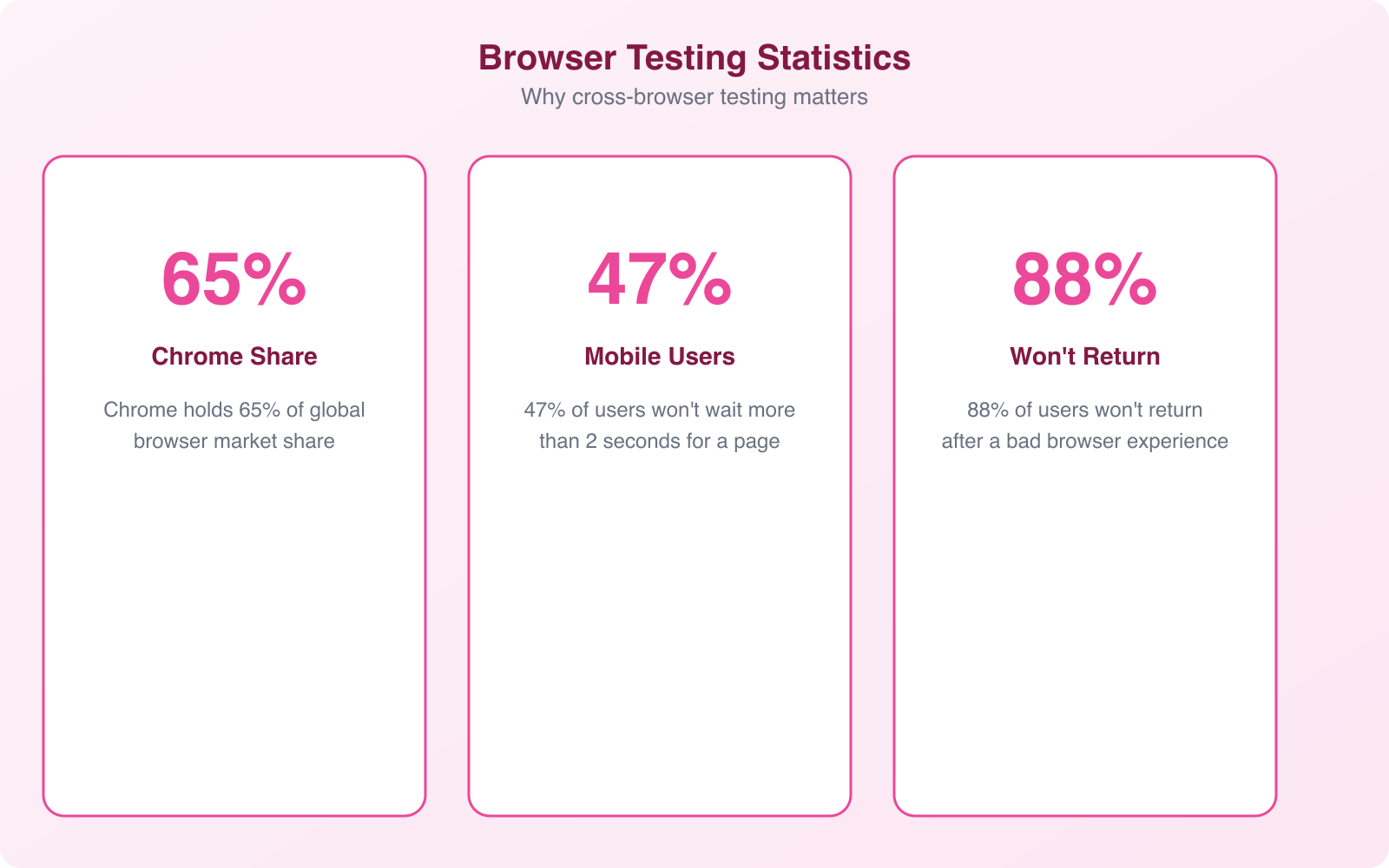
The browser landscape has never been more fragmented. Chrome dominates desktop usage at around 65%, but Safari commands 18% and Firefox holds about 7%. On mobile, Safari is much stronger because of the iPhone’s market share. Then you’ve got Edge, Opera, Samsung Internet, and a long tail of smaller browsers each with their own rendering quirks.
Every browser uses a rendering engine to interpret your HTML, CSS, and JavaScript. Chrome and Edge use Blink. Safari uses WebKit. Firefox uses Gecko. These engines don’t always interpret web standards identically. A CSS grid layout that looks perfect in Blink might have subtle spacing differences in WebKit. A JavaScript API that works in Gecko might not be fully implemented in Blink yet.
The cost of browser incompatibility is real. Users who encounter a broken layout or non-functional feature don’t file bug reports. They leave and don’t come back. A study by Google found that 53% of mobile site visits are abandoned if a page takes longer than 3 seconds to load. Broken rendering often causes similar abandonment rates because users assume the site is poorly built or untrustworthy.
Manual cross-browser testing doesn’t scale. If you have 200 test cases across 6 browsers, 3 operating systems, and 5 device types, that’s 18,000 individual tests. No QA team can execute that manually for every release. Automation is the only practical solution.
Building a Test Coverage Matrix
Before you automate anything, you need to know what to test and where. A test coverage matrix maps your test cases against the browser, OS, and device combinations that matter for your audience. Not every combination needs testing. You should prioritize based on actual user data.
Start with your analytics. Check your website analytics to see which browsers, operating systems, and devices your visitors actually use. If 85% of your traffic comes from Chrome and Safari on desktop and mobile, that’s where you focus first. Don’t waste resources testing on Opera Mini if it represents 0.2% of your traffic.
Your matrix should include these dimensions:
- Browsers: Chrome, Safari, Firefox, Edge, and any browser that represents more than 2% of your traffic
- Browser versions: Current version plus one or two prior versions. Users don’t always update immediately
- Operating systems: Windows 10/11, macOS, iOS, Android. Include version numbers for mobile OS
- Device types: Desktop, tablet, mobile. Include specific device models if your audience skews toward particular hardware
- Screen resolutions: Common breakpoints from 320px to 2560px, covering the range where layout changes occur
Prioritize combinations into tiers. Tier 1 includes the top 3-4 combinations covering 80%+ of your users. These must pass before every release. Tier 2 covers the next 15% of users and should be tested weekly. Tier 3 covers edge cases and can be tested monthly or before major releases.
Don’t test every browser-OS-device combination. Use pairwise testing (also called All Pairs testing) to reduce your test matrix while maintaining coverage. This method ensures every pair of parameters appears in at least one test case, cutting your total tests by 60-80% without sacrificing coverage quality.
Choosing the Right Cross-Browser Testing Tools
The right tool depends on your team size, budget, and technical expertise. Here’s what the landscape looks like in 2026.
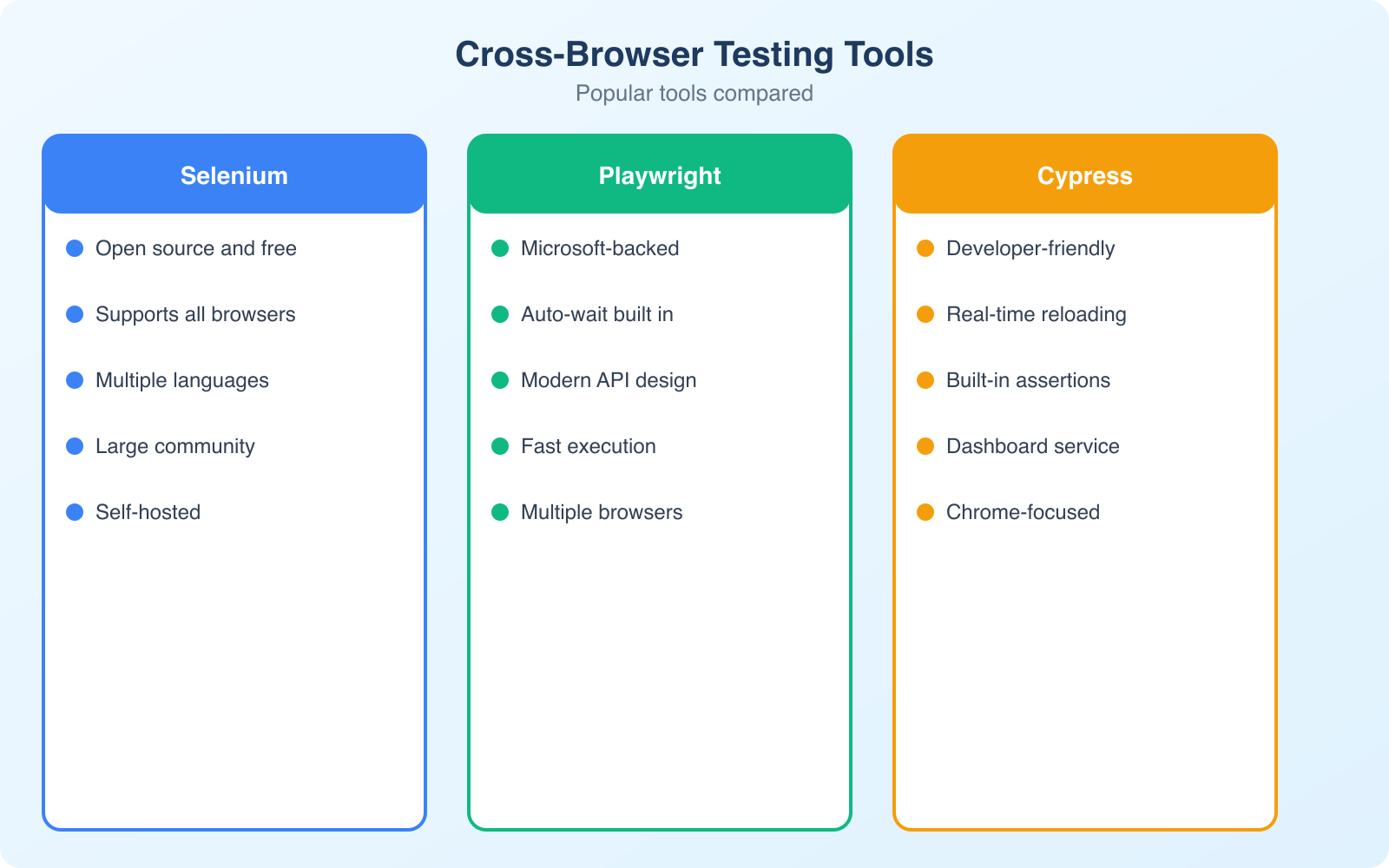
BrowserStack is the market leader for good reason. It provides access to 3,000+ real browser-device combinations through a cloud-based platform. You can run Selenium, Cypress, and Playwright tests against real devices (not emulators) and get screenshots and video recordings of every test run. Plans start around $29/month for individual developers. The Percy visual testing add-on automatically compares screenshots across browsers and flags visual differences.
LambdaTest is a strong alternative that’s gained significant traction. It offers similar capabilities to BrowserStack at competitive pricing, with 3,000+ browser environments and native integrations with popular CI/CD tools. Their AI-powered test analytics help identify flaky tests and prioritize fixes. If you’re budget-conscious, LambdaTest often provides better value for smaller teams.
Playwright by Microsoft has become the testing framework of choice for many teams. It supports Chrome, Firefox, and WebKit (Safari’s engine) out of the box, runs tests in parallel, and includes built-in visual comparison tools. It’s free, open-source, and significantly faster than Selenium for most test scenarios. The auto-wait functionality eliminates most flaky test issues that plague Selenium-based test suites.
Cypress remains popular for its developer-friendly approach. The interactive test runner shows exactly what’s happening in the browser as tests execute, making debugging intuitive. However, Cypress only supports Chromium-based browsers and Firefox natively. You’ll need a service like BrowserStack for Safari coverage.
Selenium is the veteran of cross-browser testing. It supports every major browser and programming language. While newer tools have surpassed it in developer experience, Selenium’s maturity and ecosystem make it the pragmatic choice for teams with existing test infrastructure. Selenium Grid lets you distribute tests across multiple machines for parallel execution.
Setting Up Your First Automated Cross-Browser Test Suite
I recommend starting with Playwright for new projects. It handles the most common cross-browser scenarios with minimal configuration and runs fast enough to be part of your CI/CD pipeline without slowing down deployments.
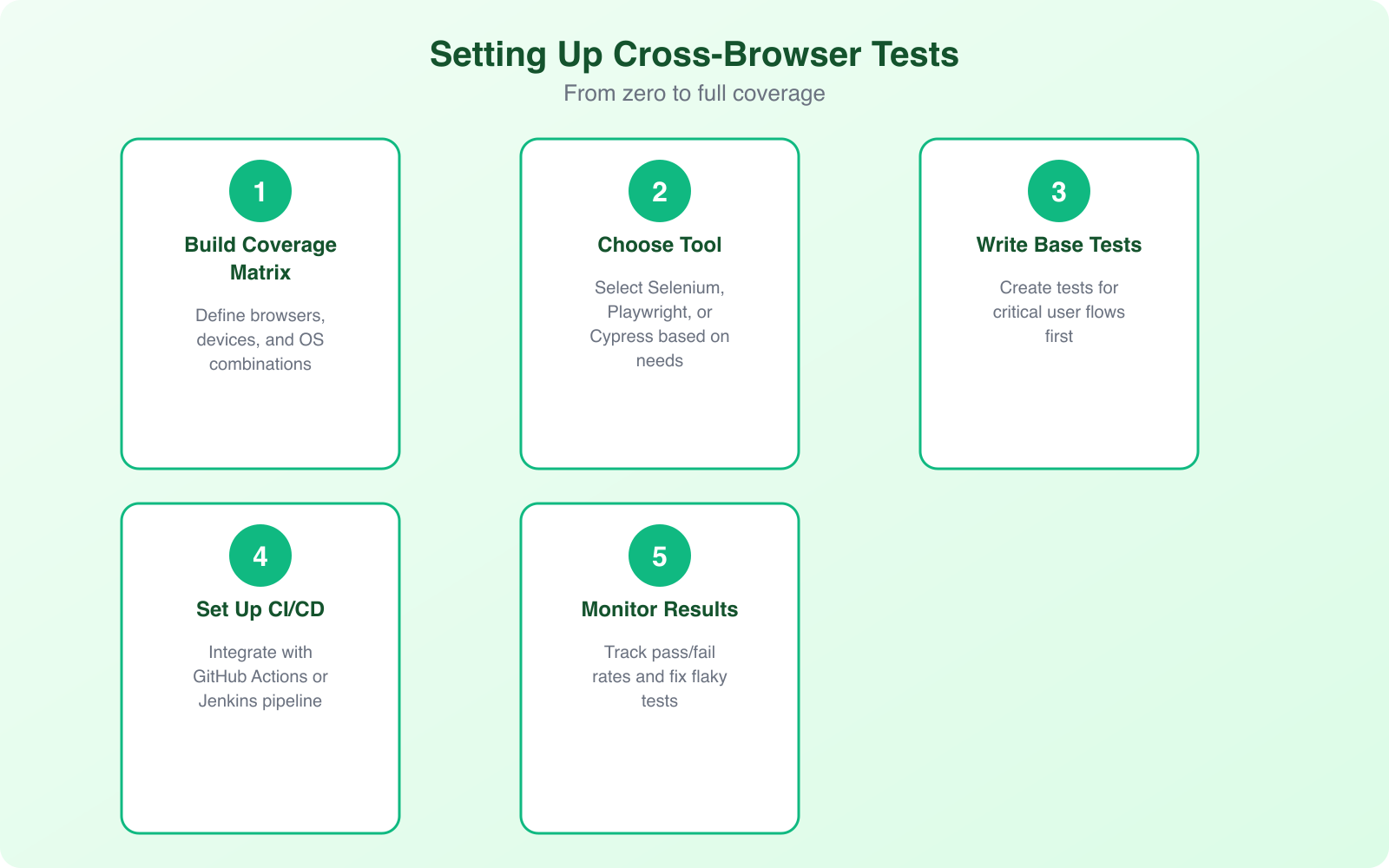
The setup process follows these steps. Install Playwright, define your test cases, configure your browser targets, and integrate with your CI/CD pipeline. A basic test suite can be running within an afternoon, even if you’ve never written automated tests before.
Focus your first tests on critical user journeys: login, signup, checkout, and your most-visited pages. These paths represent the highest-value interactions, and browser incompatibilities here have the biggest business impact. Write tests that verify both functionality (does the button work?) and visual rendering (does the layout look correct?).
Visual regression testing deserves special attention. Tools like Percy, Applitools, and Playwright’s built-in screenshot comparison catch visual differences that functional tests miss. A button might work correctly in every browser but render with different padding in Safari, breaking your layout. Visual tests catch these issues automatically by comparing screenshots against baseline images.
Organize your tests into the same tiers as your coverage matrix. Tier 1 tests run on every commit or pull request. Tier 2 tests run as a nightly or weekly scheduled job. Tier 3 tests run before major releases. This tiered approach gives you fast feedback on critical paths without blocking development velocity.
Common Cross-Browser Compatibility Issues and Fixes
Certain types of issues show up repeatedly across projects. Knowing the common culprits saves hours of debugging.
CSS Flexbox and Grid differences. While all modern browsers support Flexbox and Grid, there are subtle differences in how they handle auto margins, minimum sizes, and gap properties. Safari in particular has historically lagged on CSS Grid support. Always test complex layouts in Safari/WebKit, and use explicit dimensions rather than relying on implicit sizing behavior.
Font rendering. Browsers render fonts differently across operating systems. Windows uses ClearType, macOS uses its own anti-aliasing, and Linux varies by distribution. Custom web fonts can look crisp on one platform and blurry on another. Test your typography at multiple sizes and weights. Use system font stacks as fallbacks, and avoid relying on pixel-perfect font rendering.
JavaScript API support. New JavaScript APIs don’t land in all browsers simultaneously. The Intersection Observer API, Web Components, and various CSS custom properties have different support levels. Always check caniuse.com before using modern APIs, and provide polyfills or fallbacks for browsers that don’t support them yet.
Form elements. Browsers style form elements (inputs, selects, checkboxes, radio buttons) differently by default. Date pickers, color pickers, and range sliders vary dramatically across browsers. If consistent form appearance matters, use a CSS reset for form elements and style them from scratch, or use a UI component library that handles cross-browser normalization.
Scroll behavior. Smooth scrolling, scroll snap, and overflow handling differ between browsers. Safari handles momentum scrolling differently from Chrome. Firefox has its own scrollbar styling mechanism. Test scroll-heavy interfaces on all target browsers, especially on mobile where touch interactions add another variable.
Responsive Design Testing vs. Cross-Browser Testing
These are related but different concerns. Responsive design testing verifies that your layout adapts correctly across screen sizes. Cross-browser testing verifies that the same page renders correctly across different browser engines. You need both, but they require different approaches.
Responsive testing can be done partially within a single browser by resizing the viewport. Chrome DevTools’ device toolbar simulates different screen sizes and even mimics touch events. But this only tests how your CSS media queries respond to width changes. It doesn’t test how different browsers interpret your responsive code.
True cross-browser responsive testing means running your responsive test cases across multiple browser engines at each breakpoint. A media query might trigger at the correct width in Chrome but behave differently in Safari due to how each browser calculates viewport units. Testing responsiveness on real devices through BrowserStack or LambdaTest catches these edge cases.
Pay special attention to mobile Safari. It handles viewport units differently from other browsers, especially around the address bar’s show/hide behavior. The dvh (dynamic viewport height) unit was introduced specifically to address Safari’s viewport inconsistencies, but not all older Safari versions support it. Test your mobile layouts on actual iOS devices, not just by resizing your desktop browser.
Accessibility Testing Across Browsers
Accessibility is another dimension of cross-browser testing that often gets overlooked. Screen readers behave differently across browsers. JAWS and NVDA work primarily with Chrome and Firefox on Windows. VoiceOver works with Safari on macOS and iOS. Each screen reader interprets ARIA attributes, focus management, and semantic HTML slightly differently.
Automated accessibility testing tools like axe-core can run within your cross-browser test suite, checking for common accessibility violations like missing alt text, insufficient color contrast, and improper heading hierarchy. These checks should be part of your CI pipeline, running against every browser target.
However, automated tools catch only about 30% of accessibility issues. Manual testing with screen readers is still necessary for complex interactions. At minimum, test your critical user journeys with VoiceOver (Safari) and NVDA (Chrome/Firefox) to ensure keyboard navigation and screen reader announcements work correctly across browser engines.
Focus management is a particularly browser-dependent area. How browsers handle focus trapping in modals, focus restoration after dialogs close, and tab order through dynamic content varies significantly. If your application uses modals, dropdowns, or dynamically loaded content, test focus behavior explicitly in each target browser.
Using semantic HTML elements (button, nav, main, header, article) instead of generic divs dramatically reduces cross-browser accessibility issues. Browsers and screen readers have built-in support for these elements, meaning you get correct behavior without writing extra ARIA attributes or JavaScript.
Integrating Cross-Browser Tests Into CI/CD
The real value of automated cross-browser testing comes from integration with your deployment pipeline. Tests that run manually get skipped under deadline pressure. Tests that run automatically catch issues before they reach production.
Most CI/CD platforms (GitHub Actions, GitLab CI, Jenkins, CircleCI) support running Playwright, Cypress, or Selenium tests as pipeline steps. The configuration is straightforward. You define which browsers to test against, set up the test environment, and add the test step to your pipeline definition.
Parallel execution is critical for keeping pipeline times manageable. Running 200 tests sequentially across 6 browsers takes hours. Running them in parallel across multiple workers can finish in minutes. Both BrowserStack and LambdaTest offer parallelization. Playwright supports it natively with its built-in test runner.
Set up different triggers for different test tiers. Fast smoke tests (Tier 1 browsers only, critical paths only) run on every pull request. Full cross-browser suites run on merge to main. Complete regression suites including Tier 3 browsers run on a nightly schedule or before releases. This approach keeps development fast while maintaining comprehensive coverage.
Configure notifications and reporting so failures are visible. Integrate test results with Slack, email, or your project management tool. Include screenshots and video recordings from failed tests so developers can diagnose issues without re-running the test suite locally. Good reporting turns a failed test from a roadblock into an actionable fix.
Best Practices for Maintaining Your Test Suite
A test suite is only valuable if it’s maintained. Flaky tests that randomly fail, outdated test cases that don’t reflect current features, and slow execution times all erode trust in automation. Here’s how to keep your suite healthy.
Fix flaky tests immediately. A test that passes 95% of the time teaches developers to ignore failures. Use retry mechanisms sparingly and as a temporary measure, not a permanent fix. When a test is flaky, investigate the root cause. It’s usually a timing issue, a missing wait condition, or test data that isn’t properly isolated.
Keep tests independent. Each test should set up its own state, execute its assertions, and clean up after itself. Tests that depend on other tests’ execution order create brittle suites that break when you add, remove, or reorder test cases. Independent tests can also run in parallel without conflicts.
Update your test coverage matrix quarterly. Browser market share shifts, new browser versions introduce changes, and your user base evolves. Review your analytics data every quarter and adjust your Tier 1, 2, and 3 classifications accordingly. Drop combinations that are no longer relevant and add new ones as needed.
Document your testing strategy. New team members need to understand which browsers you test, why you prioritize certain combinations, and how to add new test cases. A simple README in your test directory that explains the strategy, tools, and conventions saves hours of onboarding time.
Cross-browser testing isn’t something you set up once and forget. Browsers update every 4-6 weeks. CSS and JavaScript standards evolve. Your application changes with every sprint. But with the right tools, a clear coverage matrix, and CI/CD integration, you can catch compatibility issues before your users do. That’s the entire point. Ship with confidence across every browser your users care about.
Frequently Asked Questions
Which cross-browser testing tool should I start with?
If you’re new to test automation, start with Playwright. It’s the most modern tool with auto-wait capabilities, excellent documentation, and supports Chromium, Firefox, and WebKit out of the box. If your team already knows JavaScript and wants developer-friendly tooling, Cypress is great but more limited in browser coverage. Selenium is the industry standard with the widest language and browser support, making it the safest choice for enterprise teams. For cloud-based testing without infrastructure management, BrowserStack or LambdaTest are solid options.
How many browser-device combinations do I need to test?
Focus on the combinations your actual users use, not every possible combination. Check your analytics for the top 5-7 browser-device-OS combinations that cover 90%+ of your traffic. A typical coverage matrix includes: Chrome on Windows and Mac, Safari on Mac and iOS, Chrome on Android, Firefox on Windows, and Edge on Windows. That’s 7 combinations covering most users. Add more only if your analytics show significant traffic from other combinations. Testing everything wastes time and budget.
What is visual regression testing and do I need it?
Visual regression testing compares screenshots of your UI before and after code changes to catch unintended visual differences. Tools like Percy, Chromatic, or BackstopJS automate this. You need it if: your site has complex CSS, multiple contributors make frontend changes, or visual consistency is critical (e-commerce, branding). It catches issues like overlapping elements, wrong colors, or broken layouts that functional tests miss. Start with visual testing on your most critical pages (homepage, checkout, product pages) before expanding coverage.
Can I do cross-browser testing without paid tools?
Yes. Playwright and Selenium are completely free and open source. You can run cross-browser tests locally on your machine without any paid tools. For cloud testing, BrowserStack and Sauce Labs offer free tiers for open source projects. LambdaTest provides a free plan with limited minutes. You can also use Playwright’s built-in browser download feature to test across Chromium, Firefox, and WebKit without any external service. Paid tools mainly help with parallel execution at scale and real device testing.
How do I handle cross-browser CSS issues?
Use CSS reset or normalize.css as a baseline. Avoid browser-specific prefixes unless absolutely necessary (use Autoprefixer in your build process). Test with Flexbox and CSS Grid, which have excellent cross-browser support in modern browsers. For specific issues: use feature queries (@supports) to provide fallbacks, test on real devices rather than just emulators, and check CanIUse.com for property support. The most common cross-browser issues involve font rendering, box-sizing, and form element styling. A consistent CSS approach from the start prevents most problems.