
GT Page Blocks Visual Builder
The GT Page Blocks visual builder lets you edit a complete page while seeing its sections together. The section list controls the order, the code panel holds your markup and styles, and Save writes the result back to WordPress.
The downloadable Folio workshop uses independent inline sections. It is the starting point for the exercises below, including the pricing interaction and responsive preview.
Accessing the Builder
There are three ways to open the visual builder.
From the admin bar. When viewing any singular post or page on the frontend (while logged in), the admin bar shows a “Page Blocks Builder” link. This link appears as a child of the “Edit” node if it exists, otherwise as a standalone item. Clicking it opens the builder for that post.
From the block editor. The Open Page Blocks button in the post status panel saves any unsaved changes, then opens the builder. It stays disabled on a new post until the post has been saved once.
From a bookmark. wp-admin/admin.php?action=gt_pb_canvas&post=123 opens the builder for post 123 and works as a saved link.
The builder URL. Every route ends at a special query string on the site’s home URL.
https://yoursite.com/?build=page-blocks&pb_mode=visual&post_id=123&pb_nonce=abc123The pb_mode=visual parameter opens the builder in Visual mode, the post_id parameter identifies the post, and pb_nonce is a security nonce that’s validated before granting access.
Access Requirements
To use the builder, you must be logged in with the edit_post capability for the target post, the post type must be enabled in the plugin settings, and the nonce must be valid. If any check fails, the builder returns a 403 Forbidden error.
When the builder loads, the WordPress admin bar is hidden to give you a clean, full-screen editing environment. The builder opens in Visual mode with the code panel hidden. Click Code in the top bar to show the HTML, CSS and JS editors; selecting a code section in the list also switches to Code mode.
Layout Overview
The workshop screenshot shows the controls around a complete page.
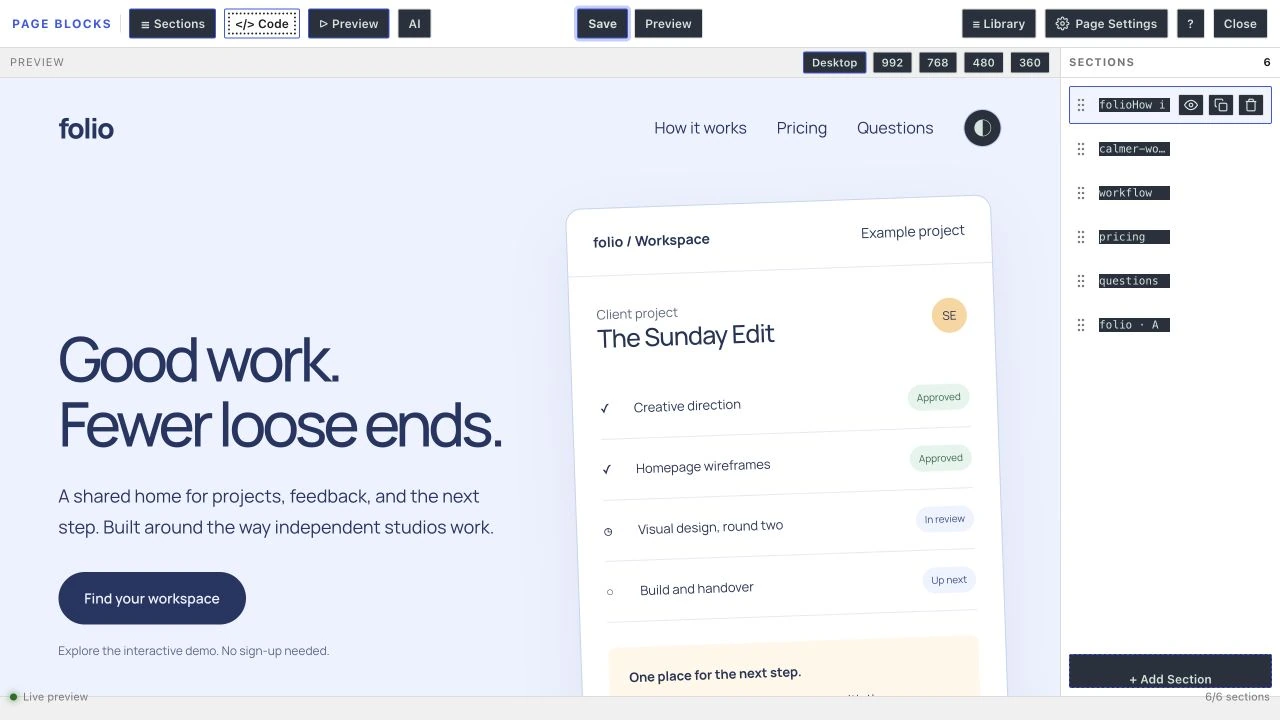
- Sections, Visual, Code, Preview and AI toggle the main panels.
- Save writes your sections and pending page settings to WordPress.
- Library offers saved sections with Insert linked and Insert copy actions.
- Page Settings contains title, slug, template, import and export.
- ? opens keyboard help; Close goes to the page on the frontend.
The HTML, CSS and JS editors sit side by side in the code panel, one pane each. The splitter changes how much vertical space the preview and editors receive.
Section Management
Adding Sections
Click + Add Section below the section list (it reads + Add code section in Visual mode), or press Cmd+N / Ctrl+N. New sections are inserted after the currently selected section.
Selecting Sections
Click a section name in the sidebar to select it. The code editors update to show that section’s content, and the section is highlighted in the sidebar.
Duplicating Sections
Click the Duplicate section icon on a section row, or press Cmd+D / Ctrl+D. The duplicate is inserted immediately after the original. If the original section’s HTML contains an id attribute, the first one gets the next free suffix (“-copy”, then “-copy-2” and so on) to avoid ID collisions. Update any JavaScript in the copy that looks up the old ID.
Deleting Sections
Click the Delete section icon on a section row, or press Cmd+Backspace / Ctrl+Backspace. If you delete the last remaining section, an empty section is automatically created.
Reordering Sections
Drag a section by its grip handle to a new position in the sidebar. You can also use Alt+Arrow Up and Alt+Arrow Down to move the selected section.
Hiding Sections
Click the eye icon (Hide section / Show section) to toggle a section’s visibility in the preview. Hidden sections are excluded from the preview iframe but are still saved and rendered on the frontend, and every section is visible again the next time the builder loads. This is useful for temporarily hiding a section while you work on others.
Live Preview
The preview updates automatically as you edit code. HTML and JS edits render right away, CSS edits about 1 second after you stop typing, and server-rendered previews wait at least 250 ms. The preview is rebuilt by constructing a full HTML document that includes.
- Your theme’s stylesheets (collected from the page’s linked stylesheets).
- Theme inline styles (global styles, classic theme styles).
- Preview injection content (if configured via the filter).
- Your sections’ CSS in a
<style>tag. - Your sections’ HTML content.
- No theme scripts. A small helper adds common reveal classes such as
visibleandaos-animateso scroll-reveal content doesn’t stay hidden without the theme’s JavaScript. - Your sections’ JavaScript, injected after the preview document has loaded.
In Visual mode, or when any section has format or phpExec enabled or holds native blocks, the builder requests a server-rendered preview from the front-end route /?gt_pb_preview=1. The server processes the PHP and wpautop formatting and returns the rendered output, which is then injected into the preview document.
Template-Aware Preview
The preview wraps your sections in a layout that matches the template chosen in Page Settings. Blank canvas (no header or footer) gets a full-width content area. On block themes, the default template reproduces the theme’s post-content layout and root padding. Changing the template re-renders the preview.
Saving
Click Save or press Cmd/Ctrl+S. The builder sends the section payload to the authenticated md_page_blocks_builder_apply endpoint.
- WordPress checks the target page, nonce, capability and enabled post type.
- Page Block sections are serialized into the existing page content.
- Non-Page-Block content is carried as foreign blocks rather than intentionally discarded.
- Pending title, slug and template settings are applied when accepted.
- A successful save clears the browser recovery draft.
The control reports Saving and then Saved. That confirmation concerns the server save; browser recovery and a downloaded export remain separate copies.
Closing the Builder
The “Close” button goes to the page on the frontend. If the post has no viewable URL, it opens the post in the editor instead, and as a last resort goes back in your browser history. Save first: Close doesn’t save for you.
Practice With Interactive Pricing
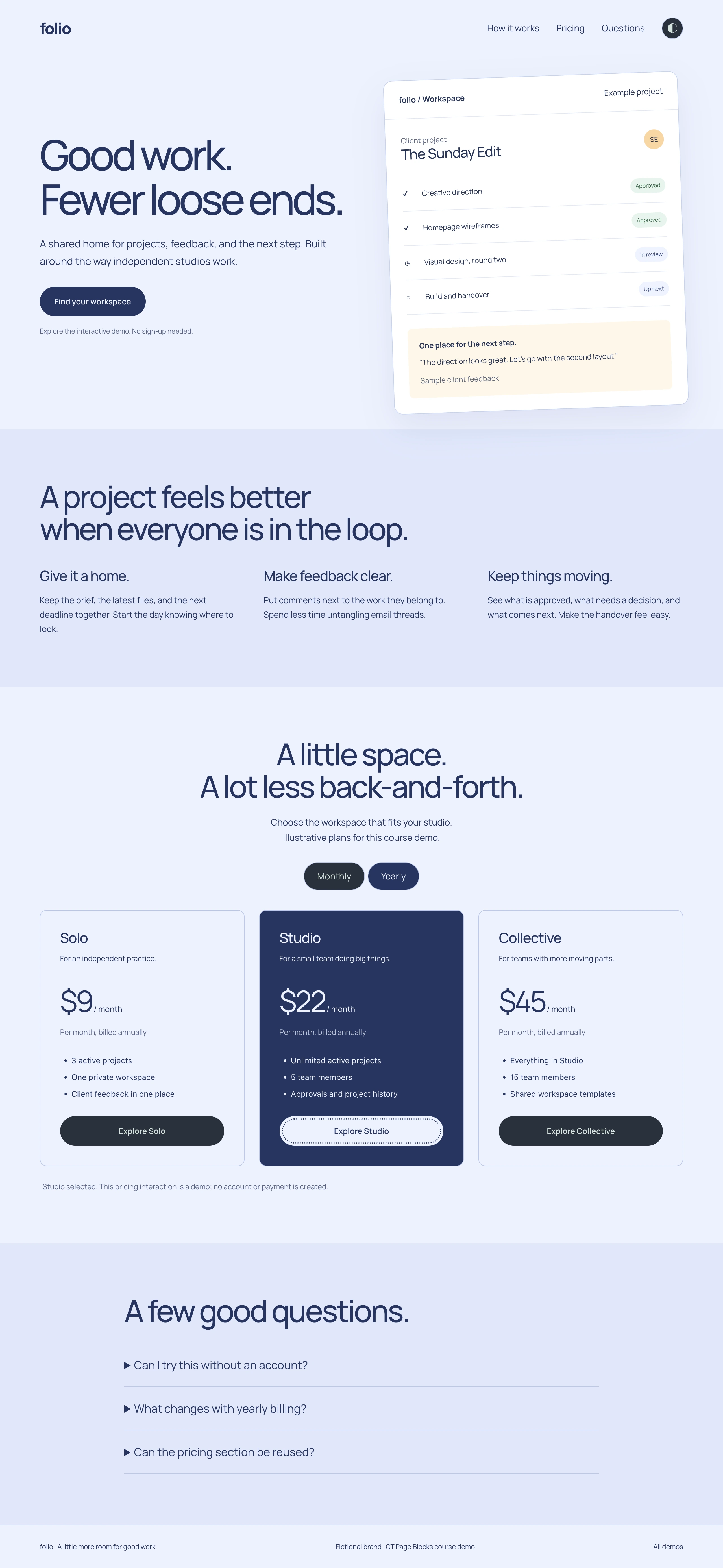
Import the Folio workshop on a practice page. Its pricing section connects buttons to values in the markup.
- Open the pricing section and find the
data-monthlyanddata-yearlyattributes. - On the frontend, select Yearly. The sample monthly equivalents become $9, $22 and $45.
- Select Explore Studio. The message confirms a local selection; no account or payment is created.
Export and Import
Open Page Settings > Export to download the current sections as JSON. Import & add appends sections; Import & replace replaces the current section list after confirmation.
Import does not create a complete WordPress site, install a theme or apply the file’s title and slug automatically. Set page metadata yourself and click Save after the import.
Quick answers to common questions:
How do I open the visual builder?
From the page editor, the Open Page Blocks button in the post status panel (or the Page Blocks Builder entry in the admin bar on the frontend) opens the current page in the builder. It edits the same Page Block content; there’s no separate storage or sync step.
Can I preview how sections look on mobile?
Yes. The visual builder has Desktop, 992, 768, 480 and 360 width presets. The separate frontend mobile screenshots use a 390px layout. These are different checks, not conflicting names for the same preset.
For a step-by-step walkthrough, see How to Build a Landing Page with HTML, CSS and JavaScript Inside WordPress.