
GT Page Blocks Builder Keyboard Shortcuts
GT Page Blocks Builder keyboard shortcuts cover saving, section changes and editor focus. Cmd is the main modifier on macOS; Ctrl is its counterpart on Windows and Linux.
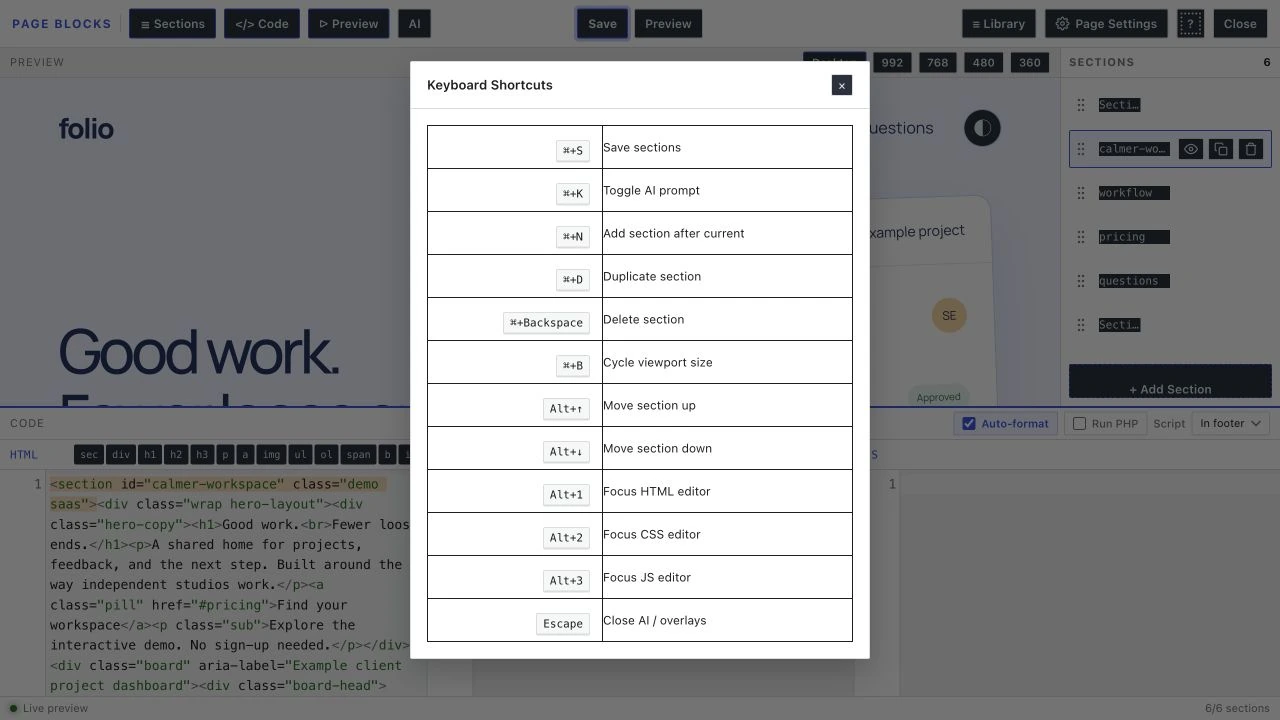
The ? button opens the shortcut reference inside the builder. Keep a practice page open when learning shortcuts that add, duplicate or delete sections.
Saving
Cmd+S / Ctrl+S triggers the same action as the Save button. Use it after a small change on the practice page and wait for the Saved confirmation.
Section Management
Cmd+N / Ctrl+N adds a new empty section after the currently selected section.
Cmd+D / Ctrl+D duplicates the currently selected section. The duplicate is inserted immediately after the original.
Cmd+Backspace / Ctrl+Backspace deletes the currently selected section.
Section Reordering
Alt+Arrow Up moves the selected section up one position.
Alt+Arrow Down moves the selected section down one position.
Editor Focus
Alt+1 focuses the HTML editor.
Alt+2 focuses the CSS editor. HTML, CSS and JS each have their own pane.
Alt+3 focuses the JavaScript editor.
Section Navigation
Arrow Up and Arrow Down (when a section item in the sidebar has focus) navigate between sections in the sidebar.
Cmd+Z / Ctrl+Z and Shift+Cmd+Z / Shift+Ctrl+Z, pressed outside the code panes, undo and redo section changes such as adding, deleting, duplicating, reordering, pasting and importing. That history lives in memory and is gone after a reload.
Code Editor Shortcuts
Inside the Gutenberg block’s code editors, these additional shortcuts are available where CodeMirror loads (outside the iframed editor canvas).
Tab inserts a tab character (or indents the selection if text is selected).
Shift+Tab outdents the selection.
Cmd+Z / Ctrl+Z undoes the last change.
Cmd+Y / Ctrl+Y or Shift+Cmd+Z / Shift+Ctrl+Z redoes the last undone change.
Ctrl+Q folds/unfolds the code block at the cursor position.
Ctrl+Space / Cmd+Space (in the HTML editor only) triggers the CSS class autocomplete popup. This shows class names extracted from your theme’s stylesheets.
The visual builder’s panes work a little differently. Tab in the HTML pane expands Emmet abbreviations such as section.hero>h1{Title}. Ctrl+Space / Cmd+Space works in the CSS pane, where it suggests class names from the page’s HTML and your theme.
Shortcut Isolation
The code editors isolate certain keyboard shortcuts from WordPress and Gutenberg. This means pressing Tab, Cmd+Z, Ctrl+Space, and similar keys inside a code editor won’t trigger WordPress’s own handlers (like Tab switching between blocks). The editors capture these events and handle them internally.
Use the Built-In Reference
The ? overlay shows the builder’s own bindings. In addition to saving and section editing, it includes Cmd/Ctrl+B for viewport cycling and Cmd/Ctrl+K for the AI panel.
A practice copy is the right place to learn duplicate and delete. There is no measured editing-speed promise attached to these shortcuts.
Quick answers to common questions:
What are the essential shortcuts to learn first?
Save (Cmd/Ctrl+S), section navigation, and the editor-focus toggles. Those three keep your hands off the mouse for the entire write-preview-adjust loop, which is where builder time actually goes.
Do shortcuts conflict with browser defaults?
The builder intercepts its bindings while focused, so Cmd+S saves your work instead of the browser dialog. Outside builder focus, browser behavior is untouched.