
Installing GT Page Blocks Builder
Installing GT Page Blocks Builder starts with the plugin ZIP and a WordPress administrator account. You can activate the plugin and build the course demos without an AI-provider key.
The full-page template exercises work on classic and block themes. The Blank canvas (no header or footer) template is registered for both. The Page Blocks Builder template, which keeps the theme header and footer, is only offered on classic themes.
Requirements
Check the site and your account before installing.
- WordPress 6.0 or later.
- PHP 8.1 or later.
- An administrator account for installation and library management.
- Permission to edit the target page, with its post type enabled, for builder access.
Installing the Plugin
The WordPress plugin uploader accepts the plugin ZIP.
- Open Plugins > Add Plugin > Upload Plugin.
- Select the Page Blocks Builder plugin ZIP, install it and activate it.
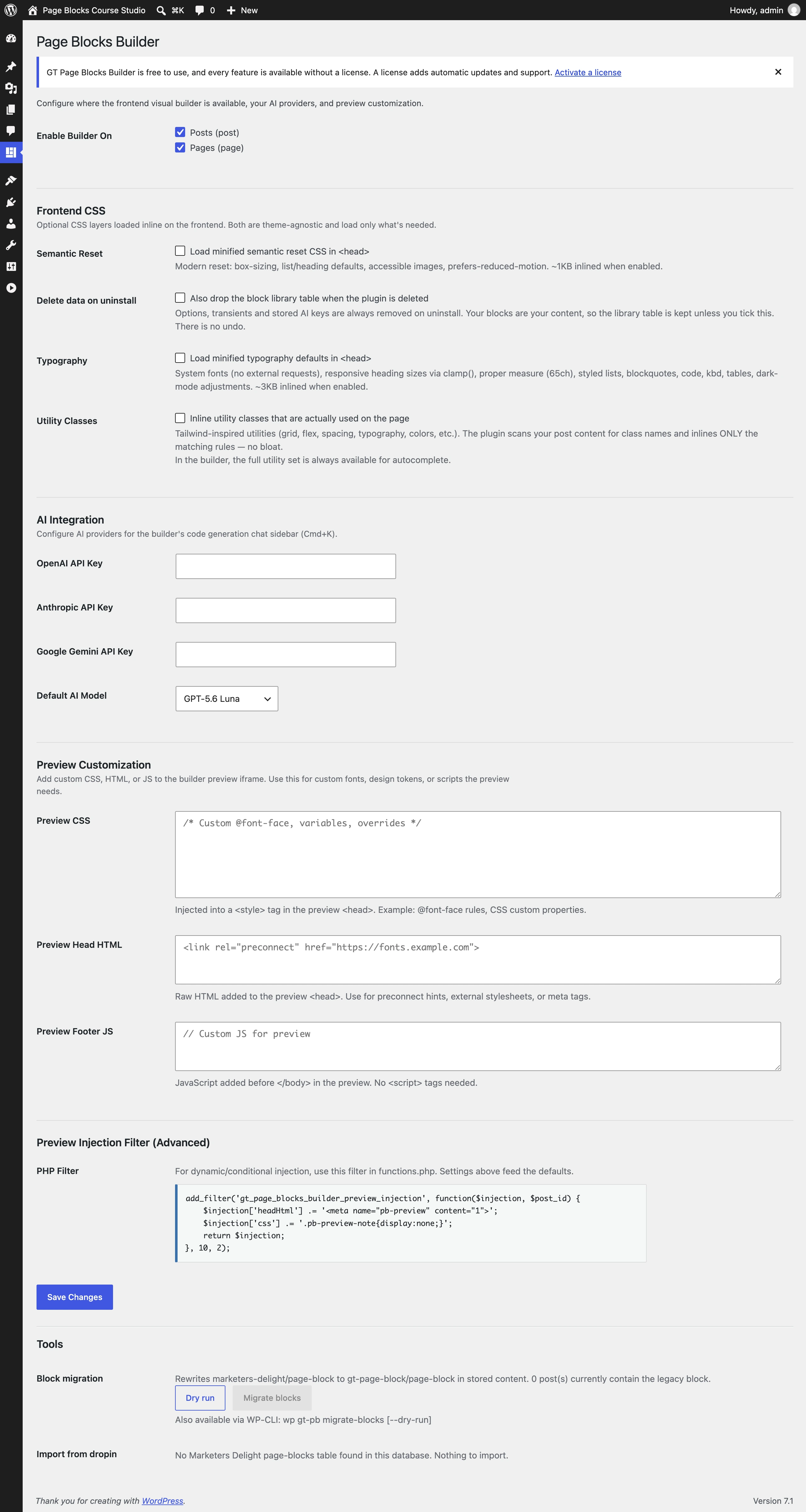
- Open Page Blocks > Settings to confirm the enabled post types.
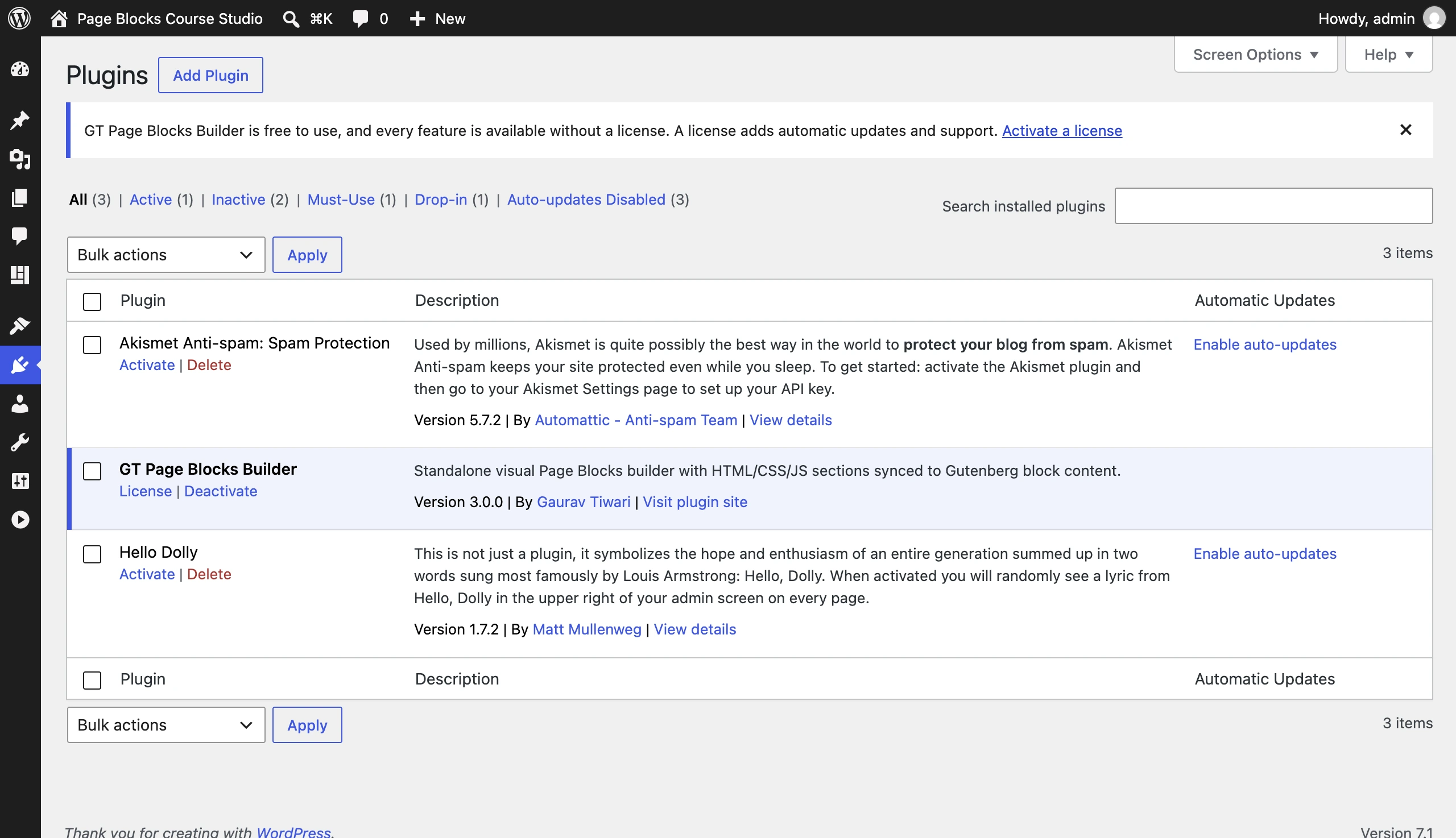
A demo JSON file is page content. It belongs in the builder’s importer, not the plugin uploader.
Initial Configuration
Posts and Pages are enabled by default. Leave the AI-provider fields empty for the manual course exercises.
License Activation
The plugin includes a license system for receiving automatic updates. Go to Page Blocks > License, enter your license key, and click Activate License.
Once activated, the plugin checks for updates through the WordPress plugin updater. You’ll see available updates on the standard Plugins page and can update with one click, just like any other plugin.
If you don’t activate a license, the plugin still works. You just won’t receive automatic updates and will see a notice on relevant admin pages reminding you to activate.
File Structure
After installation, the main parts of the plugin directory look like this.
page-blocks-builder/
    page-blocks-builder.php        Main plugin file
    uninstall.php                  Cleanup on plugin deletion
    readme.txt, LICENSE, README.md
    agent-skills/                  Skill files for AI agents (Site Agent)
    languages/                     Translation template
    includes/
        class-db.php               Library tables and revisions
        class-rest-api.php         pbb/v1 REST API
        class-agent.php            Agent API commands
        class-cli.php              wp gt-pb block commands
        class-migration.php        wp gt-pb migrate and upgrade commands
        class-section-css.php      Per-section CSS files
        class-css-loader.php       Reset, typography and utility CSS
        class-theme-builder.php    Hook positions and theme regions
        class-canvas-editor.php    Preview layouts per template
        class-native-content.php   Native block content in sections
        class-license-manager.php  License and update management
        ...                        Shortcode, performance and helper classes
    assets/
        js/
            block-editor.js        Gutenberg block registration and editor
            builder-shell.js       Frontend visual builder application
            canvas-*.js            Visual mode canvas, layout and conversion
            preview-dom.js         Preview section markers
            performance.js         Performance panel
            deferred-css.js        Loader for deferred section CSS
            library.js             Library admin screen
        css/                       Editor, builder, library and frontend CSS
    templates/
        builder-shell.php          HTML shell for the visual builder
        page-blocks-builder.php    Standard page template (classic themes)
        page-blocks-full-builder.php  Blank canvas template (no header or footer)
        admin-edit.php             Library block edit screen
        settings-page.php          Admin settings UI
Verifying Installation
After activating the plugin, you can verify everything is working.
- Open any page in the Gutenberg editor.
- Search for “Page Block” in the block inserter. You should see it under the “Page Blocks” category.
- Visit any page on the frontend while logged in. You should see a “Page Blocks Builder” link in the admin bar (under the Edit link).
Uninstalling
Deleting the plugin removes its settings, stored AI keys, related transients and scheduled events. The reusable library and its revision table are kept unless Delete data on uninstall was explicitly enabled.
Inline Page Block markup remains in post_content, but keeping the markup is not the same as keeping it rendered. The Page Blocks renderer must be available, or you must convert the content before removing the plugin.
Export the pages and back up the site before uninstalling. Do not enable deletion of the library as a cleanup step unless you intend to remove that content.
Quick answers to common questions:
What are the current requirements for Page Blocks Builder?
The plugin requires WordPress 6.0 or later and PHP 8.1 or later. Installation needs an administrator; builder access also needs permission to edit the target page and an enabled post type. The demo environment used WordPress 7.1, with the editor limitations described in Troubleshooting.
Where did the license page move?
Since 2.1.0 the plugin has its own top-level Page Blocks menu: All Page Blocks, Add New, Settings, and License live there instead of under WordPress’s Settings menu.