
Getting Started with GT Page Blocks Builder
Your first GT Page Blocks Builder page should give you something useful to edit. The Folio workshop has separate sections for navigation, the hero, workflow, pricing, questions and footer.
Start from the downloadable workshop, change one section and save it. Once you understand that path, the same controls apply to a page you build from an empty canvas.
Creating a Page
- In the WordPress admin, go to Pages > Add New.
- Give your page a title.
- Publish or save the page as a draft.
- View the page on the frontend.
Launching the Visual Builder
While viewing the page on the frontend (and logged in as an admin or editor), look at the WordPress admin bar at the top. You’ll see a Page Blocks Builder link. Click it.
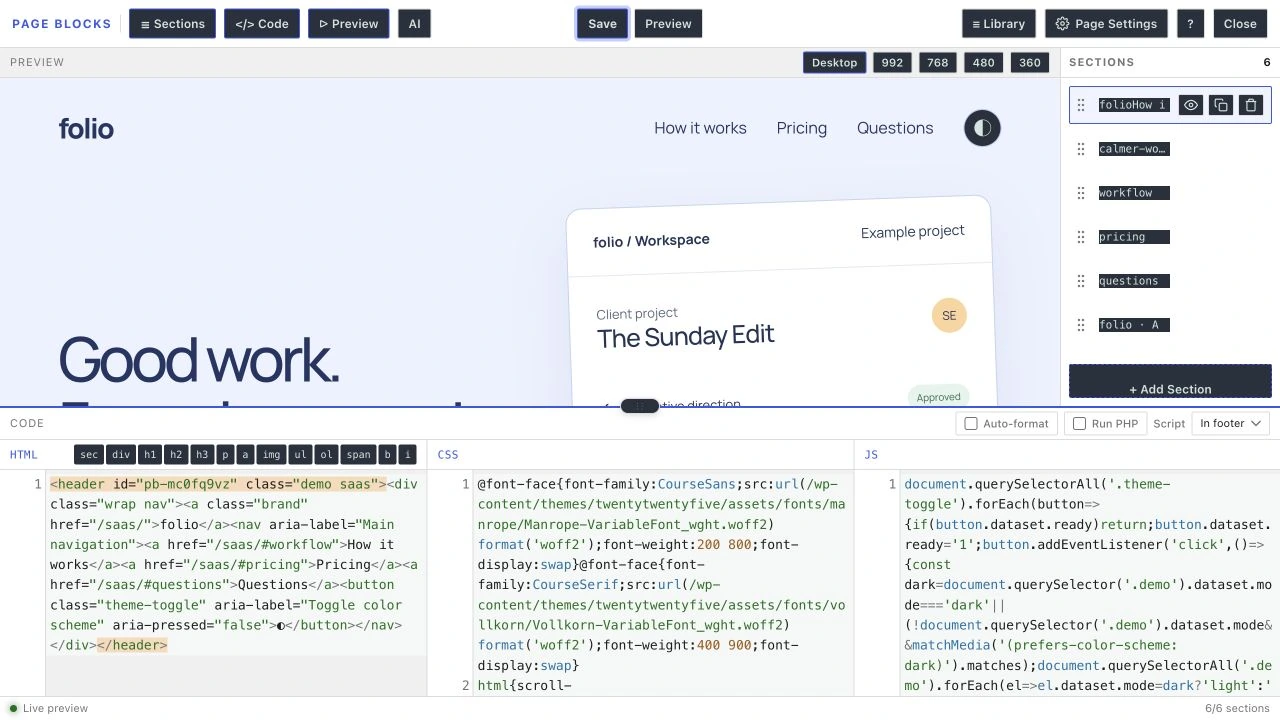
The builder opens in a full-screen interface in Visual mode, with the code panel hidden. The admin bar is hidden too. Click Code in the top bar to show the HTML, CSS and JS editors. Selecting a code section in the list also switches to Code mode.
The builder URL follows this pattern:
https://yoursite.com/?build=page-blocks&pb_mode=visual&post_id=123&pb_nonce=abc123The nonce ensures only authorized users can access the builder. You don’t need to construct this URL manually. The admin bar link generates it for you.
Understanding the Builder Layout
The Folio workshop has six sections. The interface gives you a place to select a section, edit it and inspect the result.
- The top bar contains panel controls, Save, Preview, Library and Page Settings.
- The preview has Desktop, 992, 768, 480 and 360 width presets.
- The section list selects and reorders sections.
- The code panel contains labeled HTML, CSS and JS editors.
- The status bar reports visible and total sections.
Writing Your First Section
On an empty page, the canvas offers Start your page with Choose a section and Start blank. For hand-written code, click + Add code section below the section list (it reads + Add Section in Code mode). It adds an empty section and switches to Code mode. Click into the HTML pane, the first of three panes, and write some markup.
<section class="hero">
    <div class="inner">
        <h1>Welcome to My Site</h1>
        <p>This is my first section built with Page Blocks.</p>
    </div>
</section>
As you type, the preview iframe updates in real time. You’ll see your HTML rendered with your theme’s styles applied.
Now click into the CSS pane, next to the HTML pane, and add some styles.
.hero {
    padding: 80px 20px;
    text-align: center;
    background: #f8f9fa;
}

.hero h1 {
    font-size: 2.5rem;
    margin-bottom: 0.5rem;
}
The preview updates about a second after you stop typing CSS to show your styled section.
Adding More Sections
Click the + Add Section button below the section list (+ Add code section in Visual mode) to add a new section. It will be inserted after the currently selected section. You can also use the keyboard shortcut Cmd+N (or Ctrl+N on Windows/Linux).
Each section is independent. It has its own HTML, CSS, and JavaScript. On the frontend, each section renders as a separate Gutenberg block.
Reordering Sections
You can reorder sections in two ways.
Drag and drop. Grab a section by the grip handle (the ⋮⋮ icon) in the sidebar and drag it to a new position.
Keyboard. Use Alt+Arrow Up and Alt+Arrow Down to move the selected section up or down.
Saving Your Work
Click Save in the top bar (or press Cmd+S / Ctrl+S). The builder sends your sections to the server, where they’re saved as Gutenberg blocks in the post content. The button briefly shows “Saved” to confirm.
After saving, if you go back to the Gutenberg editor, you’ll see your sections as individual Page Block instances in the block list.
Choosing a Template
Opening the visual builder doesn’t change the page template, so a new page keeps your theme’s default template until you choose one in Page Settings. On a classic theme, the “Page Blocks Builder” template keeps your theme’s header and footer but removes the page title and content width constraints, giving your sections full-width layout.
If you want complete control with no header or footer, choose “Blank canvas (no header or footer)” in Page Settings, or in the editor’s template control. It works on classic and block themes.
What Happens on the Frontend
When someone visits your page, each Page Block renders its content directly.
- CSS from every section is minified and combined into one
<style id="gt-page-block-css">tag in the head, or loaded from its own file when you tick Load CSS from a file. - HTML is output as-is (with optional wpautop and PHP execution).
- JavaScript is either output inline or queued to the footer, depending on the JS Location setting.
There are no wrapper divs, no framework overhead, and no JavaScript dependencies. What you write is what gets rendered.
Import the Folio Workshop
Download the Folio workshop JSON and use a new draft page for this exercise.
- Open the page in the visual builder and choose Page Settings.
- Choose Import & replace and select the JSON. On an empty practice page, confirm replacement.
- Set your title and the slug
folio-build-along. The importer loads sections; it does not set page metadata for you. - Select Blank canvas (no header or footer) under Template, choose Done and click Save.
- Select the hero section and change the heading. Save, then inspect the frontend.
The embedded images and fonts make the exercise portable. For a production project, replace embedded photographs with your own Media Library assets and update the navigation URLs for your site.
Try the Teaware Filter
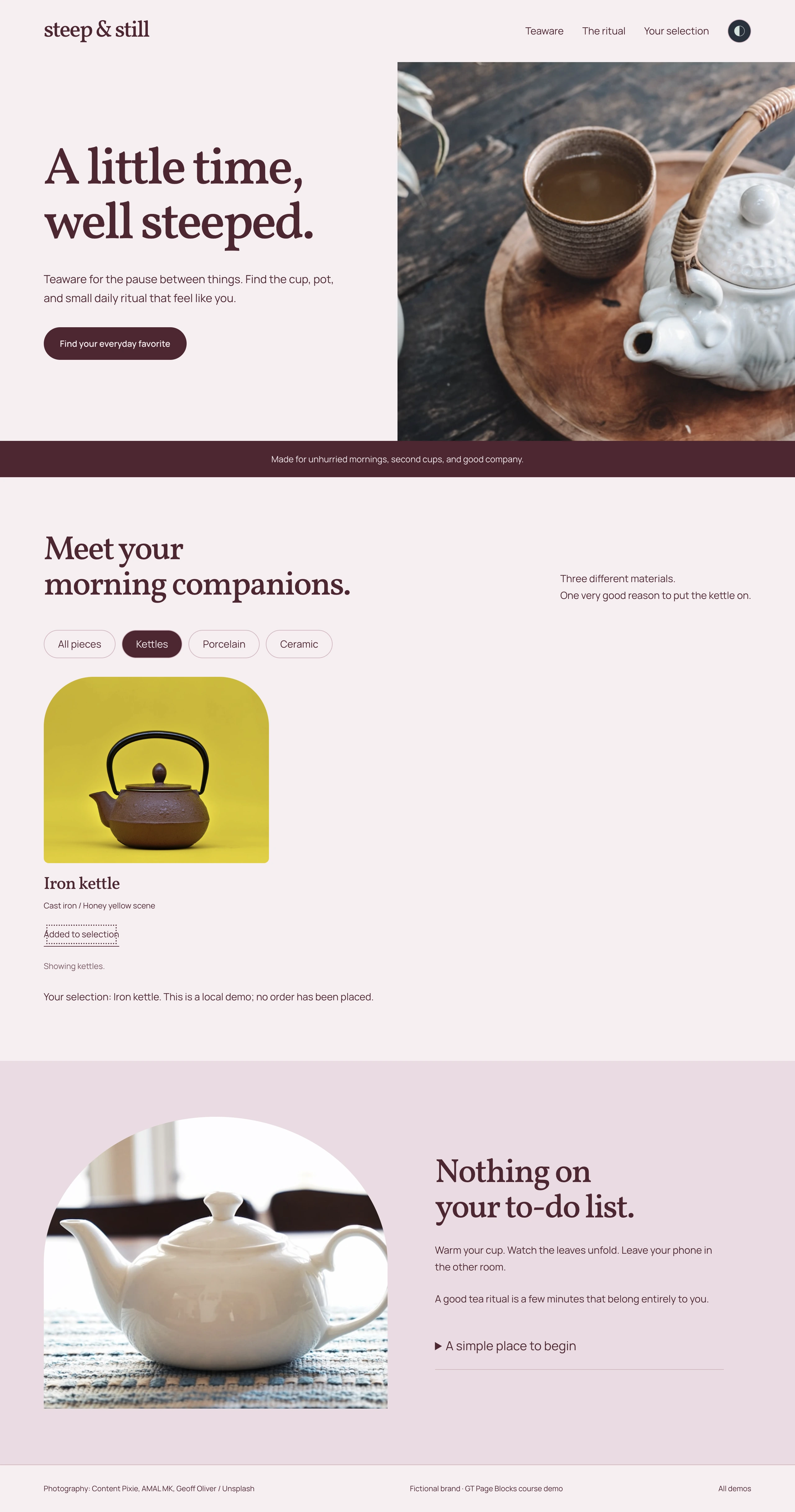
The Steep & Still JSON shows how JavaScript can change a section without replacing the page. After importing it, open the collection section and compare the button data attributes with the script.
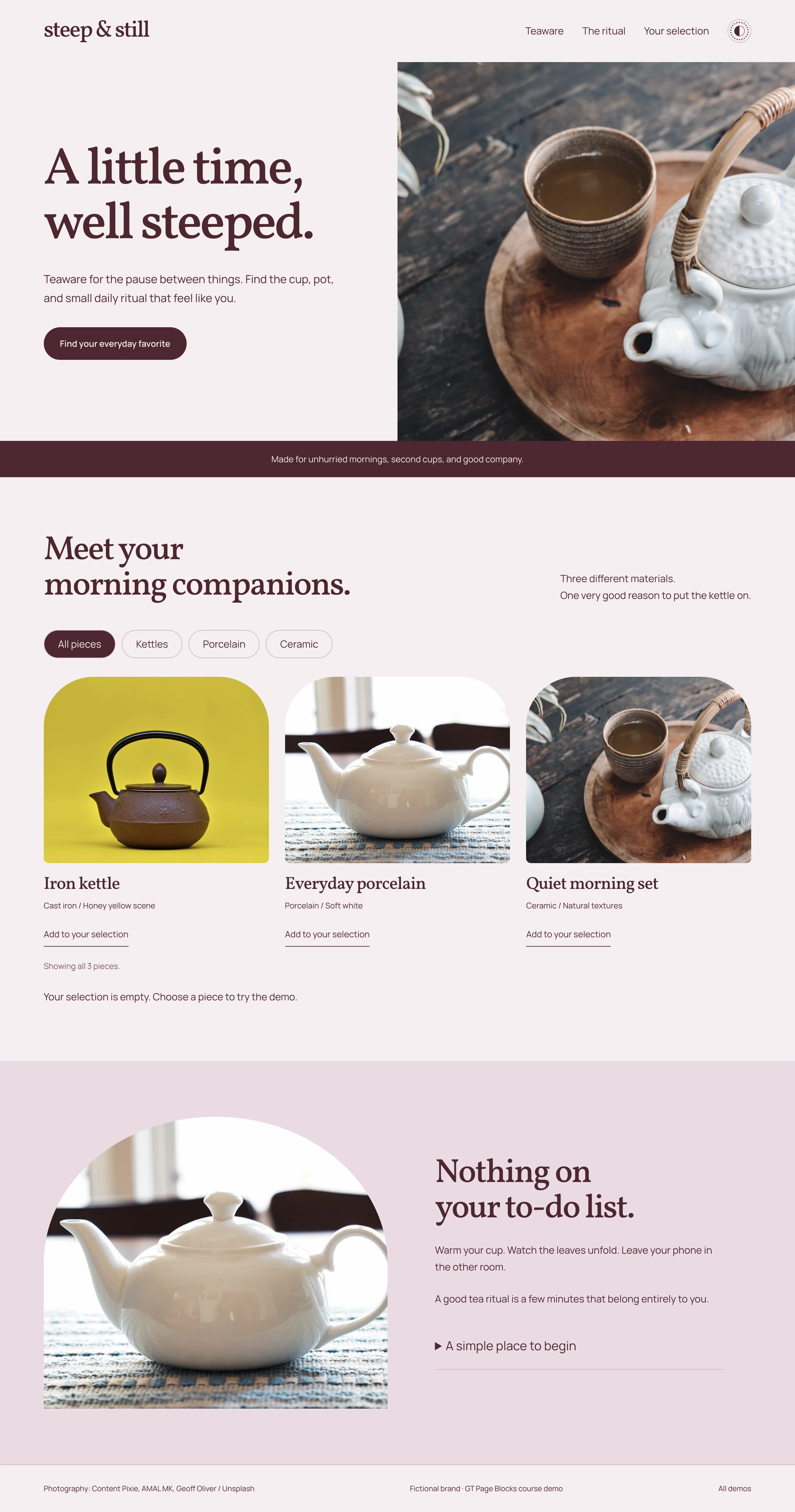
- Select Kettles to hide the other categories.
- Add the iron kettle to your selection.
- Select All pieces to restore the complete collection.
Quick answers to common questions:
Do I add sections in Gutenberg or the visual builder?
Both edit the same blocks; pick by task. Gutenberg is fine for one quick section; the visual builder earns its place on multi-section pages with its live canvas, section list, and keyboard-driven workflow.
Can I start from existing HTML?
Yes, paste your markup into the HTML editor and split it into logical sections as you go. Since 2.5 you can also browse the block library from the editor and insert a saved section as your starting point.
For a step-by-step walkthrough, see How to Turn an HTML or Tailwind Template into a WordPress Page.