
Top 10 Accessibility Features Every Website Should Include in 2026
Over 1.3 billion people worldwide live with some form of disability. That’s 16% of the global population who may struggle to use your website if it’s not built with accessibility in mind. And here’s the part that should get your attention: the European Accessibility Act (EAA) went into effect in June 2025, meaning businesses serving EU customers now face legal consequences for inaccessible websites. The ADA has been enforced in U.S. courts for years. In 2026, accessibility isn’t optional. It’s a legal, ethical, and business requirement.
I’ve audited accessibility on dozens of client sites over the years, and the same issues come up repeatedly. Missing alt text, broken keyboard navigation, forms that screen readers can’t parse, color contrast ratios that fail WCAG guidelines. The good news: most of these fixes take hours, not weeks. And the impact goes beyond compliance. Accessible sites see lower bounce rates, better SEO performance, and broader audience reach.
Here are the 10 accessibility features every website needs, updated for WCAG 2.2 and the current legal landscape.
1. Keyboard Navigation
Every interactive element on your site must be operable with a keyboard alone. No exceptions. This means links, buttons, form fields, dropdown menus, modals, and custom components all need to respond to Tab, Enter, Escape, and Arrow keys. Approximately 2.5 million Americans use wheelchairs, and many rely entirely on keyboard or switch-based navigation.
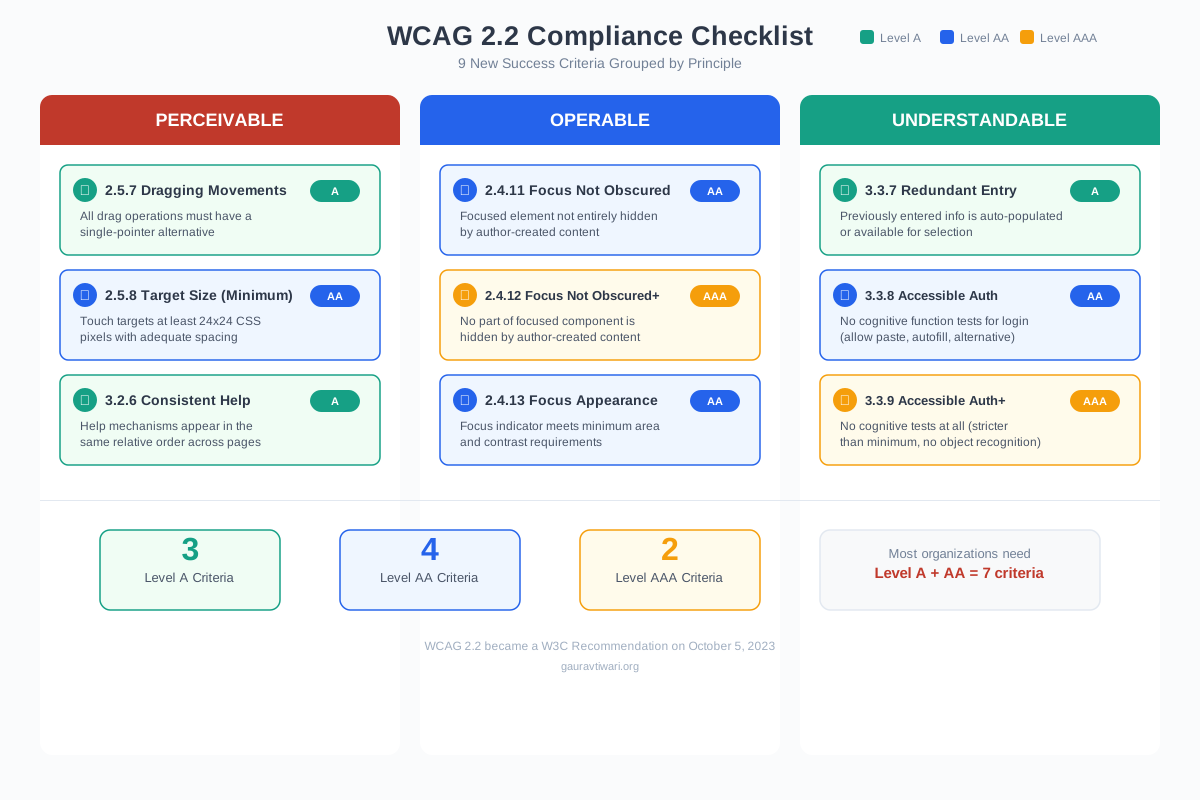
WCAG 2.2 introduced a critical new criterion: Focus Not Obscured (2.4.11). When a user tabs to an element, at least part of that element must be visible and not hidden behind sticky headers, cookie banners, or chat widgets. This trips up a shocking number of modern websites. That sticky navigation bar you love? It might be hiding the focus indicator for the entire page.
What to implement:
- Visible focus indicators: The default browser outline works, but custom focus styles (high-contrast rings, background color changes) are better. Never use
outline: nonewithout providing an alternative - Skip navigation link: Add a “Skip to main content” link as the first focusable element. This lets keyboard users bypass your entire navigation menu
- Logical tab order: Elements should receive focus in a visual reading order (left to right, top to bottom). Avoid using
tabindexvalues greater than 0 - Keyboard traps: Modals and dialogs must trap focus (so Tab cycles within the modal) and release it when closed with Escape. Test this on every popup and overlay
Quick test: unplug your mouse and try navigating your entire site with just Tab and Enter. If you get stuck anywhere, that’s a failure point.
Every time you push a new page or feature to production, spend 60 seconds tabbing through it. This single habit catches more keyboard accessibility issues than any automated tool. Make it part of your QA process.
2. Screen Reader Compatibility
Screen readers (NVDA, JAWS, VoiceOver, TalkBack) convert your website’s code into spoken words. For the 285 million people worldwide with visual impairments, this is their primary way of browsing the web. If your HTML isn’t semantic and properly structured, screen readers produce gibberish.
The fundamentals that make or break screen reader experience:
- Semantic HTML: Use
<nav>,<main>,<article>,<aside>,<header>,<footer>. These landmark elements let screen reader users jump directly to the content section they want - Heading hierarchy: H1 through H6 must follow a logical order. Never skip levels (H2 to H4). Screen reader users navigate by headings the way sighted users scan visually
- Descriptive alt text: Every informational image needs alt text that describes its purpose, not its appearance. “Chart showing 40% increase in Q3 revenue” beats “revenue chart.” Decorative images get
alt="" - ARIA labels: When native HTML isn’t enough, use
aria-label,aria-describedby, andaria-liveregions. But follow the first rule of ARIA: don’t use ARIA when native HTML already handles it - Link context: “Click here” and “Read more” are meaningless to screen readers that list all links on a page. Use descriptive link text: “Read the complete accessiBe review“
3. Text Resizing and Zoom Support
WCAG requires that text can be resized up to 200% without loss of content or functionality. This is one of the most commonly failed criteria because developers hard-code pixel values and fixed layouts that break at larger zoom levels.
The fix is straightforward: use relative units (rem, em, %, vh/vw) instead of fixed pixels for font sizes, spacing, and container widths. Let the browser handle the math when users zoom. Test your site at 200% zoom in Chrome and Firefox. If text overlaps, gets cut off, or horizontal scrolling appears, your CSS needs work.
WCAG 2.2 added Target Size (2.5.8): interactive targets must be at least 24×24 CSS pixels. This helps users with motor impairments, tremors, or anyone using a touchscreen with less-than-perfect accuracy. Most buttons and links already meet this, but icon-only buttons, inline links, and close buttons often fail.
4. Color Contrast and Visual Design
300 million people have color vision deficiency. If your text-to-background contrast ratio doesn’t meet WCAG standards, a significant portion of your audience literally can’t read your content.
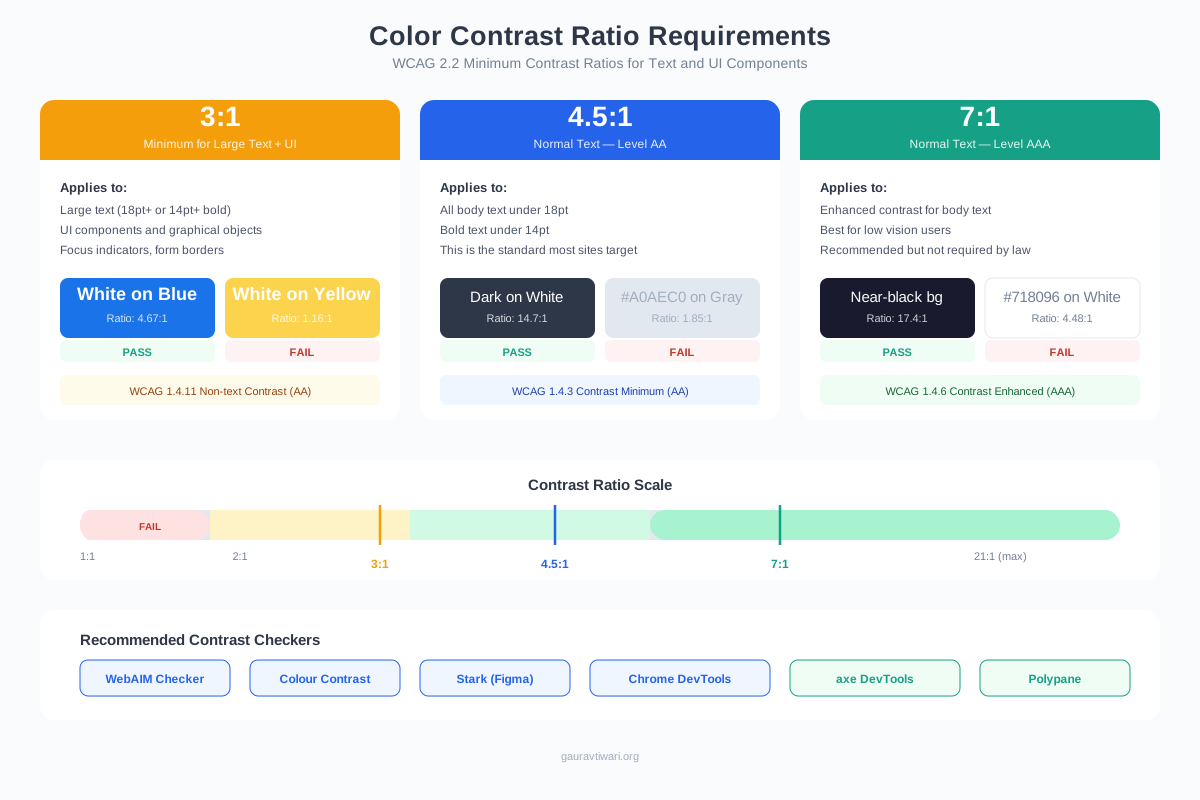
The minimum contrast ratios per WCAG 2.2:
- Normal text: 4.5:1 contrast ratio minimum (Level AA). This means light gray text (#999) on white background fails. You need at least #767676 or darker
- Large text (18px+ bold or 24px+ regular): 3:1 minimum
- UI components and graphics: 3:1 minimum for borders, icons, and interactive elements
- Enhanced (Level AAA): 7:1 for normal text, 4.5:1 for large text. Aim for this when possible
Beyond contrast ratios, don’t rely on color alone to convey information. If you use red for errors and green for success, add icons or text labels too. A red border that means “error” is invisible to someone with red-green color blindness.
Tools: WebAIM Contrast Checker (free), Stark (Figma plugin), Canva‘s color accessibility checker, and Chrome DevTools’ built-in contrast ratio inspector.
Many sites offer dark mode but fail contrast checks in that mode. White text on dark gray can fail just as easily as dark text on light backgrounds. Test contrast ratios in every theme variant your site offers, not just the default.
5. Accessible Forms
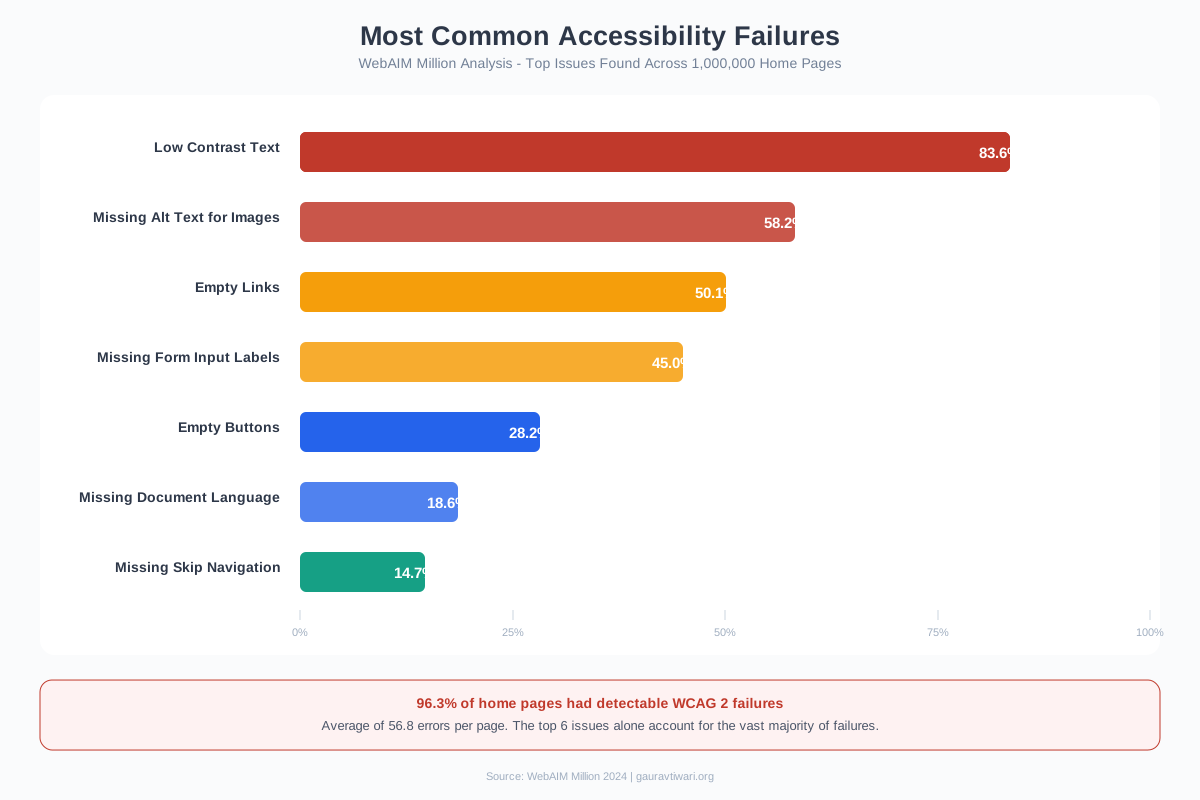
Forms are where accessibility failures cost you money directly. An inaccessible checkout form means lost sales. An inaccessible contact form means lost leads. And inaccessible forms are everywhere. A WebAIM analysis of the top 1 million homepages found that 49.7% had form elements without proper labels.
What every form needs:
- Visible labels: Every input field needs a
<label>element associated via theforattribute. Placeholder text is NOT a label. It disappears when the user starts typing - Error identification: When a field has an error, identify the specific field and describe the error in text. “Please enter a valid email address” beats a generic red border
- Error prevention: For important submissions (purchases, legal agreements), provide review-and-confirm steps, the ability to undo, or input validation before submission
- Autocomplete attributes: Use
autocompleteattributes on personal info fields (name, email, address, phone). This helps everyone but is especially important for users with cognitive or motor disabilities - WCAG 2.2’s Redundant Entry (3.3.7): Don’t ask users to re-enter information they already provided in the same session. If they entered their shipping address, auto-fill the billing address
6. Accessible Video and Multimedia
Video content is everywhere, but only 1% of web videos have audio descriptions, and only 15% have accurate captions. That’s a massive accessibility gap, especially considering that 466 million people worldwide have disabling hearing loss.
What accessible multimedia requires:
- Captions: Not auto-generated (those average 60-70% accuracy). Human-reviewed captions or AI-assisted captions that have been manually corrected. YouTube’s auto-captions are a starting point, not a solution
- Transcripts: Full text transcripts alongside every video. These also boost SEO by giving search engines indexable text content
- Audio descriptions: For video content where visual information is essential (product demos, data presentations), provide narration of what’s happening on screen
- No autoplay: Videos that autoplay with sound violate WCAG 1.4.2. If you must autoplay, start muted and provide visible controls to stop or adjust volume
- Keyboard-accessible controls: Play, pause, volume, fullscreen, and caption toggle must all work with keyboard navigation
7. WCAG 2.2 New Requirements
WCAG 2.2 became the official W3C recommendation in October 2023, adding 9 new success criteria. Several are now being enforced through the European Accessibility Act and referenced in updated ADA compliance guidance. If your site only meets WCAG 2.1, you have gaps.
The most impactful new WCAG 2.2 criteria:
- Focus Not Obscured (2.4.11, AA): When an element receives keyboard focus, it can’t be completely hidden by other page content (sticky headers, chat widgets, cookie banners). At least part of the focused element must be visible
- Dragging Movements (2.5.7, AA): Any functionality that requires dragging (sliders, drag-and-drop interfaces, map interactions) must have a single-pointer alternative. A drag-to-reorder list must also have up/down buttons
- Target Size (2.5.8, AA): Interactive targets must be at least 24×24 CSS pixels with adequate spacing. Exceptions exist for inline links and targets where size is essential
- Consistent Help (3.2.6, A): If you provide help mechanisms (contact info, chat, FAQ links), they must appear in the same relative order across pages
- Redundant Entry (3.3.7, A): Information previously entered by the user must be auto-populated or available for selection. No re-typing the same data
- Accessible Authentication (3.3.8, AA): Login processes can’t require cognitive function tests (CAPTCHAs, puzzles) as the only option. Must provide alternatives like passkeys, email magic links, or password managers
Traditional CAPTCHAs fail multiple WCAG criteria. Image-based CAPTCHAs exclude blind users. Puzzle CAPTCHAs exclude users with cognitive disabilities. reCAPTCHA v3 (invisible) or passkey-based authentication are the accessible alternatives. If you must use CAPTCHA, provide at least two modalities (visual + audio).
8. Legal Compliance Landscape
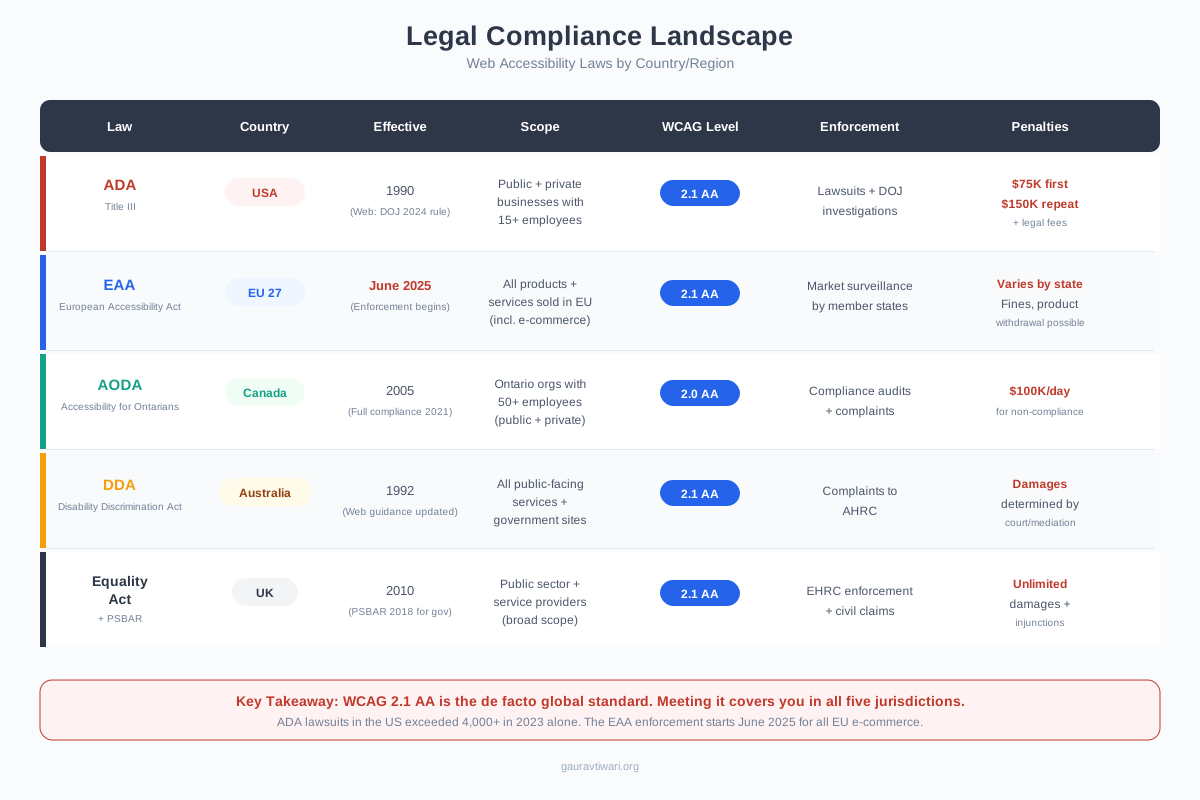
Web accessibility lawsuits have increased 300% since 2018. In 2026, three major legal frameworks affect most businesses with an online presence:
- Americans with Disabilities Act (ADA): U.S. courts consistently rule that websites are “places of public accommodation.” Over 4,000 web accessibility lawsuits were filed in 2024 alone. Most target e-commerce, healthcare, banking, and education sites
- European Accessibility Act (EAA): Effective June 28, 2025. Applies to e-commerce, banking, transport, and communication services. References EN 301 549 standard (which aligns with WCAG 2.1 AA). Affects any business selling to EU consumers, regardless of where the business is located
- Accessibility for Ontarians with Disabilities Act (AODA): Canadian law requiring WCAG 2.0 AA compliance for organizations with 50+ employees. Similar legislation exists in Australia (DDA), UK (Equality Act 2010), and Israel
The most common lawsuit triggers: missing alt text on images, inaccessible navigation menus, forms without labels, missing page language declaration, and insufficient color contrast. These are all basic fixes. Most businesses get sued for things that would take a developer less than a day to fix.
9. Accessibility Testing Tools and Workflow
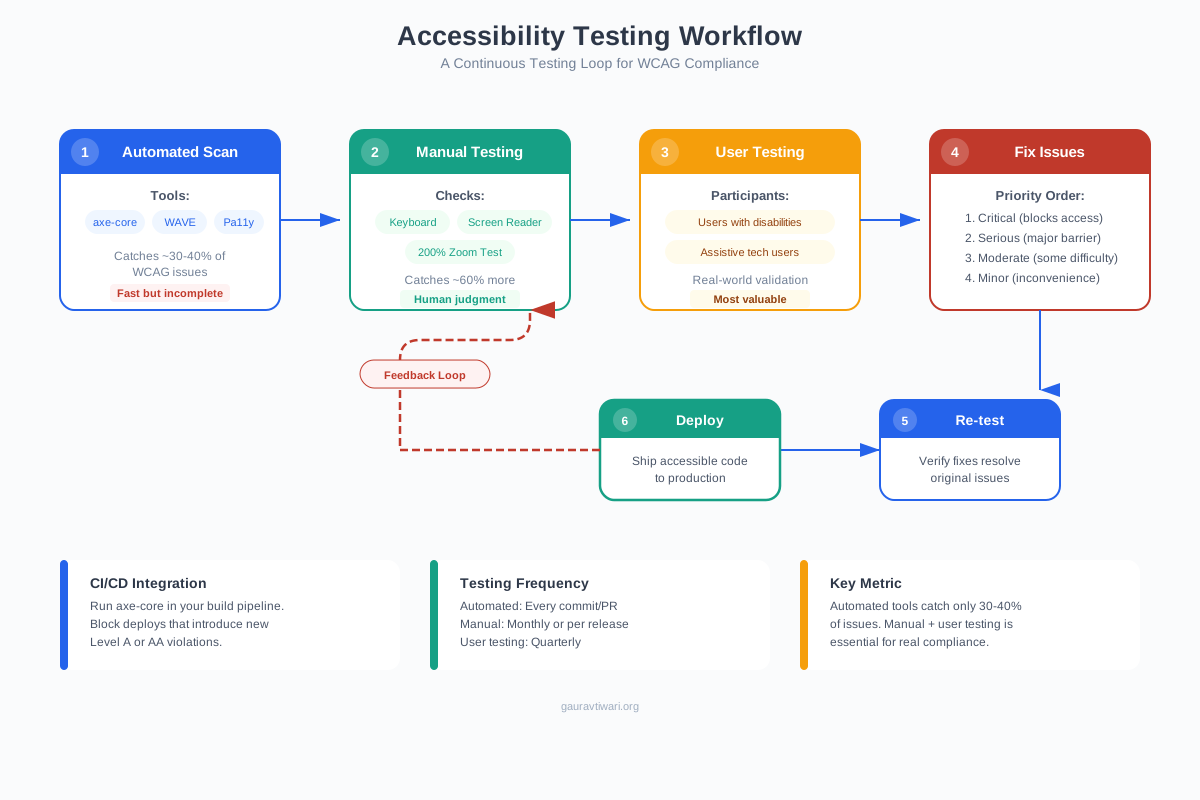
Automated tools catch about 30-40% of accessibility issues. The rest require manual testing and real user feedback. A solid testing workflow combines both approaches.
Automated testing tools (run these first):
- axe DevTools: The industry standard browser extension. Free tier catches the most common issues. Used by Microsoft, Google, and the U.S. government
- WAVE: WebAIM’s browser extension that provides visual indicators of accessibility errors directly on the page. Great for non-developers
- Lighthouse: Built into Chrome DevTools. Runs accessibility audits alongside performance and SEO checks. Good for quick baseline assessments
- accessiBe: AI-powered accessibility widget that provides automated remediation for common issues. Not a replacement for proper coding, but a useful supplementary layer
- Pa11y: Open-source command-line tool for automated testing. Great for CI/CD integration so accessibility gets checked on every deployment
Manual testing checklist:
- Navigate the entire site using only a keyboard
- Test with at least one screen reader (VoiceOver on Mac, NVDA on Windows)
- Zoom to 200% and verify no content is lost
- Check all forms can be completed without a mouse
- Verify color isn’t the only way information is conveyed
- Test with browser text resizing (not just zoom)
- Check video captions for accuracy
Schedule a 30-minute accessibility check on the first of every month. Run axe DevTools on your 5 highest-traffic pages, do a quick keyboard navigation test, and check any new content for alt text and heading structure. This prevents accessibility debt from piling up between major audits.
10. AI-Powered Accessibility Tools
AI is changing the accessibility landscape rapidly. In 2026, AI tools can auto-generate alt text, provide real-time captioning, detect contrast issues, and even suggest remediation code. They’re not perfect, but they’re dramatically lowering the barrier to basic accessibility compliance.
How AI is improving web accessibility:
- Auto-generated alt text: WordPress, Shopify, and Squarespace now offer AI-generated alt text for uploaded images. Accuracy is 70-85%, so always review and edit, but it’s better than the blank alt tags most sites have
- Live captioning: Google Meet, Zoom, and Microsoft Teams provide AI-generated live captions. Quality has improved dramatically, with Google’s model hitting 95%+ accuracy for clear speech
- Accessibility overlays: Tools like accessiBe and UserWay use AI to detect and remediate common issues. They’re controversial (some disability advocates criticize them for papering over fundamental code problems), but they provide a meaningful improvement for sites that can’t afford a full remediation
- Code analysis: GitHub Copilot and Claude can analyze your HTML and suggest ARIA attributes, semantic improvements, and accessibility fixes. Ask your AI coding assistant to audit a component for WCAG 2.2 compliance
- Automated VPAT generation: AI tools are starting to assist with Voluntary Product Accessibility Template (VPAT) documentation, which large enterprises and government agencies require from vendors
The important caveat: AI accessibility tools supplement, they don’t replace, manual testing and proper semantic coding. An overlay widget can’t fix a fundamentally broken navigation structure. Use AI to catch the low-hanging fruit, then invest in proper remediation for the structural issues.
Getting Started With Web Accessibility
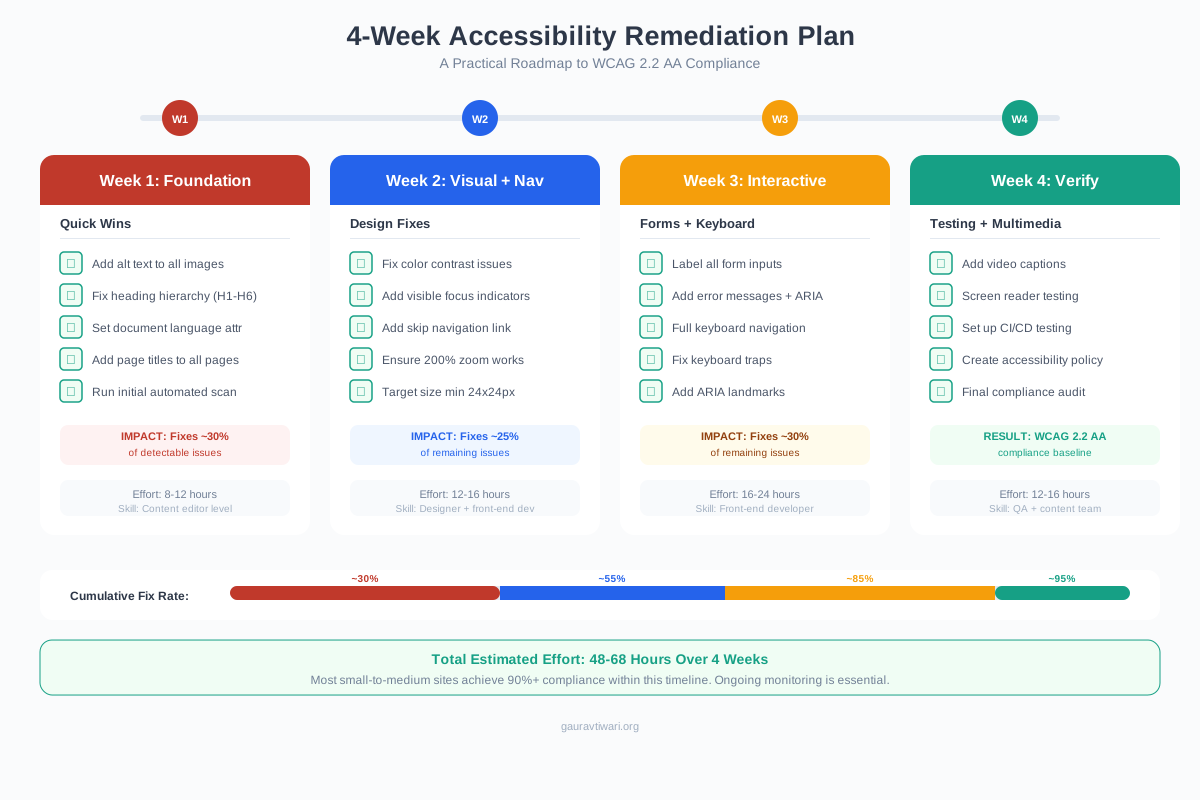
If your site has zero accessibility work done, don’t try to fix everything at once. Prioritize based on impact and legal risk:
- Week 1: Add alt text to all images. Fix heading hierarchy. Add page language declaration (
lang="en") - Week 2: Fix color contrast issues. Add visible focus indicators. Implement skip navigation
- Week 3: Label all form fields. Add error descriptions. Fix keyboard navigation on interactive elements
- Week 4: Add captions to videos. Test with a screen reader. Run axe DevTools on all critical pages
- Month 2+: Address WCAG 2.2 criteria. Set up automated testing in CI/CD. Schedule regular accessibility audits
Accessibility is a journey, not a destination. New content, new features, and new team members all introduce potential issues. Build it into your development workflow and your content creation process. The websites that get accessibility right aren’t the ones that did a one-time audit. They’re the ones that made it part of their user-friendly design culture.
For WordPress sites specifically, I recommend checking out the best accessibility plugins for WordPress to automate some of the ongoing monitoring. And if you’re still using a theme that doesn’t pass basic contrast checks, it’s time for a responsive design upgrade.
Every improvement matters. Start small, test regularly, and remember: you’re not just checking legal boxes. You’re making the web work for everyone.
Frequently Asked Questions
What is WCAG 2.2 and how is it different from WCAG 2.1?
WCAG 2.2 is the latest version of Web Content Accessibility Guidelines, published in October 2023. It adds 9 new success criteria to WCAG 2.1, including Focus Not Obscured (keeping focused elements visible), Target Size (minimum 24x24px for interactive elements), Dragging Movements (requiring single-pointer alternatives), Accessible Authentication (alternatives to CAPTCHAs), and Redundant Entry (not requiring re-entry of information). It also removed one WCAG 2.1 criterion (4.1.1 Parsing) as it’s no longer relevant to modern browsers.
Is web accessibility legally required?
Yes, in most major markets. In the U.S., the ADA is interpreted by courts to include websites, with over 4,000 lawsuits filed annually. The European Accessibility Act (EAA), effective June 2025, mandates accessibility for e-commerce, banking, and communication services. Canada’s AODA requires WCAG 2.0 AA compliance. Australia, the UK, Israel, and many other countries have similar laws. Even without legal requirements, accessibility is increasingly expected by consumers and enterprise buyers.
How much does it cost to make a website accessible?
It depends on your starting point. Basic fixes (alt text, color contrast, form labels, heading structure) can be done in-house in a few days at no cost beyond developer time. A professional accessibility audit typically costs $3,000-$15,000 depending on site size. Full remediation for a complex site ranges from $10,000-$50,000+. Accessibility overlay widgets cost $500-$5,000/year but are supplements, not complete solutions. Building accessibility into new projects from the start costs roughly 10-15% more than ignoring it, which is far cheaper than retrofitting later.
Do accessibility overlays like accessiBe actually work?
They work as a supplementary layer but not as a standalone solution. Accessibility overlays can fix some common issues like text resizing, contrast adjustment, and basic navigation. However, they cannot fix fundamental code problems like missing semantic structure, broken keyboard navigation, or improperly coded forms. Some disability advocates criticize overlays for giving businesses a false sense of compliance. Use them as part of a broader accessibility strategy, not as a replacement for proper development practices.
What is the difference between Level A, AA, and AAA compliance?
WCAG has three conformance levels. Level A is the minimum (basic accessibility like alt text and keyboard access). Level AA is the standard most laws reference and most organizations target. It includes color contrast ratios, consistent navigation, and error handling. Level AAA is the highest level, including enhanced contrast (7:1), sign language interpretation for video, and extended audio descriptions. Most organizations aim for Level AA compliance, with Level AAA applied where feasible. Full AAA compliance across an entire site is rarely practical or required.
How do I test my website for accessibility?
Use a three-layer approach. First, run automated tools like axe DevTools, WAVE, or Lighthouse on your key pages. These catch 30-40% of issues instantly. Second, do manual testing: navigate with keyboard only, test with a screen reader (VoiceOver on Mac, NVDA on Windows), zoom to 200%, and check all forms. Third, involve real users with disabilities in testing. Automated tools miss context-dependent issues that only human testers catch. Schedule automated scans weekly and manual audits monthly or quarterly.
Does web accessibility help with SEO?
Yes, significantly. Many accessibility practices directly improve SEO. Proper heading hierarchy helps search engines understand content structure. Alt text on images helps with image search ranking. Video transcripts provide indexable text content. Semantic HTML helps crawlers parse your pages. Fast-loading, well-structured pages (which accessibility encourages) also improve Core Web Vitals scores. Google has stated that accessible websites tend to rank better because the signals overlap substantially.
Disclaimer: This site is reader-supported. If you buy through some links, I may earn a small commission at no extra cost to you. I only recommend tools I trust and would use myself. Your support helps keep gauravtiwari.org free and focused on real-world advice. Thanks. - Gaurav Tiwari
Thanks for this. Very helpful.