
GT Link Manager Settings & Configuration
GT Link Manager settings fit on one screen: the link prefix, the default redirect type, lifetime click totals, country routing, advanced redirects, trash and uninstall cleanup, plus permalink and diagnostics utilities. A handful of decisions, each with a sensible default. This lesson explains every option and flags the one that’s a genuine breaking change if you alter it later.
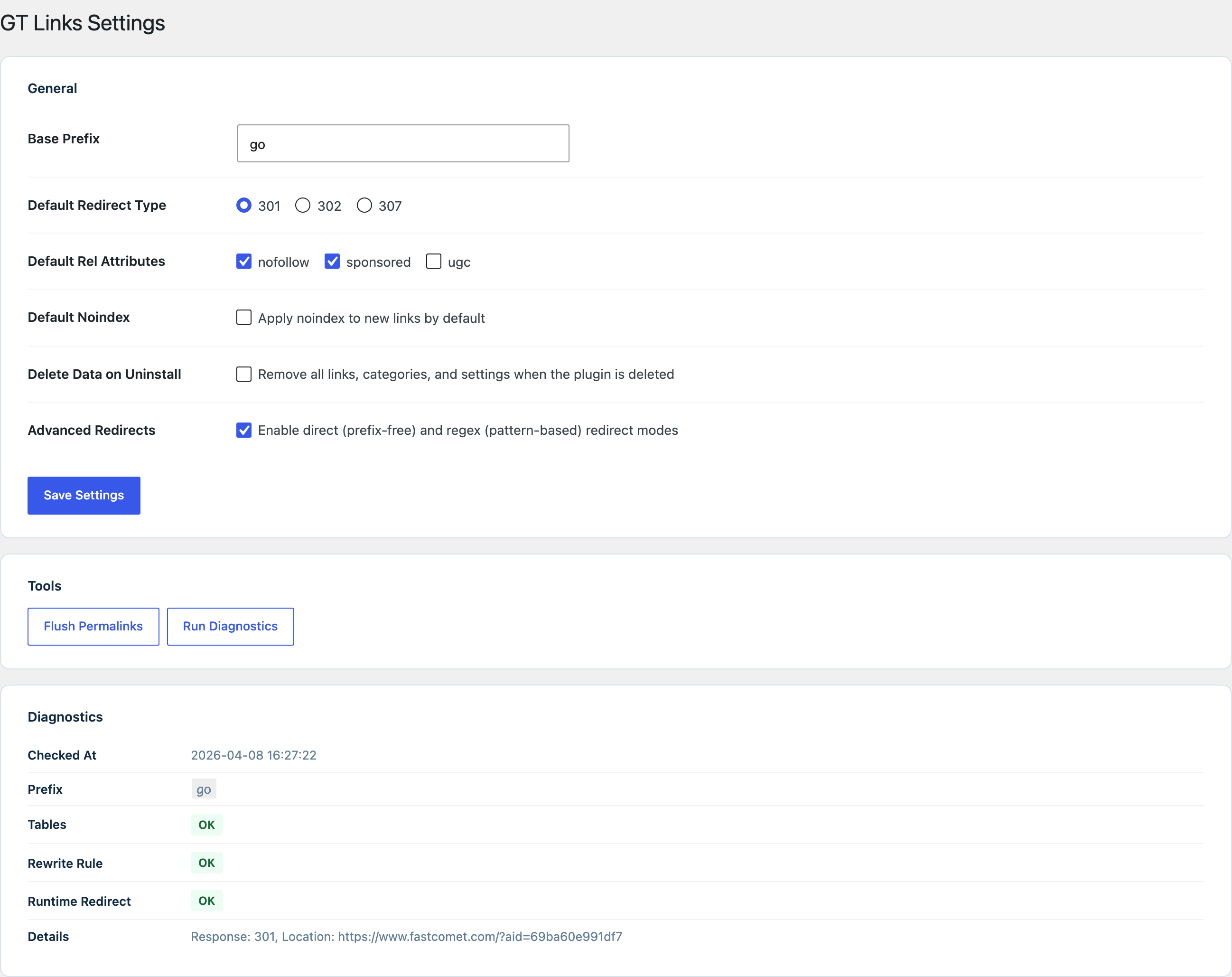
Overview
GT Link Manager settings live at GT Links → Settings. The page has five cards: Link defaults, Basic click counts, AI tools and REST API, Country-based redirects, then Advanced redirects and data cleanup. Below them sit a Flush Permalinks utility and a diagnostics tool. All settings are stored in wp_options under the key gtlm_settings.
Link prefix
The Link prefix (stored as base_prefix) is the path segment that appears between your domain and the link slug. With the default prefix of go, a link with the slug hubspot resolves to yoursite.com/go/hubspot.
You can change the prefix to any lowercase alphanumeric string, with hyphens allowed. Common choices are out, link, r, ref, or a custom word that fits your brand.
Saving a new prefix updates the rewrite rules for you. When you click Save settings, the plugin flushes WordPress rewrite rules and clears its link cache, so the new prefix works on the next request and the old one stops matching. The Flush Permalinks button is only needed if another plugin or a server cache still answers with the old rules.
Prefix changes don’t update any existing branded URLs stored in your content. If you’ve already distributed links containing the old prefix, those links will stop working after the change. Changing the prefix is a breaking change, plan accordingly.
The prefix is validated on save: it’s lowercased, stripped to alphanumeric characters and hyphens, and must not be empty. If an invalid value is saved, it falls back to go.
Default redirect type
This setting controls the HTTP status code used for newly created links. It doesn’t change existing links.
301 (Permanent) is the default and appropriate for most use cases. Search engines treat 301 as a signal that the destination is the canonical URL, though for redirect URLs from your own domain this distinction rarely matters in practice.
302 (Temporary) tells browsers and search engines not to cache the redirect or assume permanence. Use this when you’re temporarily routing to a promotion or seasonal page.
307 (Temporary, method-preserving) is like 302 but preserves the HTTP method on the redirected request. This matters for non-GET requests. For standard affiliate and outbound links, 307 behaves identically to 302 in practice.
Link attributes
The Link attributes checkboxes set which rel attributes are applied to newly created links. You can enable any combination of nofollow, sponsored, and ugc.
Rel attributes are sent as a Link response header on the redirect response, they’re not injected into HTML. For affiliate links, the common setup is nofollow + sponsored.
These defaults apply only to new links. Changing this setting doesn’t affect existing links.
Search engines
When the Search engines checkbox (Keep new short links out of search results) is ticked, new links are created with the noindex flag active. This causes the redirect response to include an X-Robots-Tag: noindex, nofollow header, which instructs search engine crawlers not to index the branded URL.
This is a reasonable default for most redirect use cases, you generally don’t want yoursite.com/go/slug appearing in search results.
Advanced redirects
The Advanced redirects checkbox (Allow prefix-free paths and regular expressions) enables direct and regex link modes. When disabled (the default), only standard prefix-based links are available and resolved. There is zero performance overhead from having this setting present but disabled, the redirect handler skips all direct and regex matching logic entirely.
When enabled, the link creation and edit forms show a Link Mode selector with three options: Standard, Direct, and Regex. The redirect handler adds two additional resolution steps after the standard prefix-based lookup:
- Direct match: the full request path is checked against links with
link_mode = 'direct'. - Regex match: the request path is tested against all active regex rules, ordered by priority.
These additional lookups only run when no standard prefix-based match is found, so existing standard links continue to resolve at the same speed. They do run on every front-end request that misses a standard link, so a broad regex or a direct path can take over a real WordPress page with the same path.
Disabling this setting after creating direct or regex links does not delete those links. They remain in the database but stop resolving redirects until the setting is re-enabled.
Country-based redirects
Version 1.7.0 added country routing. The Country-based redirects card controls whether individual links can route visitors by country, and how the plugin detects that country.
Country routing (Allow links to use country rules): the master switch, off by default. When enabled, the link editor gains a Geolocation section where you build per-link country rules. When disabled, no link routes by country and detection is never invoked. Geolocation costs nothing on links that don’t use it, the check is a single array read.
Detection Method: how the country is read. There is no GeoIP database to install and no external API call, the country comes from a request variable your CDN or web server already provides.
Auto-detect (recommended): checks Cloudflare’sCF-IPCountryfirst, then CloudFront, Vercel, Google App Engine, and common web server GeoIP variables (nginx GeoIP2, Apache mod_geoip, mod_maxminddb).Cloudflare only: ignores every other source. This is the strictest option, because Cloudflare overwrites its own country header at the edge and a visitor can’t forge it.Custom header only: reads only the header you name in the Custom header (optional) field.
Custom header (optional): only needed if your CDN sends the country in a header the plugin doesn’t already recognize, like X-Geo-Country. Leave it blank otherwise.
Troubleshooting (Show country details in redirect response headers): when enabled, geo redirects include an X-GTLM-Country response header showing the detected country, its source, and whether a rule matched. Useful while setting up, turn it off once things work.
Detected Now: a live readout showing which country and source resolved for the current request. This is the fastest way to confirm your CDN is forwarding a country header. It also distinguishes two very different “no country” situations: nothing is proxying the site (normal on local, staging, or direct-to-origin installs, so no country is expected) versus your CDN is in front but didn’t send a country header. Only the second is a misconfiguration, and the readout tells you how to fix it, on Cloudflare that means turning on IP Geolocation for the zone.
Check Detection: a button that lists every country header present on the request with its raw value, and runs a loopback self-test. It sends your site a request carrying a country header and reports what the plugin detected at the other end, which proves detection works even on a local install with no CDN in front. You can also type a country code to validate it before using it in a rule.
The per-link rule builder these settings unlock is covered in the geolocation targeting lesson.
Click counts, trash and AI tools
Lifetime totals (Basic click counts card): keeps a running click total next to each link and adds a sortable Clicks column to All Links. Off by default. For date trends, sources and devices, use GT Links → Analytics and turn on advanced analytics in its Settings tab.
Empty Trash Automatically: permanently deletes links that have sat in the Trash longer than this many days. The default is 30, the range is 0 to 365, and 0 keeps trashed links until you delete them yourself.
Uninstall cleanup: deletes all plugin data when the plugin is uninstalled. Off by default, so your links survive a reinstall.
AI tools and REST API: explains how AI agents and scripts can manage links. Site Agent connects agents with an OAuth sign-in and no extra setup. For other tools, the card offers a Copy setup prompt button that walks an assistant through an Application Password REST connection.
Flush Permalinks button
The Flush Permalinks button regenerates WordPress’s rewrite rules and clears the rewrite cache. Saving settings already does this, so you rarely need the button. It’s equivalent to visiting Settings → Permalinks and clicking Save Changes, but scoped to just flushing rewrite rules without changing any settings.
If your redirect URLs are returning 404 errors after activation or a prefix change, clicking this button is the first thing to try.
Run Diagnostics button
The diagnostics tool runs a series of checks and displays the results inline:
It checks whether both custom database tables (wp_gtlm_links and wp_gtlm_categories) exist and are accessible.
It checks whether the rewrite rules for the current prefix are registered and active.
It checks whether a real redirect resolves: it sends a HEAD request to the branded URL of your newest link and reports the status code and Location header. With no links yet, it reports “No link available for runtime redirect test.” It also shows the database size of all plugin tables and whether Advanced Analytics is on.
When geolocation is enabled, the diagnostics output also shows a Geolocation row: the country detected for the current request, its source, and which country headers (if any) were present.
The results appear as a table. If any check fails, the diagnostic output includes context to help identify the cause.
Capability requirements
The settings page requires the manage_options capability, so only administrators can open it. This check is fixed: the gtlm_capabilities filter covers links, categories, import and export, Quick Edit and the REST API, but not the settings page.
Programmatic settings override
If you need to set configuration values without using the admin UI, the gtlm_settings filter lets you override any setting at runtime:
add_filter( 'gtlm_settings', function( $settings ) {
    $settings['base_prefix'] = 'ref';
    $settings['enable_advanced_redirects'] = 1;
    return $settings;
} );
This is useful for managing settings via code in a must-use plugin or theme functions file, particularly in environments where multiple sites share the same configuration.
The Advanced redirects toggle here unlocks the Direct and Regex modes covered in the redirect system lesson. The diagnostics panel output is decoded in troubleshooting.