
Gaurav Tiwari · From the Workbench
Improve FluentCart Features with GT Extensions 2.5.0
Introducing GT Extensions for FluentCart: practical tools for custom orders, local prices and the work that comes after a sale.
Imagine you sell notebooks online. A customer likes them, but wants a batch with custom covers for an event. Before they can buy, you need to agree on the details and give them a price. Your usual Add to Cart button can’t settle that conversation.
The sale now needs a few steps your standard product page doesn’t cover. You have to turn the request into an offer the customer can accept, collect payment and keep track of the order afterward.
Two WordPress tools are involved here, and they do different jobs:
-
FluentCart turns a WordPress website into an online store. It manages products and orders, with a checkout where customers enter their details and pay.
-
GT Extensions for FluentCart is my separate add-on plugin. It adds optional tools to that store, including custom quotes and invoices. It needs FluentCart installed to work.
I’ve released GT Extensions 2.5.0 with a way to take a customer from a quote request through to a payable invoice. That notebook order is a useful example of why it matters.
The plugin’s features are grouped into optional modules, which are tools you can turn on individually. A shop taking custom orders can start with quotes and invoices. Another store may only need to accept payments in a different currency.
When the Price Needs a Conversation
For the notebook order, a quote is your proposed price for the agreed work. An invoice is the bill the customer can pay once they’ve accepted that proposal. GT Extensions connects those steps inside the store.
Here’s how that order moves forward:
-
The customer fills in a request form with the quantity and the custom covers they need.
-
You prepare a proposal describing what you’ll supply and what it will cost.
-
The customer reviews the proposal and accepts it if they’re happy to proceed.
-
Their acceptance creates an invoice they can pay.
-
Payment and the resulting order are handled through FluentCart, where you can manage the sale.
The request form can sit beside a specific product, such as your notebooks, or accept general inquiries about custom work. You can add it in the WordPress editor as a block, or insert it with a shortcode, a small piece of text that displays the form on a page.
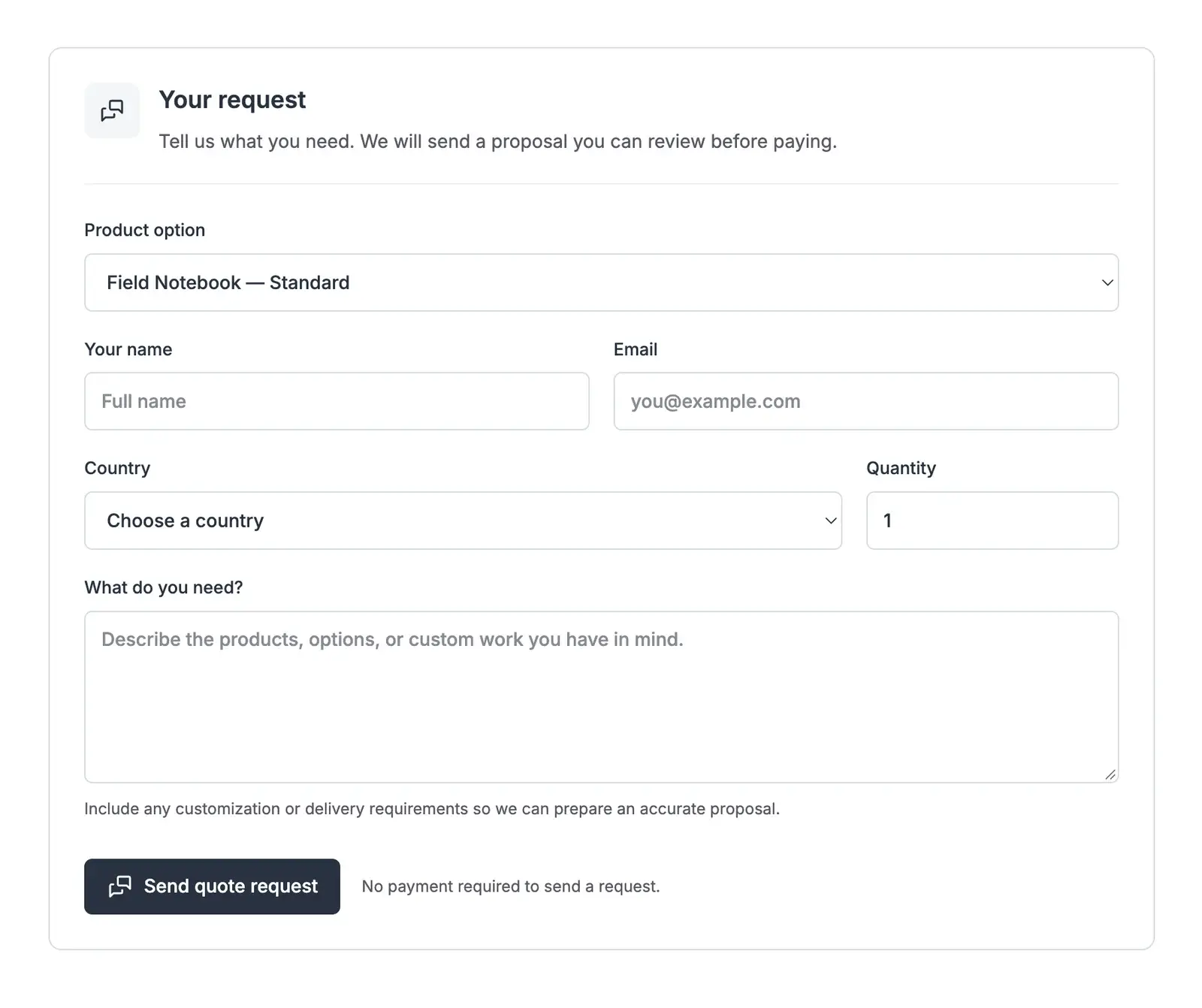
Submitting the form doesn’t charge the customer. You still need to review what they want and prepare the offer. The useful part is that the accepted offer can lead to payment and an order you can manage in FluentCart.
If you’ve already agreed on the work by email or in a conversation, you can create an invoice directly. There’s no need to make the customer submit a quote request first. The invoice tools let you:
-
Bill for existing products or custom work, with an image or icon beside each item.
-
Reuse customer details on future drafts, or change them for just one invoice.
-
Bring in your business details from FluentCart and choose which ones appear.
-
Preview the customer’s version, including its payment status and print layout. Paid invoices remain viewable.
-
Issue the invoice, then email its payment link when you’re ready.
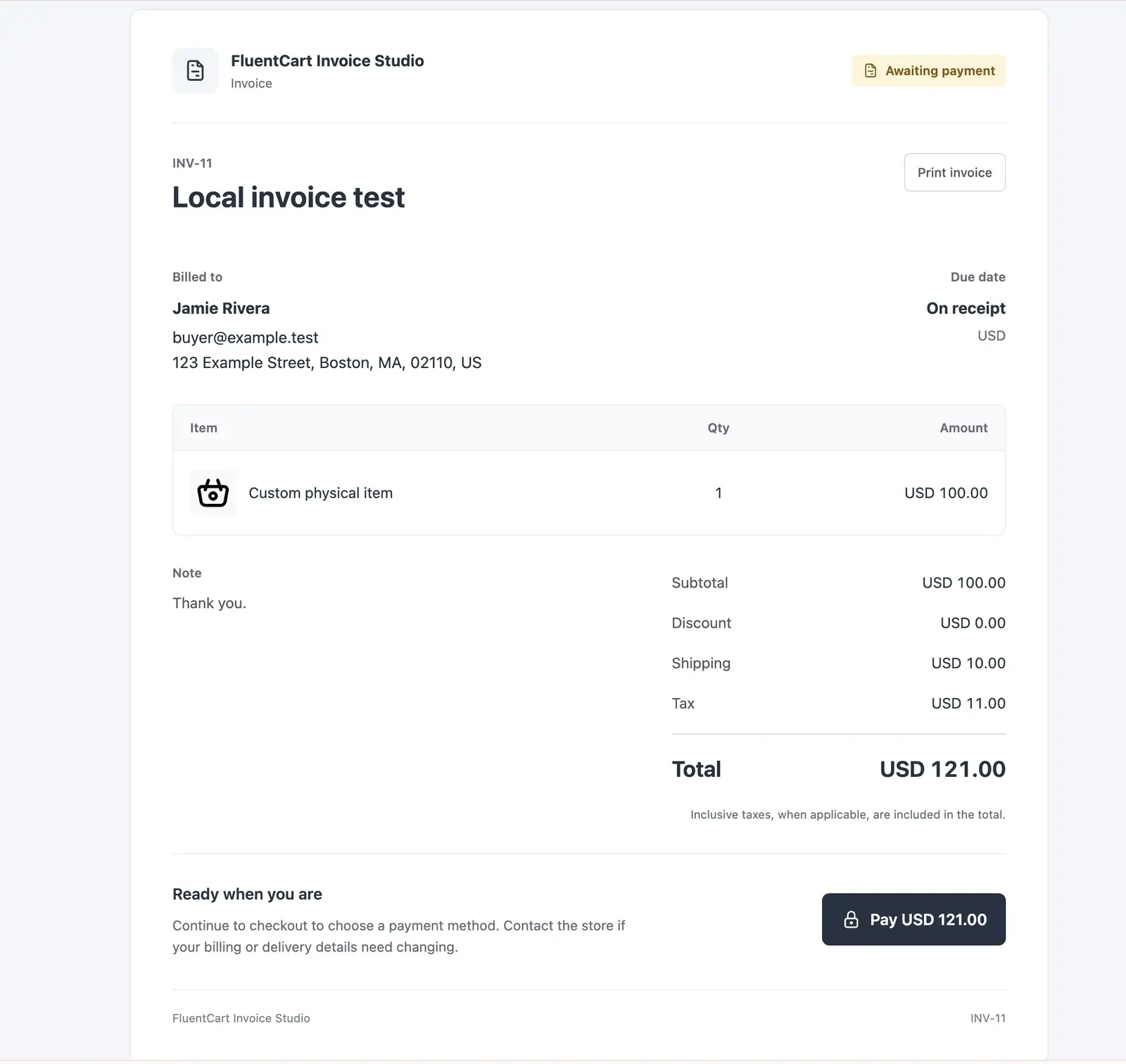
Issuing an invoice and emailing its payment link are separate actions. That gives you room to review the amount before asking someone to pay. Saving a draft shouldn’t accidentally send a bill.
An issued invoice also keeps the seller details recorded at the time. If you change your store information later, that earlier invoice keeps its original details.
Make Checkout Fit the Order
Checkout is the page where your customer reviews the order and pays. Checkout Builder lets you choose a ready-made layout for that page without rebuilding it in a page editor. It works with classic WordPress themes too.
There are 5 layouts to preview:
-
Classic.
-
Split.
-
Warm Split.
-
Focused.
-
Review First.
For example, Warm Split places the order summary on a warm background beside a white payment form. Review First puts the order summary above the customer’s details, so they can review what they’re buying before filling in the form.
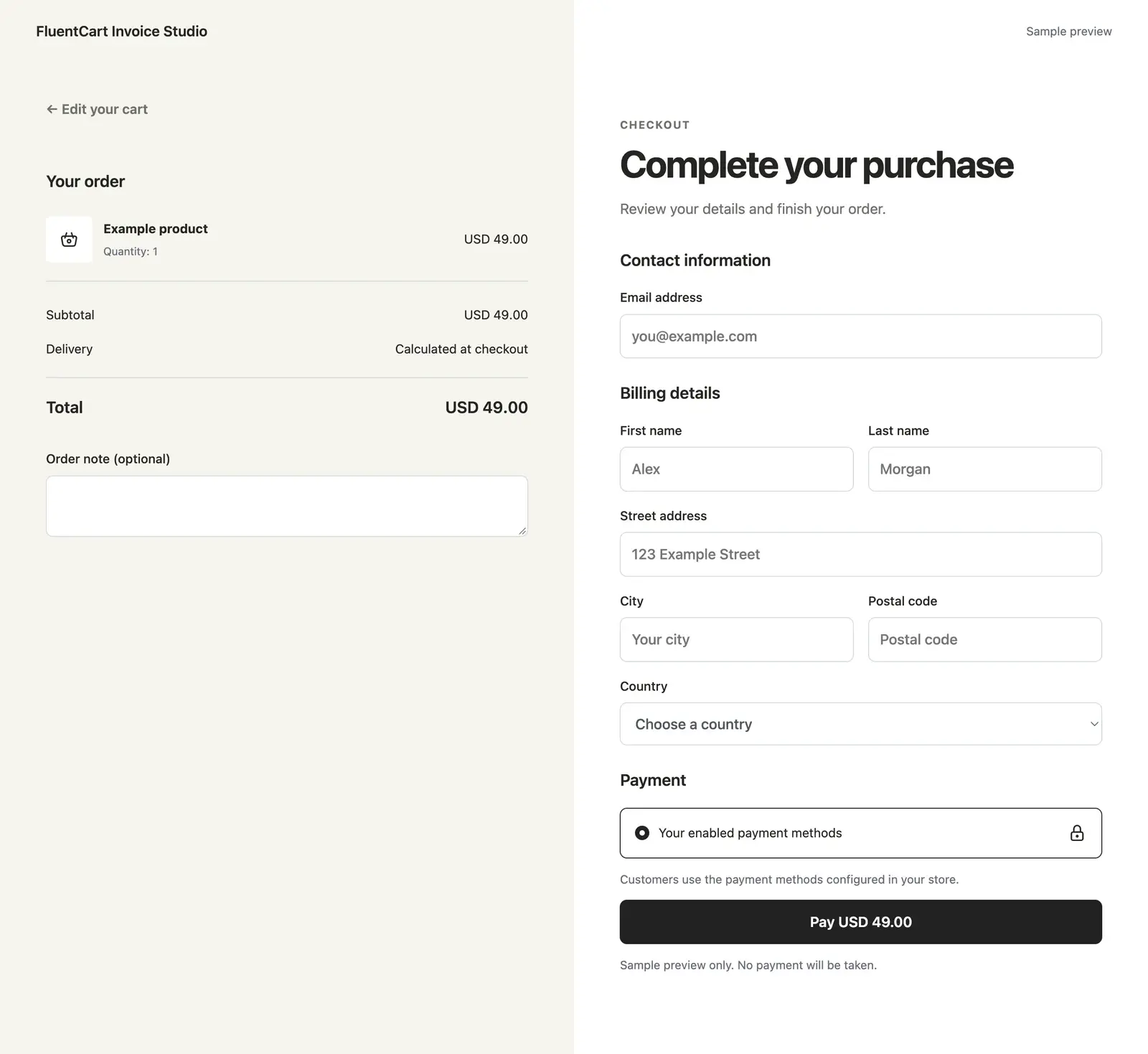
Your current checkout stays in place until you select a design. Turning on Checkout Builder or saving appearance settings doesn’t activate a layout. Installing my plugin shouldn’t quietly redesign a checkout that already works.
FluentCart still calculates the order total and handles payment through your configured payment methods. Checkout Builder changes how that page looks.
Other optional tools help with the details a customer needs to choose or provide:
-
Gift options: collect a gift message or charge for wrapping. Conditional fields show a question only when an earlier answer makes it relevant.
-
Delivery and pickup times: let buyers choose an available slot for a one-time physical order. You can limit orders per slot, stop accepting bookings before it starts and exclude days you’re closed.
-
Services: skip shipping for work that doesn’t need delivery, and keep the paid order marked Processing until the work is complete.
That last distinction matters for work such as a website audit. The customer may have paid, but you still owe them the finished work. Keeping the order marked Processing makes that unfinished work visible.
Help Customers Buy in Their Own Way
A customer buying in India may want to pay in rupees, while a customer in the US expects dollars. Multi-currency checkout lets you offer supported currencies and decide how prices are set in each. You can set a deliberate local price instead of relying only on an exchange-rate conversion.
For example, the currency tools let you:
-
Set a fixed price in each currency for a particular product option, such as a notebook size or pack.
-
Convert prices automatically or enter your own exchange rates, with optional markup and rounding.
-
Choose which payment providers can be used for each currency and which one is preferred.
-
Select an eligible currency automatically at checkout, while respecting the customer’s own selection.
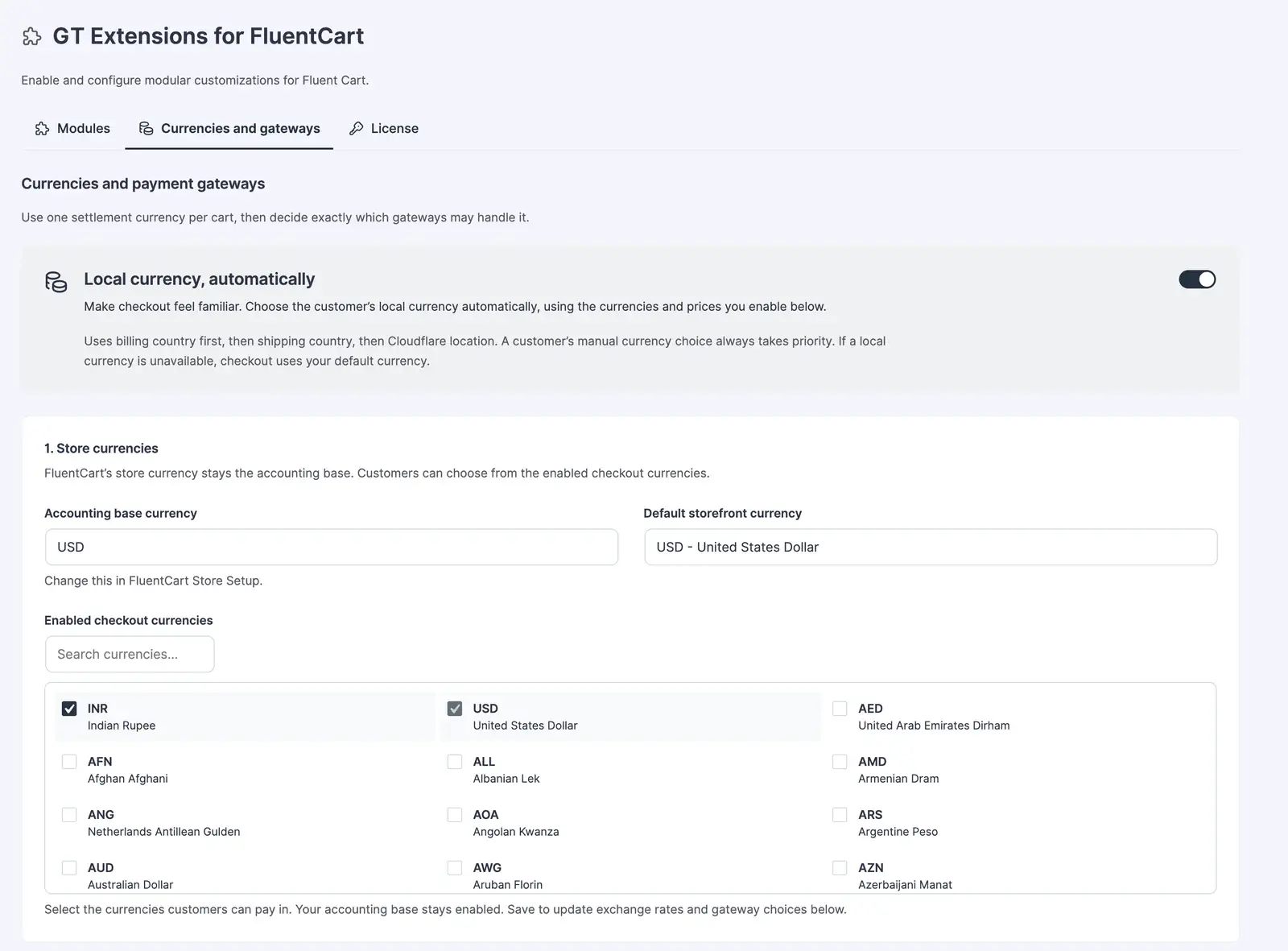
The whole cart and its order use one currency at a time. The selected payment provider must support that currency too. Version 2.5.0 also fixes a currency-switching issue that could make an existing cart appear unavailable.
Some customers want to return to a product later. Others want to buy the same supplies again. Those are different needs, so the plugin offers separate tools:
-
Wishlists help a customer save a product option for later. A list saved before signing in can merge into their account afterward.
-
Saved carts let signed-in customers keep reusable shopping lists. Order Again rebuilds eligible previous purchases at current prices, using products that are still available.
-
Back-in-stock alerts let a customer ask to hear when a sold-out product option becomes available. They confirm the request before receiving those alerts.
A saved product doesn’t reserve stock or guarantee an old price. The store checks current prices and availability when the customer comes back.
There are smaller controls for everyday selling decisions too:
-
Send a buyer to another website when the purchase needs to happen there.
-
Label a free product with words such as Free instead of displaying a zero price.
-
Show prices only after a customer signs in, when that suits your store.
-
Show how many units have sold.
-
Display a low-stock message when inventory drops.
-
Set the smallest or largest quantity a customer can order.
-
Change the wording on the Add to Cart button.
-
Help supported cart requests and checkout links avoid stale cached pages, which are older copies a website may reuse to load faster.
Start With the Problem You Actually Have
GT Extensions now includes 18 optional modules. That isn’t a reason to turn on all 18. If your store already handles your orders comfortably, you may not need this plugin at all.
My recommendation is to start with the step that keeps creating extra work. For the custom notebook order, that would be quotes and invoices. For a shop arranging collection by email, pickup scheduling could be the useful addition. A store that’s happy with its checkout can leave Checkout Builder off.
Each module has a documentation link beside its settings, and the training course walks through setup with examples. Switching a module off keeps its settings, so you don’t have to start again if you need it later.
The plugin loads its styling and scripts on the screens that need the enabled features. You can leave unrelated tools switched off.
There are also limits worth knowing before you choose it:
-
Custom invoices handle one-time payments. They don’t support recurring billing or collecting part of the balance online and the rest later.
-
Paid extras aren’t available on subscription purchases or locked invoice checkouts, where the agreed invoice controls the amount.
-
The new commerce modules require FluentCart 1.6.4 or newer.
-
Before using a new checkout or invoice flow with customers, check payments and email delivery on a staging site, a separate test copy of your store.
GT Extensions works with FluentCart Free or Pro, installed separately. Features that depend on a FluentCart Pro capability still need that capability. The GT Extensions licenses cost:
-
$39/year, with updates and support while the subscription is active.
-
$99 lifetime, paid once.
Both licenses cover unlimited site activations. These prices are for GT Extensions; they don’t include a FluentCart Pro license.
If one of these workflows fills a gap in your store, the GT Extensions product page has the full feature list and license options.