
The visual builder automatically saves your work to the browser’s localStorage as you edit. If you accidentally close the tab, lose your connection, or your browser crashes, your work can be recovered.
The builder autosaves your work to browser localStorage as you type: close the tab, lose your connection, or crash mid-edit, and the draft recovery prompt restores exactly where you stopped. This lesson covers how the snapshots work and their limits.
How Autosave Works
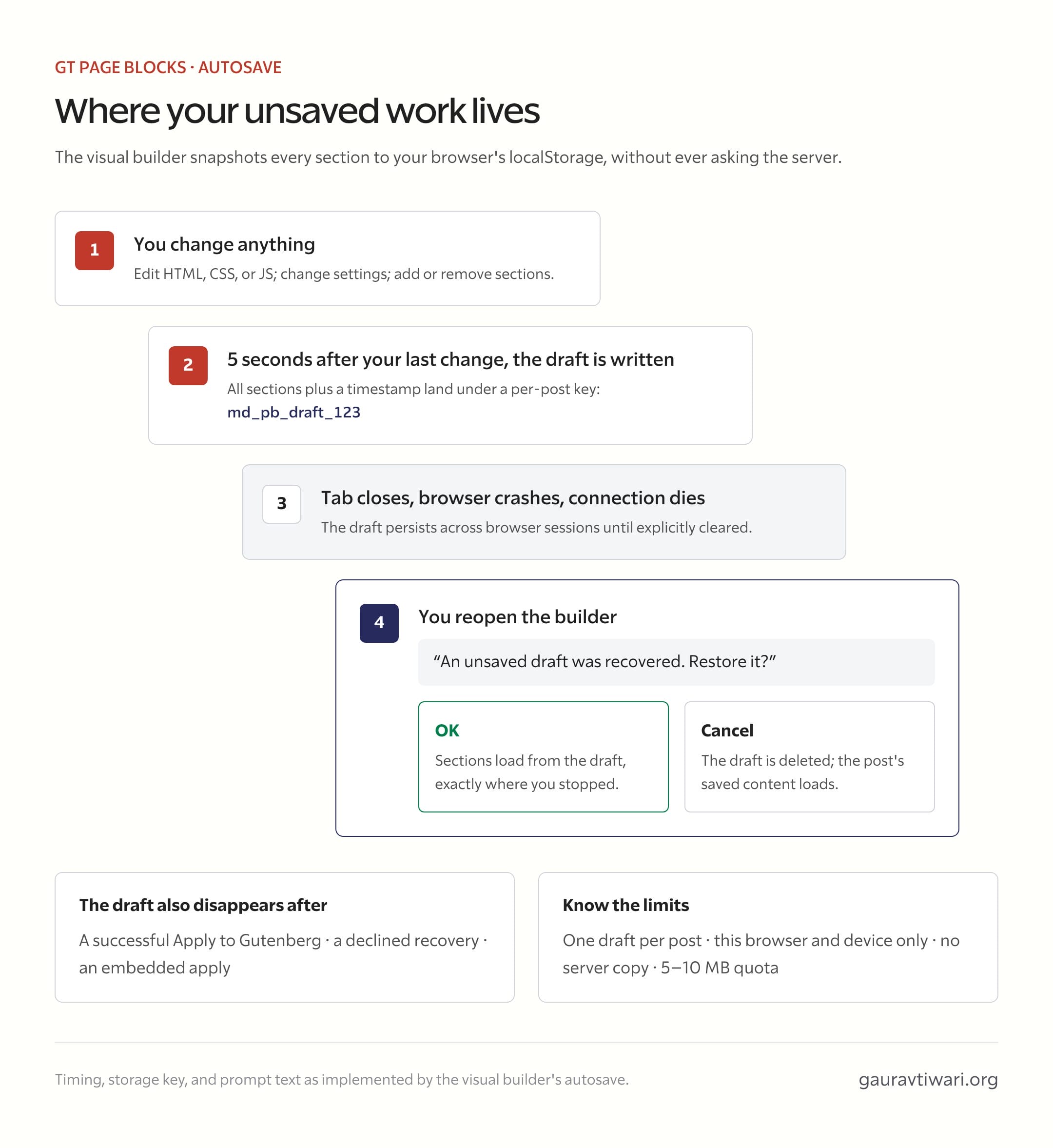
Every time you make a change to any section (editing HTML, CSS, or JS; changing settings; adding or removing sections), an autosave is queued. The autosave fires 5 seconds after your last change, writing the current state of all sections to localStorage.
The autosave data includes.
- All sections with their content, CSS, JS, jsLocation, format, and phpExec settings.
- A timestamp of when the draft was saved.
The localStorage key is based on the post ID: md_pb_draft_123 for post 123. This means drafts are per-post and won’t conflict with each other.
Draft Recovery
When you open the visual builder, it checks localStorage for a saved draft for the current post. If a draft exists, you’ll see a browser confirmation dialog.
An unsaved draft was recovered. Restore it?
If you click OK, the builder loads the sections from the saved draft instead of from the post content.
If you click Cancel, the draft is discarded and the builder loads the post’s saved content normally.
When Drafts Are Cleared
The autosave draft is cleared in these situations.
- Successful save. After “Apply to Gutenberg” completes successfully, the draft is removed.
- Declined recovery. If you choose not to restore a draft, it’s deleted.
- Embedded apply. If the builder sends sections to a parent window (embedded mode), the draft is cleared.
Limitations
Browser-local storage. Drafts are stored in the browser’s localStorage, which means.
- They’re specific to the browser and device. A draft saved in Chrome on your laptop won’t appear in Firefox or on a different computer.
- They persist across browser sessions until explicitly cleared.
- They’re subject to the browser’s storage quota (typically 5-10 MB per origin).
No versioning. There’s only one draft per post. Each autosave overwrites the previous draft. There’s no undo history or version list.
No server-side backup. The draft exists only in localStorage. If you clear your browser data, the draft is lost.
Storage Errors
If localStorage is full or unavailable (e.g., in private browsing mode on some browsers), the autosave fails silently. No error is shown to the user, and the builder continues to function normally. The catch block in the save function absorbs the error.
Similarly, if the stored draft is corrupted or unparseable, it’s treated as non-existent and the builder loads from the post content.
Quick answers to common questions:
Where are autosaves stored?
In the browser’s localStorage, keyed per page, separate from WordPress revisions. They survive tab closes and crashes on the same browser; they don’t follow you across devices, which is what real saves are for.
How do I recover work after a crash?
Reopen the builder on the same page in the same browser: a recovery prompt offers the autosaved draft with its timestamp. Accept to restore, or dismiss to start from the last server-saved version.